


When we create or change YouTube accounts and want to synchronize the subscribed channel list to other accounts, it is troublesome to manually resubscribe one by one. At this time, the Chrome extension “Youtube Subscriptions Transfer” can greatly simplify this process. It can automatically retrieve and export the subscription list of the current account, and then transfer these channels to the new account with one click. There is no need for cumbersome operations and no need to worry about missing important channels. It can be completed in just a few simple steps. This article will teach you step by step how to install and use this plug-in, and share practical experience and precautions to help you manage the subscription content of multiple YouTube accounts more efficiently:

Youtube Subscriptions Transfer Download
Youtube Subscriptions Transfer is a plug-in in the Chrome Online App Store. Please download it from the URL above to add it to the extension. The functions provided by this plug-in are completely free, so you don’t have to worry about being charged:
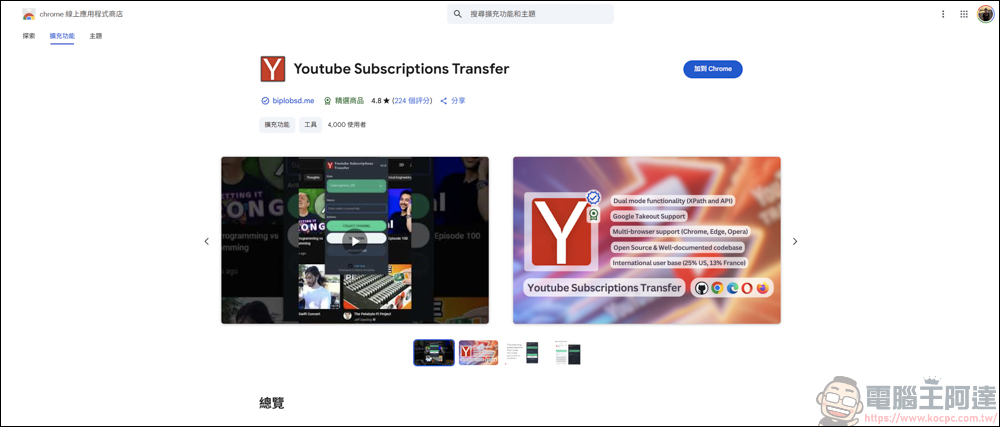
Youtube Subscriptions Transfer tutorial
First open your original Youtube homepage:

Find the Youtube Subscriptions Transfer you just installed in the extension:

Don’t worry too much if there are red words that are unavailable, because the plug-in only supports extracting your subscription list under the English interface:

Changing the language of Youtube is also very simple. Click on the profile picture on the upper right → Language → Change to English (US):

After making the changes, execute Youtube Subscriptions Transfer again and it will work normally:
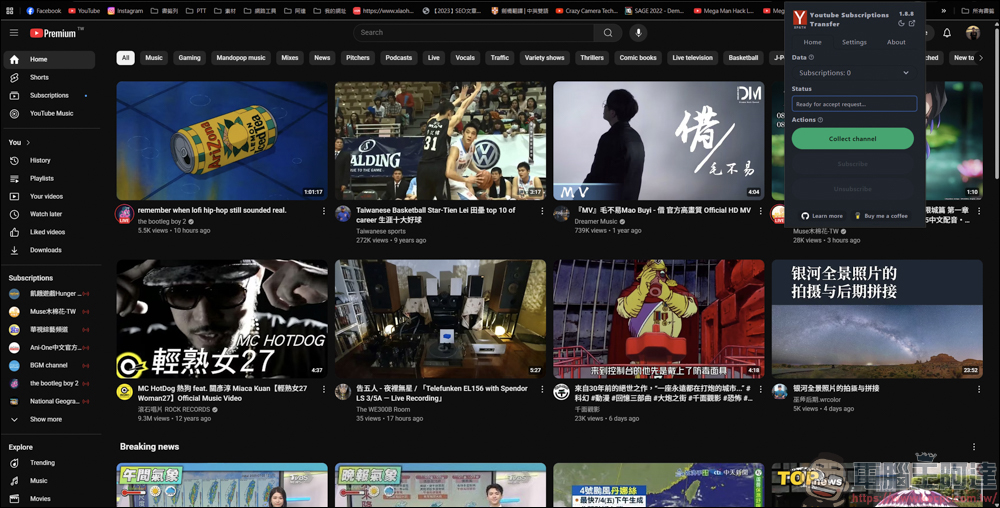
It is also very simple to withdraw the subscriptions of your current Youtube account. After pressing Collect channel:
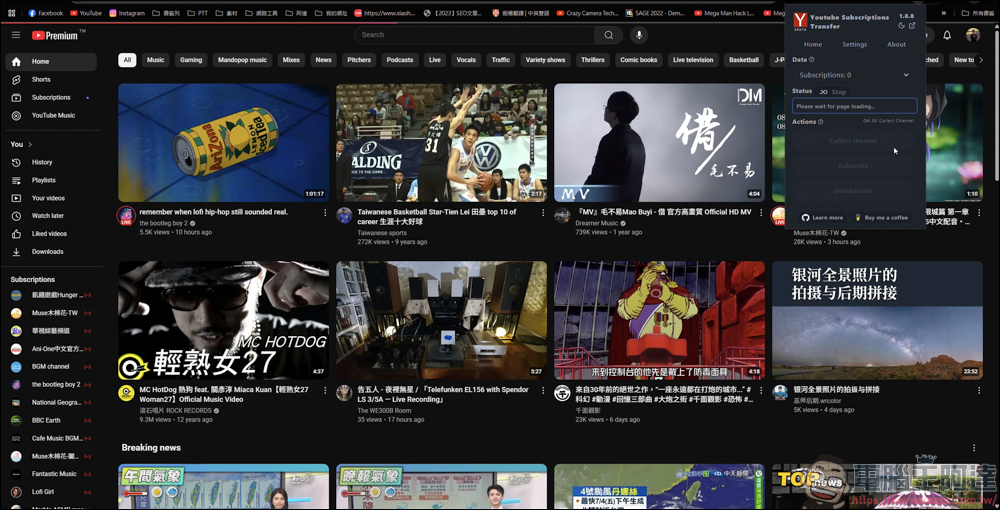
Youtube Subscriptions Transfer will go to your subscription list and grab all your subscriptions:
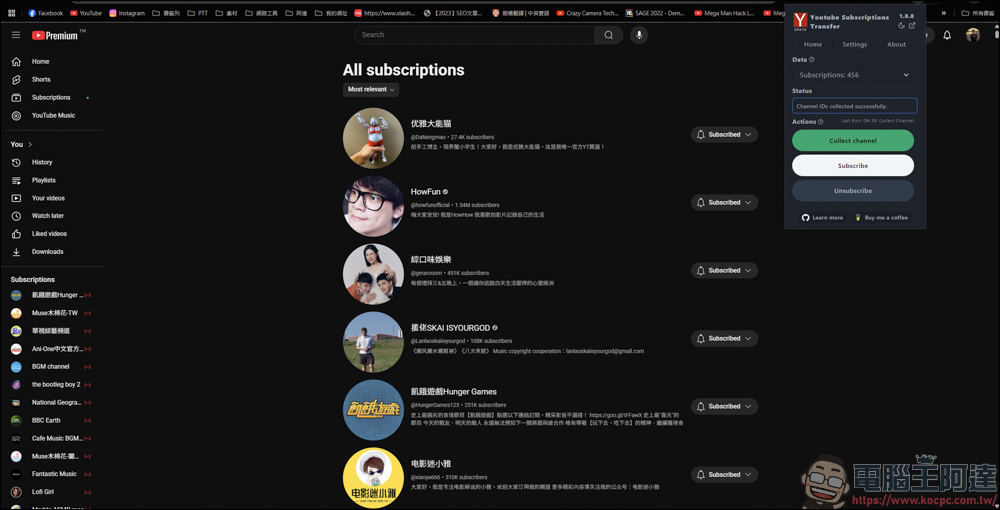
Did you notice the number 456? Click the drop-down arrow to see all your subscriptions. 456 represents the number of all my subscription channels:
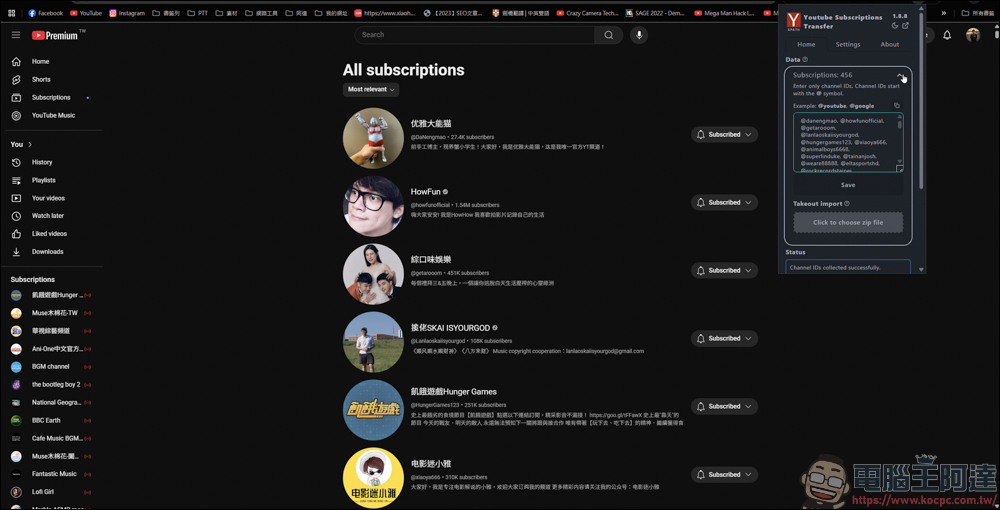
Next, you need to enable another Youtube account to subscribe to the same channel. First select all with ctrl + A in the window, and then copy the content:
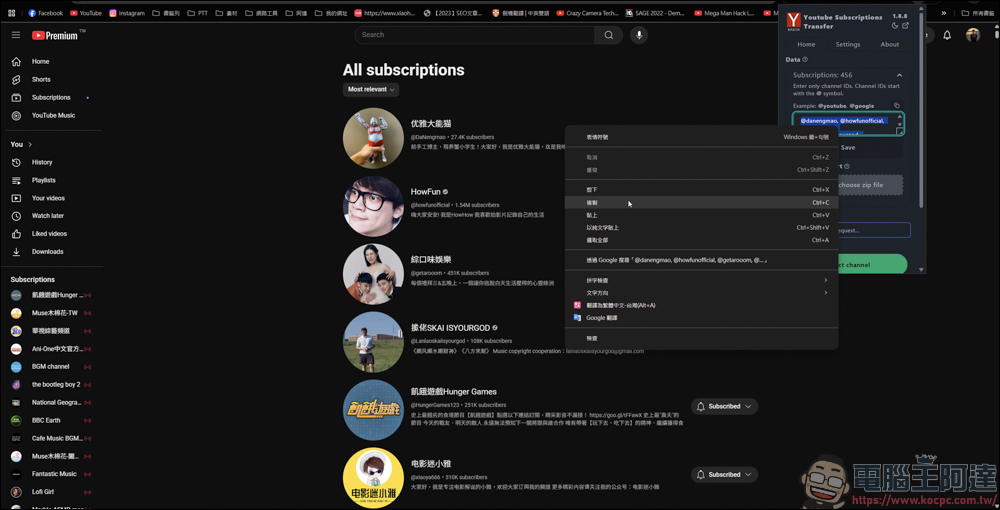
After copying, switch to another Youtube account:
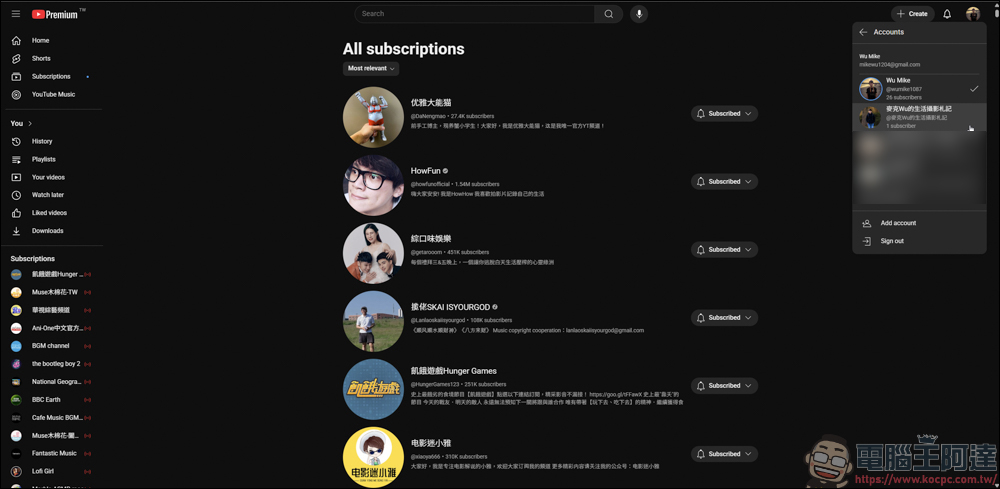
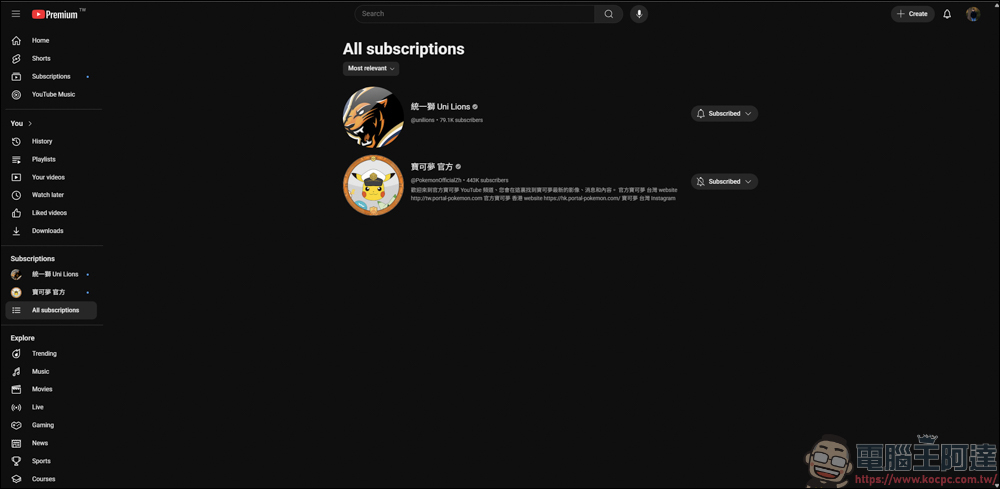
After switching, you can see that my Youtube account does not have many subscribed channels:
Open Youtube Subscriptions Transfer in the same way as in the new account, and then paste the content you just copied in the subscription content:
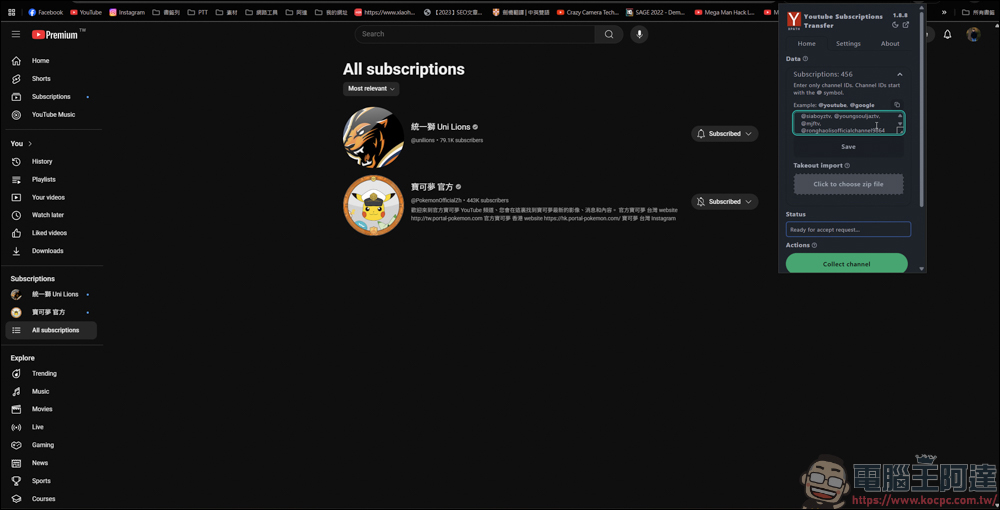
After pasting, press Subscribe:
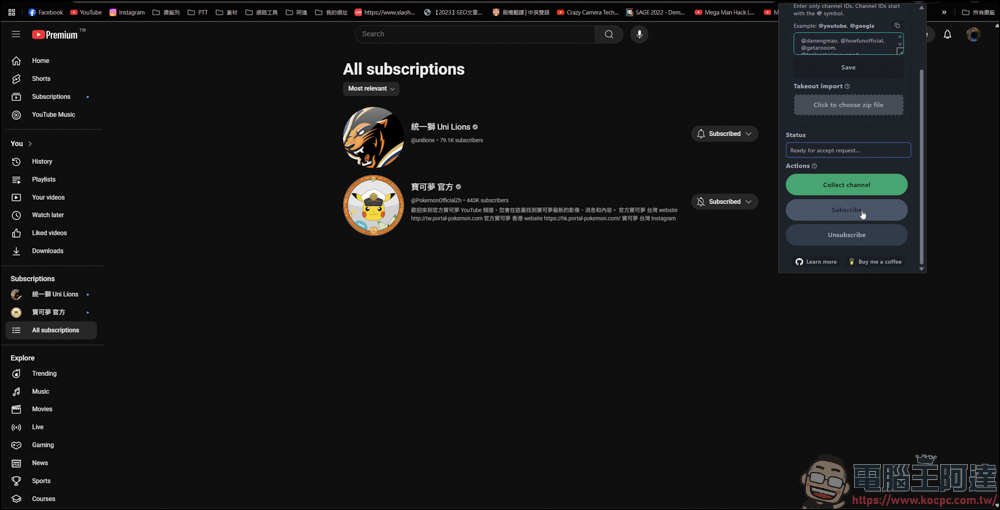
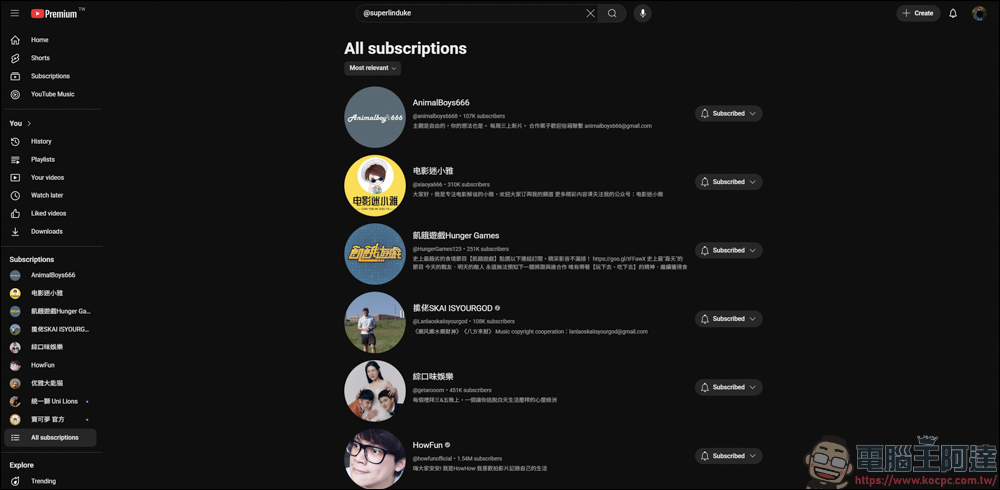
Youtube Subscriptions Transfer will automatically perform the subscription service for you. You don’t need to press subscribe one by one, and it can help you painlessly subscribe to all the channels subscribed to by the original account one by one. But pay special attention when executing this function. You must keep this page displayed on the screen and cannot switch to other pages, otherwise the automatic subscription function will be invalid:

In my actual use, the automatic subscription function will subscribe to one in three seconds on average. If you subscribe to a lot of content, it will take a while for the software to process it, and you cannot switch to other pages. So if you want to execute the automatic subscription function through Youtube Subscriptions Transfer, it is recommended to use it before going to bed or when the computer is idle, and let the software execute it automatically.
After actually using Youtube Subscriptions Transfer, I feel that the operation is very intuitive and efficient, especially the automatic subscription function which saves a lot of time. The only thing to note is that you cannot switch screens during the process, but the overall experience is quite smooth. It is recommended for users who need to subscribe simultaneously.
Source: KOCPC Chinese