


As we all know,Google Chrome The resource usage can slow down even relatively powerful computers. Although there have been many improvements over the years, the modern browser has basically become a mini operating system. Chrome even has its own dedicated task manager for advanced users to handle all the paging, extensions and processes it operates. Sometimes, it seems like Chrome refuses to make peace with your computer, regardless of how many tabs you close.
Is Google Chrome running slow on your computer? You may need to change this setting
If you’ve tried every trick you can think of to make Chrome faster, like closing unused tabs, clearing your browser cache, cookies, and history, disabling problematic extensions, and updating Chrome to the latest version with little success, the problem may be the way your computer allocates resources to Chrome. The processor on your computer may be taking too much load, causing your computer to feel sluggish. However, there is a setting that can often make usage smoother by distributing weight between the CPU and GPU. Usually, switching Chrome’s graphics acceleration (or hardware acceleration) in settings can help Chrome stabilize. This applies not only to Chrome, but also to processors using Chromium cores such as Microsoft Edge, Brave, and Opera. We’ll talk more about how it changes and why it might solve your surfing problems.

How to enable or disable graphics acceleration in Chrome
To enable or disable graphics acceleration in Chrome, you can follow the steps below:
- Open the Google Chrome browser.
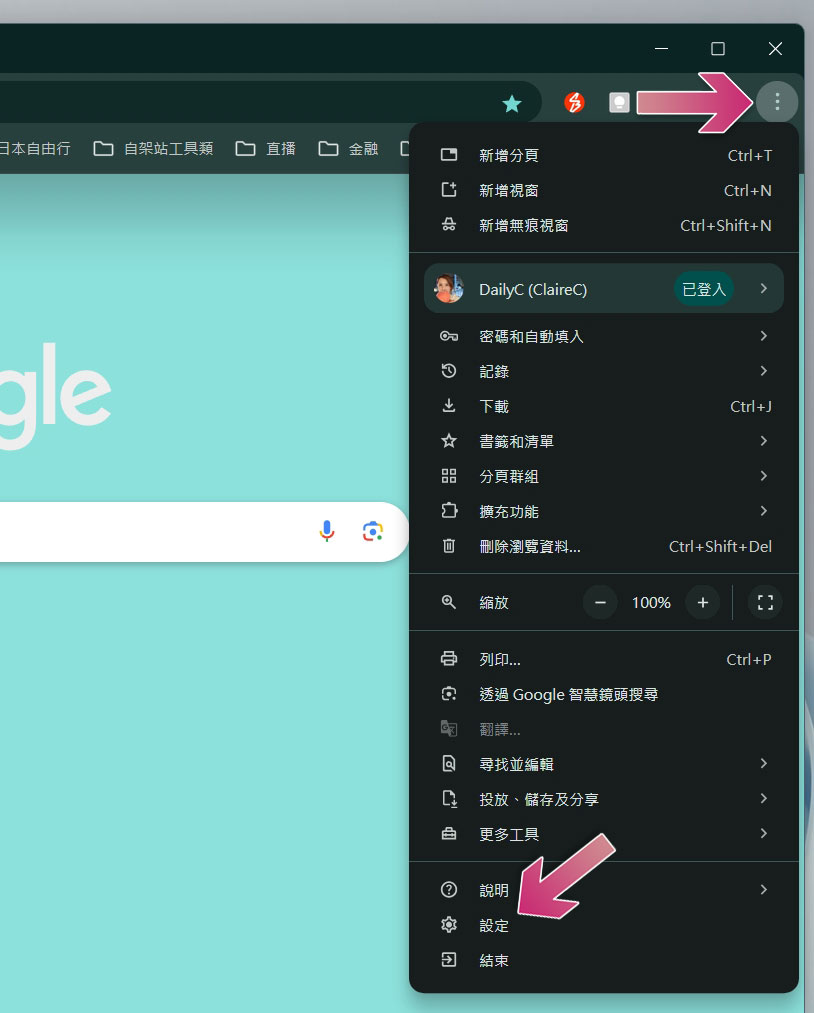
- Click the three-dot menu in the upper right corner, then click “Settings.”
- Click “System” in the left sidebar, and you can see “Use graphics acceleration (if available)” on the right. It can be turned on or off by switching the switch on the rear.
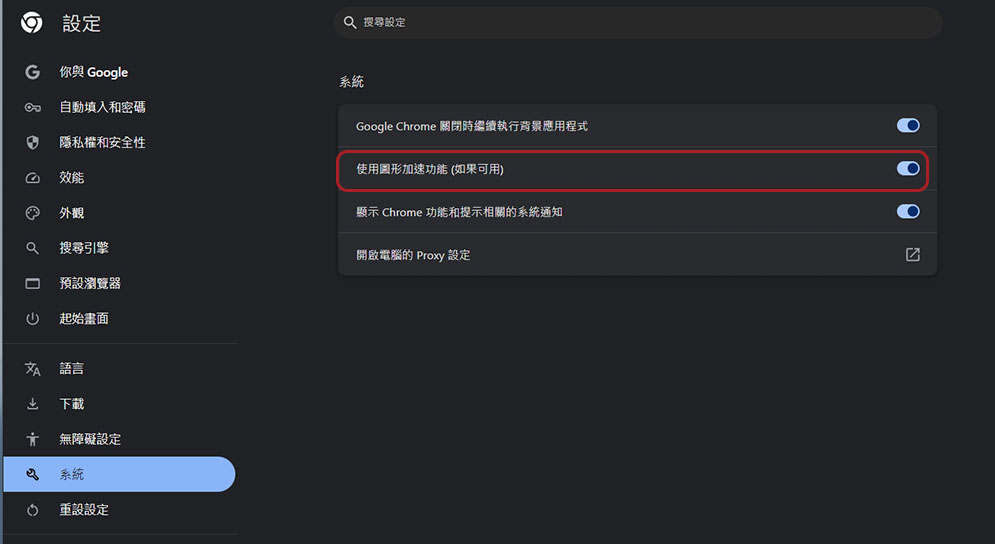
- Finally, please restart the browser for the settings to take effect.
After restarting your browser, you should immediately notice an overall improvement if graphics acceleration is indeed the answer to slowness. More specifically, websites and web applications with heavy graphic elements, such as scroll animations and slideshows, should immediately feel more responsive. Social media sites like Facebook are a good place to test whether graphics acceleration is having an impact on your computer. Try browsing the site with graphics acceleration turned off and then on again to see which setting works best for your computer.
Graphics acceleration makes Chrome faster on some computers
Graphics acceleration will have the greatest benefit on computers with discrete GPUs. High-end gaming laptops or DIY gaming PCs often have powerful graphics cards, and in most cases this setting should be left on. However, results may vary on PCs and Macs using integrated graphics (internal graphics). Some claim significant improvements in graphics acceleration, while others report that it slows down Chrome further. If you find that Chrome crashes, freezes, becomes unresponsive, or slows down after enabling hardware acceleration, turning it off may be a better option.
Source: KOCPC Chinese