


usecomputerDuring the process, files will more or less be accidentally deleted, and you will want to recover previously deleted data. There are many rescue tools on the Internet, but most of them require payment. You will definitely worry that if you can’t retrieve them in the end, your money will be in vain.Windows In fact, there is also its own Windows File Recovery file recovery tool, which is completely free. Not only generally deleted files, but also previously formatted hard drives can be recovered through it.
However, Windows File Recovery is a CLI tool (command prompt), and many people may find it difficult. In fact, it is not at all. Let me explain how to operate it below.

Windows File Recovery file recovery tool operation tutorial
Although it is called Windows File Recovery, it is not a built-in tool. You need to download it from the Microsoft Store and start using it after installation:
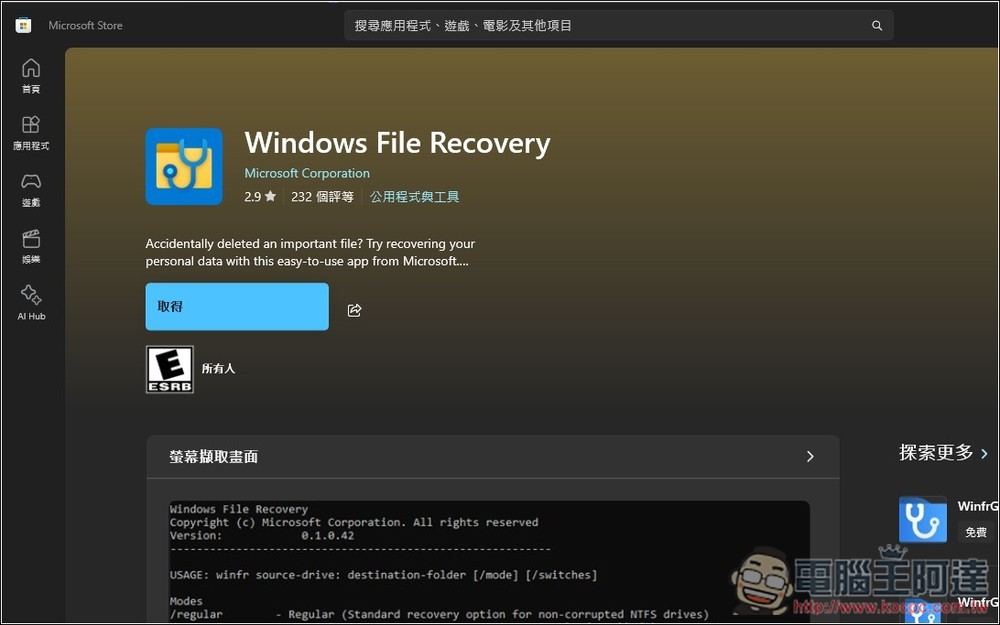
Windows File Recovery is a CLI command prompt character interface. There will be some instructions after opening it. If you don’t understand it, you can try to take a screenshot and throw it to ChatGPT. It is basically just a few instructions. I will explain it first, and then start to demonstrate the recovery process:
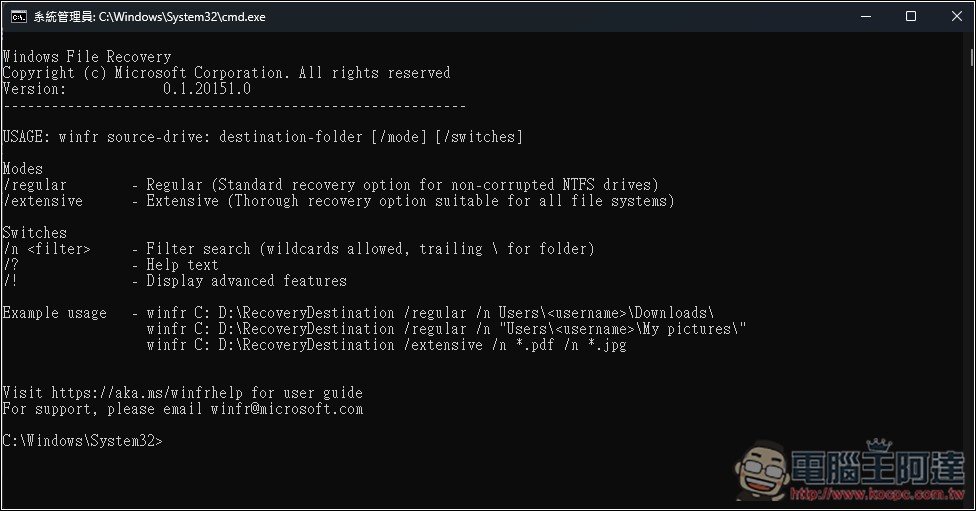
The basic commands for file recovery in Windows File Recovery are as follows:
winfr [來源硬碟] [目的硬碟] [/模式] [/switch 和過濾條件]
There are three commonly used modes. Generally speaking, regular is enough. If you really can’t find it, try extensive:
- /regular – for recently deleted files in NTFS file systems
- /extensive – deep scan, suitable for formatted or earlier deleted files (exFAT or FAT32 can only use this mode)
- /segment – uses NTFS segment information, no MFT required, also suitable for deleting files
Then there is an important point. The source hard drive cannot be the same as the destination hard drive. This means that if you want to recover any files under the C slot, the destination hard drive (the storage location of the recovered files) needs to be set to the D slot or an external hard drive. There is no way to set the C slot.
For example, if I want to recover all files in C:\ and the recovery files are stored in the D:\Recovery folder, the command will become:
winfr C: D:\Recovery /regular /n *
The * behind represents all file formats. If you have a specified format, such as JPG, then add it after the * and change it to *.jpg
If you are recovering all files in a specified folder, such as all files in the download folder, which are also stored in the D:\Recovery folder, the command will become:
winfr C: D:\Recovery /regular /n \Users\帳號\Downloads\*
To specify that only files in JPG format will be recovered, the command will become:
winfr C: D:\Recovery /regular /n \Users\帳號\Downloads\*.jpg
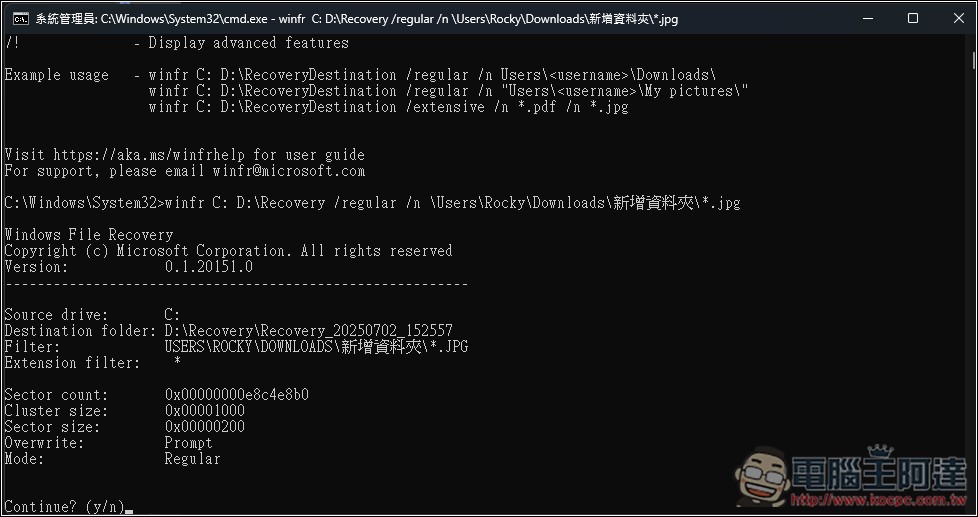
I want to restore the .JPG images in the download folder -> add a new folder. The recovered files are stored in D:\Recovery, so the command I entered is:
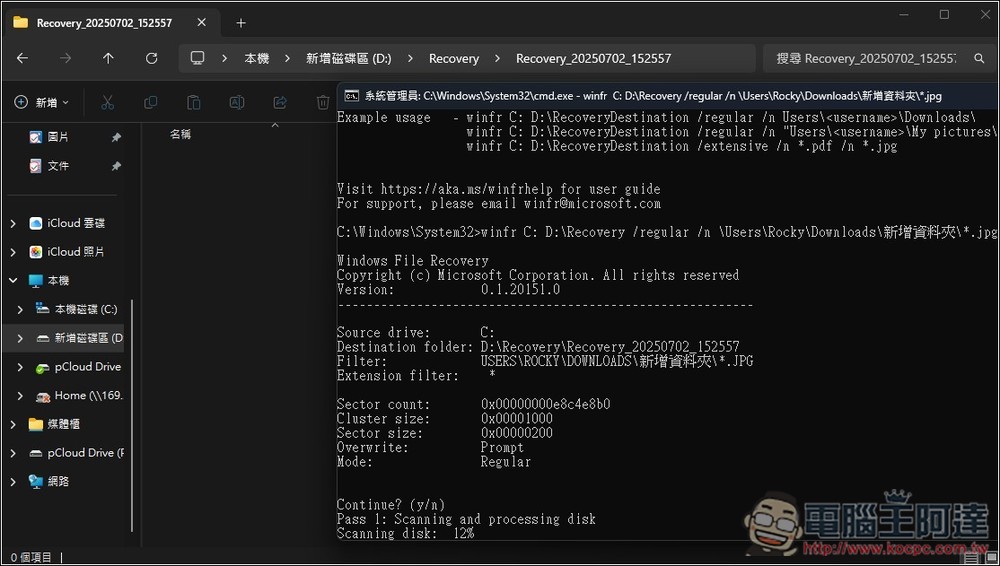
winfr C: D:\Recovery /regular /n \Users\Rocky\Downloads\新增資料夾\*.jpg
After typing, Windows File Recovery will start running and then ask if you want to continue, press y:
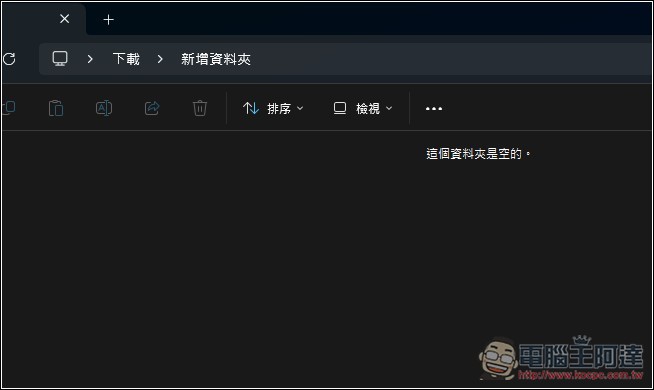
The newly added folder in the current download is empty and does not contain any files:
Wait for Scanning disk to finish running. This will take a long time, so just let it run:
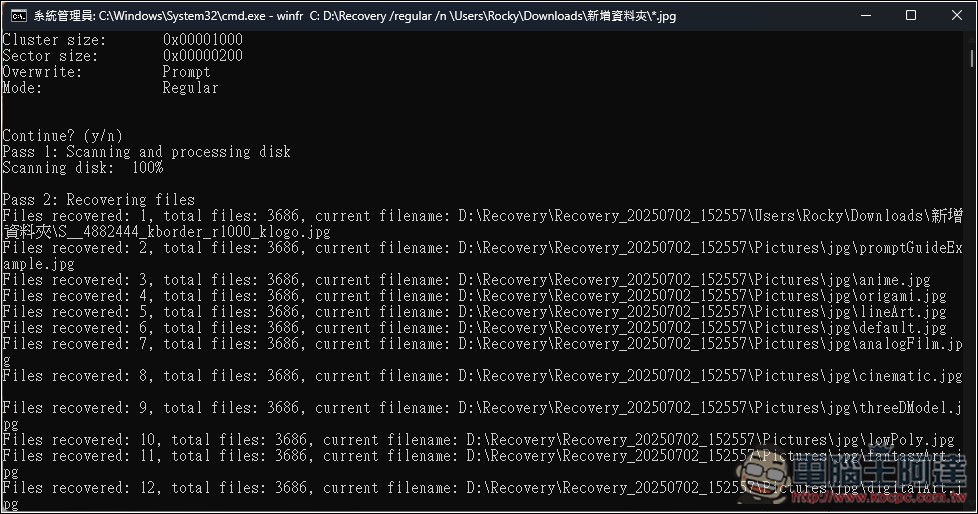
After reaching 100%, it will start to restore files. It is very fast here and is completed in an instant:
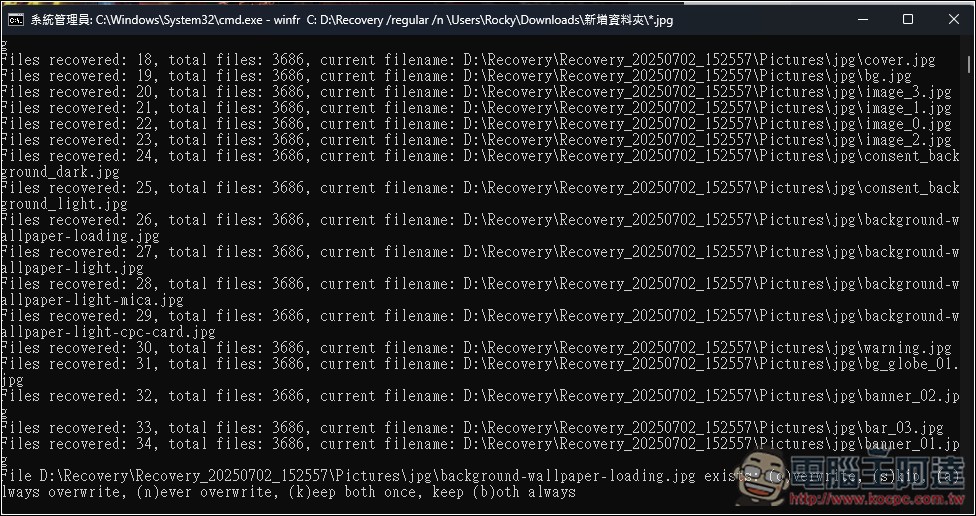
If there are duplicate files, you will be asked whether you want to overwrite (xxxx exists). Press o to overwrite, s to skip, a to overwrite all the same file names and don’t ask again, n to skip all the same file names and don’t ask again, k to keep two versions, and b to keep two versions of all the same file names and don’t ask again:
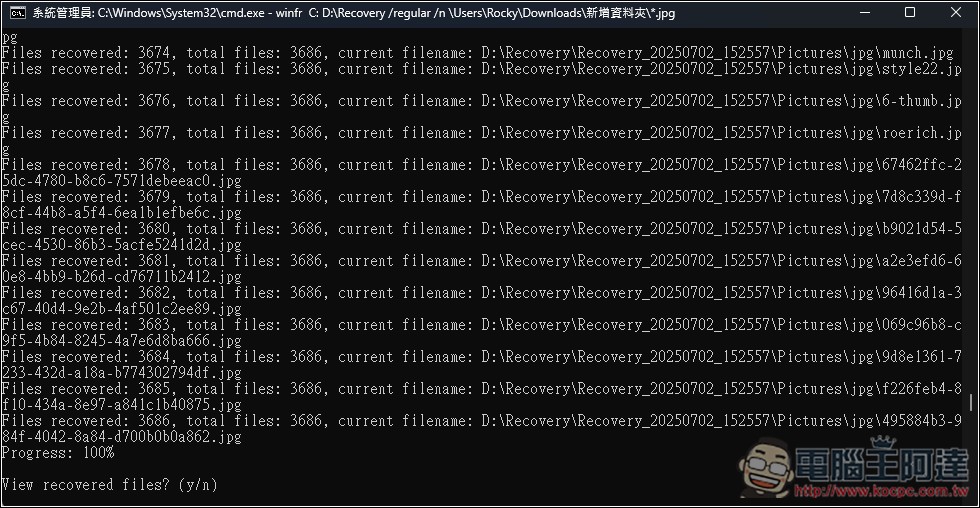
After the files are restored, you will be asked if you want to browse the files. Press y and the stored folder will be automatically opened:
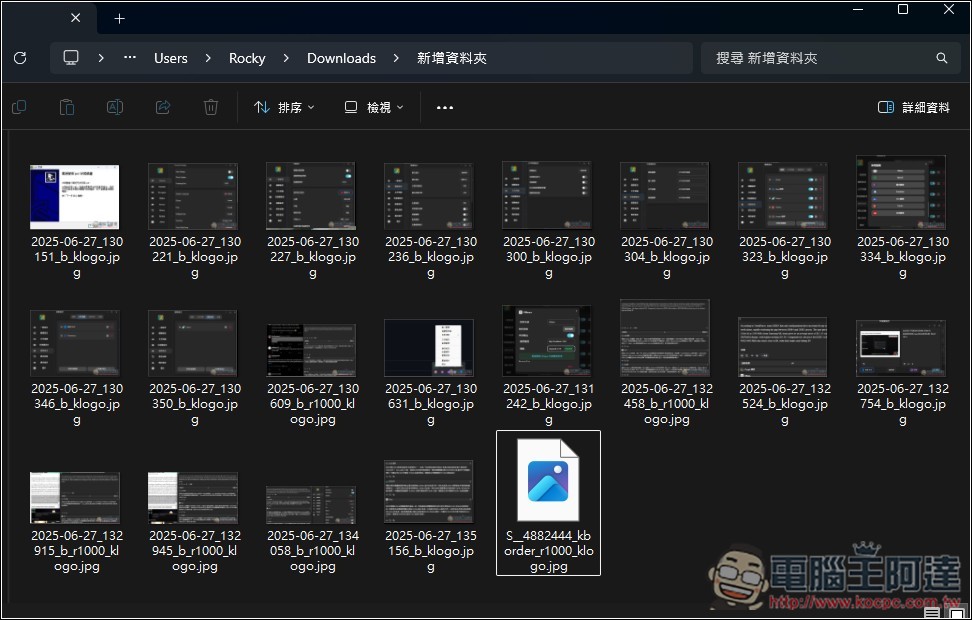
The jpg pictures I just deleted are all back, but the ones older than that have not been recovered. A deep scan may be needed:
If you have used both /regular and /extensive modes and still cannot retrieve the files, you may need to find a professional to handle it.
Source: KOCPC Chinese