


Whether you’re learning a new skill or watching your favorite videos,YouTube is one of everyone’s favorite platforms to spend their free time, but most people miss out on some useful and good features of YouTube. If you’re new to YouTube or want to use the platform more efficiently, here are some tips to help you navigate the video world with ease.
6 YouTube Tips for Beginners
Use Watch Later to save videos for later viewing
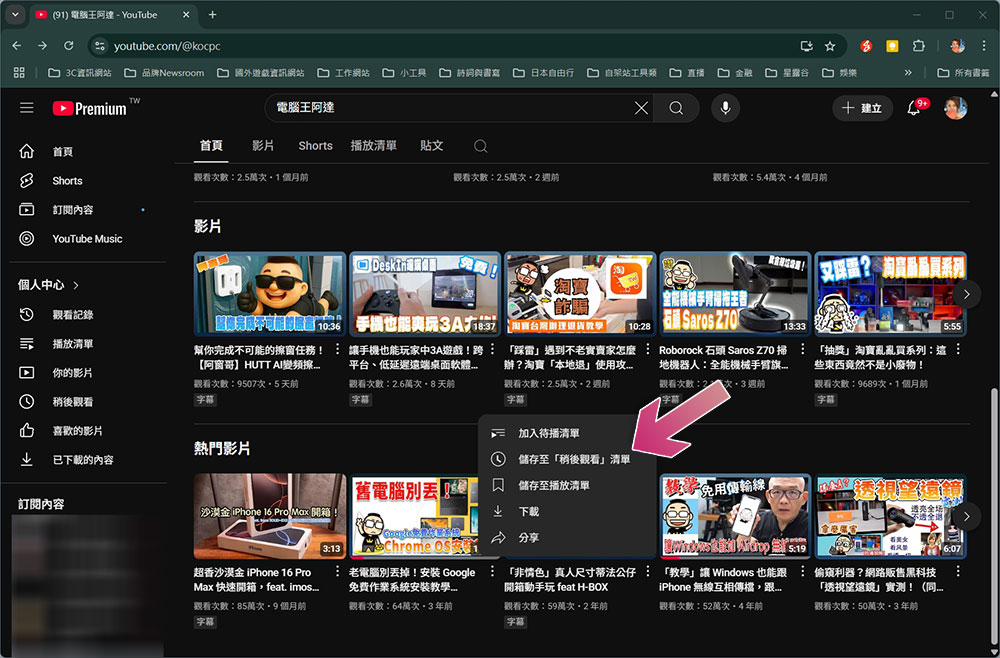
You should often see YouTube recommending interesting videos that you may not have time to watch at the moment, only to find them later. At this time, please learn to use the “Watch Later” function. You can save the videos with just one click. You can easily go back and find them when you are free.
To use this feature, just hover your mouse cursor over any video thumbnail and click on the upper right corner of the thumbnail to see the clock icon. Or click the three-dot menu next to the video title and select “Save to watch later.” All saved videos will be added to the Watch Later list, which you can find from the left menu on YouTube.
Optimize search results using YouTube filters
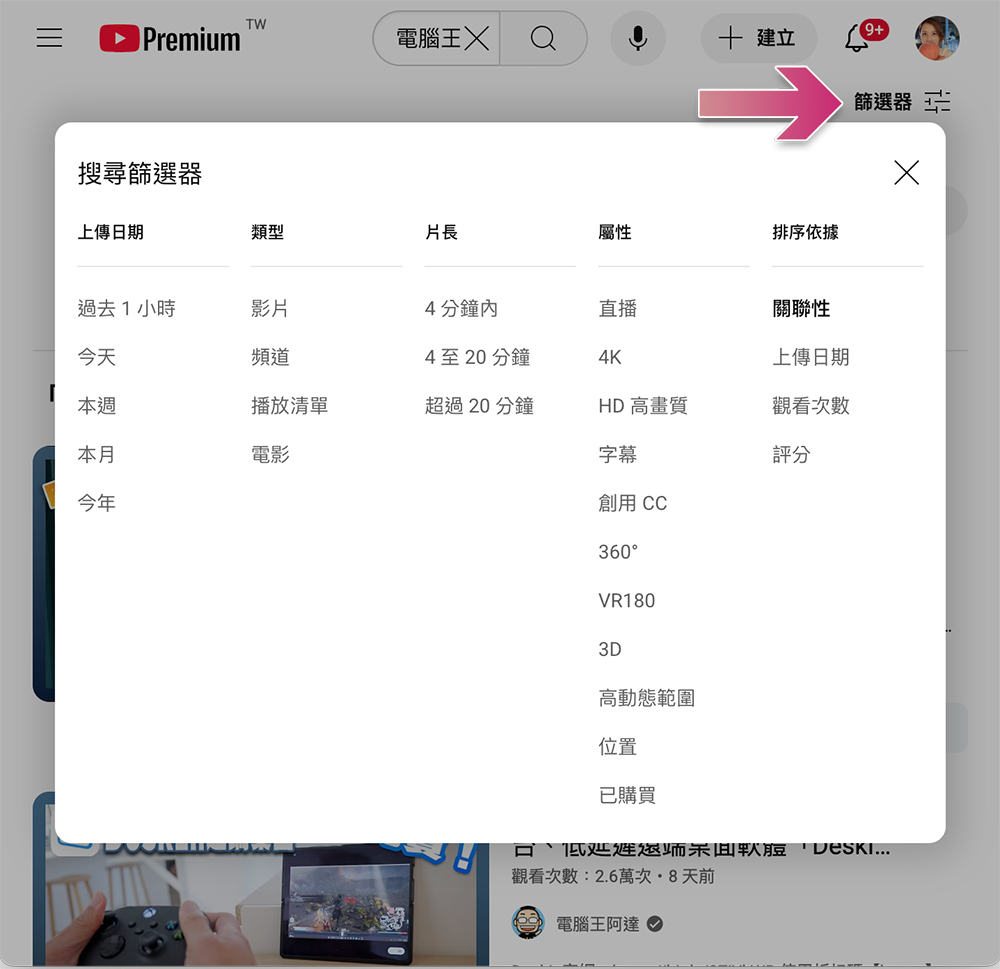
YouTube search will find videos that match your keywords, but filters can help you narrow down your search results to more precisely find what you’re looking for. Filters are handy when you want to narrow your search by upload time, duration (short or full video), or content type (video, channel, playlist, or video).
You can also filter by video features, such as live streaming, high-definition, 4K, 3D, or videos with subtitles. Additionally, results can be sorted by relevance, views, upload time, or reviews. To apply filters, after entering your keyword search, click the filter icon on the right and select the items you want to apply.
Watch videos in Picture-in-Picture (PiP) mode
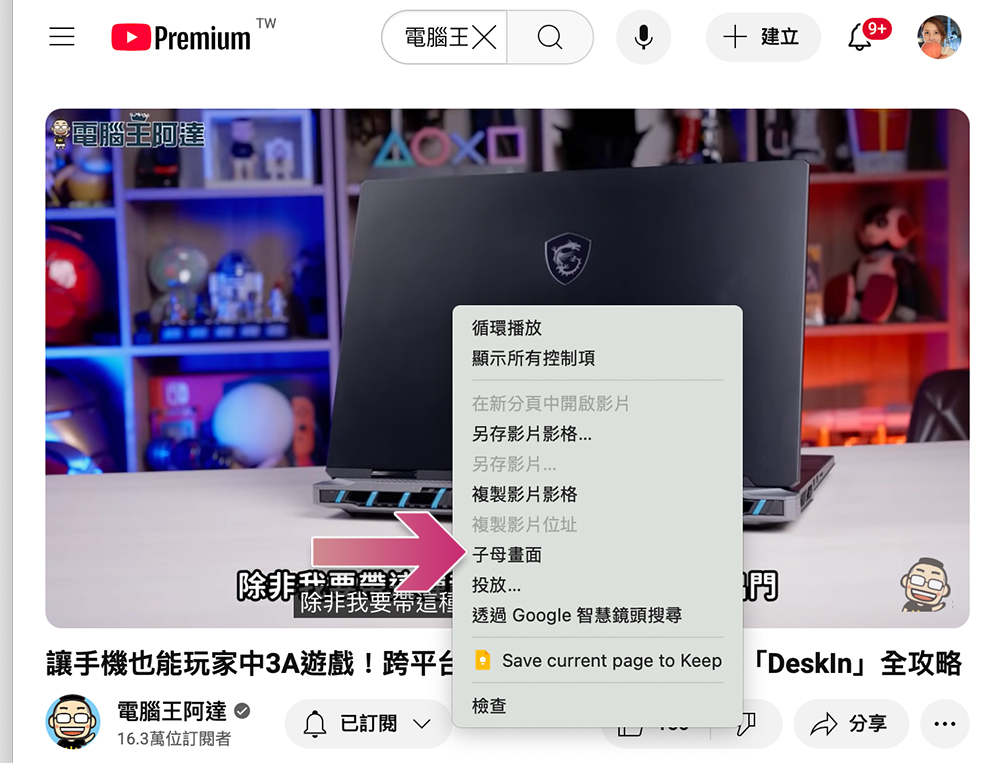
Sometimes, you may need to take notes while watching a tutorial, or play some entertainment programs, such as podcasts, in a small window while working. In this case, you can use the Picture-in-Picture (PiP) mode. This mode keeps a small floating video window on the screen, allowing you to multitask between different browser tabs.
How to enable picture-in-picture mode varies from browser to browser. In the Chrome or Microsoft Edge browser, right-click the video twice to bring up the browser function menu and select “Picture in Picture”.
Watch along with the YouTube transcript feature
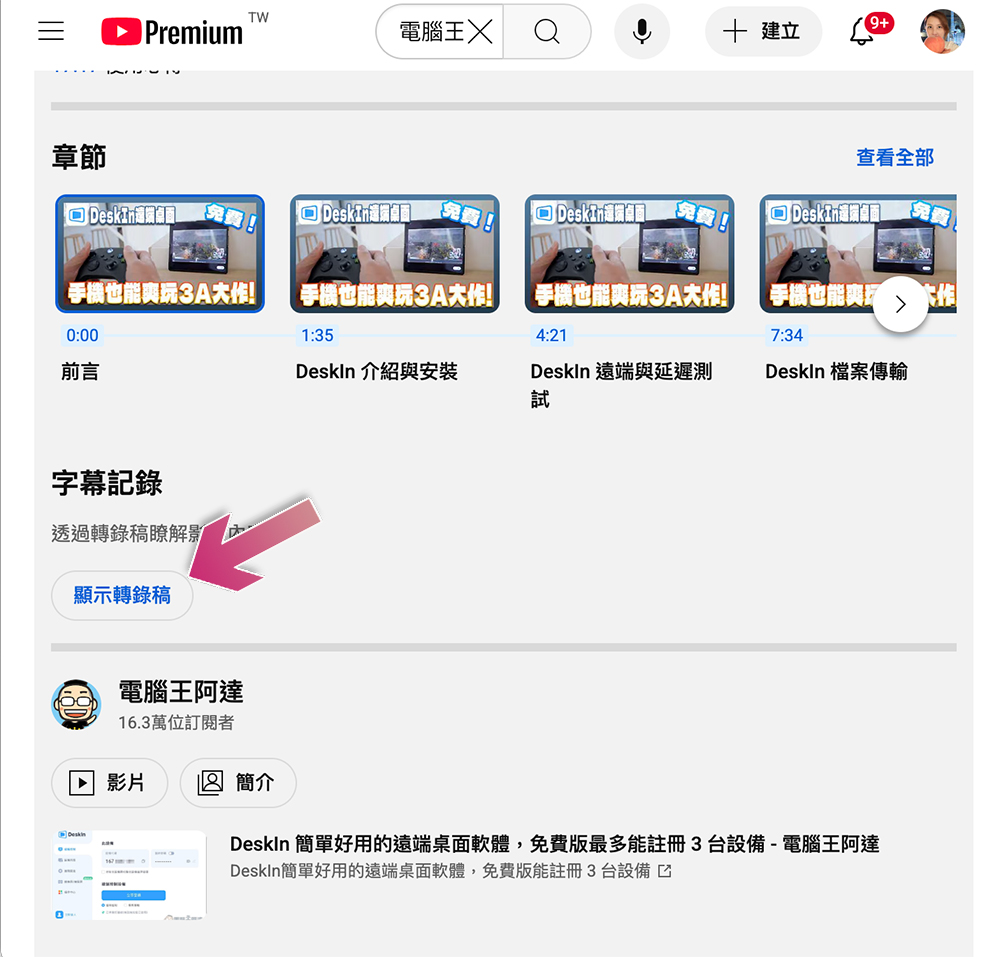
YouTube provides a built-in text transcription function that can present the voice content of the video as text with time stamps. This feature is useful for quickly browsing content without having to watch the entire movie to find a specific passage. It also makes it easy to continue watching when you turn off the sound, which is helpful even when you can’t hear the voice.
You can even separate the transcript using a tool like ChatGPT to summarize key points. To use the transcript function, please open the target video first, then expand the description section and click “Show Transcript” in the subtitle recording section. Not all videos have transcripts, either because the creator didn’t add them or YouTube didn’t automatically generate anything to see them.
Share a specific moment in time using a video clip
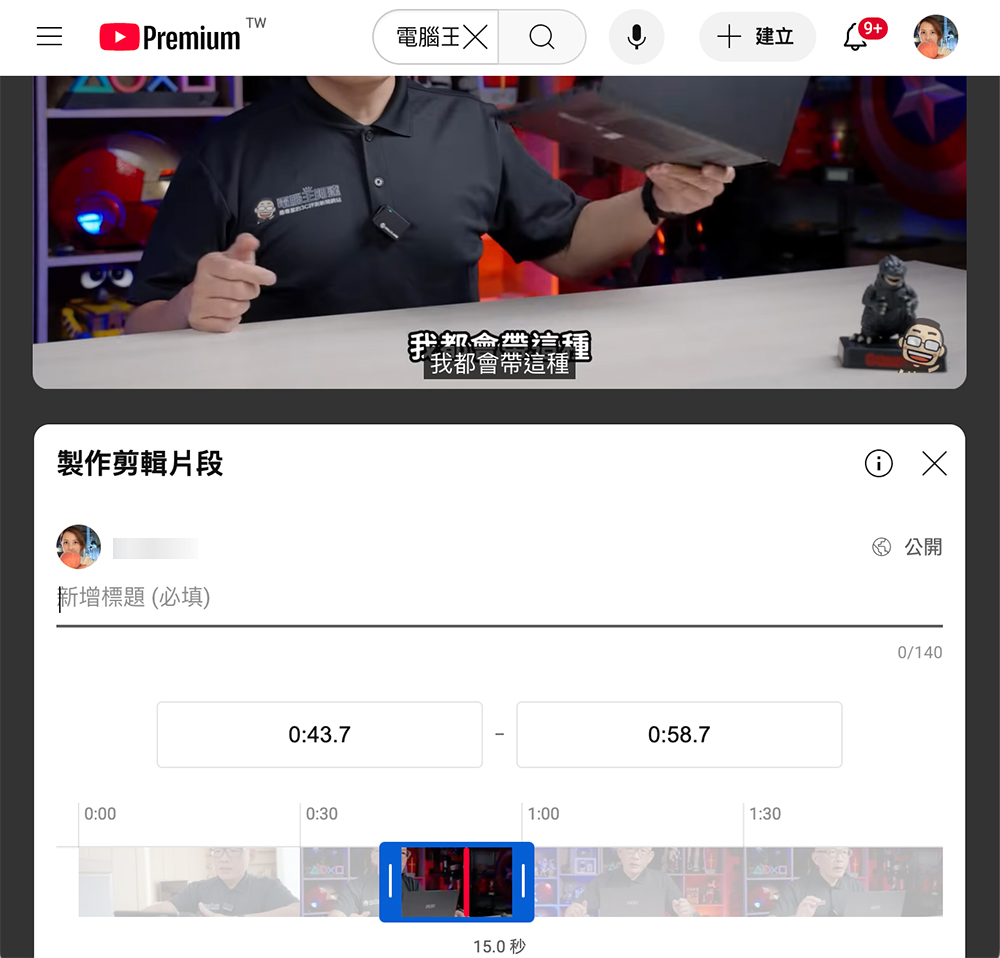
You probably share YouTube videos with your friends regularly, but sometimes you might just want to share a specific clip from a longer video. Now you no longer need to awkwardly tell your friends the timeline, such as “3 minutes and 28 seconds,” but you can use YouTube’s video clip function to directly edit and share the part you want.
Using this tool, you can select and edit a video of up to 60 seconds, and generate a shareable link that plays only that clip, but not all videos are supported. To create a video clip, please click the three-dot icon below the video, then select “Clip” (a scissors icon), then enter the name of the clip and select the desired clip in the box below, then click Share.
Use keyboard shortcuts to enhance your viewing experience
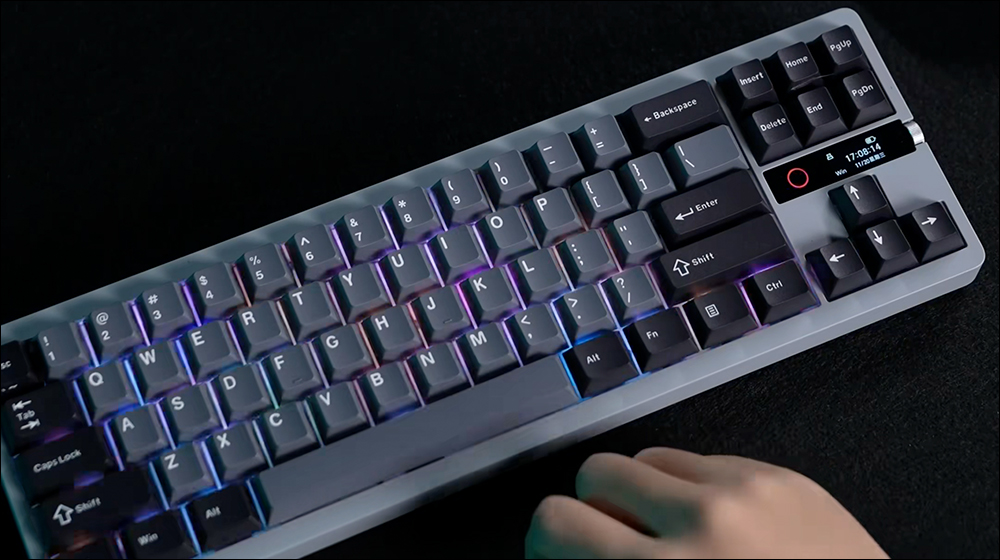
If you primarily enjoy watching YouTube videos on your computer, it can be helpful to learn some simple keyboard shortcuts. You can use simple buttons to quickly control playback, pause, fast forward or rewind, adjust volume, etc., without having to use the mouse frequently.
YouTube’s shortcut keys are very simple. They can be operated with a single key and there are no key combinations. Remember the following quickly:
- K: Play or pause the video
- J: Go back 10 seconds
- L: Fast forward 10 seconds
- Left or right arrow: skip forward or backward 5 seconds
- M: mute or unmute
- F: Switch to full screen
- Esc: Exit full screen
- Up or down arrow: increase or decrease volume
- C: Turn on or off subtitles (if there are subtitles)
From multitasking with picture-in-picture mode to saving videos to watch later, you can use these tips and features to get the most out of YouTube. If you haven’t used one yet, I highly recommend giving it a try, they can make your viewing experience smoother and more enjoyable, and just a few clicks can make a huge difference!
Source: KOCPC Chinese