


Now many people should be like me, seeing good web content, or YouTube When watching a video, you will want to watch it through AI Come and organize your notes for future review. For those who are not good at foreign languages, when reading foreign articles, they should be very accustomed to using AI to translate the entire article. However, it is not so easy to directly copy the content of the web page. It may be copied to other irrelevant things. This article will recommend a super easy-to-use “cpdown”Extended functions, after installation, you only need to click one button to easily copy web page content in Markdown format. Even YouTube video subtitles are supported. This is really amazing and it is completely free to use.
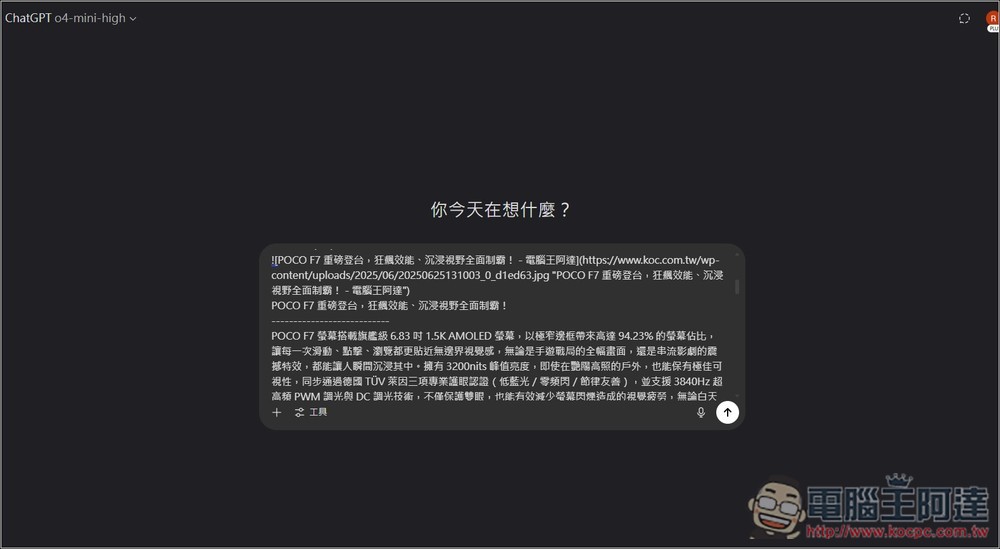
Introduction to the extended function of cpdown, easily copy web page content and YouTube subtitles with one click
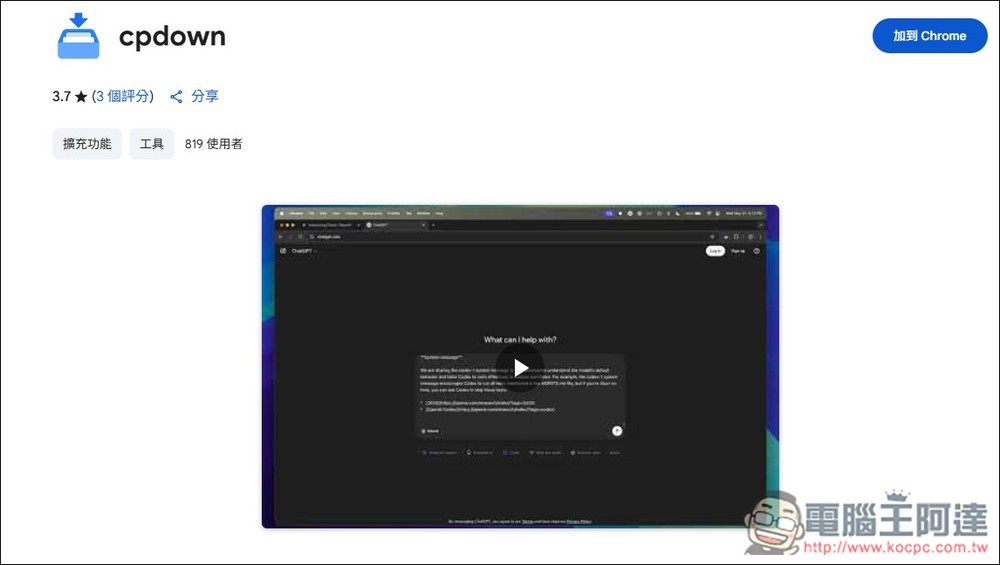
cpdown is a Chrome extension. I tested that it can also be used on Microsoft Edge, so basically any browser developed with Chromium core should be able to use it. The operation method is very simple. You can start using it after installation. There is no need to set anything and it is completely hassle-free.
Click the link above to enter the cpdown extension store, and click “Add to Chrome” in the upper right corner:
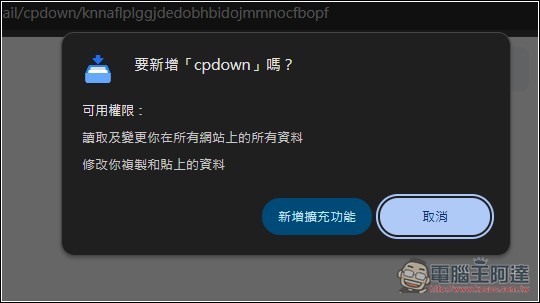
This message will appear, click “Add Extension”:
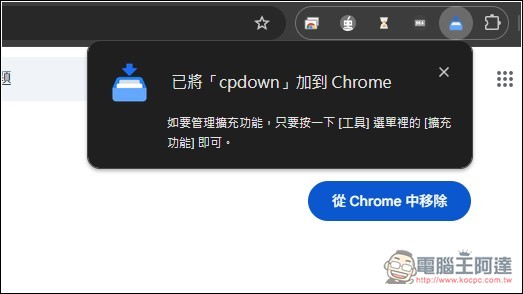
Displaying this message means the installation is complete. Remember to pin cpdown in the upper right corner for easy use:
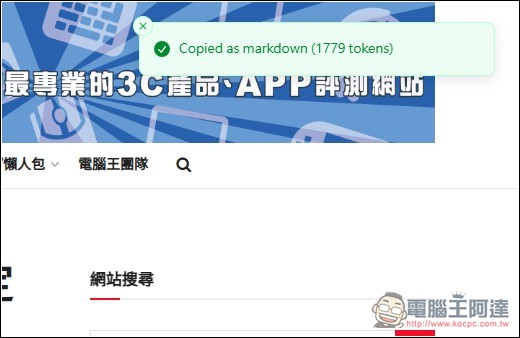
When you see good web content in the future, click the cpdown extension icon:

It will show that it has been copied in Markdown format (1779 tokens in total):
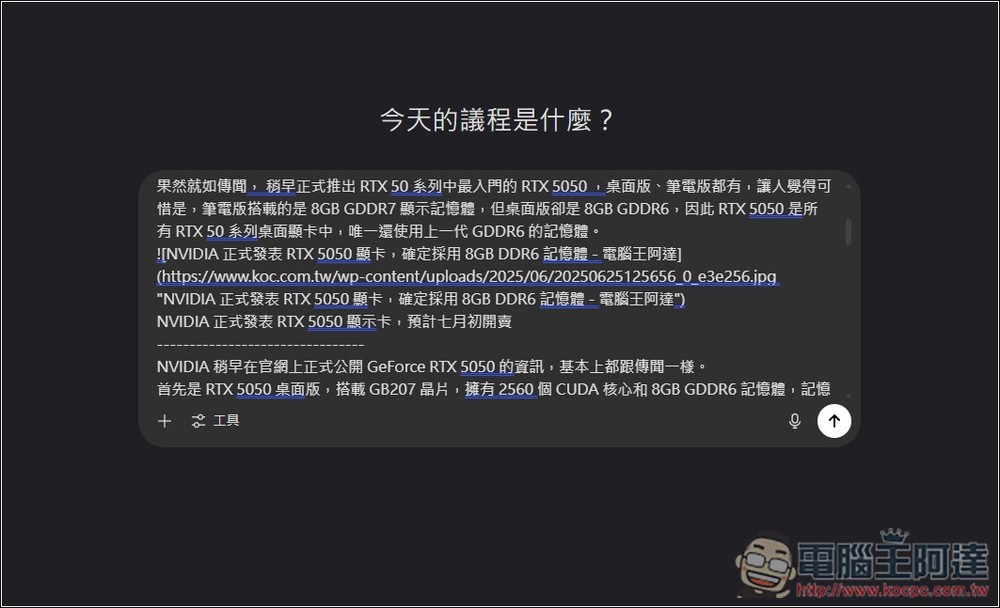
Open any AI tool you use, press Paste or the Ctrl + V shortcut key, and you will see that the content of the web page just appeared, and the image link in the article will also be attached:
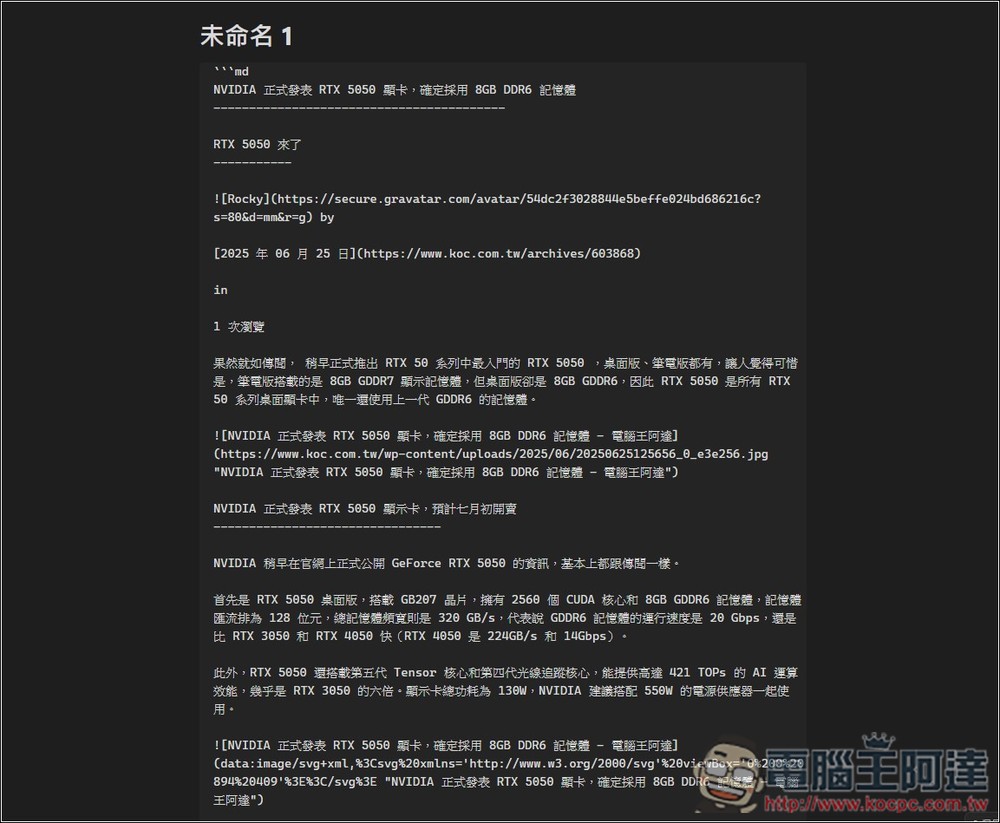
In order to make it easier for everyone to read what the format looks like, I posted the content in Obsidian, which probably looks like the picture below:
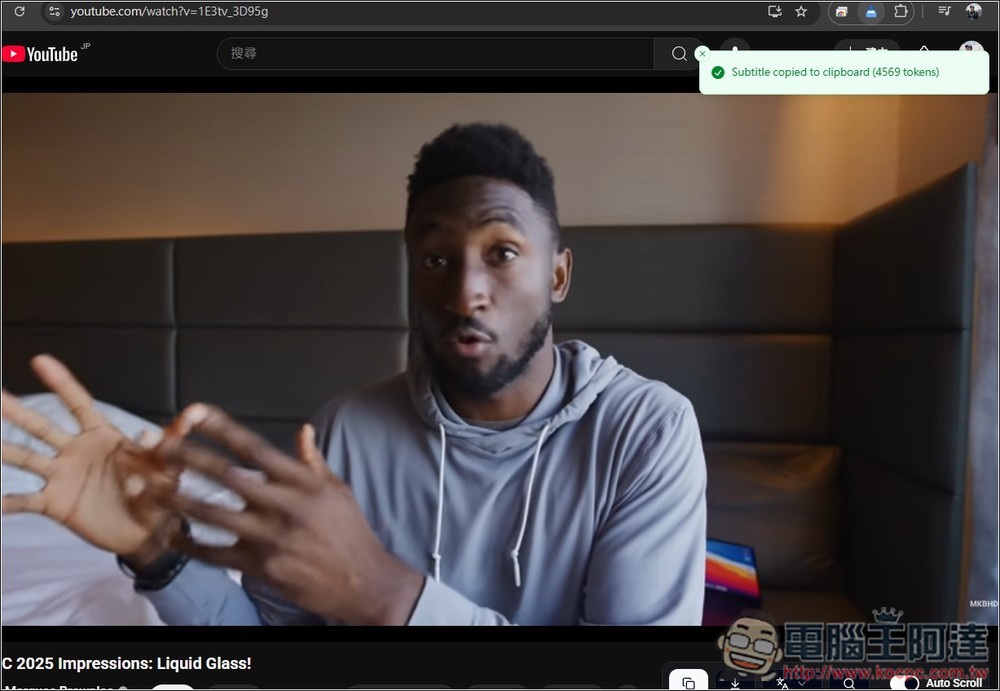
Next, there are YouTube video subtitles. First of all, you need to confirm whether the YouTube video you are watching has subtitles. If so, you can use cpdown to copy it with one click. Videos without subtitles will not work. I first tested one of MKBHD’s videos. This one has subtitles, so I pressed the cpdown extended function icon and it displayed “Copied Subtitle to clipboard (total 4569 tokens)”:
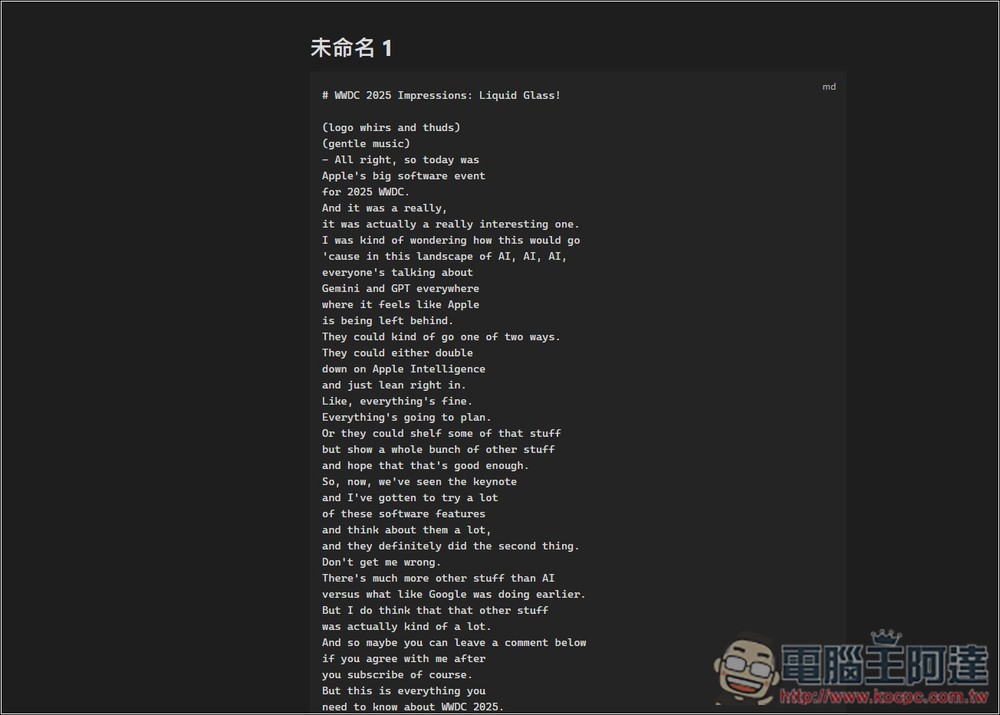
After I posted it to Obsidian, sure enough, the subtitles came out, and each sentence was divided into sections, so they weren’t crowded together. Just format without timestamp:
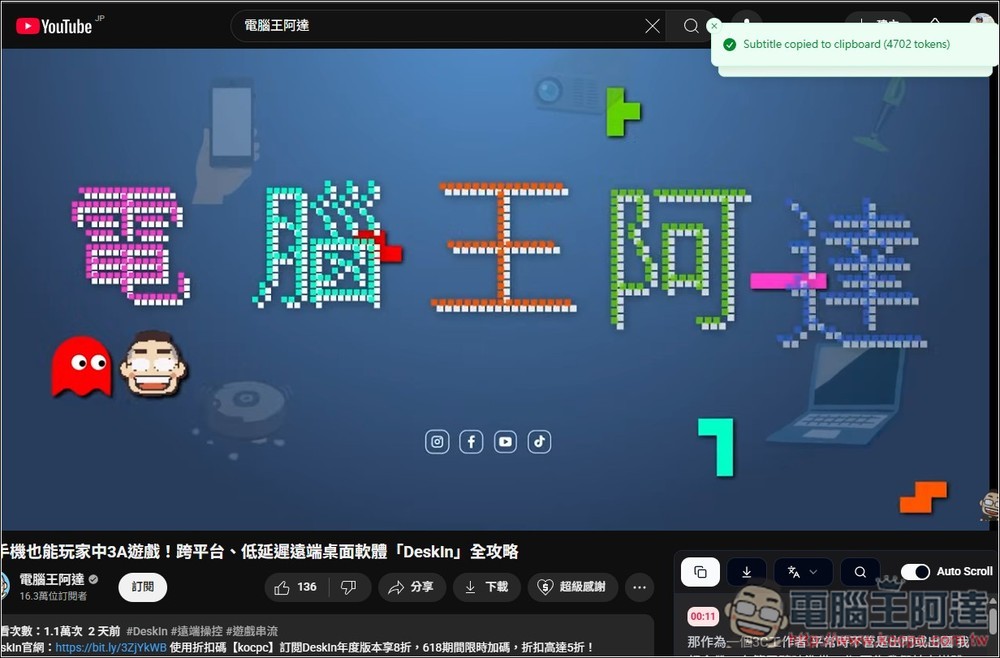
Of course, there is no problem with Chinese videos. I tested the latest video of Computer King Ada: Players can also play AAA games on mobile phones. This video has subtitles, so it was successfully copied:
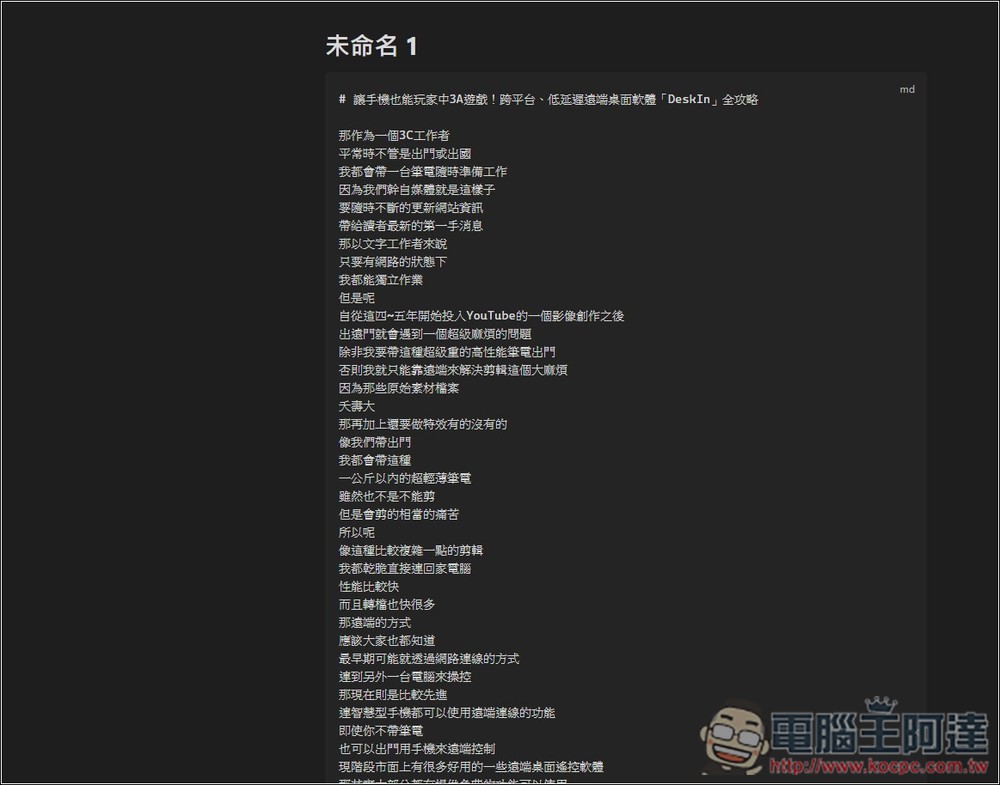
Then paste it where you want to use or save:
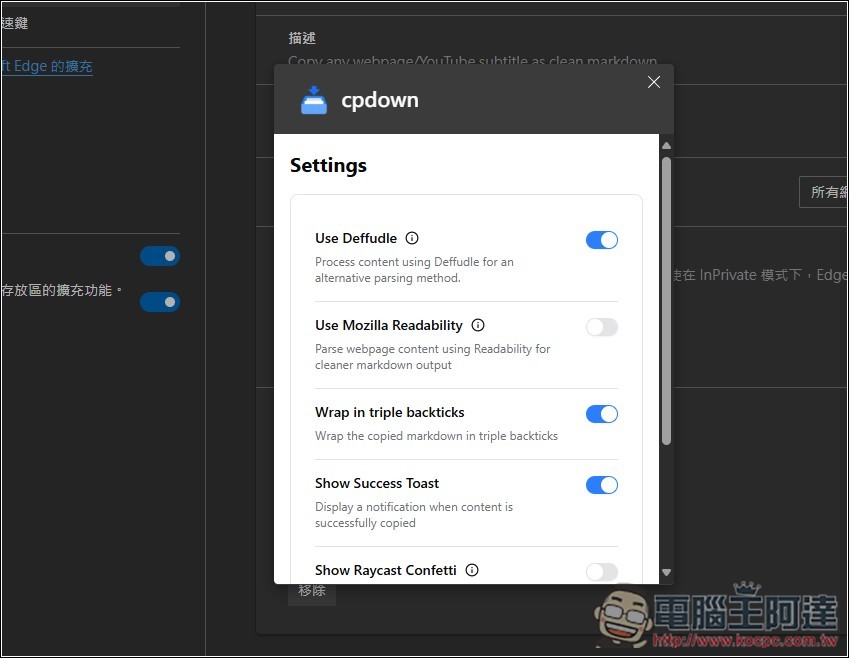
cpdown also provides some setting options, which basically do not need to be adjusted:
- Use Defuddle: Use the Defuddle function library to parse and extract the main content of the web page, remove advertisements, sidebars, footers and other noise, and output a more consistent HTML structure to facilitate subsequent conversion to Markdown.
- Use Mozilla Readability: Use Mozilla’s official Readability algorithm to extract the main body of the article. This is the content extraction engine behind Firefox Reader View. It has a good decluttering effect on most news and blog websites.
- Wrap in Triple Backticks: Automatically wrap the copied Markdown original content with three backticks (“`), which is equivalent to creating a code block in Markdown, making it easier to maintain format consistency in editors such as Obsidian and GitHub.
- Show Success Toast: When the content is successfully copied to the clipboard, a small notification will pop up in the lower right corner of the screen to remind you that “Copying Completed”, so there is no need to confirm manually.
- Show Raycast Confetti: If you also use Raycast, cpdown will call Raycast’s Confetti function. When the copy is completed, a ribbon animation will be cast in the middle of the screen to add interest.
Source: KOCPC Chinese