


The Windows 11 operating system is generally very good, but you have to know that the default system defaults are not suitable for everyone, and there are also some parts of the system that affect the user experience and even make you feel intrusive, such as notifications, Microsoft ads, and some default applications. This time we have compiled 6 very practical small settings to improve your computer usage environment with just a few clicks of your fingers.
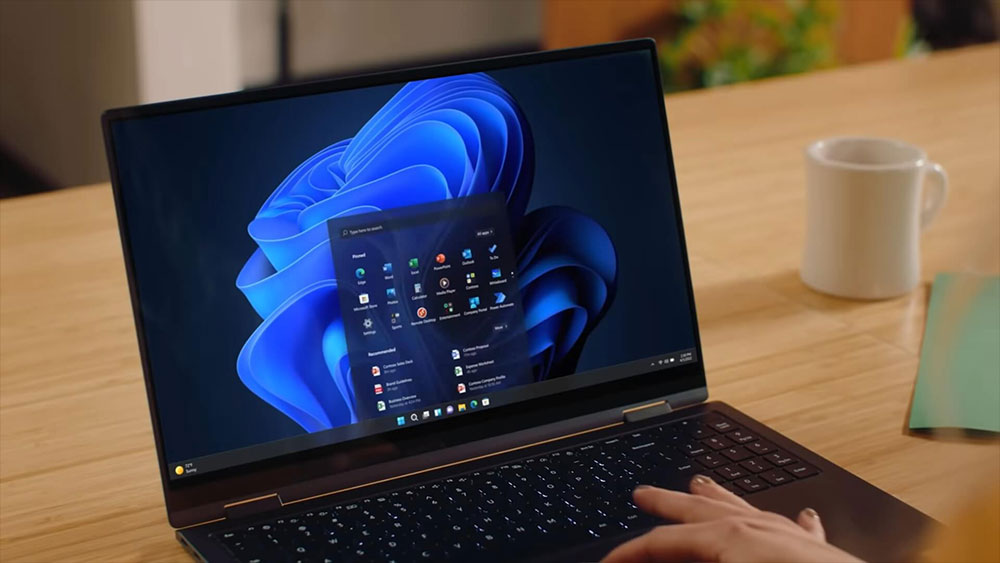
Change 6 settings to make your Windows 11 less annoying
Move the Start button
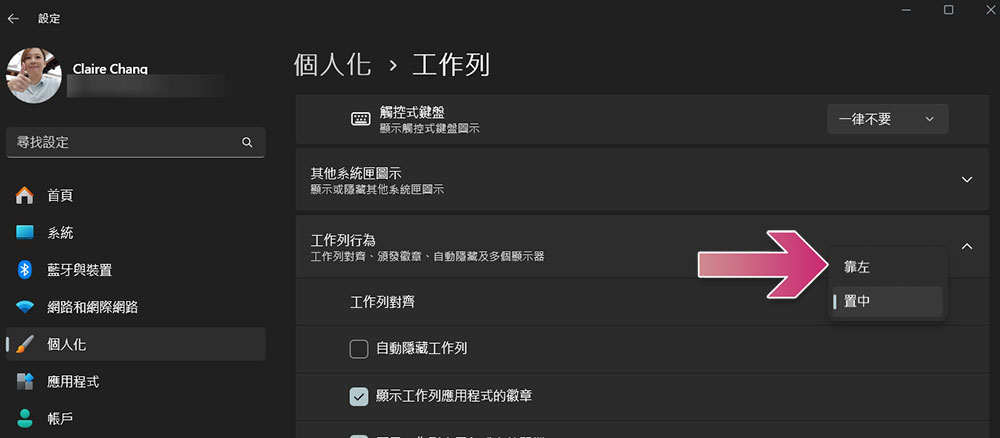
As of Windows 10, everyone is accustomed to placing the start button next to the toolbar in the lower left corner. After Windows 11, the default position in the center of the toolbar may make many new users who have just upgraded feel very uncomfortable. Fortunately, Microsoft has left room for you to move it back to the lower left corner. If you have a large or wide screen, it may be more efficient to place it in the middle:
- Open the Settings app.
- Click “Personalization” in the sidebar.
- In “Task Bar”, under “Task Bar Behavior”, change “Task Bar Alignment” to “Left”.
Reduce notifications
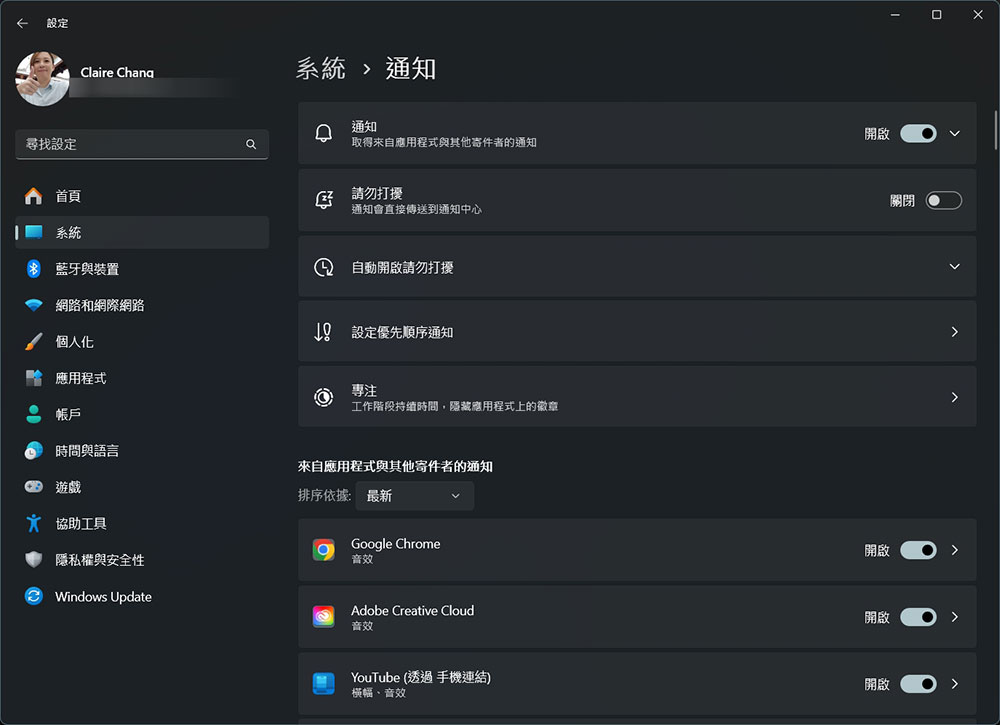
At first, you will almost be bombarded with indiscriminate notifications from Windows 11. If you don’t make some adjustments, it will often distract you when you need to be highly concentrated, thereby hindering your work efficiency. Although it is fine as long as you ignore the notifications, you will also miss important notifications, which is really annoying. You can follow the steps below to set only which important applications display notifications, which time points can display notifications, etc. You can even schedule a time in “Focus” to not display notifications:
- Open the Settings app.
- Click “System” in the left sidebar.
- Switch which deliverable notifications are allowed from the application list at the bottom of “Notifications”. Click “Focus” to set a schedule for the focused work phase and eliminate all notification interruptions when you are busy.
Disable Microsoft advertising
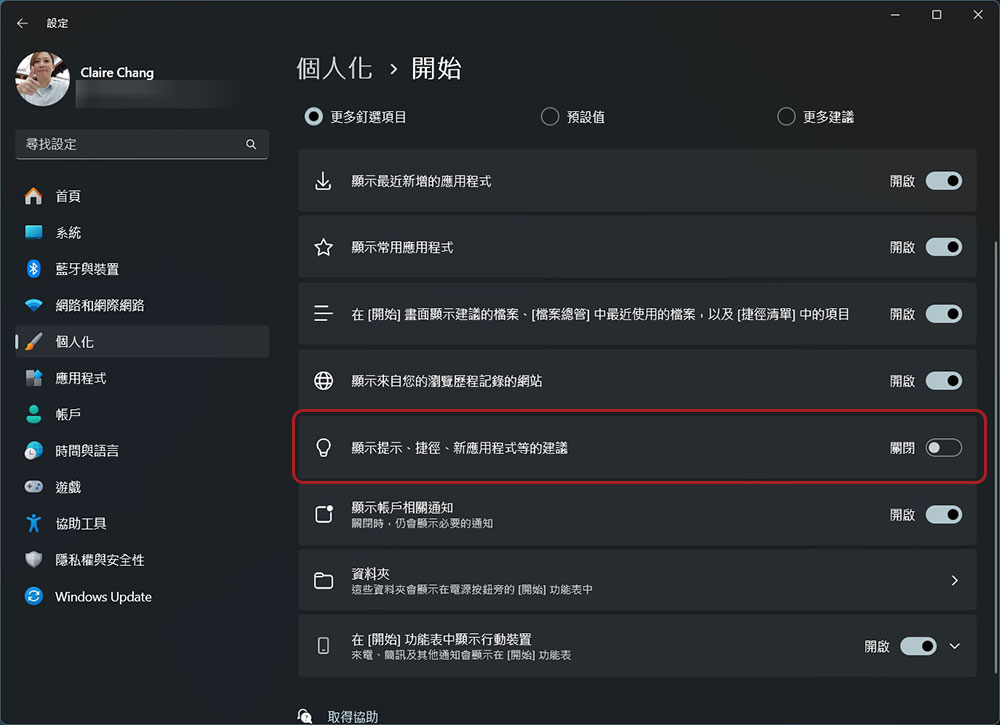
Microsoft is subtly putting reminders and suggestions into Windows 11, but they’re actually ads for the company’s other products, whether on the Start menu, Windows Spotlight, or the Lock screen. You can follow the steps below to find out how to turn off Suggestions:
- Open the Settings app.
- Click “System” in the left sidebar.
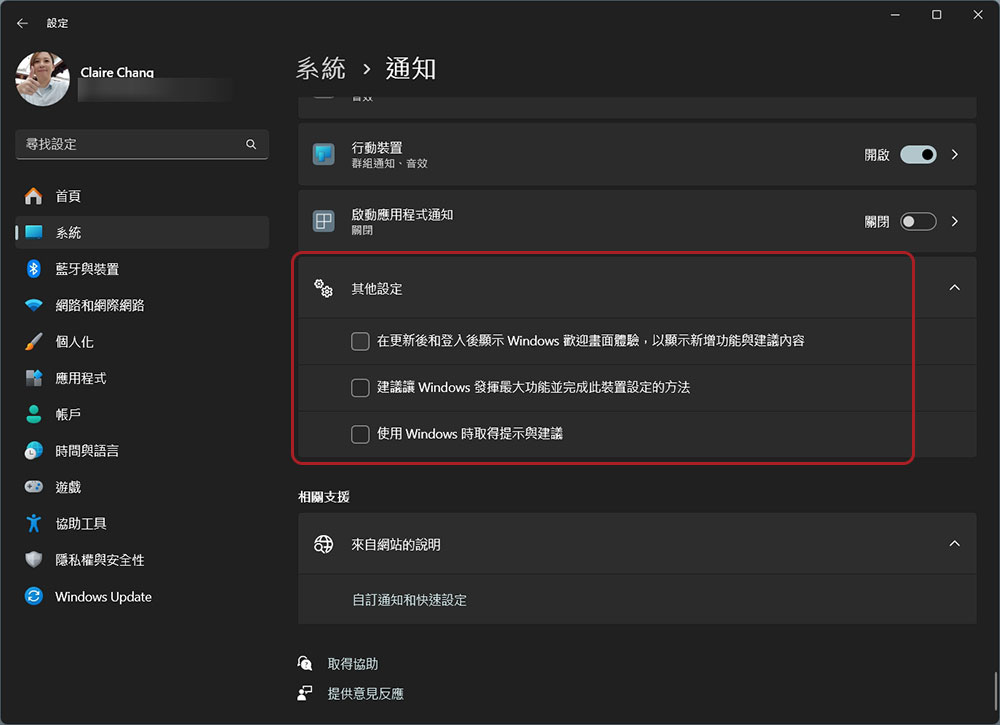
- Scroll down to the bottom of the “Notifications” item and you will see “Other Settings”.
- After expanding other settings, uncheck all three below.
- In addition, click “Personalization” in the left sidebar.
- Then in “Start”, turn off the switch for “Show suggestions for tips, shortcuts, new apps, etc.”
Adjust visual effects
Windows has beautiful graphics and gorgeous visual effects, and it’s been available in multiple versions. If your computer’s performance is tight, you can turn it off to avoid some drag:
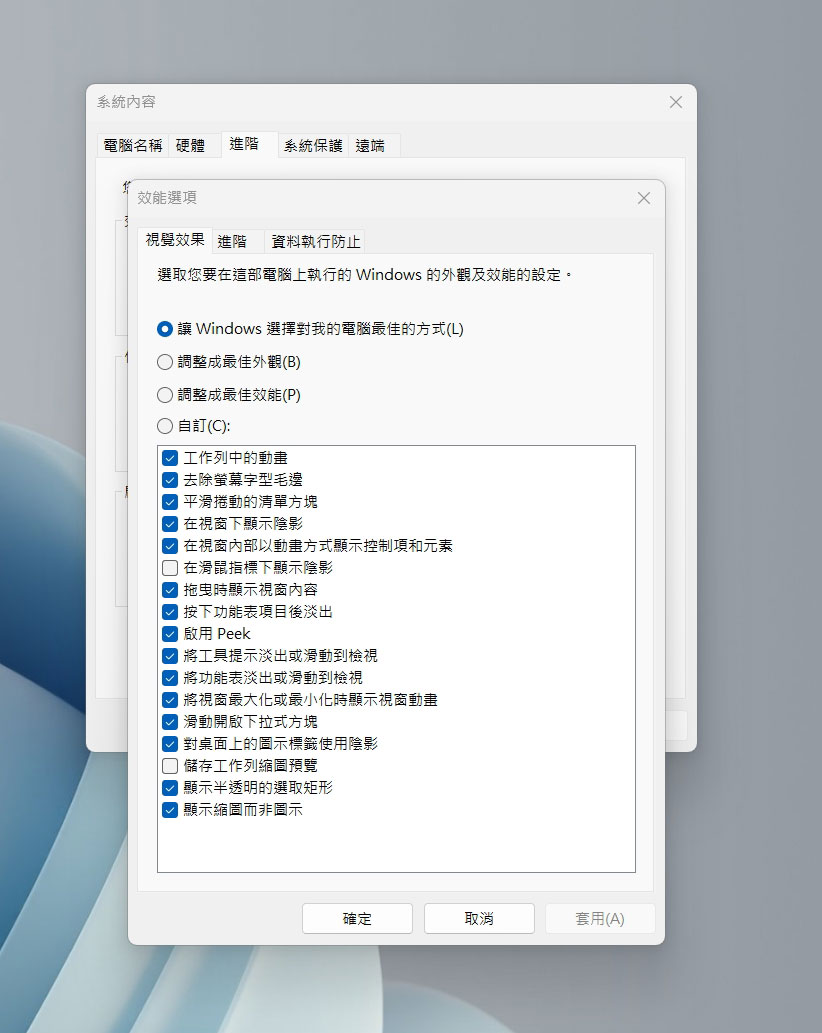
- Open the “Execute” dialog window and enter “sysdm.cpl”.
- Click “Settings” in the first “Performance” item in the “Advanced” tab.
- In this pop-up window, you can set performance- or appearance-focused settings, or select Custom to manually select which visual effects you want to cancel.
If you want to turn off the animation effect, sometimes you can also go to the assistance tool to execute:
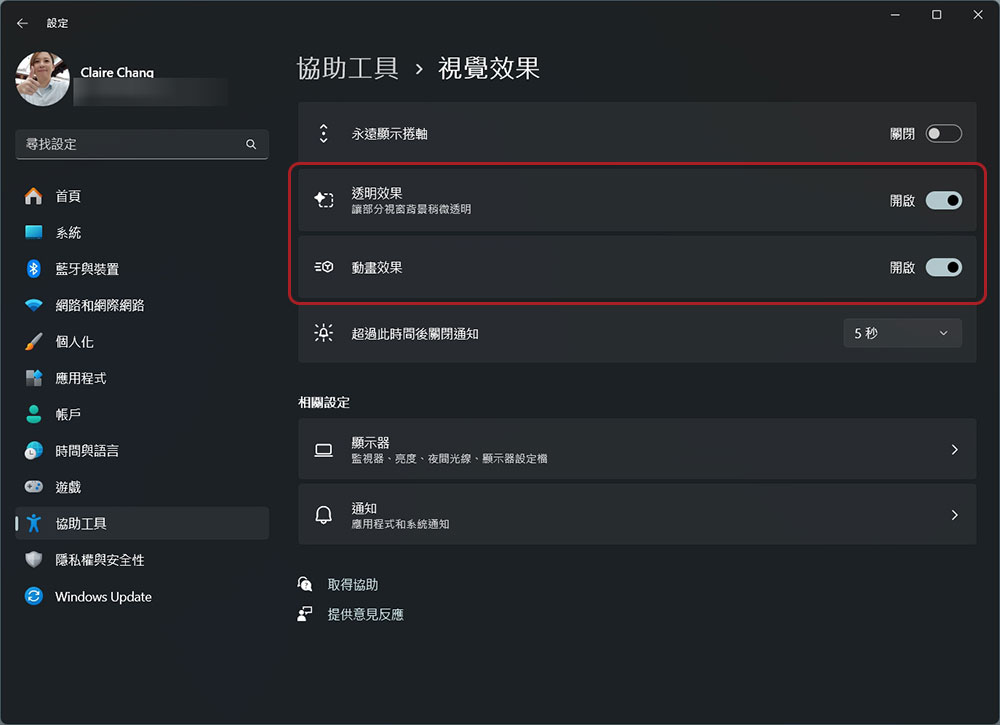
- Open “Settings”.
- Click “Help Tools” in the left sidebar.
- In the “Visual Effects” section, turn off “Animation Effects”.
- Additionally, you can turn off transparency effects to minimize visual resource consumption.
Although the Windows interface does not seem so beautiful and gorgeous without visual effects, when considering the trade-off between performance and appearance, you may prefer good performance.
Change default browser
Many people open Microsoft Edge to download Chrome or other more privacy-friendly browsers. After you install your preferred browser, you can set your frequently used browser as the default to avoid automatically opening Microsoft Edge every time you click a link.
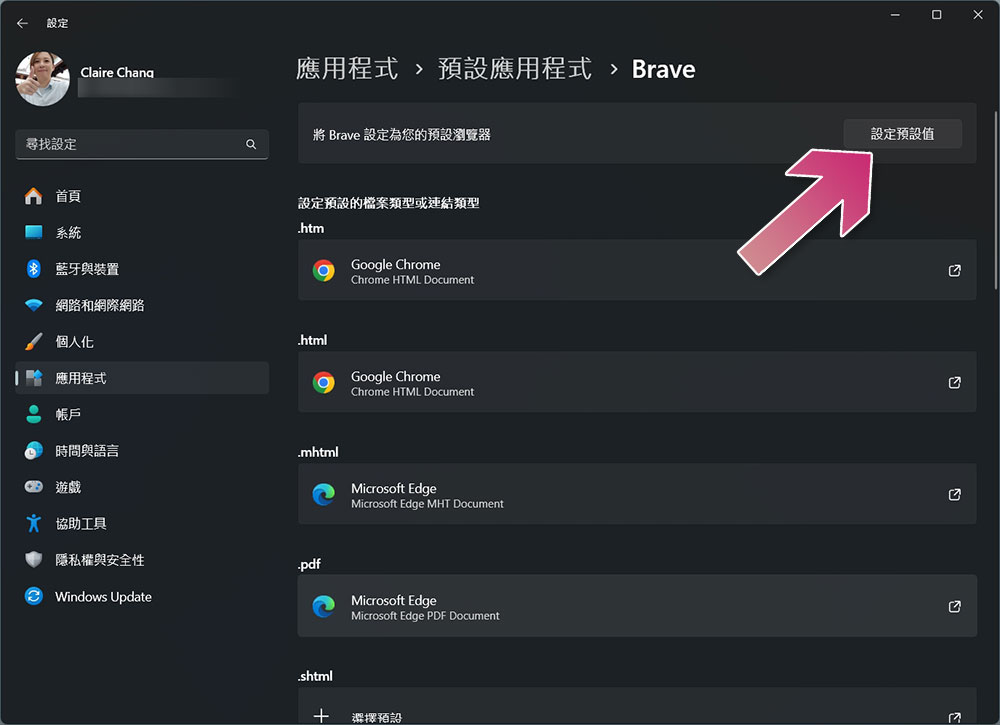
- Open the Settings app.
- Click “Applications” in the left sidebar.
- Go to “Default Applications”.
- Find the item you want to use as the default application, click to enter more function options, and click “Set as Default Browser” at the top.
- Don’t forget to also check the various file type settings listed below it.
Close news in the gadget (summary)
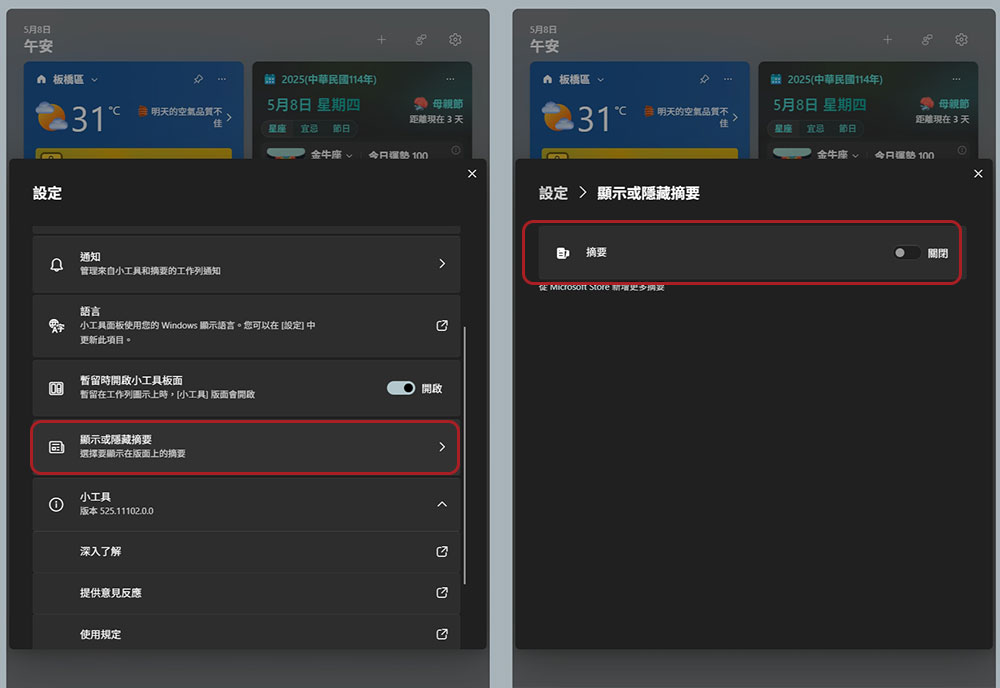
The most annoying thing about Windows 11 gadgets is that they display summaries by default. The summaries present the latest news in the gadgets, which can make people feel very cluttered most of the time. If you’re unhappy with this, you can manually disable it and leave only the helpful tools.
- After sliding out the gadget panel, click the gear icon in the upper right corner.
- Click “Show or hide summary”.
- Close the “Summary” item.
When you get a new computer or reinstall the operating system, be sure to spend a little time making the most basic settings above. The entire process can be completed in 10 minutes at most. Later, you will have a better user experience and improve your work efficiency.
Source: KOCPC Chinese