


In this era when hard drive space is precious, you don’t want the capacity to be occupied by a bunch of useless caches and junk files, especially a Mac that cannot expand by itself. Therefore, every Mac user must have a software that can clean the hard drive. If you haven’t found it yet, there is such a highly recommended Mole open source tool on GitHub. It has a built-in deep cleaning function, and it can automatically help you clear out more than GB of space with just one click. It also provides functions such as app removal, disk space analysis, system status, etc. It is known as the most powerful Mac cleaning and optimization open source tool.
However, Mole uses the terminal CLI. If you are not used to it, you can try what we introduced before. MoreDo。
Introduction and operation tutorial of Mole open source Mac cleaning and optimization tool
Mole is a free open source cleaning and system optimization tool specially built for macOS. It mainly integrates functions such as Mac cleaning, app uninstallation, disk space analysis, and system status monitoring through CLI command tools. It is somewhat similar to integrating common functions of CleanMyMac, AppCleaner, DaisyDisk, and iStat Menus into the same command line tool.
You can use it to clear cache, system logs, browser residual data, and files left after you have removed apps to free up hard drive space. If the App is still installed in the system, you can also remove the application itself through mo uninstall and clear out hidden residual content such as Launch Agents, Preferences, Application Support, Logs, Cookies, and WebKit storage data.
A more considerate point is that Mole supports the –dry-run dry run preview mode. Users can check which files it is expected to process before the official cleanup, instead of directly deleting them at the beginning, reducing the risk of accidental deletion.
Security is also built in, including path validation, protected directory rules, conservative cleanup boundaries, and clear confirmation before high-risk operations.
In addition to cleaning, Mole also provides the mo optimize system optimization function, which can rebuild the system database, refresh the Finder and Dock, clean up the diagnostic and crash logs, and even rebuild the Spotlight index. It is very versatile.
Featured List
- Free open source CLI tool, suitable for Mac users to clean and optimize their systems
- Integrated cleaning, app uninstallation, disk analysis, system monitoring and other functions
- Can clean cache, logs, browser residue and orphan data of removed apps
- Supports smart uninstallation, which can be removed together with hidden App residual files
- Provides –dry-run dry run preview, so you can confirm what content will be processed before officially deleting it.
- It has a security-first design, including path verification, protection directory rules and high-risk operation confirmation.
- mo analyze can visually analyze disk space and quickly find large files.
- mo status can instantly check the CPU, memory, disk, network and power status
- Supports Homebrew installation and quick deployment through scripts
- The CLI version is free and open source, and a paid GUI version is available.
Mole is a CLI tool, so it needs to be installed through the terminal. There are two ways, depending on which one you want to use:
brew install molecurl -fsSL https://raw.githubusercontent.com/tw93/mole/main/install.sh | bash
Of course, you can also directly throw the project link to AI agent tools such as Claude, Codex, etc., and let AI automatically install it for you.
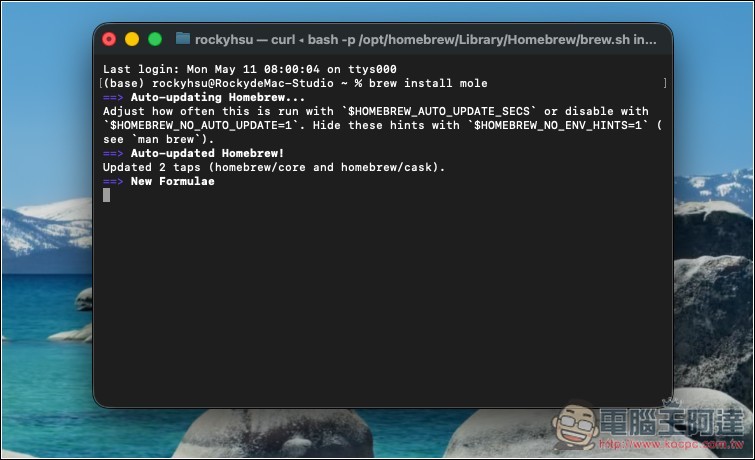
I’m using Homebrew, so typing brew install mole in the terminal will start the installation:
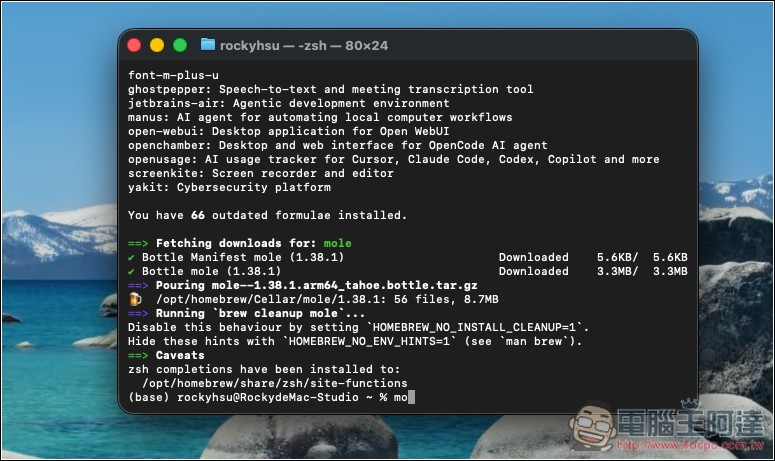
After the installation is complete, if you want to enable the CLI interface, you can enter mo:
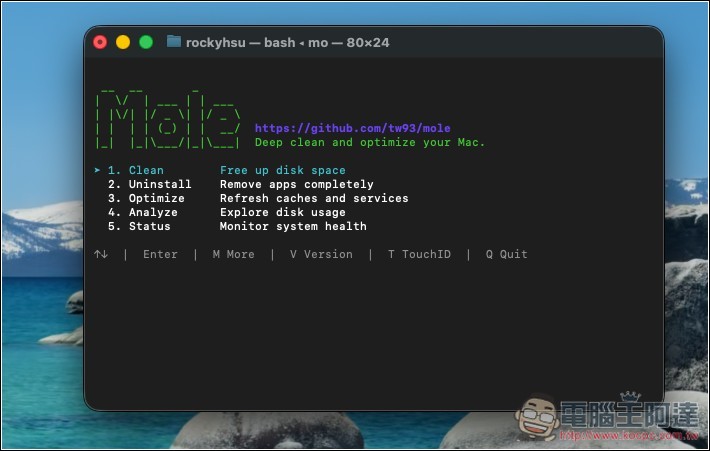
Mole’s CLI interface will open. You can select the functions you want to use directly from the menu, including cleanup, removal, optimization, analysis, and status:
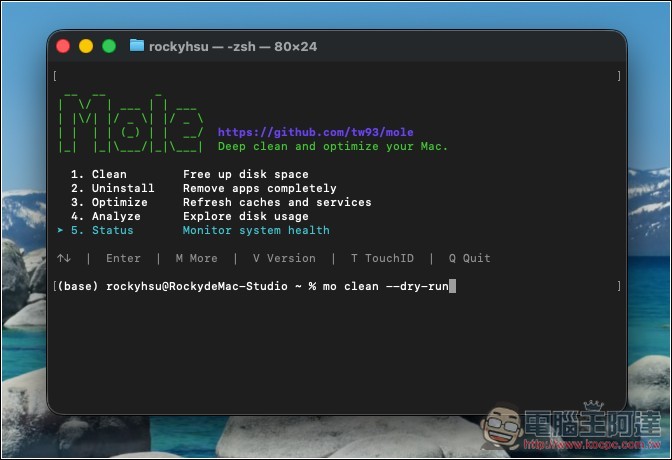
When using the cleaning tool in this interface, it will run the cleanup directly without letting you preview it. If you are worried and want to see what it will delete first, then enter it in the terminal instead. mo clean --dry-run:
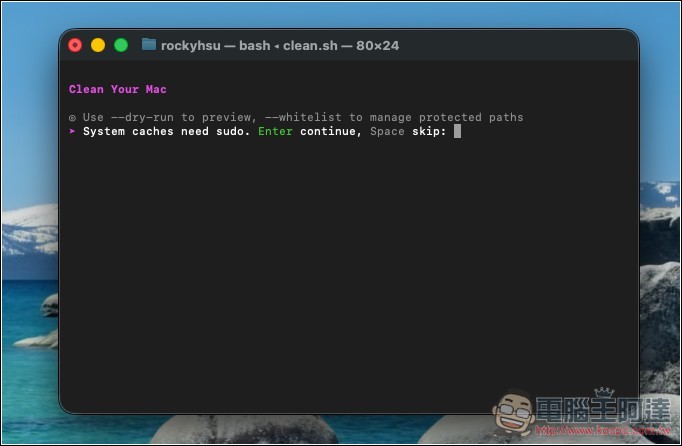
Then it will start scanning the system, users, large files, etc. and delete them:
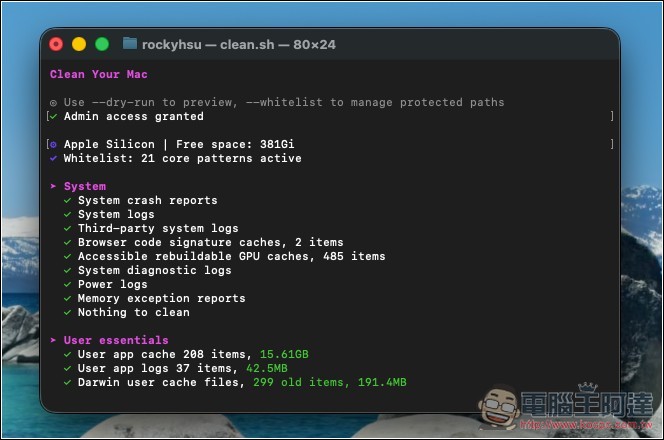
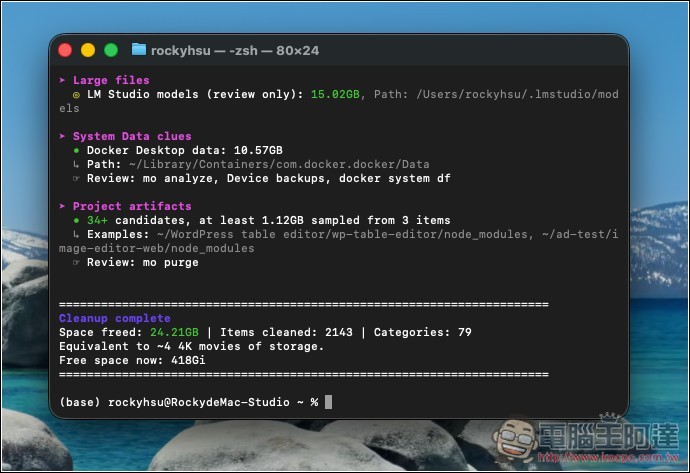
After deletion, it will tell you how much space has been cleared. In my case, it cleared up to 24.21GB of space:
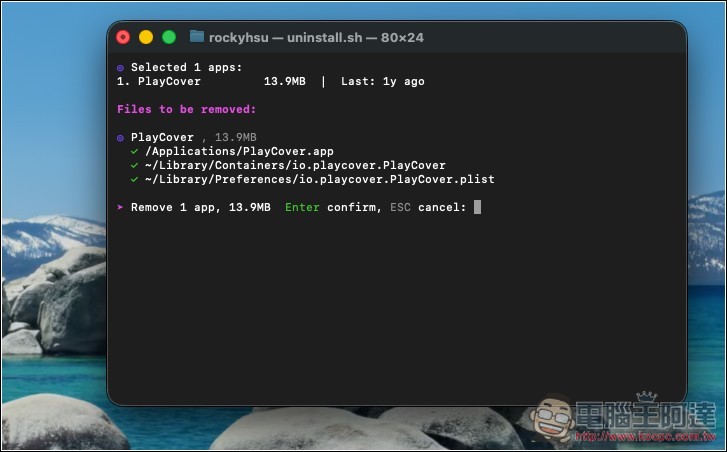
Removing an app is also very simple. The list will list the tools installed on your Mac. Select and press Enter to start the removal:
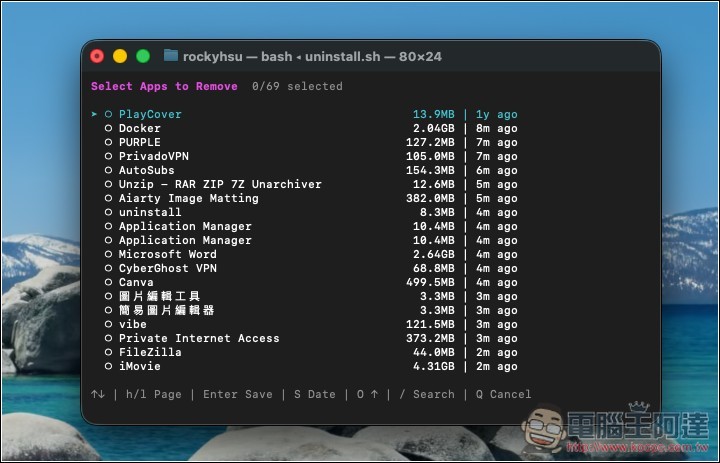
It will remove all related files and leave no files behind:
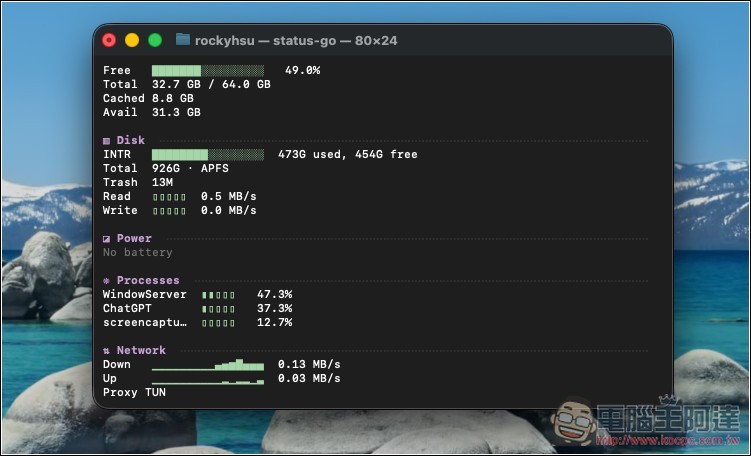
The picture below is the system status screen:
Mole command organization
| instruction | Function description | Suitable for use situations |
|---|---|---|
mo |
Open Mole’s interactive menu, and use the menu to select functions such as cleaning, analysis, and optimization. | When you are not familiar with the commands and want to use menu operations. |
mo clean |
Perform a deep clean to clear cache, logs, temporary archives, and residual data left after uninstalling the app. | When your Mac is running out of space and you want to clear the system junk files at once. |
mo uninstall |
Remove installed apps and clean up related residual files, such as preferences, cache, logs, Launch Agents, etc. | When you want to remove the app together with hidden residual data. |
mo optimize |
Perform system optimization, including refreshing cache and system services, rebuilding system databases, reorganizing Finder and Dock, etc. | When your Mac becomes slow after being used for a long time and you want to organize system services and cache. |
mo analyze |
Turn on the visual disk space analysis tool to view the occupied capacity of folders and files. It also supports mo analyse spelling. |
When you want to find out which folders or large files are taking up the most space. |
mo status |
Displays real-time system health status, including CPU, GPU, memory, disk, network and power information. | When you want to quickly check the current performance and hardware status of your Mac. |
mo purge |
Clean up project build products, e.g. node_modules、target、.build、build、dist Wait for the folder. |
When developers want to clear out old project products and free up a lot of hard drive space. |
mo installer |
Find and remove the installation file, e.g. .dmg、.pkg、.zip Wait for large installation files. |
When there are many installation files accumulated in the download folder and you want to clear them quickly. |
mo touchid |
Set up Touch ID for sudo Authentication allows the terminal to use fingerprint recognition when it requires administrator privileges. |
Commonly used terminals, when you want to reduce the number of times you need to enter passwords. |
mo completion |
Set the Shell auto-completion function and use Tab to quickly complete the Mole command when entering it. | When you want to improve the efficiency of terminal command input. |
mo update |
Update Mole to the latest stable version. | When you want to get new features, fixes or security updates. |
mo update --nightly |
Update to the latest main branch version that has not been officially released. It is only available for versions installed through scripts. | When you want to be the first to experience the latest features, but accept the risk of instability. |
mo remove |
Remove Mole itself from the system. | When you no longer use Mole and want to completely remove the tool. |
mo --help |
Displays Mole’s documentation and available commands. | When you forget how to use a command and want to query the function. |
mo --version |
View the currently installed version of Mole. | When you want to confirm whether it is the latest version or report a problem. |
Source: KOCPC Chinese