


When you use a computer, you don’t think that it needs some regular maintenance just like a car. A Windows PC is a heavy workload, and it requires maintenance to keep it running smoothly. Without regular maintenance, performance can suffer, security can be compromised, and hardware issues can go unnoticed. You should develop a habit of performing some daily tasks on a regular basis to help your computer continue to run smoothly.
6 things you should do regularly with your Windows PC
Check and install available updates
Windows automatically installs critical security and system updates, but some updates are left optional for users to decide whether to install. Although skipping these updates will not immediately affect your computer system, I recommend that you review and install them selectively, especially if you encounter performance issues, application errors, or compatibility issues.
To check for optional updates, follow the steps below:
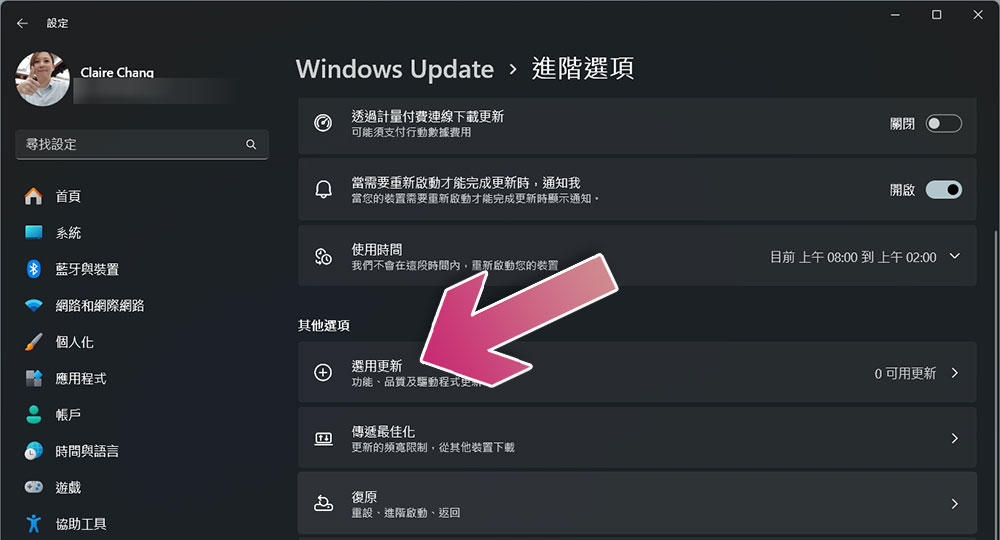
- Open the Settings app and click Windows Update.
- Click “Advanced Options”.
- Click Choose Updates to see what updates are available, then choose which ones you want to install.
- If Windows prompts you to reboot, just follow it.
Check the protection history in Windows Security
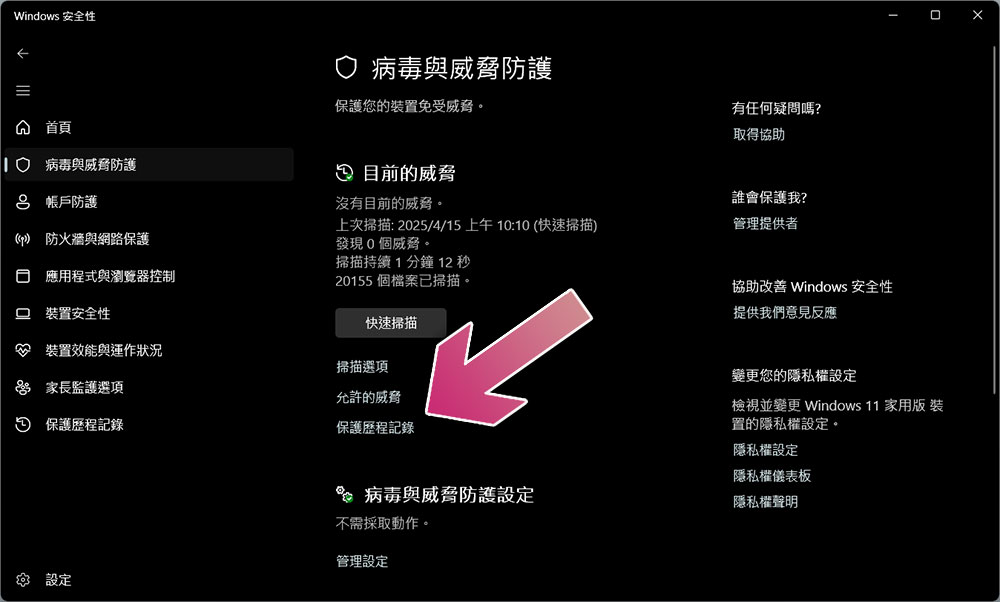
Windows Defender runs in the background to detect malware, viruses, and other threats. When it detects suspicious content, it takes action, such as removing, quarantining, or blocking it. While it will notify you when it executes, you may miss or get false alerts, which is why you should regularly check your protection history, where Windows logs all past security events.
This allows you to stay informed about potential threats to your device, avoid future risks, and unlock secure files or apps that may have been incorrectly flagged. To view the protection history, just search and open “Windows Security”, then click “Virus & Threat Protection” on the left, and then click “Protection History”. Here you can see recent events classified by severity.
Check data backup
You probably back up your data to ensure you can recover it if something goes wrong with your computer, but when was the last time you checked your data backup? Just imagine how desperate it is when your computer has a problem and you rely entirely on your backup data, only to find that it cannot restore files when needed. That’s why you should test your data backup to make sure it can be restored properly, for your own peace of mind.
If you have set up automatic backups, check that critical files are being backed up, and then try restoring a few randomly selected files to make sure everything is working properly. Review the backup frequency and adjust if necessary. It is recommended to use different methods to back up data to two different devices to ensure that if backup A fails for any reason, backup B is available.
★ Further reading:Are your computer backups adequate? What you should know about backups
Organize your Windows desktop
We often overlook our computer desktops, not realizing how quickly files, folders, and shortcuts can accumulate and take up the screen. Desktop clutter not only affects your vision, slows down Windows boot time, but also makes it harder to find commonly used shortcuts, which is why you should set aside some time each week to organize your desktop and make your workspace cleaner.
To organize your content, delete temporary files and shortcuts, clean up any duplicate shortcuts, sort files into clearly labeled folders, and keep only the shortcuts you use most. You can also choose a simple, minimalist wallpaper to minimize additional visual clutter on your screen, making your desktop look more organized and easy to find.
Check if your computer is overheating
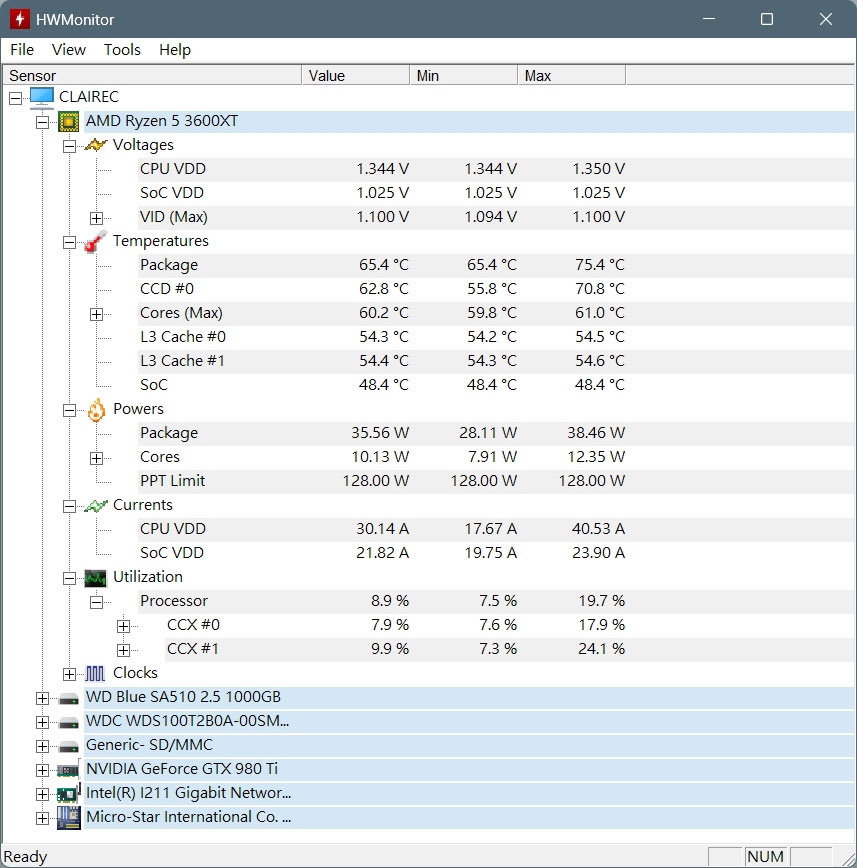
Overheating is a common computer problem that can reduce system performance due to thermal constraints. Although you can feel the temperature on the surface of the device, it is recommended to use something like HWMonitor Tools like this to get an accurate temperature index. Once downloaded and installed, run it to track the internal temperatures of your CPU, GPU, and other sensors.
If you find that the temperature is consistently above 80 degrees Celsius, take steps to help cool it down. Clean dust from laptop vents, use the computer in a well-ventilated space, place the laptop on a stand to improve air flow, etc. Also, avoid running multiple resource-intensive programs at the same time, avoid charging your laptop while using it, and take other measures to prevent your device from overheating.
Run system diagnostics
The sooner a computer hardware problem is discovered, the sooner steps can be taken to avoid performance degradation and potential damage to other components. You can run diagnostic programs regularly to check the health of your hard drive, CPU, GPU, RAM, battery, etc., which can help you detect problems early before they become more serious.
For example, you can run the Windows Memory Diagnostic tool to check your RAM, generate a battery health report to check battery health, stress test the GPU and CPU to further evaluate performance, and check for hard drive errors to see if there are problems or bad sectors. Even if the computer is running well at this stage, this data can let you know the health of the device at any time.
Source: KOCPC Chinese