


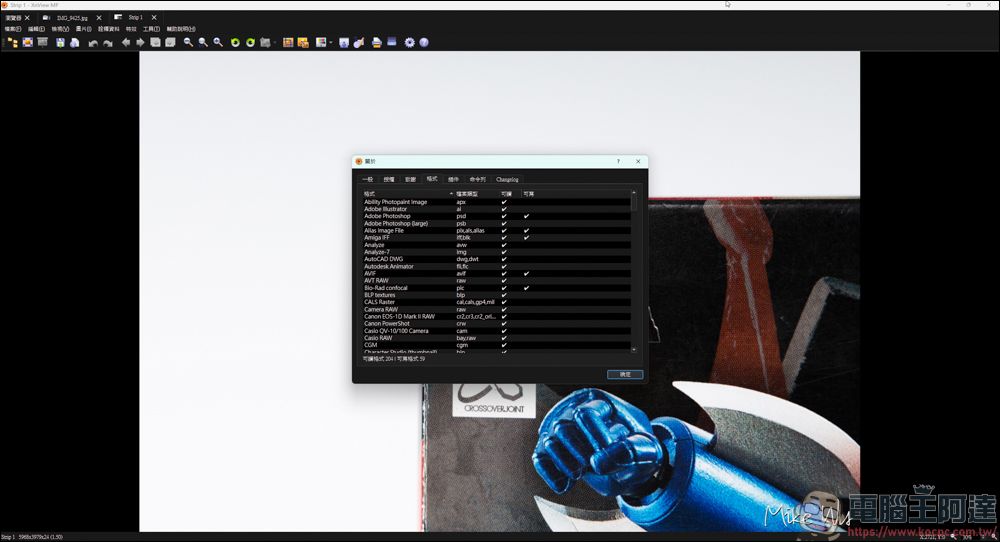
Today I recommend a useful and free picture viewing software – XnView MP. Not only does it support cross-platform Windows, MacOS and Linux, the installation file is lightweight, it also claims to support more than 500 image formats, and it also has built-in practical image editing functions. If you are looking for a set of personal and free image management tools, then XnView MP may be a good choice. Next, let us take a look at how to download and install it from the official website, and what useful basic functions it has!

XnView MP official website download
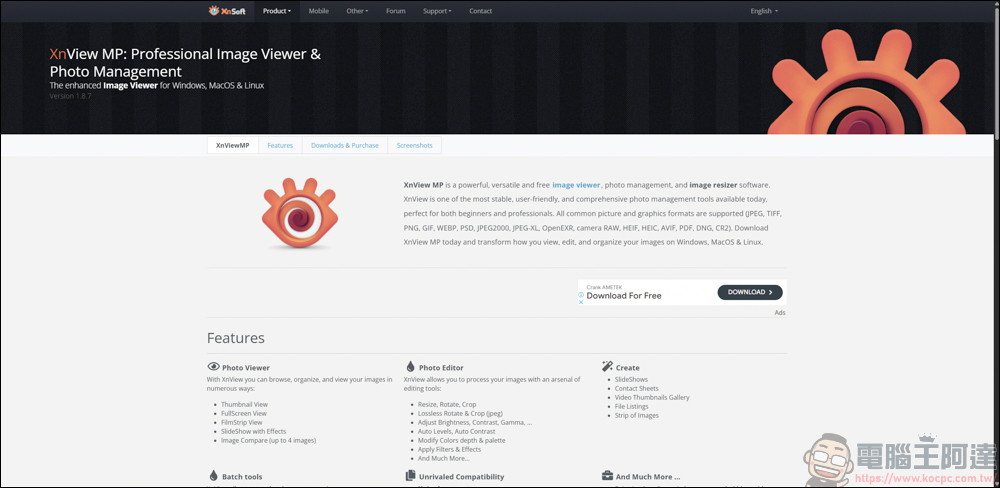
First, go to the official website of XnView MP to download:
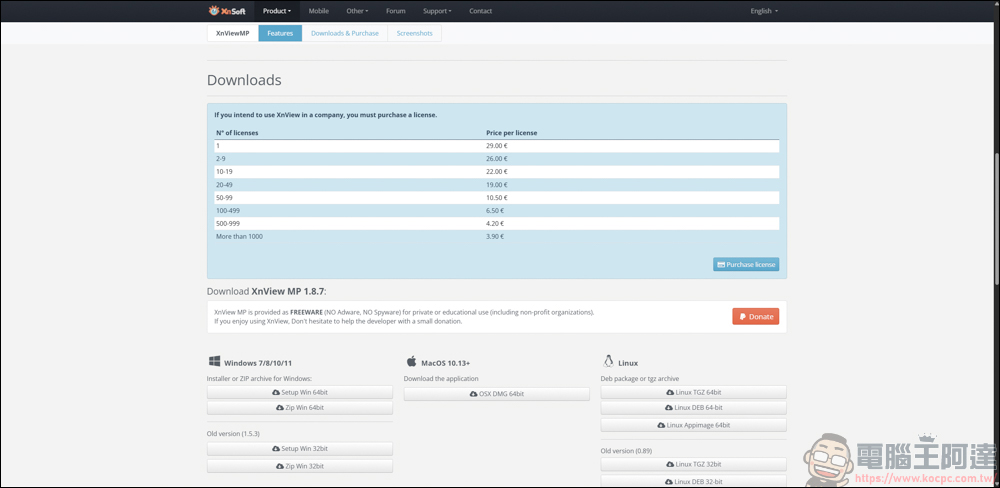
The XnView MP software states that if users plan to use XnView in their company, they must purchase a license, which costs 29 euros per unit. It is free for personal or educational use (including non-profit organizations). If you feel good after using it, you would like to make a donation. The amount of the donation is 5.25 euros (about NT$200). It depends on whether you are willing to spend money to support it.
The versions are divided into Windows / MacOS / Linux, and can be used on almost all systems:
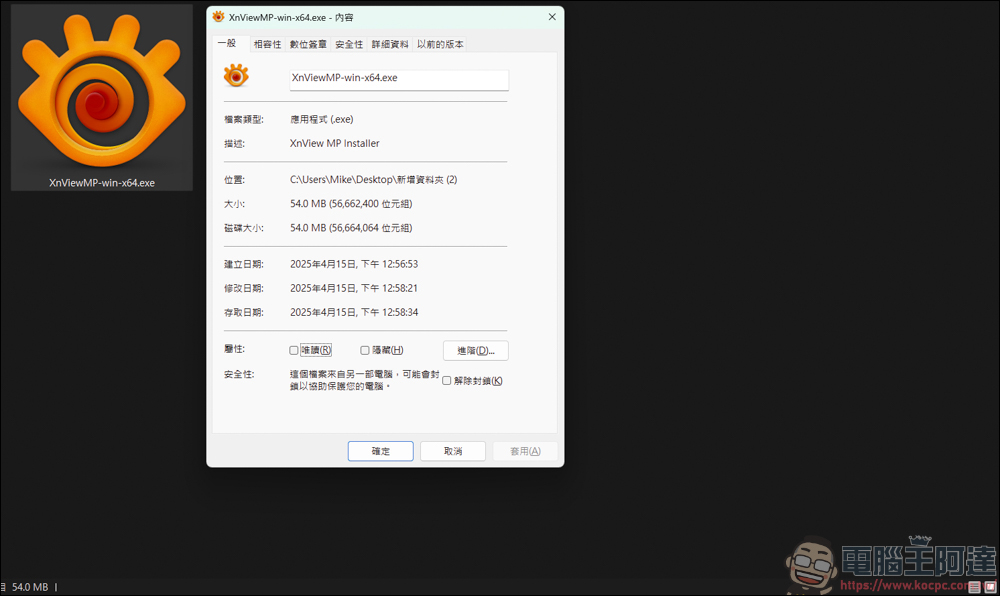
The downloaded file size is approximately 54 MB, a very lightweight set of software:
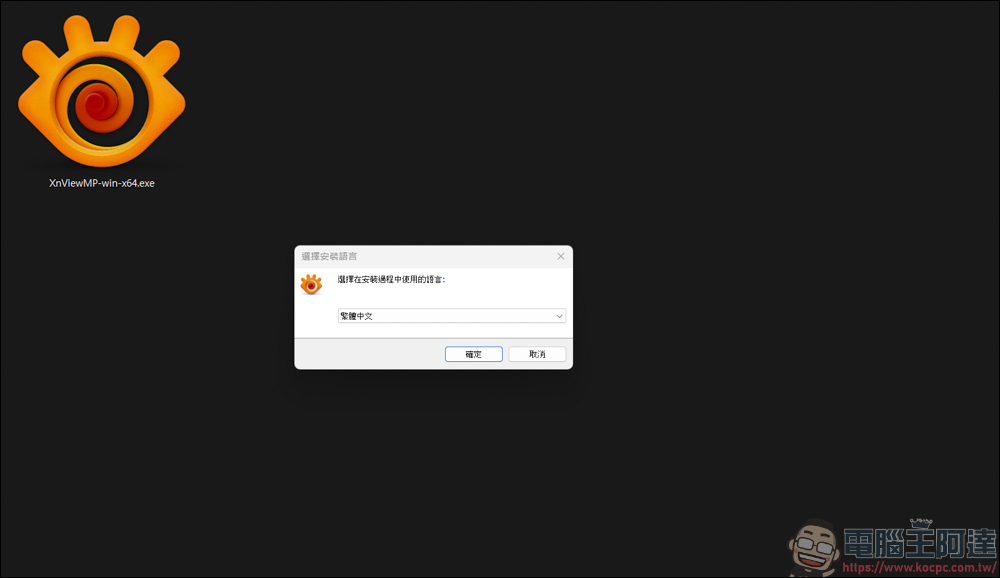
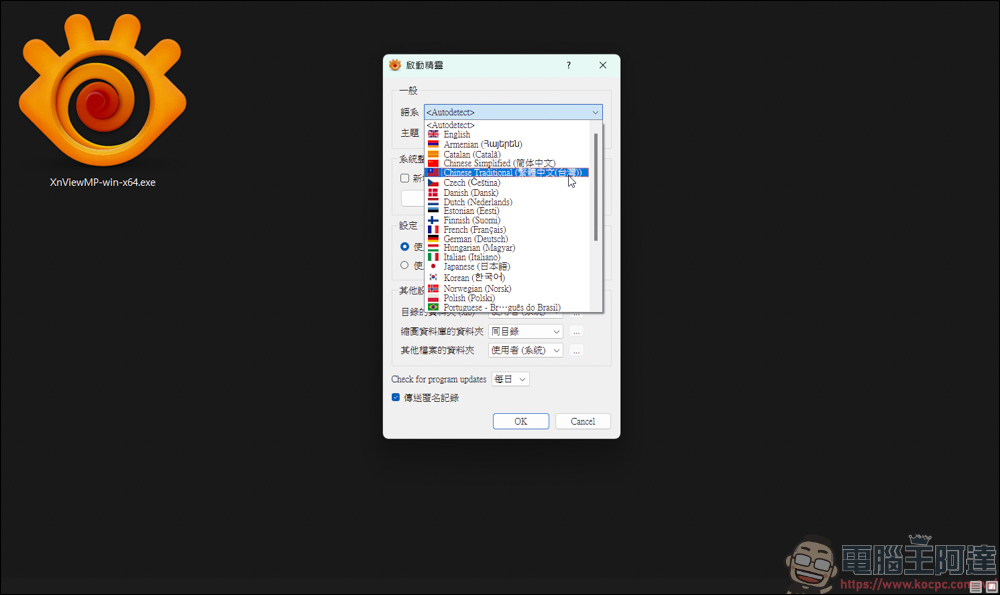
Traditional Chinese is installed and you can choose:
The installation process is very simple, just keep following the next step. After the installation is complete, this window will appear. You can set the software information first:
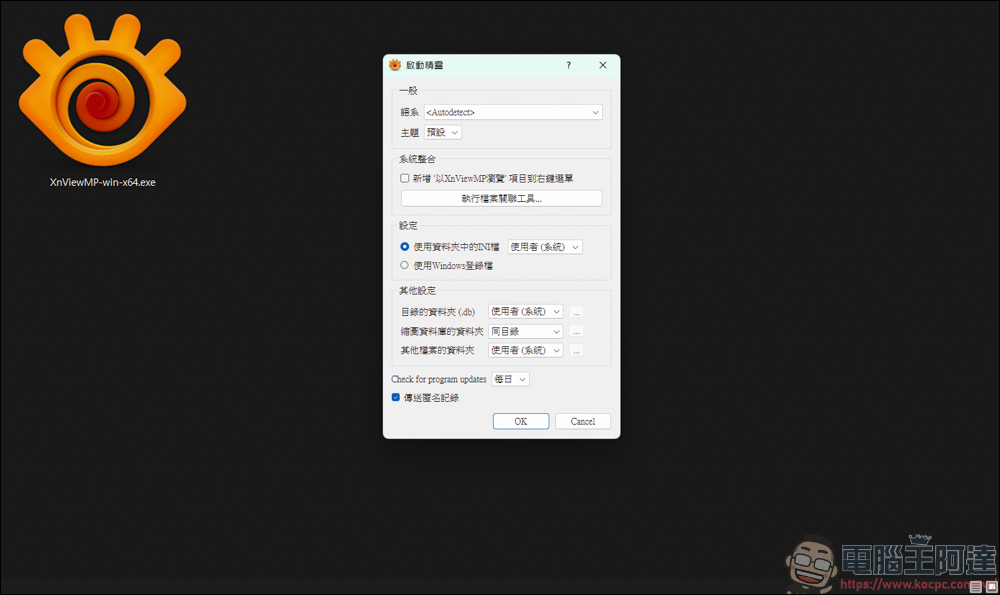
The great thing about XnView MP is that it supports Traditional Chinese, making it easy for people who are not familiar with English to get started:
XnView MP simple tutorial
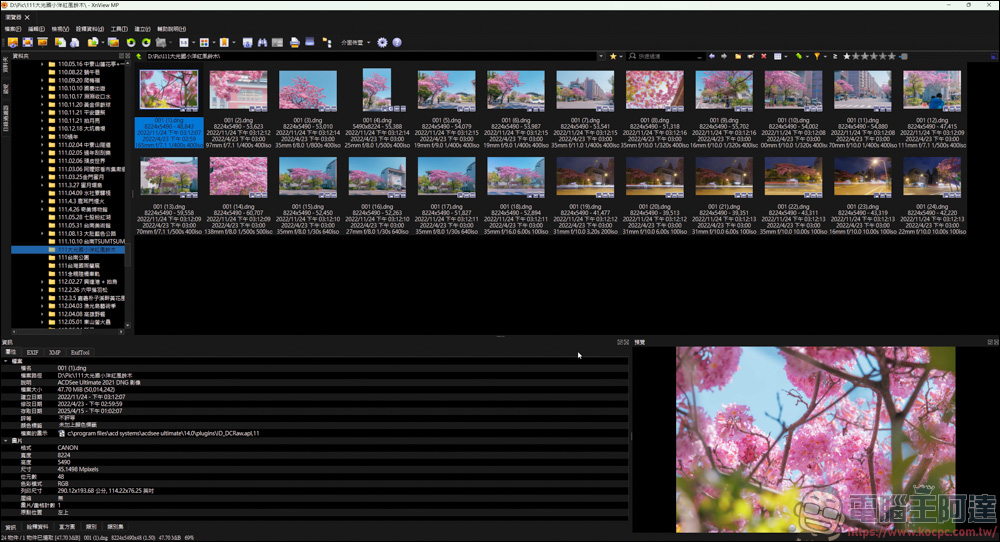
Let’s briefly introduce the interface and simple tutorial of XnView MP. The initial screen is very simple. Most of the tools are designed at the top, and on the left side you can quickly browse the image files on the computer. The background theme can be set to light or dark. I personally choose black:
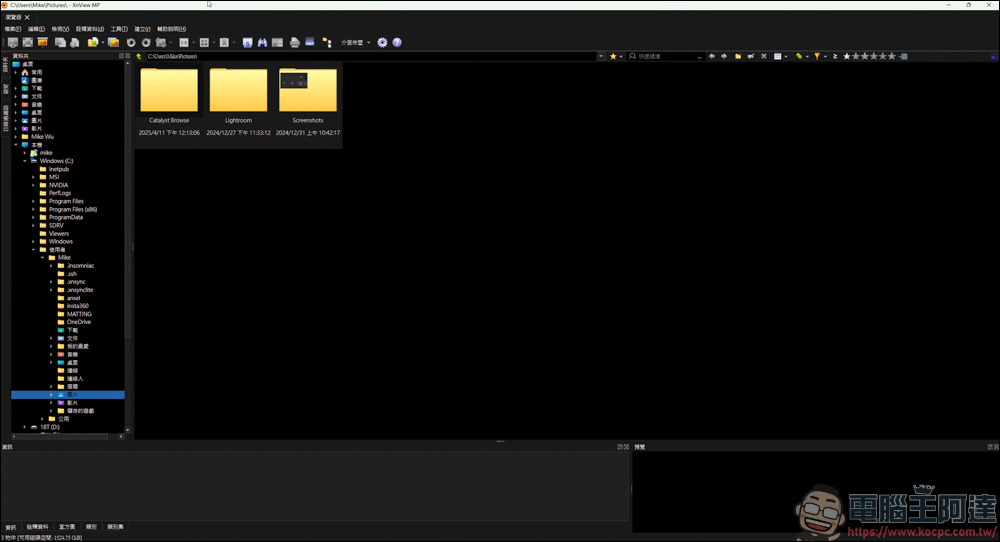
XnView MP supports more than 500 image formats, and DNG files on my computer can also be browsed correctly:
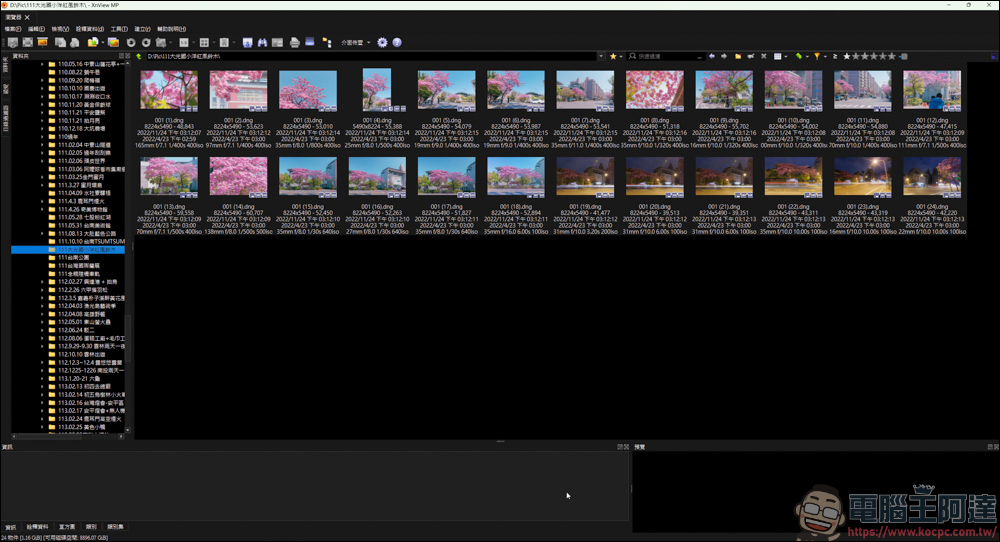
After clicking on the image file, there will be raw data captured by the camera below. If it is built-in in Windows, you have to right-click on the image file → Content to get the information:
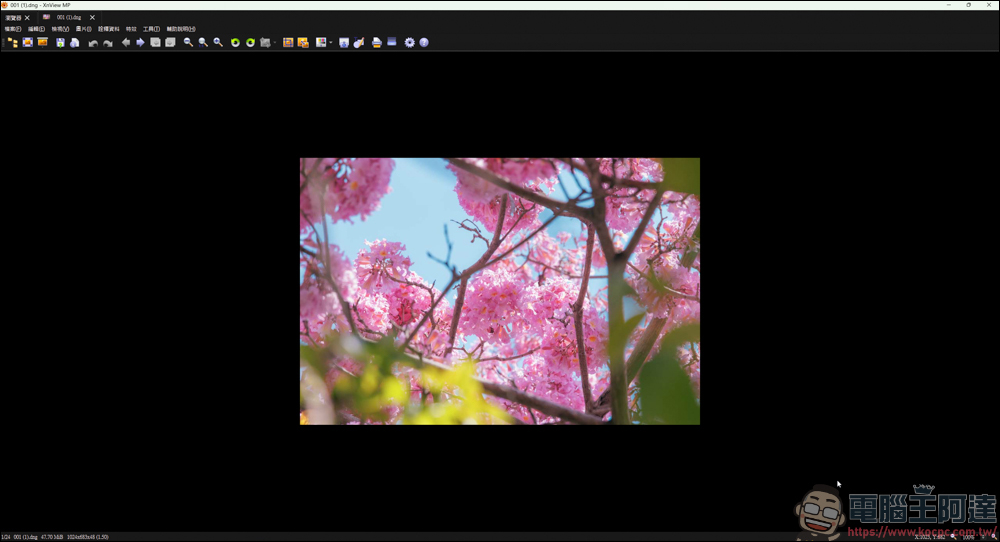
The page that looks at the image alone will look like this. The list on the left and the information bar below will be hidden. Since my image file is a DNG file, it will only display a thumbnail. If it is a JPG image file, it will be displayed in full size:
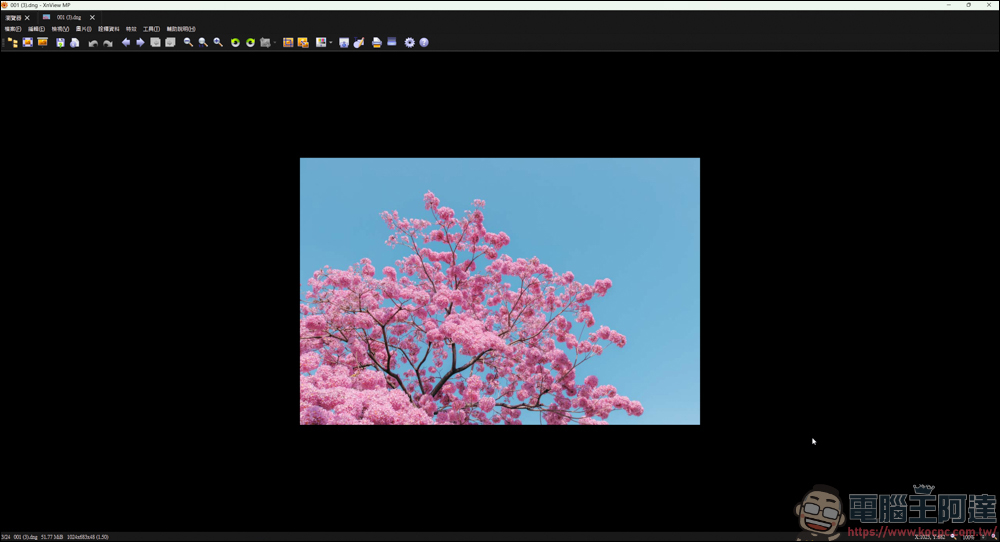
If there are many image files in the directory, press the left and right keys to switch images:
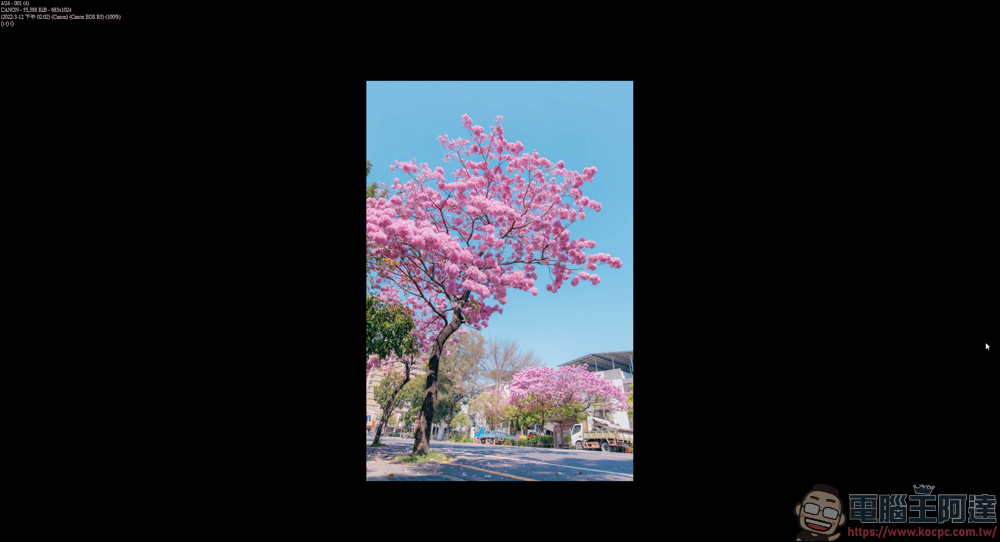
You can also play full-screen or slideshow functions:
The toolbar above has several functions that can be quickly adjusted, such as rotating the image or inverting it horizontally:
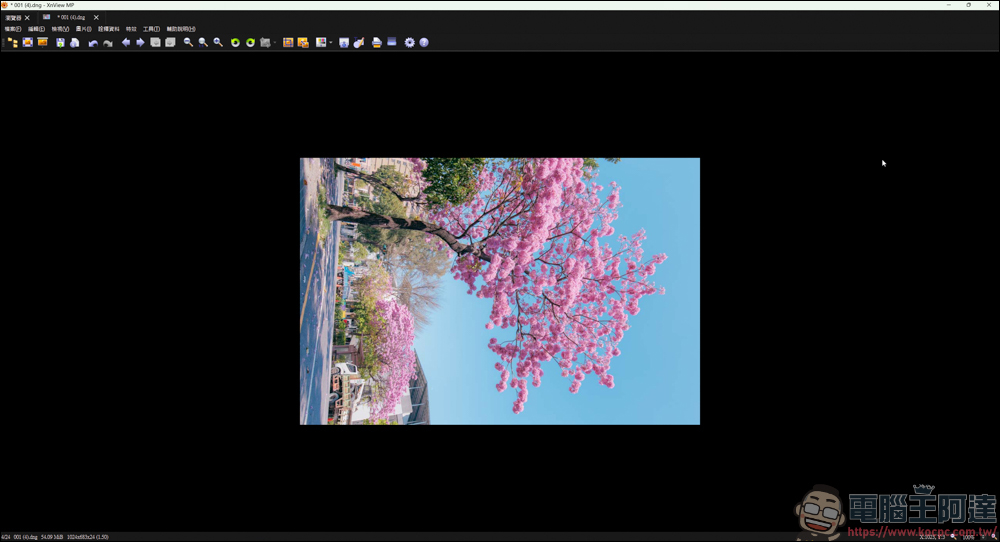
It can also be cut freely or proportionally:
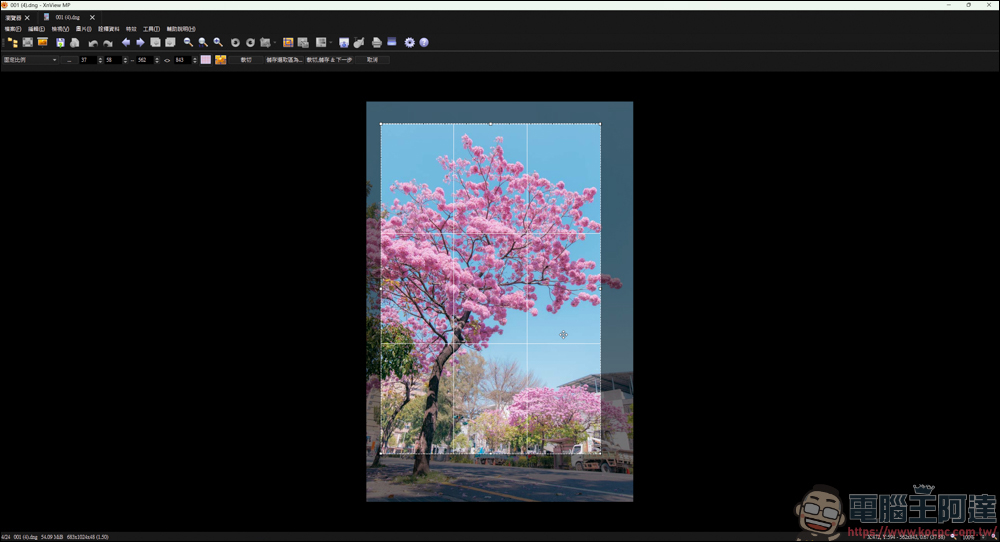
You can also quickly optimize pictures, but the adjustment options are not as many as professional photo editing software:
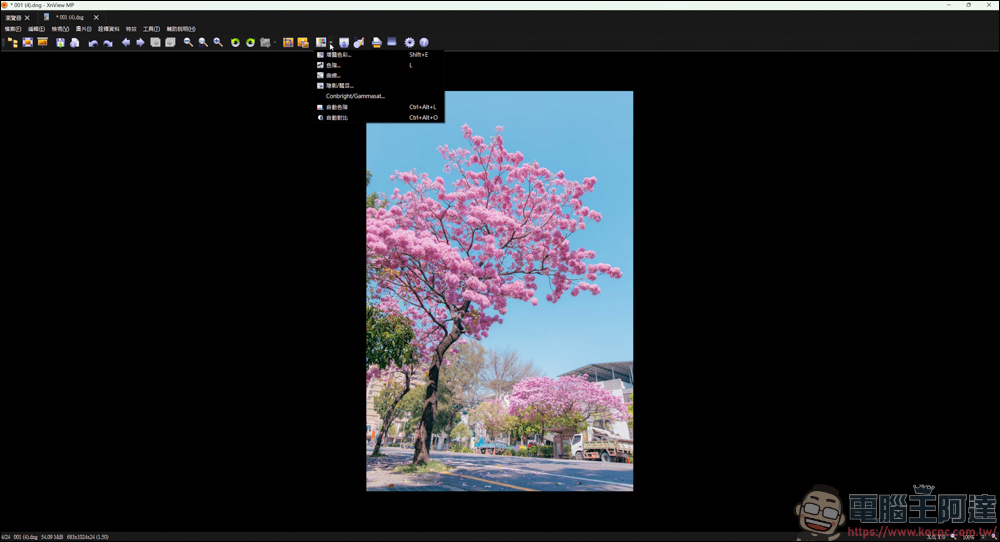
Basic exposure, saturation, color temperature, etc. can all be adjusted:
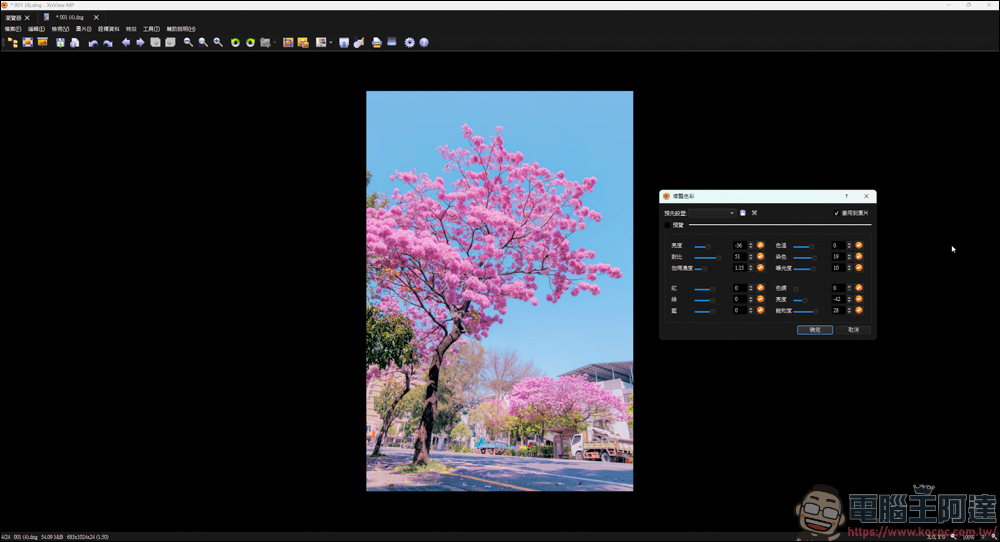
And the curve:
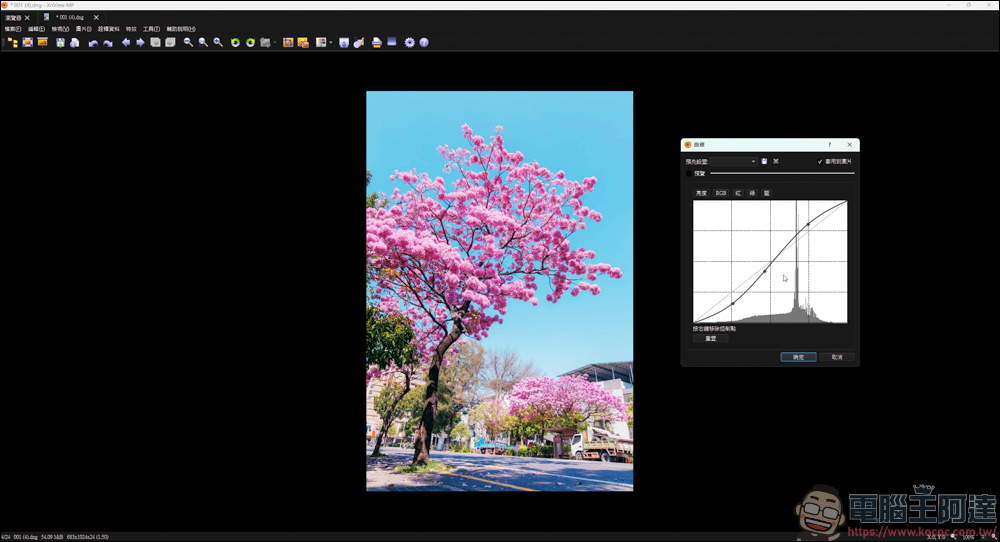
Simple picture effects can also be found in this software:
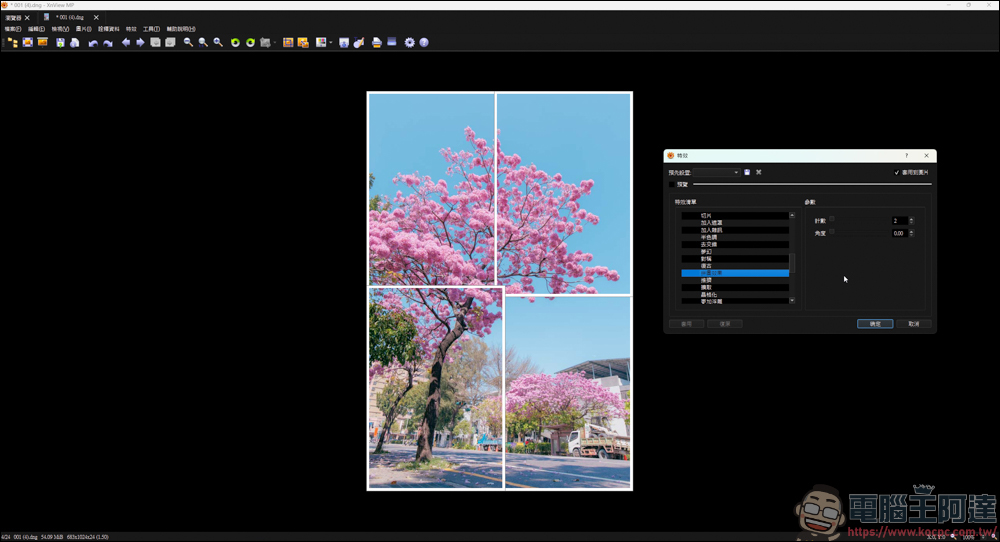
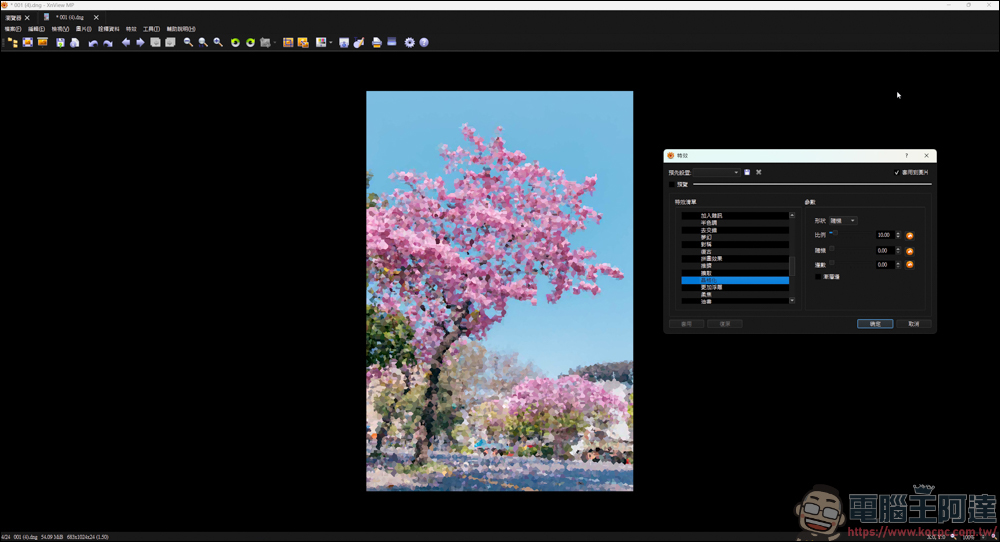
It doesn’t matter if you don’t know how to adjust colors. There are many built-in filters that you can apply quickly and turn your photos into a literary style in a second:
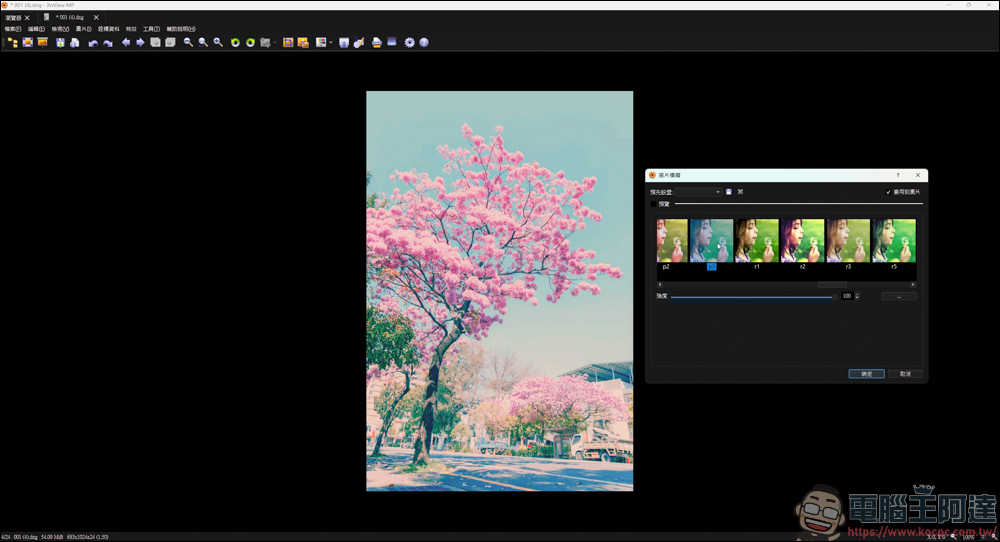
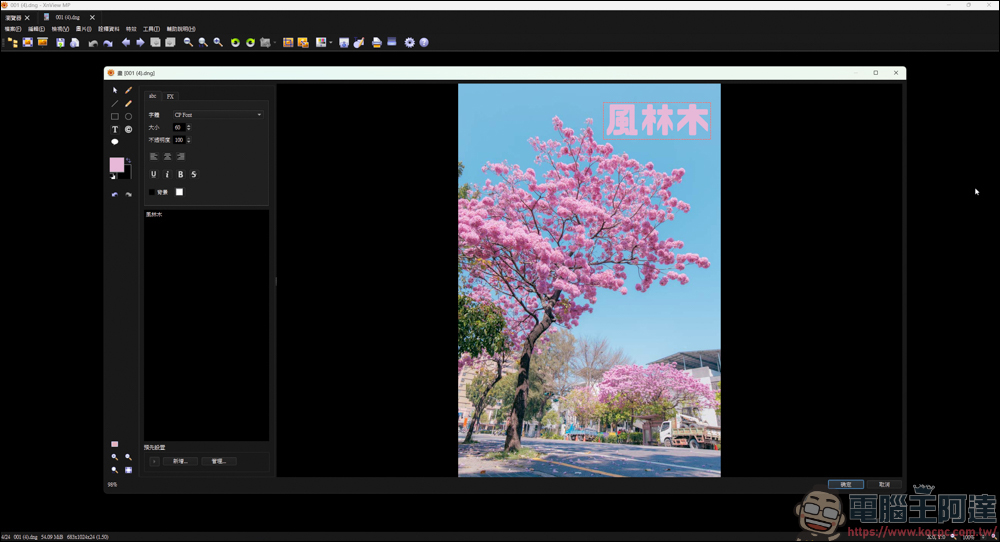
You can also add text, signatures, drawings, etc. to pictures. The functions are quite complete for a free software:
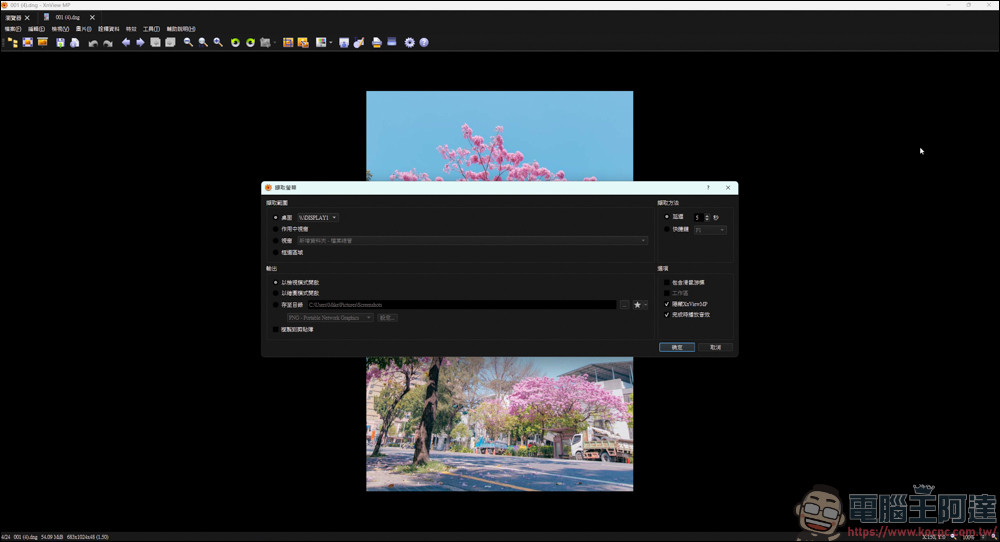
You can even take screenshots, but I think the function is rather useless:
In summary, this free XnView MP image viewer (personal/educational use) supports multiple platforms, 500 image formats, built-in Traditional Chinese interface and lightweight size. It is a good image browsing and management tool. Although its built-in image editing and adjustment functions cannot replace professional photo editing software, it is quite sufficient and easy to operate for basic needs such as daily image viewing, quick rotation, cropping, simple optimization, applying filters, or adding text watermarks:
Source: KOCPC Chinese