


Have you ever noticed that your mouse moves very quickly from one side of the screen to the other when using your computer? Even if your hand only moves a few millimeters, your mouse cursor seems to be flying into the sky? This happens due to mouse acceleration, and below we’ll tell you how to turn it off for more precise control of cursor movement.
How to turn off mouse acceleration on Windows 11? Why close it?
First of all, you will find that there is no option in Windows settings that clearly says “Mouse Acceleration”. On the contrary, there is a setting item called “Enhance Mouse Accuracy”, which Microsoft calls Mouse Acceleration. When this feature is enabled, the mouse’s DPI setting comes into play, which controls the distance the cursor moves on the screen in response to how fast you actually move the mouse.
For example, if you move your mouse slowly from point A to point B, Windows will detect the slower movement, reduce the effective DPI, and the cursor will move a shorter distance on the screen. But if you move your mouse from the same point A to point B at a faster speed, Windows will detect the increased speed, increase the effective DPI, and the cursor will move a longer distance on the screen.
Unfortunately, it’s hard to predict the level of speedup you’ll get with this feature. Sometimes, even small changes in the speed of the mouse in your hand can affect the distance the cursor moves on the screen. If you are a gamer, this inconsistent performance may be the last thing you want to happen, because it will make it harder to target enemies, especially in first-person shooter games. This will affect your accuracy in killing enemies, and you may ultimately lose the competition.
Since this feature makes predicting mouse movements difficult, why doesn’t Microsoft remove it from Windows? If you’re using a cheap mouse with a poor sensor, you’ll often need to make large hand movements to move the cursor a short distance, in which case turning on mouse acceleration can actually be helpful. Additionally, if you’re using a laptop trackpad instead of a mouse, you may find yourself needing to slide the cursor several times to move the cursor from one point to another, since trackpad sensors are generally not as sensitive as a mouse. This is where mouse acceleration comes in handy.
If you’ve realized that mouse acceleration isn’t working for you, it’s not difficult to turn off mouse acceleration.
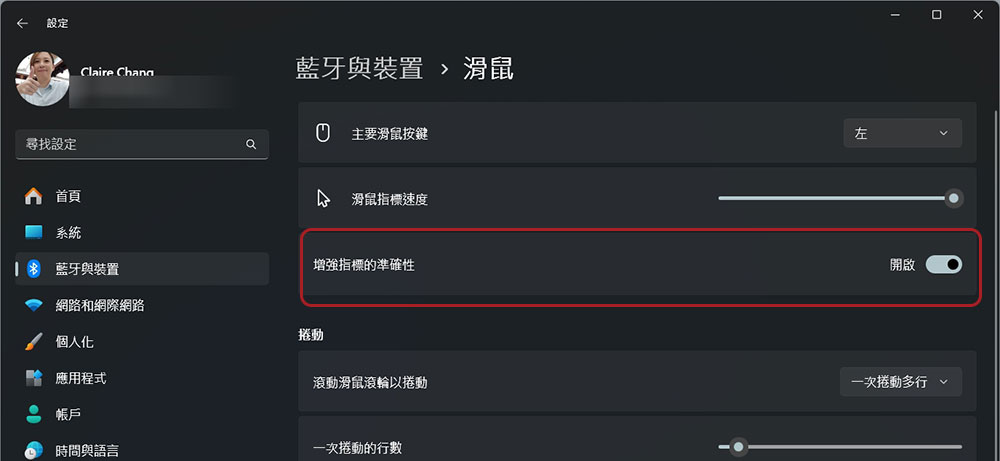
- Open the Settings app.
- Click to enter “Bluetooth and Devices”.
- Scroll down to find the mouse and click to enter.
- Then turn off the “Enhance indicator accuracy” function.
There is another way to turn off disabling mouse acceleration on Windows 11.
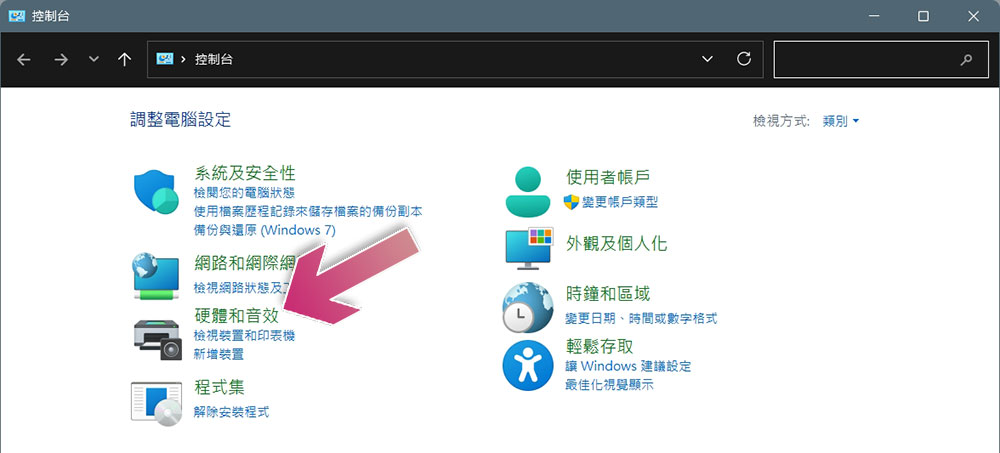
- Search for and open Control Panel in Windows.
- Click to enter “Hardware and Sound Effects”.
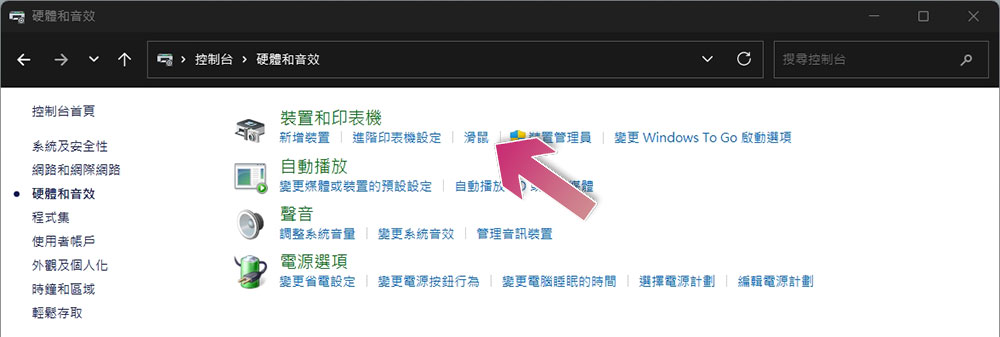
- Then click “Mouse” under “Devices and Printers”.
- Switch to the “Indicator Settings” tab and uncheck the “Enhance indicator accuracy” checkbox.
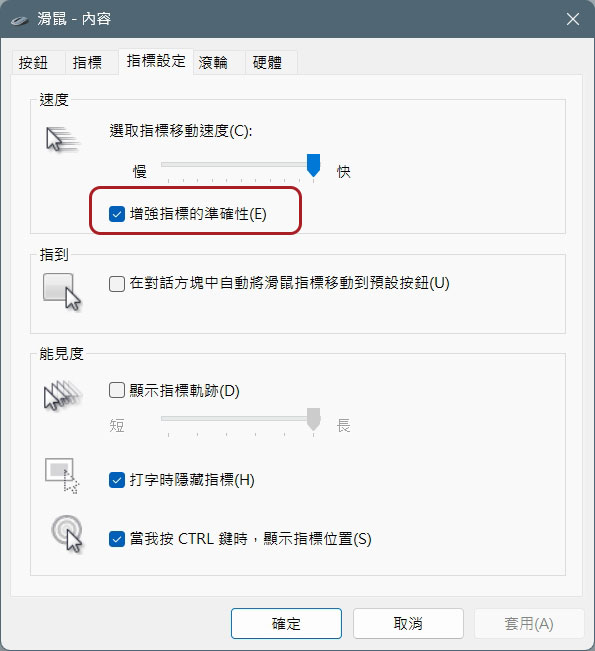
- Finally, click “Apply” and click “OK”.
Source: KOCPC Chinese