


In recent years, short videos such as Shorts have become popular, and YouTube creators have also spent more time and energy on developing short video content. However, compared with traditional YouTube videos where you can edit the video cover yourself, YouTube Shorts in the past did not allow creators to edit the cover themselves at the beginning, so they often had to detect what the cover was after uploading, and the video cover would look like that, which also indirectly affected the effectiveness of the video. But in fact, there was already a way to edit last year! Next, continue reading this article to see how to set it up!
Are you still letting Shorts covers be randomly selected? A must-read for YouTube creators, “this trick” will directly double your traffic
If you want YouTube’s short video content to have better traffic, in addition to the editing method, video content, and the attractiveness of the cover image, it is also one of the keys to whether the audience wants to click on the video when it is pushed to it. The often cute Shorts covers will also make more viewers want to click in and watch the video. So choosing a good cover image is very important.
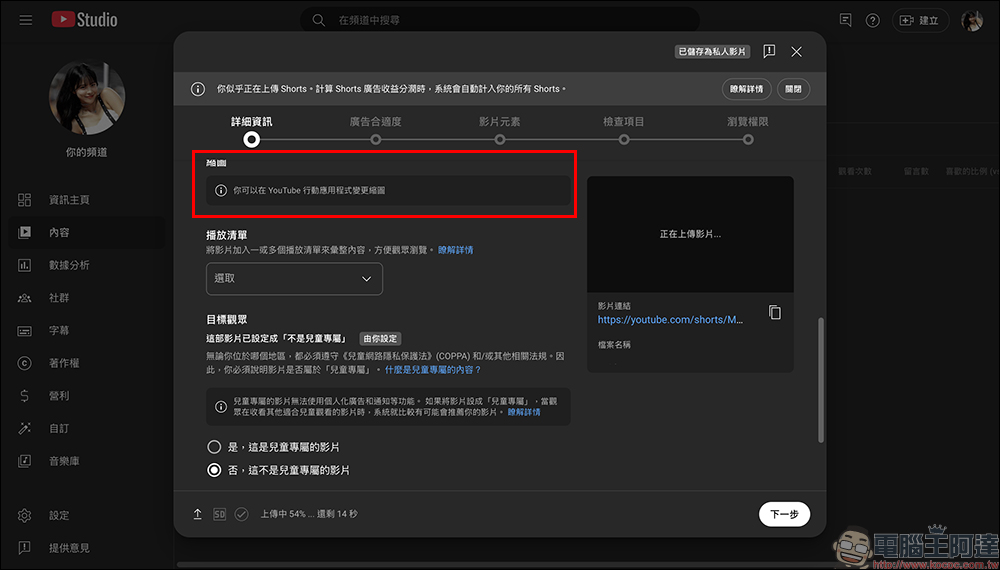
Now, if YouTube creators use the computer browser YouTube Studio to edit uploaded videos, they will see a “Thumbnail” prompt that says “You can change the thumbnail in the YouTube mobile app.” This was not settable in the past. This was a feature that YouTube quietly opened about half a year ago, but many users are still unaware of it.
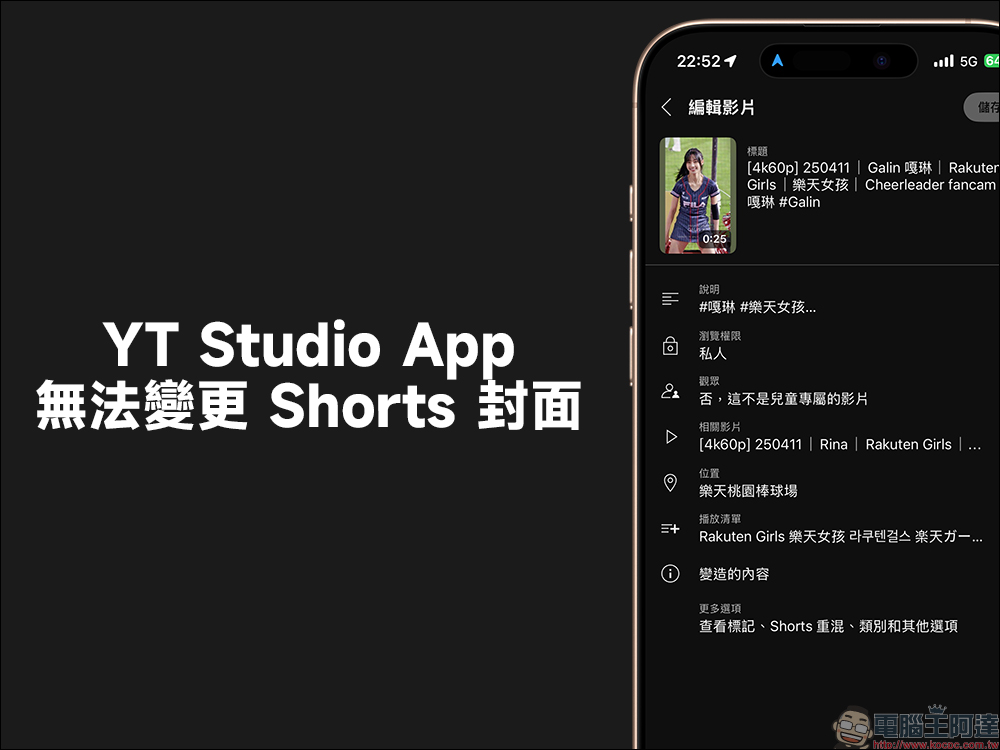
YouTube’s official reminder is not YT Studio, an app commonly used for mobile devices that allows creators to upload and edit videos. If you use YT Studio, you currently cannot change the Short cover image (thumbnail).
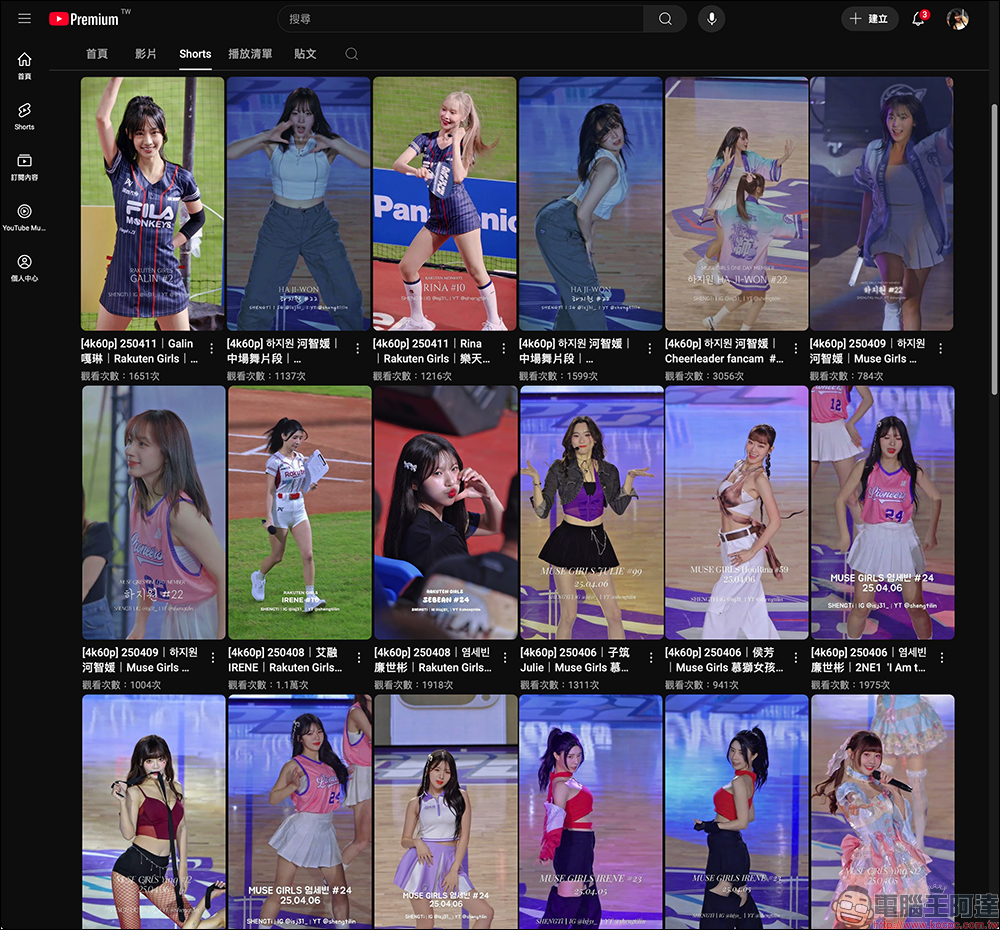
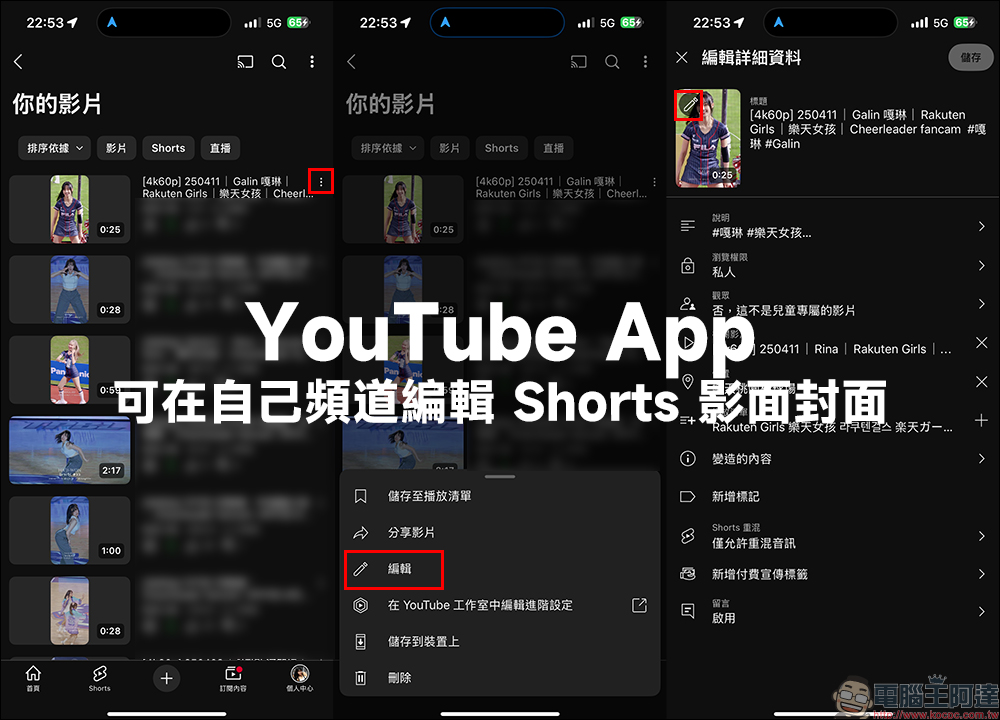
If you want to edit (change) your Shorts short video thumbnail, you must use the YouTube App where you usually watch videos. When creators log in to their accounts, they can see all their videos in the “Your Videos” tab, and can easily edit content such as video titles and viewing permissions. At the same time, you must be in the YouTube App to edit the Shorts cover image.
First, find the Shorts video for which you want to adjust the cover thumbnail in the “Your Videos” tab, click the function button on the right to expand the function menu, and then click “Edit” to enter the “Edit Details” page. You can observe that there is an edit button with a “pencil” icon in the position of the cover thumbnail:
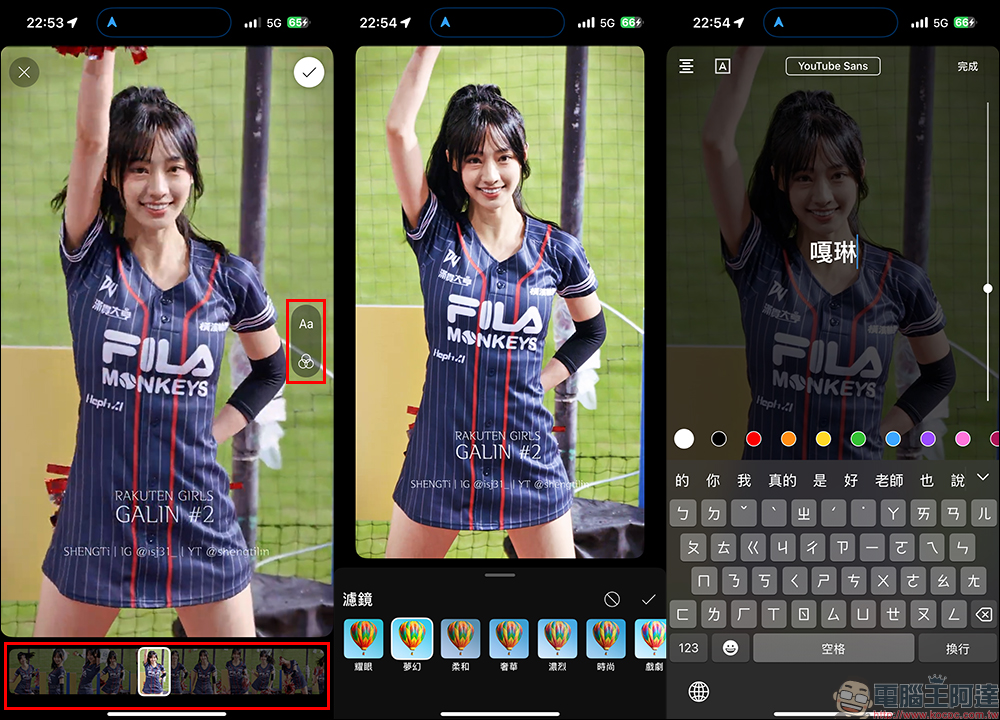
After clicking, the user can adjust the timeline to find the most suitable image as the cover thumbnail. In addition, you can also see the function menu on the right side of the screen, which can add text, select filters, and edit the cover thumbnail.
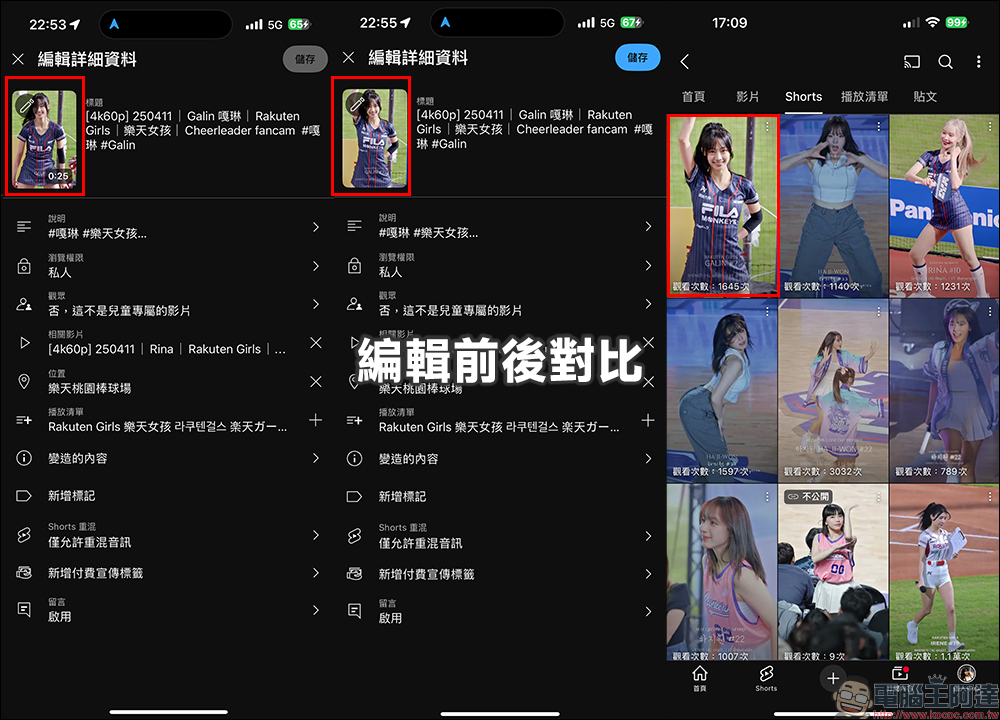
After the settings are completed, don’t forget to click Save! You can see the difference in the thumbnails before and after editing, and they have been changed to what you want. This will also sync what all viewers see when they open YouTube.
In summary, if you YouTube creators want to make your Shorts more attractive, while spending time editing and soundtracking, don’t forget to check whether the cover image of your Shorts needs to be adjusted before the video is made public! Small changes can make a big difference in the number of views your video receives.
Further reading:
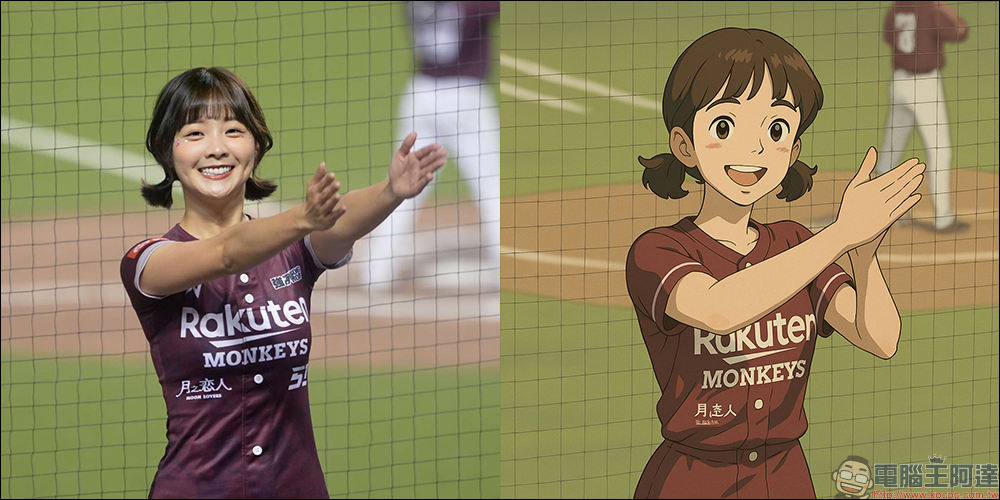
No ChatGPT account required! Easily generate a complete guide to Ghibli-style pictures with one click, and you can play it using the Edge browser!
Source: KOCPC Chinese