


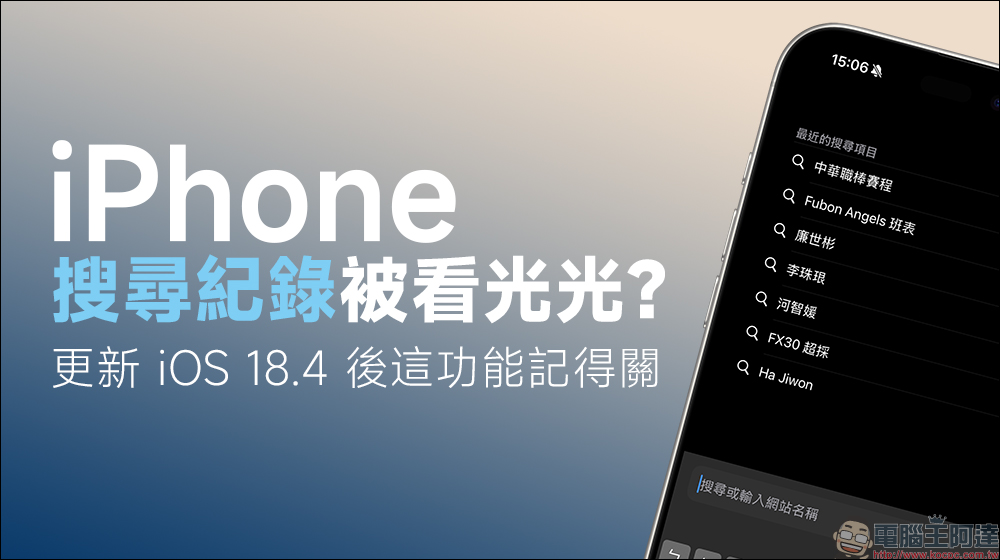
After you upgrade your iPhone to iOS 18.4, Safari will automatically display “Recent Search Items” at the bottom of the search page, listing the keywords you have entered in the past. Although this function is ostensibly to facilitate you to quickly review and repeat queries, it may accidentally expose your search privacy, especially when lending your phone to others, the risk doubles. If you enable iCloud synchronization, search records on other devices may also be synced. In order to prevent personal information from being exposed, this article will teach you how to manually clear these records and guide you step by step to turn off this feature from the settings to keep your search privacy from being leaked.
Have all your iPhone search records been seen? Remember to turn off this feature after iOS 18.4
Recently on social platforms such as Threads, many Apple fans have said: “Hey, when I open Safari on my phone, I see a bunch of things I have checked before?”, “I lent my phone to a friend and found out that he saw what I checked recently!” These discussions are actually related to an iOS 18.4 feature “recent search items” that was quietly launched.
Although Apple’s original intention is to make it easier and faster for you to repeatedly search for keywords you have entered in the past, once this feature is enabled, it is equivalent to “spreading all your search history directly in the sun.” If you don’t notice this and lend your phone to someone else, they will have the opportunity to see what you have checked recently by opening the Safari browser. For people who value privacy, this is definitely a potential minefield.
This article will introduce you to this “convenient but easy to trip” new feature, and teach you two methods to protect your search privacy. Whether you are “worried about being seen when borrowing your phone” or simply don’t want to be recorded by Safari, you can easily turn off this setting!
iOS 18.4 “Recent Search Items” automatically displays new features
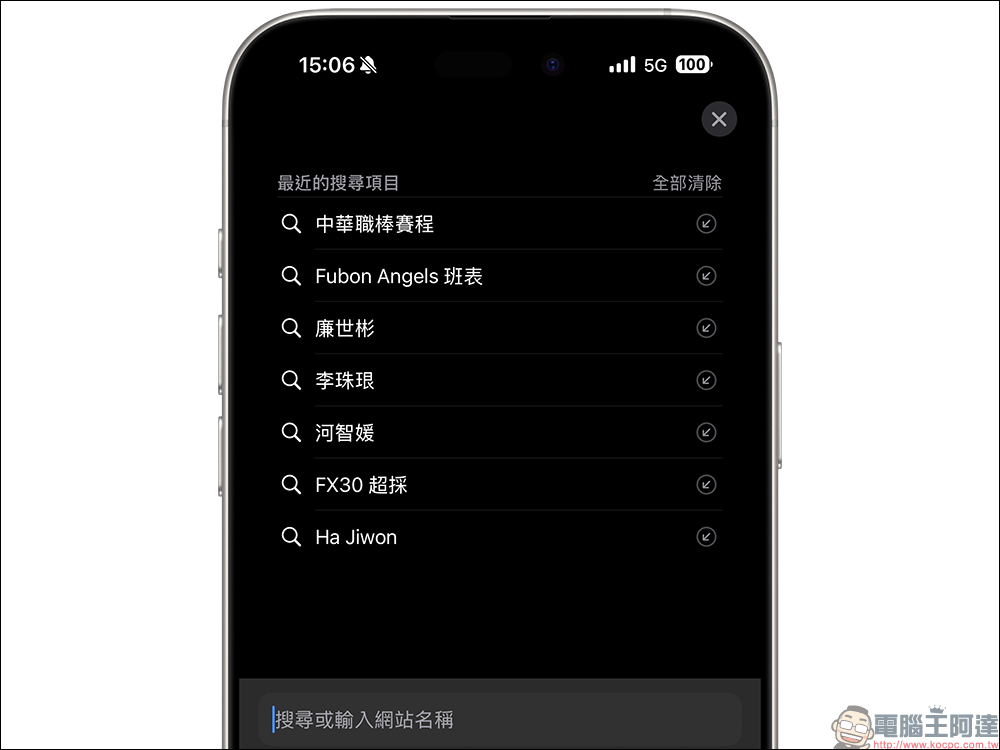
First, let’s talk about what this function is all about? When users upgrade their iPhone to iOS 18.4, open the Safari browser, add a new tab, and enter keywords in the search bar below, they will find that Safari automatically pops up the “Recent Search Items” list. This list will record the keywords you have recently entered in the Safari address bar, making it easier for you to quickly click and query again. This feature seems very considerate on the surface, but in fact it makes many people feel uncomfortable.
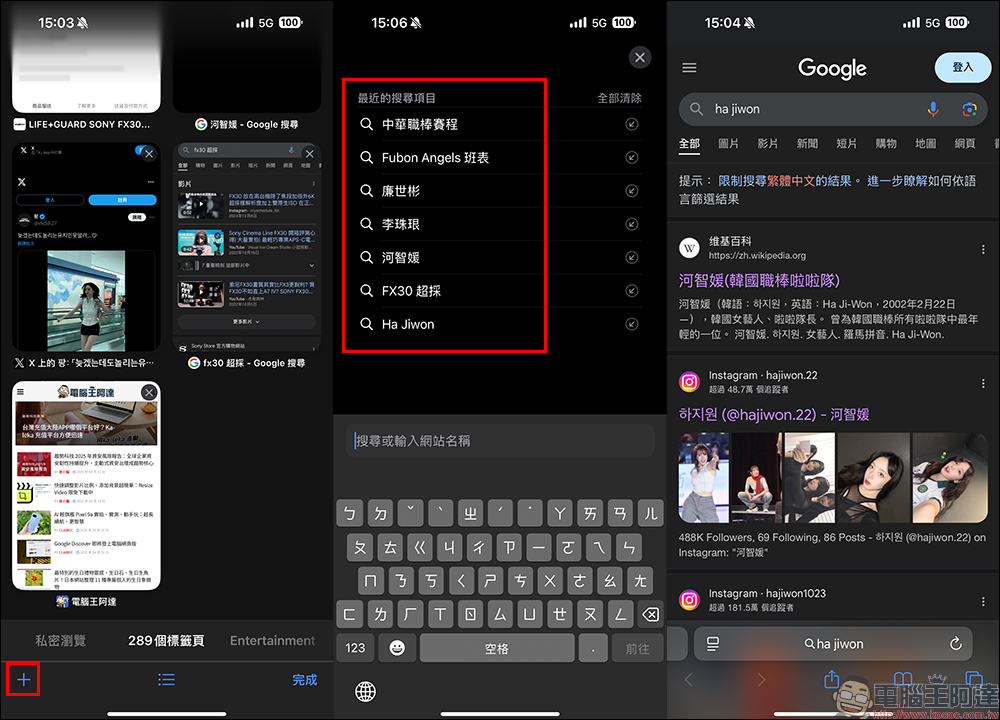
Because this function is turned on by default, that is to say, whether you notice it or not, want it or not, it will silently record and display it for you. This leads to a situation: you think that only you know what you have searched, but in fact, as long as someone gets your phone and opens Safari, they can see your search history at a glance.
Furthermore, if you have turned on the iCloud synchronization function of Safari, the content you have searched on your Mac and iPad will also appear in this list on your iPhone. For some people, this is simply the rhythm of “selling yourself across devices.”
Which records will be displayed? Which ones won’t?
Apple’s new feature currently does not display search history in “Private Browsing” mode, which means that if you use Safari’s “Private Browsing” feature to look up things, these content will not be included in “Recent Searches.”
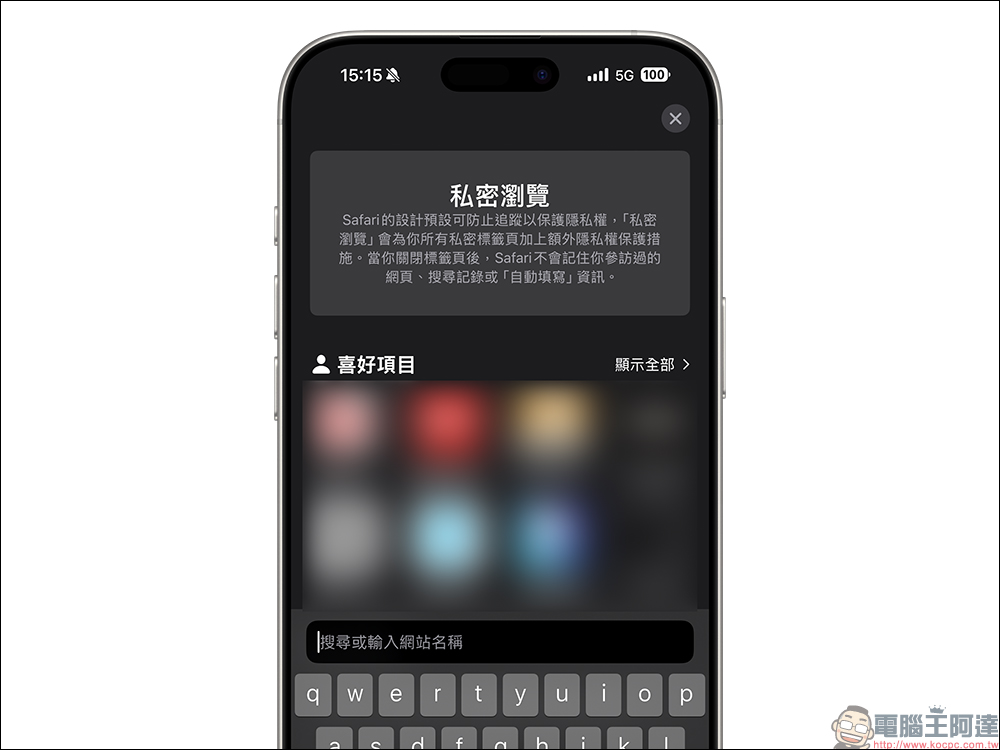
But as long as you search using normal browsing mode, you are likely to be caught on this list. Whether you are looking for recipes, stocks, or some more personal and private content, all of them may be exposed inadvertently.
How do I turn off Safari’s “Recent Searches” feature?
Don’t want others to see at a glance what you’ve been searching for recently? Here are two ways to defuse this potential privacy bomb:
Method 1: Manually delete the search history list
If you only lend your phone to others occasionally and want to temporarily clear the data before lending it out, you can use this quick method.
- Open Safari.
- Click Add new tab to enter the search screen.
- In the upper right corner of “Recent Searches,” click “Delete All.”
- Safari will clear this record immediately.
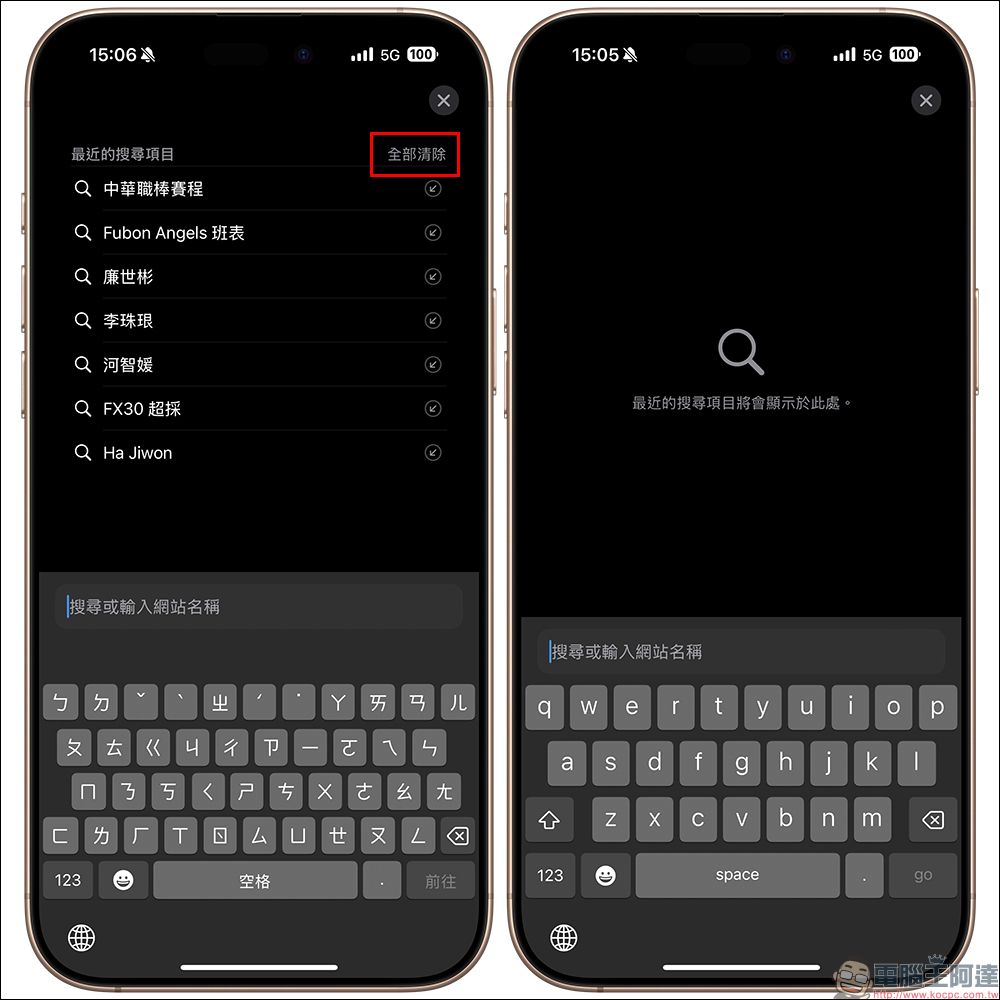
In this way, even if others click on Safari, they will not see the keywords you searched for before. However, it should be noted that this only “clears the current content”. As long as you search for things later, it will still be recorded again.
Method 2: Turn off the function directly from settings
If you want to stop Safari from displaying recent search items once and for all, you can go to the system settings to turn off this feature:
- Open the “Settings” app.
- Scroll down to find “Safari” and click on it.
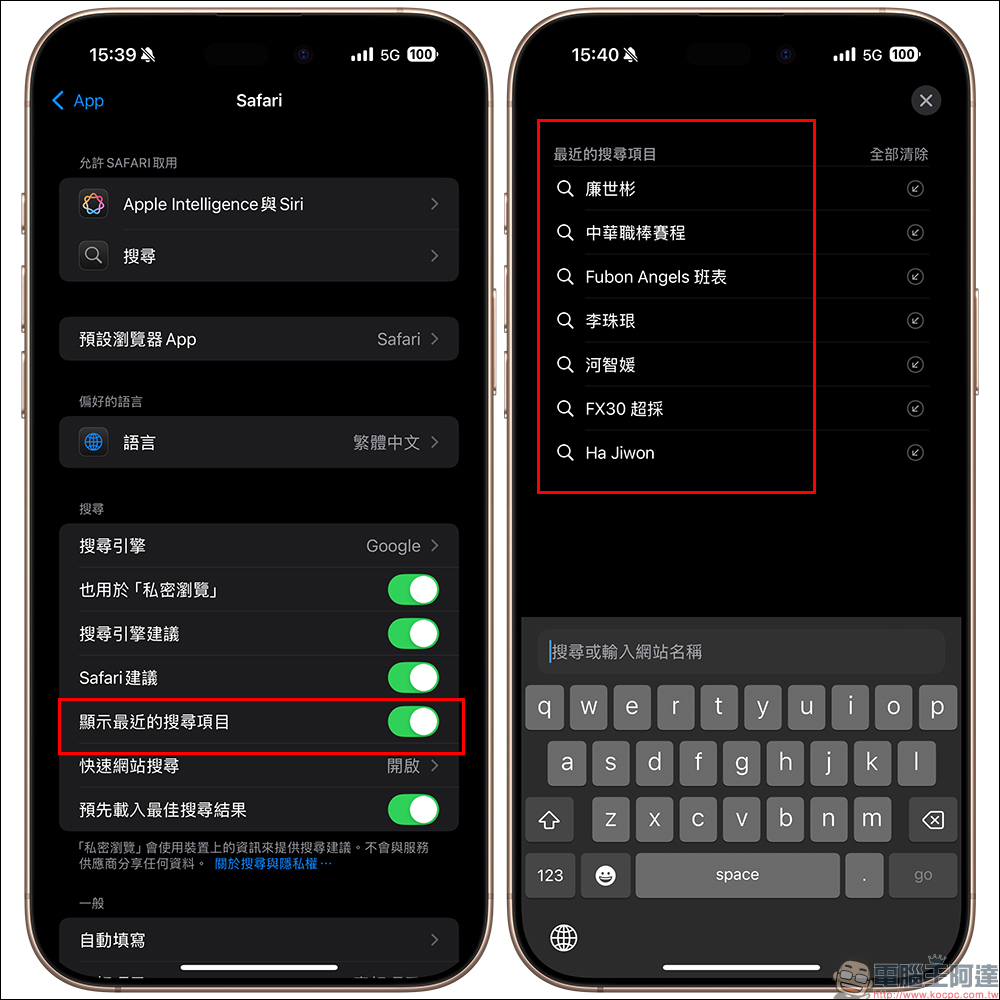
- Find the option “Show recent search history.”
- Turn this feature off.
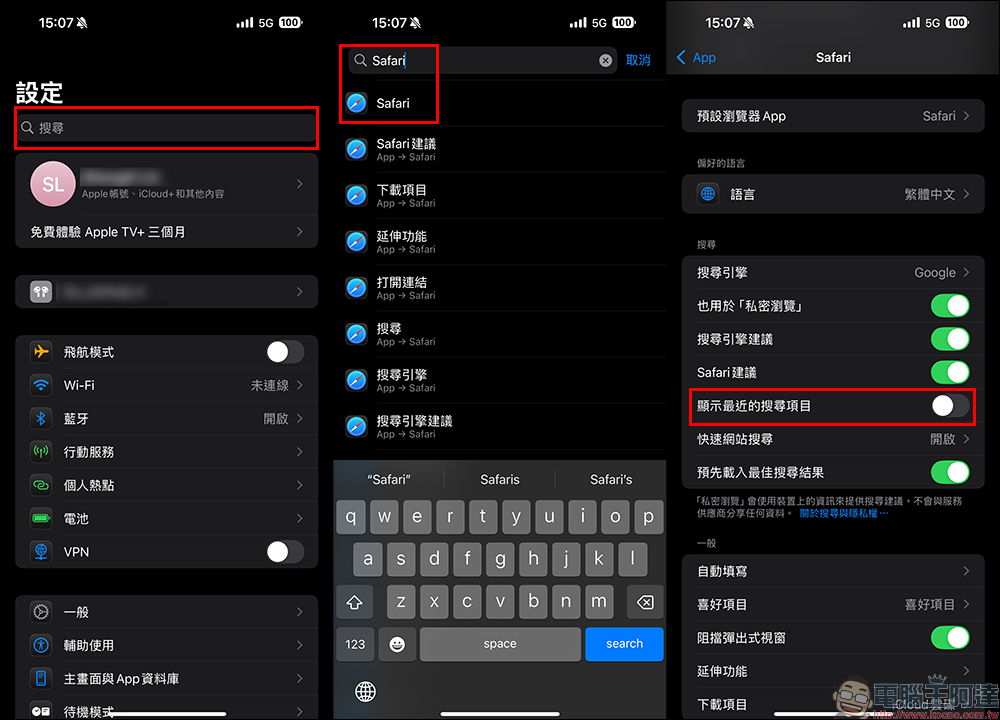
After closing, Safari will no longer automatically pop up the search history list when opening a new page. However, a special reminder here is that turning off the display does not mean that the record really disappears, it just does not appear. As long as you enable the function again one day, the previous historical records will appear again.
Additional reminder: Which devices will be affected by iCloud synchronization?
If you usually use Apple’s iCloud function and Safari synchronization is turned on, the keywords you have searched on your Mac and iPad will also be included in the iPhone’s “Recent Search Items.” Therefore, even if you do not check any sensitive content on your mobile phone, as long as you check it on your computer, it will still be exposed in Safari on your mobile phone after synchronization. This is very worthy of attention.
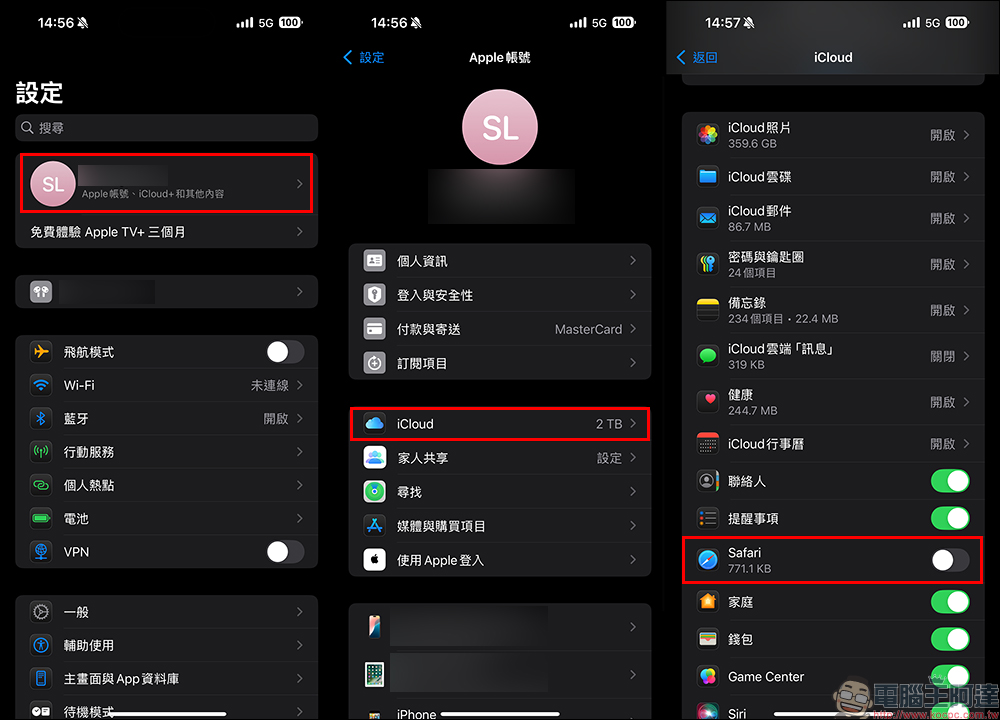
If you don’t even want this to happen, you can consider turning off the Safari sync function in “Settings” > “Apple ID” > “iCloud” > “Safari”. However, this will make it impossible to synchronize Safari bookmarks, open tabs, passwords, etc. across devices. Please evaluate whether it is suitable for your own use situation.
Conclusion
Apple added the “Recent Search Items” function in iOS 18.4. The original intention was to allow users to repeatedly query frequently used content more quickly, which is indeed very convenient for some people. But for those who value privacy more, this feature may allow personal information to be easily exposed.
Fortunately, Apple also reserves the right for users to turn off this feature. Users can easily turn off this display feature through the Safari settings page, or manually clear the history before lending the phone. Both methods can effectively protect your search privacy from being peeked.
After all, everyone should only know what they search for. A little more settings and a little more careful operation can make your phone safer and more secure!
Source: KOCPC Chinese