


Microsoft’s mandatory requirement that broke out last week must beSign in with a Microsoft account to install Windows 11 The news can be said to be very inconvenient for many users, but not surprisingly, some people soon discovered how to bypass this restriction. When entering the Windows 11 setup screen, you only need to prompt the characters through the CMD command to create a local account and continue. There is no need to set up a cumbersome Windows 11 setup process. After creation, you can directly enter the desktop, which is simple and fast.
Install Windows 11 Don’t want to sign in with your Microsoft account? This is the current solution
Microsoft has been trying to use security arguments to force users to log in to a Microsoft account before installing and using Windows 11. Last week, it announced the deletion of the bypassnro.cmd script, which was used to bypass the Microsoft account login requirement.
A few days ago, X user @witherornot1337 found a new solution, and the operation is very simple. When installing, you only need to open the CMD command prompt and enter the specified command line to enable the function of creating a local account. I tested it successfully.
Another small point is that it is only available for Windows 11 Home and Professional editions, but other versions still provide buttons such as “I don’t have an Internet connection” to skip during the installation process.
Improved bypass for Windows 11 OOBE:
1. Shift-F10
2. start ms-cxh:localonlyOnly required on Home and Pro editions. pic.twitter.com/ZUa89ZPBI3
— Wither OrNot (@witherornot1337) March 29, 2025
Detailed graphic instruction is as follows.
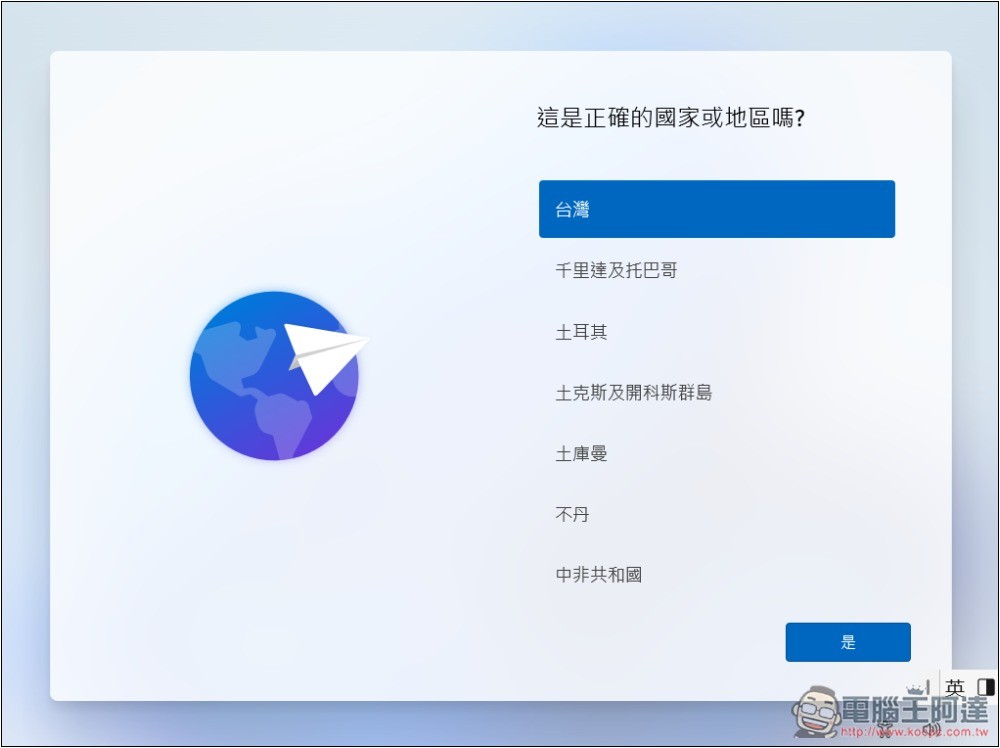
After installing the specified Windows 11 version, you will enter this screen. At this time, please press Shift + 10 to open the CMD command prompt:
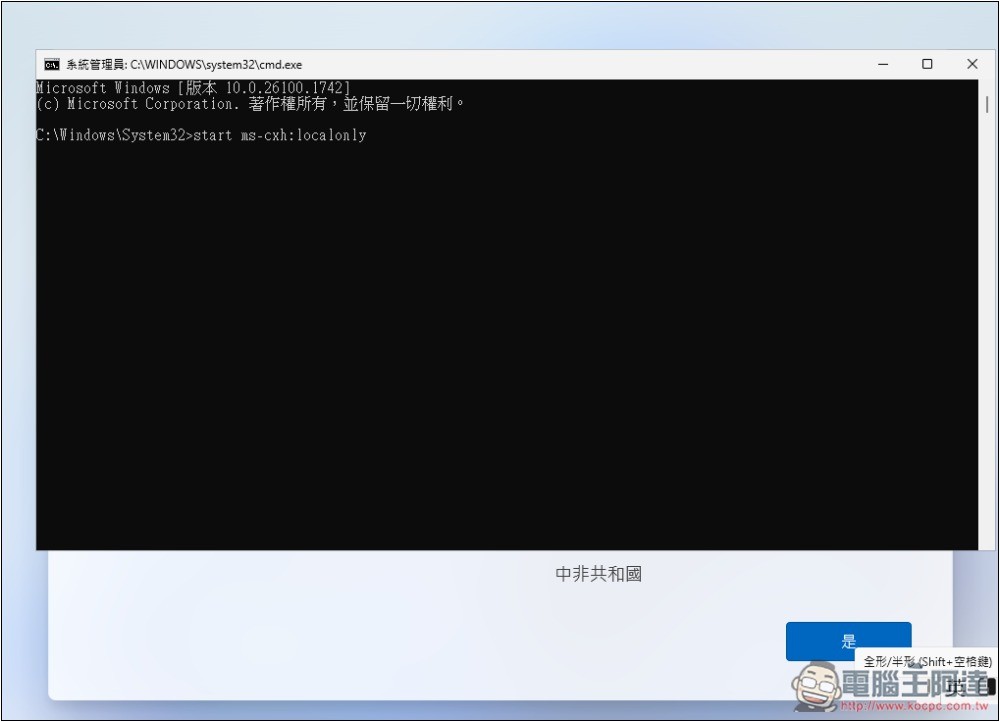
Then enter the following command and press the Enter key:
start ms-cxh:localonly
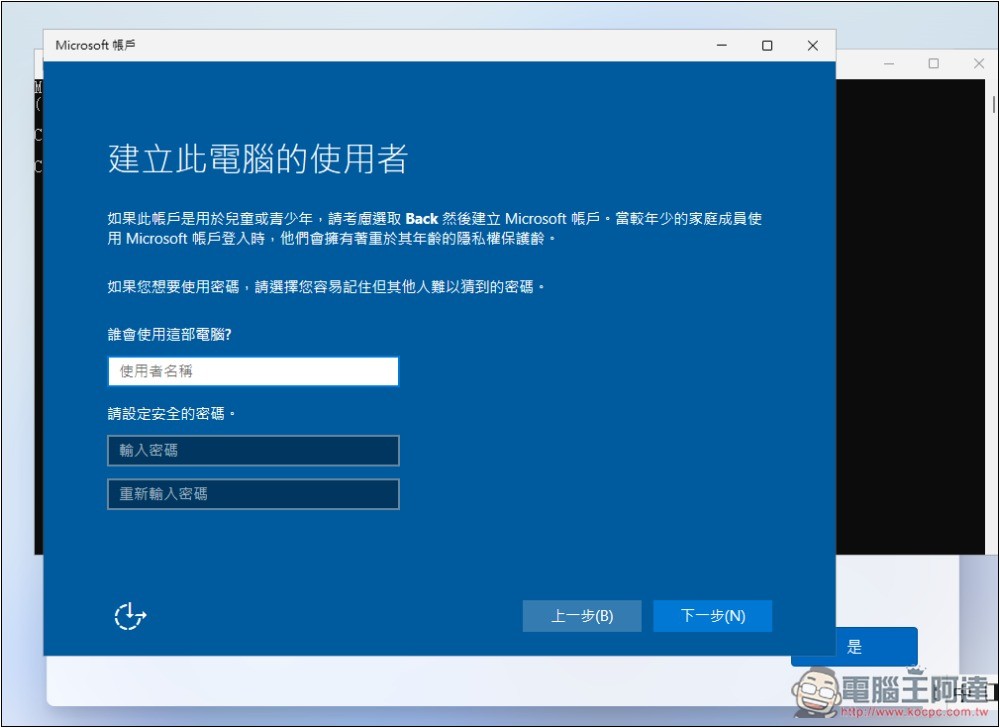
The “Create a user for this computer” screen will open. You can enter your local account and password. If you don’t want a login password, just leave the password blank and click Next:
You will go directly to the screen that is preparing for you. This process is very fast:

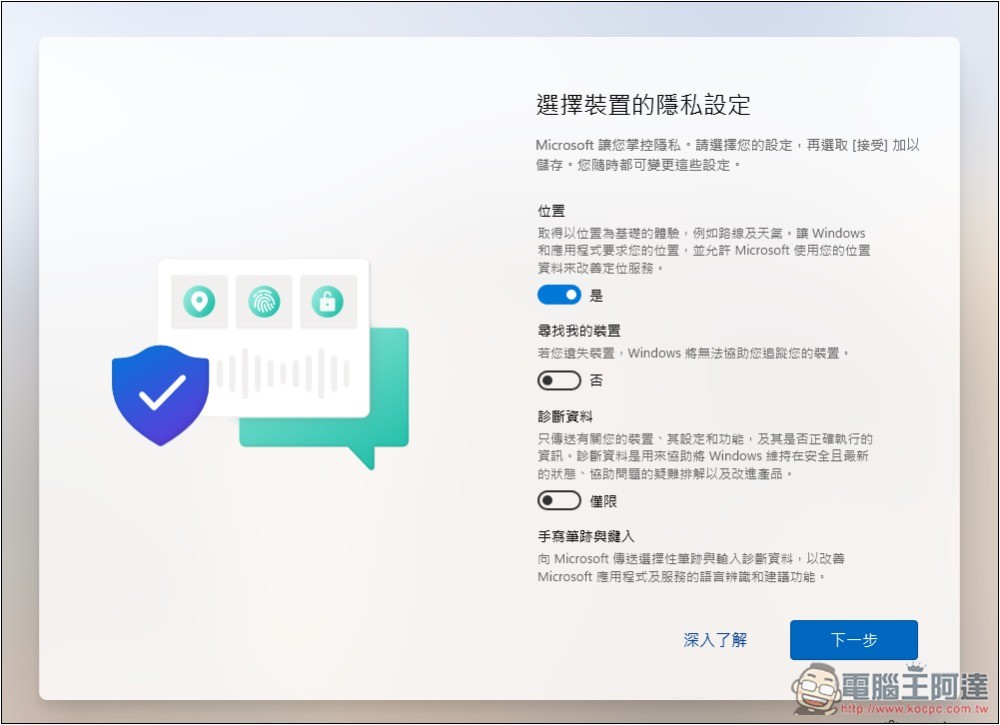
The last step is the privacy settings of the device. After clicking Next, you will go directly to the Windows 11 desktop without any cumbersome setup process:
What is the start ms-cxh:localonly command used for?
The start ms-cxh:localonly command is a hidden system URI protocol used to trigger the option to create an “offline account”.
However, this is not the content of Windows 11 public documents, but a hidden method discovered by foreign netizens, so Microsoft may remove it in future versions. If it doesn’t work when you try, you’ve failed.
But there is no need to worry about this. No matter how much Microsoft changes it, netizens will still find other ways to bypass it.
How to bypass Windows 11 TPM restrictions?
If you still don’t know how to bypass the TPM in Windows 11, I’ll tell you quickly here.
- When entering the Windows 11 installation screen, press Shift + F10 to open CMD
- Enter this command: regedit
- Go to the following path: HKEY_LOCAL_MACHINE\SYSTEM\Setup
- Create the machine code and name it: LabConfig
- Create 3 DWORD (32-bit) values in LabConfig. The values are all 1 and the names are as follows:
BypassTPMCheck
BypassSecureBootCheck
BypassRAMCheck - Close the window and return to the Windows 11 installation screen, then you can bypass TPM detection
Source: KOCPC Chinese