


For a long time, when the file manager of the Windows operating system switches to detailed information view, its file size field will only display KB. For example, an 8GB ISO file will be written as a 7-digit number like 8,388,608 KB, which is very inconvenient to read. Although everyone is used to it, they still hope to be able to display units such as MB and GB that are easy to understand at a glance. Finally recently, Microsoft thought of adding this feature to Windows 11 Experimental Build 26300.8376. The detailed data view will automatically display the file in units of KB, MB or GB based on the actual size of the file.
In addition, this version also adds the “Refresh” and “Print” functions that have been missing for a long time in the right-click menu, and fixes several minor problems such as the address bar not recognizing quotation marks and double backslashes, and the words getting stuck when renaming.
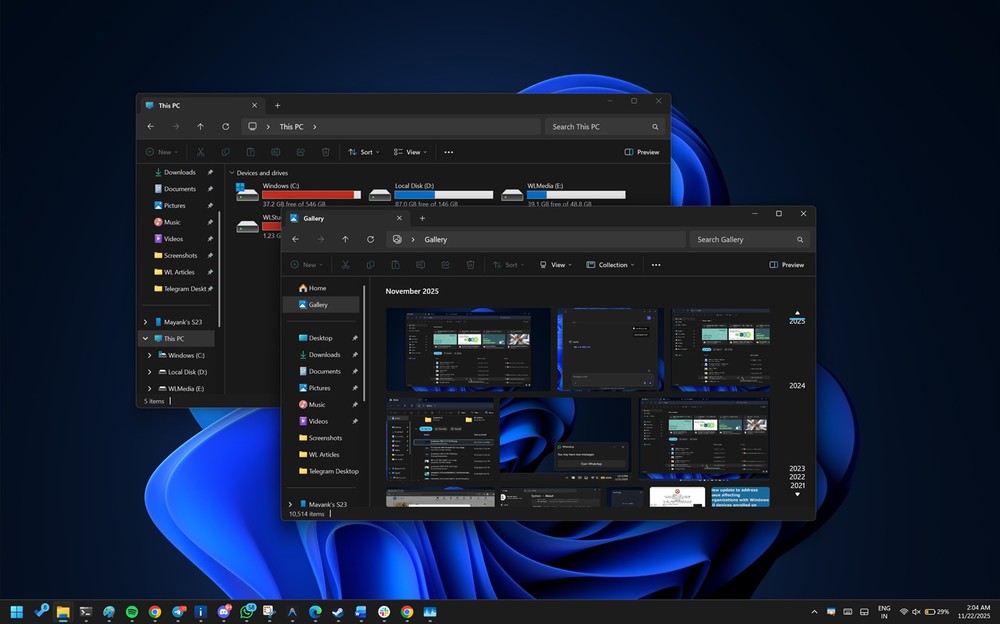
Image source: Windows Latest
Windows 11 File Explorer finally improves file size display! Automatic switching between MB and GB, no need to convert KB yourself
According to foreign media Windows Latest reports, the picture below is the screen currently displayed when switching detailed information in Windows 11 File Manager. The size part is in KB units, so some large files will see a long string of numbers:
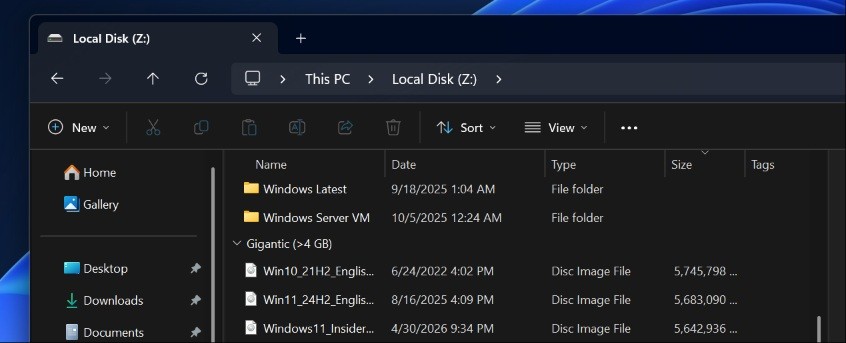
Image source: Windows Latest
After the Windows 11 Experimental Build 26300.8376 version change, small files such as 5KB still display 5 KB, but if it is an 8GB Windows 11 ISO, it is no longer written as 8,388,608 KB, but directly displayed as 8 GB. Files less than 1GB in size are measured in MB. For example, a 5MB photo is 5 MB, and 5,120 KB will no longer be displayed:
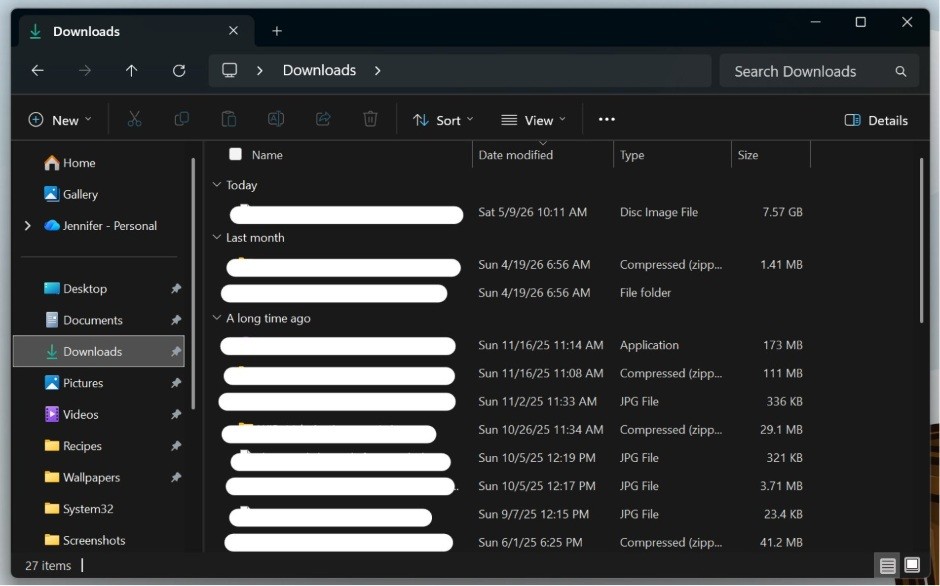
Image source: Windows Latest
For some users, this change may feel like it just becomes a multi-unit display, but for some people who use it almost every day, such as video creators who need to dig through hundreds of files when editing, photographers who organize RAW files, players who organize Steam installation folders, IT staff who organize ISO and VHD, etc. In the past, when seeing KB numbers, they had to figure out whether it was 600MB or 6GB. After looking at 50 files, I was probably tired.
After changing to automatic unit switching, you can easily judge, which is very convenient.
In addition to file size display, this Build 26300.8376 also improves several minor issues that have been talked about for a long time.
The first is that the right-click menu finally has “Refresh” and “Print” functions.
There are two types of right-click menus in Windows 11. The default is the “modern version” reworked by WinUI. It looks cleaner, but for more complete functions, you need to click “Show more options” to call the “traditional version”. The operation is a bit cumbersome, and there are several commonly used buttons that are not included in the modern version, so you need to press them many times every time you want to use them. The new version of the right-click menu has put the two commonly used buttons “Refresh” and “Print”:
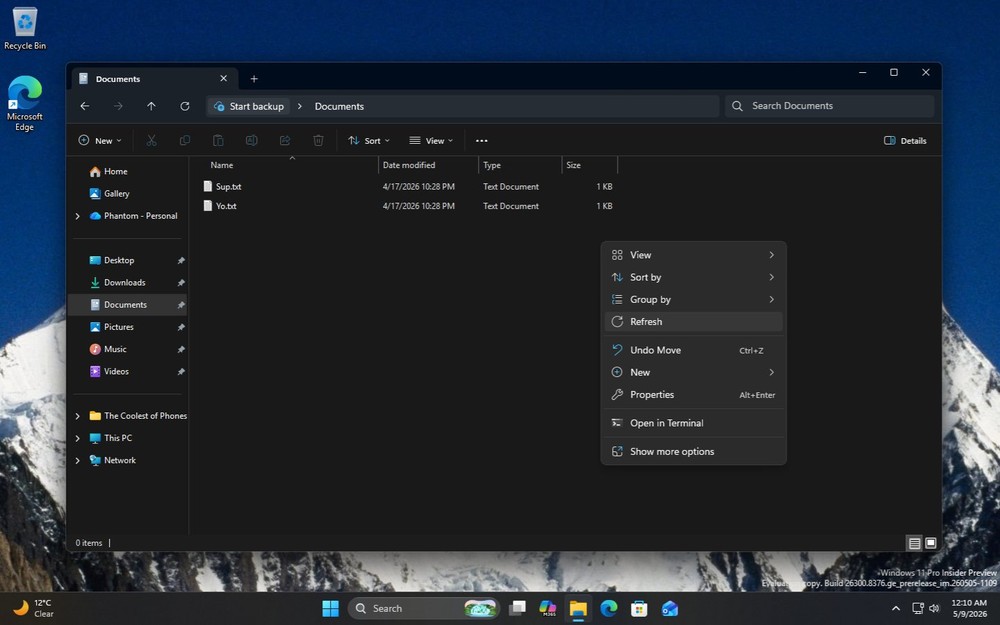
Image source: Windows Latest
Next, the address bar can finally understand “quotes” and “double backslashes”.
In the past, if you copied a quoted path from a terminal, PowerShell, or a script, such as “C:\Users”, and pasted it directly into the File Explorer URL bar, it would be treated as an invalid input, and you needed to manually remove the quotes. Double backslash \\ has similar parsing issues. The new version can directly accept C:\Users and “C:\Users”. It is very useful for developers, IT personnel, and people who are used to copying paths from the terminal.
Finally, there are also corrections to the “repeated automatic selection of all bugs when renaming” and “adding multiple trackpad gestures”.
These changes are currently being tested in Windows 11 Experimental Build 26300.8376, an early build exclusively for Windows Insiders. But it has not yet been clearly stated in which official version it will be launched.
Source: KOCPC Chinese