


Have you saved your favorite movies on your laptop and want to connect them to a monitor or TV to watch comfortably on a larger screen at home at night? Usually you will use a USB-C to HDMI cable, and all you need to do is plug both ends into their respective ports, and then you will see the laptop screen projected onto the TV. But what if you have connectivity issues? It could be a flickering screen, not enough resolution on your TV screen, or worse yet, your host device doesn’t recognize the connection.
In both cases, the problem usually stems from the USB to HDMI cable you’re using, and it’s easy to get rid of it. Next we’ll share all the possible reasons why your USB-C to HDMI isn’t working properly, and what you can try to get it working again.
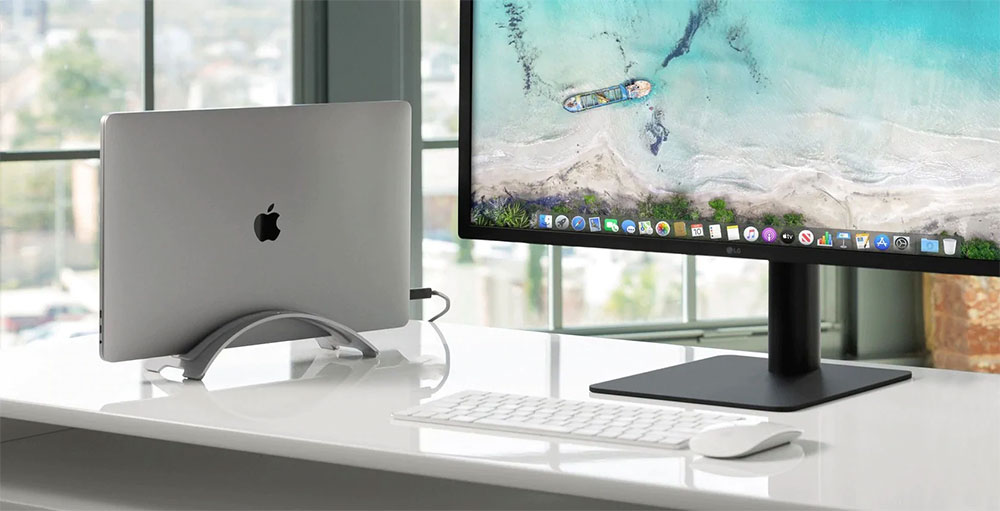
There is no movement on the laptop’s external screen? 4 reasons why USB-C to HDMI won’t work
Missing DP Alt Mode support
One of the main requirements for mirroring a small-screen device such as a laptop to a large-screen device such as a TV is that the USB-C on the host device should support DP Alt Mode, which is responsible for transmitting the video signal from the host device to the output device. While the USB-C ports available in most modern devices such as laptops are compatible with DP Alt Mode, some older and lower-priced laptops lack compatibility, and the USB-C ports available on such devices can only be used to transfer data or charge the device.
If you are using a device that does not support DP Alt Mode, mirroring the host device screen on a larger device will not be possible because the host device will not be able to transmit the video signal. Unfortunately, there is no standard way to check whether a device’s USB port supports DP Alt Mode. You need to browse the technical specifications that come with the device or go to the brand’s official website to check.
If you find that the USB-C port of your device is compatible with DP Alt Mode, but the USB-C to HDMI cable is still not recognized, there is an issue with the cable itself. To confirm this, you can try using the cable with any other device and test all of the cable’s components individually, including the USB-C and HDMI connections. If the cable doesn’t work with other devices, then it’s time to buy a new USB-C to HDMI cable.
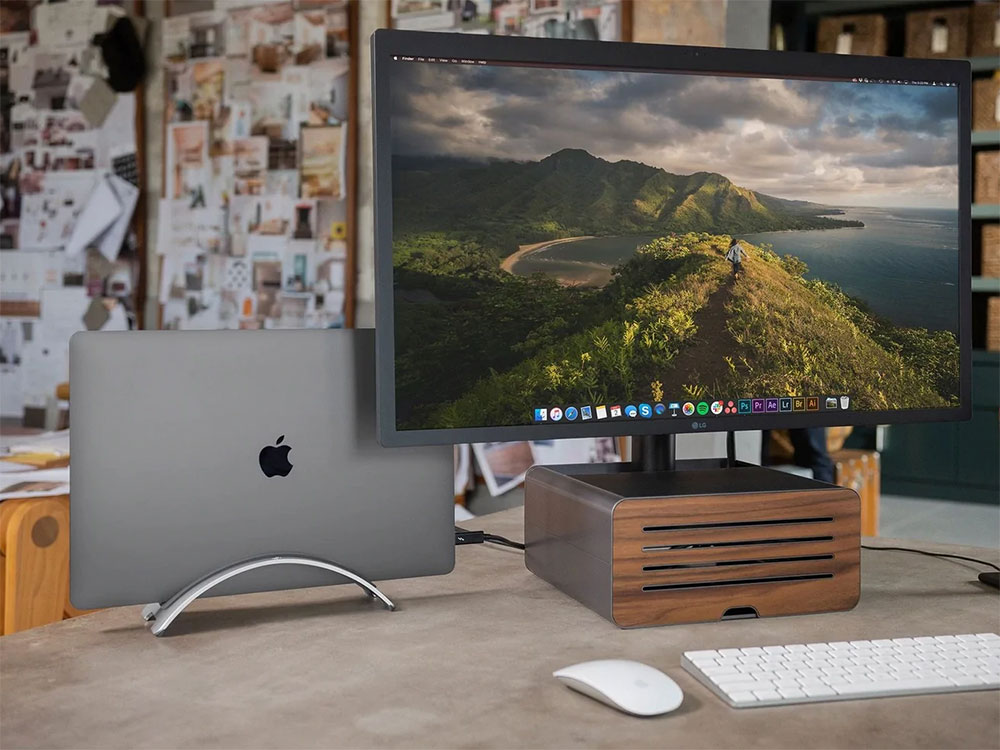
Outdated or incompatible display driver
If your USB-C to HDMI connection doesn’t work with a Windows device that is either a host or an output device, the issue is most likely related to the Windows device’s display driver. The currently installed version of the display driver may be incompatible with the USB to HDMI cable you are using.
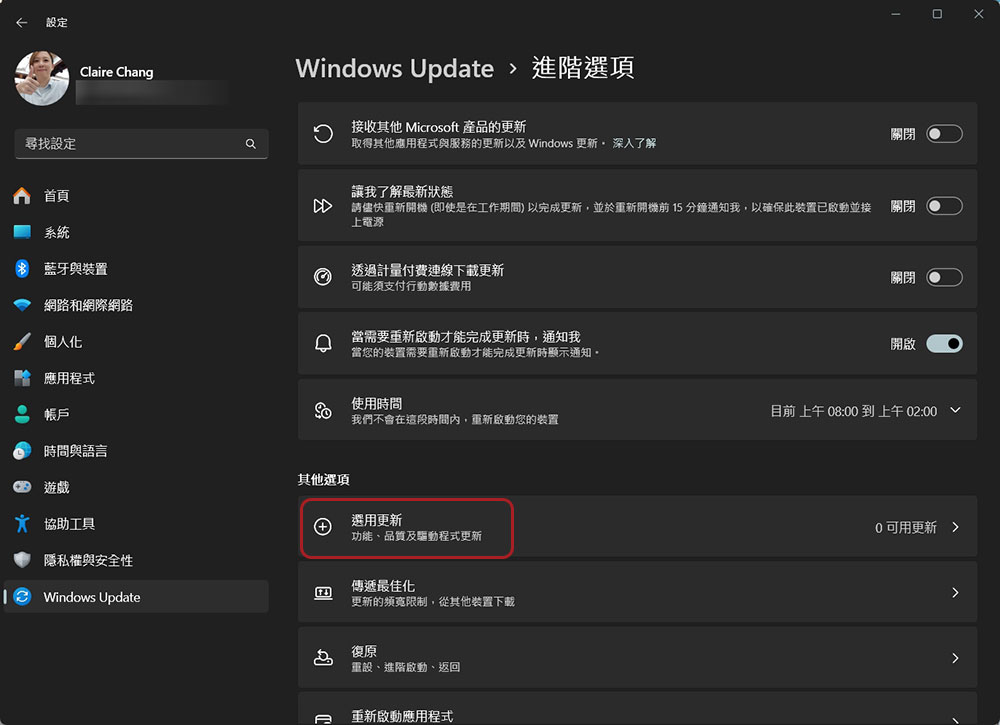
In this case, you should download the latest display driver update. To do this, please follow these steps:
- Open the Settings app on your Windows device
- Go to “Windows Update”.
- After entering “Advanced Options”, update the driver in the “Select Updates” item. Select an available update for your display driver and click the Download and Install button. Alternatively, you can download the latest display driver update by visiting its manufacturer’s website.
What should you do if you start experiencing this problem after installing a display driver update? This means that the latest display driver update does not support the connector you are using. In this case, you can either roll back to a previous driver update or get a recently launched USB-C to HDMI cable, as it will most likely be compatible with the latest display driver update.
Connectors are damaged or of poor quality
If the cable you use is not of good quality or is damaged from prolonged use, you may experience flickering issues and sometimes a completely black screen on the output device. A poor quality cable may not be able to handle the power and transfer rate efficiently, therefore, it will heat up over time, eventually causing connection issues. Additionally, loose connections on the USB-C or HDMI side can cause signal loss, so you’ll see the output screen flickering.
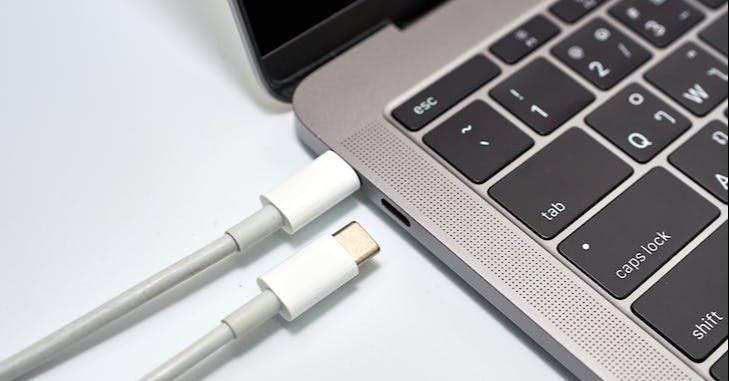
Make sure you are using a high-quality USB-C to HDMI cable that is not damaged anywhere. You can ensure the quality of the cable by reading reviews on e-commerce websites or forums. Also, make sure there are no loose connections at either end. Sometimes, the problem may be with the port. To check if this is the case, try connecting the device to any other delivery device. If you don’t face any problem in other devices, it means that the problem is with the port of the main device. At this time, your main device needs to be sent for repair.
Unsupported output standard
Sometimes, you may encounter a situation where your USB-C to HDMI cable works fine, but the image quality you get is not as good as expected. For example, you have connected your laptop to a 4K monitor, so you would expect the same image quality on the monitor, but you end up with a very poor output. It turns out that to get 4K quality on a monitor, you need to make sure the input device and cables you’re using also support 4K. If either device doesn’t support 4K resolution, you won’t be able to get the resolution and update rate you need on your display.
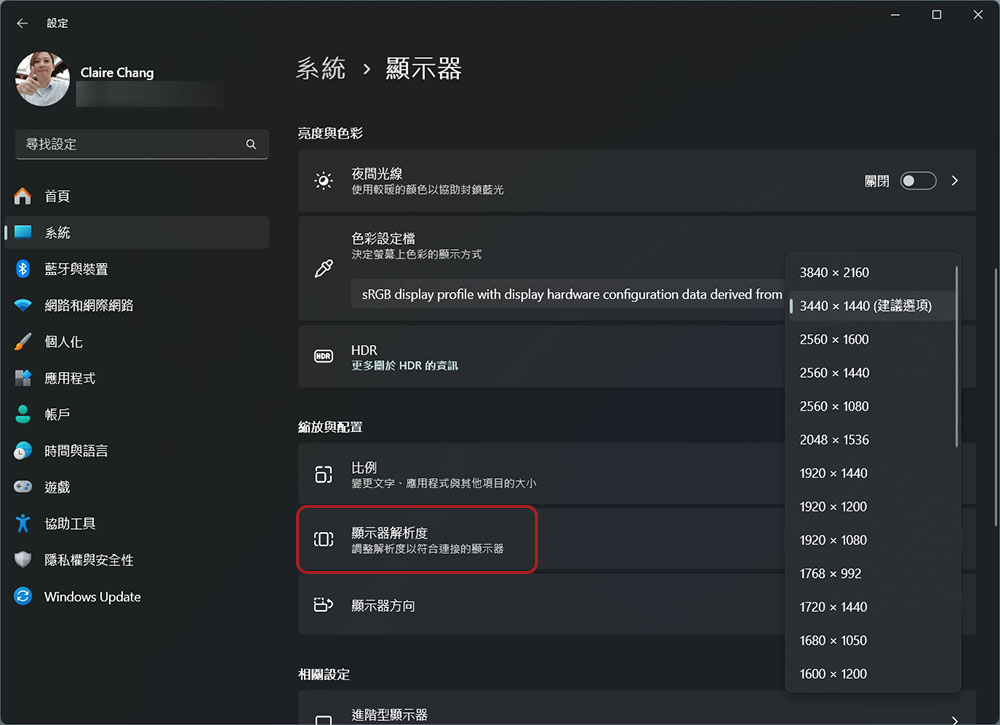
If all components (input devices, connectors, and output devices) support the required resolution and update rate and you are still not getting the desired image quality, you will need to make adjustments in the display settings to get the desired results. To make adjustments on Windows these are the steps
- First make sure that the input and output devices are properly connected via the USB-C to HDMI connector.
- Open the Settings app.
- Go to “System” and click “Displays”.
- Then select the desired resolution from the drop-down menu behind “Monitor Resolution”.
Then adjust the update rate:
- First make sure that the input and output devices are properly connected via the USB-C to HDMI connector.
- Open the Settings app.
- Go to “System” and click “Displays”.
- After clicking “Advanced Display”, set the update rate in the drop-down menu behind “Select refresh frequency”.
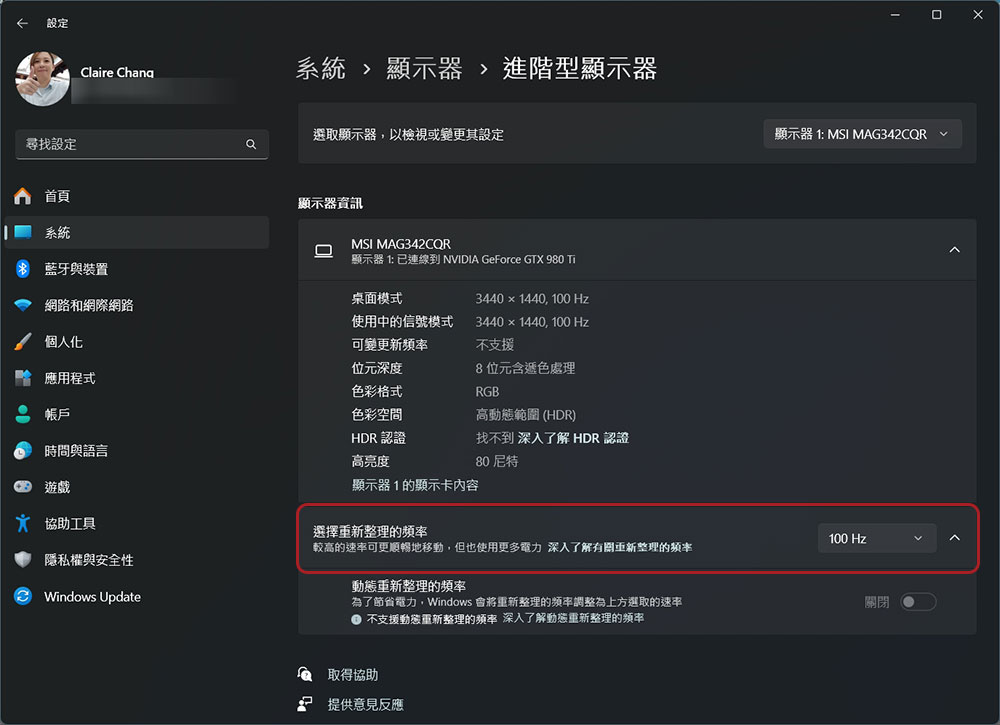
Likewise, if you’re using a Mac as the host device, you’ll need to adjust its display settings as well. After adjusting the display settings, the required resolution and update rate will be obtained on the output screen, and the image will look more comfortable.
Source: KOCPC Chinese