


There are hundreds of computer screen recording software, but the one we are going to introduce today can be operated by installing the Google Chrome plug-in. This Chrome plug-in called “Screen Recorder” does not need to be installed on your computer to take up valuable space, and you don’t have to worry about finding the software when you want to use screen recording. After installing this, you can open the Chrome browser to perform the screen recording function. It is quite simple and easy to use. Next, I will show you how to use it:
(Image source: AI generated)
Chrome Plug-in-Screen Recording Program Introduction
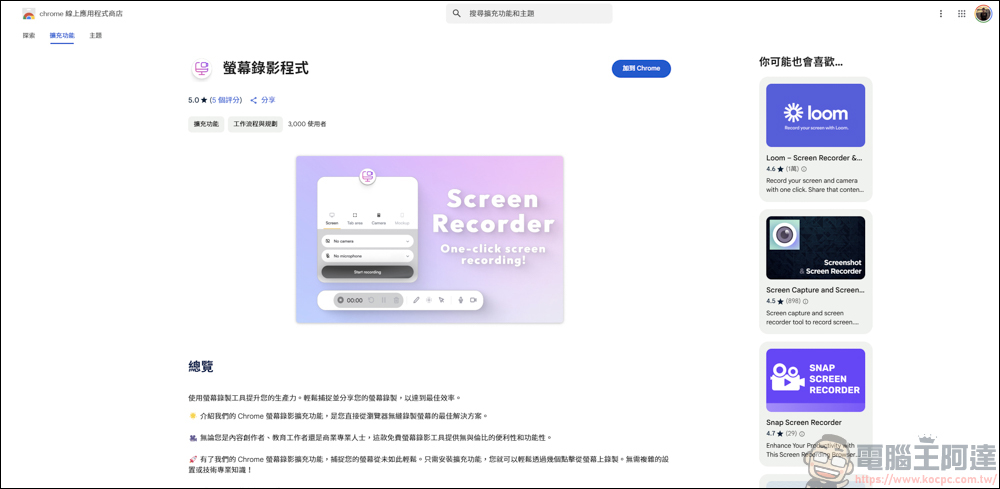
The screen recording program is a plug-in for Google Chrome, so there is no need to download it, just add it to the Chrome browser and you can use it:
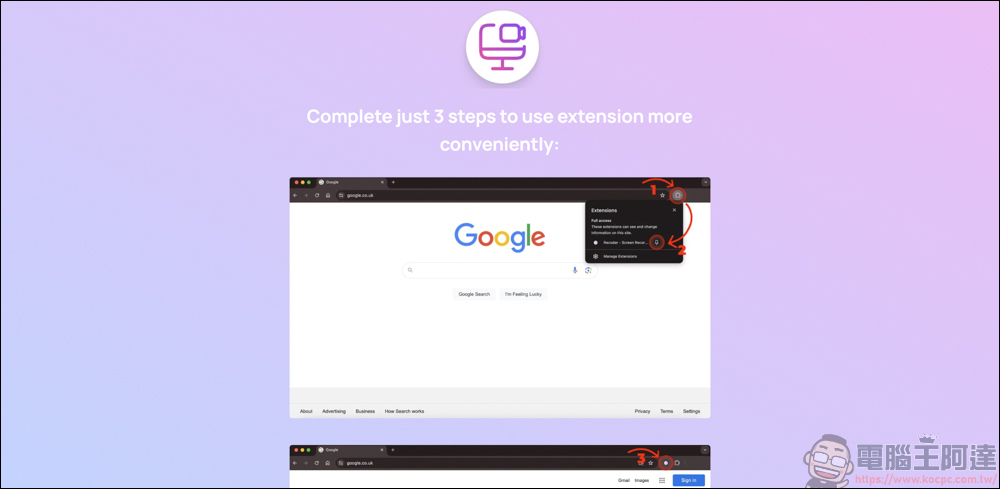
Before you start using it, there will be instructions on how to use it on the official page, and you need to enable some permissions to use it normally:
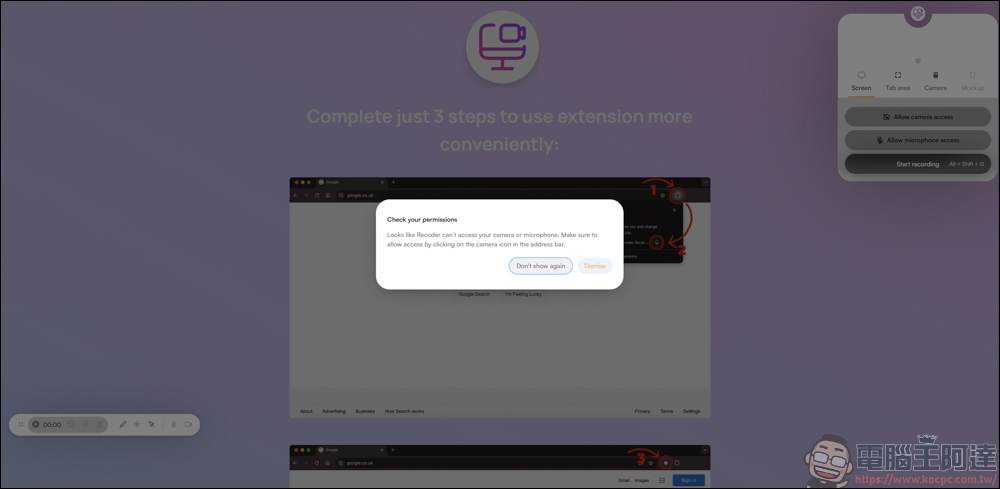
If there is no need to use a microphone or video camera, these two permissions do not need to be enabled:
The execution method is also very simple. Find the screen recording program in the Chrome extension and execute it. The recording option will appear in the upper right corner:
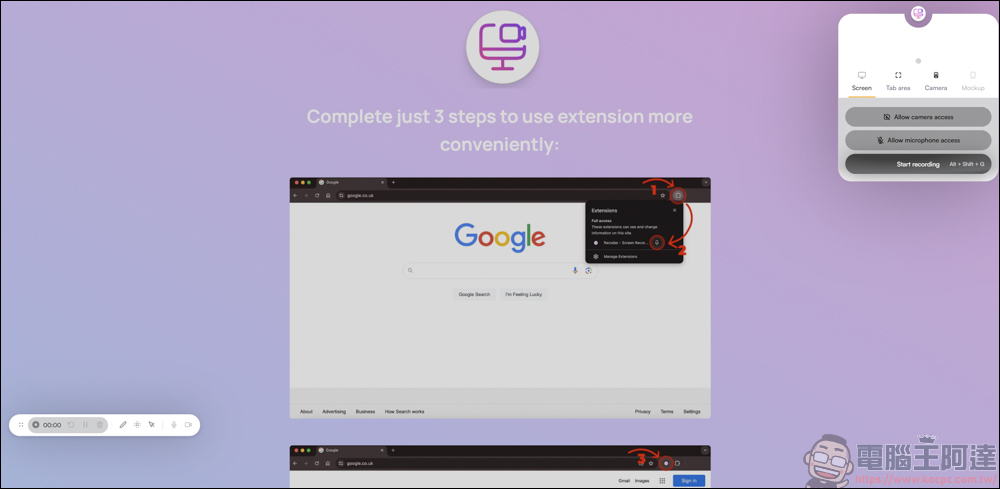
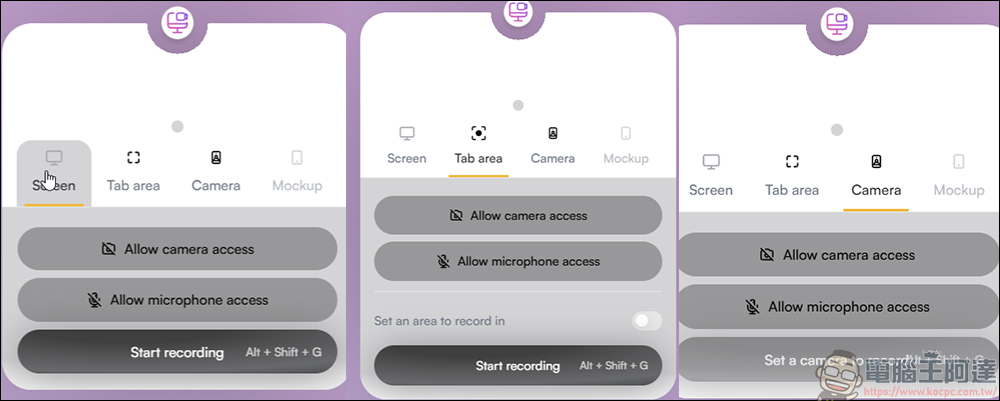
There are several different types of recording methods in the screen recording program. The three most commonly used are window/custom area/video:
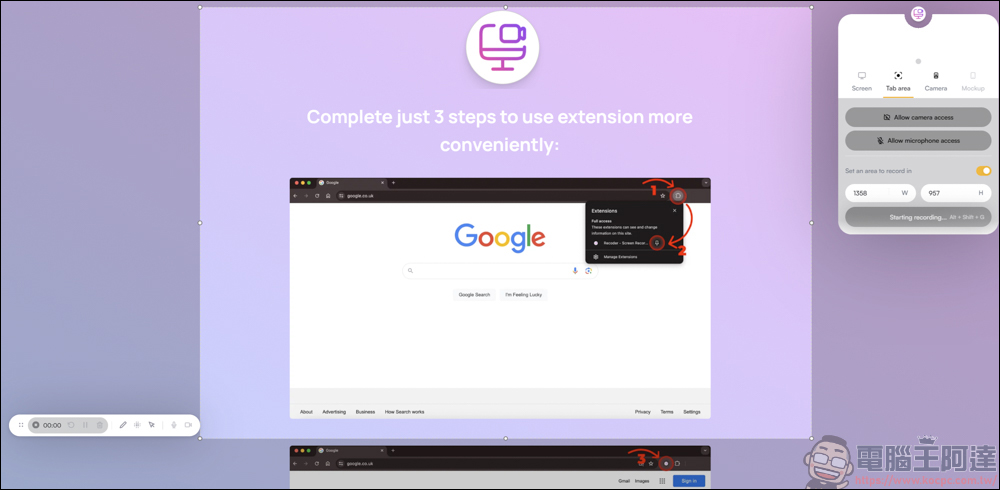
The custom area can frame the area you want to record, so you don’t have to worry about strange images being recorded in the video:
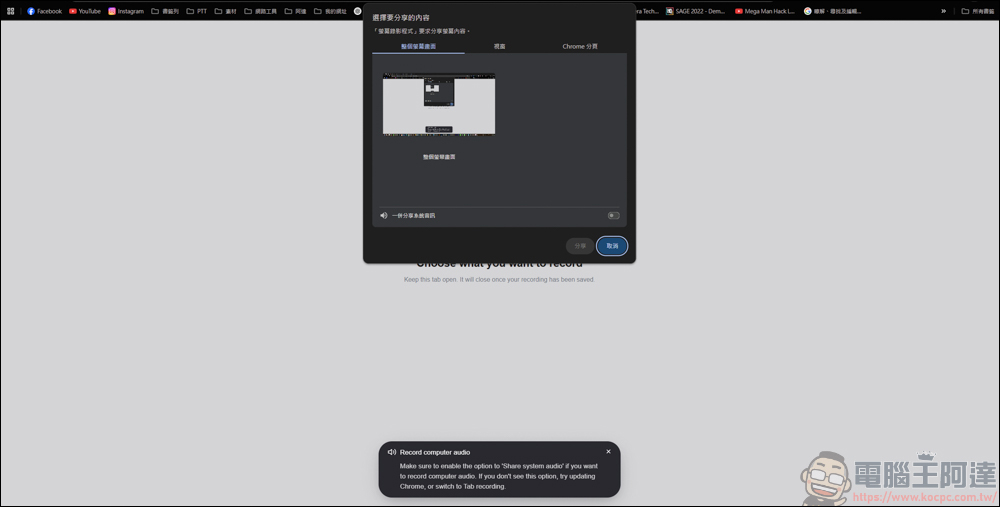
For me, the most commonly used one is probably the window mode. Window mode is divided into recording the entire screen/window/Chrome tab. It depends on your own needs to decide which way to record:
Simply test its recording effect. When recording in full screen, there will be a recording prompt below. This prompt can be hidden. For example, when I use it to record computer games, there is no problem in recording, but Chrome must be turned on:

After recording the video, it will jump to the screen where the video is being processed. If you are not using the cloud version here, you will not be able to edit, add music, or watch videos. I have been waiting for a long time and the video player next to me has been unable to come out of the screen. I suggest that after you get to this screen, click Download as .webm on the far right to download the video directly:
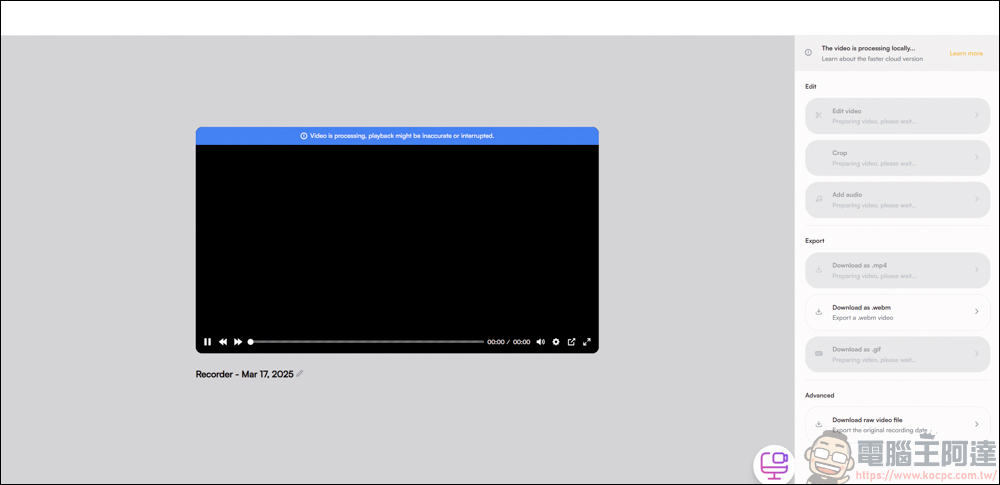
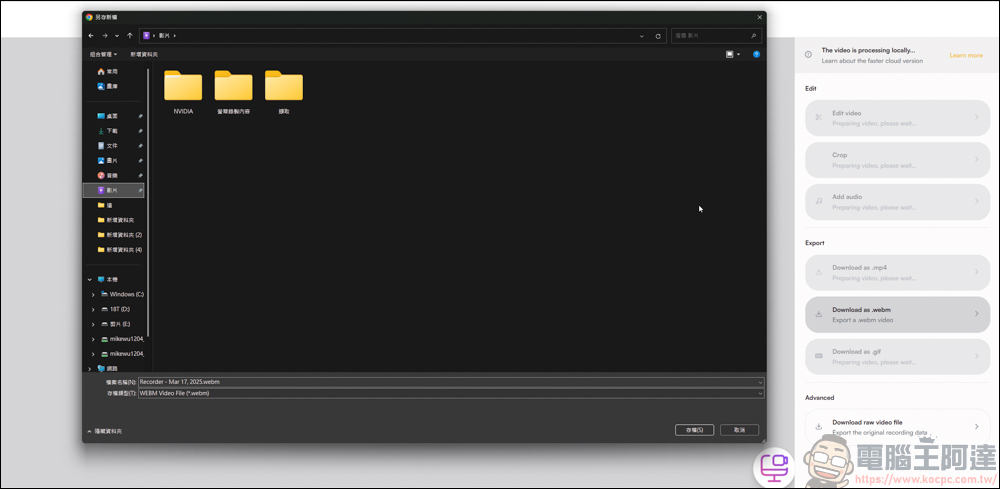
Nowadays, most video editing software or online video platforms support the webm format, but in terms of image quality, mp4 is still better than webm, it depends on whether you care:
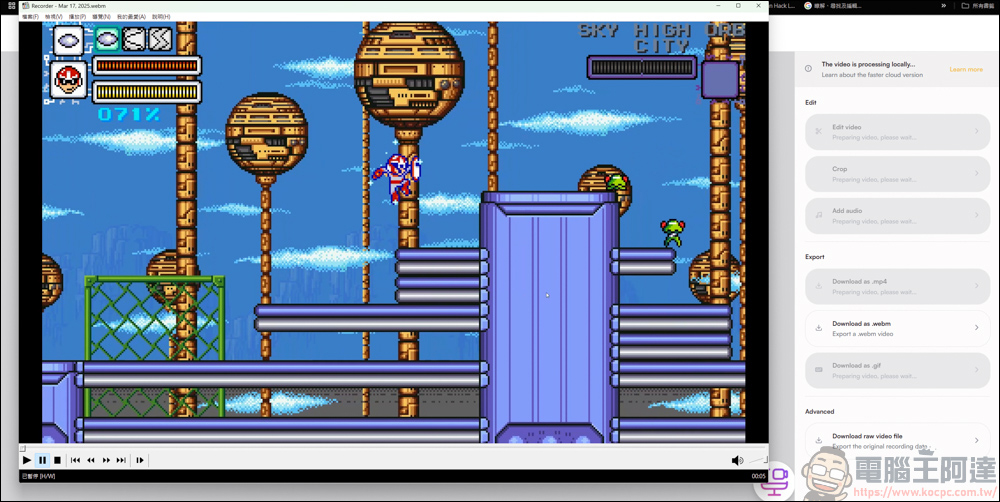
The actual video output is playable and has sound, and the recording function is normal. But as I just said, the mp4 format is always better than webm, so I feel that the picture performance is not as detailed as the original picture, and the played picture can also feel a slight sense of delay:
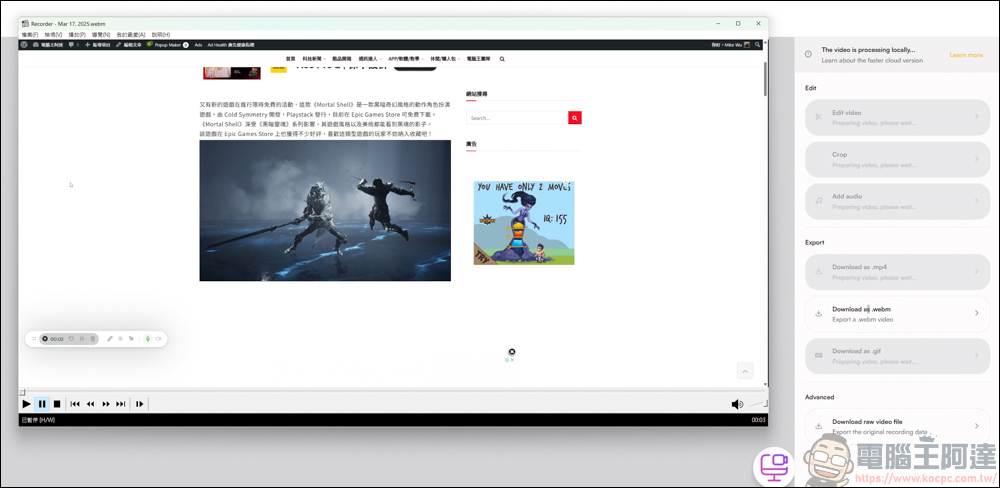
Although the recording format may not be comparable to the recording effect of large software, as for the Chrome plug-in that requires almost no installation, as long as you have the Chrome browser, you can easily record the screen, which is actually very useful in a certain aspect. Whether you want to use it for on-screen teaching or record materials for video editing, this plug-in can easily do it for you. At the same time, the webm format also has the characteristics of small capacity. If it is used by non-professionals, this set of plug-ins can easily handle it.
Source: KOCPC Chinese