


Imagine a scene like this? You are at a coffee shop with your friends or your significant other and want to watch a movie on your Mac, but you can only share a pair of headphones, or you can only turn on the speakers so that everyone around you can hear them. At this time, if two pairs of Bluetooth headphones can be played simultaneously, that would be perfect, right? PairPods is such a free, open-source macOS tool that allows you to synchronize audio playback from two Bluetooth devices with just one click, without any delay or loss of sound quality.

Turn your Mac into two-channel audio in one second! PairPods free open source tool lets you easily sync two Bluetooth devices
Since macOS itself does not support such a feature, but with PairPods, you can experience dual headphone sharing mode on Mac like iPhone or iPad. And it not only supports Apple’s own AirPods and HomePod, but also can connect to various Bluetooth headsets and speakers such as Sony headphones and Galaxy Buds painlessly, allowing you and the people around you to easily enjoy music, movies or game sound effects. Whether you’re watching a movie with friends, or you want to share music with your significant other late at night without disturbing your roommates’ sleep, PairPods are definitely a must-have for macOS users.

What are PairPods? Why is it worth a try?
PairPods is a free and open source macOS application. Its biggest feature is that it allows you to output audio to two Bluetooth audio devices at the same time. No additional settings are required, and there is no problem of delay or sound quality degradation.
Features of PairPods:
- Free and open source: completely ad-free, no hidden fees, and no time limit on functionality.
- Supports all Bluetooth devices: not only AirPods and HomePod, but also supports headphones and speakers of various brands.
- No delay, high sound quality: Stable audio output can be maintained even if two devices are connected at the same time.
- Super simple operation: With just a few clicks, you can start sharing audio right away.
- Emphasis on privacy: The developer emphasizes that it does not collect any user information and only checks for updates regularly.
If you’ve ever wanted to have two pairs of headphones playing music or movies at the same time on your Mac, but don’t want to spend the money on a complicated audio device, PairPods are the way to go.
How to use PairPods?
The design of PairPods is very intuitive, so even if you are not a technical expert, you can easily get started. The following is a simple step-by-step tutorial, so you can start using this magic tool right away!

Step 1: Download and install PairPods
First, open PairPods official website, and then find the download link. Click “Direct Download”. After the download is complete, unzip it, drag the application to the application folder, and you are ready to use it!

- System Requirements: PairPods require macOS Sonoma (13.5) or later, supporting Intel and Apple Silicon Macs.
Step 2: Connect two Bluetooth audio devices
Before using PairPods, make sure your Mac’s Bluetooth is turned on, and then pair two pairs of headphones or headphones with a Bluetooth speaker.
If you haven’t paired a Bluetooth device yet, you can set it up as follows: Open “System Settings” > “Bluetooth”. Make sure your headphones or speakers are in pairing mode and click Connect. When both devices appear in the connected list, your PairPods are ready to use!
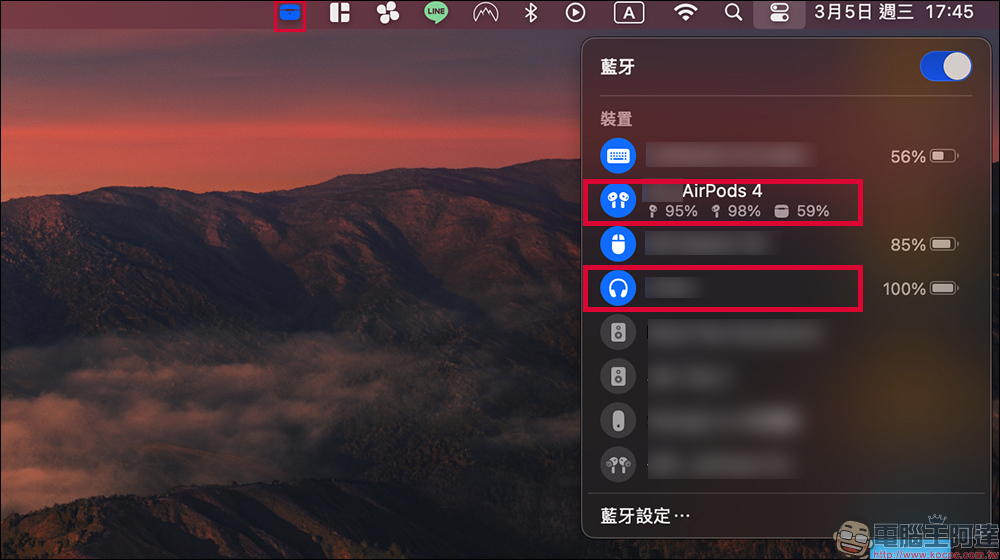
Step 3: Turn on PairPods
And start audio sharing. Find PairPods in the Applications folder. After turning it on, it will appear in the toolbar in the upper right corner of your Mac. Click on the PairPods icon and select “Share Audio”. When the icon turns blue, it means audio sharing has been successfully enabled! At this time, you can try playing music, videos or games, and you will find that both devices can play audio at the same time.
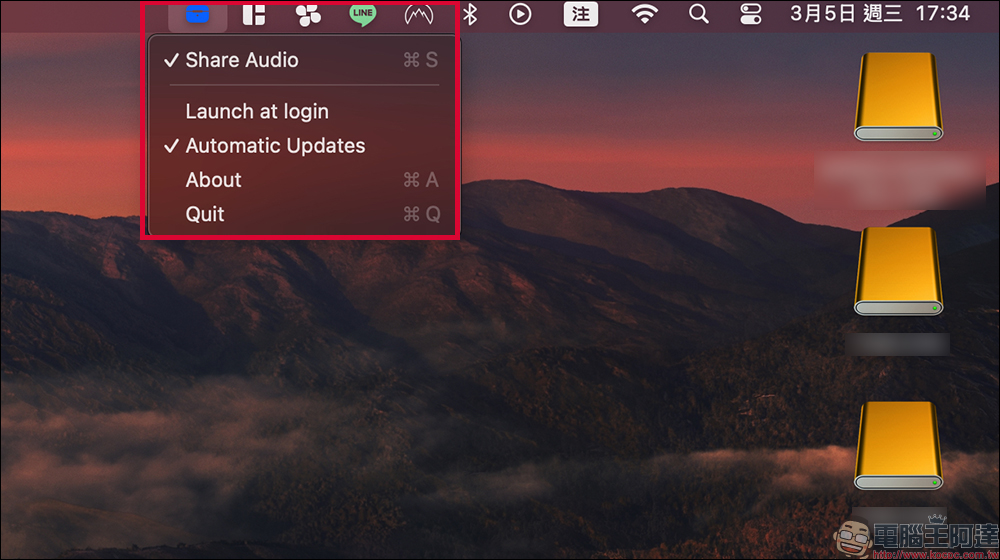
Step 4: Turn off audio sharing
If you don’t want to continue sharing audio, just click the “Share Audio” button again to cancel Gougou. After canceling audio sharing, the icon will change from blue back to its original color, and you can return to a single device to play audio.
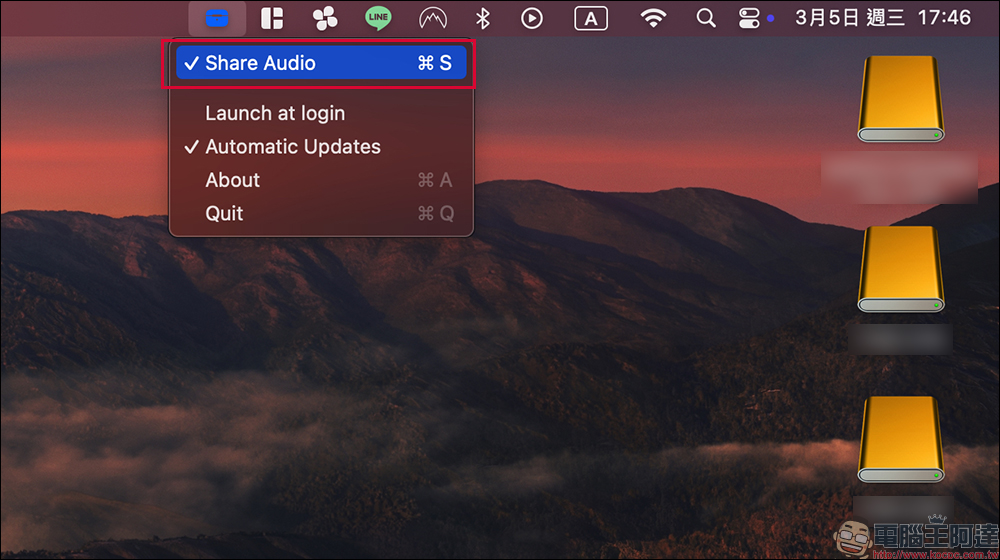
Recommended usage scenarios for PairPods
If you’re still not sure if this tool is right for you, here are some of the best scenarios for using PairPods:
- Watch Movies with Friends: Want to share Netflix with your significant other or friends but don’t want to use external streaming? PairPods helps you solve it!
- Listening to music late at night does not cause noise: Two people listen to music together using different headphones, which does not affect the roommate’s rest.
- Two-player game experience: During multi-player games, both people can use headphones to hear the game sound effects without fear of missing key details.
- Podcast or language learning: Two people can learn a new language or listen to the radio together without having to fight for the same pair of headphones.
Conclusion: This is a must-have tool for Mac users!
PairPods is a completely free, open source, and ad-free macOS tool that solves the problem of the native Mac system being unable to output audio to two Bluetooth devices at the same time. If you often need to share music, movie or game sound effects with friends or family, then this tool is definitely worth downloading! Try PairPods to turn your Mac into two-channel audio in one second, making sharing audio easier and more fun!

PairPods:https://pairpods.app/
Further reading:
iPhone 16e unboxing|Simple and pure, 48MP one lens is worth two lenses, A18 flagship performance and long battery life

Source: KOCPC Chinese