


Since the iPhone launched dark mode, many people have chosen this less dazzling color scheme, especially the high-brightness OLED screen iPhone, which is more suitable for this mode. But for some reason, iOS has never been able to apply the dark theme to every visual element, but these are small things that you can solve by following our tutorial.
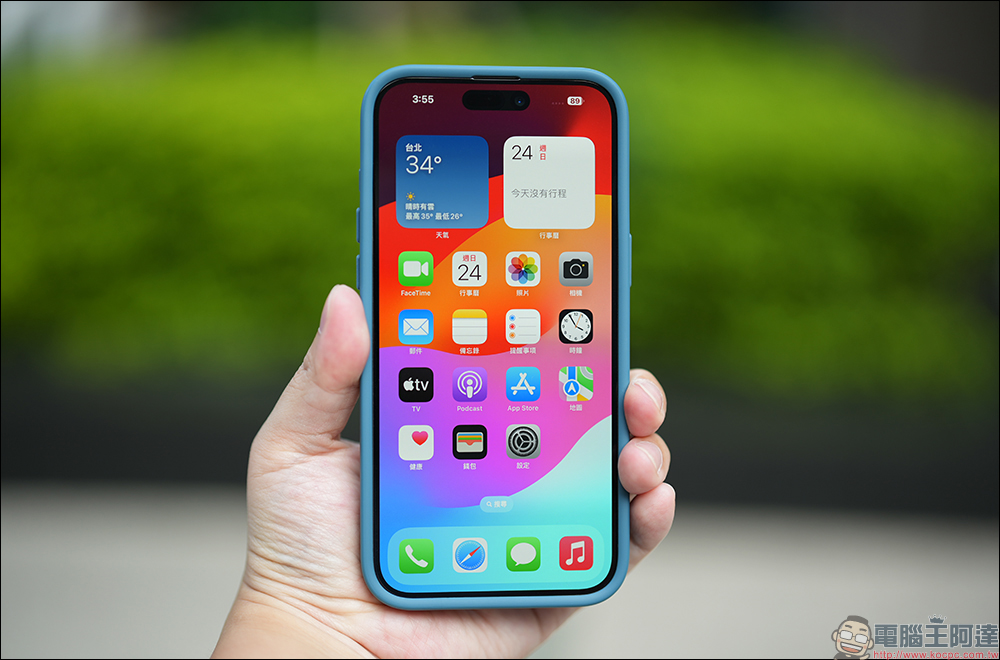
Love dark mode on your iPhone? Make it more unified through these settings
Dark mode has been around on iPhones for a long time, and whether it’s for aesthetics or to save battery, many users have permanently set their phones to dark mode. But what you might not realize is that Dark Mode on iOS doesn’t really make everything consistent. You can see that a dark gray theme is applied to the UI (visible on system apps) and reduces the overall brightness of the screen, but does not darken the wallpaper or app icons on the home screen.
But what if you want more granular control over Dark Mode on your iPhone? There are two hidden display settings in iOS 18 that can darken the wallpaper and change the color scheme of a single app icon so that you can get a consistent visual experience.
Darken the home screen wallpaper
Let’s start with the home screen wallpaper:
- First, press and hold an empty area of the home screen to enter edit mode (that is, the state where the app icon starts to shake).
- Then click “Edit” in the upper left corner of the screen.
- Select “Customize”.
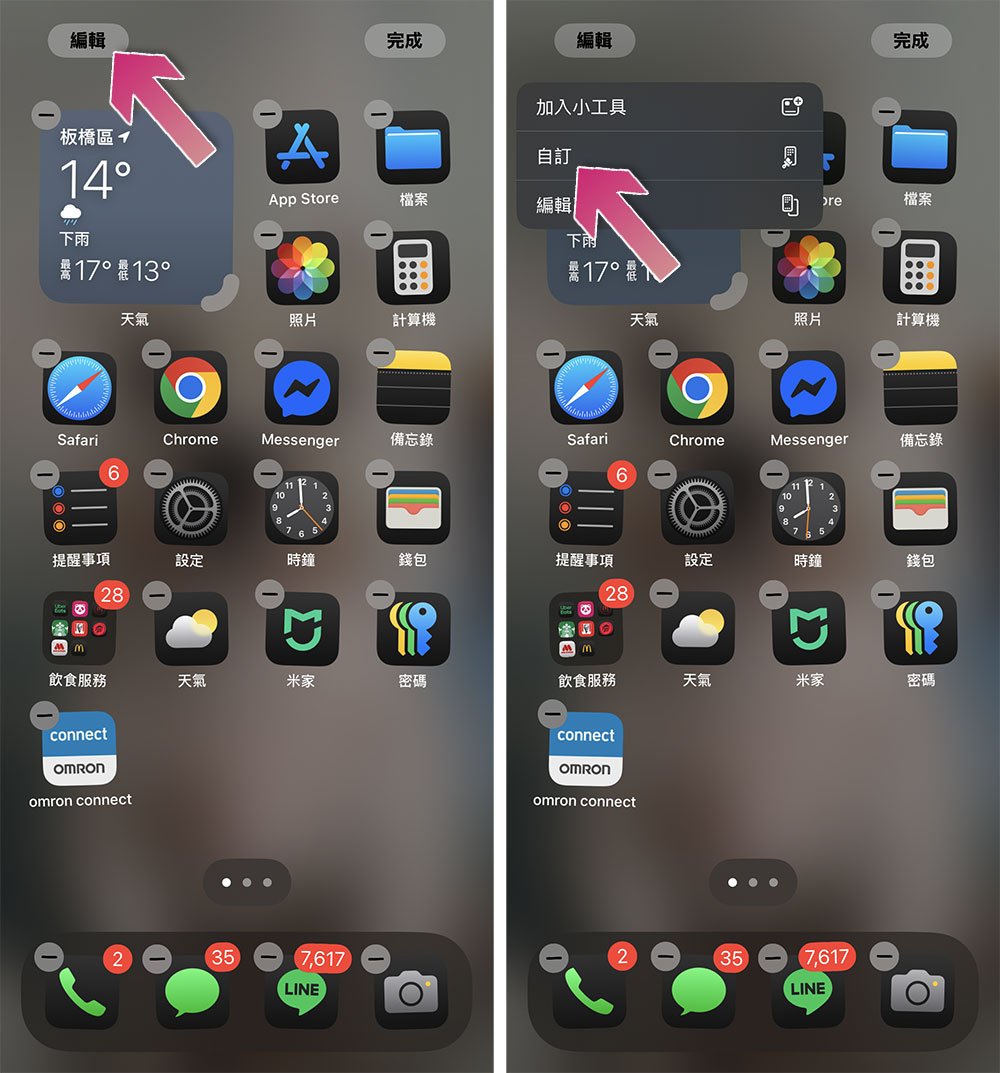
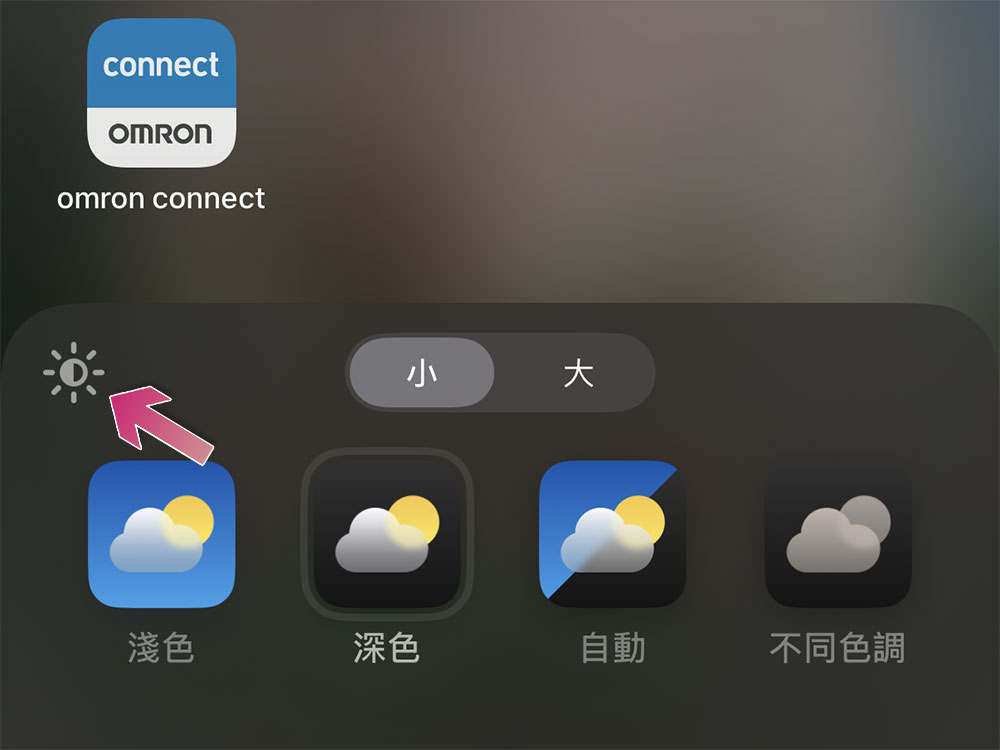
- Click the small sun icon in the upper left corner of the menu that appears. This will darken the main screen wallpaper.
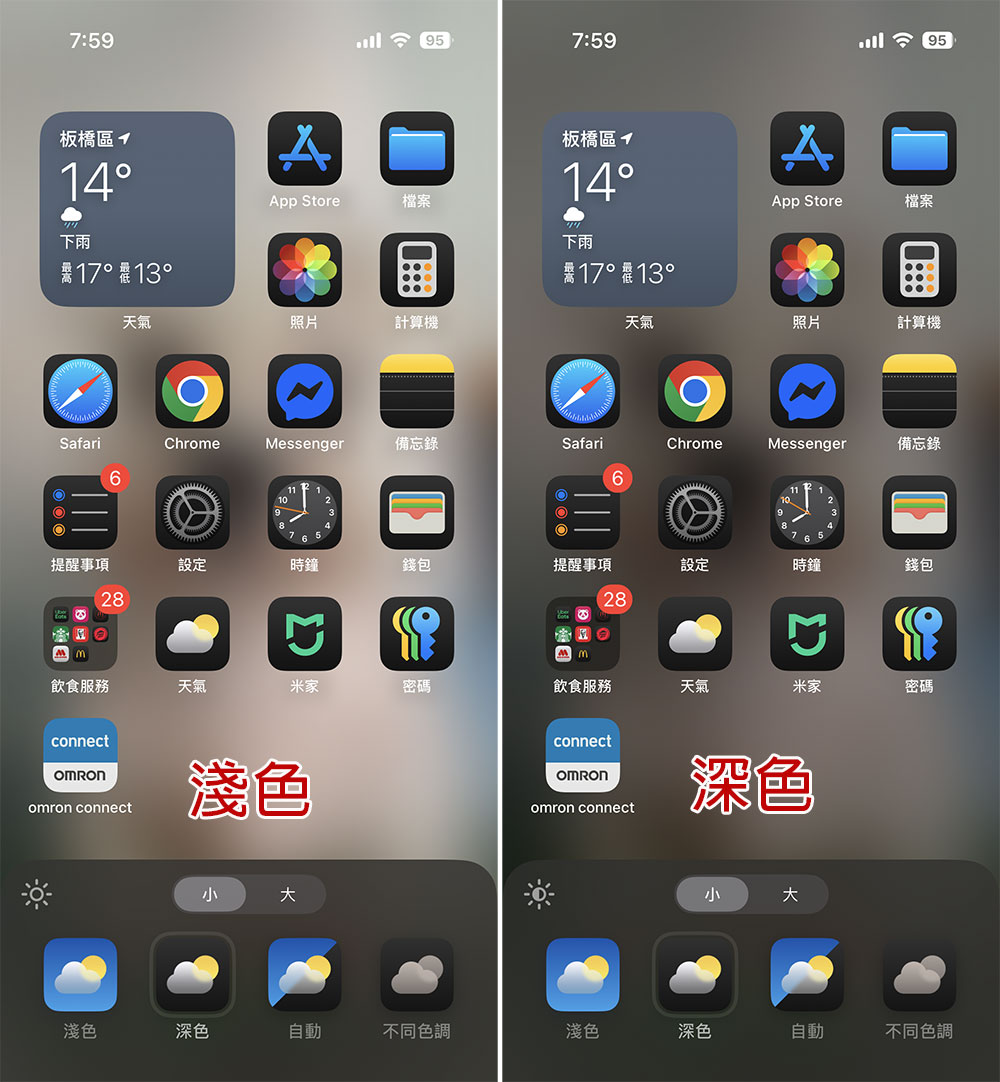
Although this method cannot directly apply dark mode to the tablecloth, it will make the screen and system range look less contrasty and the visual effect will be more harmonious.
Change app icon to dark mode
You can also change the appearance of the app on the home screen, and next we’ll show you how to set up a change icon color scheme, replacing most white elements with dark gray elements.
- First, press and hold an empty area of the home screen to enter edit mode (that is, the state where the app icon starts to shake).
- Then click “Edit” in the upper left corner of the screen.
- Select “Customize”.
- Click “Dark” below (second from the left) to change the application icon to a dark background. Especially the icons for system apps such as Apple Music, Phone, Messages, Fitness, Safari, Notes, etc. It also darkens the icons of some third-party apps, such as Google Chrome, WhatsApp, and Instagram, not only on the home screen but also in other locations, such as the AirDrop menu.
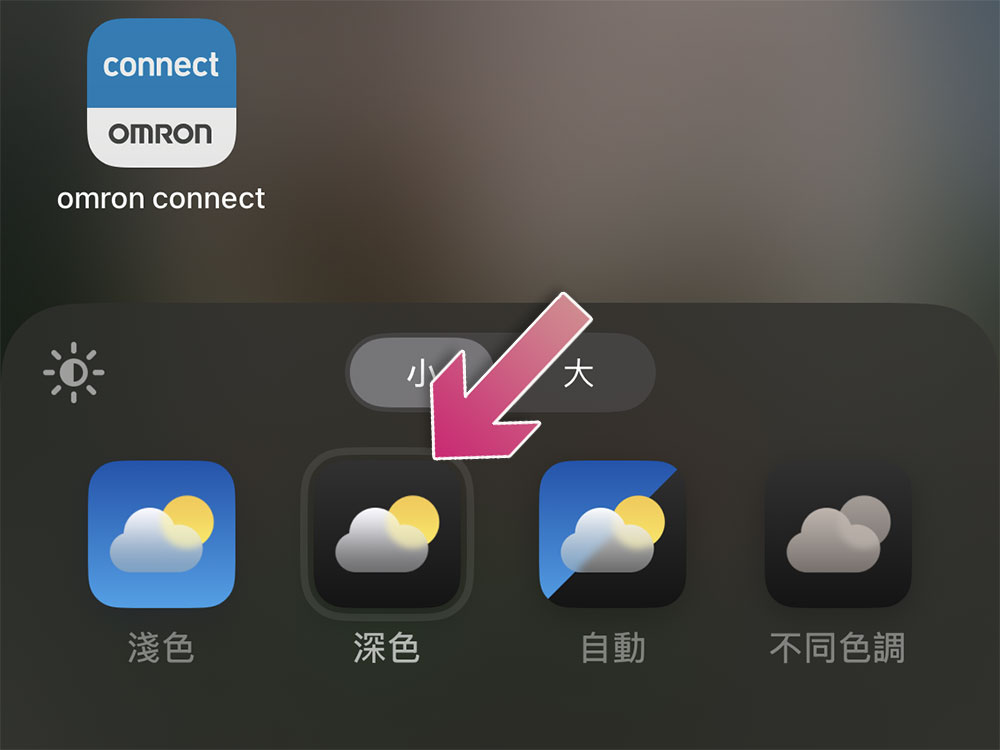
However, there may be some applications that do not support dark icons, especially third-party applications, such as Clips, Telegram, etc., which will not change color accordingly. Overall, the effect is quite good, you can refer to it.
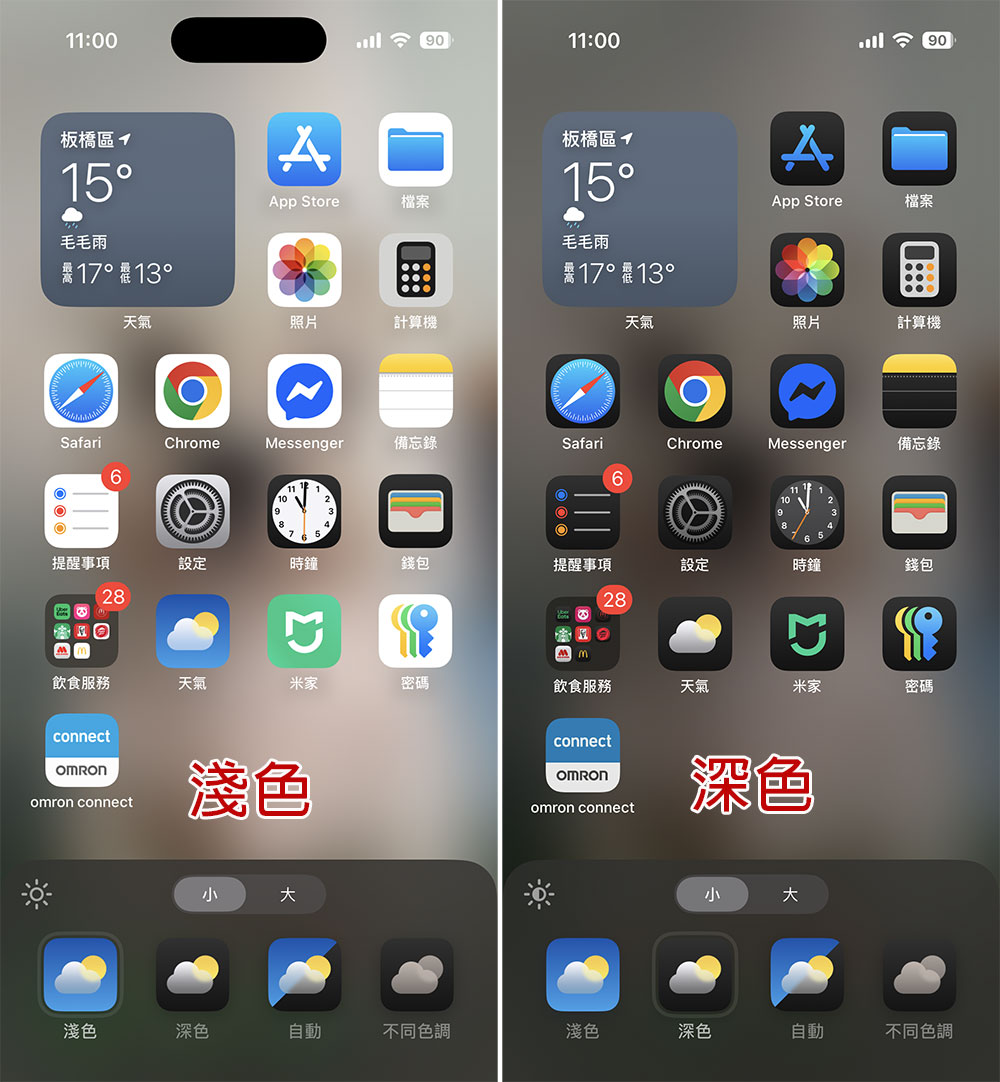
The small settings mentioned above can improve the visual consistency of the user interface and make you more comfortable when using iPhone in low-light environments. In addition to appearance settings, iOS 18 also provides several ways to change the appearance of your iPhone, including customizing the control center, replacing screen lock shortcuts with actual commonly used applications, and adding useful gadgets to the home screen. You can try them out to make your iPhone more personal.
Source: KOCPC Chinese