


In life, you will occasionally encounter situations where you need to edit pictures. Not everyone has relevant software on their computer. If you just want basic editing functions, such as resizing, adding watermarks, text, arrows, compression, applying filters, changing brightness, etc., then this “ShotEasy” online tool is enough. You can use it without registration, and it is completely free.
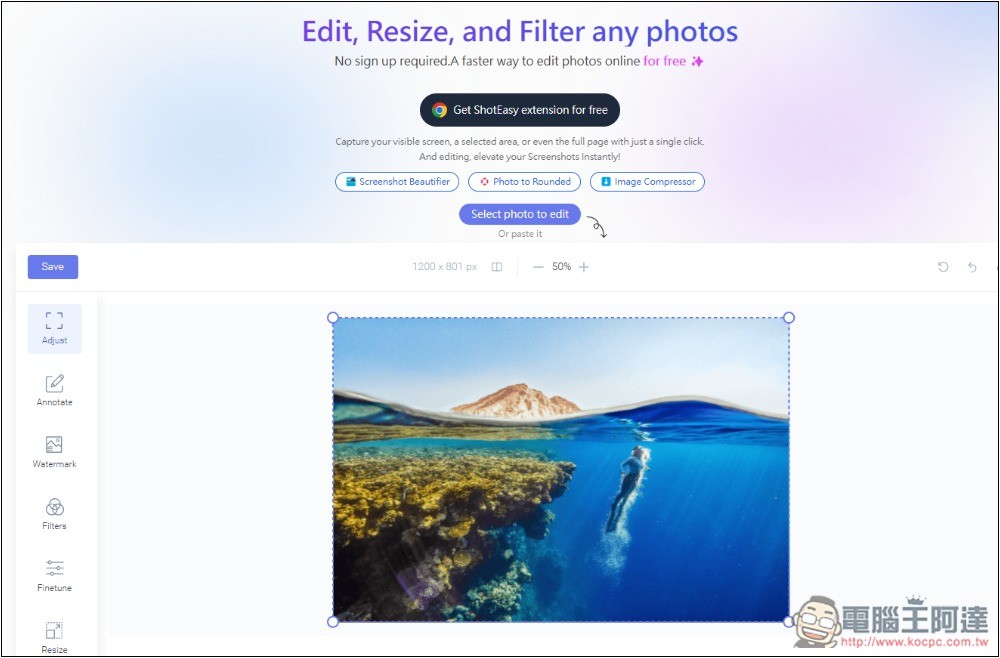
ShotEasy free online image editing tool introduction and operation tutorial
ShotEasy is a completely free online image editing tool. It has a Chinese interface, so you don’t have to worry about not being able to understand it (I didn’t find out until I took a screenshot, so the screenshot is in English). All image editing actions are performed in the browser. The representative said that it will not be uploaded to the Internet, so you can use it with confidence.
After clicking the link above to enter ShotEasy, if you want to edit a picture, click Select photo to edit on the screen, or you can drag the picture directly in:
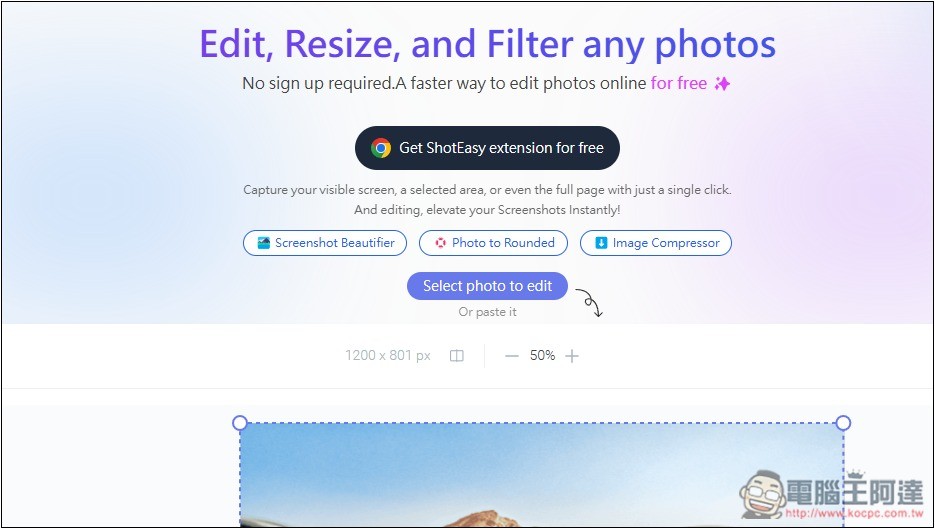
Then you can start editing. There are six major functions: adjustment, annotation, watermark, filter, fine-tuning, and size adjustment:
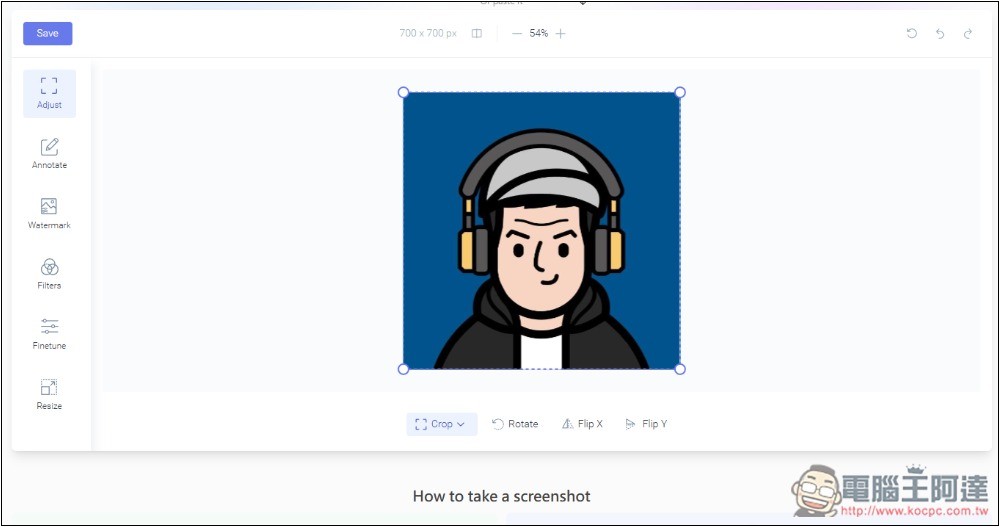
For example, I want to make the main area of this picture larger. So I used the adjustment function (Adjust) to select the range I wanted to keep. If there was no problem, click Save in the upper left corner to save:
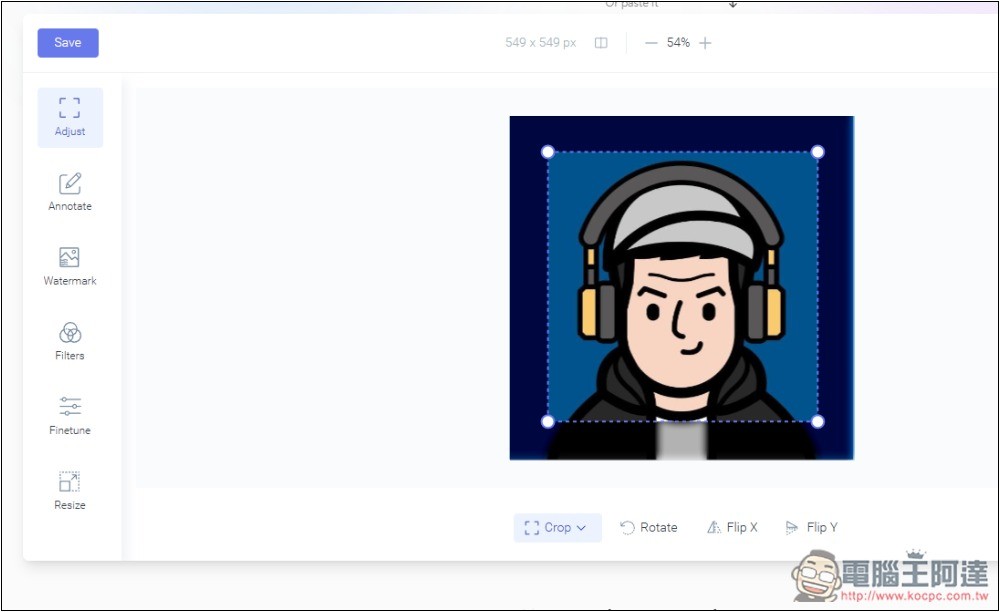
You can set the name, format, quality, and image width and height:
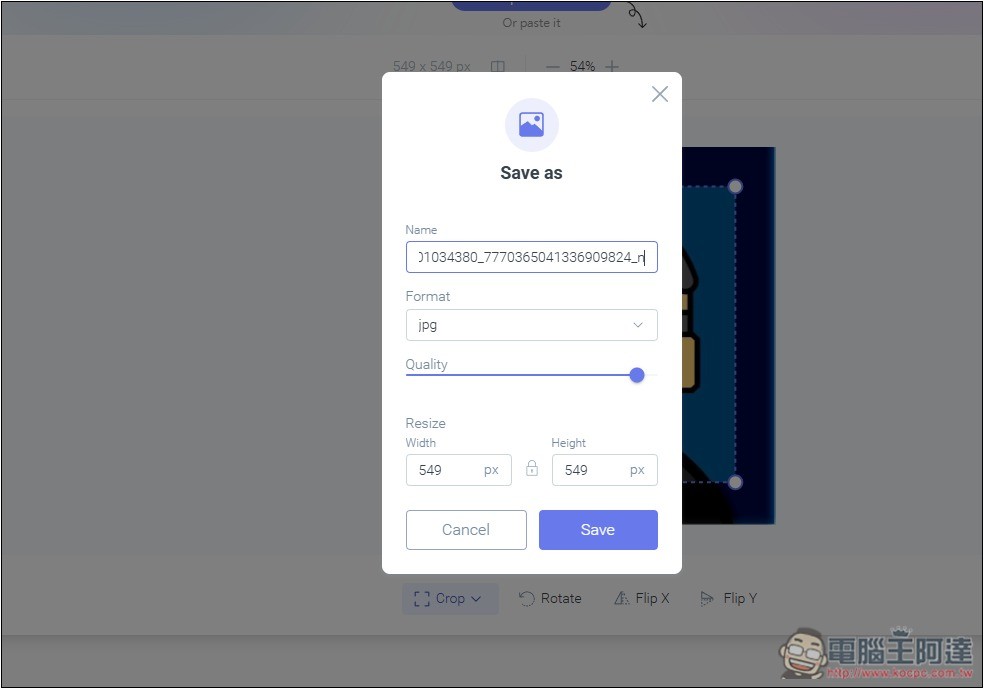
Supports saving in four formats, including PNG, JPEG, JPG, and WEBP:
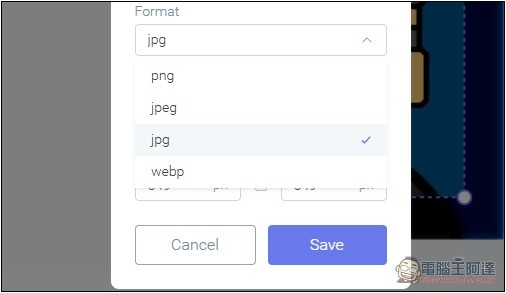
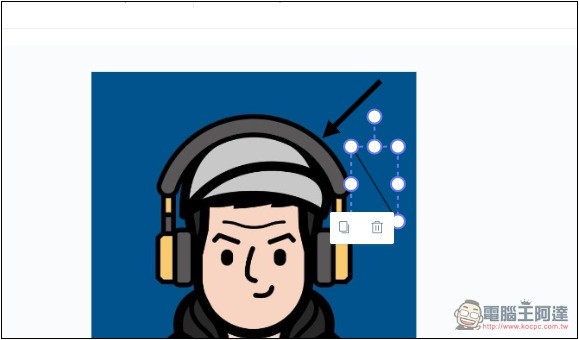
If you want to add words, arrows, or lines to the picture, use the second Adnnotate annotation function. There are text, pictures, squares, circles, straight lines, arrows, etc. to choose from:
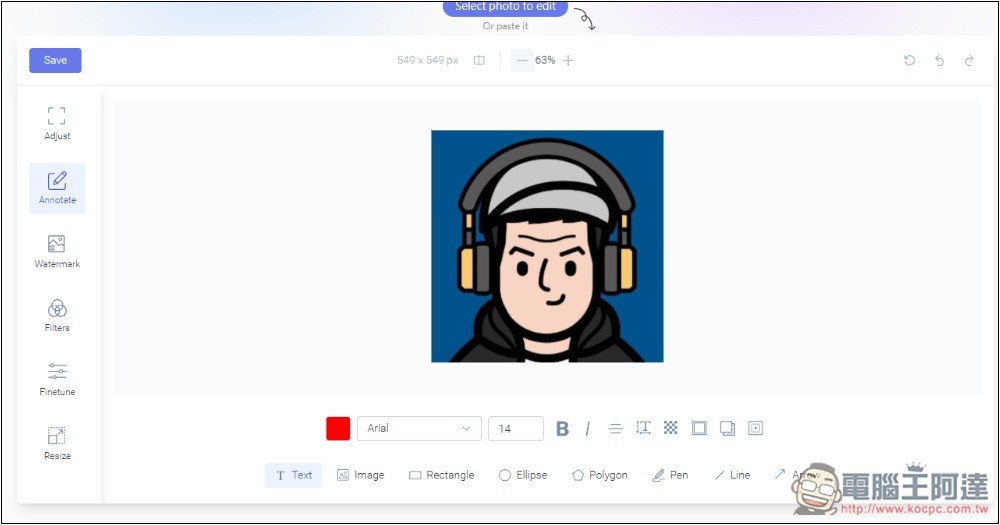
I added the five characters Computer King Ada, and the font color, size, bold italics, etc. can also be adjusted:
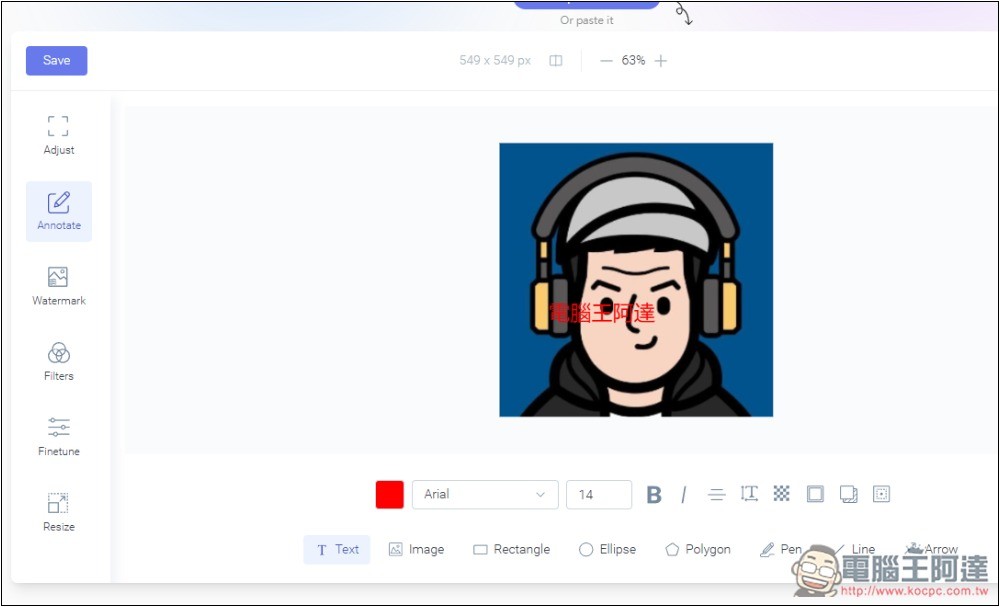
There is no way to change the color of arrows and lines, they are only black:
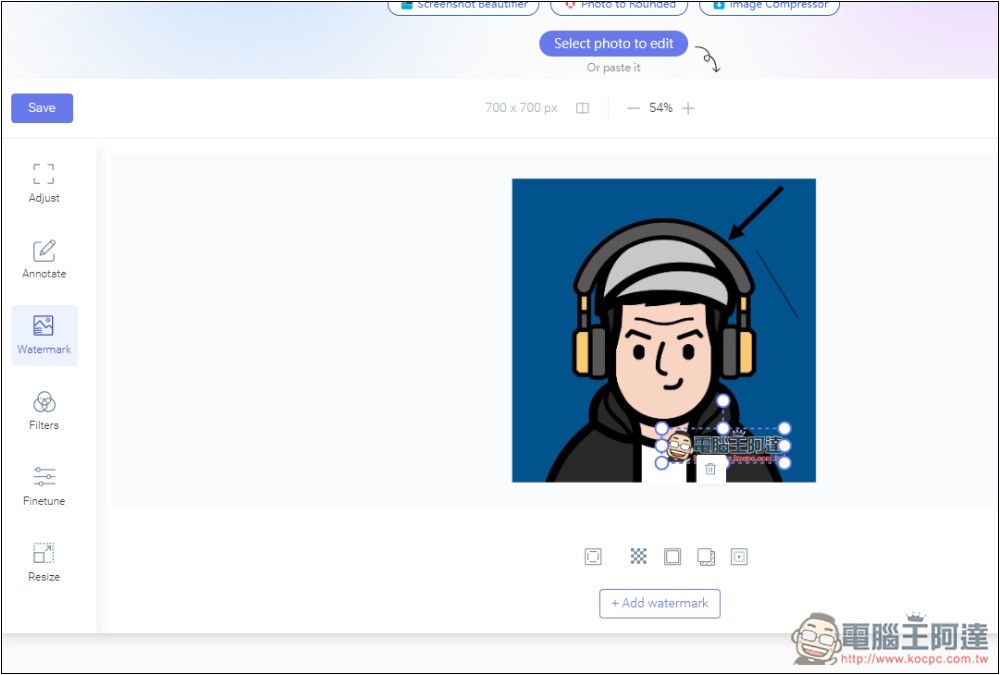
For the watermark part, you can add pictures or text, depending on your needs:
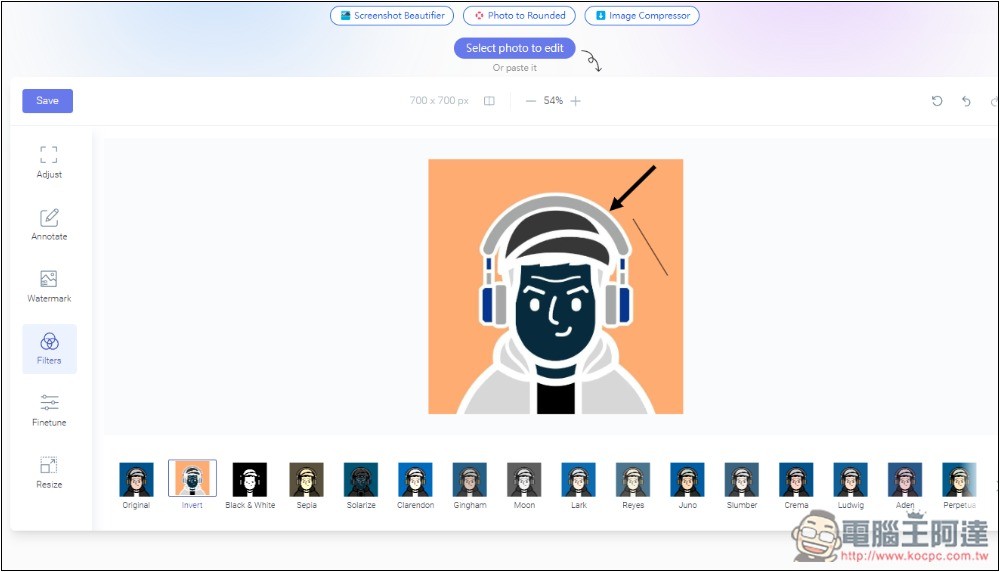
There are a lot of filter effects. I quickly scanned through them. There should be at least more than 30, which is definitely enough for you. After selecting, the filter will be applied to the picture immediately, allowing you to see the effect. If you are not satisfied, change it back to the front. Original:
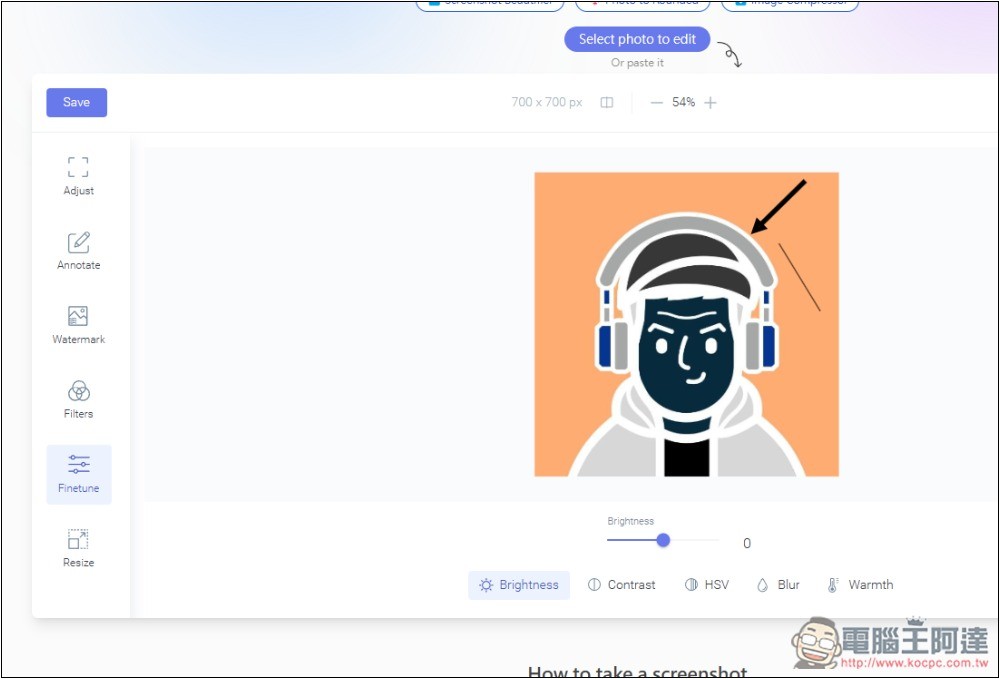
The fine-tuning functions include brightness, contrast, HSV, blur, and warmth:
In addition to image editing, it also provides other practical image functions, which can be switched through the function menu in the upper right corner, including beautification, rounded corners, background removal, compression, and screenshots. I have tried out the background removal feature:
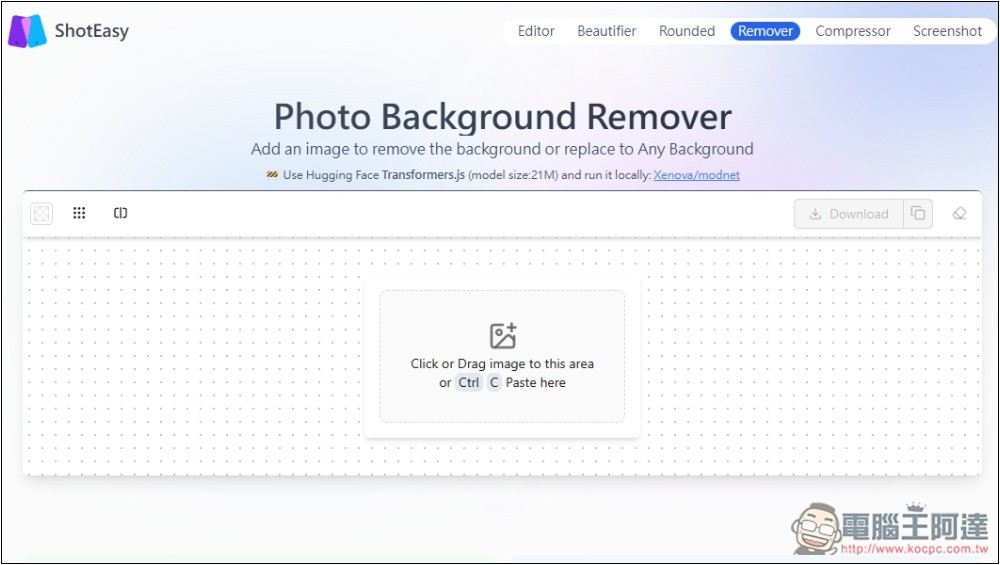
I don’t think the back-removing effect is very good. This photo should be easy to remove. I would recommend instead using the one we introduced earlier AI Background Remover、RMBG-2.0 for background removal;
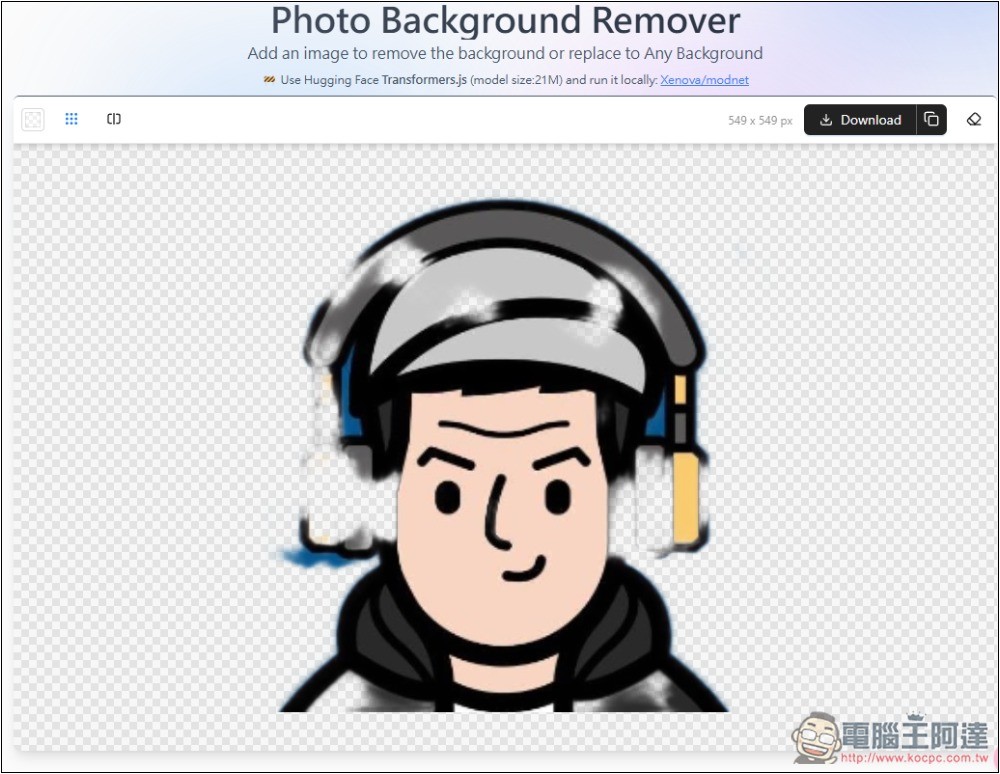
Image compression supports batch processing and can also be added to folders. However, since the backing function is not very good, don’t expect a high compression rate from this tool:
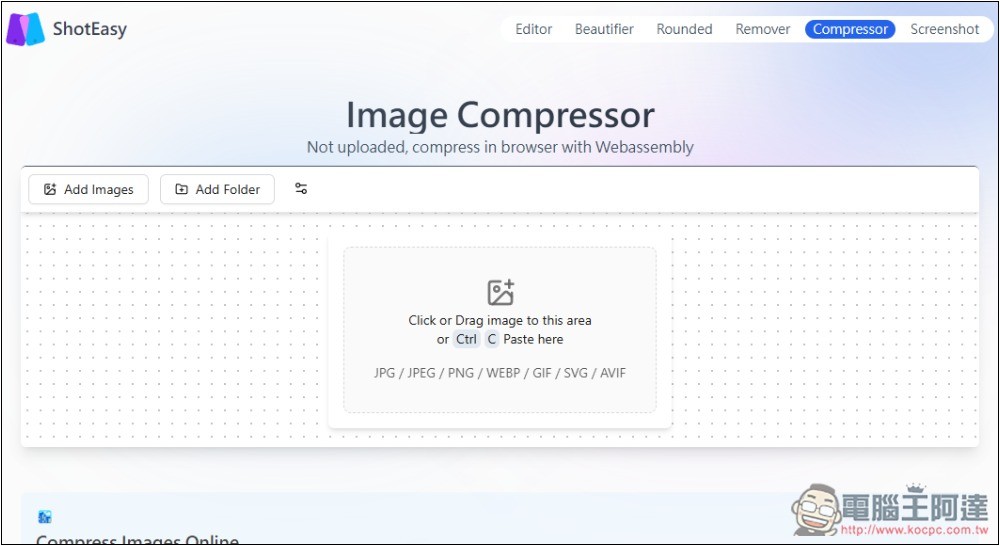
The screenshot function is quite special. I originally thought it was to beautify the screenshot, but it turns out that it actually provides a screenshot function:
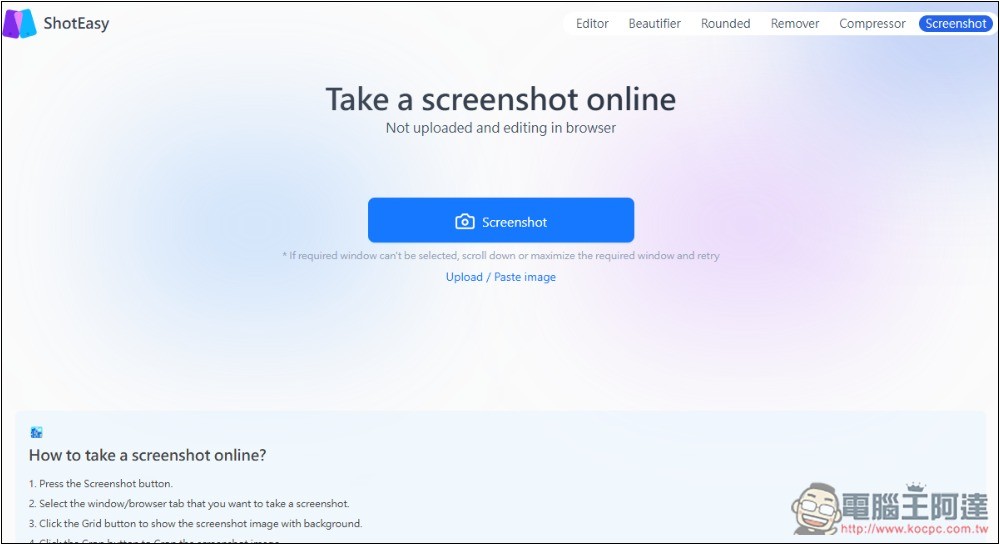
This one also provides Chrome extension functions. Those who need it can try it, but the main function is to take screenshots. Others, such as editing pictures, still have to go through the website.
Source: KOCPC Chinese