


When it comes to the computer operating system used by the most people in the world, Windows is definitely a good helper in our lives because it can handle most studios stably. The response is smooth and fast when it is new out of the box. As time goes by and more and more applications are installed, taking up a lot of RAM, the speed will gradually slow down. Not only does it take longer to boot, but there will also be a delay when switching applications. So, what types of applications might be the culprits in slowing down Windows performance?

These types of apps can slow down your Windows performance, check it out!
Old and problematic applications
Such applications may be incompatible with the latest operating system updates and experience slow performance due to lack of optimization. Old or problematic applications that are not constantly patched for new vulnerabilities or issues may also lead to security risks and make your computer vulnerable to network or malware attacks, which may have serious consequences.
It is recommended to install the latest Windows updates to keep the operating system running properly and also to ensure that all applications are kept up to date with the best version. In addition, applications that are no longer updated, deprecated, or are too old and do not have new versions can be considered for elimination and other alternatives that are more active in updating, patching, and development can be considered.

Antivirus software
Some antivirus software are known for their extremely high RAM usage, while others are relatively lightweight and have less impact on the computer system. The biggest reason for occupying resources is due to the functionality of the anti-virus software itself, because each anti-virus has its own virus code library, and must continuously perform real-time scanning to protect against infringement. Antivirus software offers a wide range of features, with some offering minimal protection while others add VPN, anti-ransomware, and other features that may consume more resources.
For security reasons, although the RAM used by anti-virus software is slightly higher, it is still worth subscribing and installing. It is recommended that you schedule anti-virus software updates and scans during times when you are not using your computer, such as bedtime, after get off work, etc., so that its impact on your use will be minimized.

Launch the application
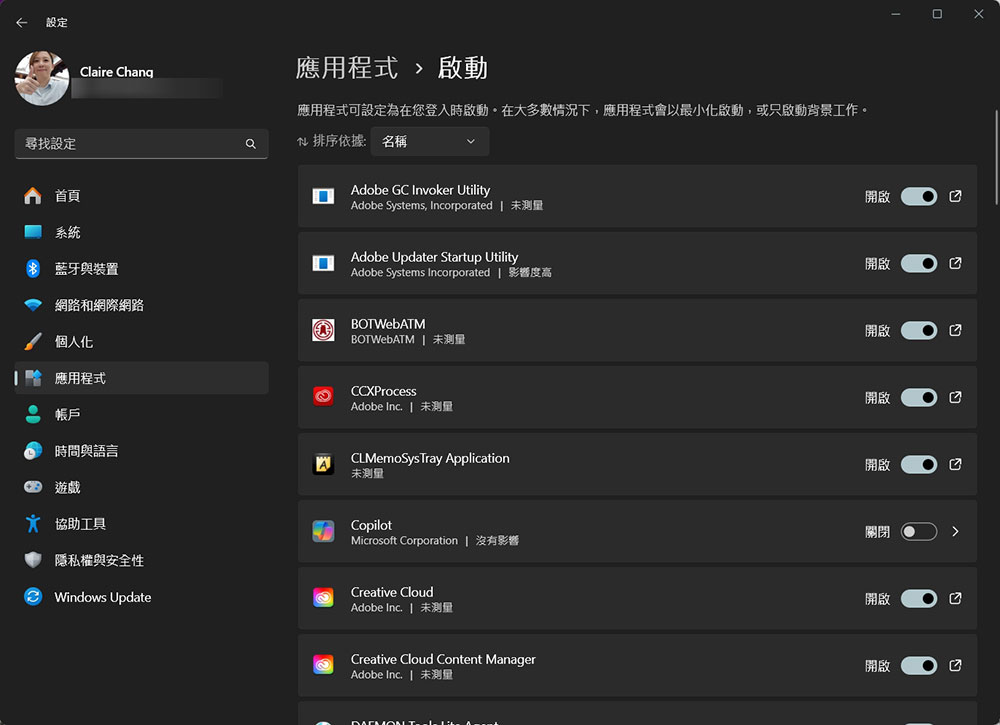
Launching applications is one of the biggest culprits of consuming RAM and slowing down Windows performance. There may only be a few startup applications at first, but later they accumulate and a large number of tools and applications are running in the background. These startup applications must be loaded after turning on the computer, so the more applications you start, the greater the drag on performance and the longer the boot time becomes.
To get rid of unused startup applications, please open the “Settings” application, click “Applications” in the left sidebar, then select “Startup” in the main window on the right, and close the unnecessary items in the list.
gadget
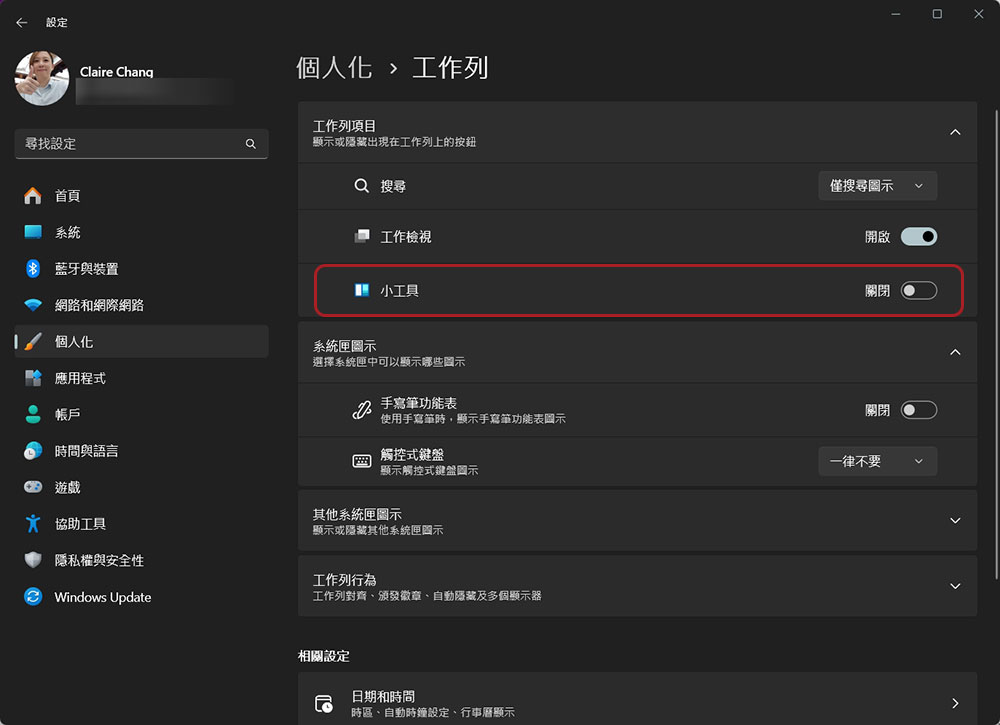
Gadgets in Windows provide things like real-time weather, sports scores, and stock market quotes, and they display many news items in summaries, many of which have embedded videos that play automatically as you scroll. All this information requires resources, making gadgets notorious for high RAM usage when opened.
If you don’t need to use gadgets and want to save RAM resources, you can open the “Settings” application and click “Toolbar” in “Personalization” to close gadgets.
web browser
Web browsers are known for consuming RAM and slowing down performance, mainly because each tab you open is a separate process, like an application that requires varying amounts of RAM to run. Opening multiple tabs is like opening multiple applications, each one taking up some RAM. Browsers also use RAM to render high-resolution layouts and handle complex web applications that require Javascript and other performance-impacting features to perform. Many websites use cookies, trackers, and other data collection tools that consume RAM while delivering information without the user’s knowledge.
The easiest way to reduce your browser’s RAM usage is to close unused tabs, disable unused extensions, and change settings to disable certain rendering features. When you find that the browser you are using is too fat, you can also try other new browsers with lower RAM requirements.

Browser extension plug-in
You may only have a few paging open but still find yourself using a huge amount of RAM, probably because there are many extensions eating away at them running in the background. Each extension plug-in is like an independent application and requires resources to operate. When you accumulate too many extensions, it may cause slow browser performance, thus affecting web applications.
To solve this problem, please check the extensions installed in your browser from time to time, delete extensions that are no longer used, and close extensions that are not needed now but will be used in the future. Don’t let them accumulate silently and drag down system performance.

Game client
Both Steam and EA game clients usually add themselves to the list of startup applications by default and run in the background when you turn on your computer. In addition, they also use RAM to synchronize with their cloud services and display chat and online friends. Most game clients will also automatically update installed games in their collection, which will occupy your network bandwidth and make you feel that your network speed is slowing down.
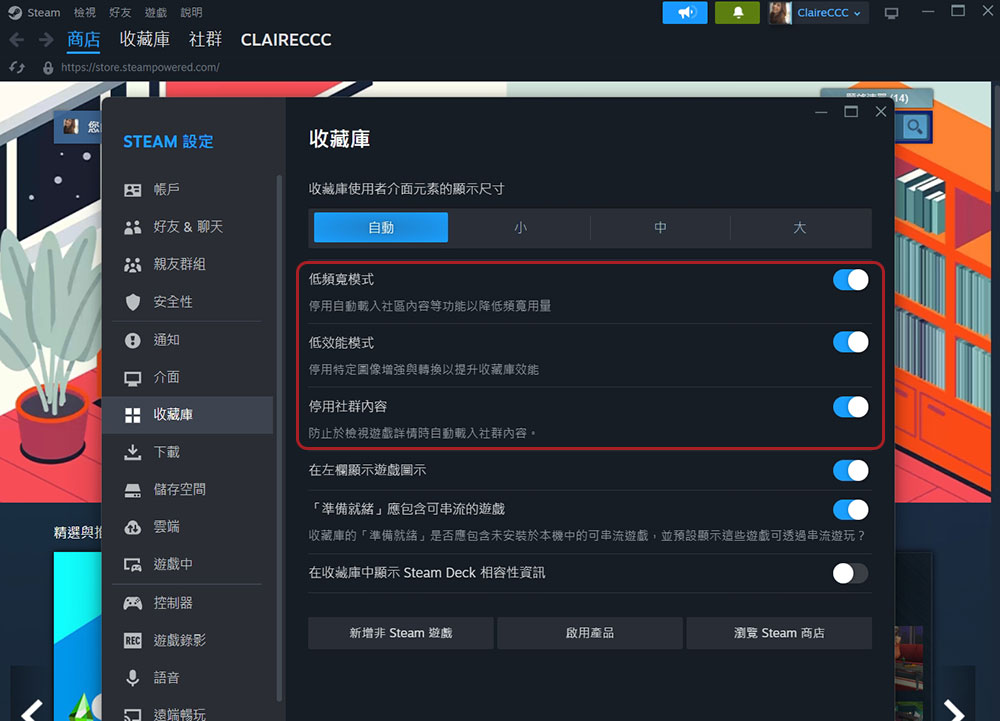
One good way to prevent game clients from taking up RAM is to remove them from the list of startup applications. You can also make settings in the client one by one, request not to use it when the computer is turned on, set the maximum bandwidth usage for downloading updates and optimize performance. For example, you can enable “Low Bandwidth Mode” and “Low Performance Mode” in the “Library” item in Steam Settings, and then turn on “Disable Social Content” to optimize runtime performance.
Source: KOCPC Chinese