


Even people with good hearing sometimes miss certain prompts because they do not hear them, such as keeping a cat on the balcony meowing for a long time. If this happens to you frequently, or you or your family members have hearing impairment, you can try the voice recognition function on your iPhone to assist you in your life.
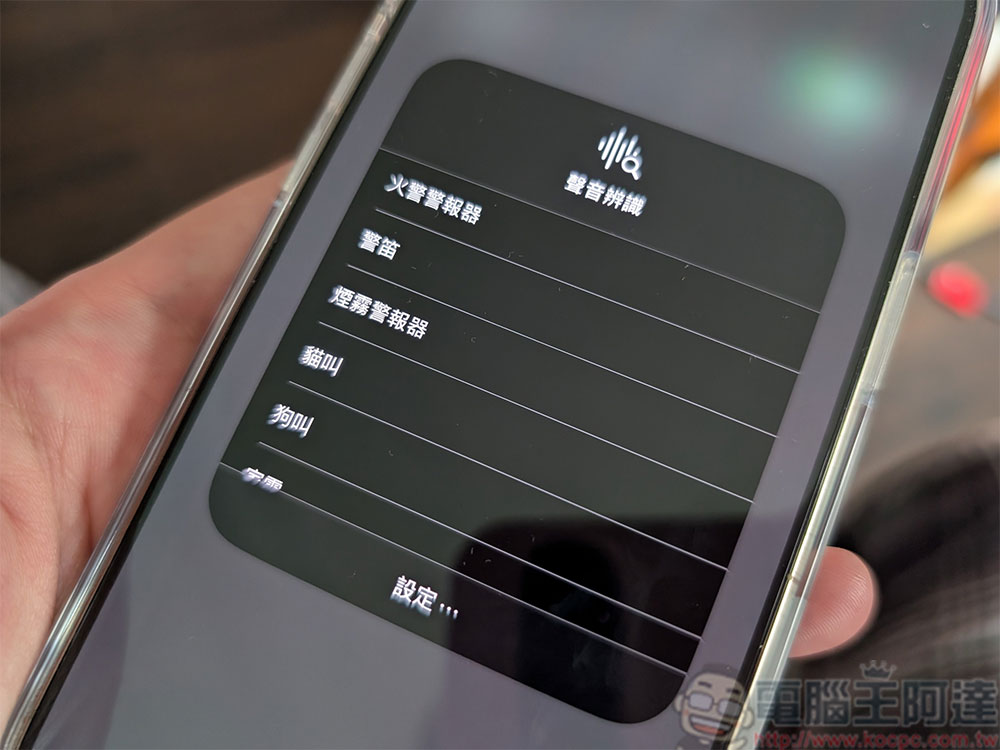
How to use voice recognition on iPhone?
The sound recognition function was introduced to iPhone from iOS 14 with the goal of helping hearing-impaired users. Its function is to actively detect and listen to specific sounds, such as smoke alarms, door knocks, babies crying, etc. Once it detects a specific sound, it will send a text notification to your iPhone to remind you. This feature helps you understand the surrounding environment and prevent you from missing important alerts or events happening around you. Although the original intention is for hearing-impaired users, if you just want it to play an assistive role in your life, the voice recognition function is still very helpful.
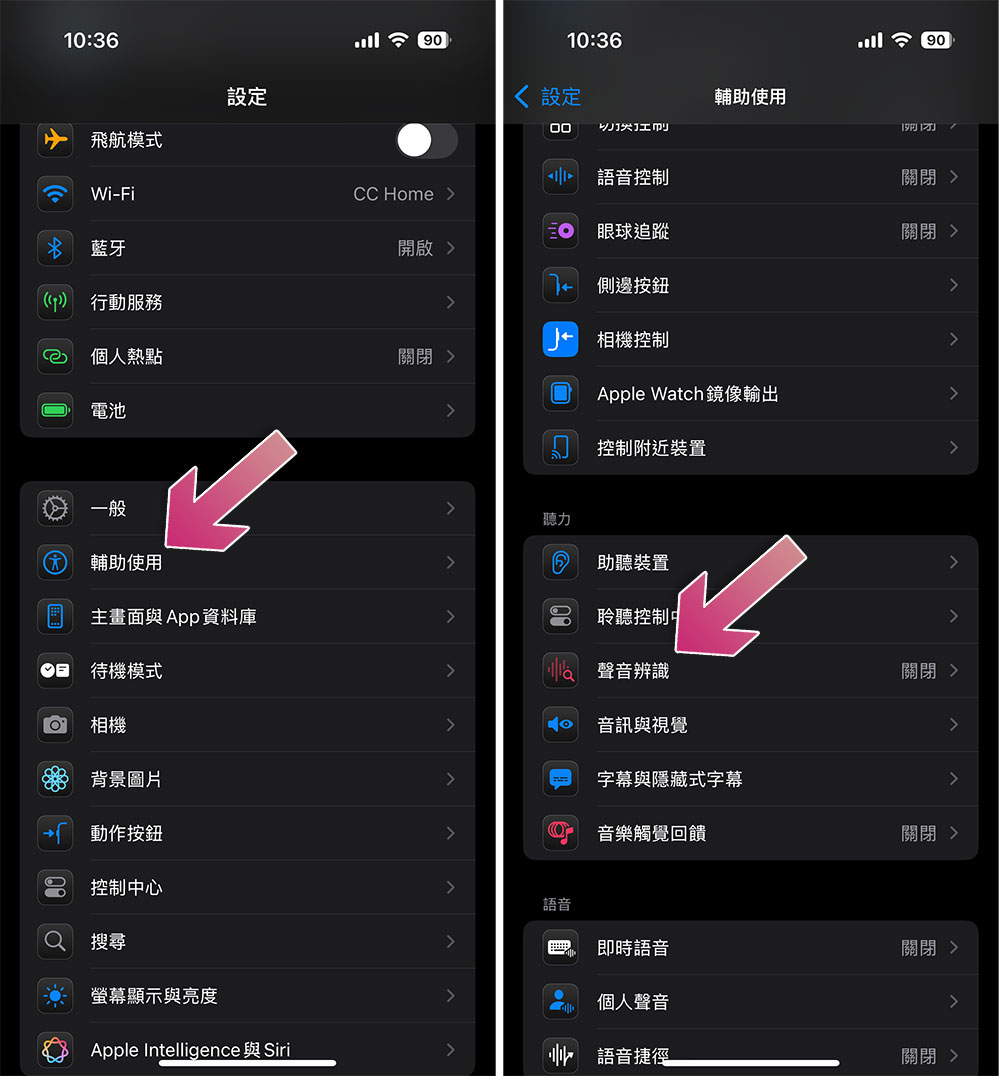
- Open the Settings app and click to enter “Accessibility”.
- Select “Sound Recognition” in the listening category.
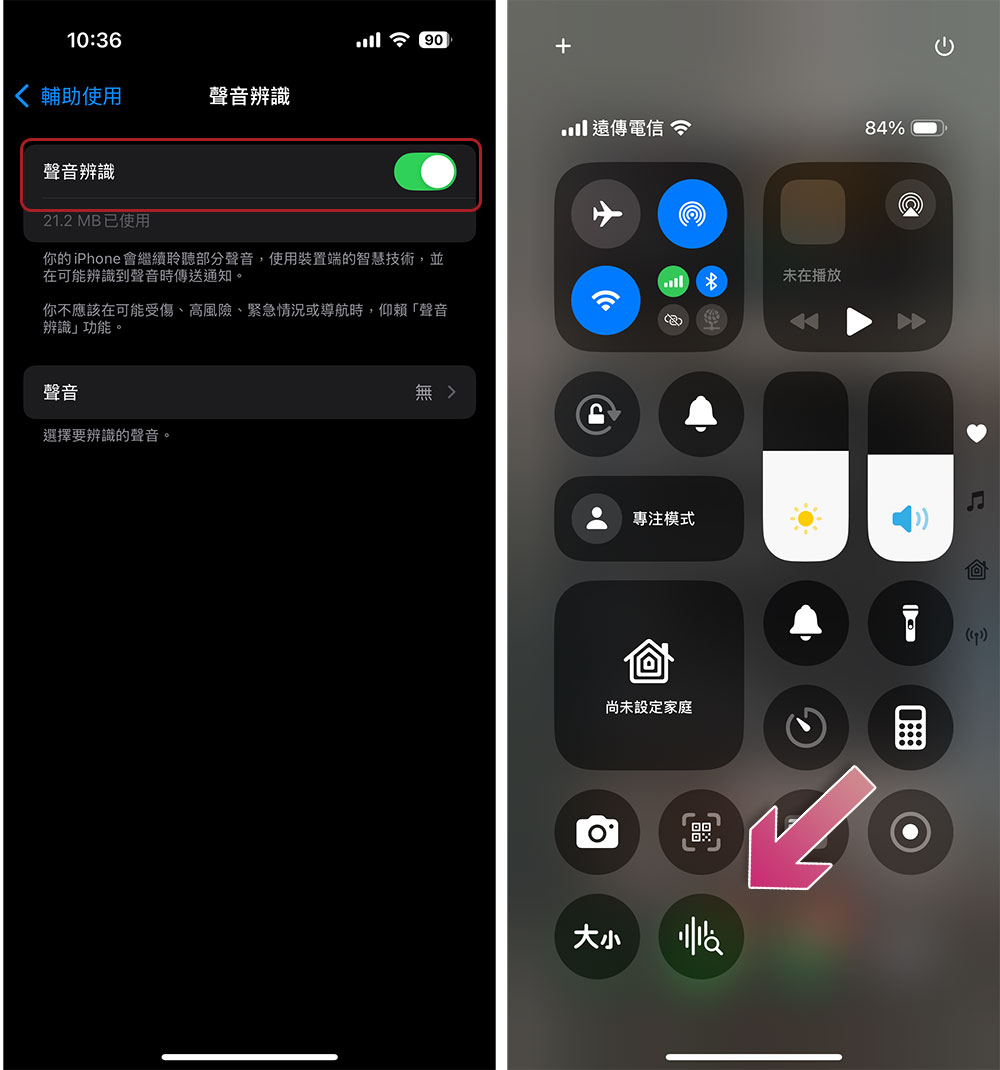
- Turn on the voice recognition switch. It will automatically download and tell you that this option will be added to the control center. Please click OK at this time.
- Next click “Sounds” below and select the specific sounds you want the voice recognition feature to pay close attention to. Just click the option and turn the switch on. Don’t forget to agree to voice recognition to send notifications to you to receive text reminders.
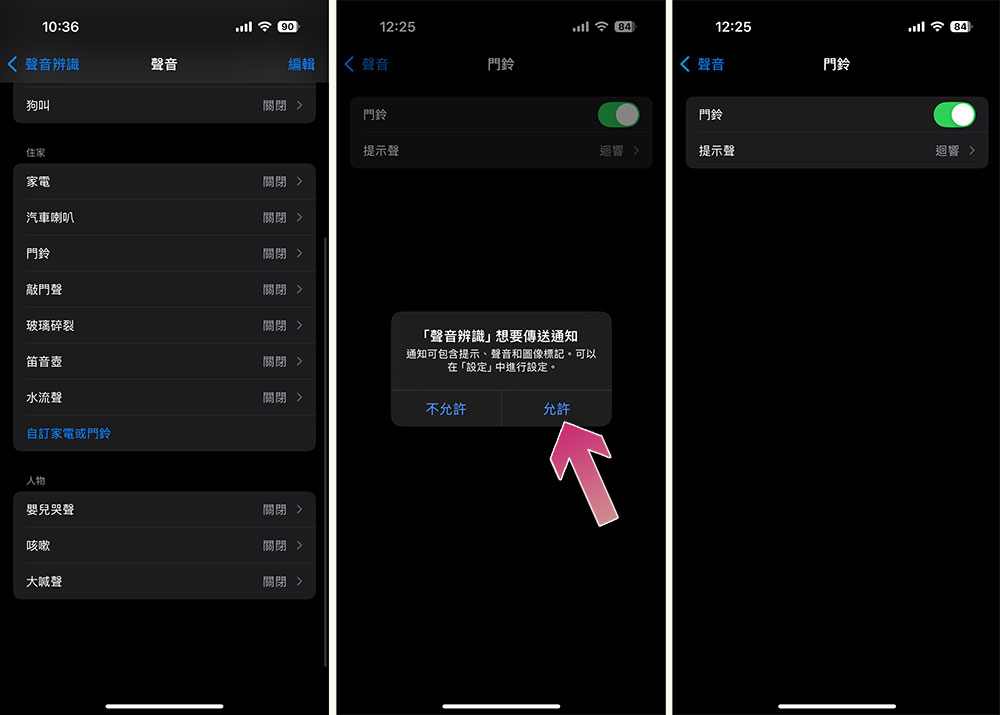
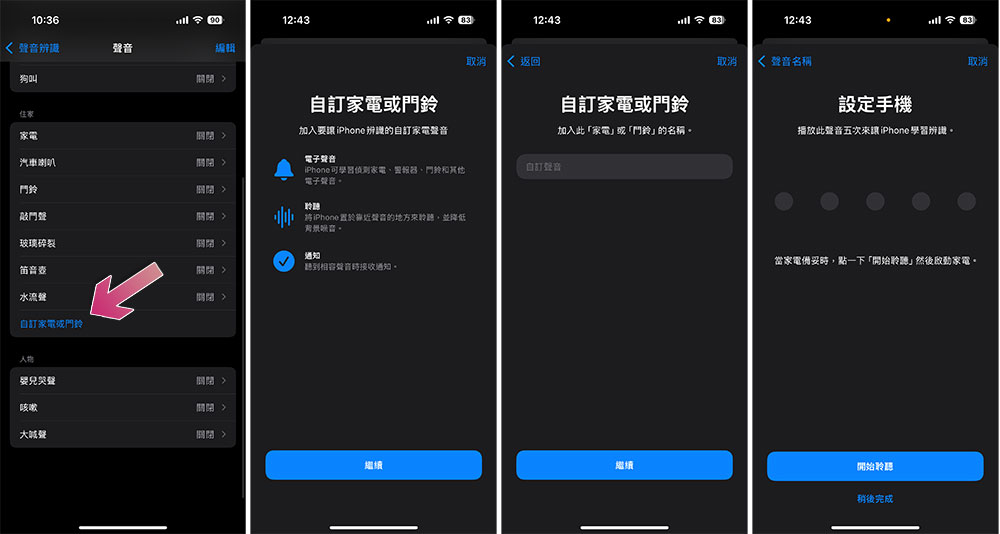
- You can also customize any sound, such as the reminder sound for various appliances such as alarm clocks, doorbells, or washing machines. Just press Custom and follow the step-by-step instructions. Play the customized sound five times and let your iPhone learn it and save it. After learning is complete you will receive a notification telling you that the new sound is available. It is recommended that the best recording effect will be achieved in an environment without prominent interference.
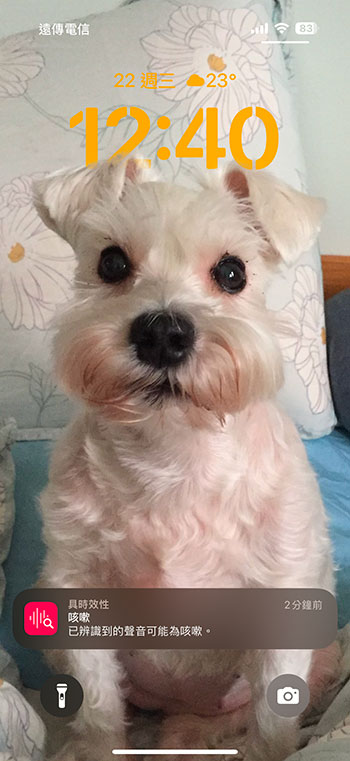
- After enabling all the sounds you want to receive, when the iPhone detects the item you selected, it will send you a text notification as shown below.
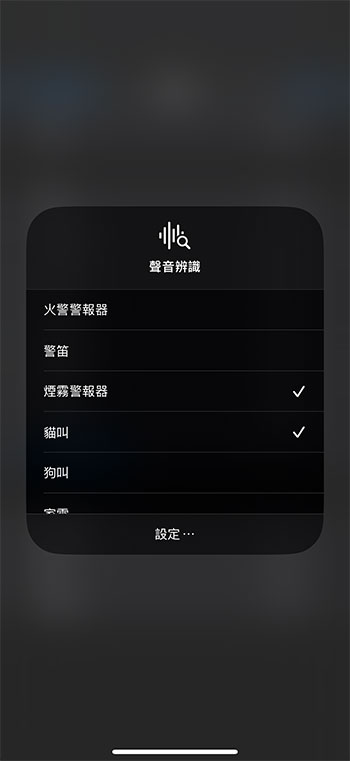
If you are now in a noisy environment or any time when you do not need to use the sound recognition function, or if you want to add more detection of specific sounds, you can open the control center and turn on and off the listening of specific sounds at any time, as well as turn on and off the sound recognition function.
Source: KOCPC Chinese