


Compressing a file combines multiple files into a single compressed file, making it easier to store and share. This is especially helpful when you need to send a large number of files via email or messaging applications. Equally important is how to unzip the archive so that its contents can be read. People are more accustomed to compressing and decompressing files on their computers, but Android can handle these tasks easily as well.
How to compress and decompress archives on Android?
If you receive an important letter while commuting and need to unzip the compressed file to view the contents, or suddenly need to send an important document to someone else, you can use Android to quickly manage the compressed file. The best part is, you don’t need to download additional third-party applications, you can compress and decompress easily using Android’s built-in Files application, and we’ll tell you how below.
Compress files using Files
Files is preloaded on almost all Android phones. If not, you can download and install it from the Play Store. Next, just follow the steps below to create the compressed file:
- Open the Files app.
- Browse the storage space on your phone to find the files or folders you want to compress into .zip. You can also select multiple files or folders if necessary.
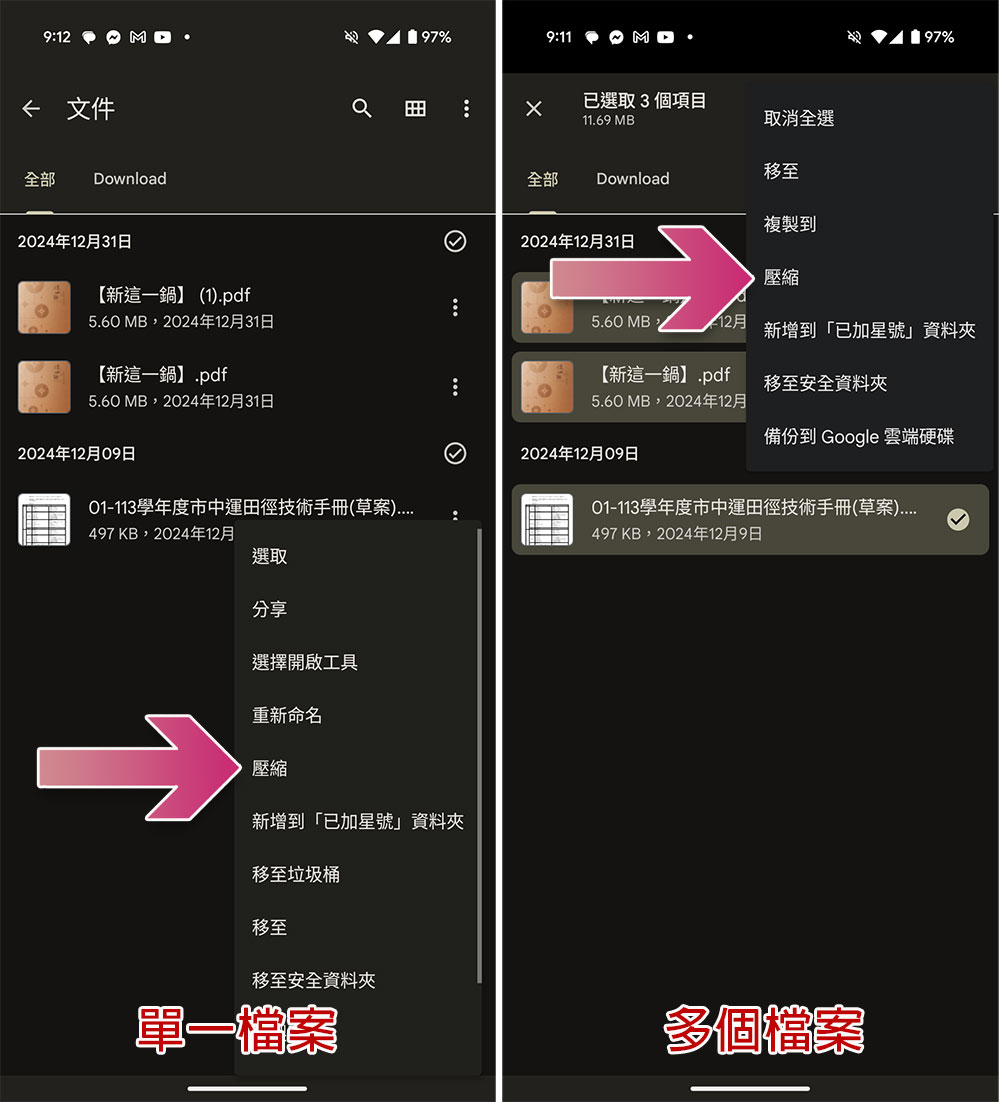
- To compress a single file, just click on the three-dot menu behind the file and select “Compress”. If you want to compress multiple files, you can select the required files, click the three-dot menu in the upper right corner of the screen, and then select “Compress”.
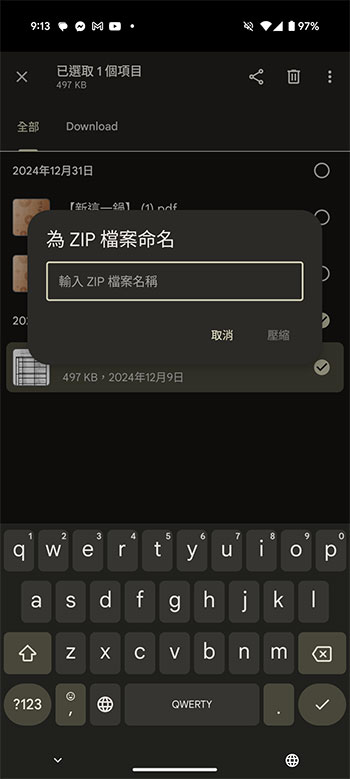
- Finally, enter the name of the compressed file. Please make sure that the file name does not contain spaces, “.” and other symbols, and finally click “Compress”. The completed zip file will be placed in the same location as the original file.
Unzip files using Files
Whether you downloaded a .zip file from the Internet, received it via email, or transferred it to your Android phone from another device, you can also use Files to decompress it with a few taps.
- Open the Files app and browse or search for the .zip file you want to unzip.
- After clicking on the file, the system will ask you if you want to decompress it, click “Extract”.
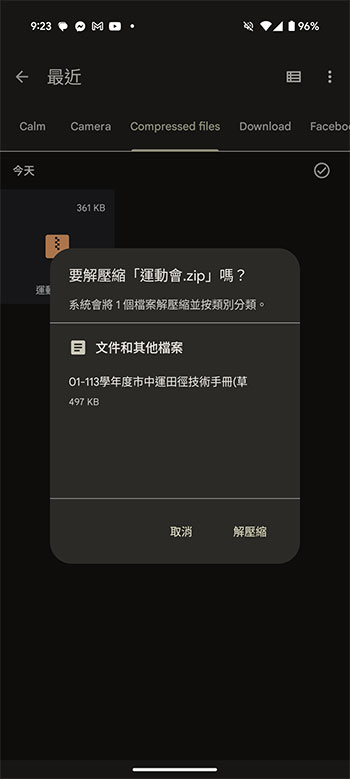
- If you no longer need the original .zip file after decompression, you can check the “Delete ZIP file” checkbox and select “Finish”.
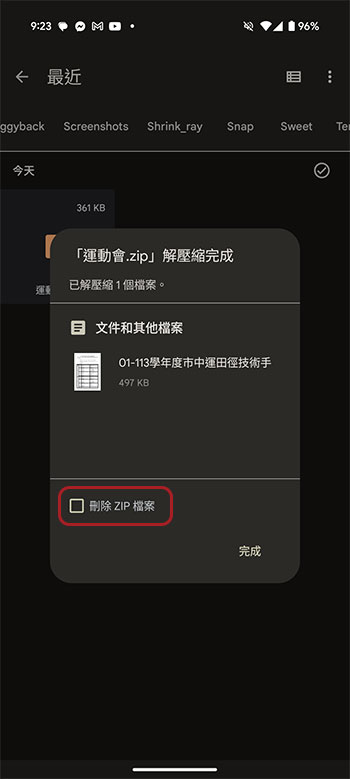
Once unzipped, you can open the content for viewing or sharing with others. However, a reminder here is that the Files application only supports decompression of .zip files. If you want to open other compression formats such as RAR, you still need to find a third-party application to handle it. Usually third-party compression applications can handle almost all types of compressed files, please go to the Google Play Store to find them yourself.
Source: KOCPC Chinese