


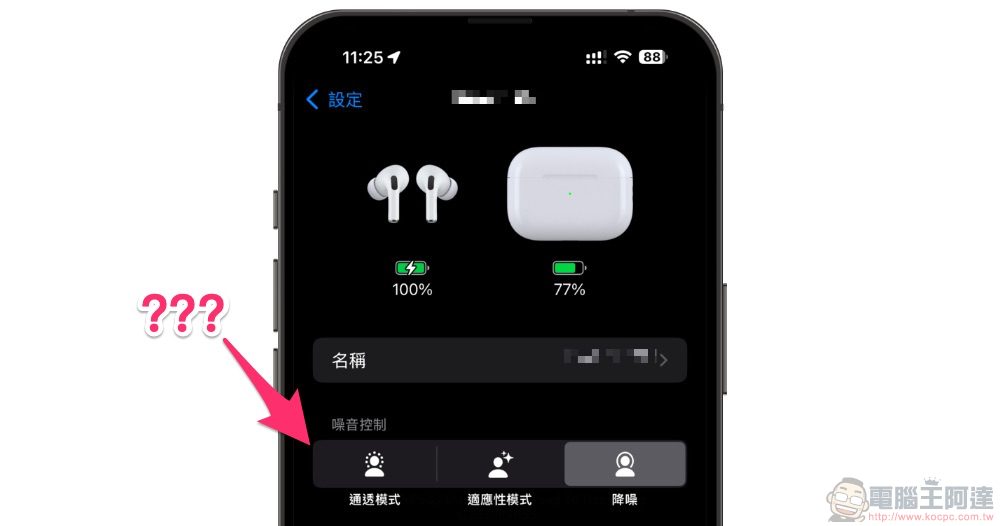
After the recent iOS 18 update (there should also be a firmware update for AirPods Pro), some people found that the “Off” option in the noise control options can no longer be used on their AirPods Pro, and they were very troubled – there are also friends who have encountered the same problem. This article will teach you how to change this function back! Continue reading AirPods Pro has had an old noise control option removed in iOS 18. Here’s the article to teach you how to add it back.
An old noise control option was removed from AirPods Pro in iOS 18. Here’s how to add it back
After the recent iOS 18 update (there should also be a firmware update for AirPods Pro), some people found that the “Off” option in the noise control options can no longer be used on their AirPods Pro, and they were very troubled – there are also friends who have encountered the same problem. This article will teach you how to change this function back!
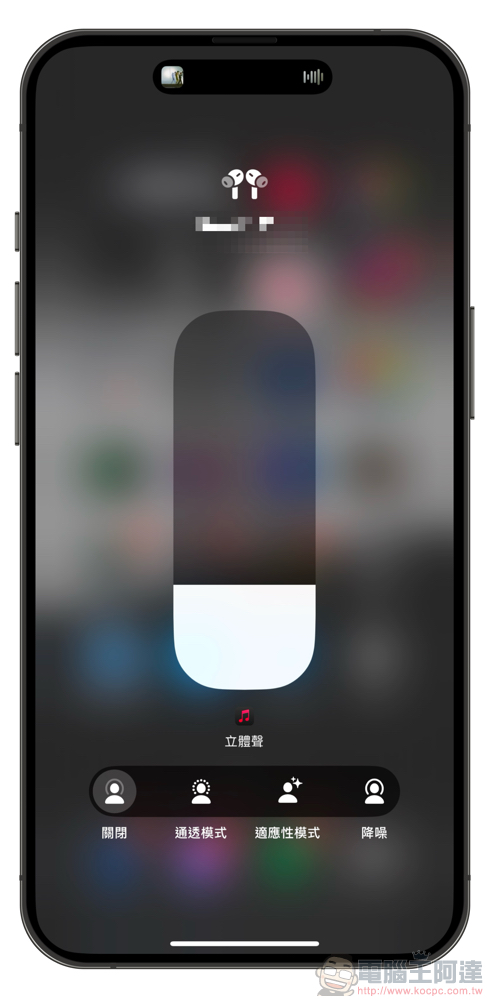
It must be said that since I am going to wear AirPods Pro, I feel that I hope to use Apple’s various technologies for audio computing (transparency, adaptive transparency and noise reduction).
So basically the “off” option for completely turning off the noise control function was really removed from the quick function of squeezing the headphone stem after the unboxing test. However, it is obvious that there are still some people who want to receive external noise in a simple way of listening to traditional earphones – without going through so-called “computation” processing.
After iOS 18, Apple may have announced that the hearing protection function will be listed as a default feature of AirPods Pro, so it has completely canceled the “off” option of the noise control function provided by audio computing in the control center quick function and AirPods settings menu.
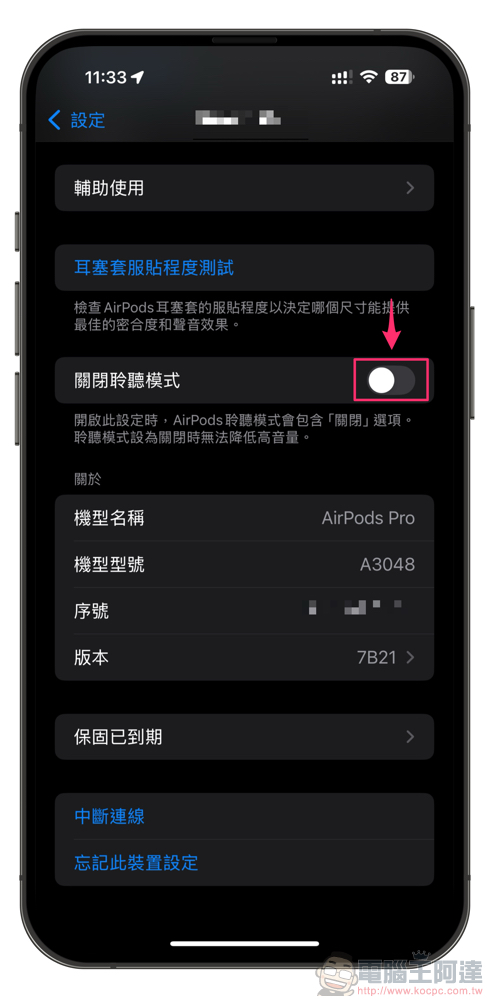
Fortunately, when you click on the AirPods Pro function settings in the iPhone settings function and slide to the bottom, you will be able to select the “Turn off listening mode” switch to add it back (as shown above).
That is to say, when you turn the “off” option of noise control back on, the system will remind you, “To reduce the impact of exposure to noisy environments, please set the listening mode of AirPods Pro to “noise reduction,” “adaptive mode,” or “transparency mode.” 』
That is to say, when the noise option is set to “off”, only the passive noise reduction effect of the earbuds will remain. If you want hearing protection, you need to switch to other options.
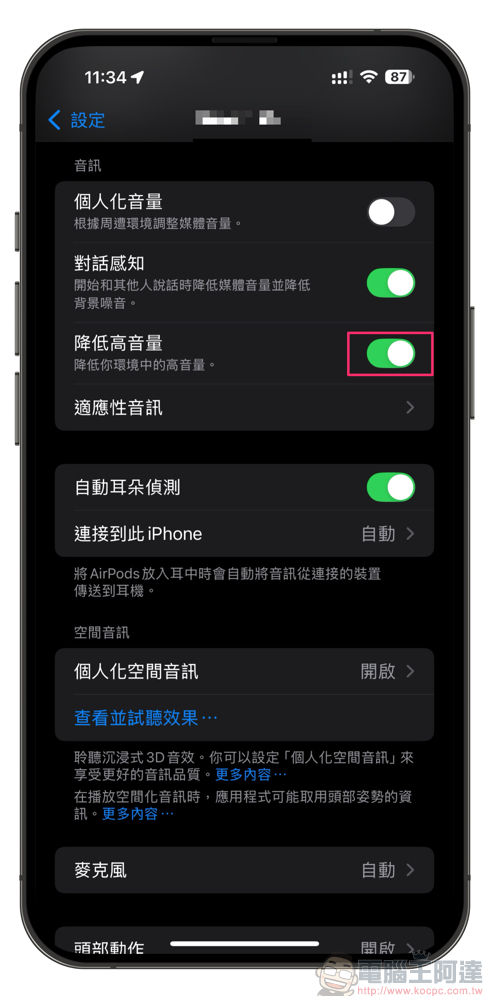
Yes, even in transparency mode, as long as the hearing protection-related functions are turned on, such as “Reduce high volume”, you can still enjoy some hearing protection functions.
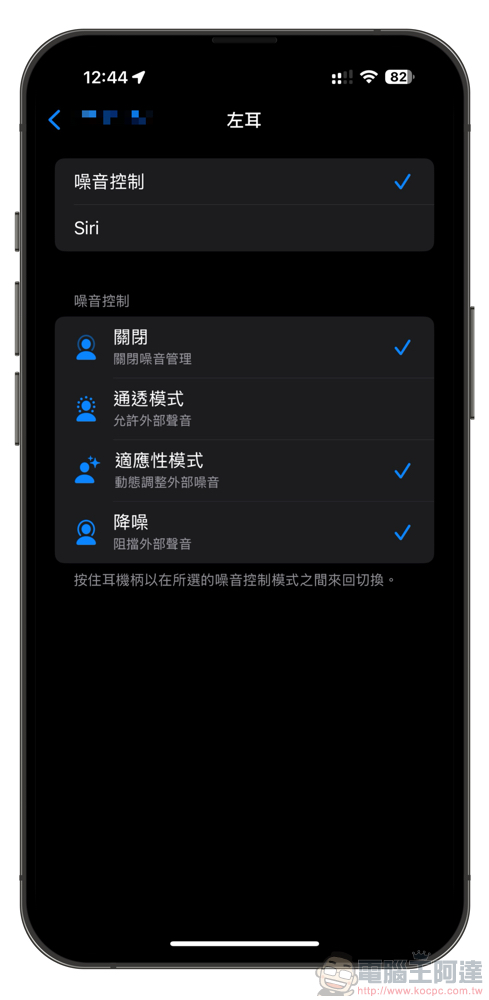
Finally, foreign media 9to5Mac has observed that some users have encountered this problem even if the “Turn off listening mode” option is turned on. But it will still be switched back to the mode with noise control turned on every time I put on AirPods Pro again. Regarding this situation, someone mentioned that it can be avoided by turning off “Reduce High Volume”.
However, I personally have not encountered such a problem after turning “off listening mode” back on this time. Therefore, I would guess whether it was because I had encounteredBug that cannot switch between noise reduction and transparency modes normally At that time, I had already reset the noise reduction function in the “press and hold AirPods” control menu, so I didn’t encounter it.
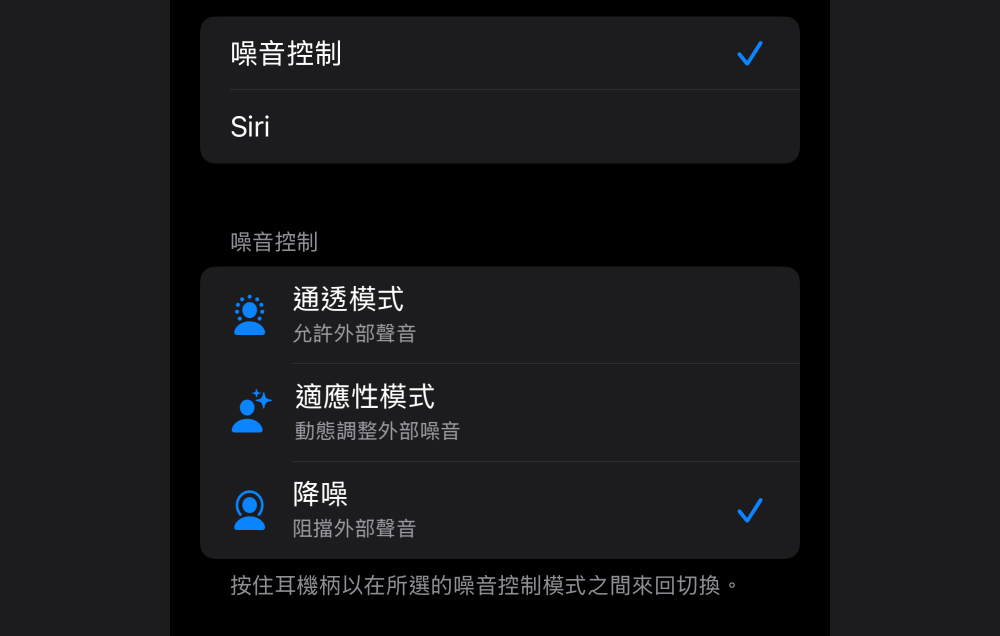
Interestingly, when I look back at that article now, I find that the “Noise Control” menu at that time no longer has the “Off” option (surprise – please refer to the picture above). So I also feel that the two recent problems that may cause users to switch the noise control function are likely to be somewhat linked to each other – because I turned on the “Turn off listening mode” item, there is an “Off” option in the “Press and hold AirPods” control menu.
Therefore, I also recommend that if you encounter problems, you can go to the control menu including “press and hold AirPods” and browse the previously mentioned options. Maybe you can restore the original operation of AirPods by switching.
Quote sources:9to5Mac|
Further reading:
Source: KOCPC Chinese