


Modern people are inseparable from their mobile phones almost all the time. Whether for work, study or entertainment, iPhone plays a vital role in our lives. However, no matter how powerful a device is, it cannot escape the limitations of battery life. Even if the latest iPhones have improved battery technology, battery performance may still become a pain point for us when we are out for a long time, unable to charge, or require intensive use.

10 practical tips to extend the battery life of the latest iPhone in 2025
Many people are so dependent on their mobile phones that they inevitably have some battery anxiety and worry about their iPhone running out of power all day long. Most people habitually carry a power bank or charger as an alternative, but this is not always the most convenient or practical solution. In fact, the new iPhone’s battery management and battery life performance are already quite good. As long as you master some simple operating habits and setting skills, you can significantly improve the battery life, and even buy you a few more hours of use in emergencies.
This article will take an in-depth look at how to extend the battery life of your iPhone and list 10 practical tips to help your iPhone last longer. Whether you are an experienced iPhone fan or a new iPhone user, these suggestions will make your phone perform better in daily and special situations, and easily cope with all-weather challenges.
1. Turn off the iPhone mirroring output function
When the user updates the iPhone to iOS 18 or above, and the Mac computer is equipped with an Apple chip or an Apple T2 chip, and is equipped with macOS Sequoia 15 or above, the “iPhone Mirroring Output” function can be used. This feature allows users to control iPhone directly from Mac and synchronize notifications from iPhone to Mac. While this is convenient in some situations, the constant connection between your Mac and iPhone can cause additional battery drain when this feature is enabled.
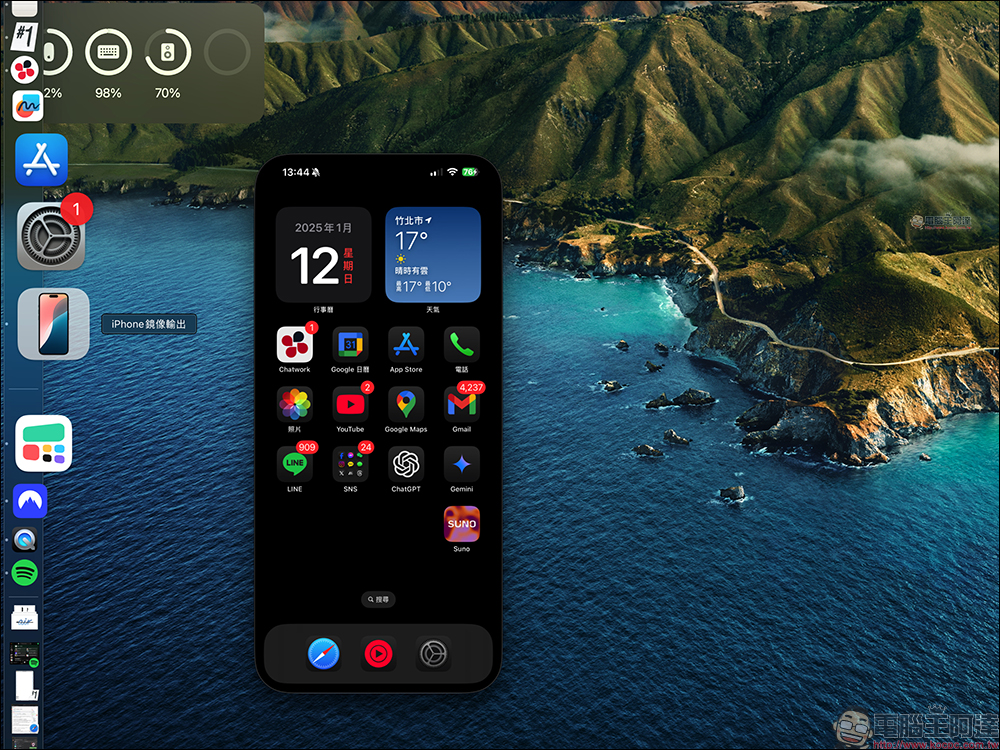
Even if the iPhone mirroring app is not open, notifications may still be sent to the Mac. According to the experience of some users, this has a certain impact on battery life. If you don’t usually use this function, it is recommended to turn it off. The steps are as follows:
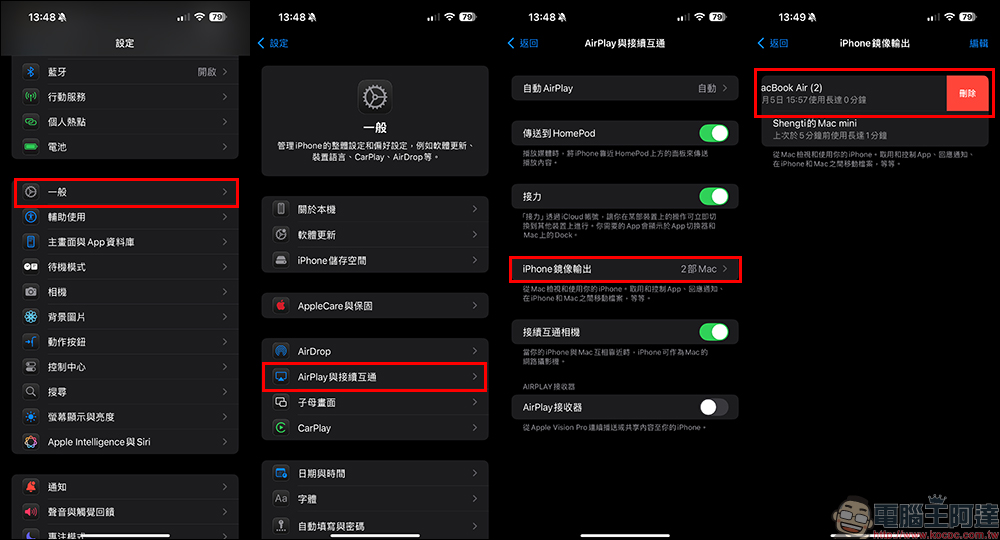
Enter “Settings” and click “General”, then select “AirPlay and Connectivity” > “iPhone Mirroring Output”, and finally select to remove the Mac connected to the iPhone.
2. Use Apple Intelligence features with caution
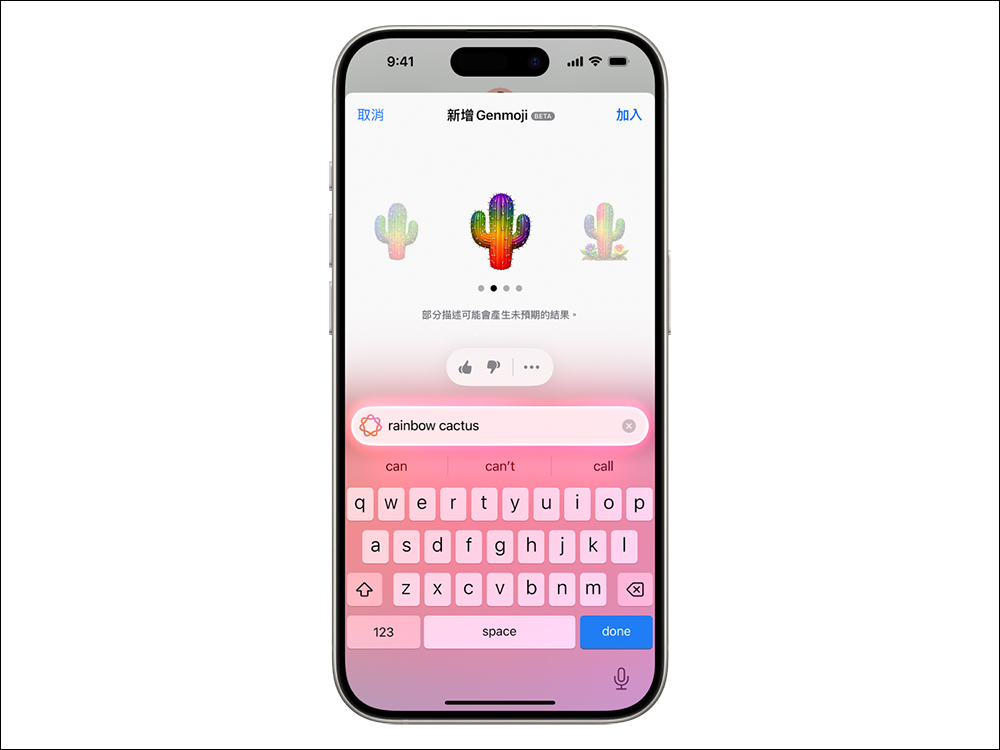
On iPhone 15 Pro and later, Apple Intelligence offers features like Genmoji, Image Playground, and Writing Tools. Although these applications are very powerful, their processing operations completely rely on the device side, which puts a lot of pressure on the battery.
For example, using Genmoji to create emojis for more than an hour can drain the battery of your iPhone 16 Pro Max by up to 50%. Therefore, if you need to maintain battery life for a long time, avoid using such functions frequently in this situation.
3. Enable “Dark Mode”
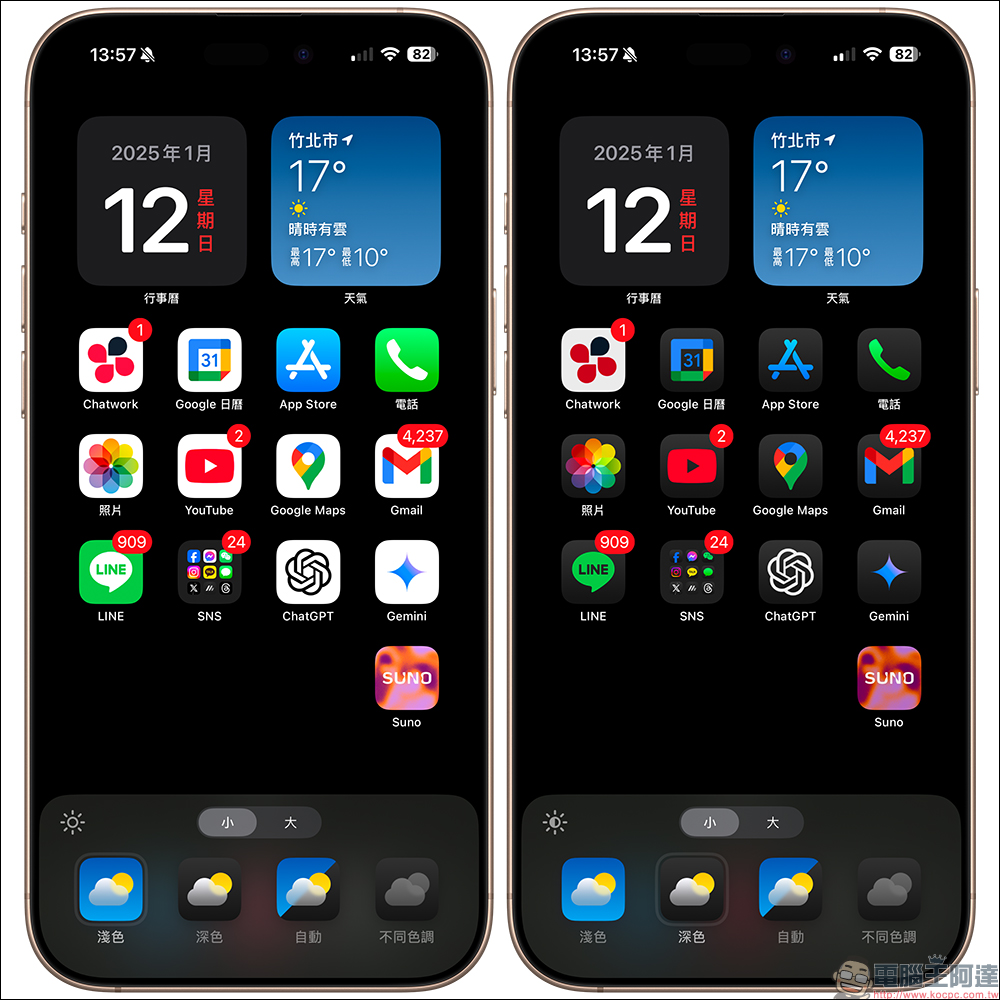
Because OLED displays consume less power when displaying dark pixels than light pixels, choosing to set your iPhone to “Dark Mode” can effectively save battery, especially outdoors in bright light.
According to a 2021 Purdue University study, Dark Mode also significantly reduces battery consumption at high brightness. Dark mode can slightly reduce battery usage, even indoors or in low-light environments.
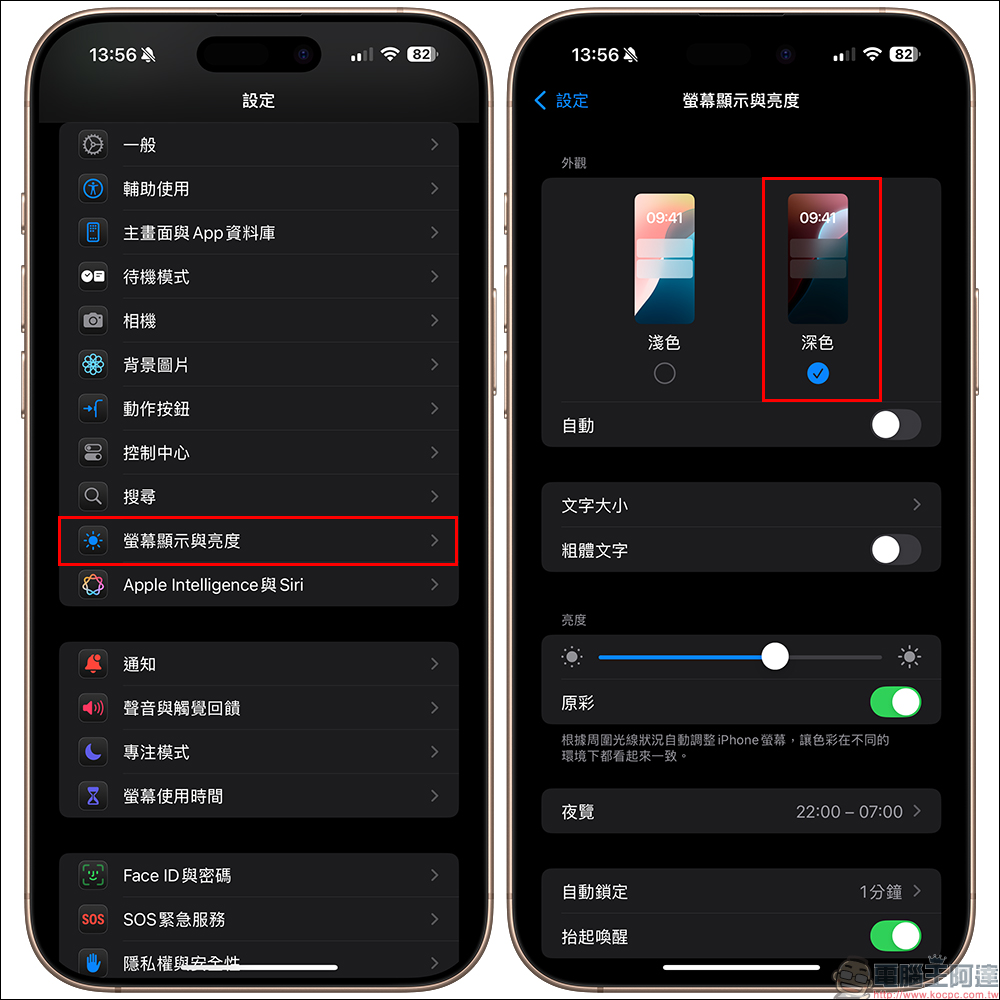
If you are using iOS 18 or later, you can also set dark icons. When dark mode is enabled, the application icon will automatically darken, further reducing screen brightness requirements. In addition, use the control center to adjust the screen brightness to the lowest suitable level at any time, which can also help extend battery life.
4. Prioritize Wi-Fi
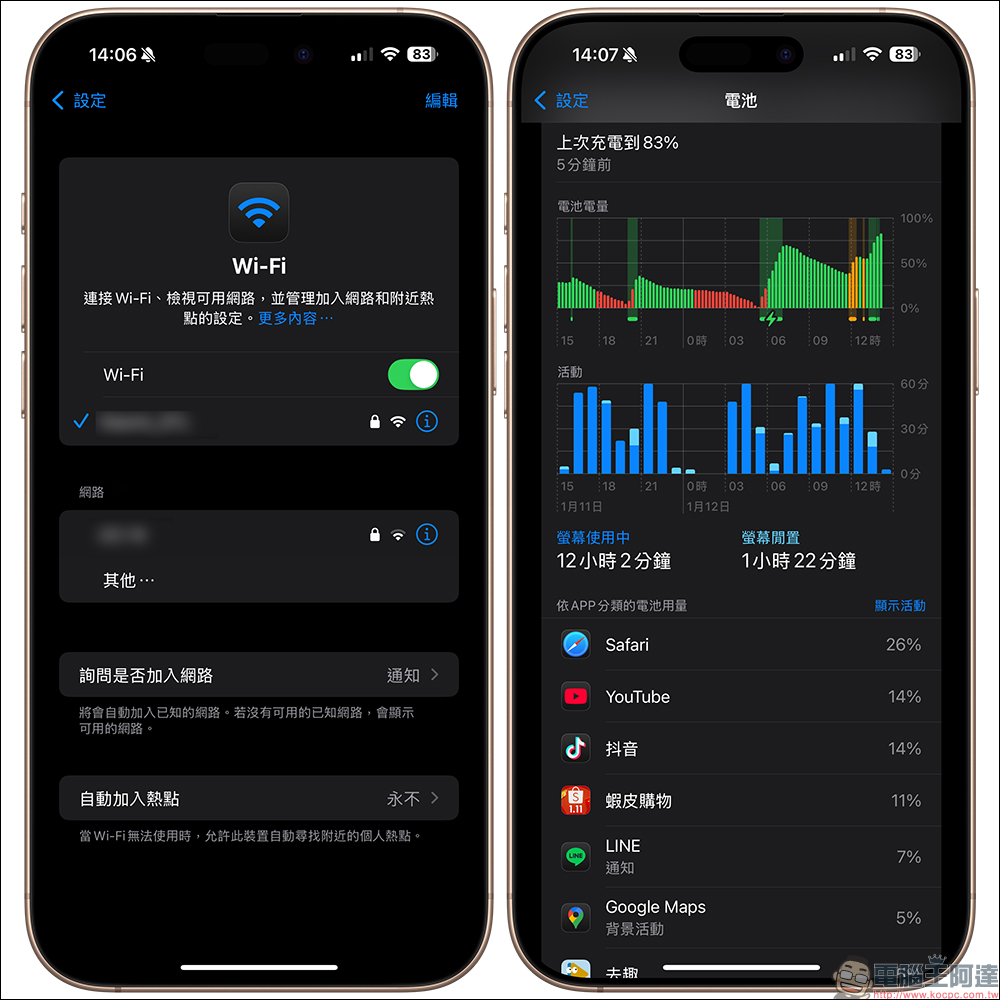
according to Apple’s recommendations, when you are in a Wi-Fi environment, prioritize using Wi-Fi over mobile data because Wi-Fi consumes less power. If you are in an area with weak or no signal, you can also turn on airplane mode. The iPhone’s continuous search for signals will quickly consume the battery. Airplane mode can effectively reduce unnecessary power consumption.
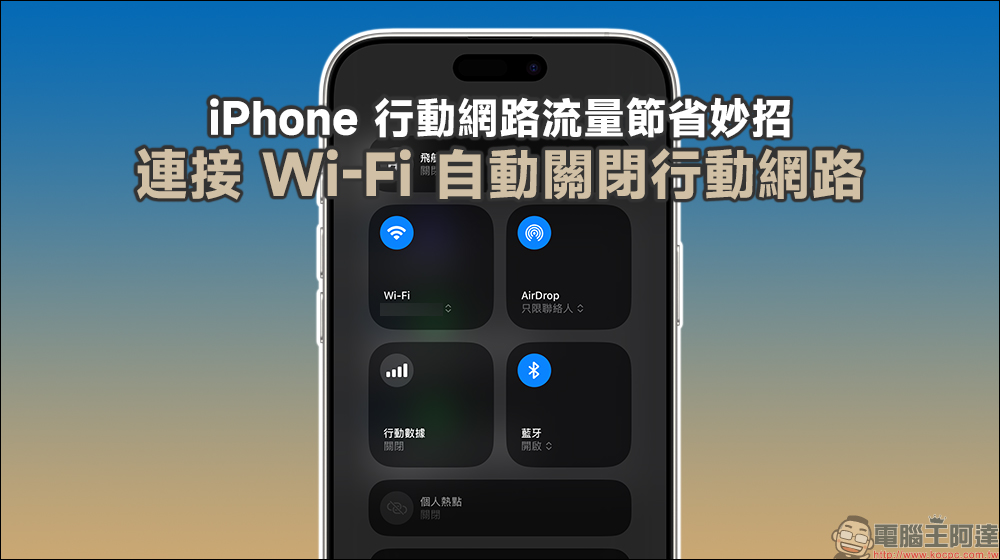
If you want to save mobile network traffic, you can refer to what we introduced before Tips to save iPhone mobile network data! Connect to Wi-Fi and automatically turn off the mobile network (teaching)
5. Turn off keyboard tactile feedback
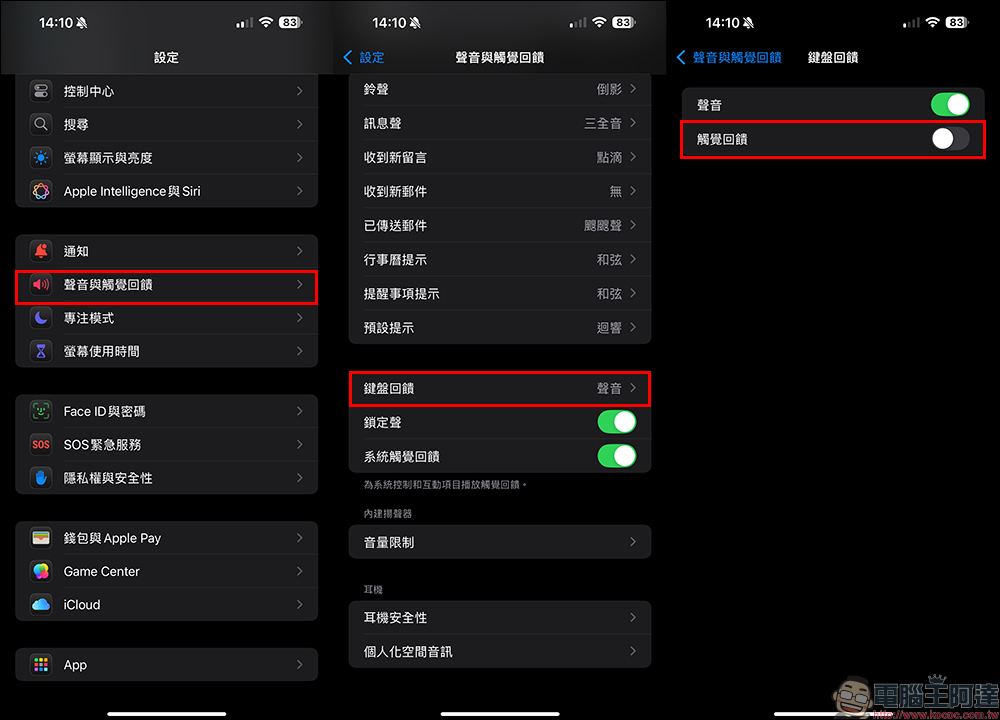
While the keyboard’s tactile feedback is satisfying, it also consumes extra power. If you don’t mind canceling this function, you can go to “Settings” and select “Sound and Haptic Feedback”, then select “Keyboard Feedback” and turn off “Haptic Feedback”.
6. Set focus mode and notification summary
A large number of notifications will frequently wake up the iPhone screen and consume power, so it is important to manage notifications appropriately. By setting the focus mode, users can filter necessary notifications for different scenarios. For example, enable “Personal Mode” to filter work notifications when at home, and filter reminders from game and entertainment apps at work.
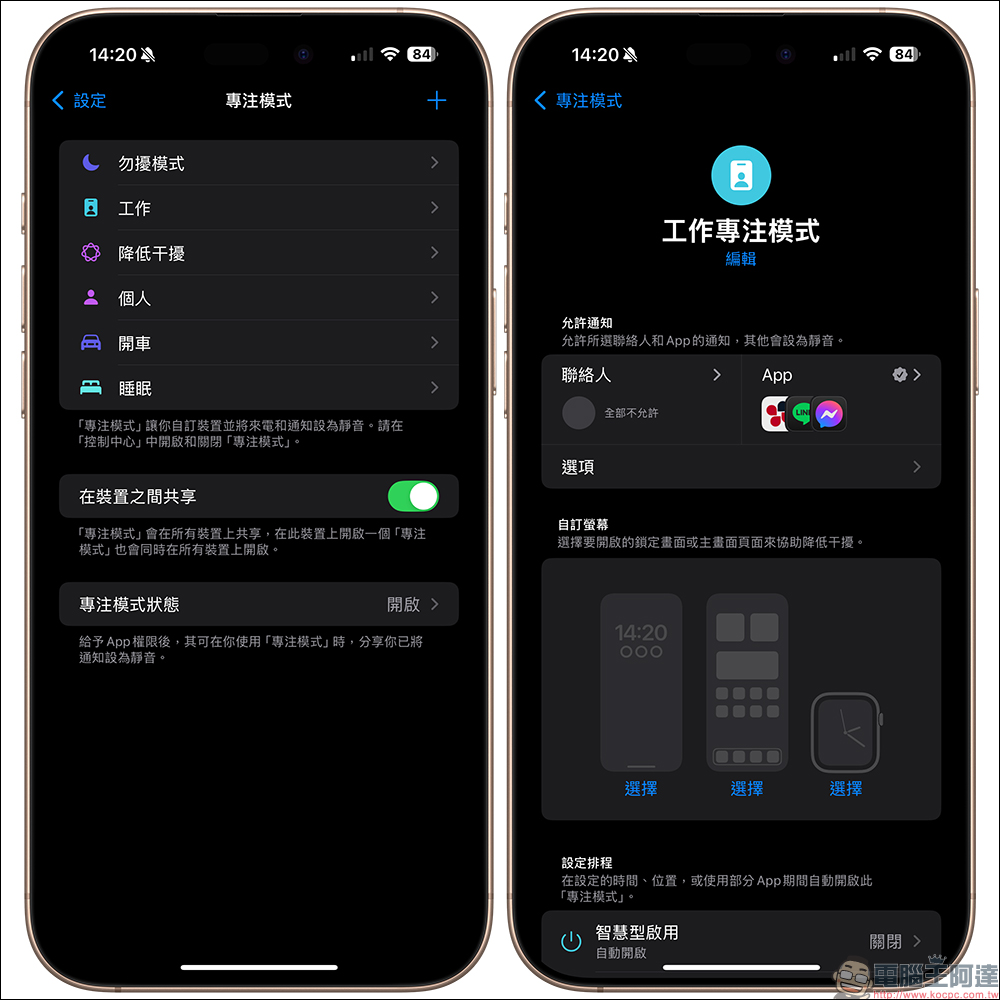
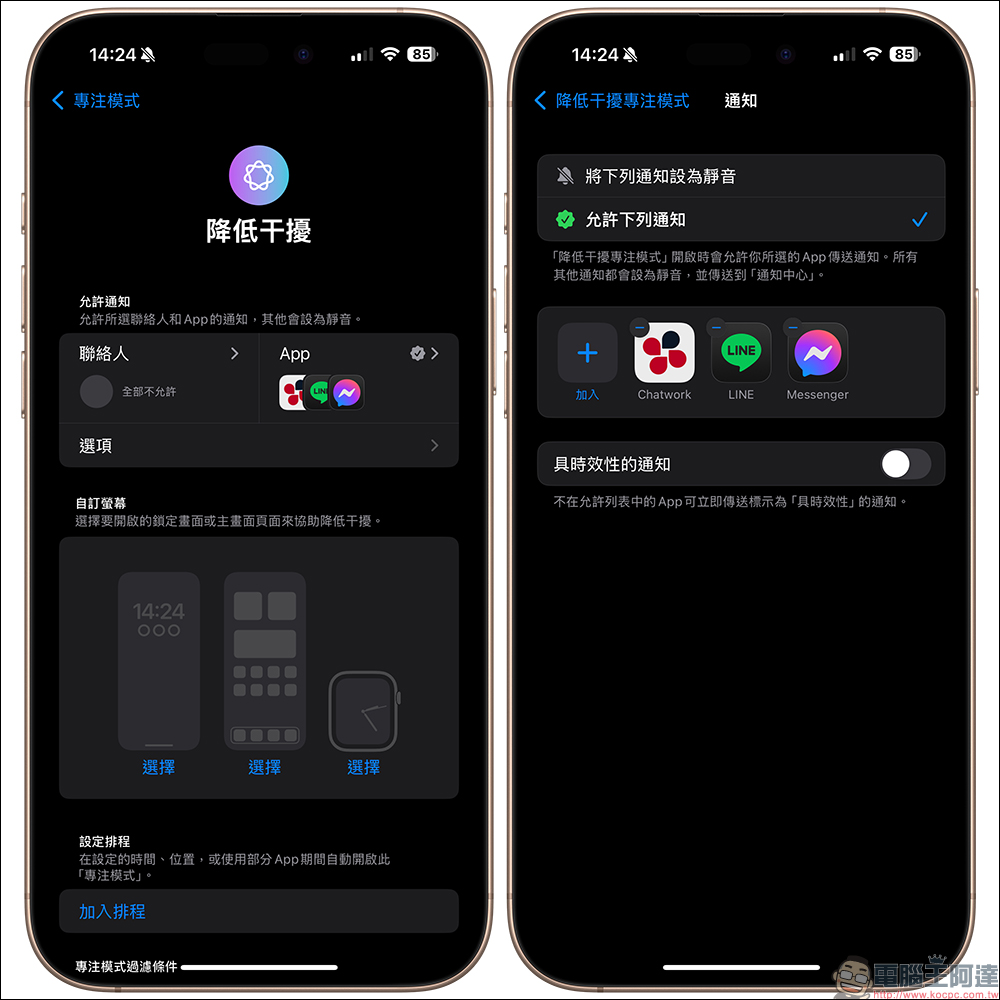
iOS 18 also adds a new “Reduced Distraction” focus mode, which can intelligently filter out important notifications and block unnecessary reminders. This is a good choice if you don’t want to spend time customizing focus mode.
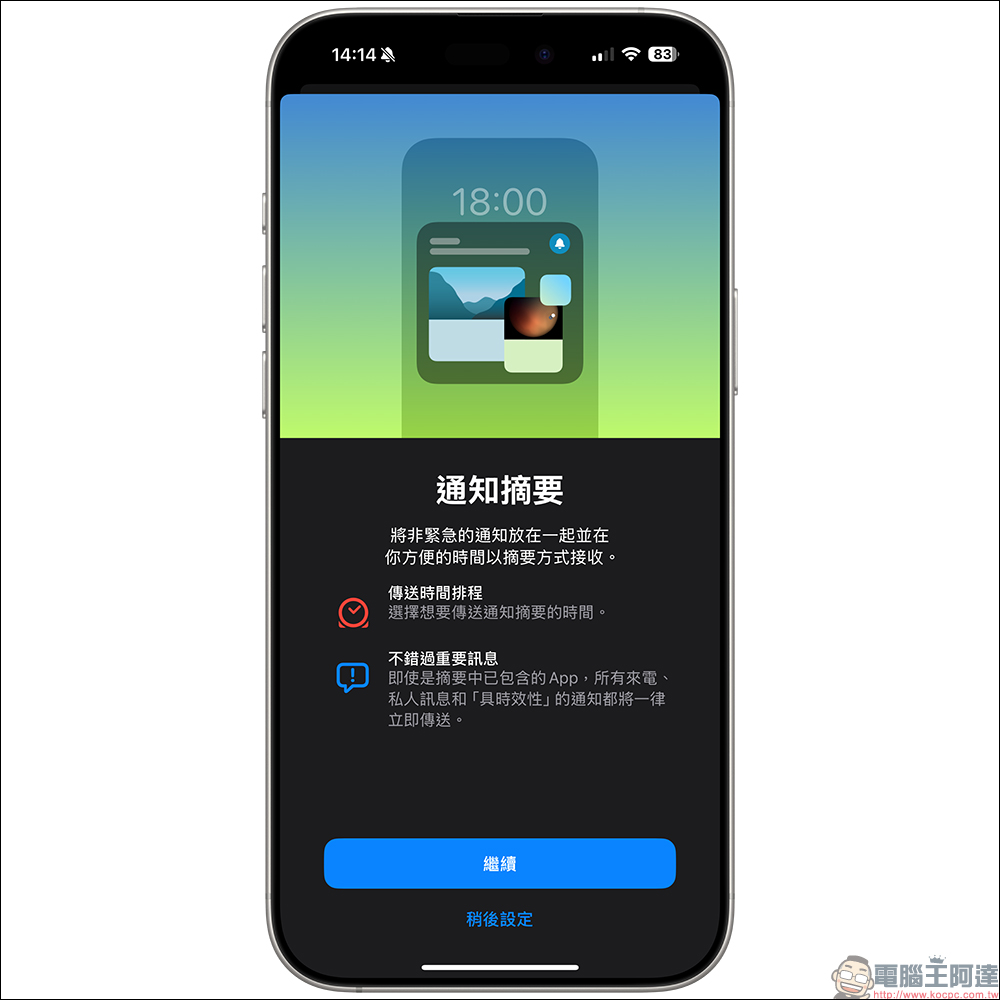
In addition, you can also enable “Notification Summary” to summarize unimportant application notifications into summary notifications once or twice a day to further reduce unnecessary power consumption. You can click “Notifications” in “Settings” and then make settings in “Schedule Summary”.
7. Use offline maps
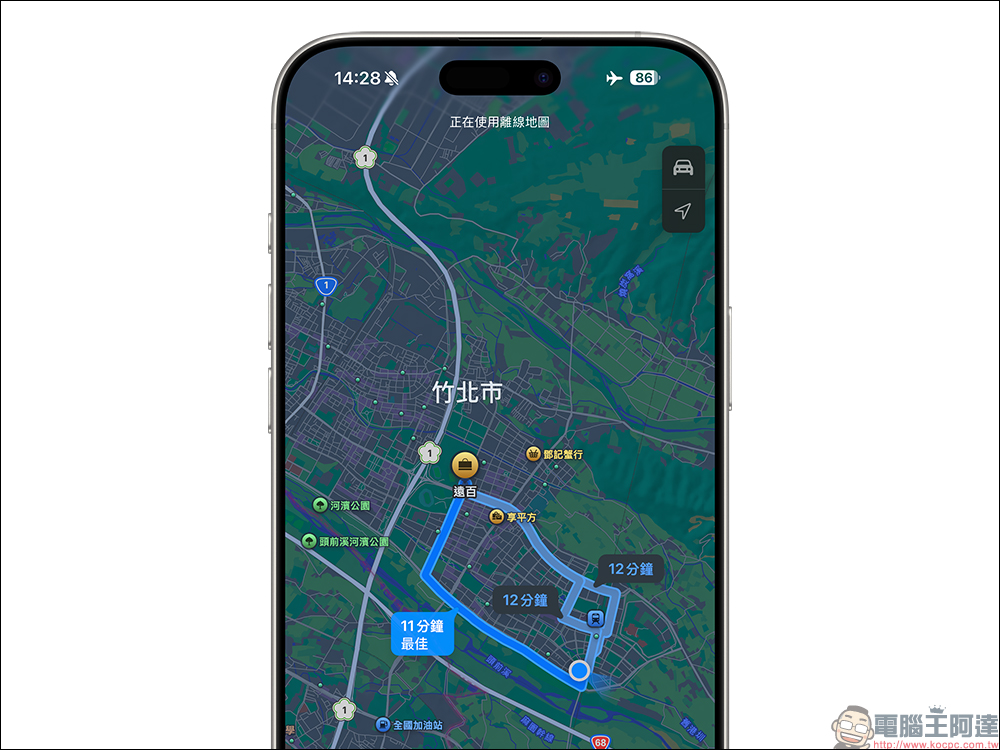
If you need to go to remote areas or places with poor signal, downloading offline maps in advance is a wise choice. This not only ensures that you have complete map functions and navigation, but also prevents the phone from constantly searching for signals and causing battery drain. This function is particularly suitable for use with airplane mode, and is effective in the countryside or in areas with unstable signals.
8. Automated low-power mode
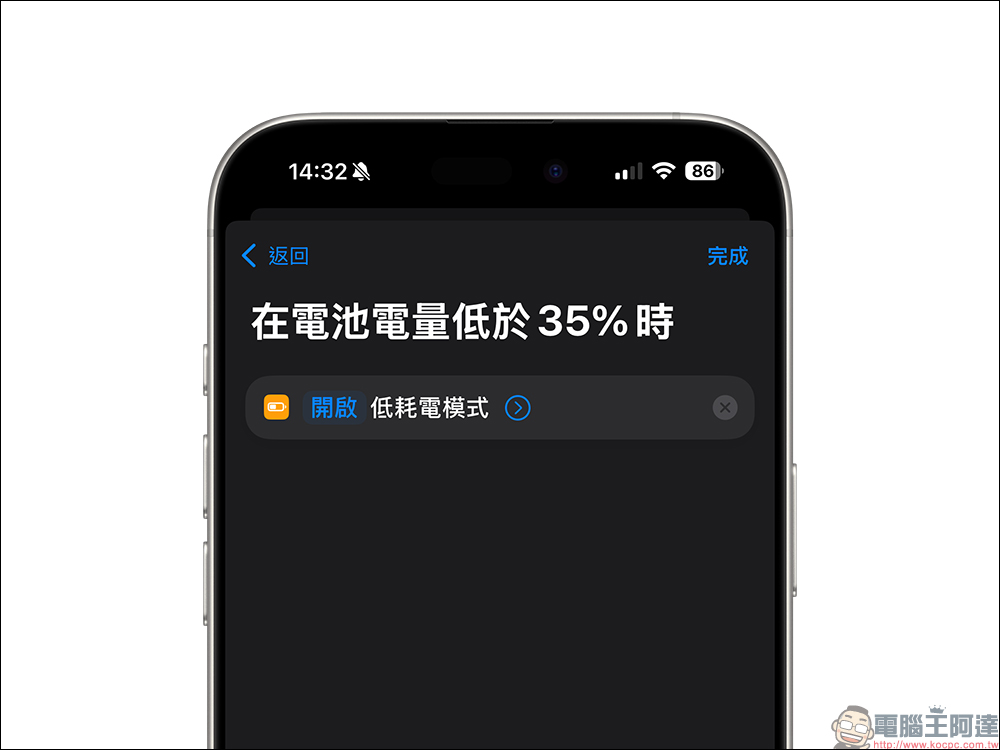
Low Power Mode is one of the easiest ways to extend battery life, and you can set up automations to automatically enable it at a certain battery percentage.
Apple defaults to prompting you to enable Doze (power saving) mode when you have 20% battery left, but you can choose to enable it earlier. For example, through the “Automation” function of the Shortcut App, a new set of automated operations is added to allow the iPhone to automatically turn on low power mode when the battery power falls below a certain level.
9. Turn off fitness tracking
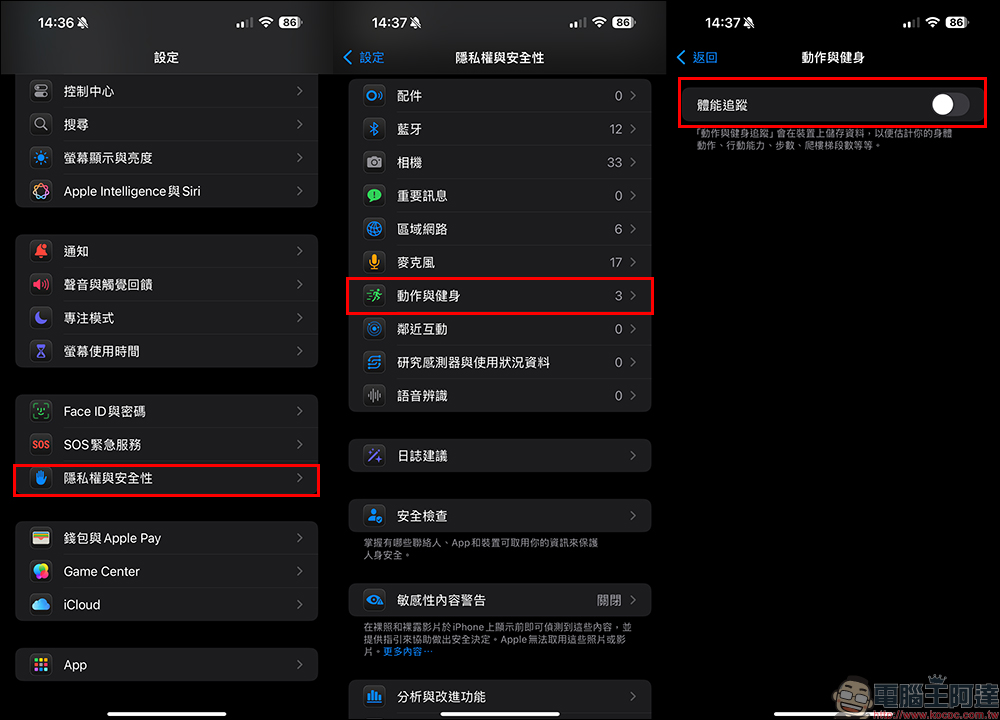
The iPhone’s fitness tracking feature can record steps, distance traveled, stairs climbed and other data, but if you already own an Apple Watch or other fitness device, this feature may be an unnecessary drain on your battery. The setting steps are as follows:
Go to “Settings” and select “Privacy & Security”, then select “Motion & Fitness” and turn off “Fitness Tracking”.
10. Check application permission settings
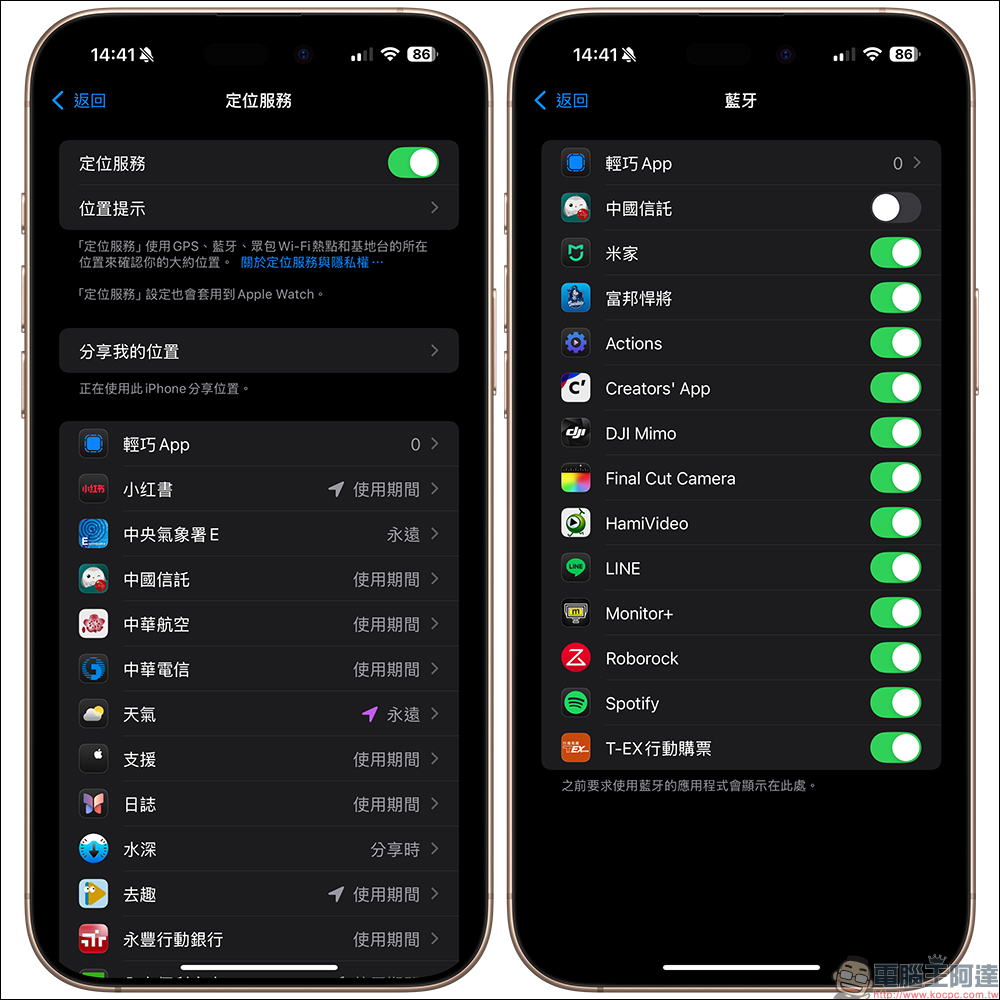
Many apps request access to data they may not need, especially location services and Bluetooth usage. For power management and privacy protection, it is very important to check these permissions regularly. For example, apps like Facebook or YouTube typically don’t require Bluetooth functionality, while smart home apps may need to maintain a Bluetooth connection.
- Location Services: Go to “Settings” and select “Privacy & Security”, then select “Location Services” to turn off unnecessary application access.
- Bluetooth permissions: Select “Privacy & Security” in “Settings”, then select “Bluetooth” to disable Bluetooth access for unnecessary applications.
Conclusion
The above are the latest 10 simple and practical iPhone power-saving tips. Reviewing these functions and evaluating your own needs to make adjustments is expected to improve the battery life of your iPhone, especially when charging is not possible at any time. Good battery management can not only extend the service life of the device, but also provide stable mobile phone battery life at critical moments. Try to apply these suggestions quickly, so that your iPhone can accompany you in the best condition every day!
Further reading:
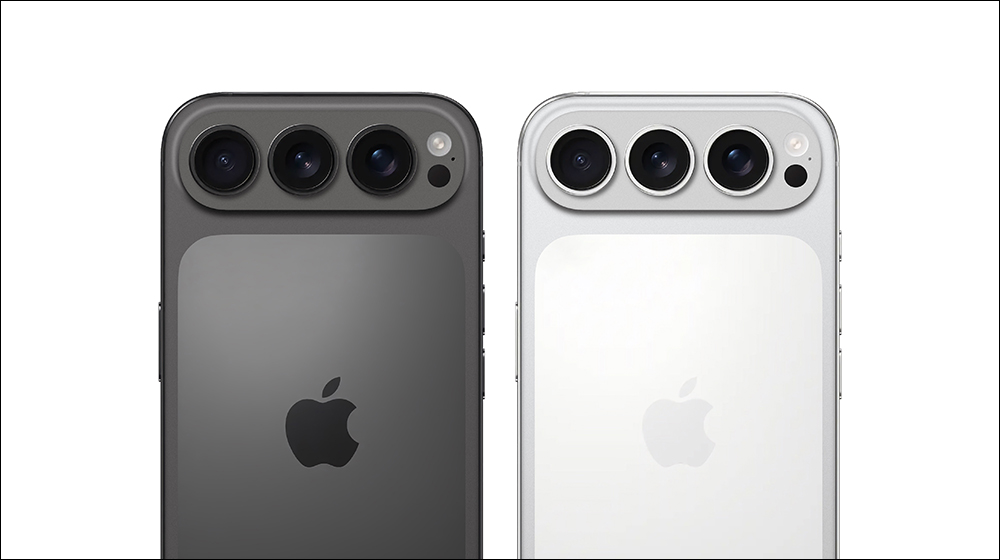
iPhone 17 Pro launches in autumn, 8 worthwhile upgrade highlights
Source: KOCPC Chinese