


In order to protect users’ computer security, Microsoft continues to improve various protective measures and focuses on Windows security applications as the main entrance to facilitate users to further control. In the Windows Security app, you can find a setting called “Controlled Folder Access” that Microsoft recommends keeping enabled to protect your system, but what exactly is it?
How to protect your data with Controlled Folder Access settings in Windows 11?
Let’s first understand what “controlled folder access” is. Starting with Windows 10, Microsoft has introduced Controlled Folder Access settings as a tool to protect users from ransomware attacks, and it continues to Windows 11. The program list will scan all installed applications and if it determines that an application is unsafe for your device and may change important data in protected folders, it will block that application’s behavior. Controlled folder access settings protect documents, pictures, videos, music, and favorites by default, but you can add other folders to the protection list.

There is one thing you need to be aware of when it comes to controlled folder access settings. It doesn’t protect your computer from malware that views and copies your data, it only prevents malware from changing or deleting it. This means that if your computer is infected with malware, they can still copy your data and send it elsewhere.
How do I enable controlled folder access?
To enable controlled folder access settings on Windows 11, it’s easy:
- Search Start for “Windows Security.”
- After opening it, click “Virus & Threat Protection” in the left sidebar.
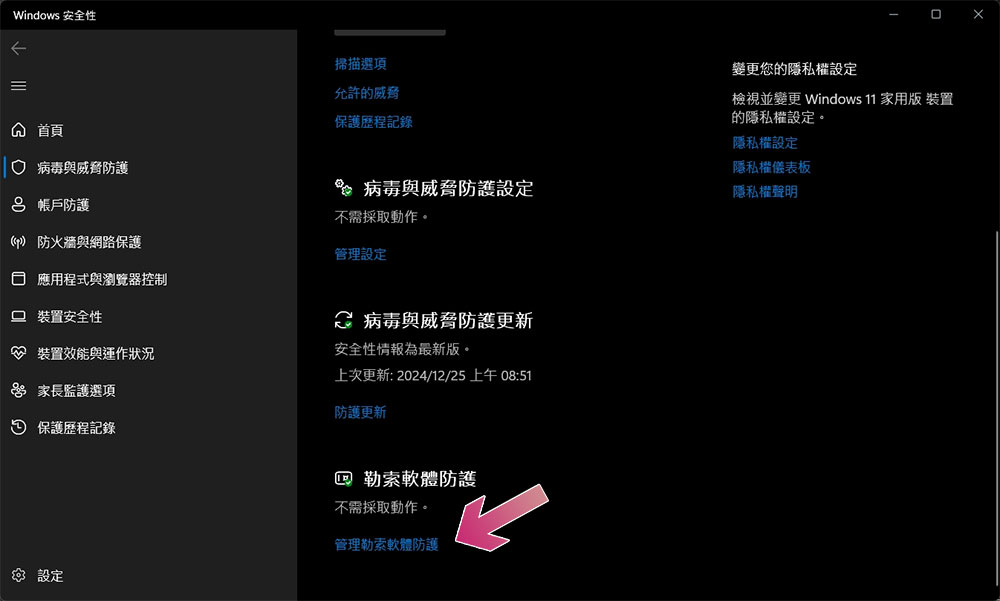
- Scroll down to the “Ransomware Protection” item at the bottom and click “Manage Ransomware Protection.”
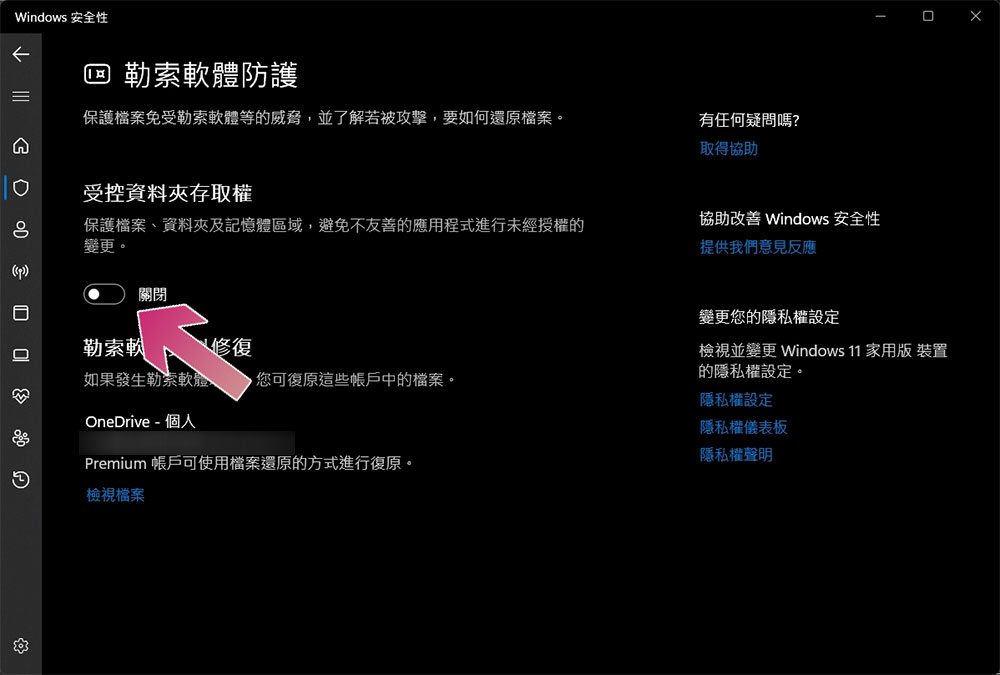
- Turn on the switch under “Controlled Folder Access.”
- After enabling this setting, you will see three new options, namely blocking process records, protected folders, and allowing applications to access controlled folders. The correct configuration of each item is important, and we will describe each one later.
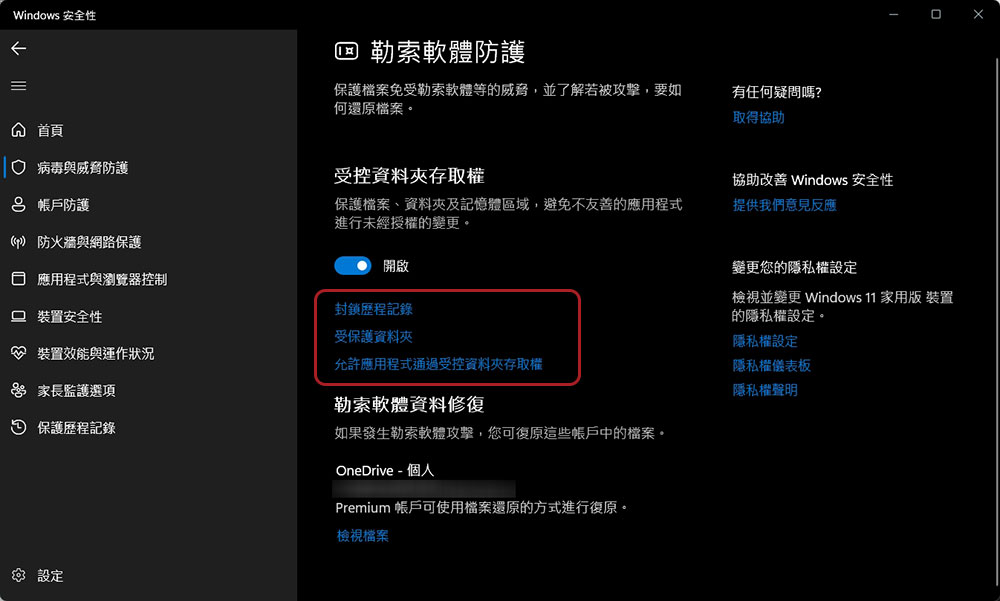
- Block history record
Click on this option and you will see all blocked files that were detected as attempts to modify protected folders. Next to the file, you’ll also see details such as how long the file was blocked and the name of the protected folder. If you think the file is safe for your computer and want to bypass Controlled Folder Access Protection, click on the blocked file and allow it from the drop-down menu in Actions. - protected folder
This option displays a list of all folders protected by this setting. By default, Windows protects certain local folders, such as files, videos, pictures, etc. You can also manually add other folders to the list. If you want to add a new folder, please navigate to and select “Add a new protected folder” at the top after clicking on the level-level protected folder.
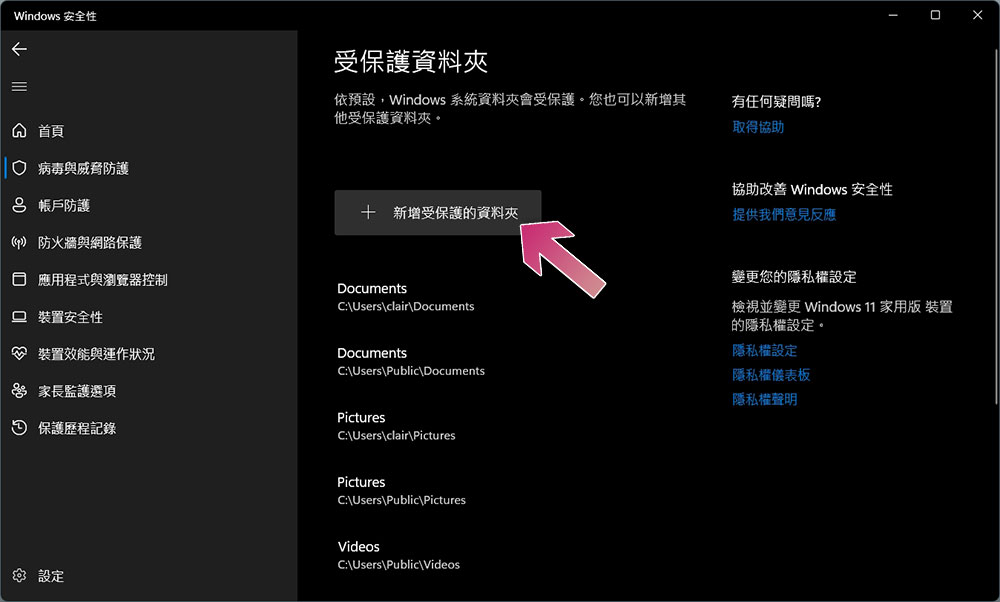
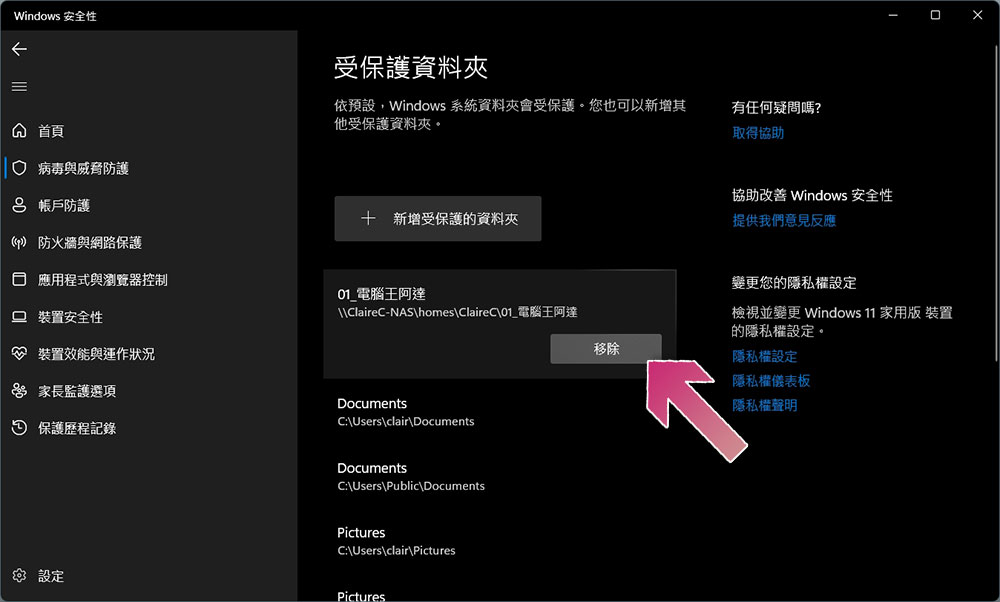
If you want to remove a folder from the protected folder, click on the folder and click the “Remove” button next to it. Unfortunately but fortunately, you cannot delete the default Windows native folders in the list, you can only delete other manually added folders.
- Allow an application to pass controlled folder access
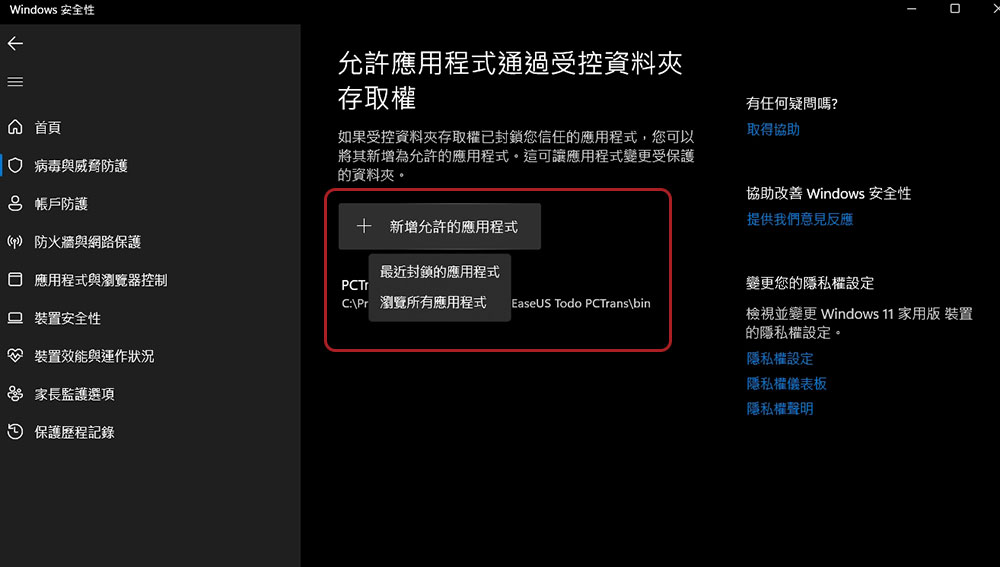
This option allows you to whitelist applications that you do not want to be restricted by this security setting. This feature is helpful if an application has been blocked from modifying a protected folder, but you are confident that the application is safe. Additionally, when you install a trusted app that requires modifications to the protected folder to function properly, whitelisting the app ensures that it won’t encounter any issues accessing the protected folder. To set this option, click Add allowed app to select a recently blocked app or browse all apps. Choose the former if the application has been blocked, or choose the latter if it is pre-set to avoid interference.
- Block history record
Controlled folder access is one way to help protect yourself from ransomware attacks, but to keep your device safe from viruses and other malware, you have to make sure Real-time Protection in the Windows Security app is enabled and that you keep the app up to date at all times.
Source: KOCPC Chinese