


Recently Google Not only updates its AI tools, teaching tips are also continuously shared, besides the ones we introduced before. 8 Best Ways to Use NotebookLM for Presentations、Complete Guide to 10 Production Tips for Nano Banana ProBesides that, [they] also shared 40 of the most practical AI usage tips earlier, covering a wide range of topics—a must-read for anyone looking to expand their AI capabilities. Of course, the main tool paired with them is Google AI Tool.

Google shares the 40 most practical AI tips—learn them now.
Google’s AI milestones this year have been quite numerous, including not only the launch of multiple Gemini models, new search capabilities, photo and video creation tools, research and learning applications, and more. As a result, to help users better understand “how to get the most out of these products and features,” Google has put together this… 40 Most Practical AI Tips。
1. Use visualization to break down technical or scientific topics.
Gemini 3 is Google’s latest and smartest model, available in the Gemini app, AI mode in Search, AI Studio, and elsewhere.
It’s very good at breaking down complex topics. You can feed it all kinds of input—text, videos, code, and so on—and it will start helping you understand, like turning an extremely long, content-heavy research paper into an interactive website so you can grasp it more easily.
2. Create interactive simulations in Search with Gemini 3
If you’re researching something like mortgages, Gemini 3 in AI mode can help you with a customized interactive loan calculator, generating a dedicated interactive interface right in search responses, making it easy to compare two plans and find the one that saves more in the long run.
3. Select the research mode you want to use in NotebookLM.
When doing research in NotebookLM, you can choose different modes based on your needs:
- Fast Research: Quickly scans information, letting you instantly review and import sources.
- Deep Research: When you need complete content, this mode performs deeper analysis and finds high-quality sources, and it runs automatically in the background, meaning you can do other things at the same time.
4. Use “guided learning” to assist with homework.
The “Guided Learning” feature in the Gemini app is a great companion for interactive learning, helping you gain a deeper understanding of any topic. It can turn your uploaded course materials into study guides, walk you through fixing problematic code, or explain concepts with videos and images—like how gravity works on the moon. It can even “keep you company while you do your homework.”

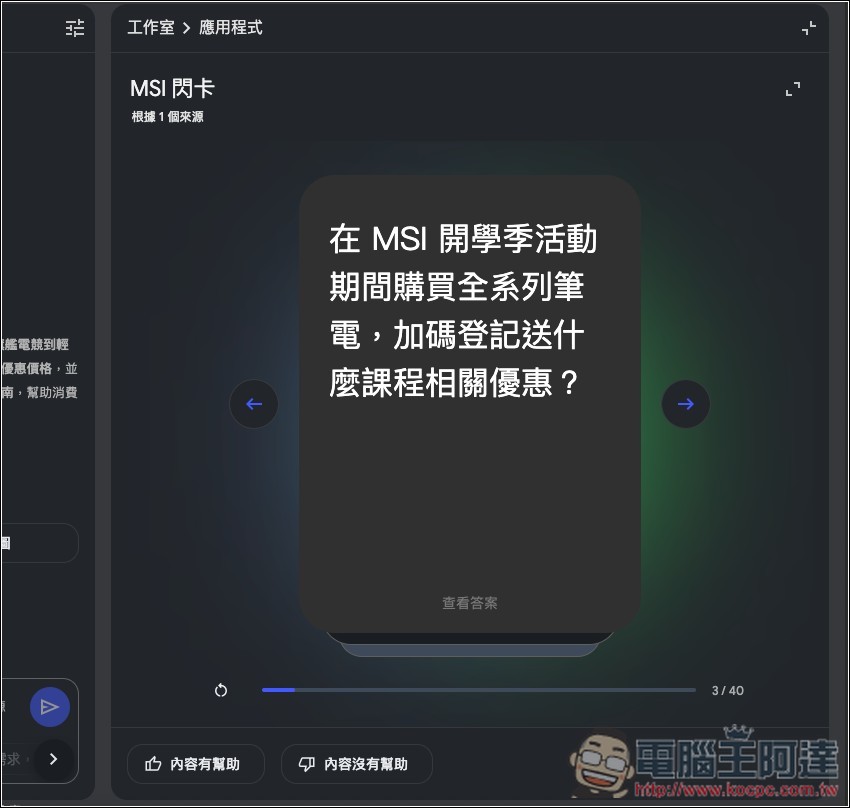
5. Test how well you’ve learned
NotebookLM can create study cards and quizzes for you based on the source content you import, to help reinforce your learning.
6. When browsing web pages, helps you simplify complex content.
Simplify is a feature of the iOS version of the Google App that uses AI to condense hard, dense text on web pages into an easier-to-understand version, without leaving the current page. Here’s roughly how to use it. When browsing a webpage in the Google App, select a passage you find hard to understand → tap the Simplify icon that appears → you’ll see a simplified version.
7. Use Gemini to solve multi-step problems while driving
In Google Maps navigation, you can ask Gemini multi-step questions and tasks, such as:
Are there any affordable restaurants along the way that also have vegan options? Not too far from the route—within a few kilometers is fine… Is parking convenient there?
Then you can also say: “Okay, then let’s go there.”
You can even add: “By the way, also add a soccer practice calendar event for tomorrow at 5 PM.”
You can also ask more deeply: “What is the most popular dish at that restaurant?”
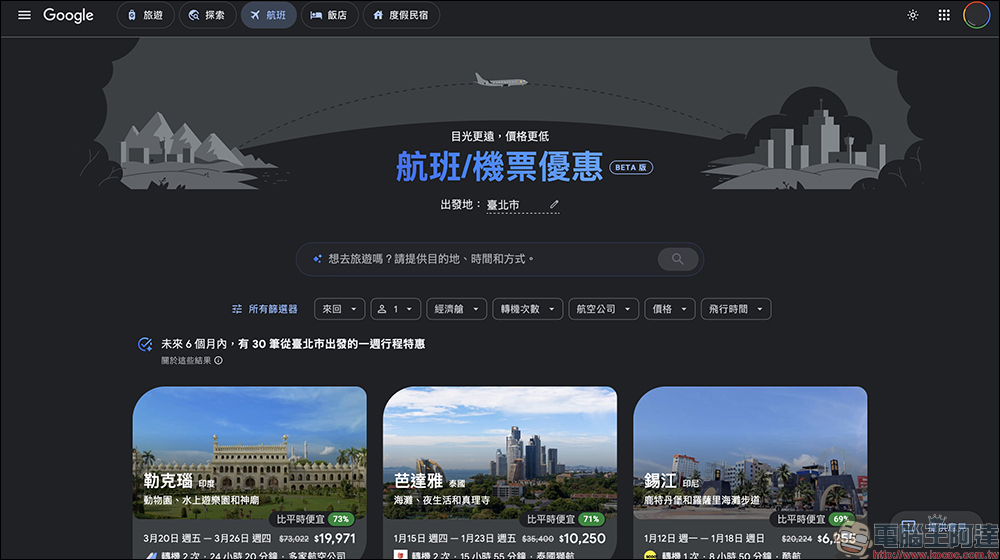
8. Easily find cheaper airline tickets
In the past, if you wanted to find cheap flights, you had to browse through numerous airline websites, price comparison sites, third-party travel agency sites, and so on, then repeatedly change dates, modify destinations, adjust filters, and the like. It was extremely time-consuming.
And now use Flight Deal With this feature, you can describe how you want to fly, when, and where you want to go—just like chatting with a friend. For example:
I’m planning a one-week vacation in February. I’m looking for deals, and I hope to find a direct flight to a destination with great food and warm weather.
AI will also list destinations that meet the criteria and that you might not have considered, giving you the most cost-effective options.
9. Using Canvas for travel planning in AI mode.
In the AI mode of the search feature, there’s a tool called Canvas that provides a space for organizing plans and projects over the long term, and now it can also be used for travel planning. (Currently only available in the US)
Here’s how: go to AI mode, describe your travel type and needs → select “Create Canvas.” Remember, you need to join the Labs experimental feature in AI mode to use this new feature.
10. Turn travel screenshots into a Google Maps list
When reading travel blogs, news, or social media posts, if I come across good content, I always screenshot and save it. But over time, the number keeps growing, making it very hard to find the location I’m looking for.
Google Maps actually has a feature that uses Gemini’s capabilities to recognize “place names” from your screenshots, and then helps you save them as a list.
11. Use Circle to Search’s AI mode to quickly look up more information.
You can explore deeper by asking follow-up questions without switching apps: long-press the Home button or navigation bar → circle, tap, or gesture to select the content you want to look up.
When the system determines that an AI reply is most helpful, an AI summary will appear in the search results. Then you can use AI mode in the search bar at the bottom to ask follow-up questions and continue exploring related content.
12. Edit photos in Google Photos just by speaking
Now Google Photos lets you describe the edits you want in natural language, such as “remove the railing” or “restore this old photo.” It can also handle changes like “take off the sunglasses and hat” and “fix the smile.”
13. Use AI to quickly turn photos into shareable works.
Go to the Create tab in Google Photos to try AI templates, Remix, photo-to-video, and more, letting you quickly put a fresh spin on your photos.
14. Edit photos with Nano Banana in Search (available in the US and India only)
In the Google App on Android or iOS, open the Google Lens feature, then tap the new creation mode (yellow banana). You can use suggested prompts, or after taking a photo, describe the changes you want to make.
15. Give “Vibe Coding” a try
Google recommends referring to the advice of various experts, such as which AI tools to use and how to adjust prompts, so that you can write code with AI more smoothly.
16. Generate/Edit Images with Gemini: Write Prompts Like a Professional
Although a simple sentence or two is enough to generate decent images in Gemini, if you want more stunning and finer control, you can read Gemini Guide,learn how to write prompts more precisely:

17. Find Your Style with Selfies (Currently Only Available in the US)
Google now offers virtual try-on. If you don’t have a full-body photo, just upload a selfie and Nano Banana can generate a “full-body digital version” for you.
18. Make Photos Move
Gemini also supports turning photos into videos, converting still images into dynamic clips, and even adding audio. However, this requires writing prompts, and you can refer to what Google previously provided. 3 Ways to Convert Photos to Videos: A Tutorial。
19. Use Google Photos to look back on your 2025
Google Photos also offers a recap feature. Google Photos Recap turns your photos and videos from the past year into a highlights video, with additional customization tools for easily sharing with friends.
20. Use Gemini to create a storybook with text and illustrations.
You just need to describe the story you imagine, and Gemini can generate a one-of-a-kind 10-page storybook with illustrations and audio.
21. Use Flow to Make Your Videos More Cinematic
Google previously hadIntroduce Flow in detail and share 5 tipshelp you quickly get started with Flow, creating cinematic-quality videos and animations.
22. Try “meta prompting” (prompts for prompts)
Many people may think that prompts have to be thought up and written on your own, but in fact you can also work with Gemini to polish and discuss them, then use the refined prompts in creative tools like Veo to see how they perform.
23. Turn Photos into a Recipe Book
Snap photos of any recipes or dishes that catch your eye, upload them to NotebookLM, and turn them into an adorable recipe book. You can also use Gemini to describe the recipe, or simply upload your notes and let NotebookLM organize everything for you.

24. Control Pixel Watch 4 with one-handed gestures
Pinch with two fingers or twist your wrist to scroll notifications, dismiss notifications, snooze alarms, manage timers, and more—all without touching the screen.
25. Agentic AI through search helps you call and ask stores (currently only available in the US)
The new AI agent feature in Search asks you a few questions first, then calls local businesses directly to check if they have items in stock or any discounts—so you don’t have to lift a finger.
26. Pixel Watch 4’s Raise to Talk wakes Gemini hands-free.
Once enabled, you can raise the watch to a few centimeters from your mouth and start speaking directly, without saying “Hey Google.” A faint blue light at the bottom of the watch will also indicate that Gemini is listening.
27. Let Pixel 10 take phone messages for you
The Pixel 10 comes with a built-in ‘Take a Message’ feature that helps you handle missed or unwanted calls in a smarter way, such as using spam call detection to tell if it’s an ad, while also generating a real-time transcript and an AI-suggested list of ‘what to do next’.
28. Build Google Home automations more easily
With Ask Home, you can create automation workflows using natural language (with Gemini for Home)—just say something like: “Every day at sunset, turn on the hallway light and lock the front door,” and you’re done.
29. Use Gemini to schedule tasks.
Gemini’s Scheduled Actions can help you automate daily tasks or push personalized updates at specified times. You can directly ask Gemini in a conversation to do something at a certain time, or turn your existing prompts into recurring ones.
30. Use Gemini Live to troubleshoot any problems anytime
When your chair is squeaking or your turntable at home is acting up, just open the camera input feature on Gemini Live, show the AI what you’re seeing, and chat by voice to get step-by-step guidance on how to fix it.
31. Use Chrome’s Gemini to Solve the “Too Many Tabs” Problem (Currently Only Available in the US)
Chrome’s Gemini can now work across multiple tabs, letting you quickly compare and organize information from different websites. For example, if you have tabs open for flights, hotels, and itineraries all at once, it can combine them into a single travel itinerary, so you don’t have to keep switching back and forth.
32. Create and share custom Gems in Gemini
Gems lets you customize Gemini AI to better fit your needs, so you don’t have to keep repeating prompts and can jump straight into getting things done. For example, you can create a Gem for running specific workflows, or one for planning family trips. Gems also supports sharing: just go to the Gem management page on the web and click “Share” next to the Gem you want.
33. Enable Pixel’s Magic Cue: proactively gives you useful information when you need it.
Magic Cue uses Gemini models to proactively surface relevant information and suggested actions across different apps—for example, it can pull reservation details from Gmail, reference calendar events, or preview the weather during your trip in the Weather app.
34. Use Search’s AI mode for “conversational shopping” and explore inspiration visually*(Currently only available in the US)
You don’t need to set your own filters or dig through piles of products. You can simply say, “I want barrel jeans, but not too loose.” AI mode will provide a set of shoppable options you can browse directly.
If you want to narrow it down further, you can simply add: “I’d like the pants length to be closer to ankle-length.” and continue adjusting.
35. Circle to Search: Translate While Scrolling
This year, Google updated the translation feature in Circle to Search to provide a “seamless, uninterrupted” experience. Here’s how it works: long-press the Home button or the navigation bar to launch Circle to Search → tap “Translate” → tap “Translate with scrolling.” As you scroll down or switch apps, the translation continues without interruption.
36. Create beautiful presentations with Nano Banana Pro in Mixboard (currently supports English only)
The experimental Mixboard feature from Google Labs is a tool for exploring, expanding, and refining ideas. It now also supports Nano Banana Pro for generating presentations, turning the content on your board into a polished presentation.
37. Turn notes and documents into “narrated videos”
NotebookLM’s “Video Summary” is based on Nano Banana, and you can also choose from more visual styles, with seven in total: watercolor, anime, whiteboard, retro print, papercraft, cute, and classic. You can also specify whether you want a “Explainer Video” with detailed narration or a “Concise Summary.”
38. Quickly find available meeting times when replying to emails.
When you reply to an email that requires scheduling a time, Gmail automatically detects this intent and displays a “Help me schedule” button in the toolbar. After clicking it, Gemini will suggest available time slots based on your Google Calendar and the email context, and put the time suggestions directly into the reply content, allowing the other party to choose a feasible time.
39. Let Gemini help you handle Google Sheets
For example, you can use AI functions to classify user feedback, summarize product reviews, or generate personalized copy.
The usage is also very simple: enter =AI in any cell, add your instruction, and Gemini will execute within the range you specify.
40. Connect Deep Research to your Google Workspace
Gemini Deep Research can directly cite content from your Workspace (Gmail, Drive, Chat, etc.) and incorporate it into research results. In other words, you can combine information from Gmail, Drive (including docs, slides, spreadsheets, PDFs), and Google Chat with web sources to produce more complete, better-integrated reports.
Source: KOCPC Chinese