


The PDF software I want to introduce to you today is called “UPDF」。Speaking of PDF, it was first invented by the company Adobe. The original purpose of the invention was to allow users to use any application to capture documents and send electronic versions of these documents anywhere to achieve the effect of digitizing paper.
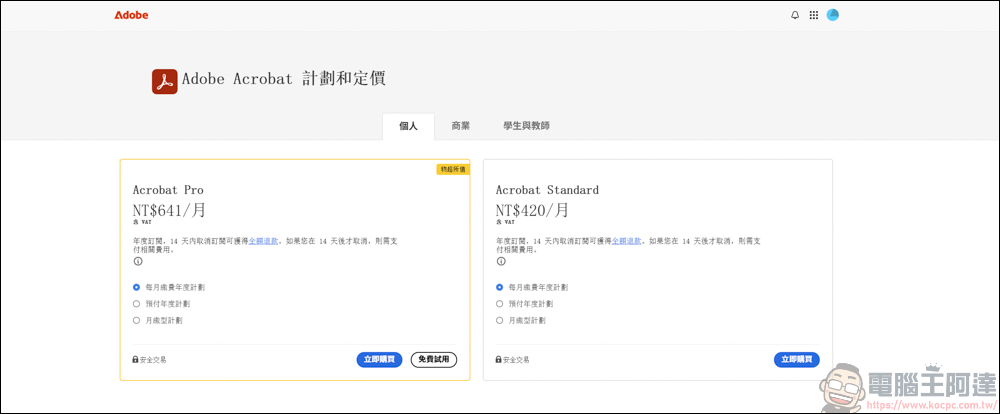
In the early days, most people used Adobe’s PDF software. For ordinary people, PDFs are mostly used for browsing, reading documents or some travel books. You can view PDFs with the free Acrobat Reader version. More advanced users will perform text editing, converting, signing, etc. on PDF, which requires additional money to buy the Acrobat Standard or Acrobat Pro version. Since Adobe stopped selling the stand-alone version in 2020 and switched to a subscription system, its monthly rental price is quite expensive. In addition, if you also use other Adobe software, the monthly cost can be said to be quite staggering.
Closer to home, although most of the PDF functions currently available in the market are similar, the one we are going to introduce today UPDF It’s just different from the others,UPDF The most popular AI functions have been added to its own PDF software. In the software, you can rely on AI to help you summarize, abstract, and translate PDFs, and you can even chat directly with AI. It can be said to be a very powerful PDF editing software. And most importantly, he delivers”buyout”The mechanism and the price are quite affordable. Let’s take a look at it in practice:
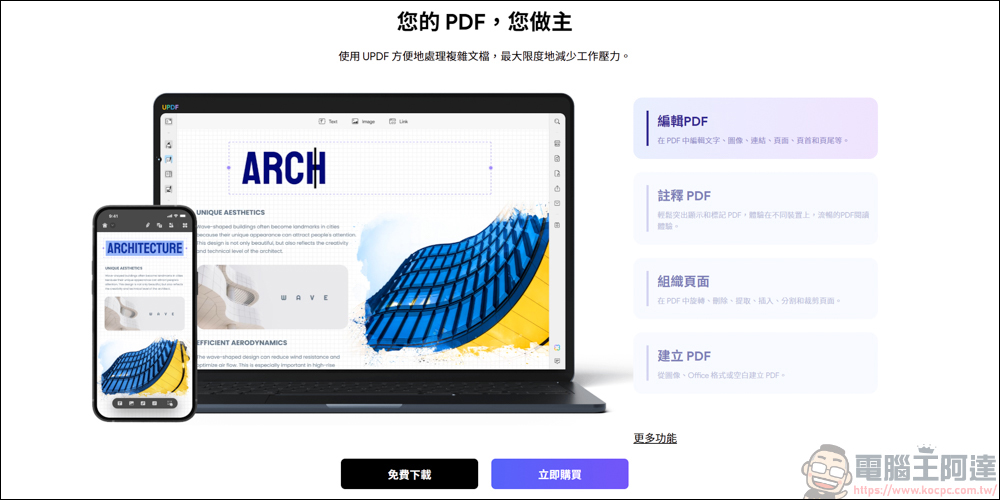
UPDF purchase introduction
You can see a detailed introduction to the software on the homepage of UPDF ( Click here to go ) :
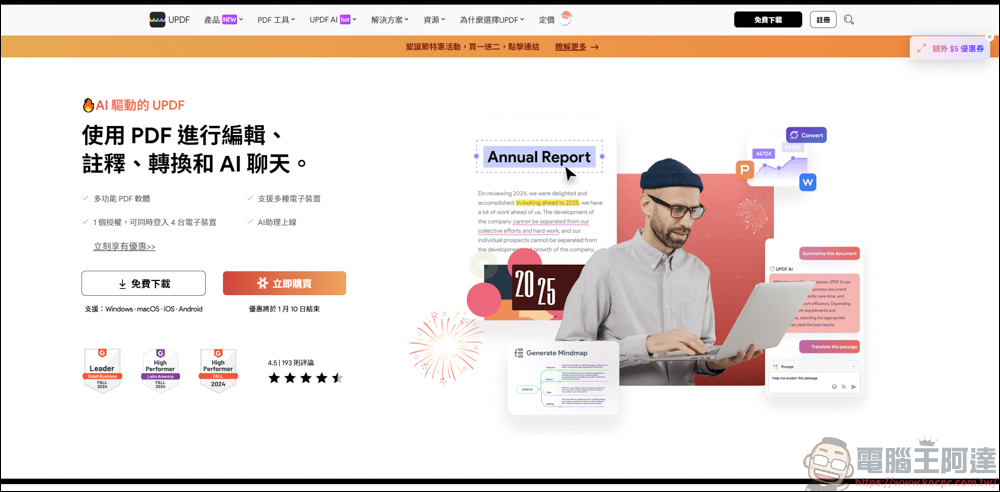
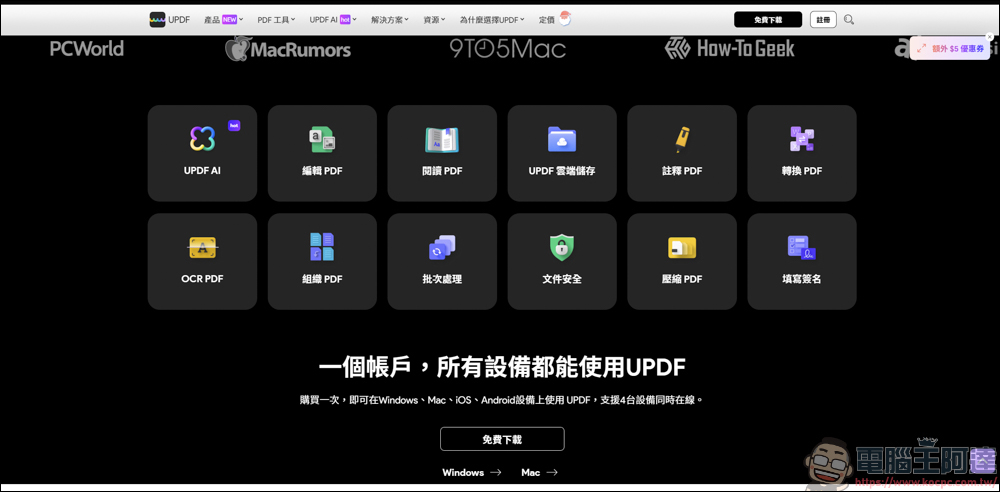
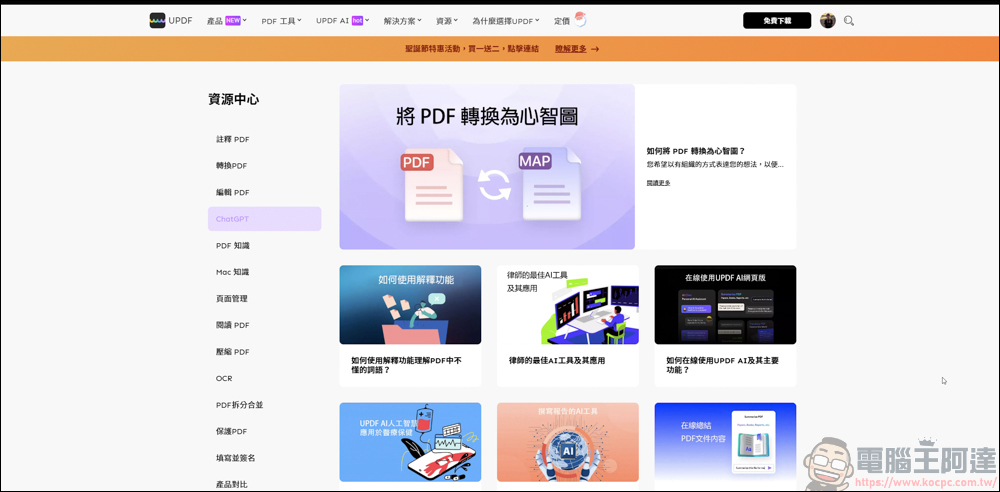
Before purchasing and using it, it is strongly recommended to read some introductions on the official website. There are introductions on how to use UPDF software, and there are even video tutorials you can watch:
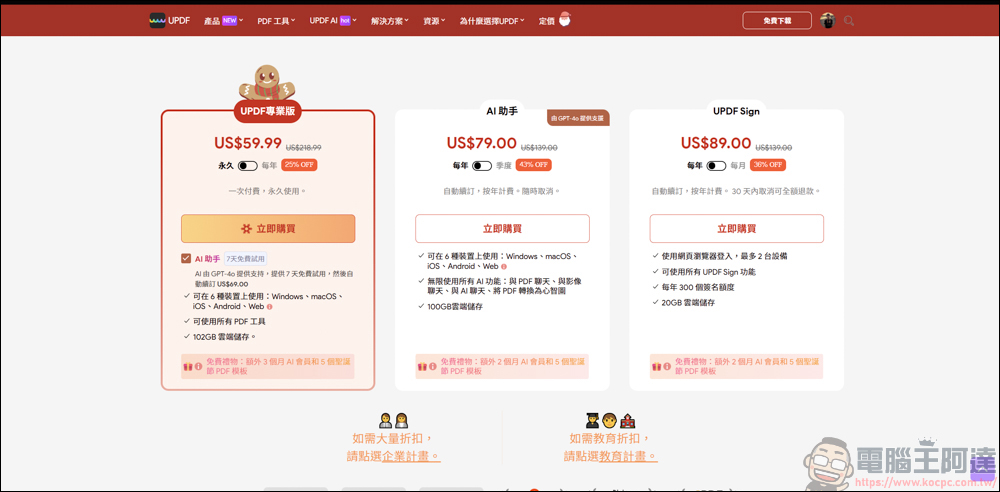
If you think the function is good and want to buy it after reading it, you can see the plan content on the pricing side. It is divided into personal/enterprise/education. It depends on what kind of user you are, and you can just buy it. As for the personal version, UPDF is divided into annual version and permanent version. If you frequently use PDF, it is recommended to just buy it outright. The price is also more generous than subscribing to Adobe. And it also comes with additional cloud hard drive space (10GB for the annual version/2GB for the lifetime version), which can be used to save your PDF data.
There are currently discounts in anticipation of Christmas. Purchases before 2025/1/10 will have the discounts in the picture. In addition, the professional version of UPDF purchased does not come with AI functions. If you want to chat with AI or create mind maps, summaries, and summaries from PDFs, these functions need to be purchased separately (the AI version has a 7-day free trial). It depends on whether you have AI needs. In addition, if you purchase the UDPF AI version, you can get a 100GB cloud hard drive for free. I think this benefit is great:
UDPF Computer King Ada Readers Exclusive $5 Discount
DNWAD1213
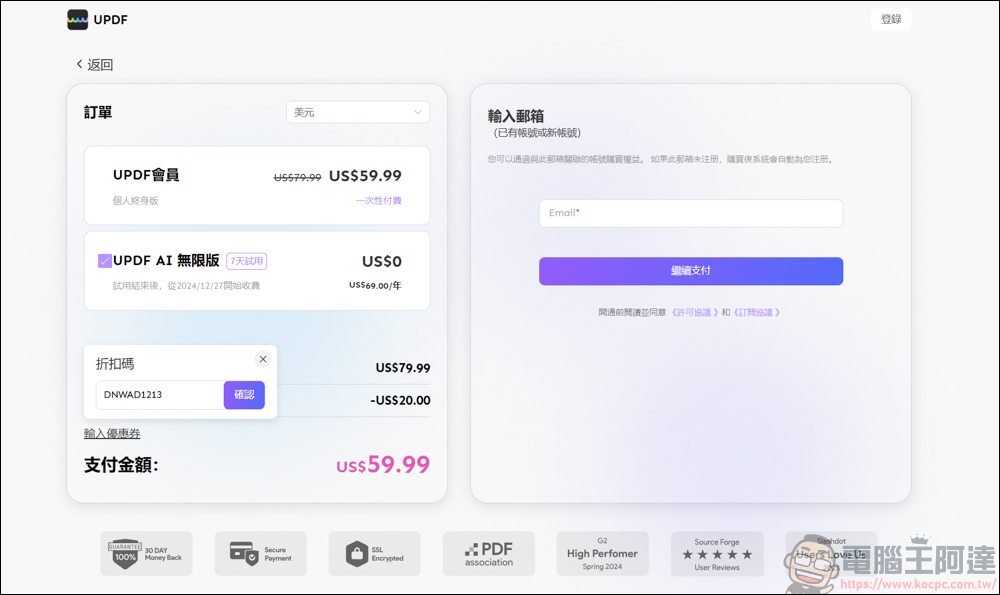
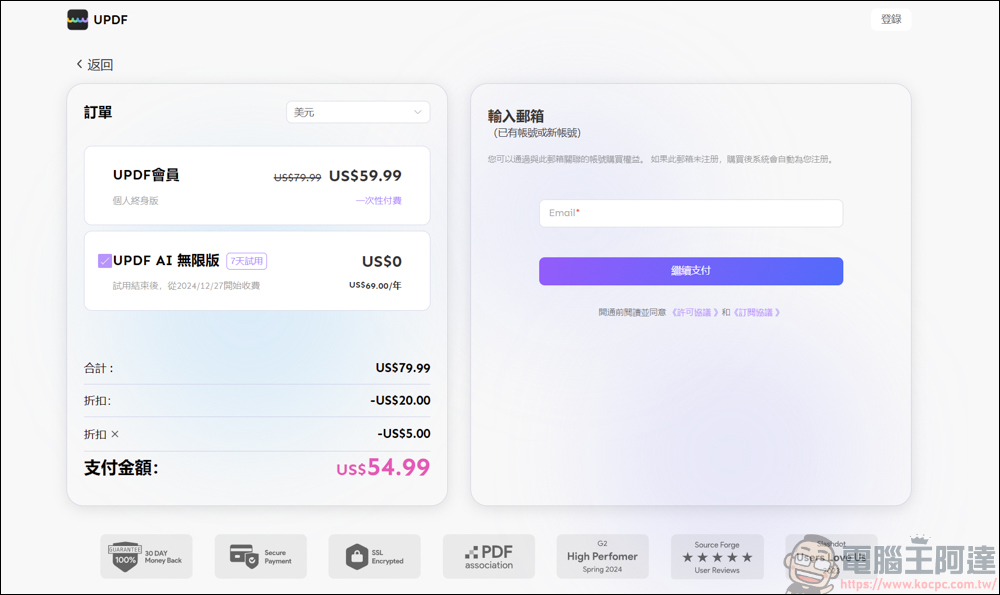
Remember to enter Computer King Ada’s exclusive offer when you check out.DNWAD1213”, you can save $5 immediately, so that readers can buy it at a more favorable price:
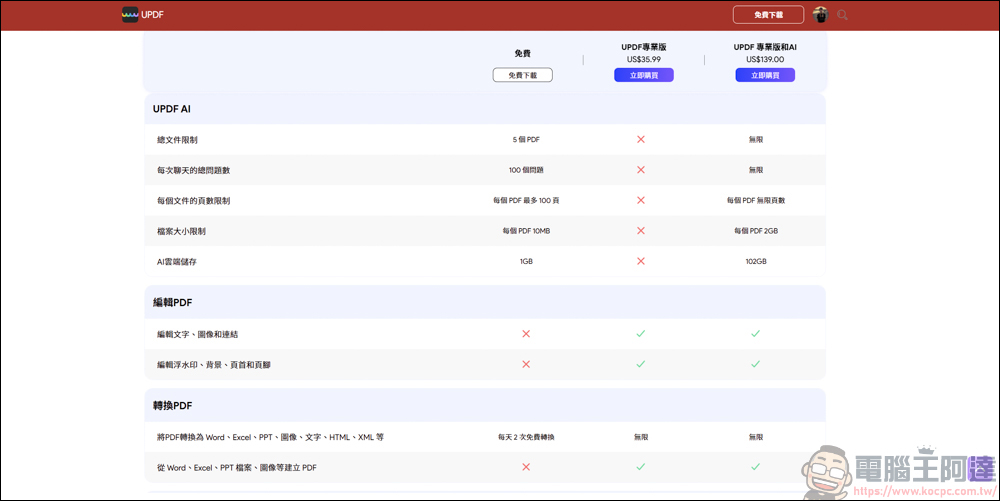
The differences between these plans are also clearly introduced in the table below. You can compare them carefully before purchasing: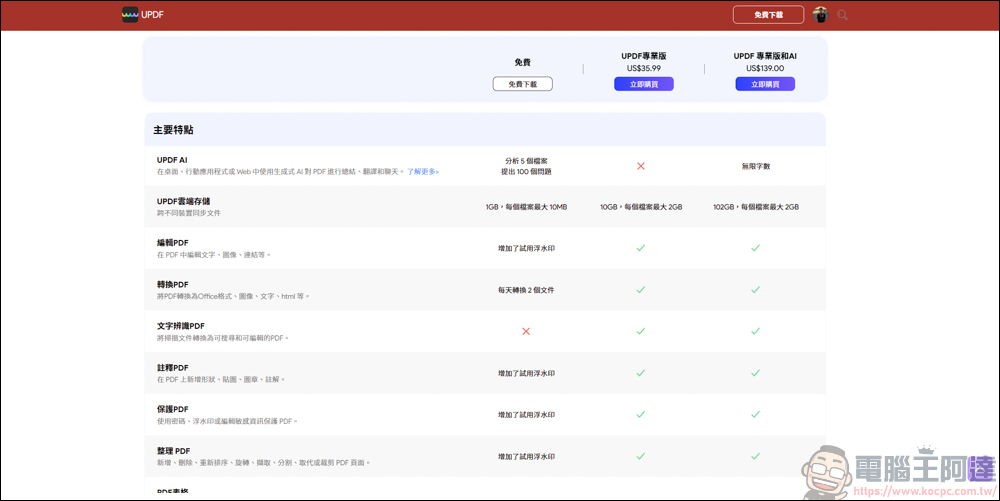
There is no harm in comparing. This is the current subscription plan of Adobe Acrobat, and the price is always more expensive than the buyout version (although it has update functions):
After registration and purchase, download the UPDF application and you can use it. If you want to try it out, UPDF can also be downloaded and tried for free, but its functions are limited. Readers who want to play around can download it and have a look:
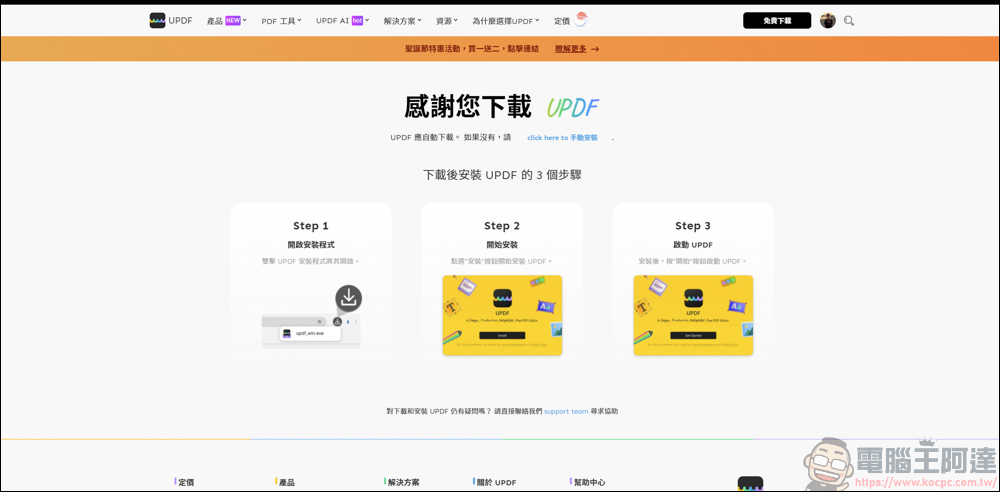
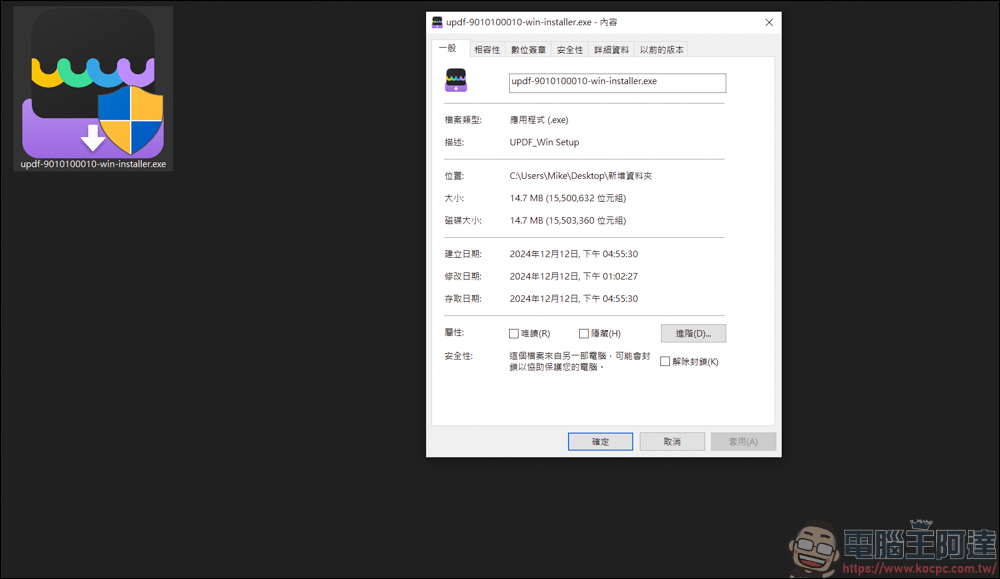
The file size of UPDF is only 14MB, which is much better than Adobe’s fat and large software. This is also one of its advantages:
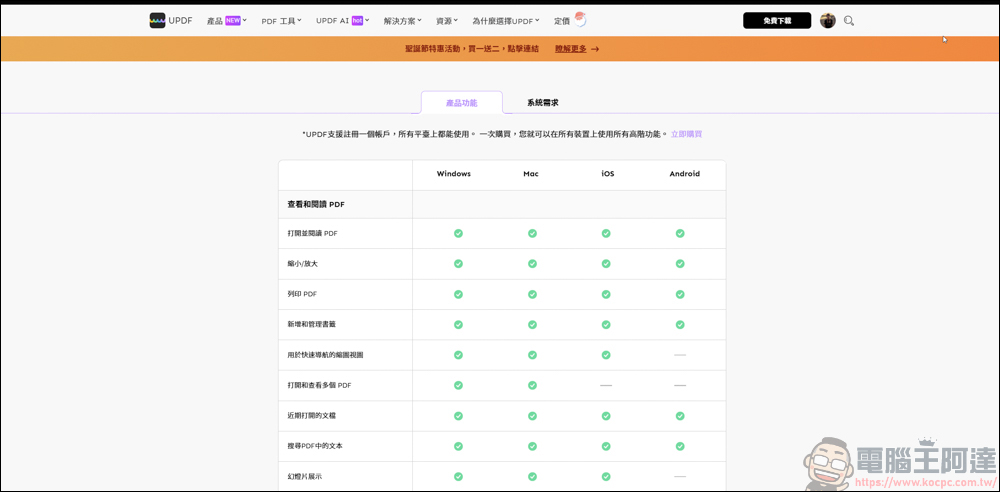
UPDF supports Windows and MAC, and there are also APPs available for iOS and Android phones and tablets. We will introduce them later:
UPDF usage introduction
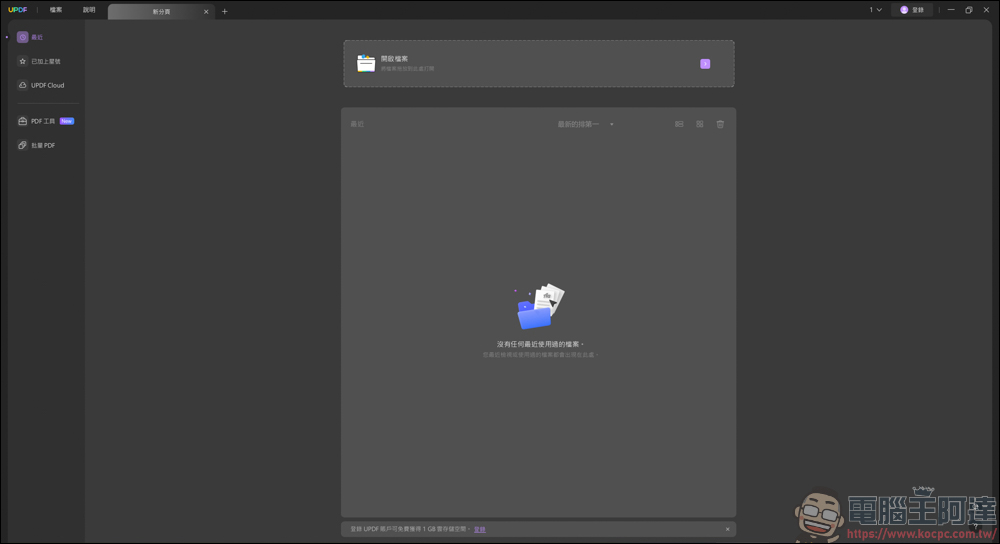
This is the UPDF we are going to introduce today. The interface is quite simple and not too cluttered:
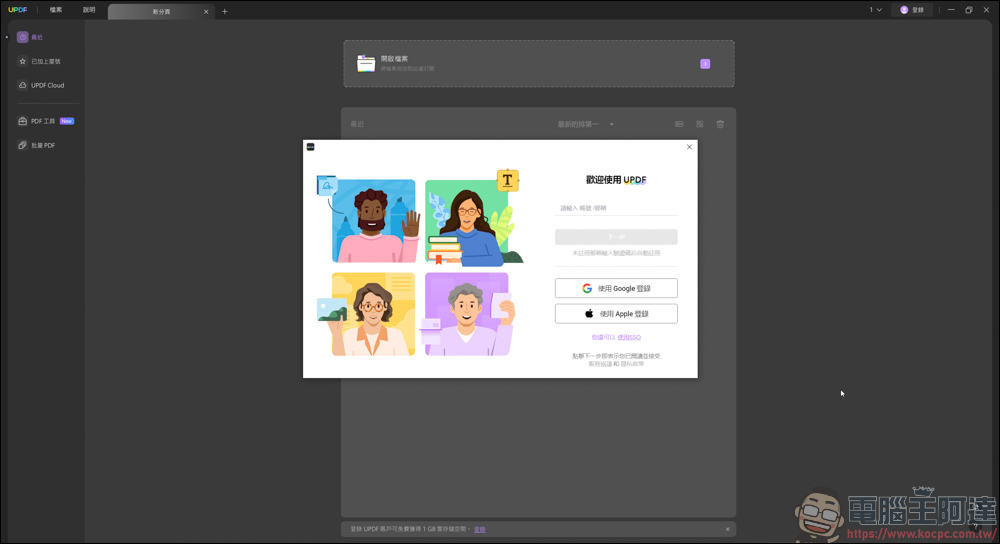
After logging in to your account, you can continue using:
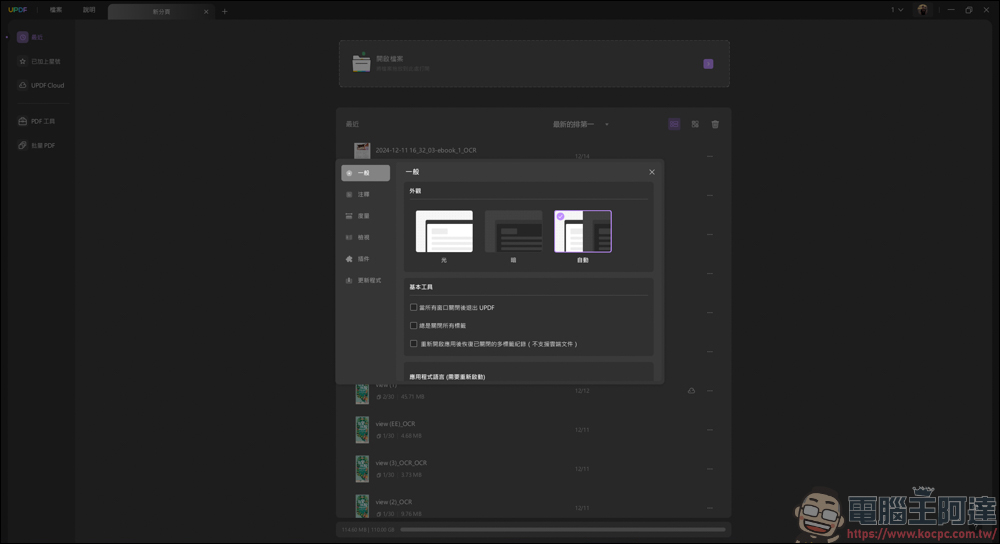
UPDF can choose light mode or dark mode in the settings, depending on personal preferences:
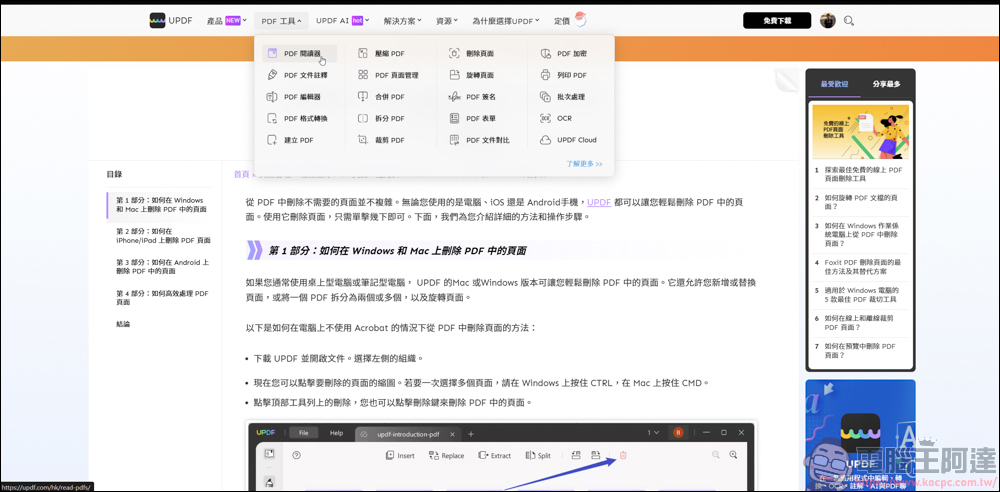
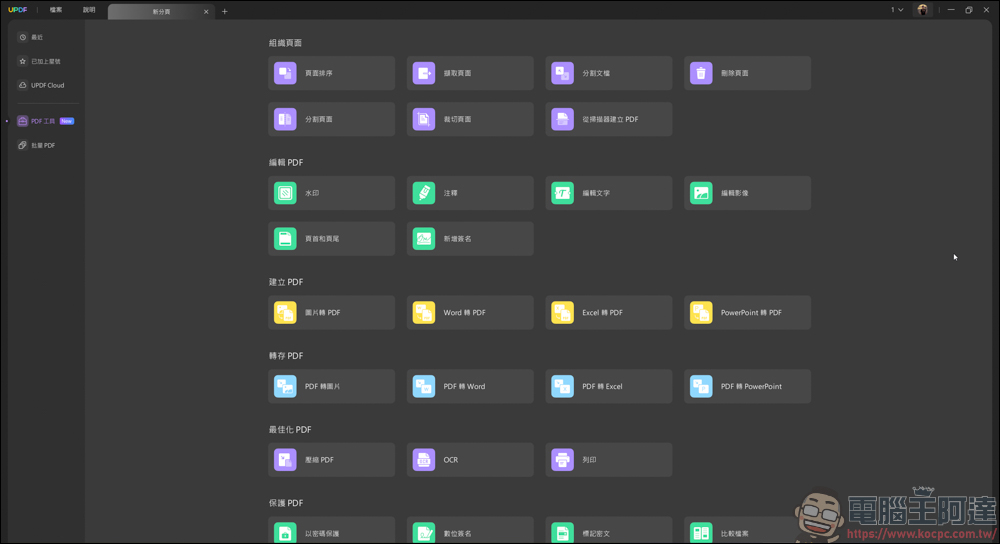
UPDF has quite a lot of functions. In the PDF Tools on the left side of the homepage, all the function options of UPDF will be listed. If you just want to perform a specific function today, just click on one and read the PDF to access that function directly:
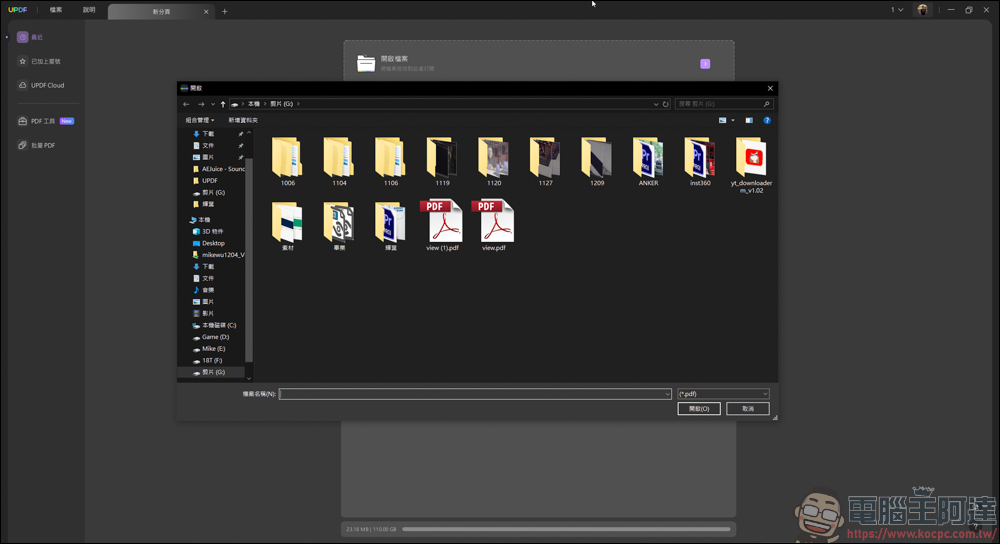
Next, you can use it directly. You can pull in the PDF you want to read or click on the file to open the PDF:
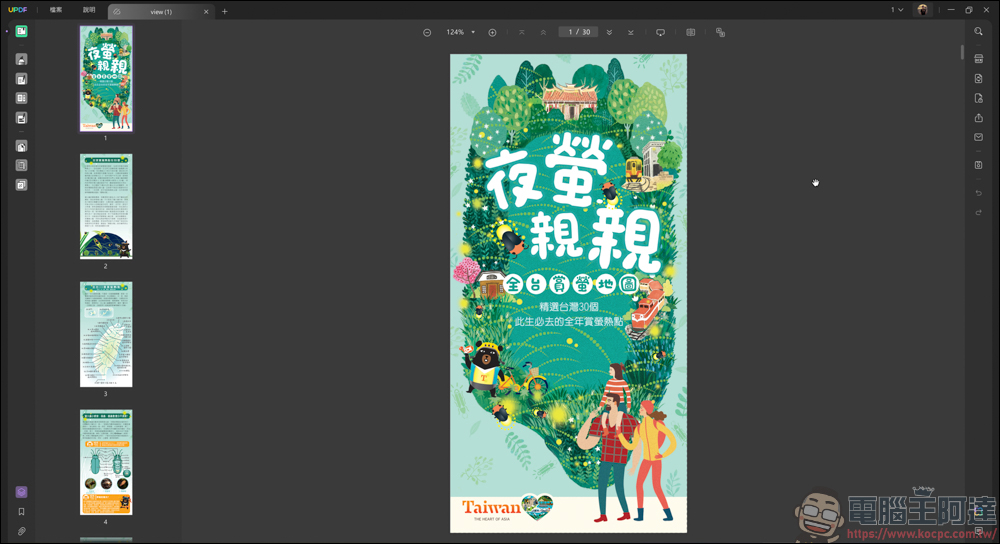
Under normal use, UPDF is a PDF viewing software. Most of the functions that PDF should have, UPDF has, and is even better:
In the drop-down options above, you can configure function settings for the PDF, such as renaming, saving, converting, password protection, etc.:
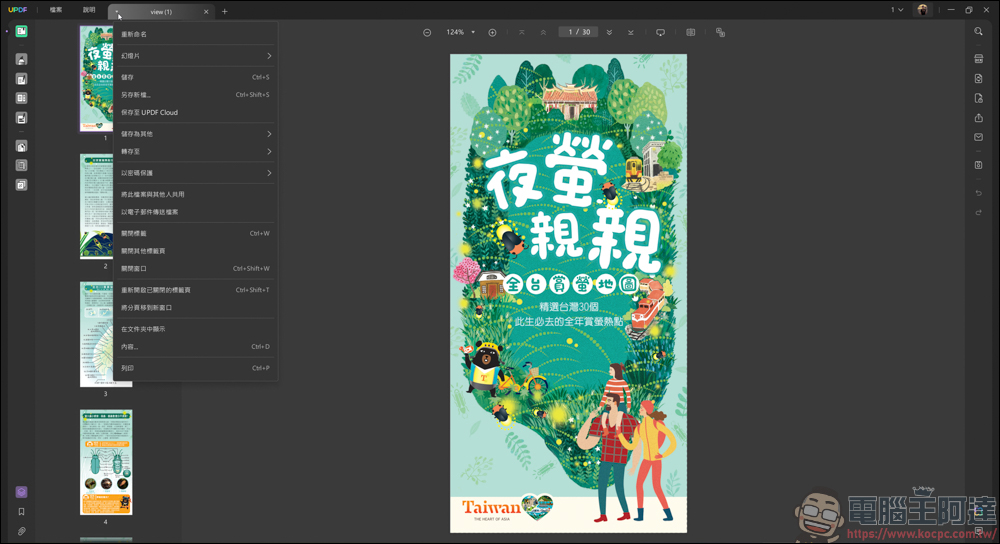
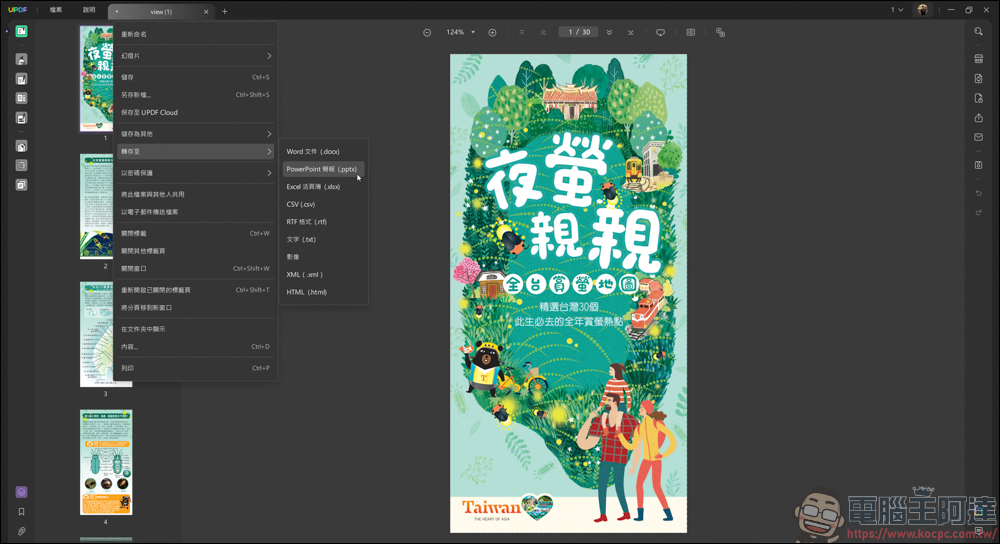
You can use UPDF to save PDF into Word, Excel, PPT, pictures, etc.:
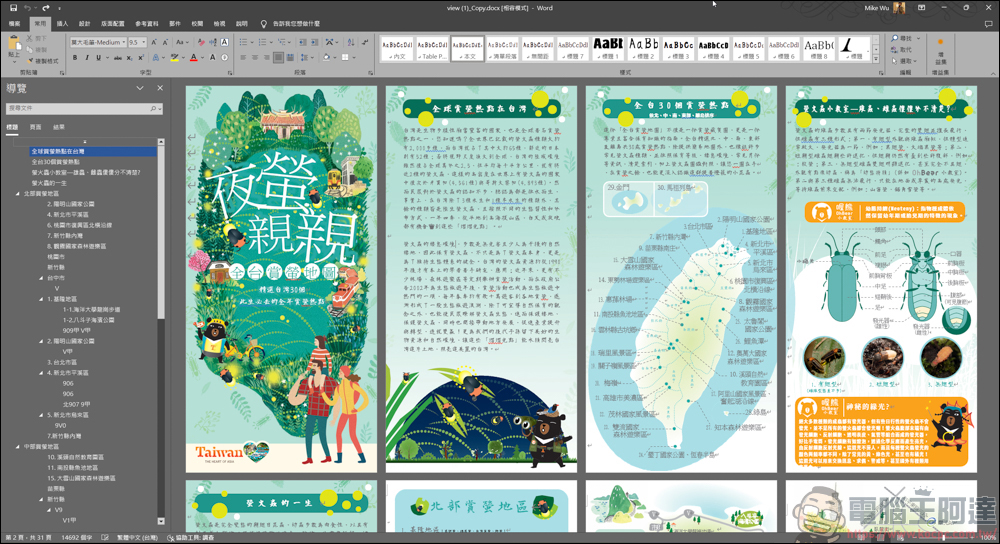
For example, when transferring to Word, the transferred file will basically have the same content as the original PDF. However, due to different fonts, the fonts on the image will be slightly out of position during the conversion process. But you can edit it after converting it to Word, and you can slightly restore the original PDF style with simple processing:
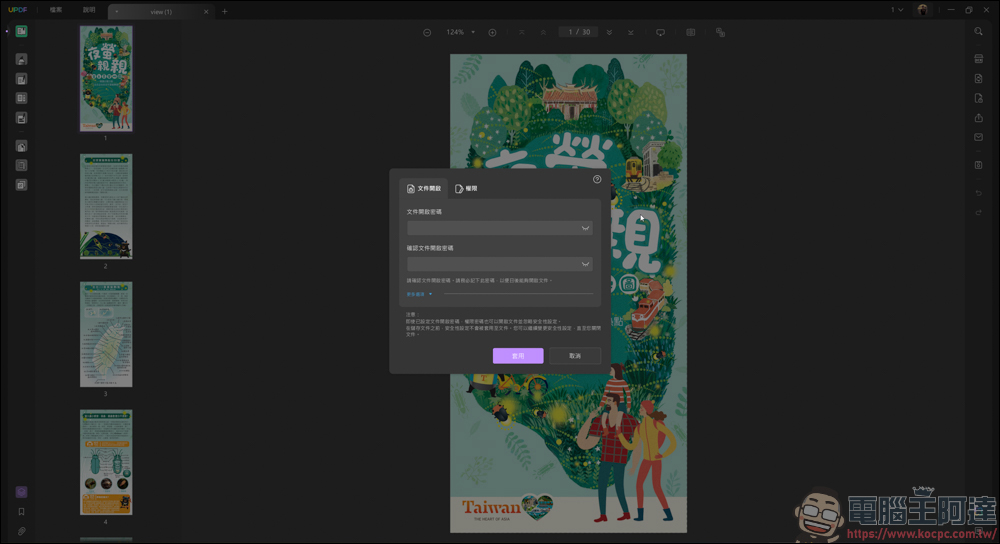
In addition, if you only want this PDF to be read by specific people, or do not want others to copy and use it, you can also select the password protection function in the file options, and you can set a password for this PDF. It even prevents reading users from making changes, so you can fully protect your PDF files:
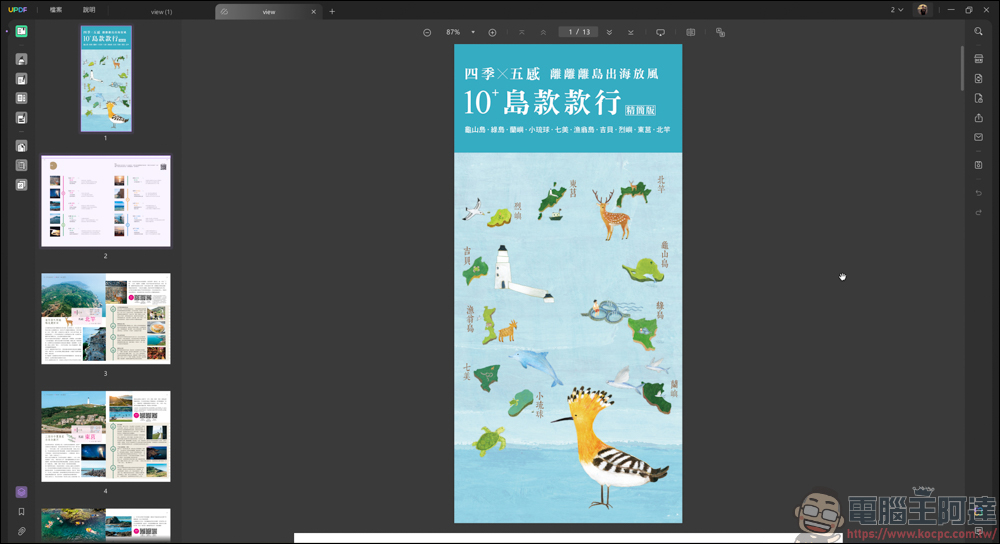
UPDF also has a good feature, that is, you can open several PDFs at one time. If I pull another PDF in now, it will open another page to display:
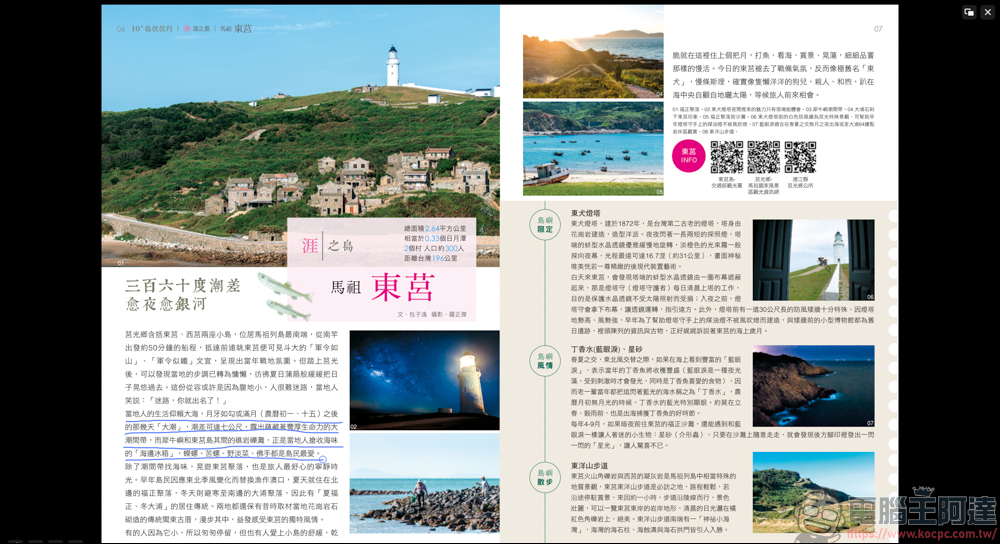
UPDF can also play PDF slides, which is very useful when giving presentations:

In the lower left corner of the screen, there are also tools such as pens, laser pointers, erasers, etc.:

These tools can come in handy during presentations, such as encircling key points with a laser pen:

Or use a pen to highlight the key points first, so that participants can grasp the key points more quickly:
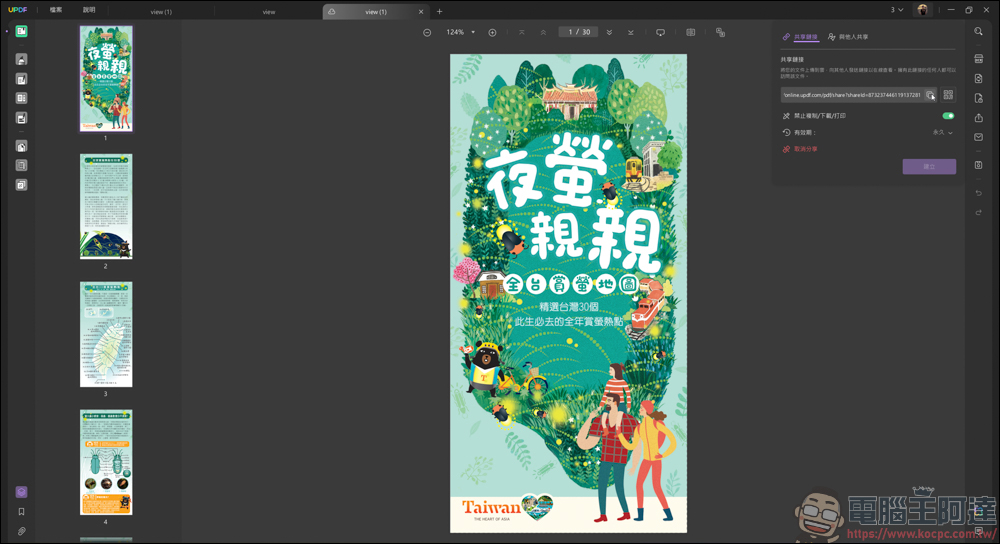
If you want to quickly share the PDF with friends and family, you can also send it through one-click sharing. UPDF will transfer the PDF to your cloud and create a link for the other party to read or download:
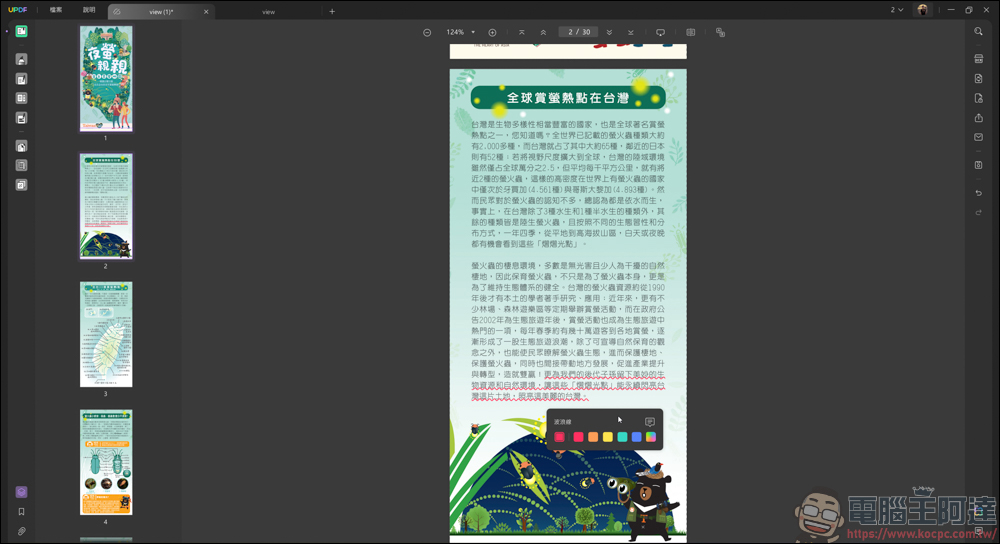
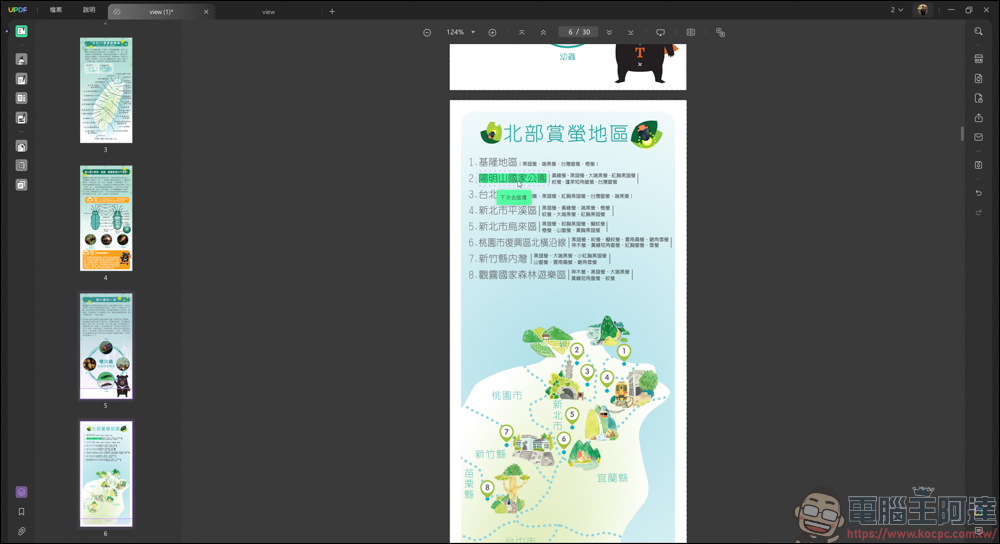
Take this PDF as an example. After reading it, you can directly select the text on it. If you want to copy the text, add fluorescent color, underline, strikethrough, etc., you can make changes directly on the screen:
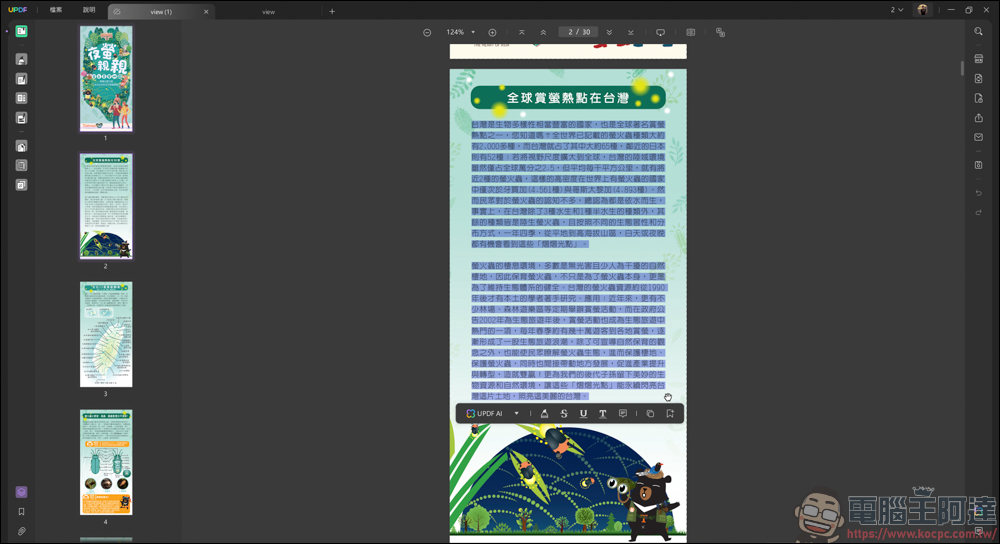
UPDF allows you to copy and paste text in PDF to other places 😐
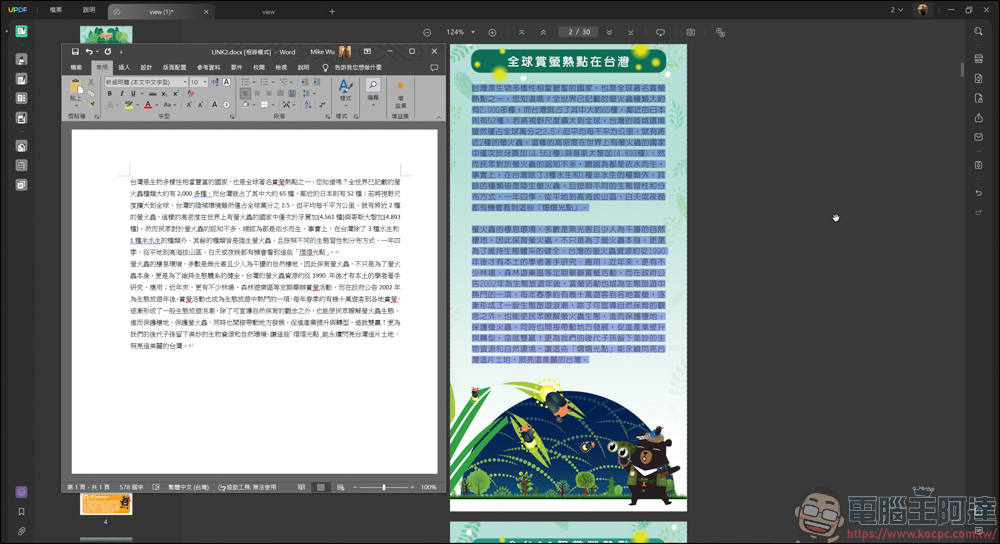
For example, mark the key text with a highlighter:
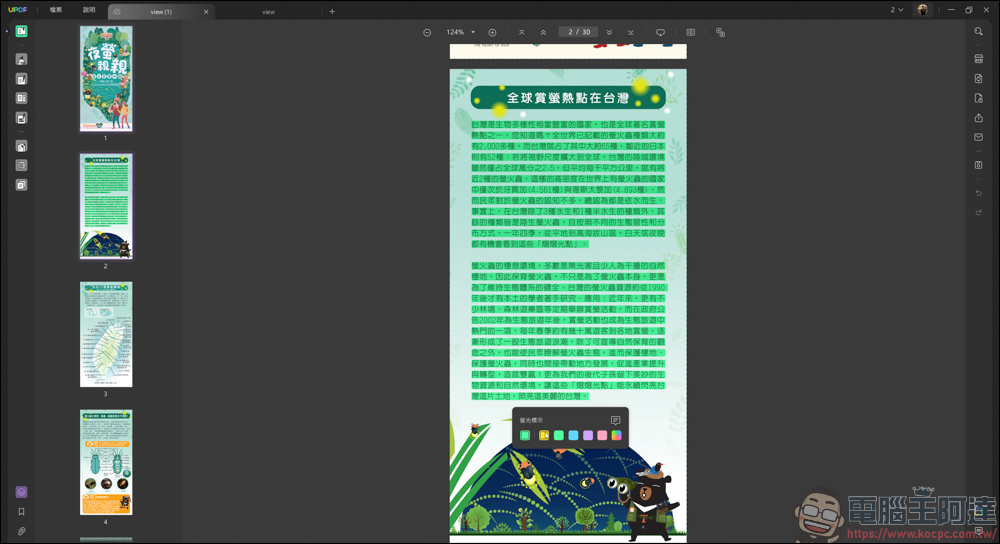
Or use the wavy line function to specifically mark the text:
If there is anything you want to note, there is also a note-taking function where you can attach invisible sticky notes:
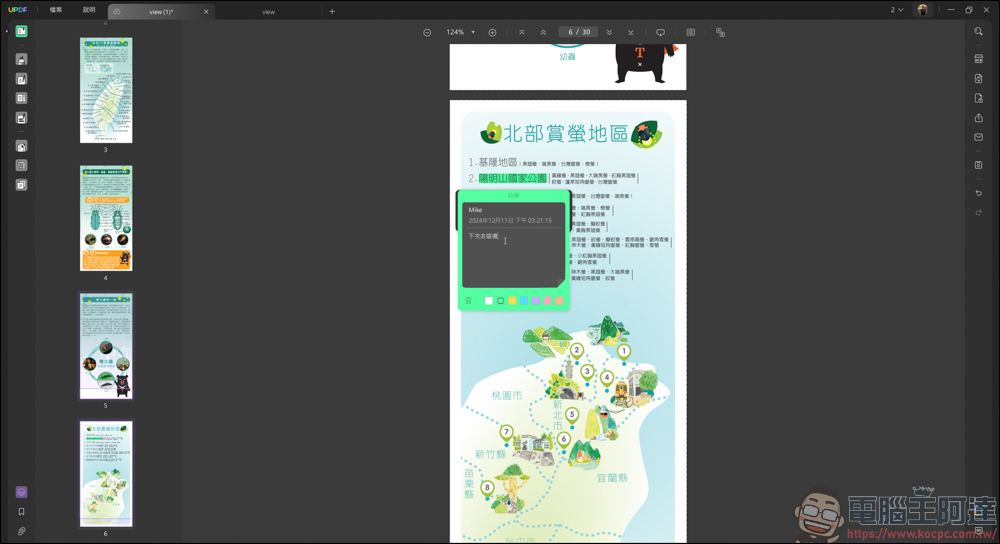
People who are reading will be able to see the message you left as long as they click there. It is very convenient for sending messages or taking notes:
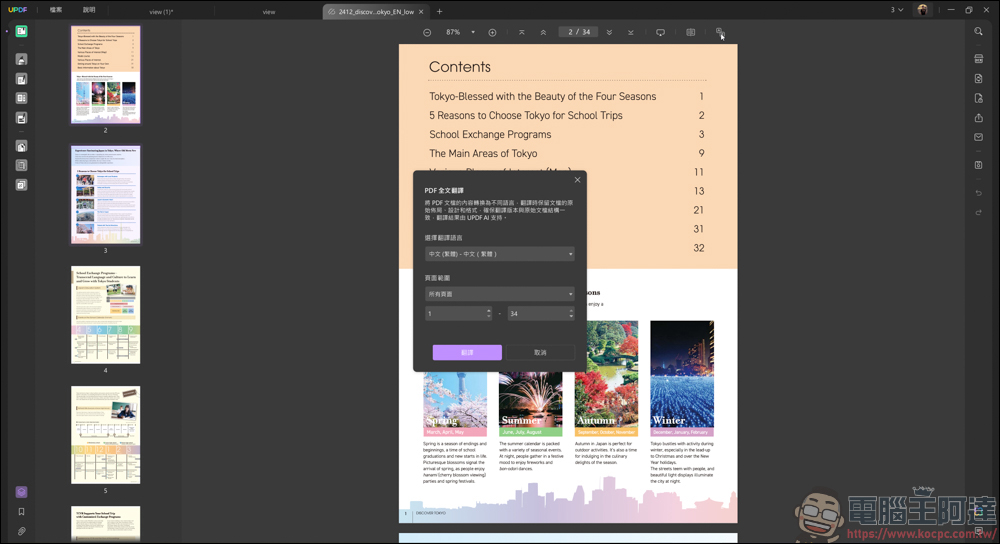
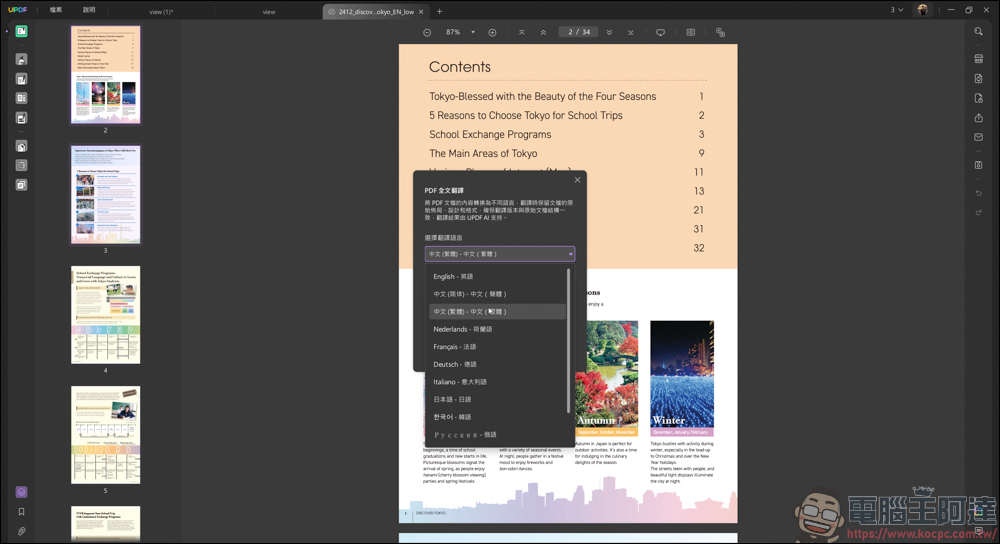
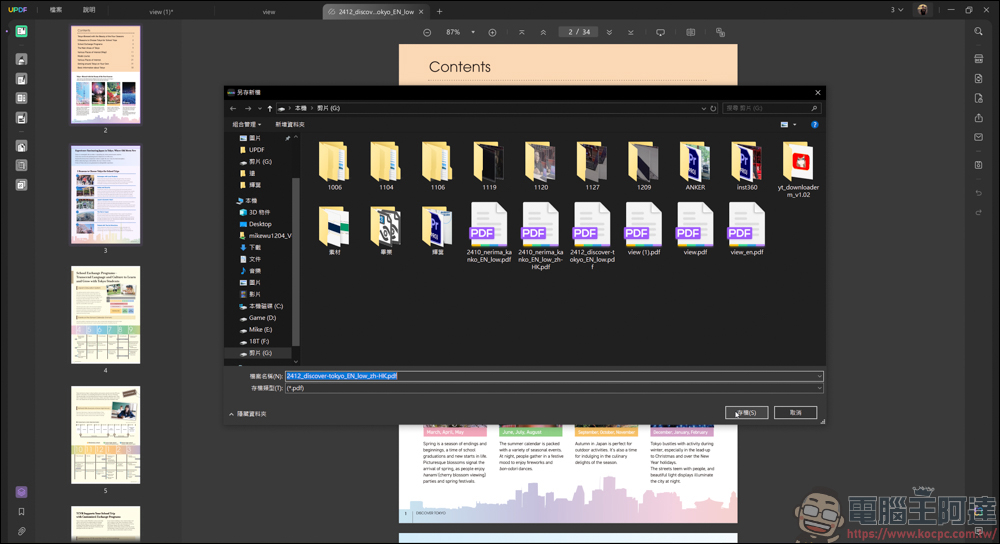
If you want to translate the entire PDF, just select the language you want to translate and UPDF will save a translated PDF for you:
UDPF Computer King Ada Readers Exclusive $5 Discount
DNWAD1213
Since the large-scale language model used is OpenAI GPT-4o, the translation accuracy is quite accurate, at least to the extent that it can be read:
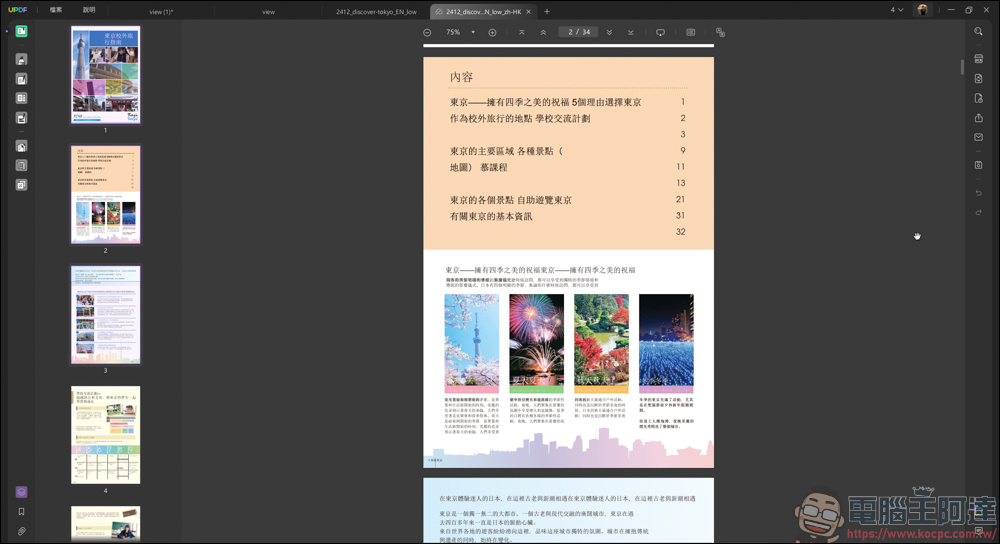
Translating from Chinese to English is not a problem, but it should be noted that the text in the picture will be slightly out of position due to the font size, but the impact is not big:
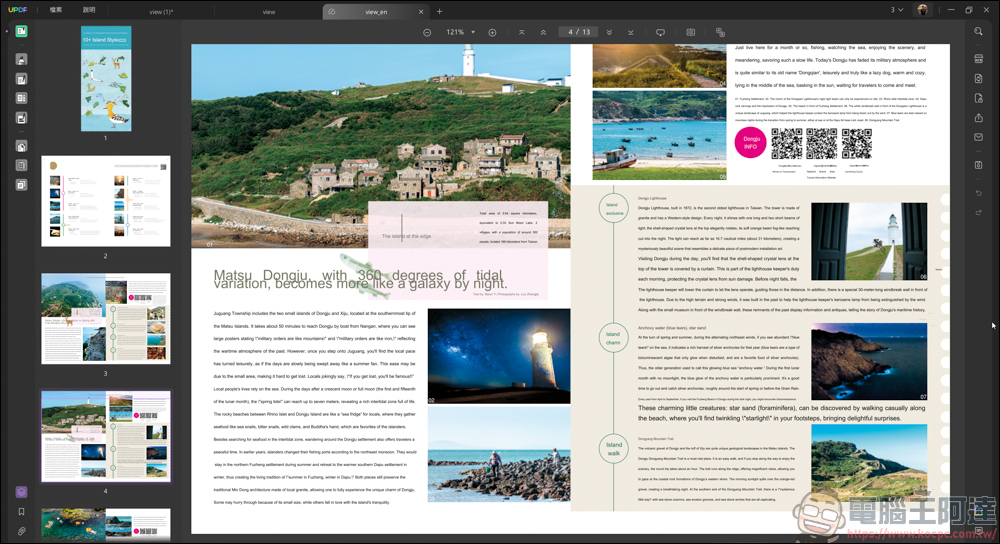
Of course, UPDF has more than just these functions. As you can see on the left side of the screen, there is a row of very practical tools:
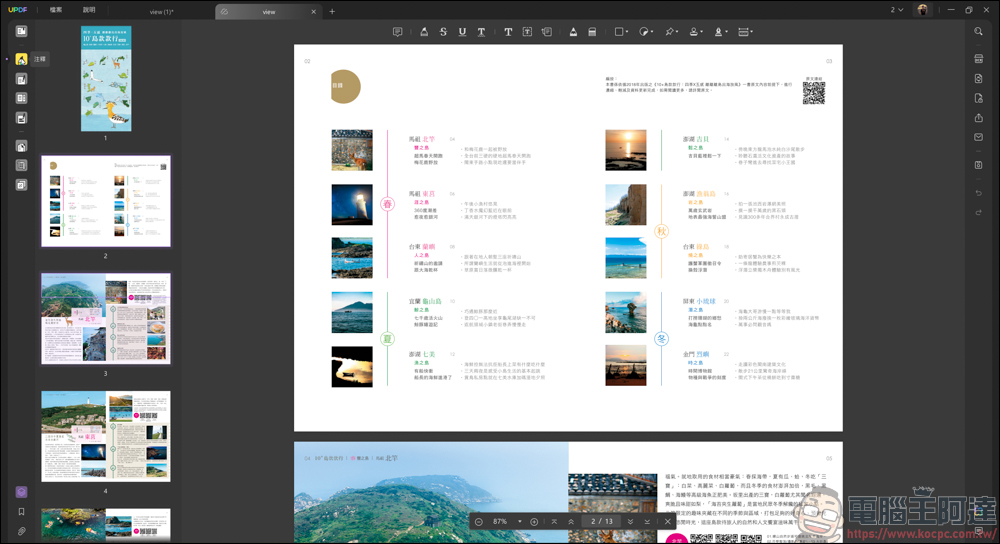
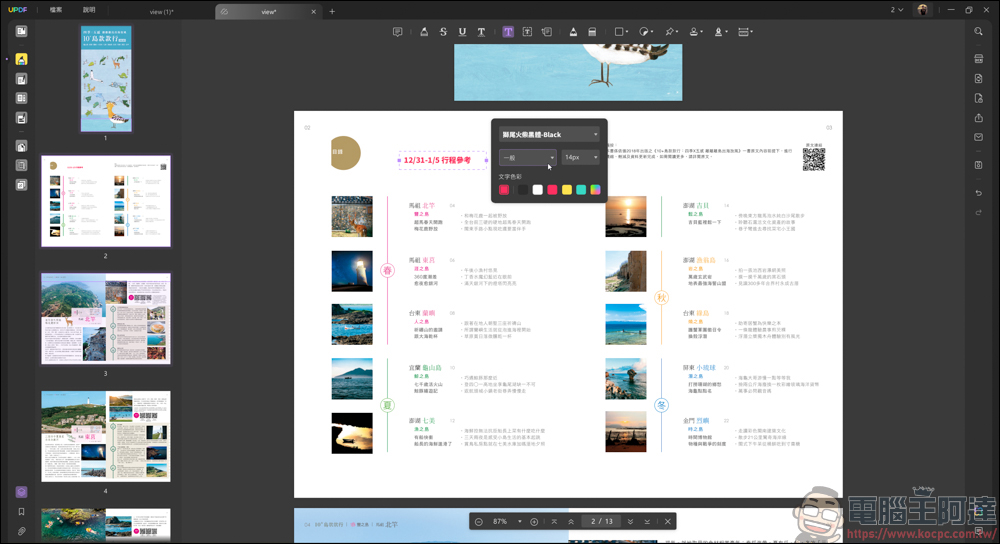
The first one is annotation. After selecting this function, a text toolbar will appear in the upper row, with fluorescent color, underline, strikethrough… etc. You can even draw with a pencil:
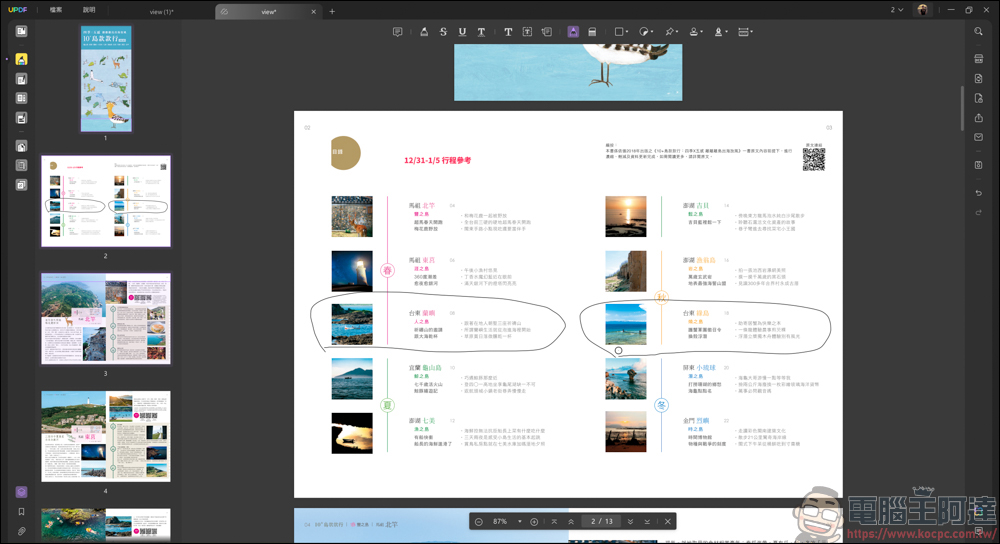
There’s even a signing tool to sign your name directly on the PDF:
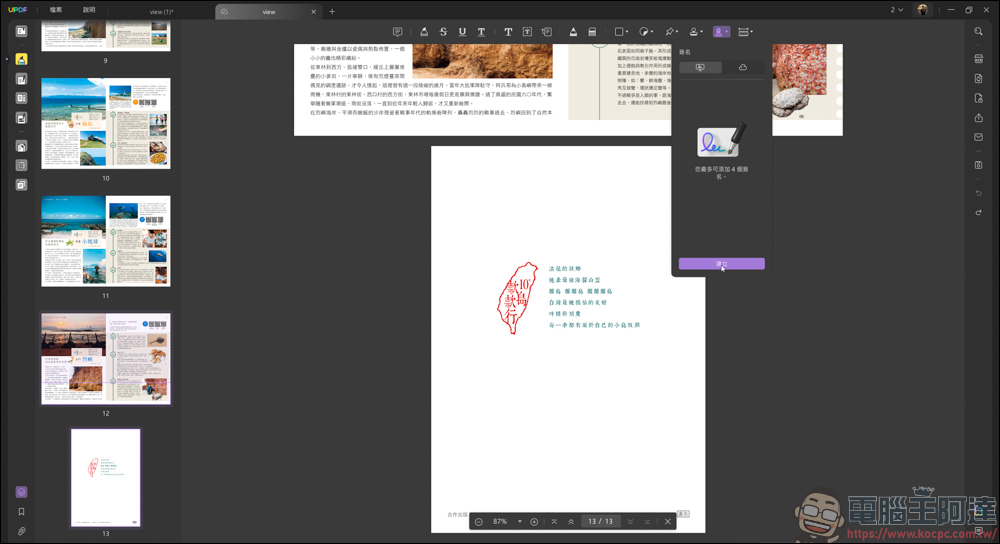
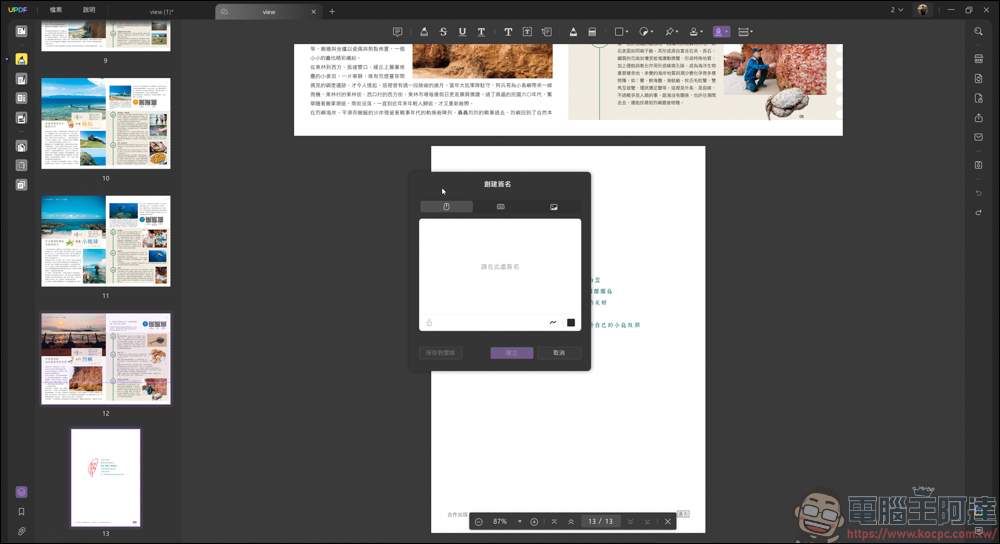
Supports three methods: mouse writing, keyboard input, and imaging:
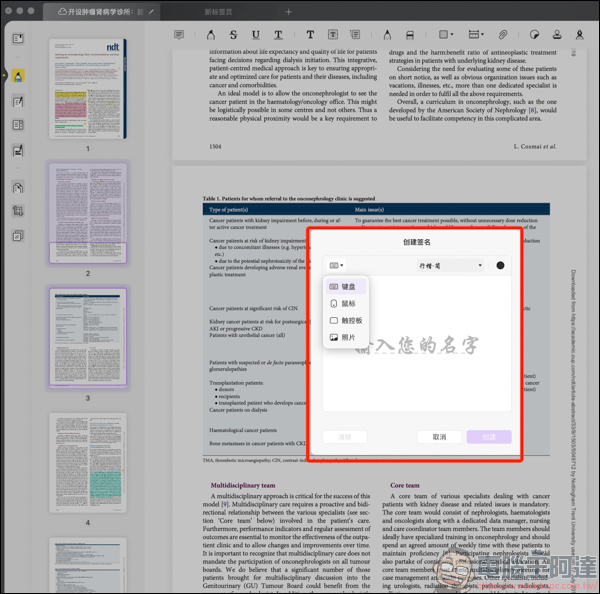
Users using the Mac platform also support trackpad mode under this function, and can sign directly on the trackpad:
The written signature can also be resized, so that when uploading some documents that need to be signed back, you can respond immediately in this way:
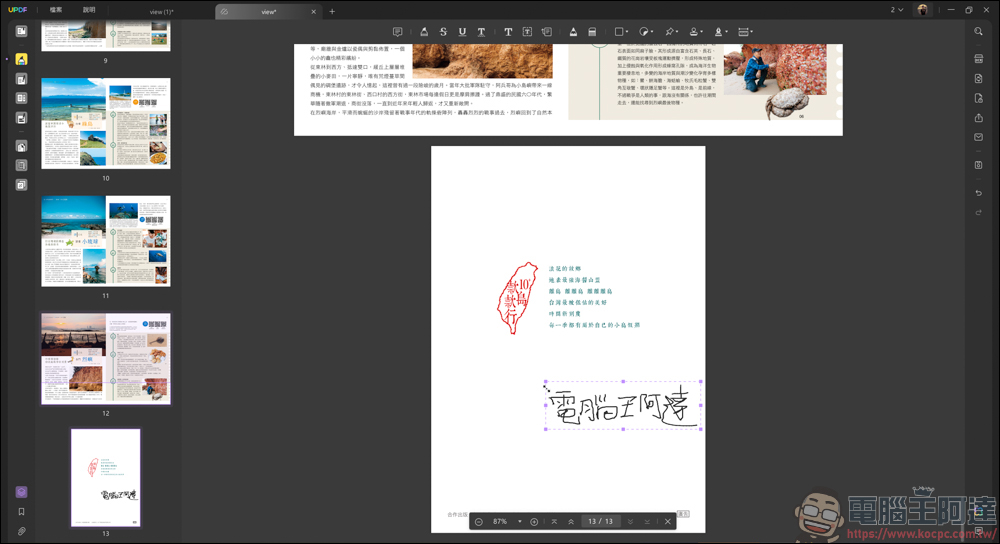
The second is to edit PDF. Under this function, you can edit the text in the PDF, delete images, etc.:
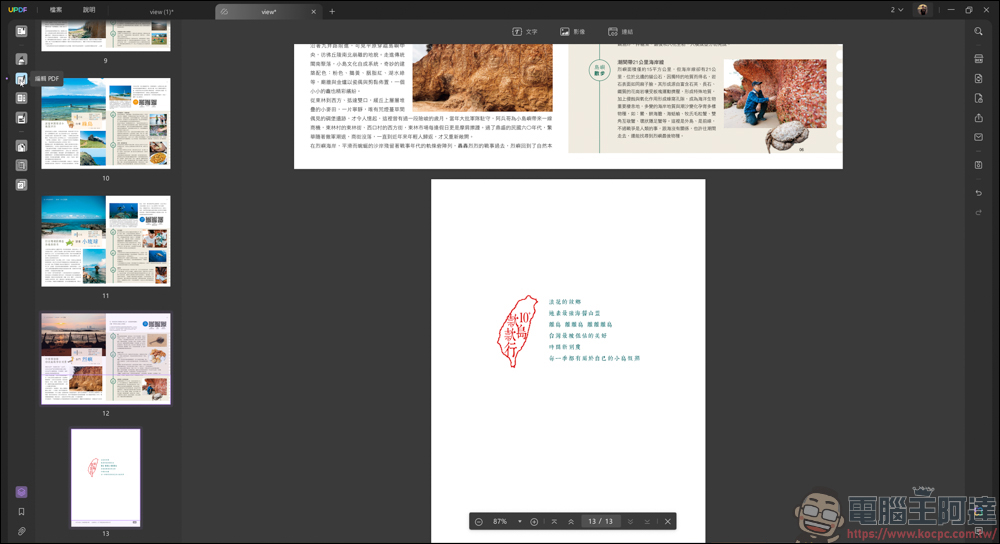
Delete / add text:
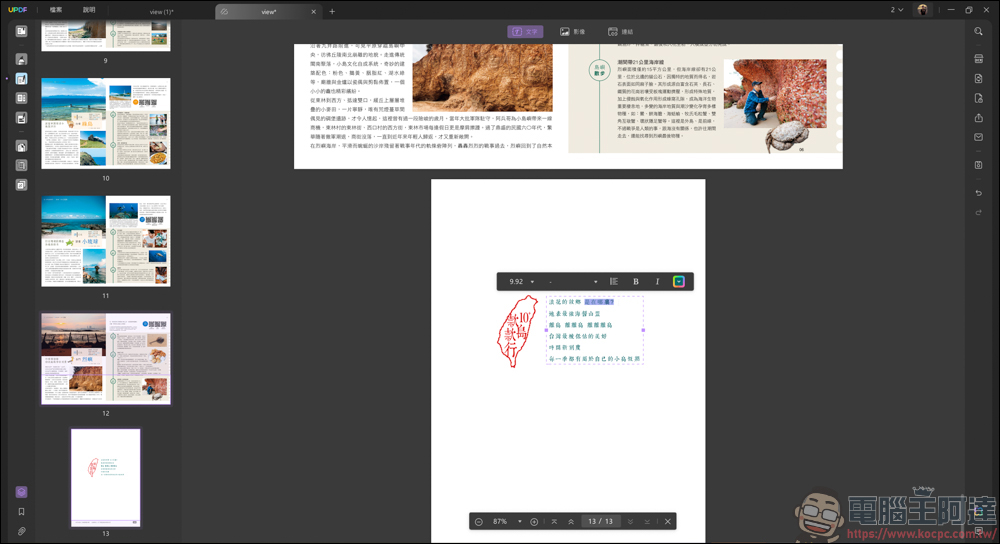
Add new images to PDF:
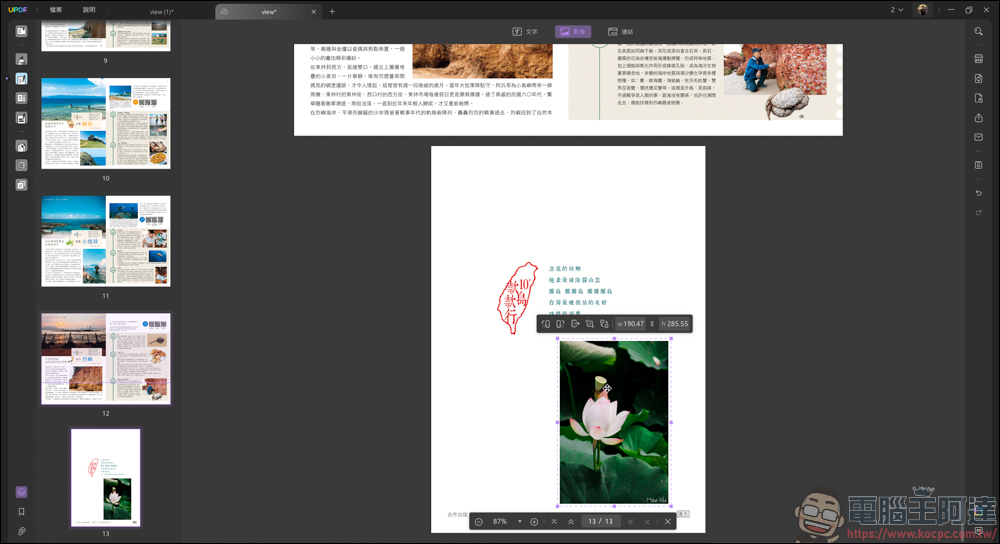
You can also insert a hyperlink, which will take you to the page immediately with one click:
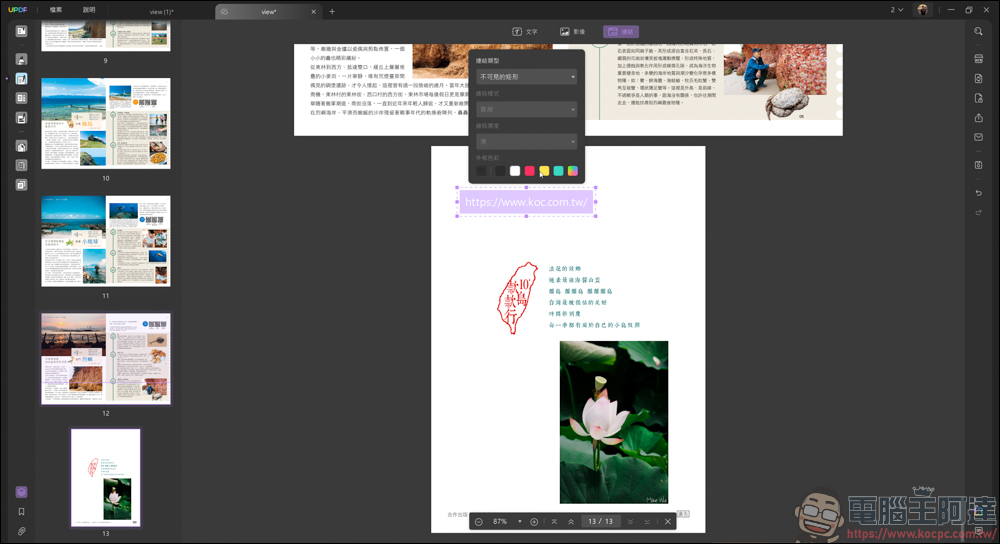
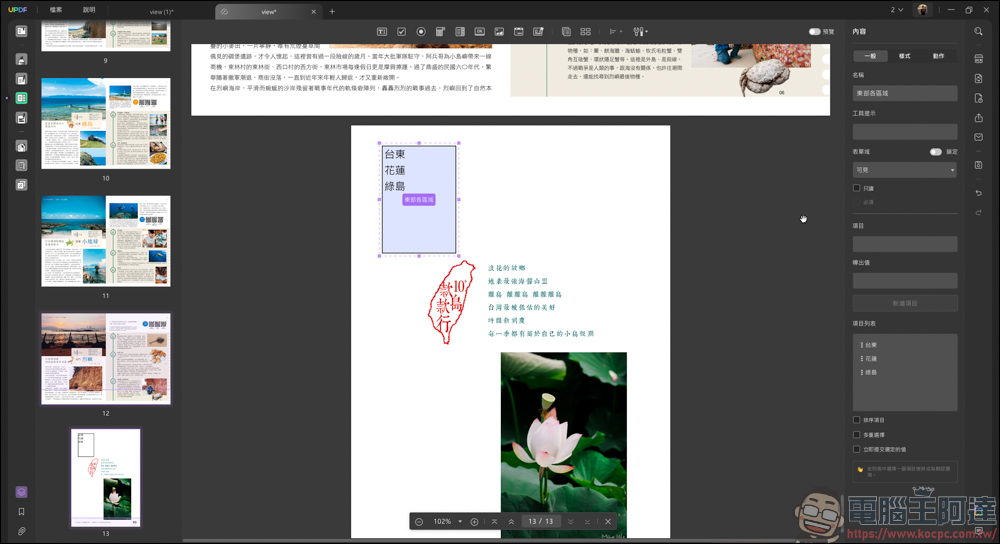
The third step is to prepare the table. Here you can set text, images, button boxes, drop-down menus, etc. In addition to customizing the styles of text and boxes, it also has action functions. You can specify these tables to trigger events. For example, clicking on the table with the mouse will jump to the home page or open a new web page. This function is a bit like PPT, and it is very useful for people who use PDF to make presentations:
The fourth is the encryption tool, which can encrypt the content of PDF:
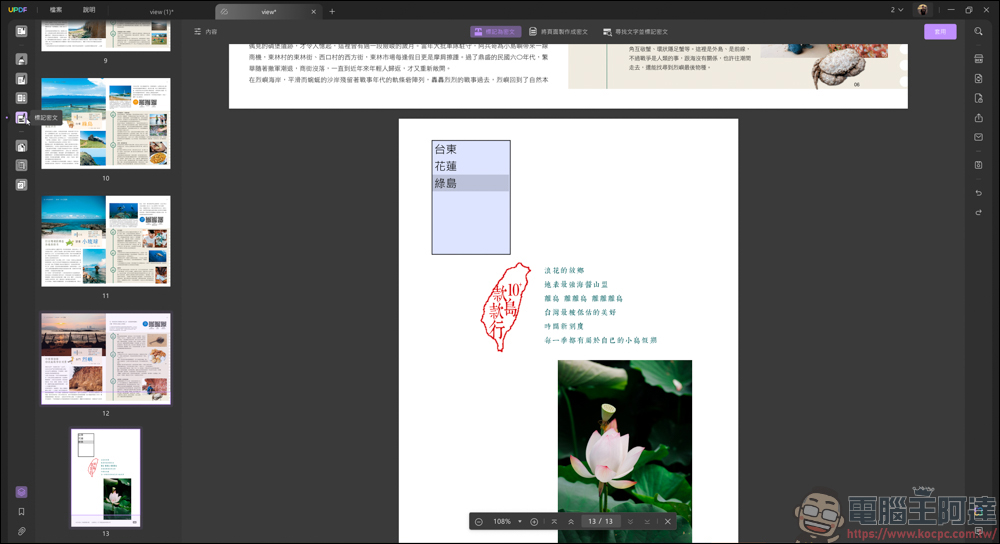
Use this function to circle the text you want to hide, and the software will automatically circle the block with a black frame:
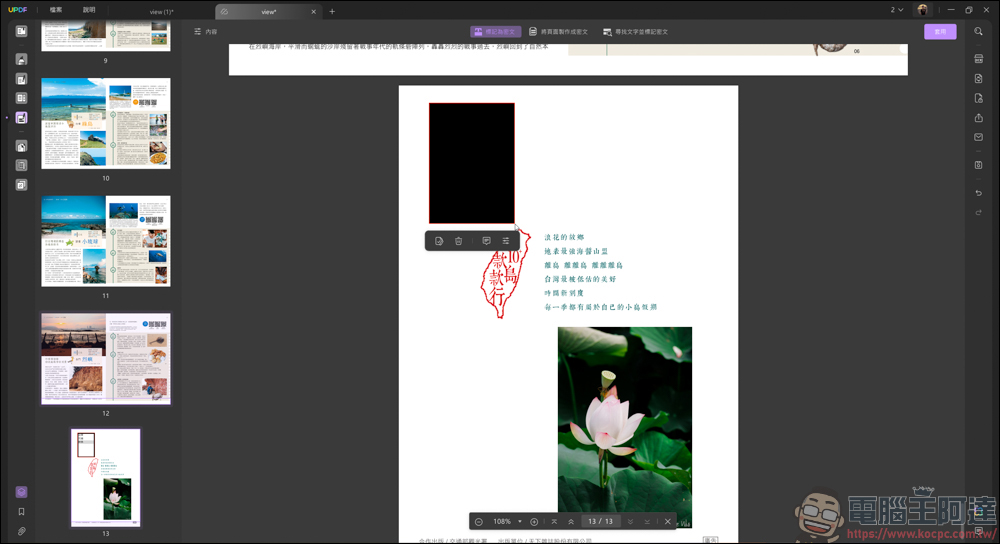
If you want to encrypt a single page, you can also use this function:
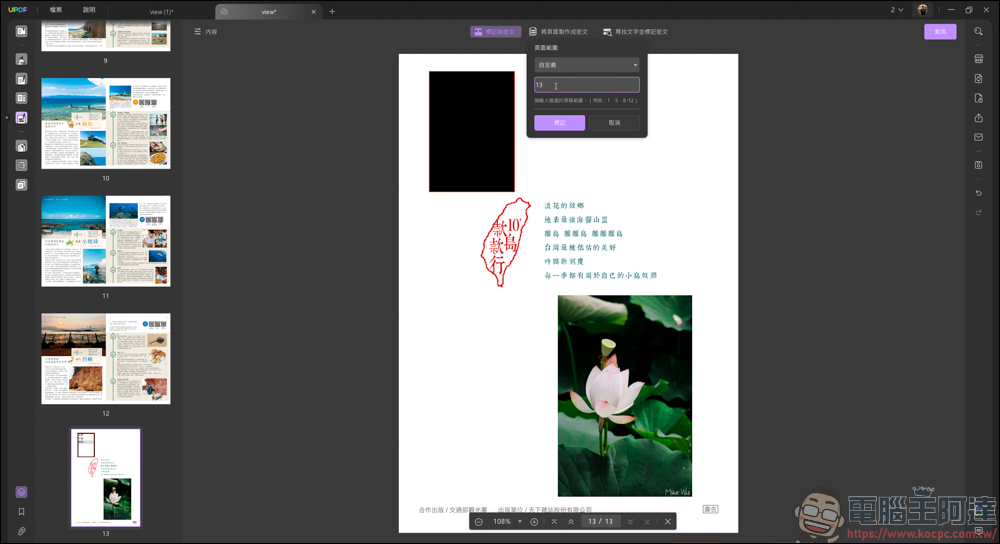
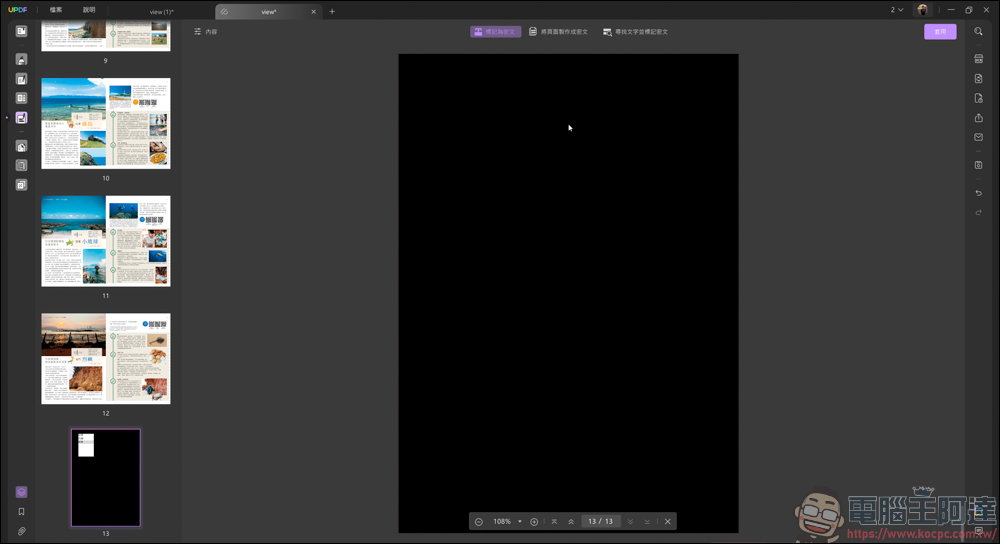
This way you don’t have to rely on post-production software to fix it:
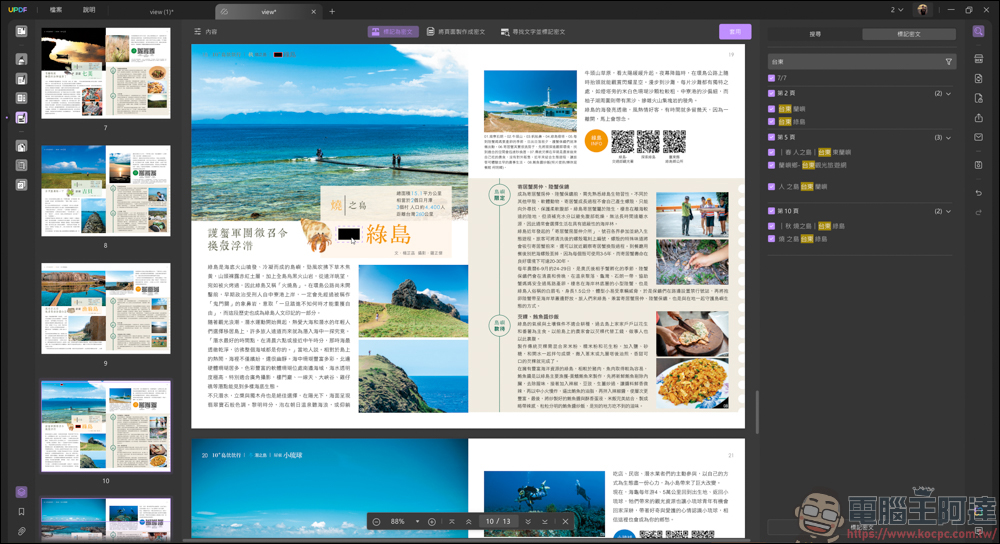
In addition, if there are too many words and you are too lazy to search, and you want to encrypt the keywords, you can also use the text search function to directly encrypt the keywords you are searching for. This way, you don’t have to slowly search for keywords on every page, which is quite convenient:
The fifth is to organize pages. In this function, it will spread out the entire PDF. You can add a new page or a new PDF here, or you can save a separate PDF file for a single page:
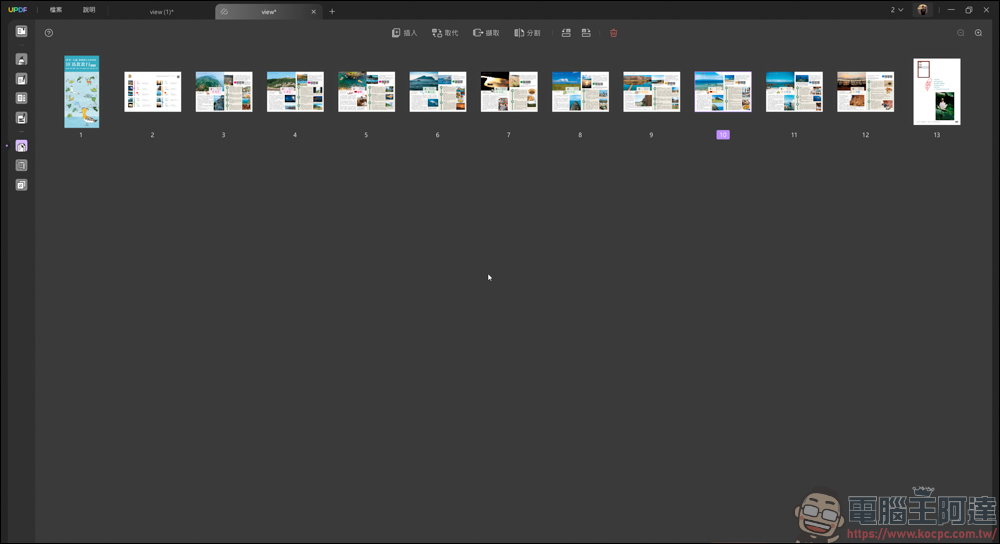
Even if you just want to extract part of the page:
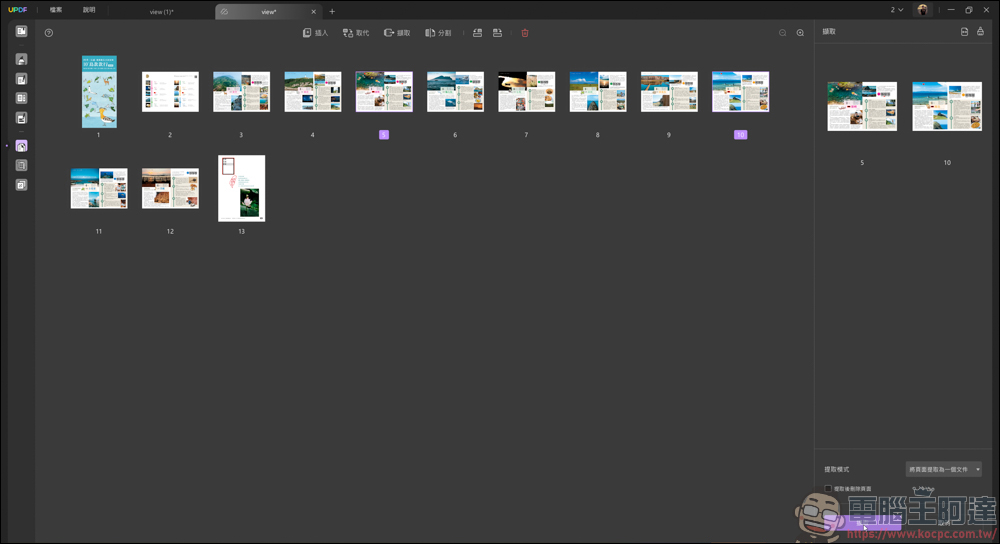
After selecting the page, UPDF will help you save another file:
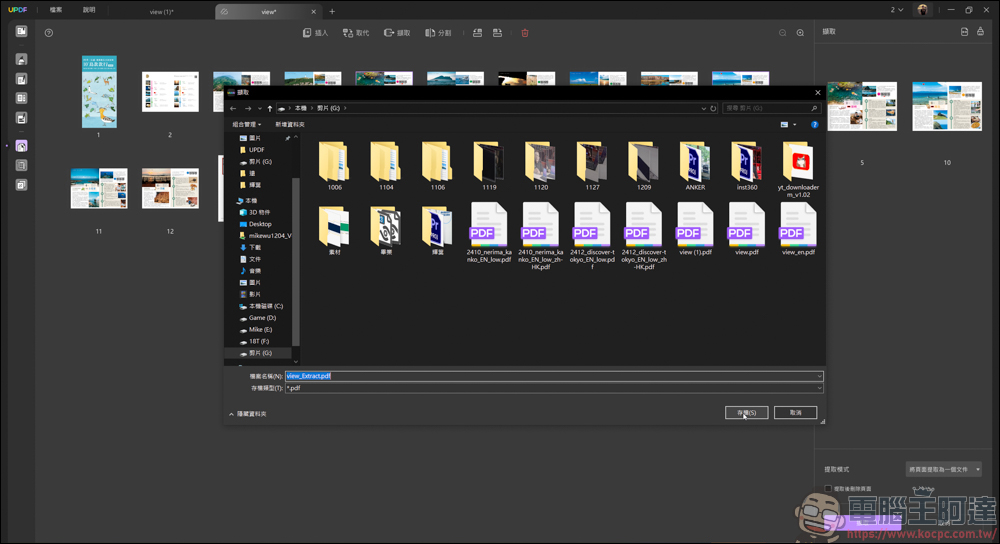
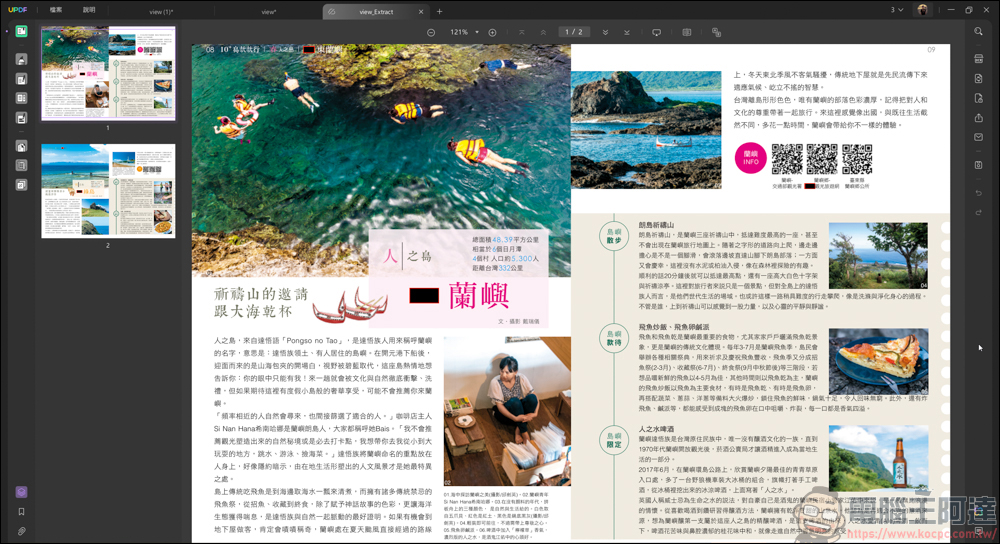
In this way, you can select the pages you want from the PDF and convert it into a new PDF, without having to slowly delete page after page:
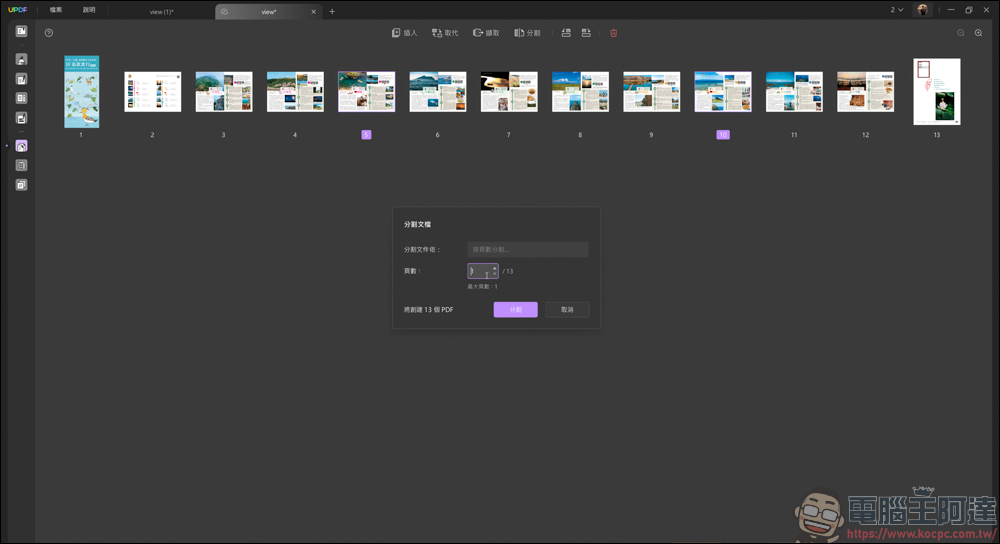
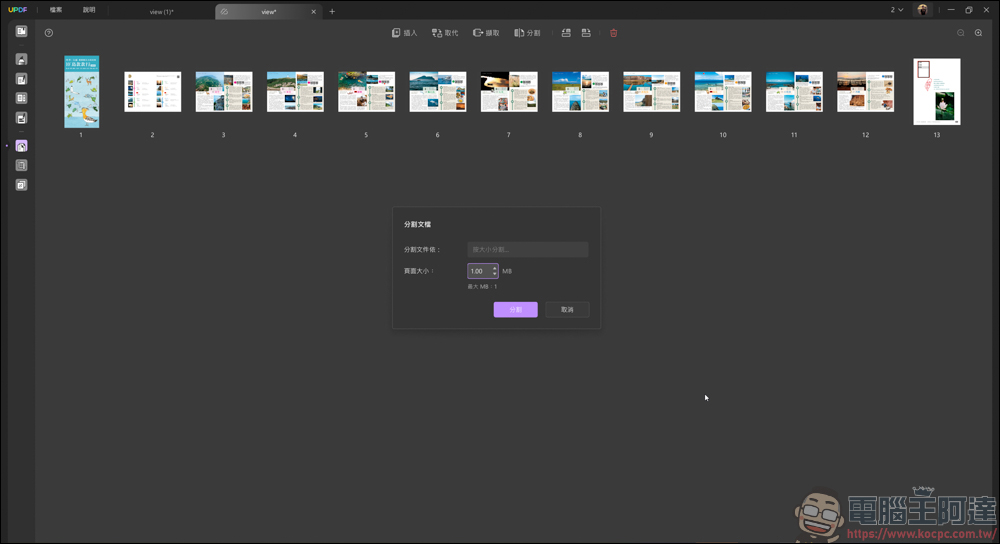
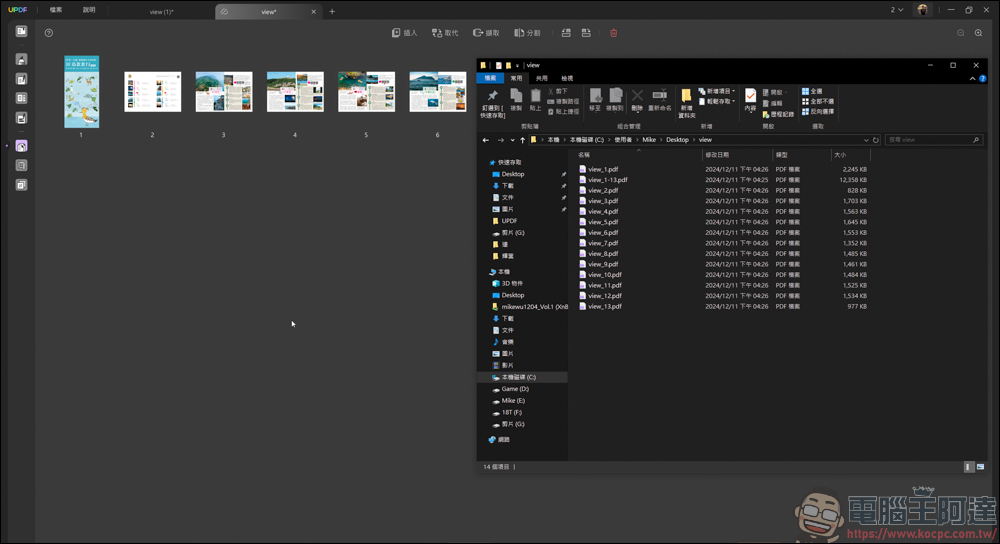
There are also some PDFs with too many pages or files that are too fat. You can also divide the content or size of the PDF by splitting it, which will make it easier to transfer or read the file:
UDPF Computer King Ada Readers Exclusive $5 Discount
DNWAD1213
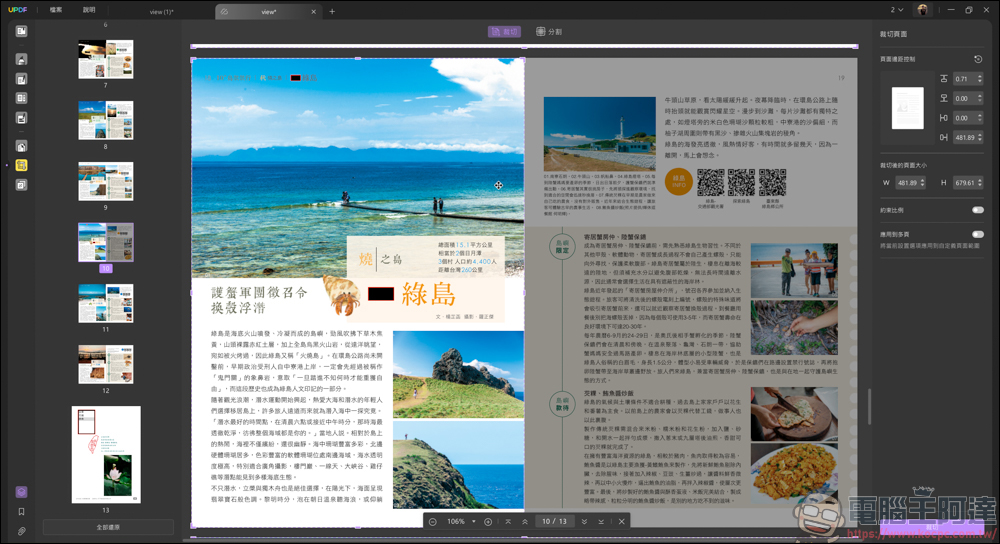
The sixth is to cut the page. You can cut the PDF content into the screen content you need:
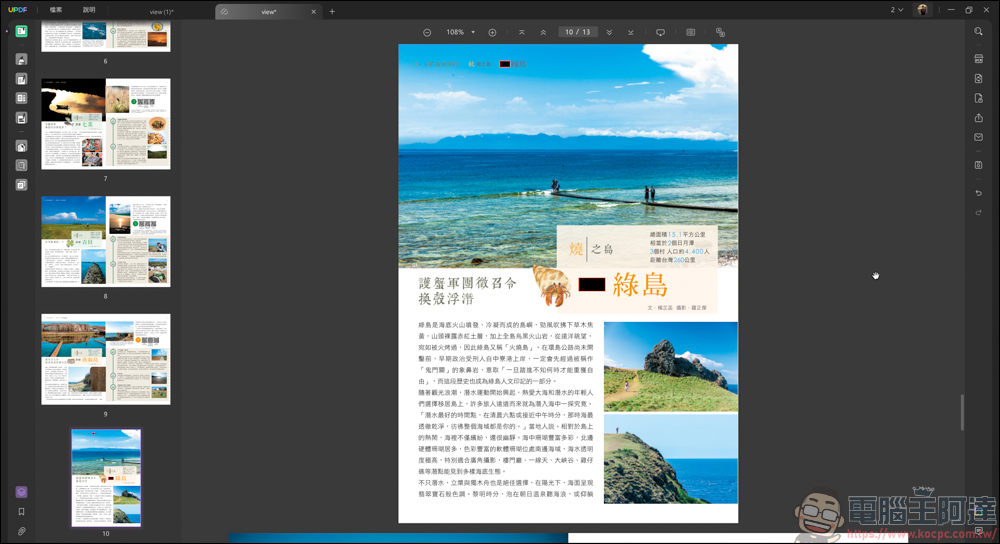
Or use segmentation to cut the original picture into the number of grids you want to present. This part can also be done with UPDF:
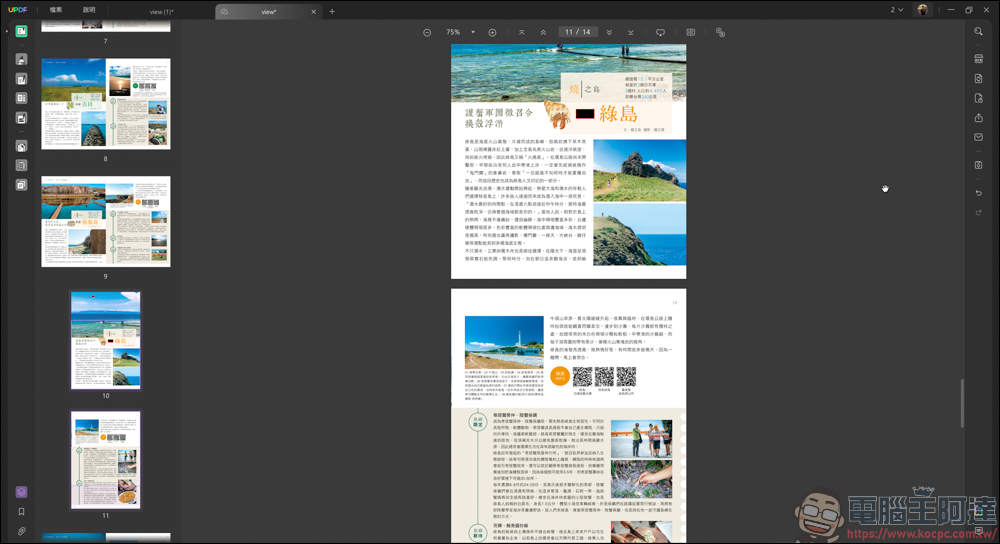
The seventh is the page tool:
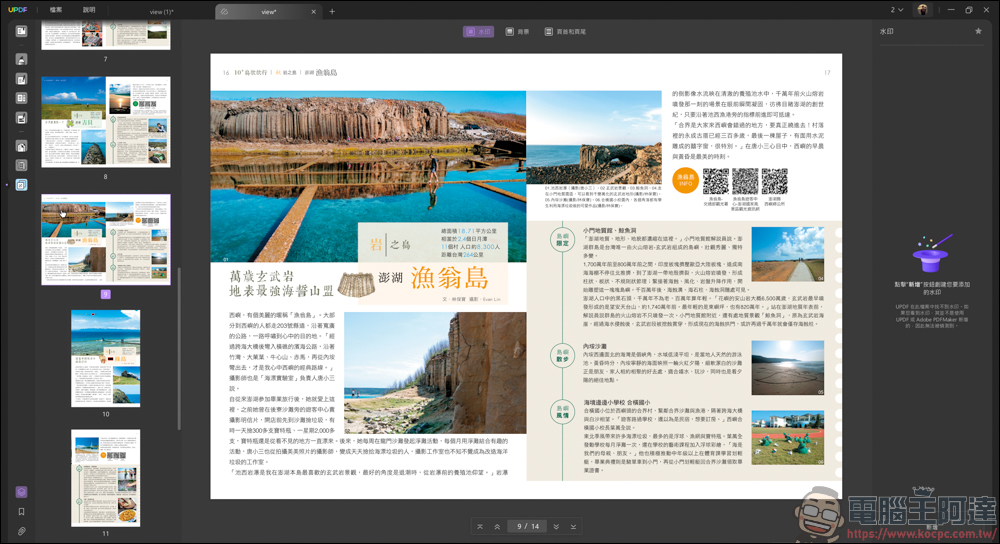
If you want to have copyright protection on this PDF, you can choose the watermark tool above to quickly add a watermark to your PDF, so that your file can reduce the chance of theft and leakage:
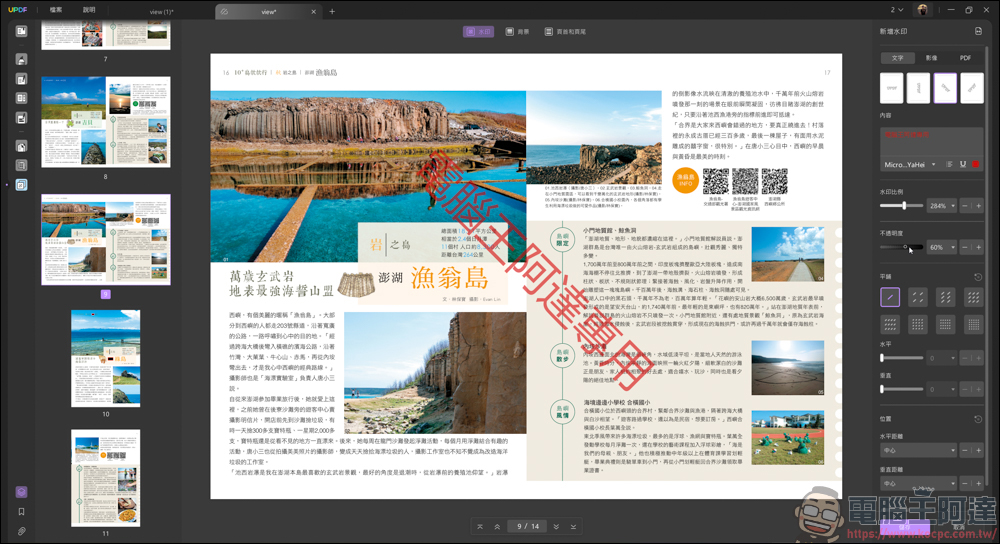
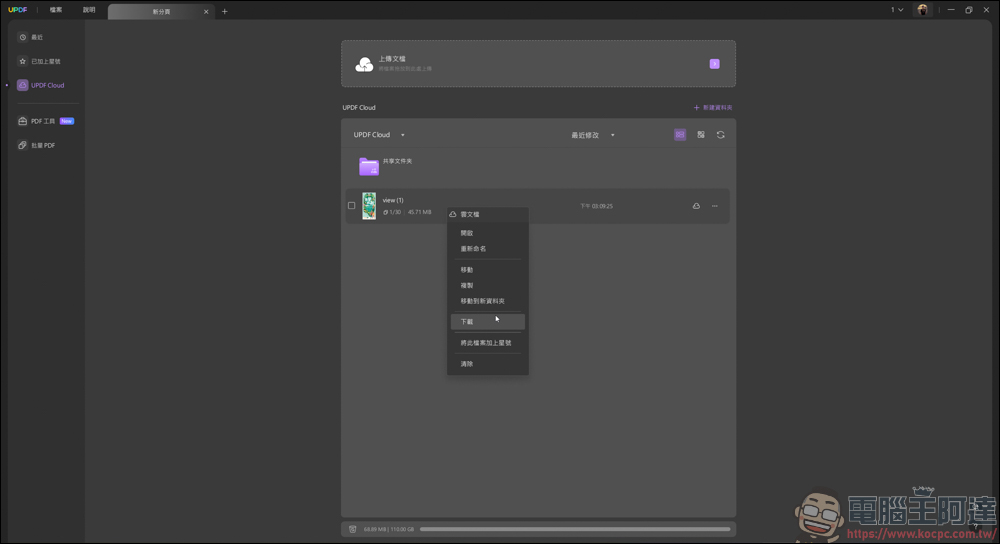
Purchasing UPDF also comes with a free cloud service, but its cloud function can only store PDF files and cannot store files in other formats:
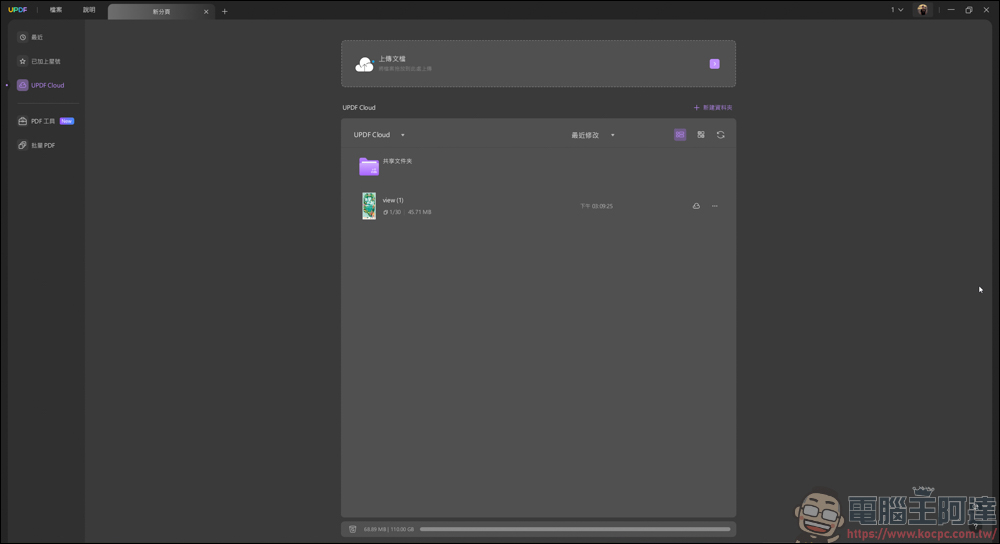
If you forget to take your files with you when you go out, the software that downloads UPDF can still download the PDFs in your cloud, which is very convenient. But the premise is that you have to upload the file to the cloud before you can download it:
Mobile device APP can also be synchronized
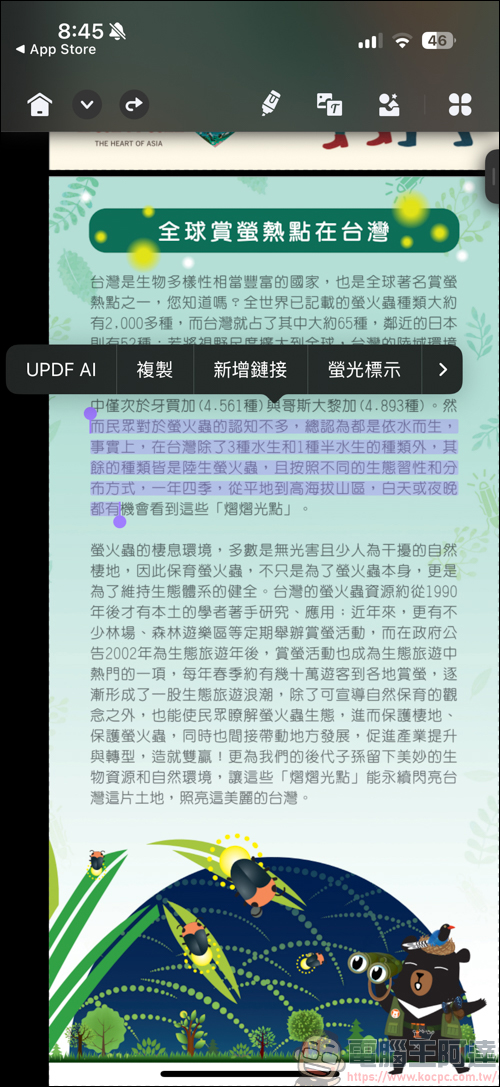
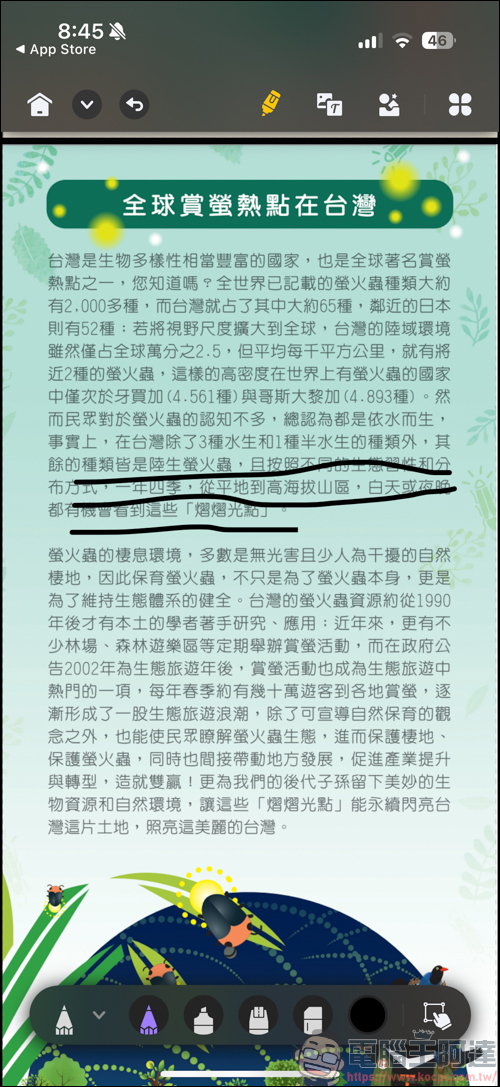
UPDF also supports APP applications on mobile phones and tablets. The iPhone is used as an example here:
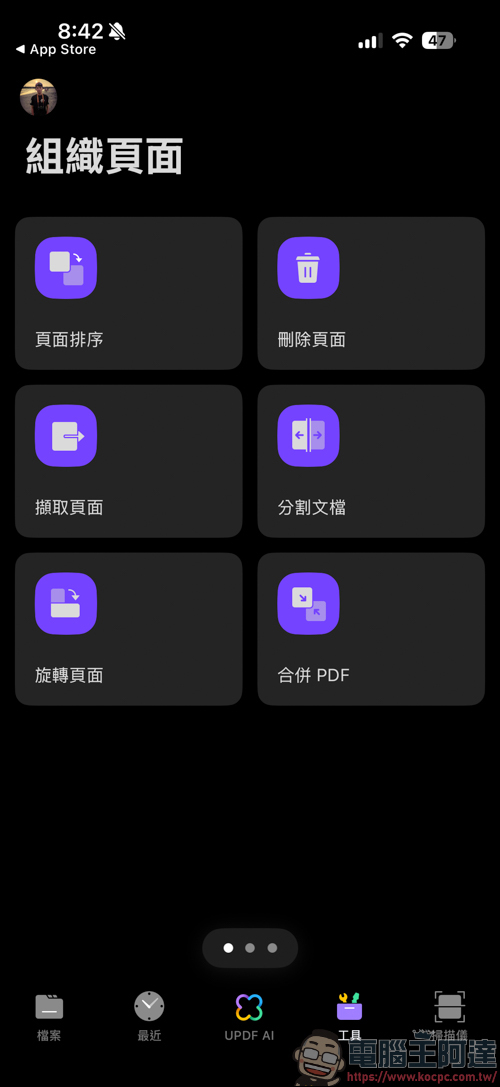
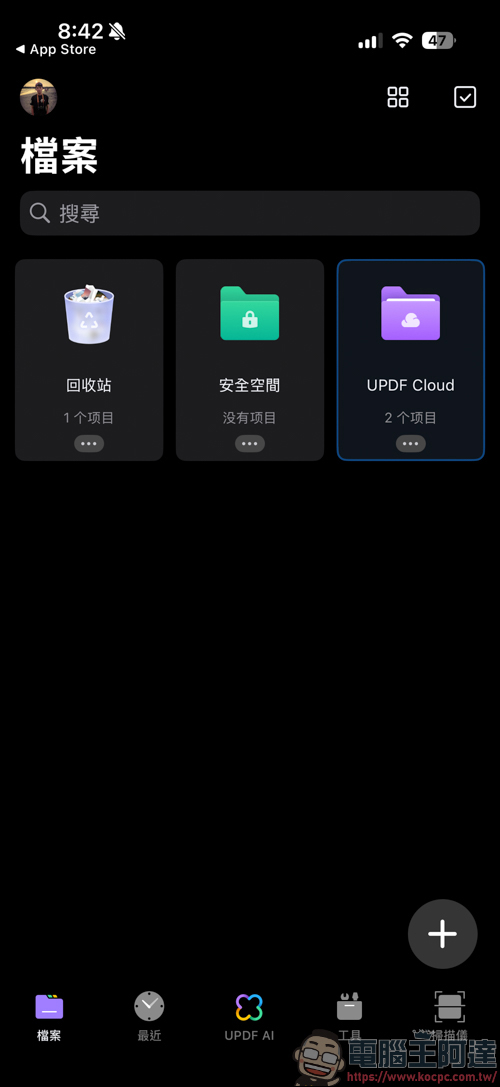
PDFs can also be read through the cloud using APPs on mobile phones and tablets. If your device has downloaded PDF files, you can also open them through the UPDF APP, or upload them to the cloud for use on multiple devices:
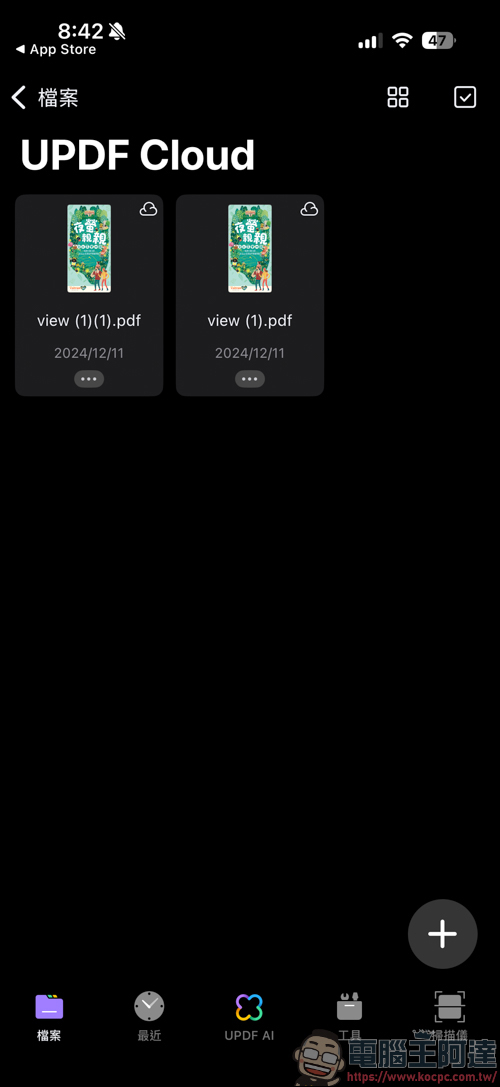

You can also edit PDF on the APP. Almost all the functions we mentioned above can be used on the APP. It can be seen that UPDF is very complete in the use of functions on multiple devices:
UPDF AI assistant makes your reading more convenient
What we just mentioned are all applications for editing PDF, but to make UPDF smarter and easier to use, you can try UPDF’s AI function. There is a UPDF AI function in the lower right corner of the software. Open it to call the AI assistant. The large language model used is OpenAI GPT-4o. This function requires an additional fee to use. If you find it practical after reading our introduction, you can consider purchasing it:
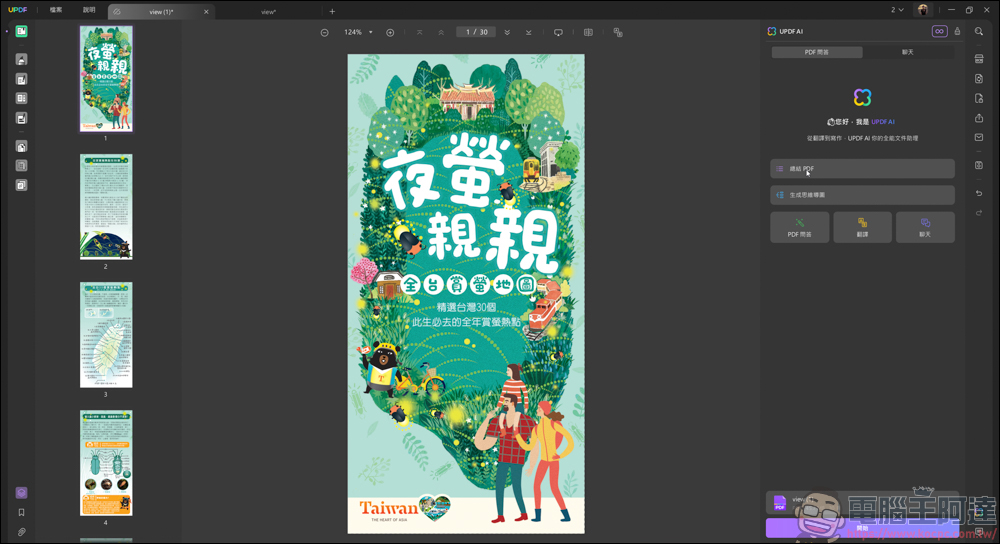
UPDF’s AI functions are divided into two types, one is PDF Q&A and the other is chat. The first is PDF Q&A, which can perform AI summary, translation, abstract, generate mind map, etc. on your PDF:
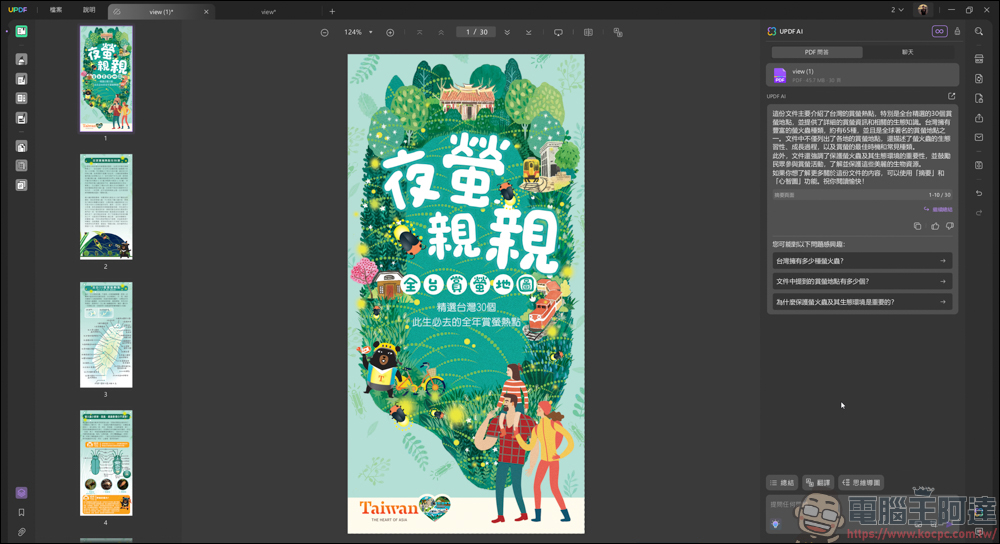
Some of the more commonly used functions can be found in the small light bulb below:
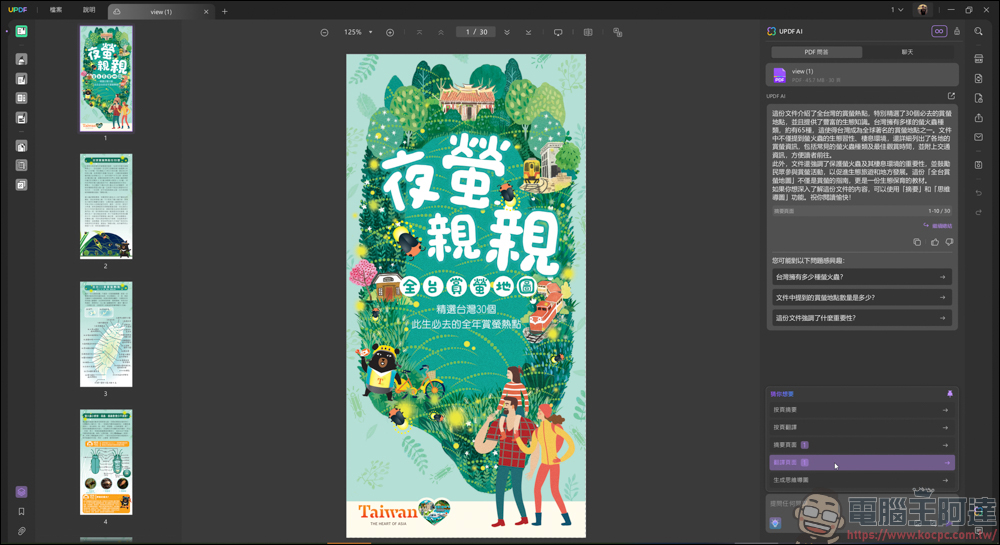
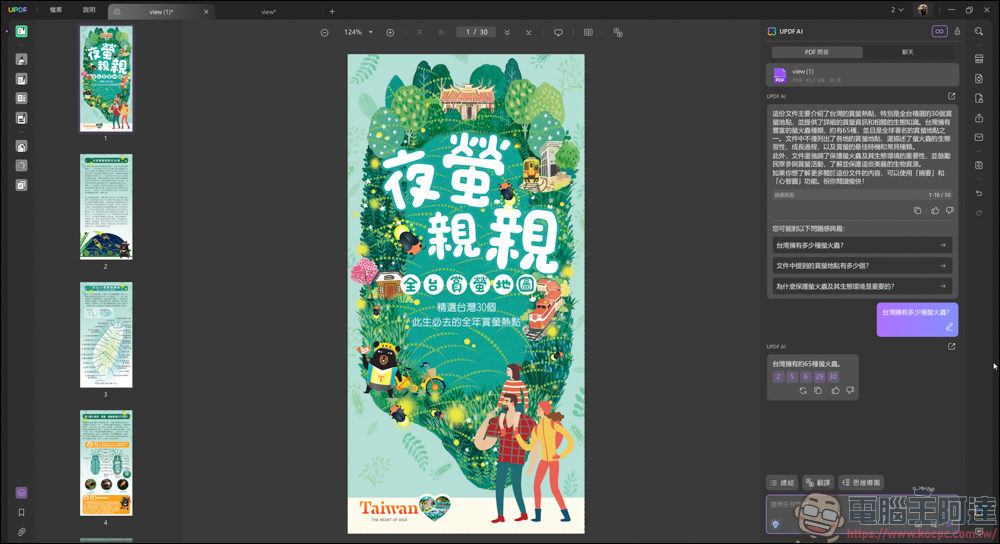
In addition to asking about the summary, you can also continue to ask questions about it. In this way, you don’t have to read slowly word by word. The AI assistant can help you quickly sort out the key points:
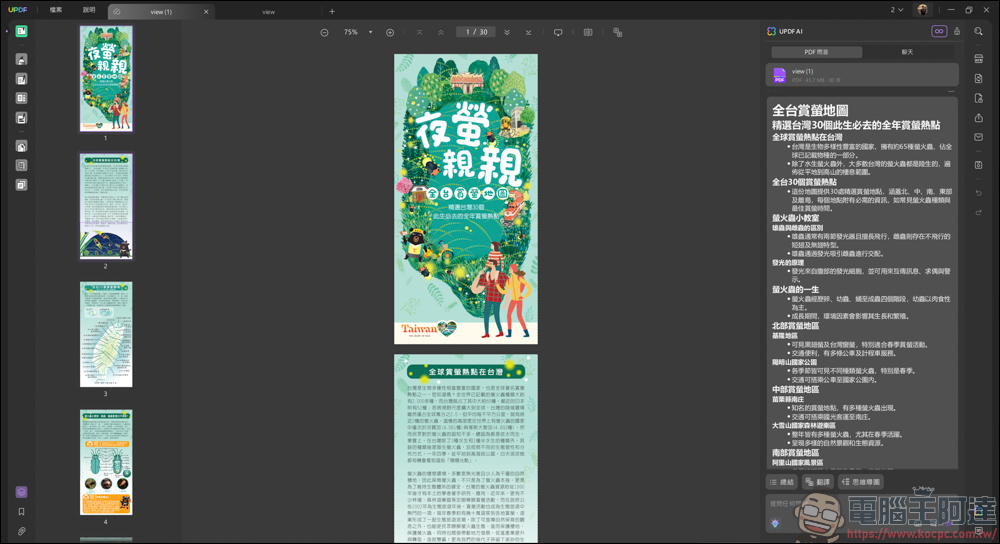
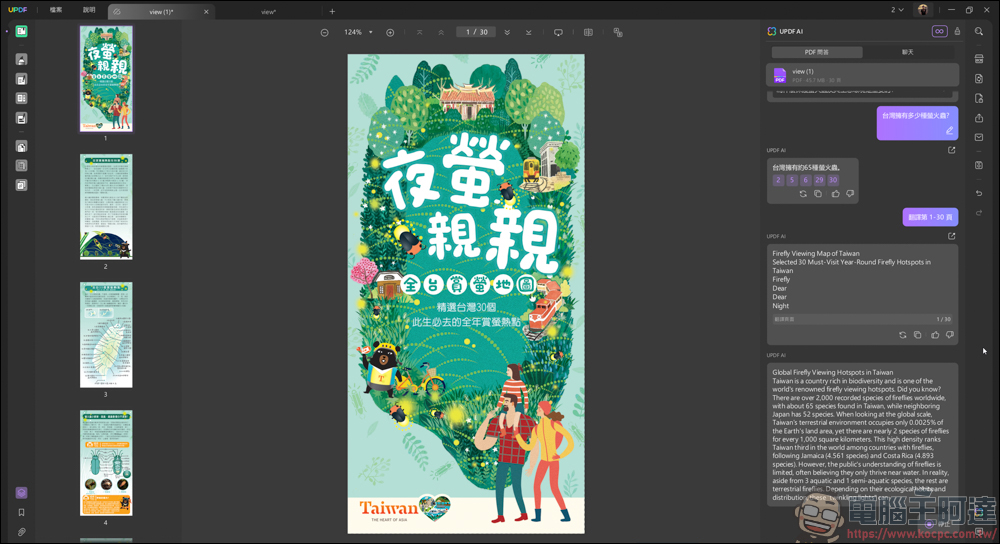
In addition, it also has a translation function, but if you have a PDF with many pictures like this, it is recommended to use the full-page translation demonstrated earlier. The AI translation method here is more suitable for text-only PDF files:
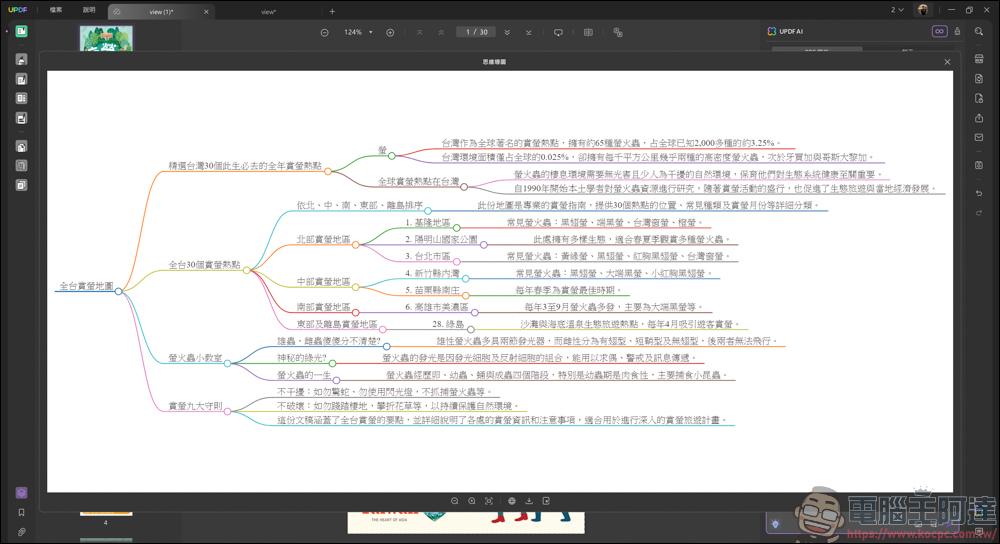
UPDF’s AI function can also generate mind maps. Through image generation, you can quickly understand the overall structure of this PDF:
Not satisfied with the content of this PDF? You can also directly ask AI how to improve this PDF in the PDF Q&A:
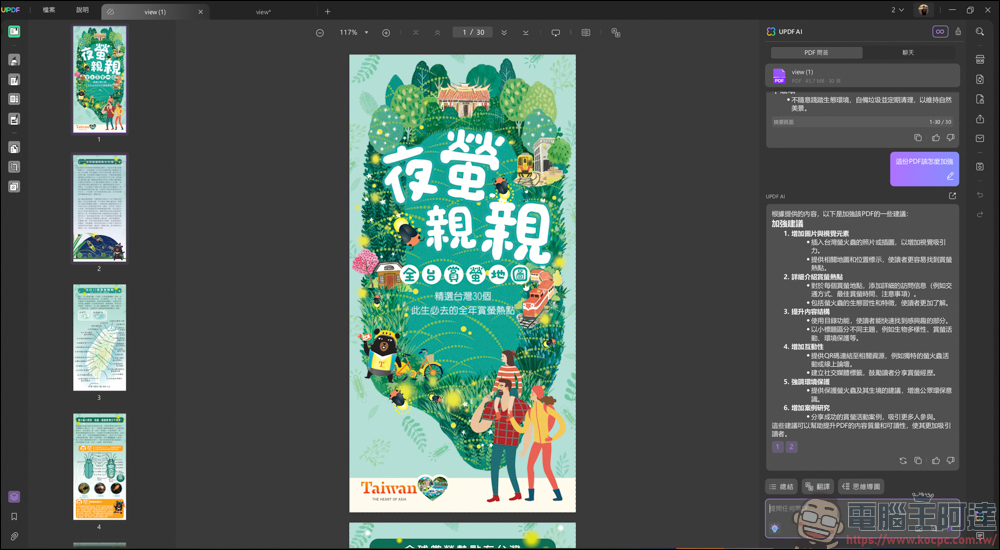
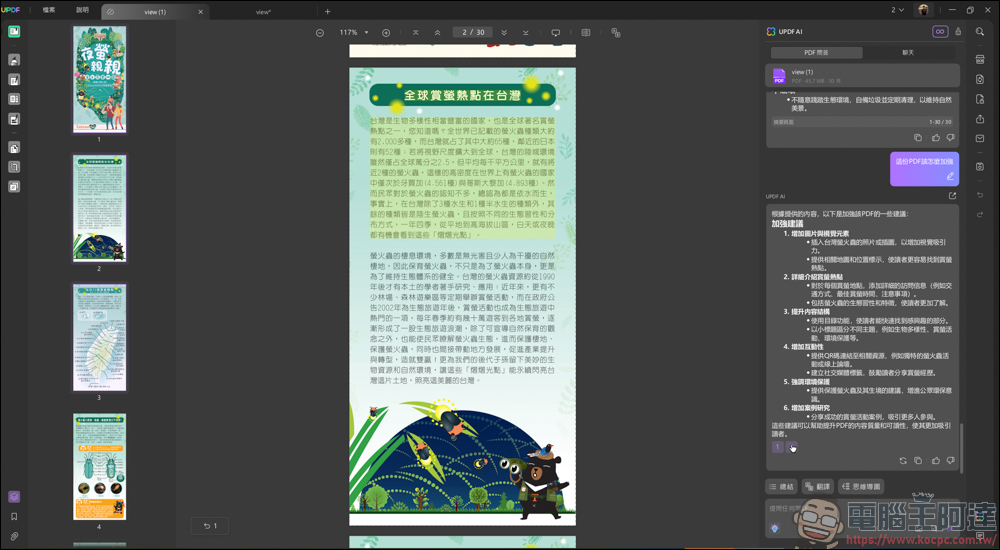
AI will put forward its opinions and suggestions to help you improve the content of this PDF:
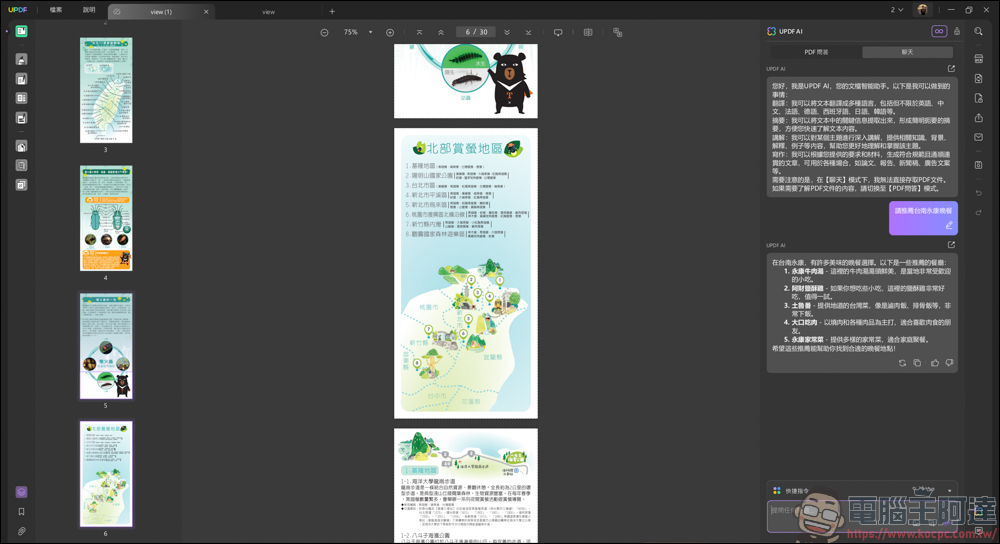
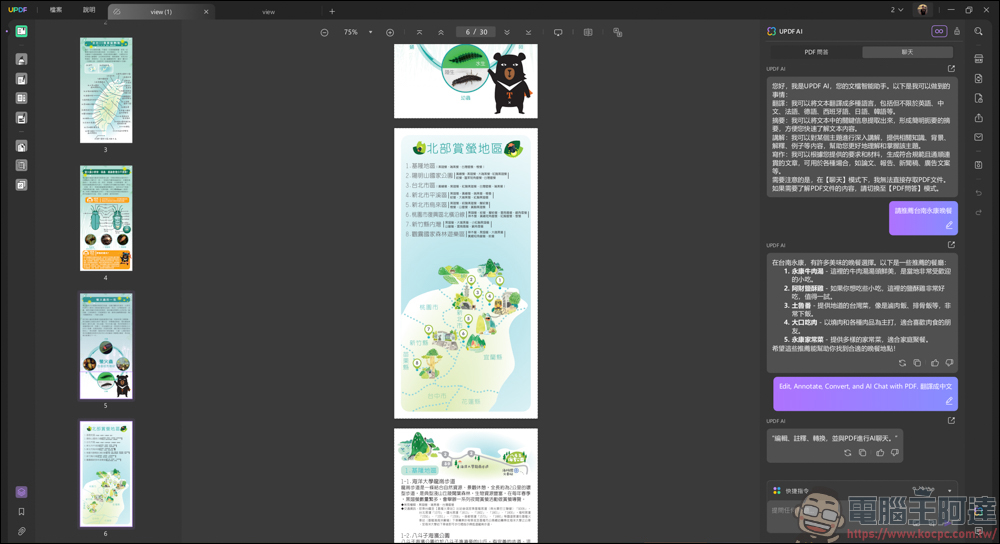
Finally, there is the AI chat function. In fact, it is a service of ChatGPT:
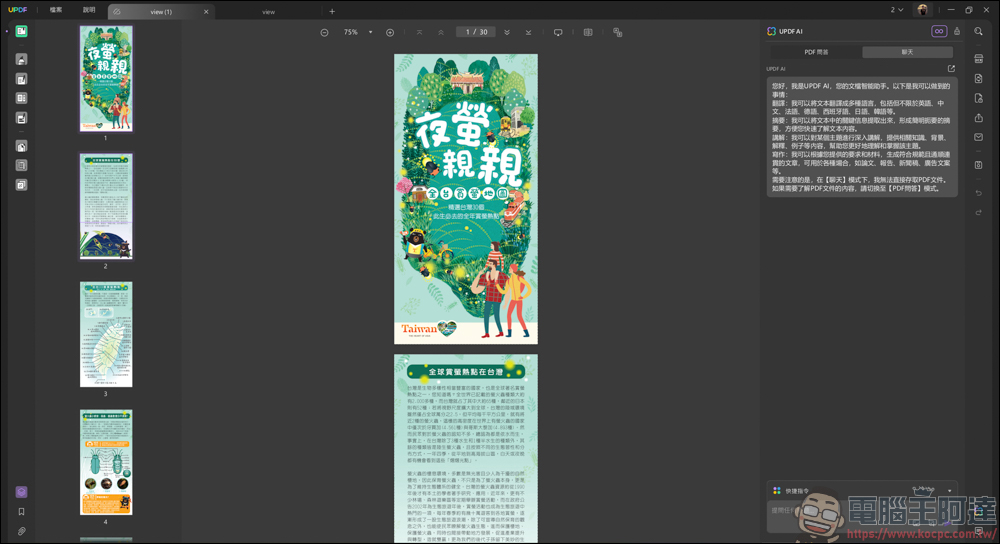
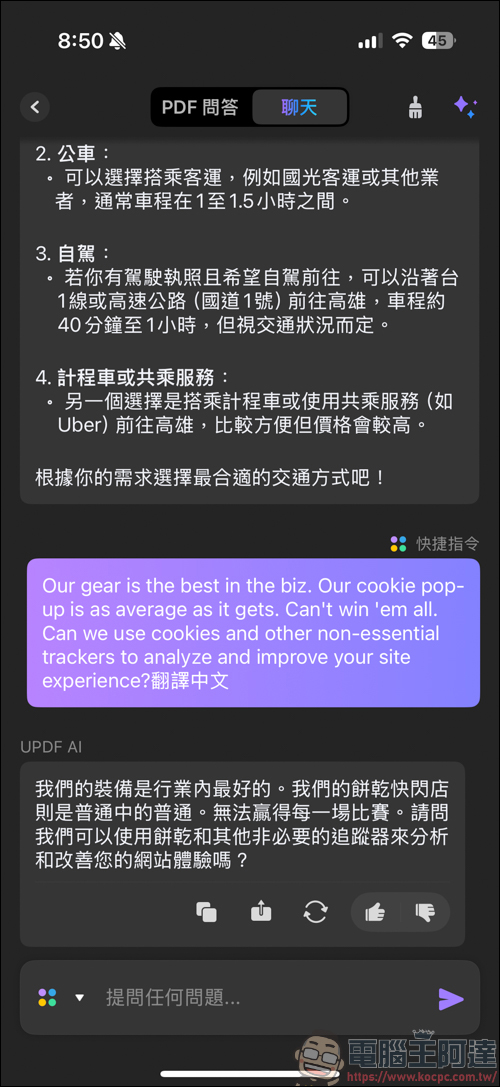
You can chat with AI in this window to see whether you want to ask about nearby attractions or ask AI to translate text for you. UPDF’s AI function can chat with you like ChatGPT:
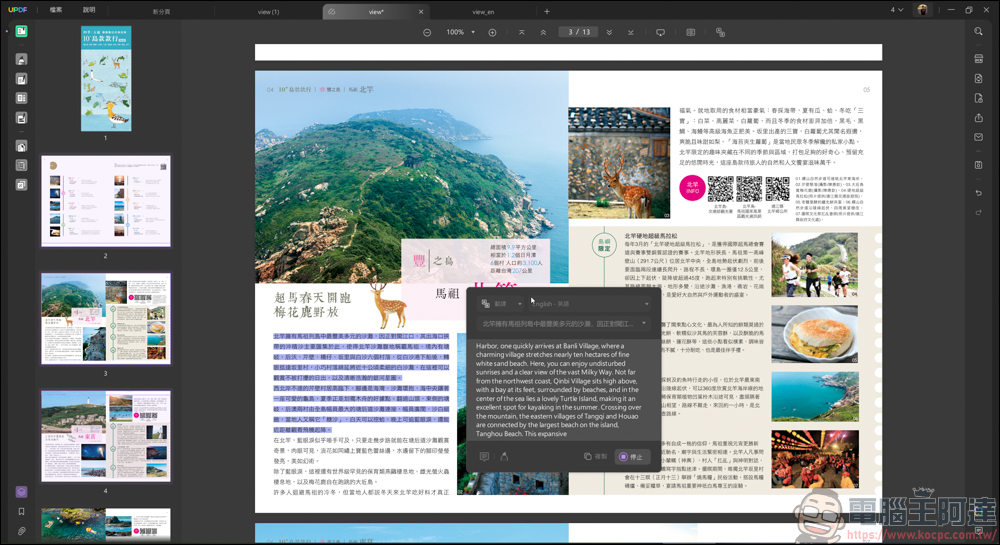
In addition, when reading PDF, you can also directly select text and let AI summarize, translate and explain it for you:
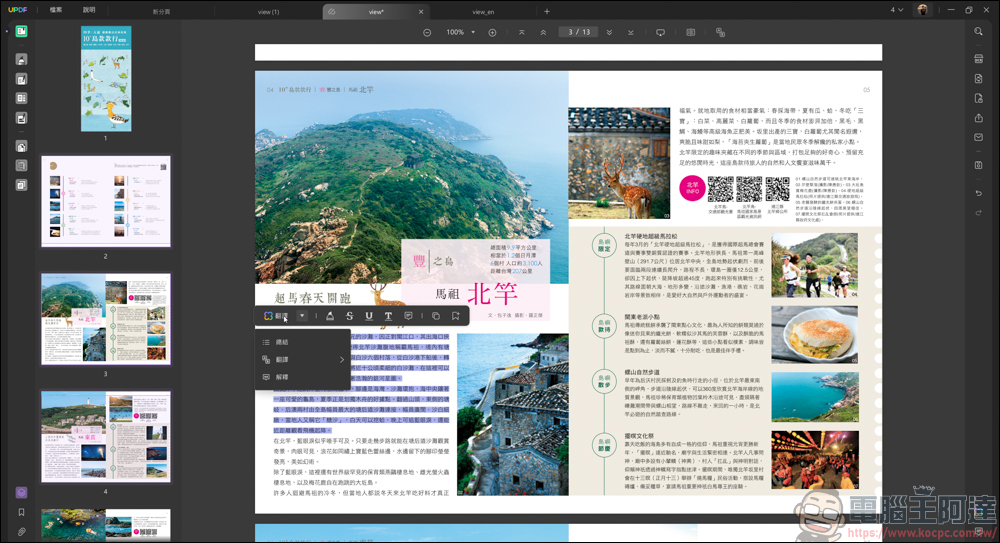
Using it like this, you can translate the text into a language you don’t understand, which is very convenient!
Mobile device APPs can also use AI functions
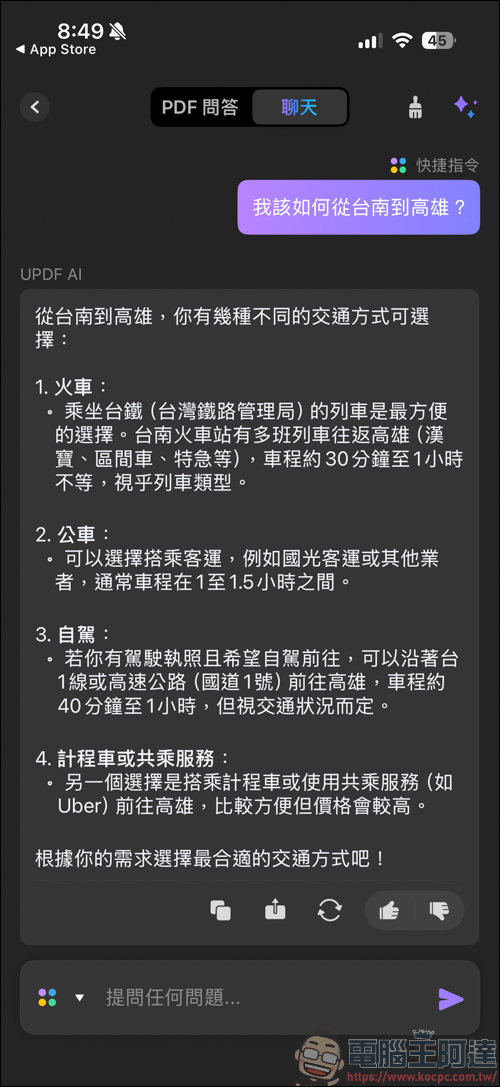
The same AI functions can also be used on mobile devices. That is to say, after you buy UPDF, in addition to being able to use it on the computer, most of the functions introduced today can also be used on mobile phones and tablets. To be honest, the cost of this cost is quite high!
UDPF Computer King Ada Readers Exclusive $5 Discount
DNWAD1213
UPDF usage experience
UPDF is a powerful PDF editing software that is both practical and cost-effective. It provides advanced PDF editing functions, such as annotation, text editing, image adjustment, cipher text protection, page cropping, conversion, etc. It also supports multi-device synchronization and cloud storage.
In addition, the built-in AI function in PDF software is quite new, and it also has the ability to work efficiently. For example, it can quickly complete PDF translation, summary, summary, and even create mind maps, which perfectly enhances the efficiency and convenience of PDF processing. In terms of price, UPDF provides a permanent buyout option, which is more economical and affordable than Adobe’s subscription system and is suitable for users with different needs. Whether you are an individual or a business, you can find the right solution.
Source: KOCPC Chinese