


Due to work requirements, I often need to project the Android phone screen to the computer. In the past, I used the method we introduced before Scrcpy, but this is through command prompt characters, which may not be easy to use for some people. Recently I discovered this more useful QtScrcpy, which is optimized based on Scrcpy. It not only has a UI interface, but can also set up wireless transmission of images and audio, and can even record the screen, bring the window to the top, stay awake, etc. It is also free and open source and very powerful.
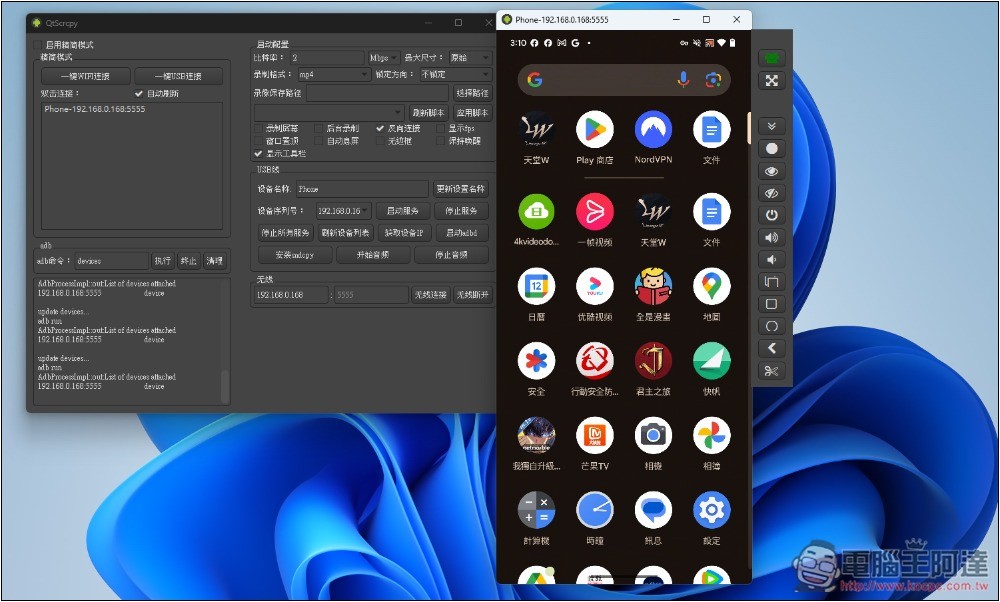
QtScrcpy is an open source free tool that can wirelessly project Android screen to computer
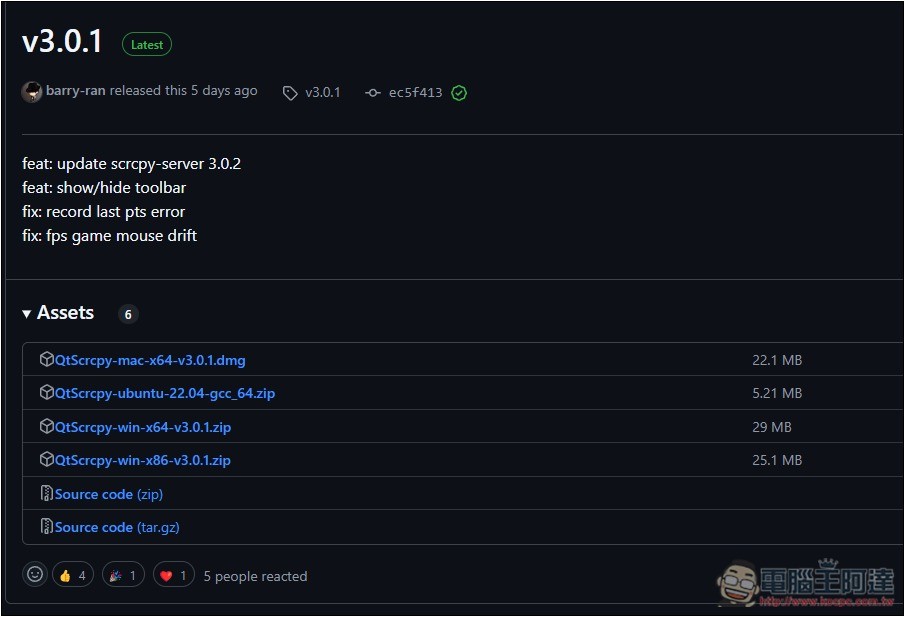
QtScrcpy is an open source tool. You can view the project and download the application on GitHub. It supports Windows and Mac. You can download which version depends on which operating system you have:
Before you start using it, you must turn on the developer mode on your phone. The turning on mode of each brand is different. You can check it on the official website or Google.
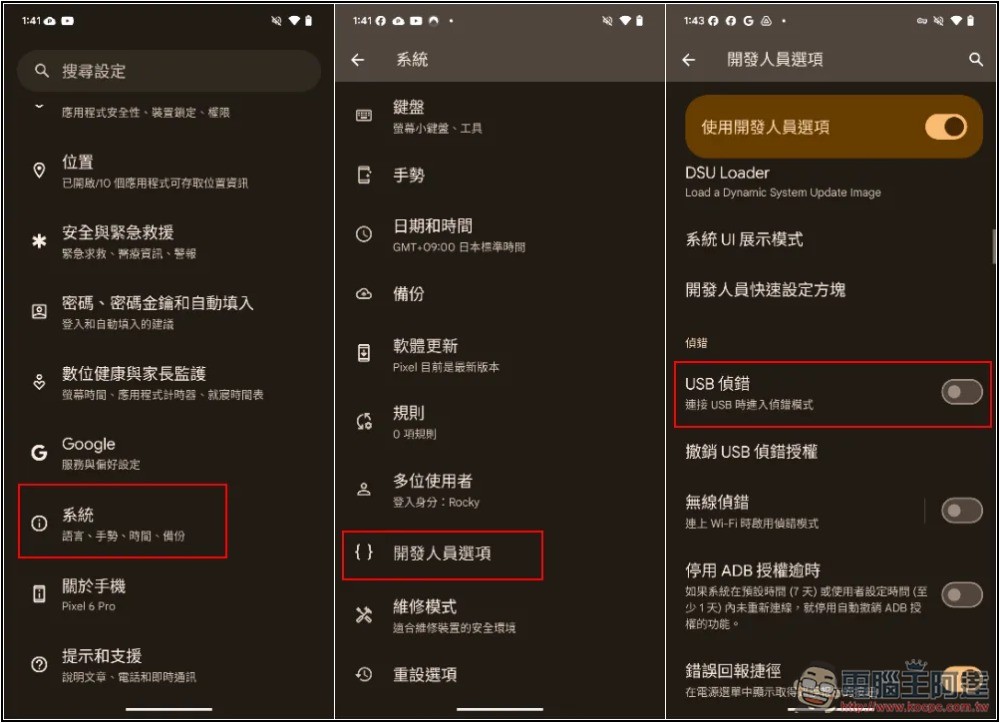
After turning on the developer mode, you also need to turn on the USB debugging function. For Pixel phones, after opening settings, go to System -> Developer Options, scroll down and you will see USB debugging, turn on the switch:
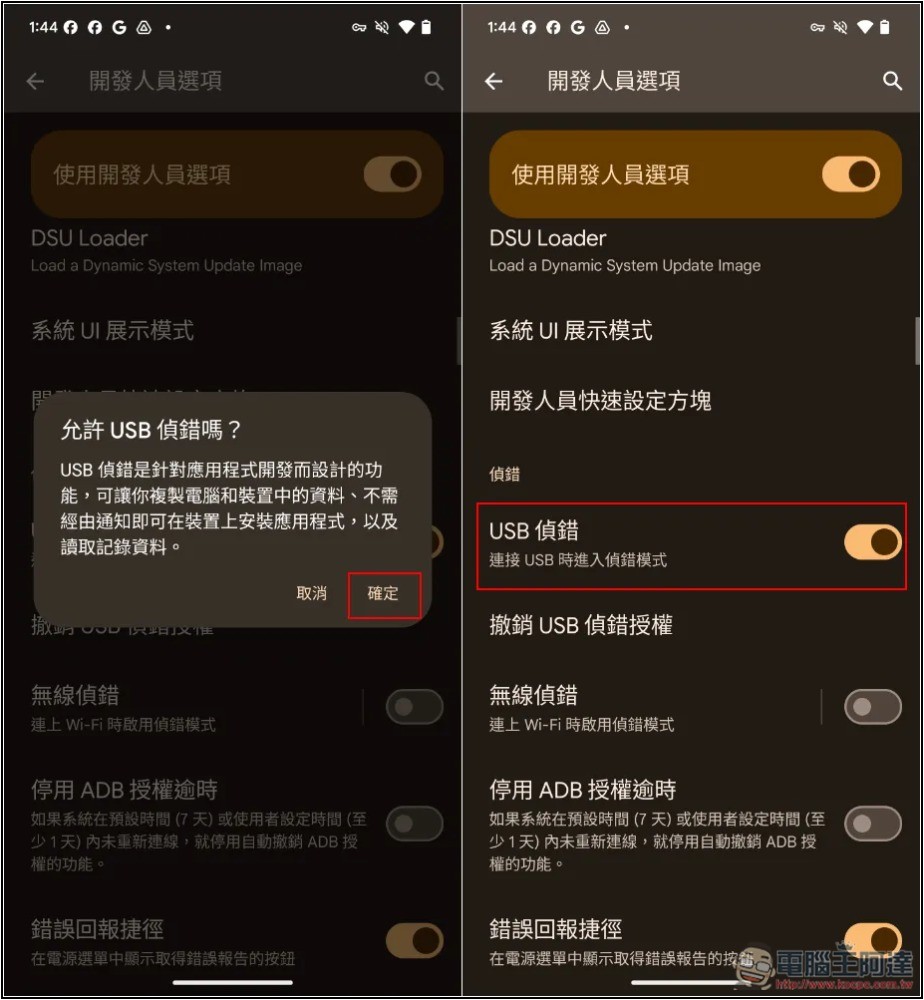
A prompt will pop up, click OK, and then you will see that USB debugging has been turned on:
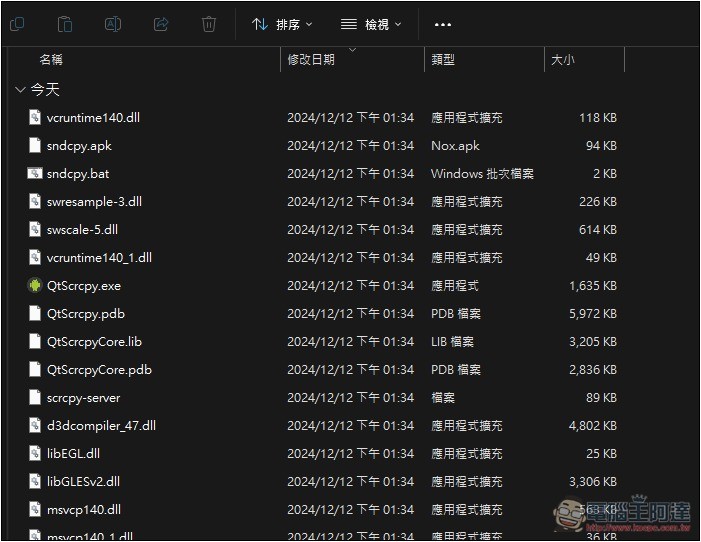
After decompressing the QtScrcpy you just downloaded, double-click QtScrcpy.exe to execute the application:
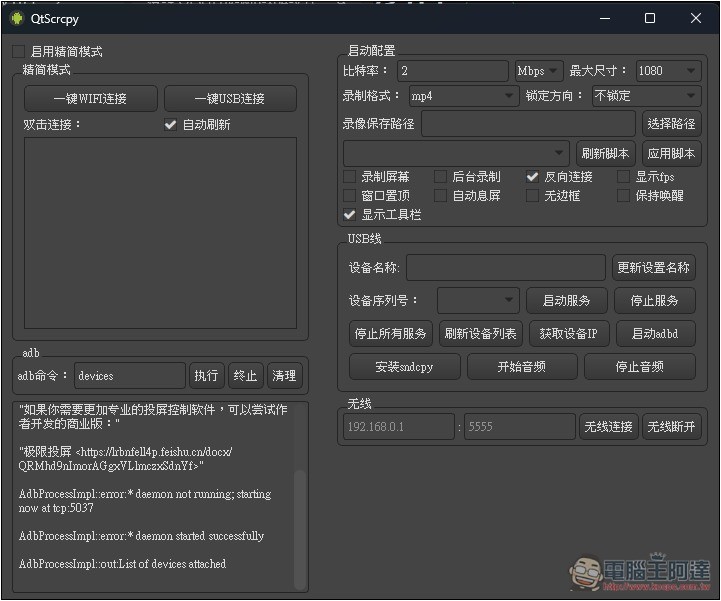
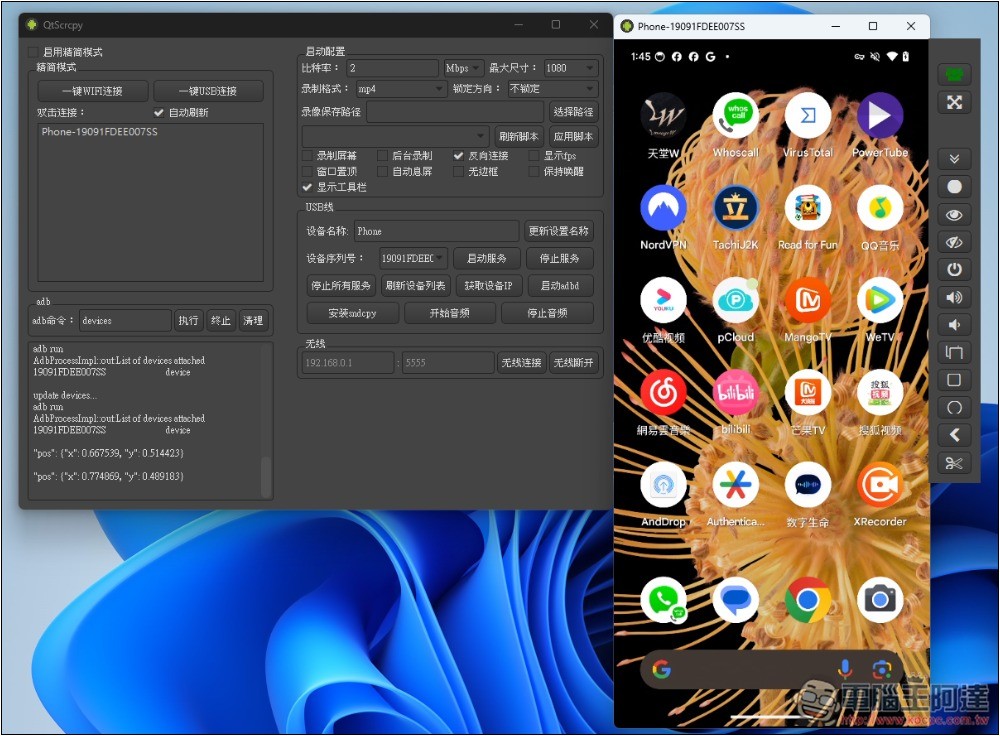
The picture below is the operation interface of QtScrcpy. It looks a little complicated, but in fact it is very simple. Double-clicking on the left side below the connection will display the connected Android phone. Currently, I have not connected Android to the computer, so no device is displayed:
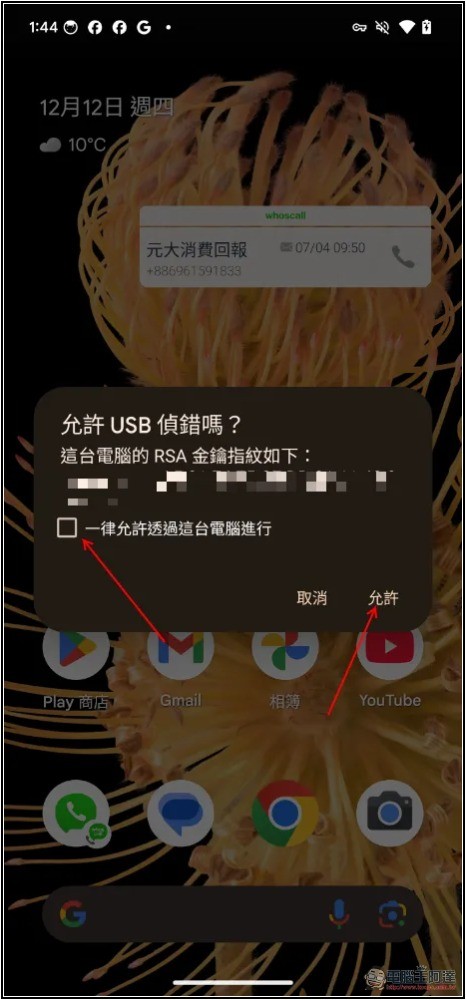
After the mobile phone is connected to the computer with a USB cable, a message will pop up on the screen asking whether to allow USB debugging. Click Allow. If it is your own computer, you can check “Always allow through this computer” so that you do not need to allow it again in the future:
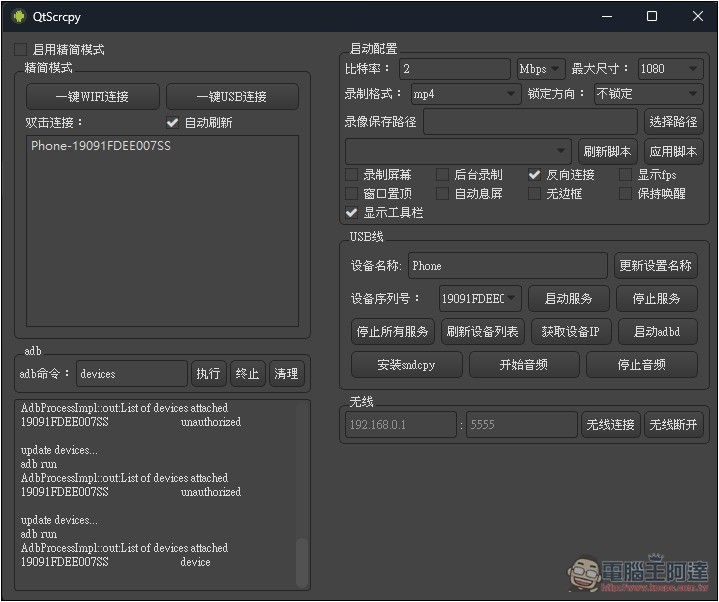
The mobile phone will appear in the list on the left side of QtScrcpy. Click twice to open the screen:
The phone screen will appear, and you can use your mouse to control your Android phone without using your phone:
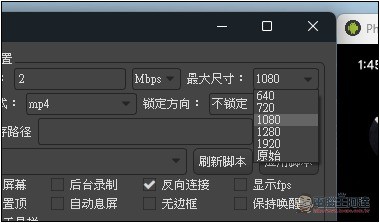
The default resolution is 1080, it is recommended to change it to original, so that the picture quality will be better:
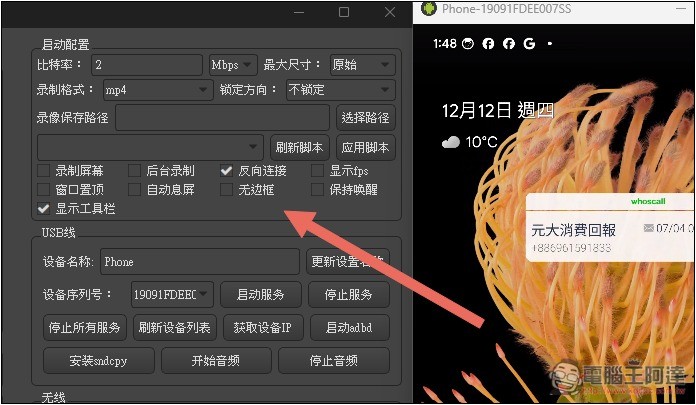
There are also some options below, including screen recording, background recording, display FPS, window on top, automatic screen break, no borders, stay awake and other options. You can turn them on if necessary, but you need to restart the screen to take effect. If you want the screen of your Android phone to be dark when the computer is operating, turn on the automatic screen break:
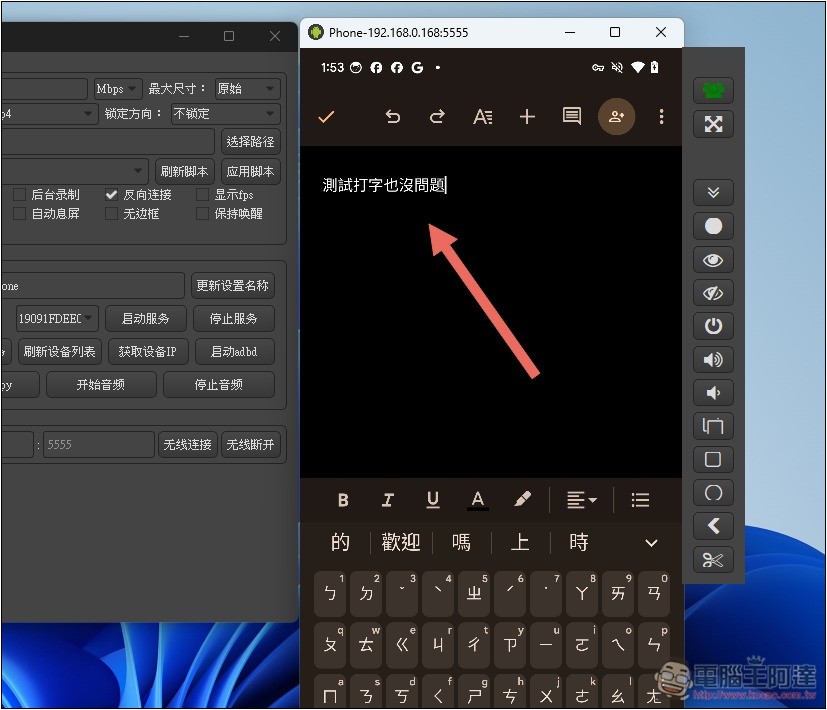
In addition to using the mouse to control the mobile phone screen, it is no problem to type directly with the computer keyboard, but remember to switch the mobile phone input method to Zhuyin:
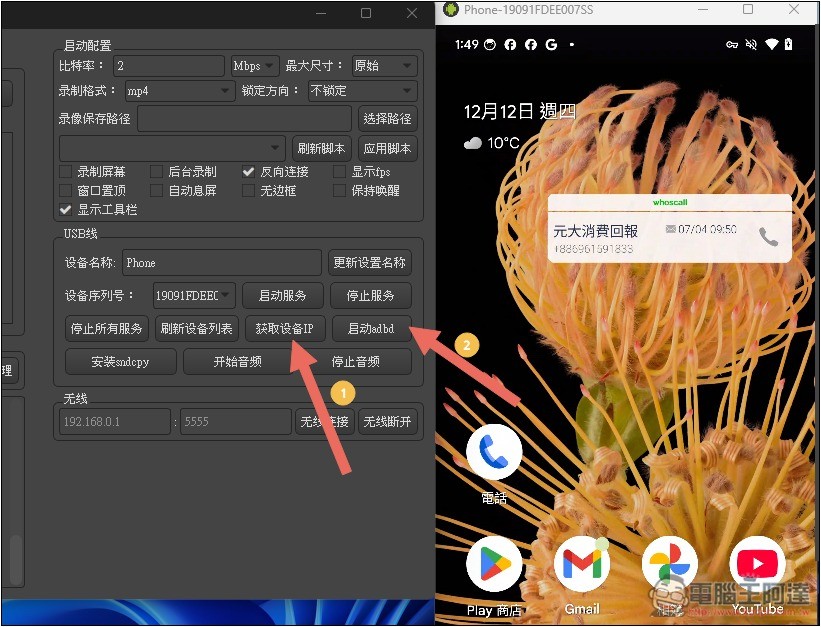
If you want to change to wireless projection screen, then click “Get device IP” below, and then click “Auto adbd”:
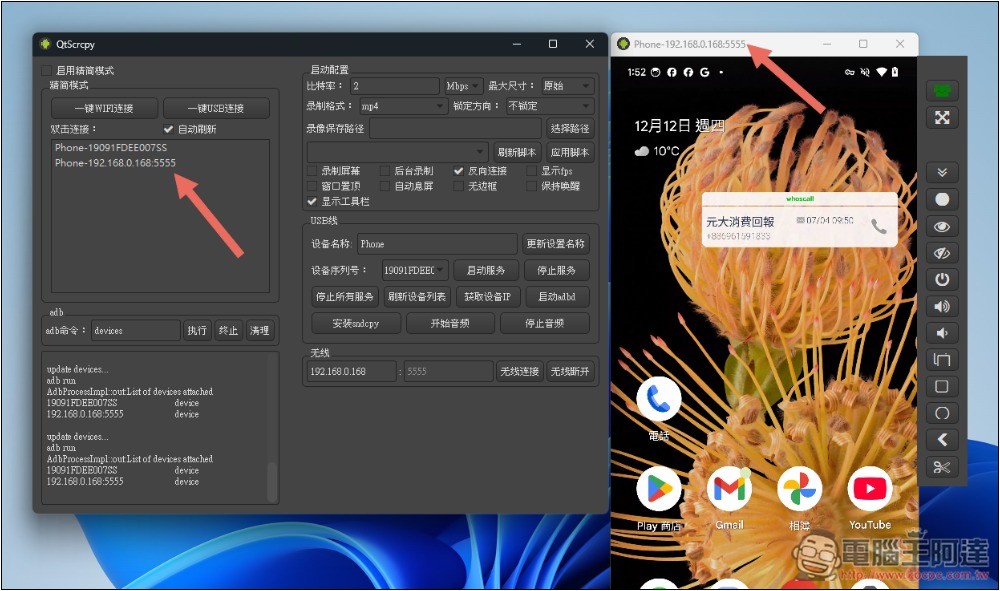
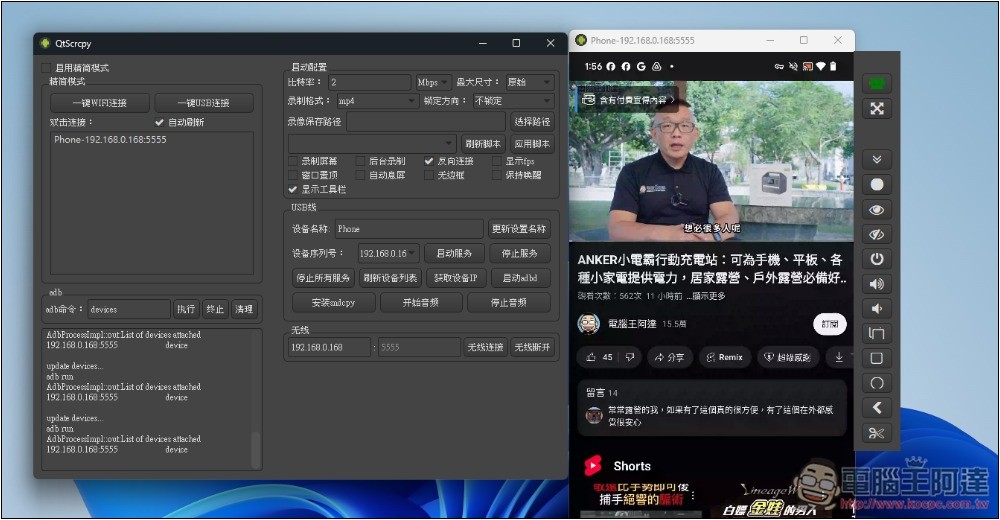
A device with an IP address will appear in the list on the left. This is through wireless transmission. Click twice to open the phone screen. The IP address of the phone will be displayed at the top of the window. Unplugging the USB will not affect it at this time. The screen will still be:
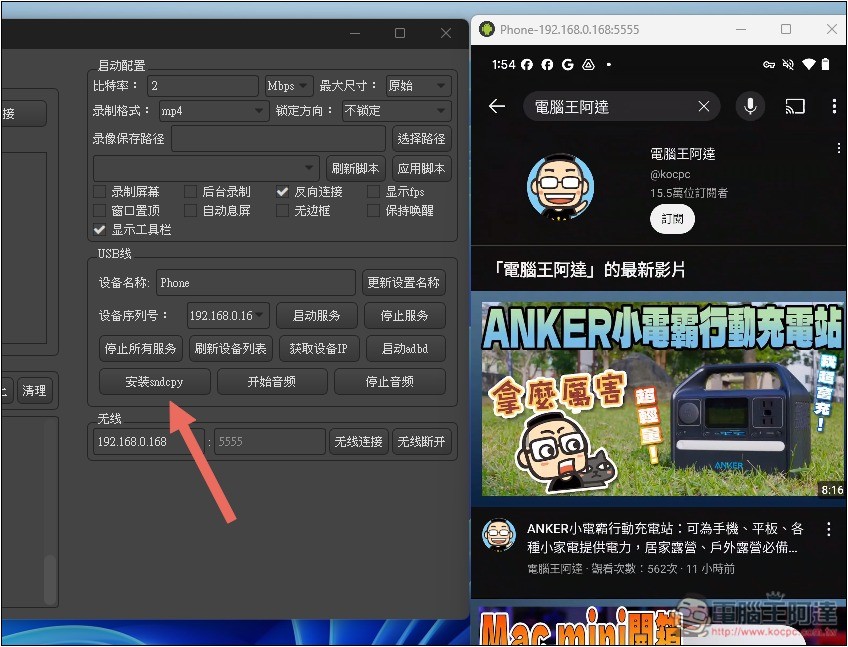
If you want to transfer the sound from your Android phone to your computer for playback, you need to install sndcpy, which is also an open source tool. Click “Install sndcpy” below:
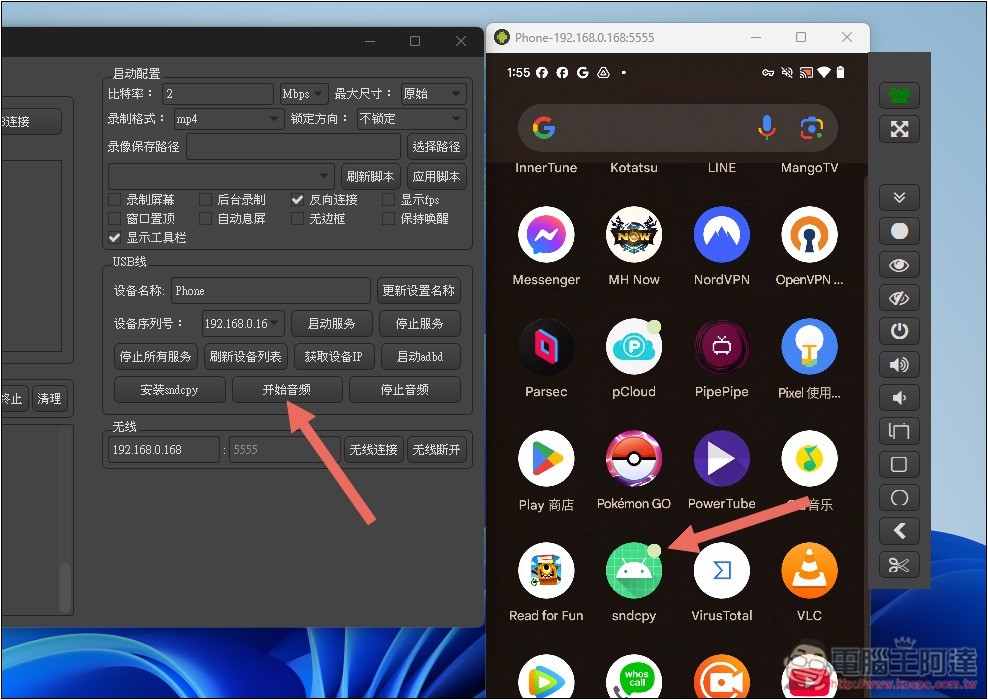
After installation, you will see sndcpy in the Android App list. Then press QtScrcpy’s “Start Audio”:
When playing the video, the sound will come from the computer:
Source: KOCPC Chinese