


After using Windows 11 for a period of time, big and small problems will appear. Sometimes it may be difficult to solve and the cause cannot be found. At this time, many people may choose to reinstall Windows 11 like me.
Although refilling is not a difficult task, there are many important things that you must check first so that you don’t have to worry about encountering any problems after refilling. Here are 5 of them.

1. Back up your data
No matter what refill method you adopt (even if you choose the option to retain data), be sure to check whether you have backed up important data. This is definitely the most important thing before refilling.
If you want to know if there is any useful backup software, we highly recommend it AOMEI Backupper Professional, has various backup modes, and even provides the function of cloning the hard disk. I used it to easily transfer the system disk when I updated it.
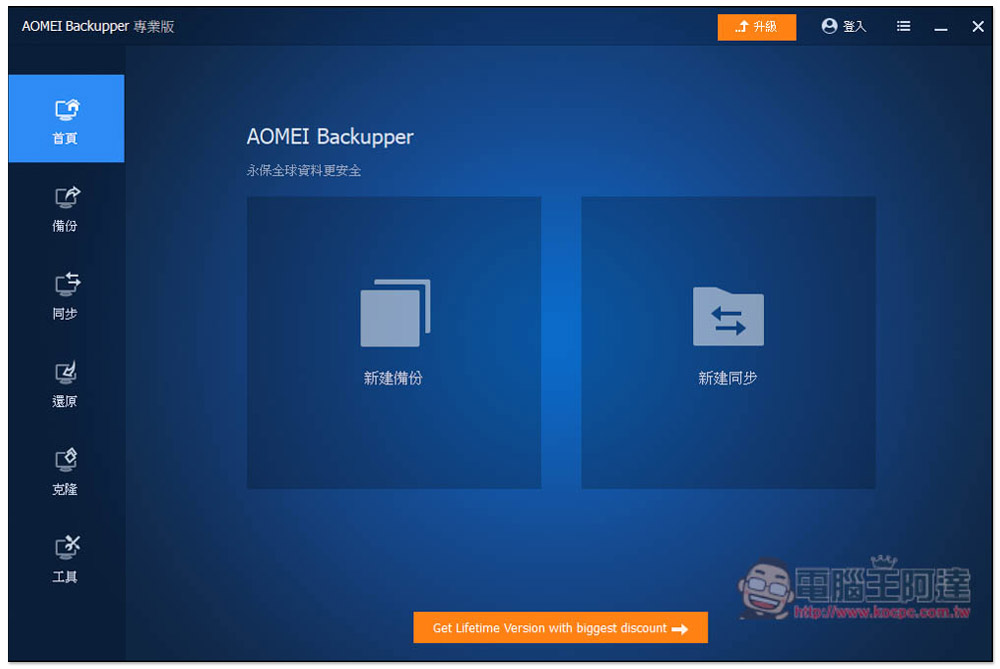
If you don’t know whether there is important data in the hard drive, you can find an external hard drive with the same space as the computer’s internal hard drive and back it up by copying the entire hard drive. In this way, after refilling, if you suddenly think of a file that you need to use, you can find it on the external hard drive.
Of course, cloud hard drives will also work, but compared to other external hard drives, the backup speed will be much slower.
2. Note what is currently installed on your computer
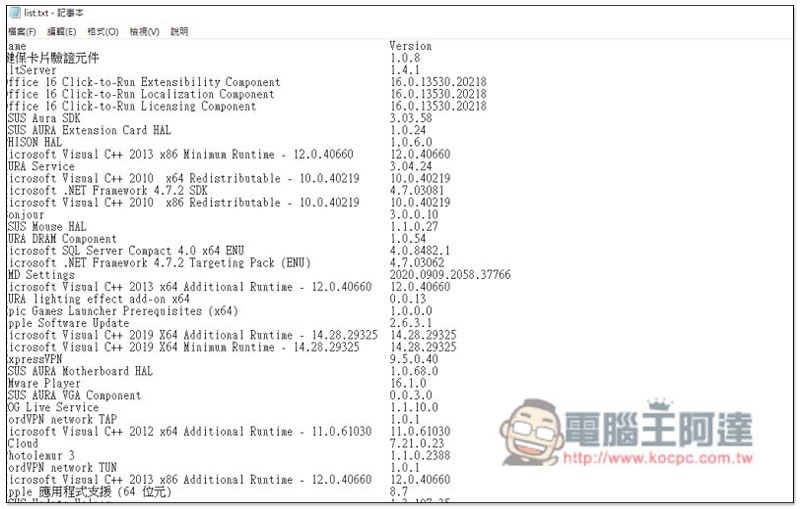
This is something I will definitely do before reinstalling. Many people may be like me and install various software. Of course, not every one of them is used frequently, but it is needed in some situations. At this time, if you record the list of previously installed software, it will be easy to handle and can be easily reinstalled. Especially browser extensions, which are often forgotten.
Regarding the computer part, you can get all installed software and applications from the New and Removed Programs list in the console. You can also obtain all lists through third-party software, such as: NirSoft UninstallView. We have compiled 5 ways to record the names of your currently installed applications and software。
3. Check the software startup serial number
If you have paid software installed on your computer, in addition to recording the serial number, many software now have a limit on the number of devices. If the limit is full, you can first remove your current device. After refilling, you can reinstall the software immediately without worrying about the old device occupying space.
Some software can directly cancel device authorization online, but some require contacting the developer. It is highly recommended to deal with it before reinstalling. This will be much safer and avoid any situation that may cause you to be unable to continue using it.
4. Record Windows 11 serial number
After reinstalling, you may need to re-enable Windows 11, so remember to record the Windows 11 serial number for emergencies.
You can also check your Windows first to see if digital authorization is enabled using your Microsoft account. If so, don’t worry about this. The system should be automatically enabled when you log in with the same Microsoft account. The steps to check are as follows:
Settings -> System -> Startup, check if the startup status says “Windwos has been enabled using a digital license linked to your Microsoft account”.
5. Sync Windows settings
If you log in to a Microsoft account in Windows 11, you can enable the Windows synchronization function. In addition to synchronizing applications, preference settings can also be recorded. When you log in to the same Microsoft account again or use another computer, the settings and installed applications will be automatically synchronized. You do not need to reset them, which is much more convenient.
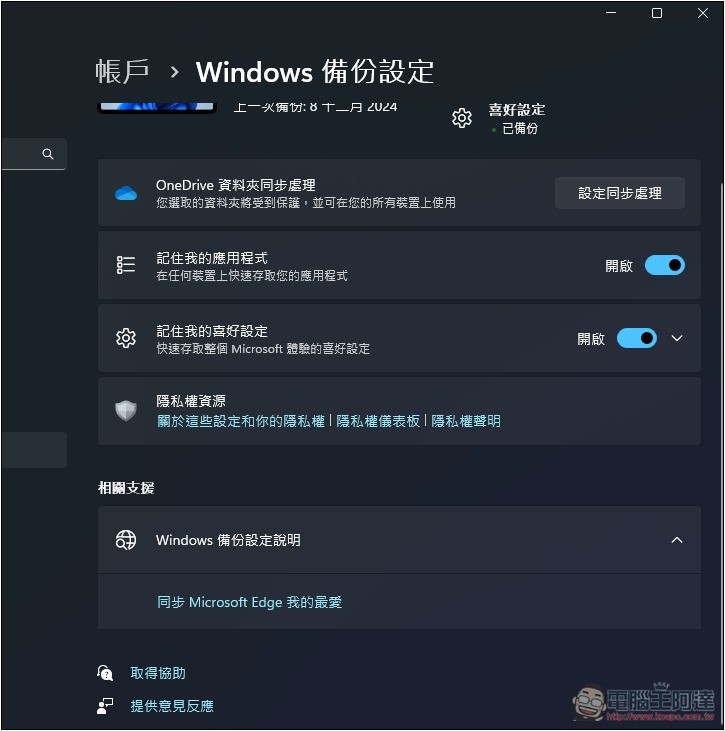
However, it should be noted that synchronization of installed applications is limited to those from the Microsoft Store. Others, such as downloading from the Internet, custom installation through installation files, etc., are not included and need to be reinstalled manually. The synchronization settings section will include Wi-Fi, personalization, language, etc.
Which Windows 11 reinstallation should you choose?
There are two ways to reinstall Windows 11. One is to retain the files and only reinstall the system, and the other is to cleanly reinstall the entire system. Which method you choose depends on the situation you are currently facing.
If you have a lot of important data on your computer and backup will take a lot of time, you can try to keep the files and reinstall the operating system, but this method may not solve the problem you encounter.
If you really want to solve it completely, clean and refill is definitely the best way.
Source: KOCPC Chinese