


Gemini These past few days it’s really been continuously evolving, not just new models. Gemini 3 Flash、Integrate NotebookLMThe image generation part has also become more powerful. The official account announced on social media the launch of a new “Doodle Editing” feature, which lets you draw the area (or shape) you want to edit directly on an image, then give prompts to Gemini, and Gemini will handle the rest. It’s safe to say you won’t need to use anything else for photo editing from now on. Photoshop Done.
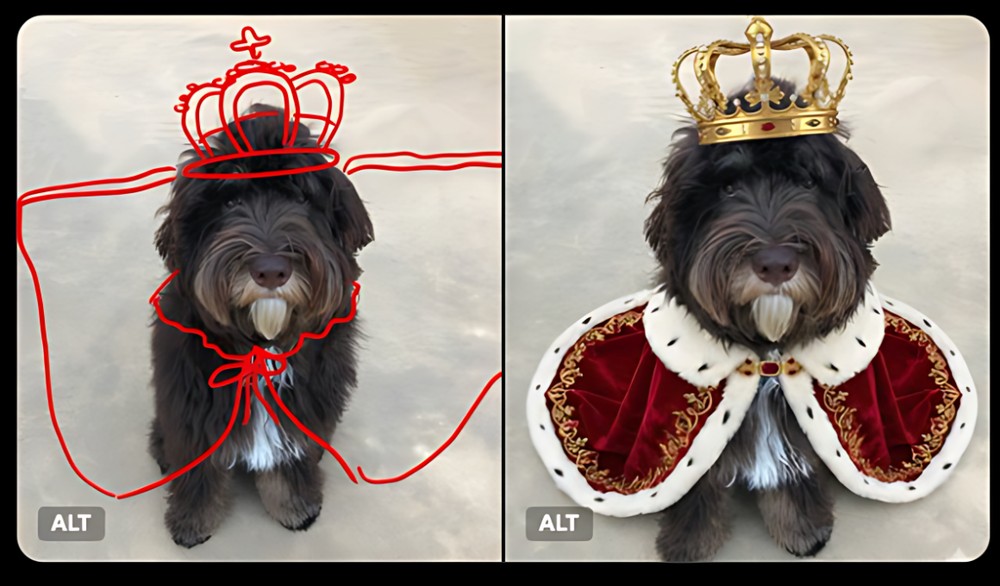
Image source: Google
No need to rely on Photoshop anymore! Gemini introduces a new “Doodle Editing” feature: letting you draw directly on images for precise edits.
Earlier, Google announced on its official X social platform the launch of a new “Edit images with doodle” feature. As shown in the before-and-after images shared by Google, the dog initially had no clothes on. By drawing the desired shape with the doodle feature and providing a prompt, Gemini generated an image of the dog wearing clothes and a crown. The technology behind this is, of course, based on the powerful Nano Banana model.
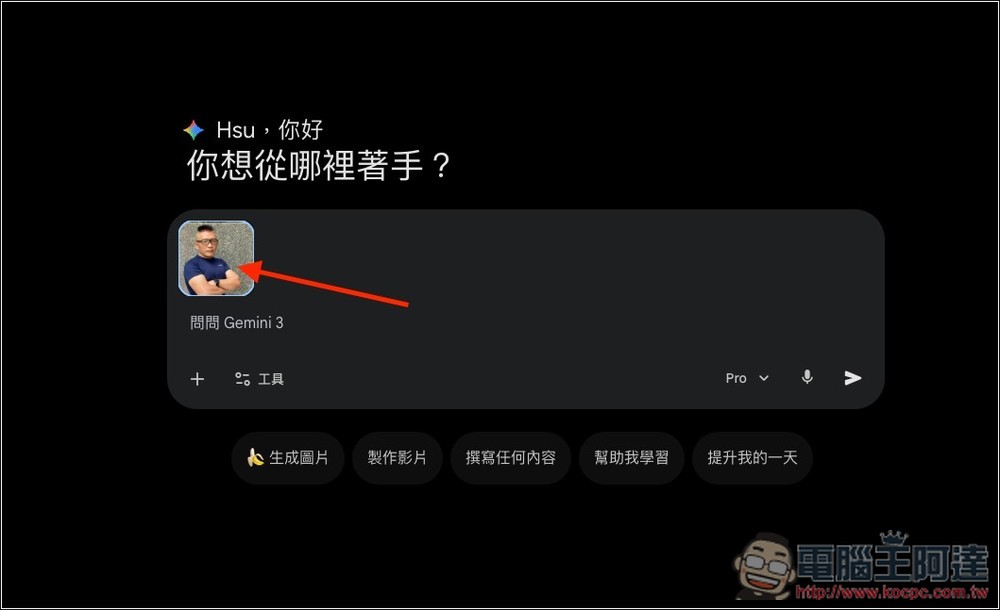
The usage is as follows: after uploading the image, don’t give any prompts—first click on the image you just uploaded.
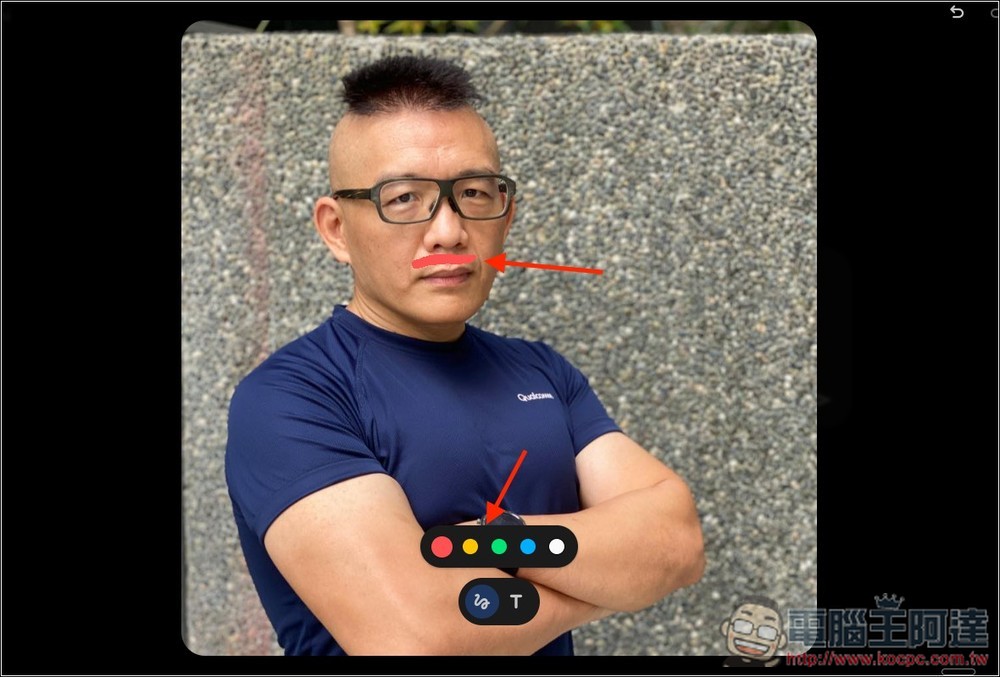
You’ll enter the editing area, which provides two tools: freehand drawing and text. For the drawing part, you can also choose a color. On Ada’s profile picture, I drew the red area where I wanted to add a mustache. The arrow was drawn separately when I took the screenshot; in reality, only the red line above the lips is there. After drawing, tap “Done” in the top-right corner.
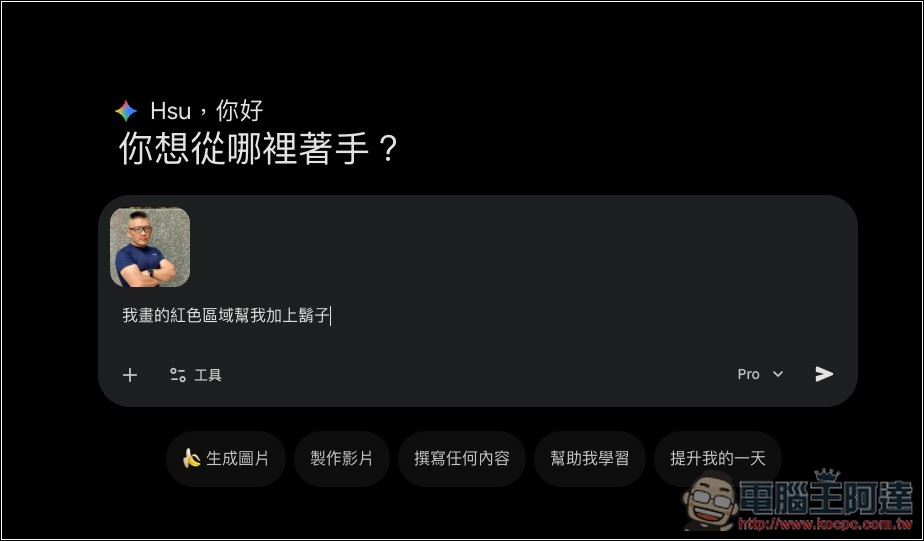
Then you can enter the prompt, and I requested: “Add a mustache to the red area I drew”:
Gemini did a perfectly precise edit, adding a mustache in the area I drew, with no changes anywhere else:
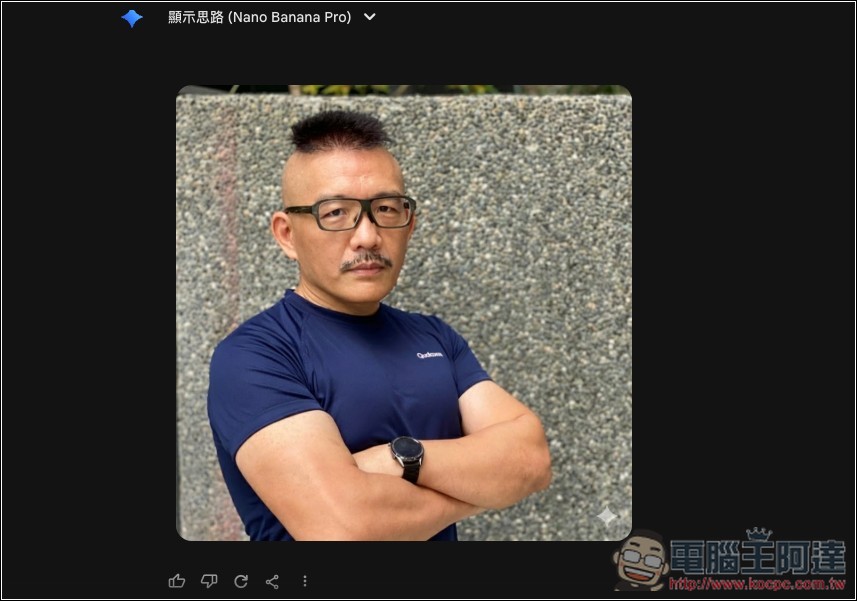
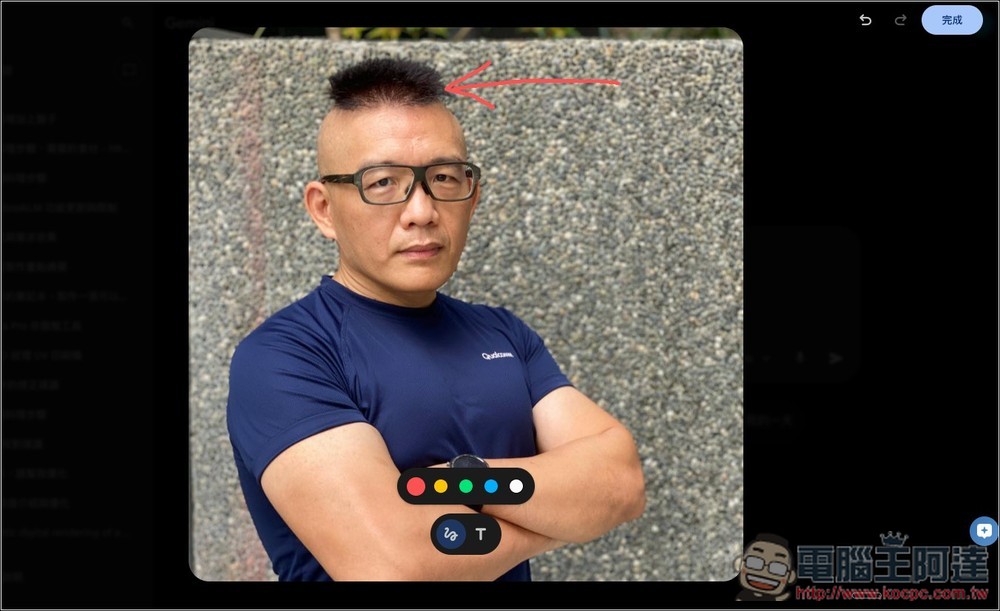
Next, I’ll test how to draw an arrow to mark the position of Ada’s hair:
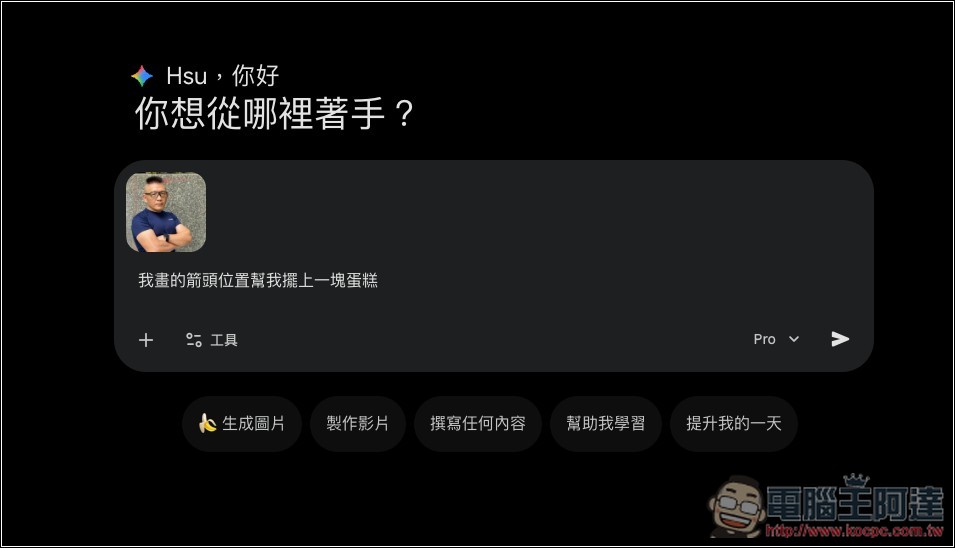
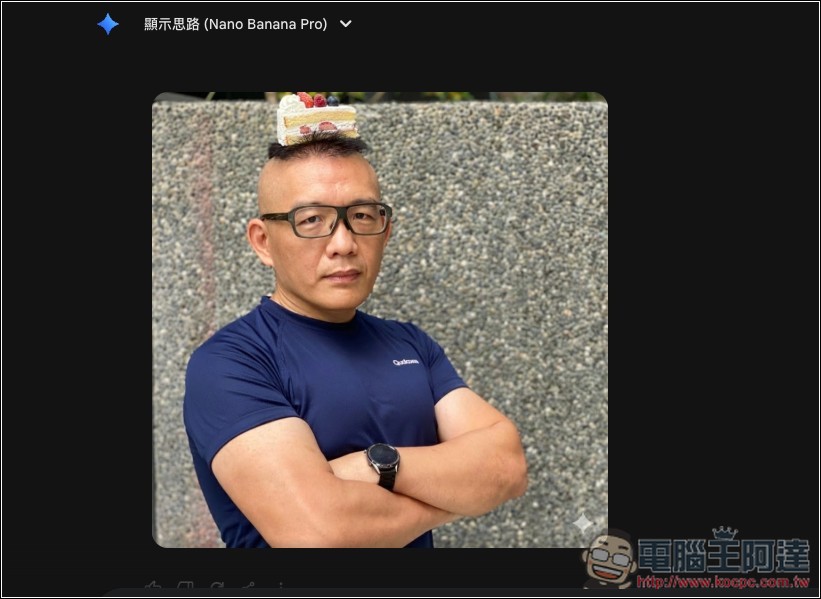
Then ask Gemini to put a piece of cake at the position where I drew the arrow.
Gemini also did it perfectly, placing it exactly where I specified. This shows that if you’re not confident in drawing, you can also use arrows to point out what to edit and what to add, so Gemini knows where to make changes.
Finally, I tested the graffiti method by drawing a few lines on Ada’s right arm:
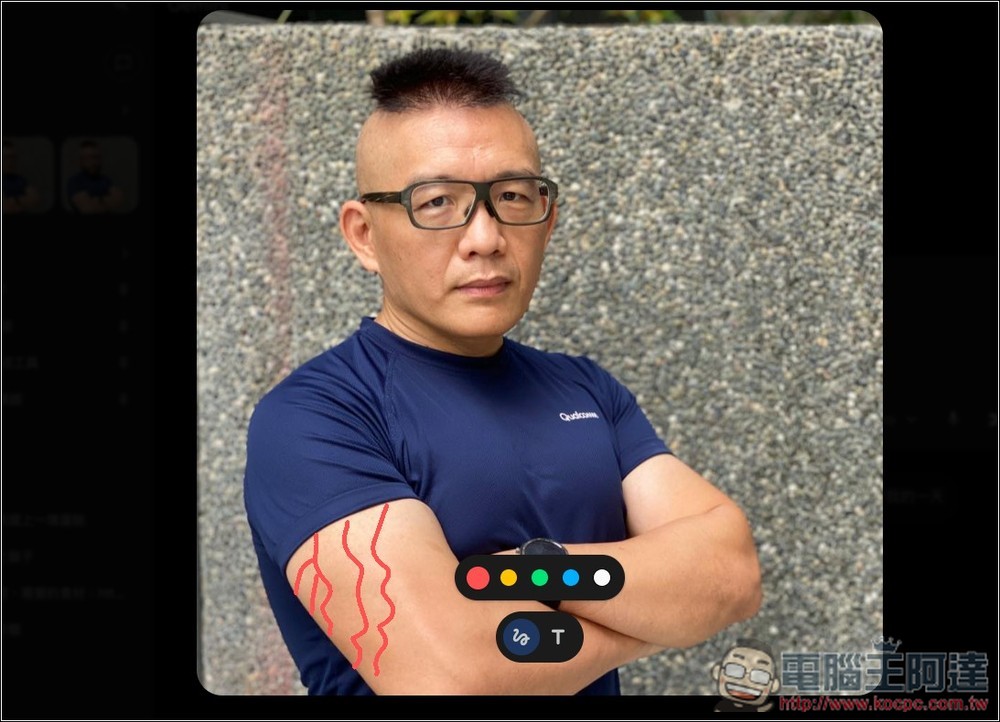
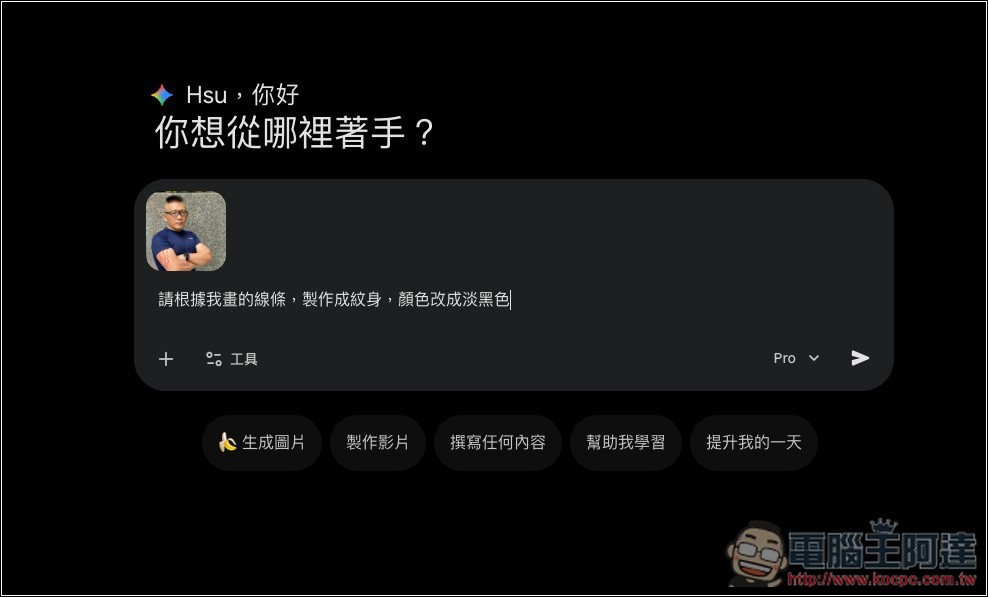
Then ask Gemini: “Please turn the lines I drew into a tattoo, and change the color to light black.”
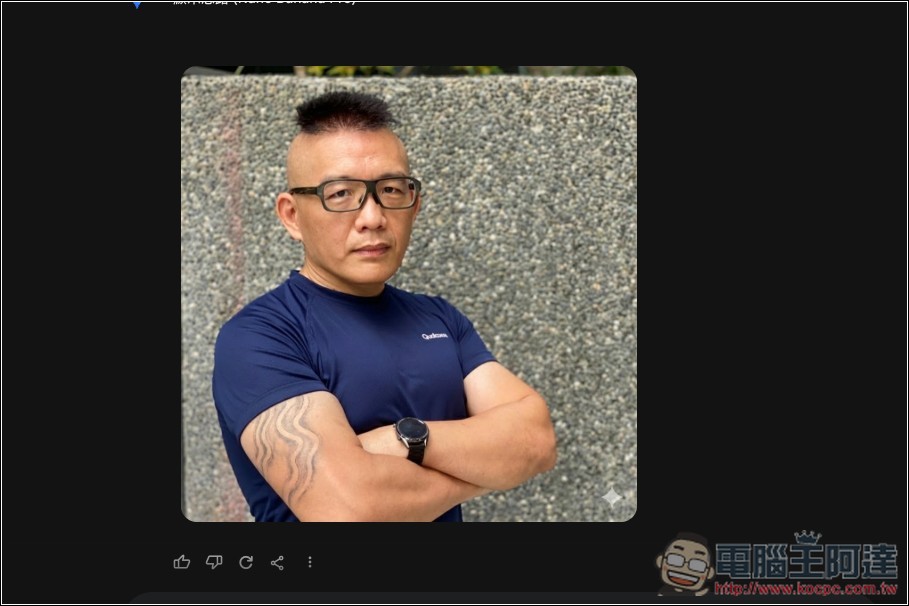
Gemini really achieved the effect I requested, and the color was also changed to light black, truly impressive:
In addition to drawing plus prompts, Gemini’s official demo shows another method: after you finish drawing, you can directly add text next to it (using the T tool), then just submit it as is—no need to provide any prompts. Gemini can understand it too, which is really impressive:
If Gemini continues to strengthen its image editing features in the future, some paid photo editing software will find it hard to survive.
The only downside is that images generated by Gemini’s editor have a watermark in the bottom right corner. If you don’t want that, you can try the one we introduced before. Nano Banana Pro Free Image Watermark ToolAfter drawing the watermark area with the brush, click once to clear it.
Source: KOCPC Chinese