


Many times you may want to make your images and photo files smaller, or perform some simple editing. This article will recommend a product called “MozJpeg” that can meet these two needs. It claims to be able to compress JPG and PNG images by at least 50% and up to 80%, and it is lossless, which means that after compression, you will hardly feel the difference in image quality.
In addition, if necessary, you can also perform some simple editing, such as cropping, applying filters, adjusting color, modifying size, etc. It is completely free to use. Whether you’re compressing or editing, it’s all done locally in the browser, no need to upload your files.
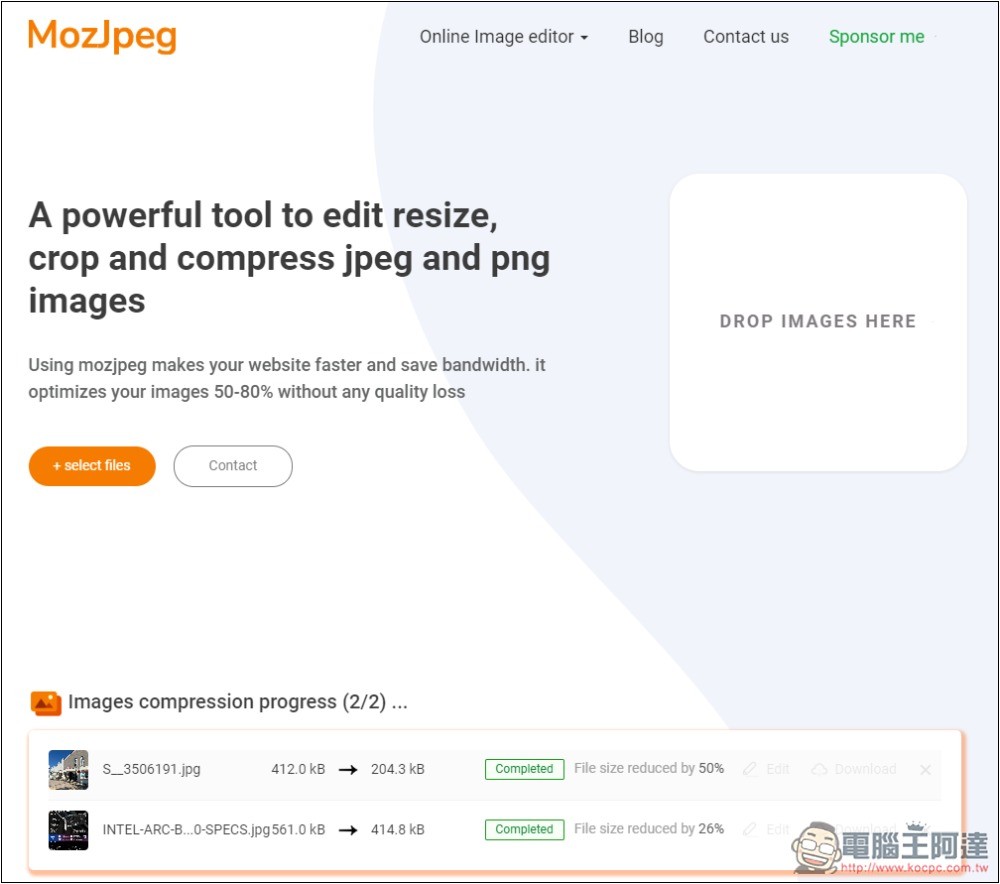
MozJpeg provides an introduction to free online tools for image compression and online editing.
MozJpeg is a picture tool that does not require installation and can be used by opening a browser. There is no need to upload pictures. All processing is done in the browser itself, which the representative said is very safe. The developers also stated that they have a no-logging policy and will not log any user data.
The main function is to compress images. Currently, it supports two formats: JPG and PNG. Once you select an image, it will be compressed immediately. After the image is compressed, it will also prompt you how much it has been compressed in total, allowing you to decide whether to save it. The editing function requires entering the editing window separately, which means that you can only edit one picture at a time, and you can compress it in batches.
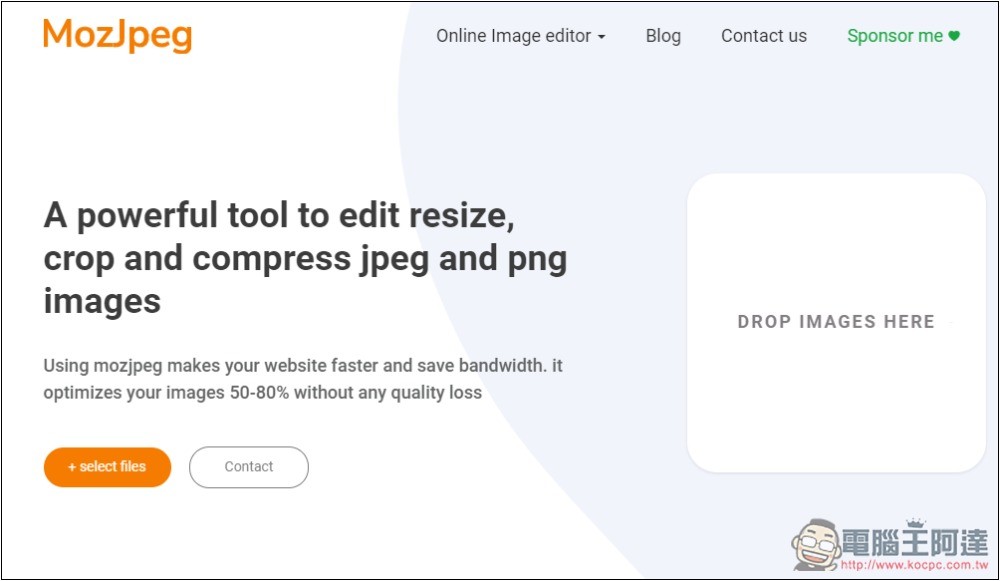
Click the link above to enter MozJpeg, then select or drag the pictures you want to compress and edit. You can select multiple pictures at once:
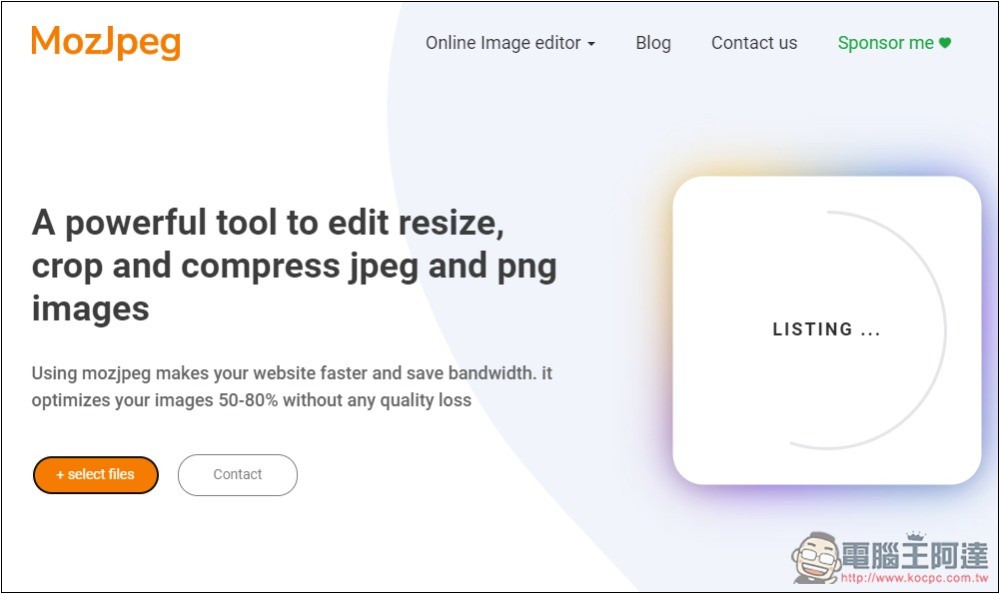
The right side will show that it is being processed. No need to press any buttons, it will be compressed immediately:
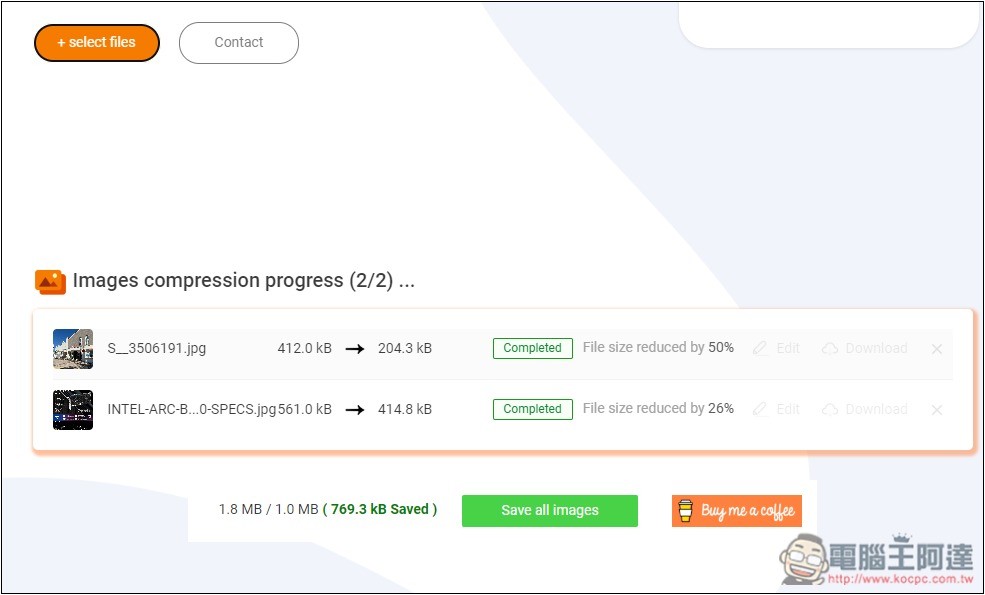
After completion, all image information will be listed below, including name, original and compressed size, and compression ratio. Most can compress 50%, but a few can only compress 20%. If your image is originally very small, you may not be able to compress it much. Usually the effect is more obvious on large files. Click Save all Images below to download all images. There is also a separate Download button on the right side of each image. If you want to edit, press Edit:
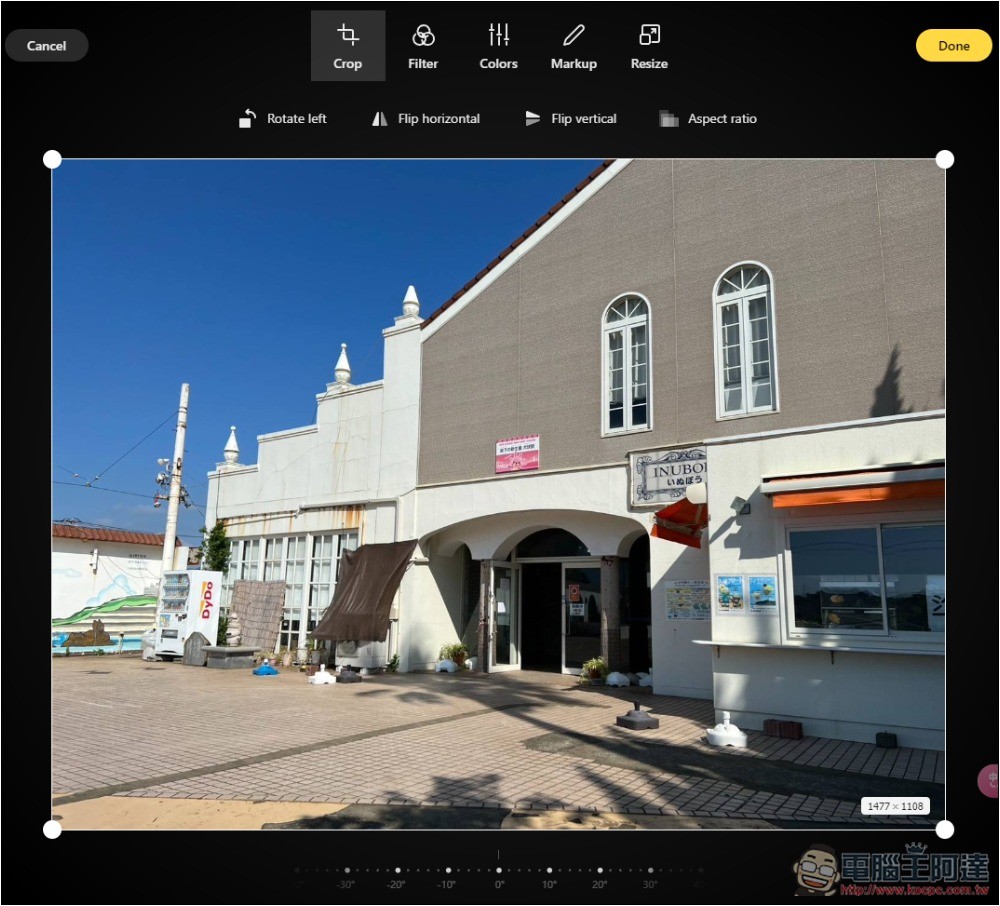
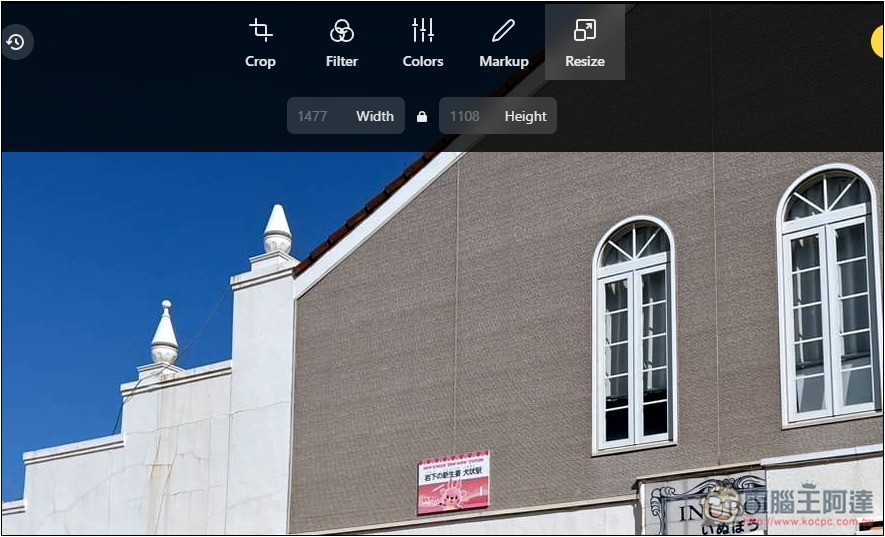
You will enter this screen, with a total of five editing tools, Crop, Filter, Colors, Markup, and Resize. In addition to dragging the area of the image you want to keep, the cropping tool can also rotate, flip, etc.:
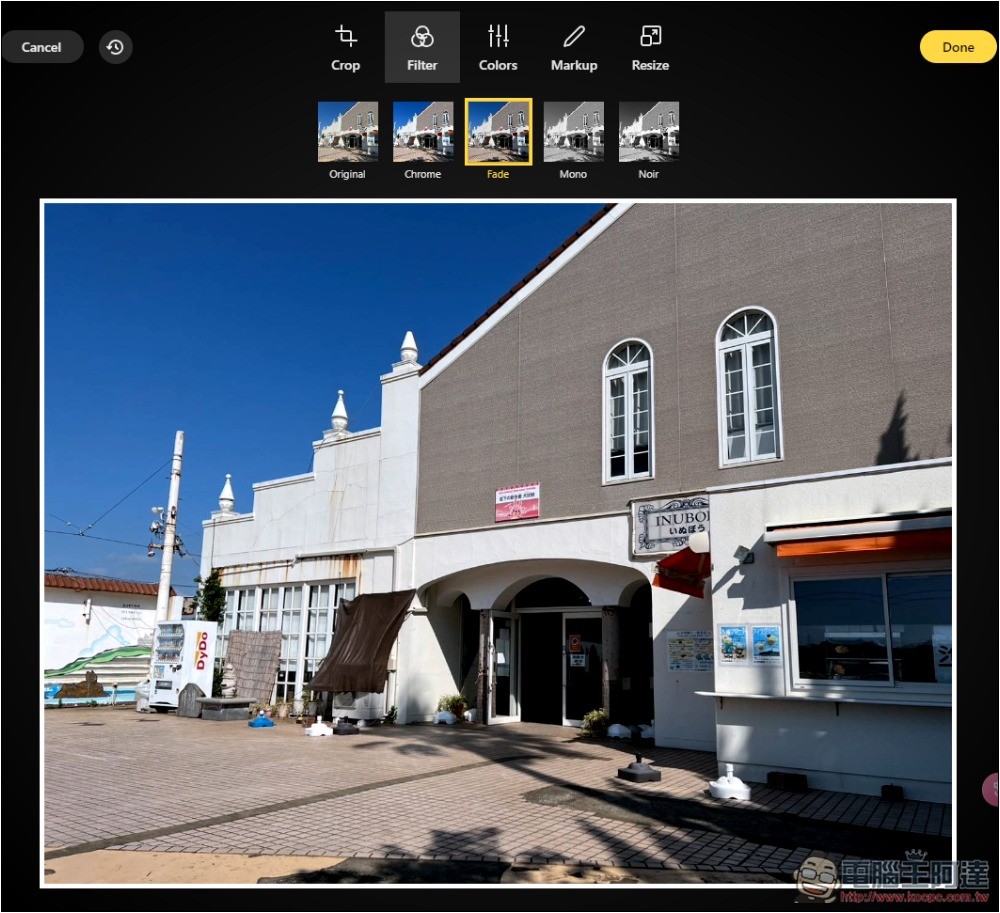
There are 4 filters, but I don’t think the effectiveness is very obvious, so I don’t recommend using the filters of this tool:
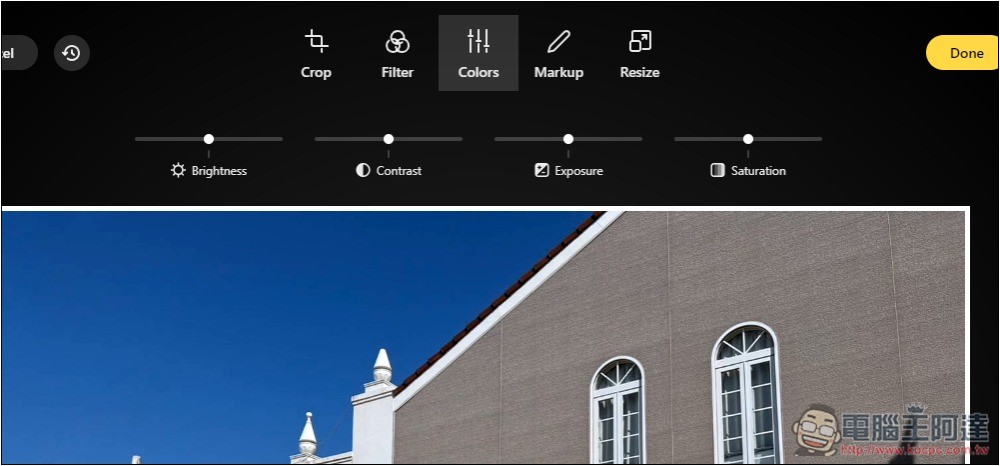
Color tools can adjust the brightness, contrast, exposure, and saturation of images:
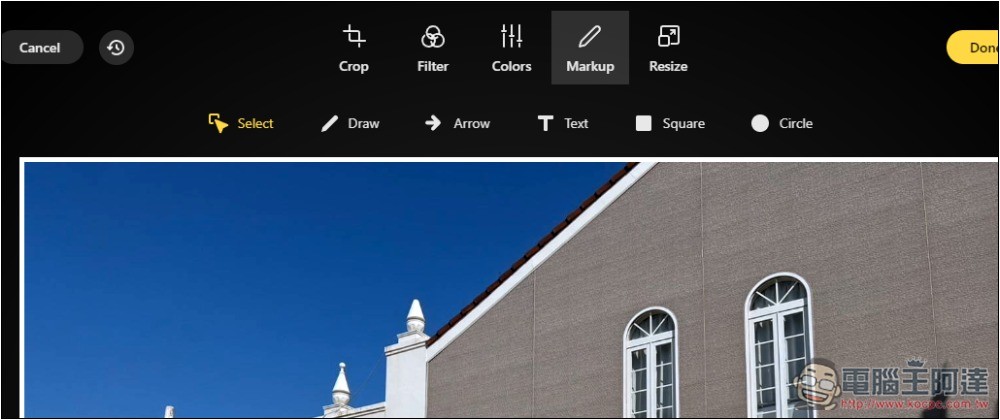
The Markup tool can draw, add arrows, text, boxes, and circles on pictures:
The last step is to adjust the size. You can set the width and height you want:
If these are the only things you need when editing pictures, it is highly recommended to use this one, it is free and does not require installation.
As for whether the image is really lossless after compression, after I checked the 50% compressed photo, unless the details are maximized, there is really no deterioration in image quality, which is quite good.
But unfortunately, it cannot set the compression ratio, which means that you can only rely on the tool to determine the maximum compression level.
Source: KOCPC Chinese