


For those who are running a YouTube channel, or are text workers like me, they occasionally need to take screenshots of YouTube, such as collecting good cover images, video comments, and scenes in videos. Recently, I discovered this free extension function “Ostendo”, which can easily capture beautiful pictures, and the operation is very simple. I will introduce it to you below.
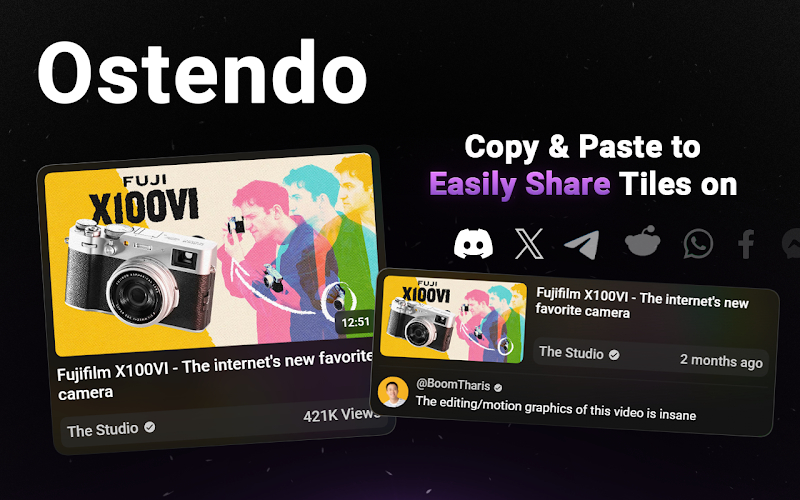
Ostendo free extension to easily get beautiful YouTube screenshots
Ostendo is a Chrome extension that can also be installed in Microsoft Edge or Arc Browser. After installation, the function will appear in the upper right corner of the YouTube web page. There is no need to use the extension icon, but there are some settings that can be adjusted.
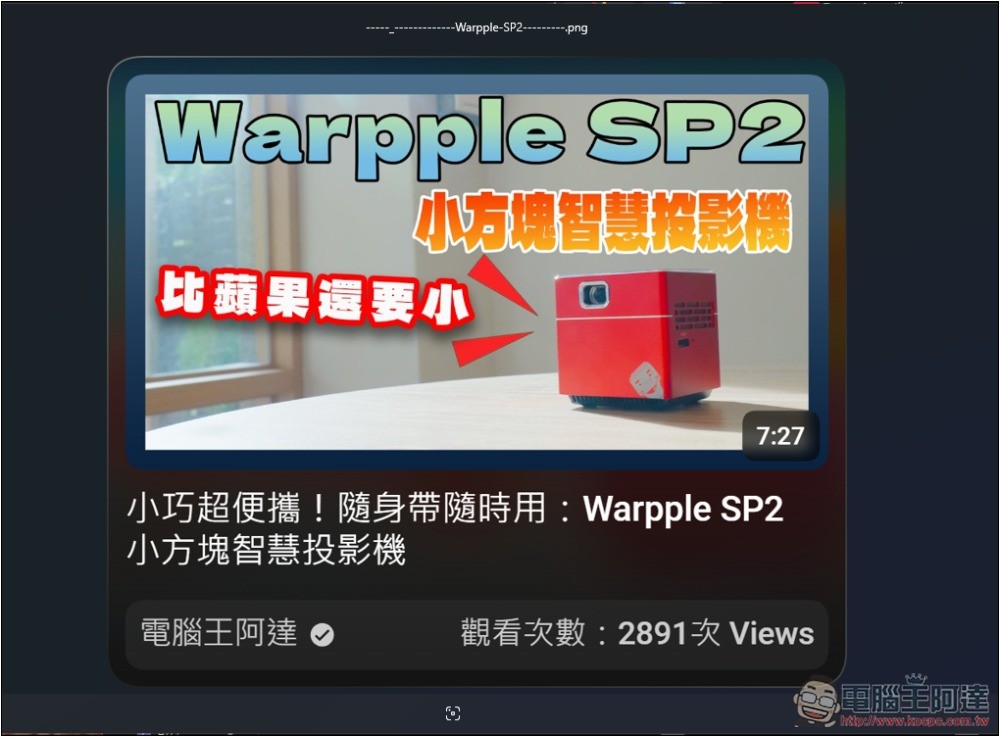
Another thing to note is that the YouTube cover image captured by this method is not just a picture, but also includes the number of views of the video, channel name, and video name, so it is also very useful for people who need to collect data.
Click the link above to enter the extension store, and click Add to Chrome on the upper right:
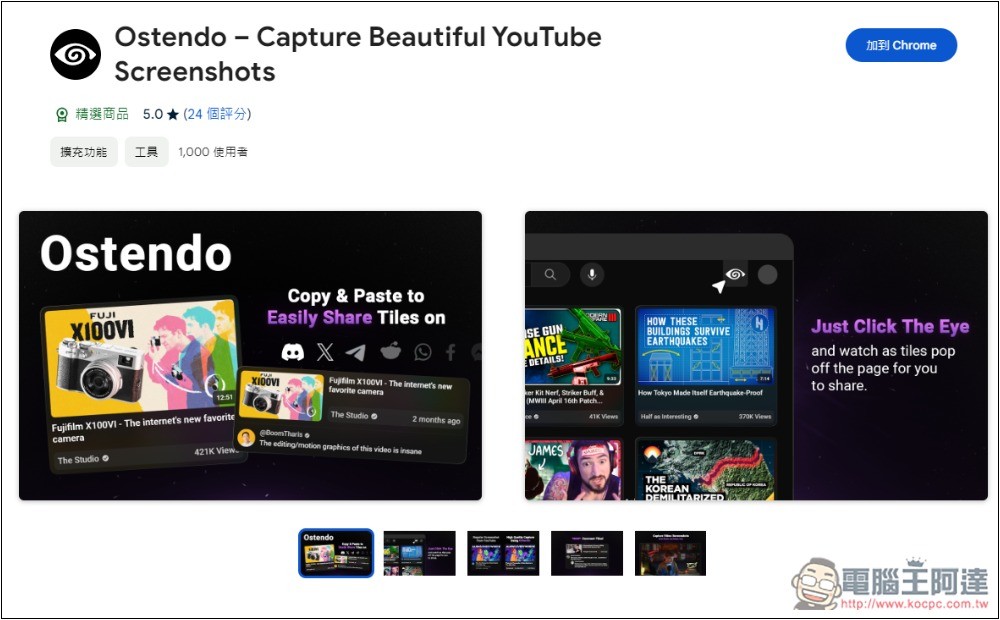
I’m using Arc Browser and it works fine:
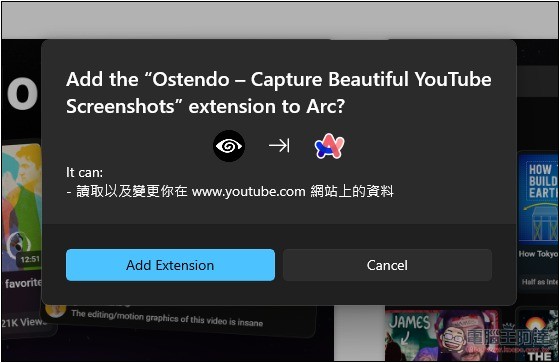
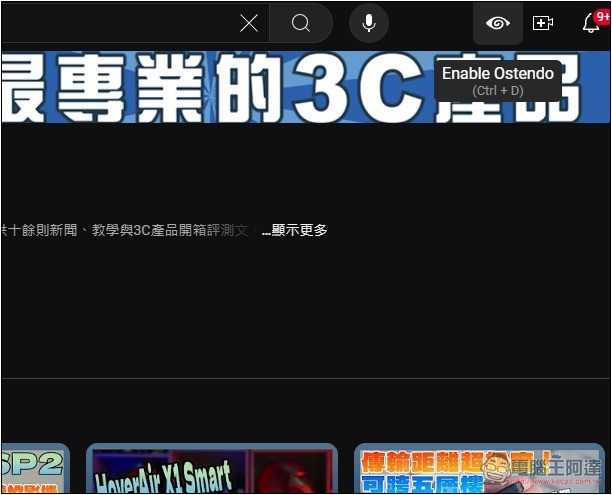
After installation, when you enter the YouTube web page, you will see a new eye function icon in the upper right corner. This is to enable Ostendo. There is no need to click the extended function icon:
If you enter the channel homepage and press the Ostendo function, you will see that the background will become blurred and each video will light up. Then click on the video cover you want to capture:
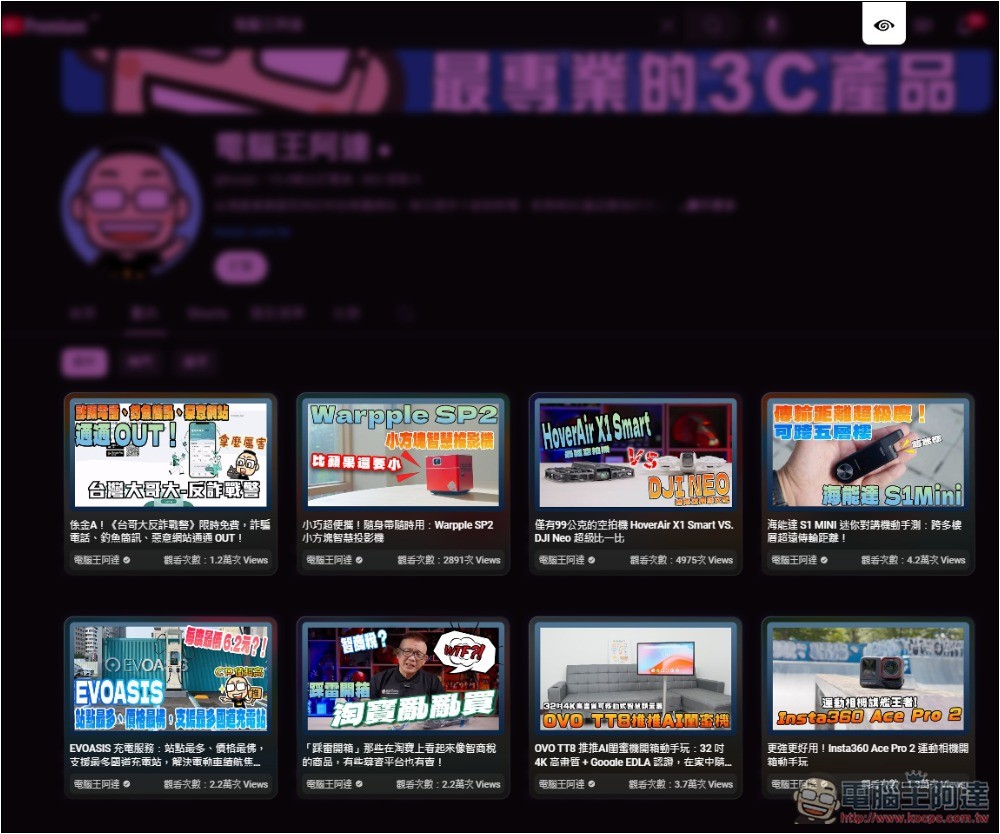
Then you will see this screen. Click Download Image above to download this image. It is not just a pure cover image, but also contains the video title, channel name and number of views below. There are also some function icons on the left and right sides. You can click to see them, mainly to change the screenshot content or color:
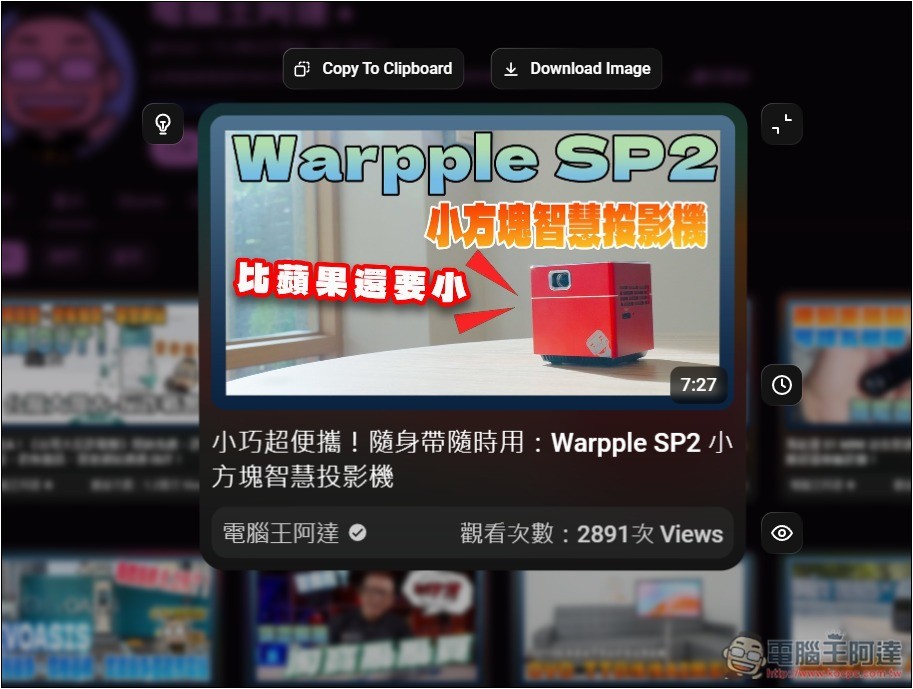
Like this, you can easily get beautiful YouTube cover screenshots in high quality:
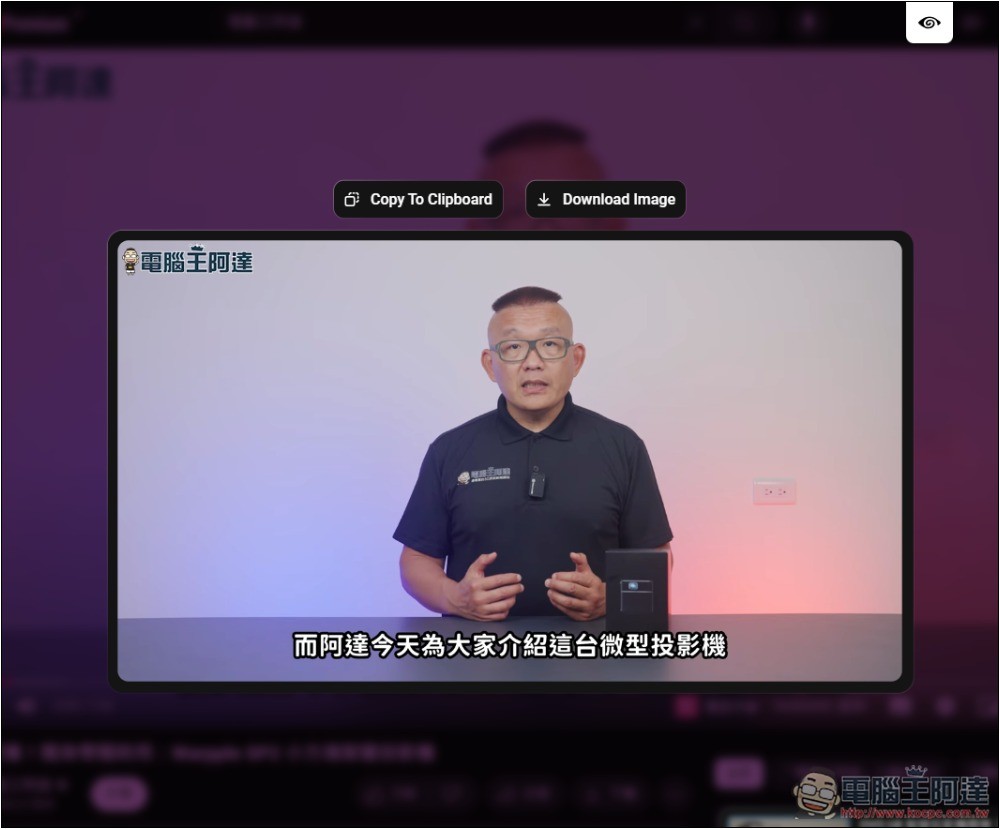
In addition, when watching a video, if you press the Ostendo function icon, the screen of the current video playback will be captured. This screenshot is a normal screen image without any other information:
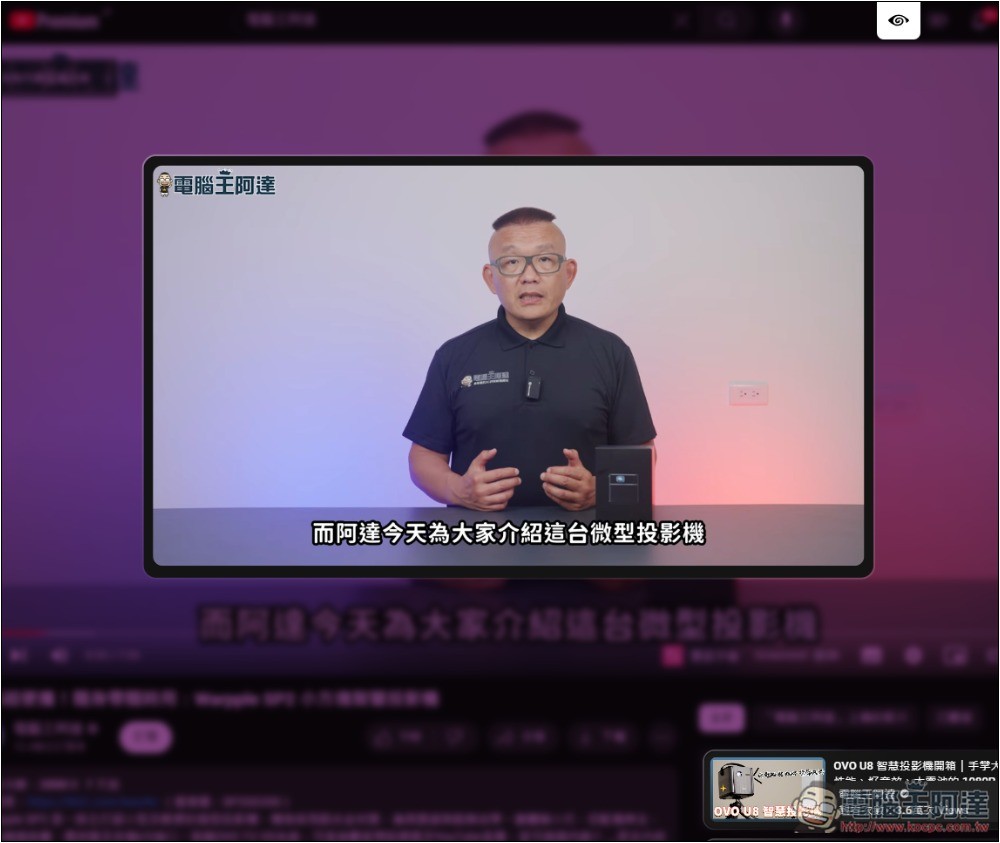
You can also download it or copy it to your clipboard:
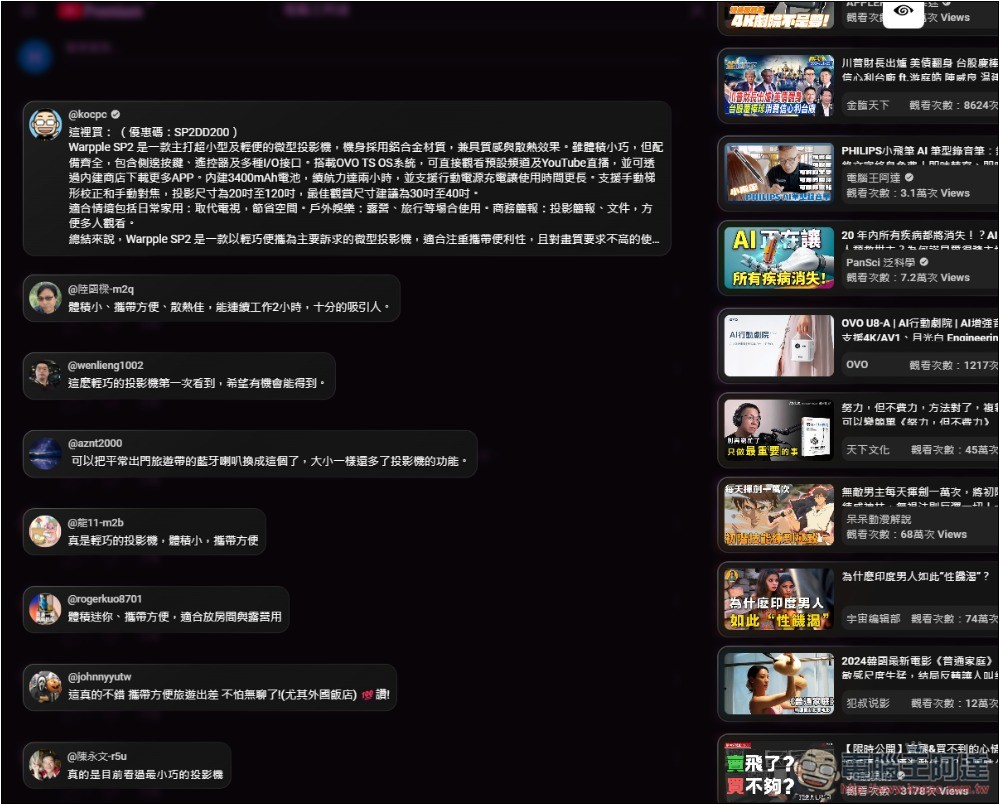
When you want to capture video comments, you can also use Ostendo. After pressing it, each message will float up. Click on the one you want to capture:
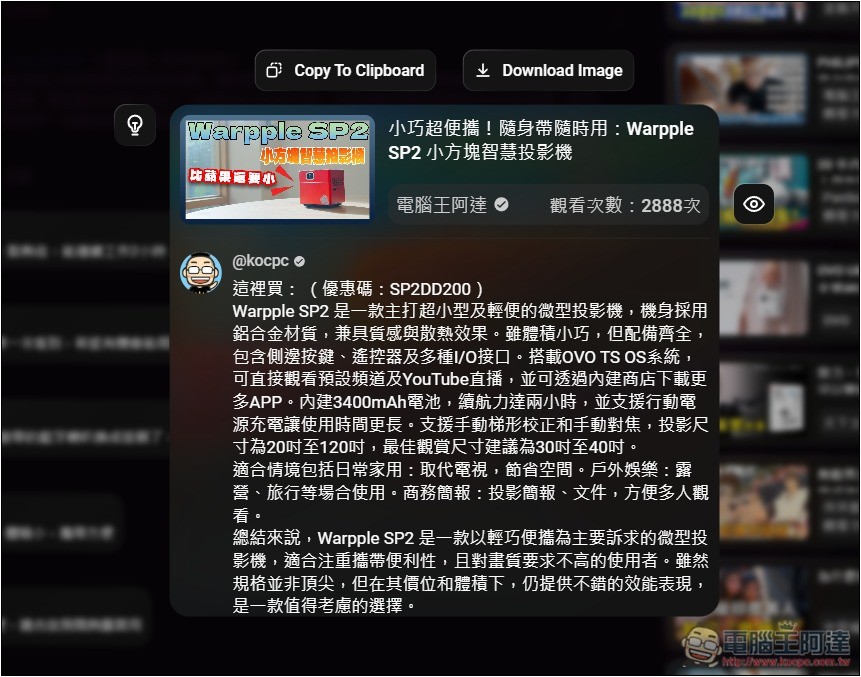
It will automatically create beautiful pictures, with video information above:
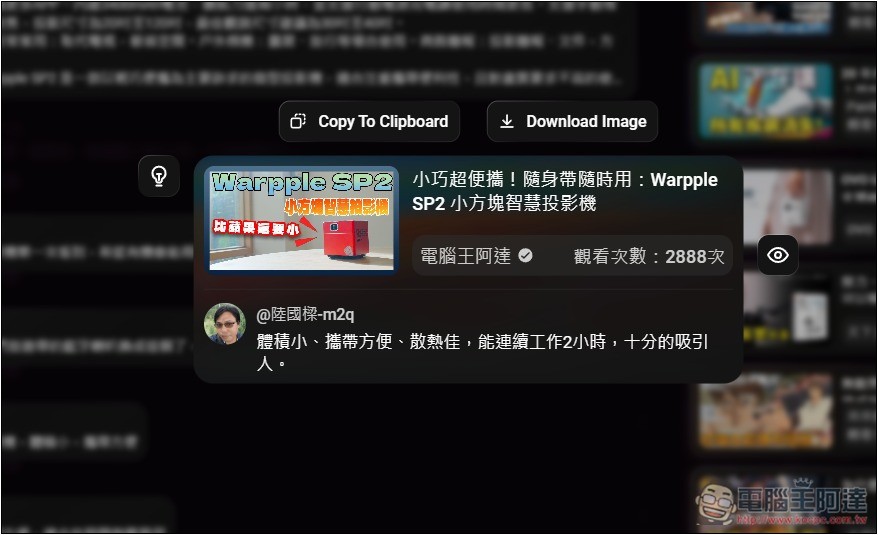
Each message screenshot will be combined with the video information, which means that you don’t have to worry about forgetting which video the message is in:
When you open the function icon, you can modify some image styles, such as whether you want the shape of the section to be complete or small; theme color matching; what information to highlight, etc. In addition, enabling the Ostendo function also supports shortcut keys. The default is Ctrl+D. You can change it to other habits:
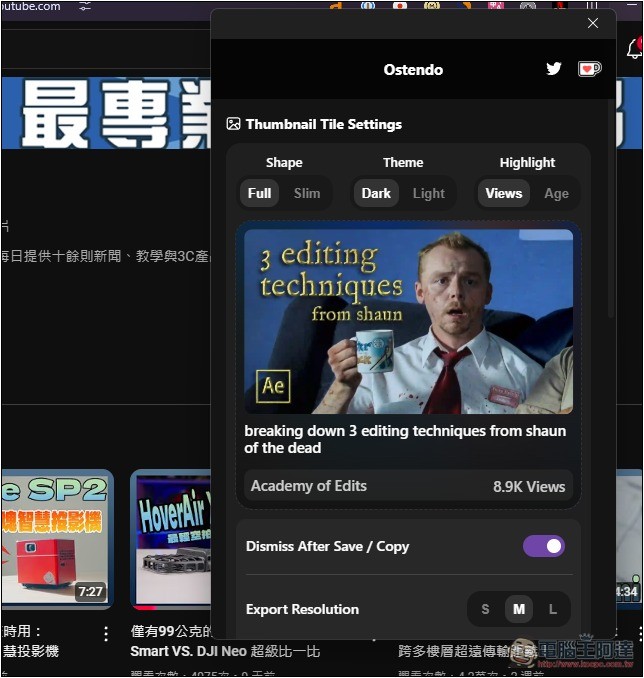
According to the extended function introduction, when capturing YouTube video images, it also supports the function of drawing on it, but I couldn’t test it. I don’t know if it is related to using Arc Browser. People who use Chrome or Edge can try it.
Source: KOCPC Chinese