


Nowadays, many people have switched to 5G for all-you-can-eat mobile networks. They may accidentally exceed the network usage and cause the speed limit. If you have a data limit plan when traveling abroad, you are more likely to worry about accidentally watching a video or downloading an app, causing the network usage to exceed the limit. If you are worried about Wi-Fi connection problems and accidentally use mobile network data, then you must learn today’s trick to save iPhone mobile network data! Once you set it up, you won’t have to worry about your network traffic being used up accidentally!
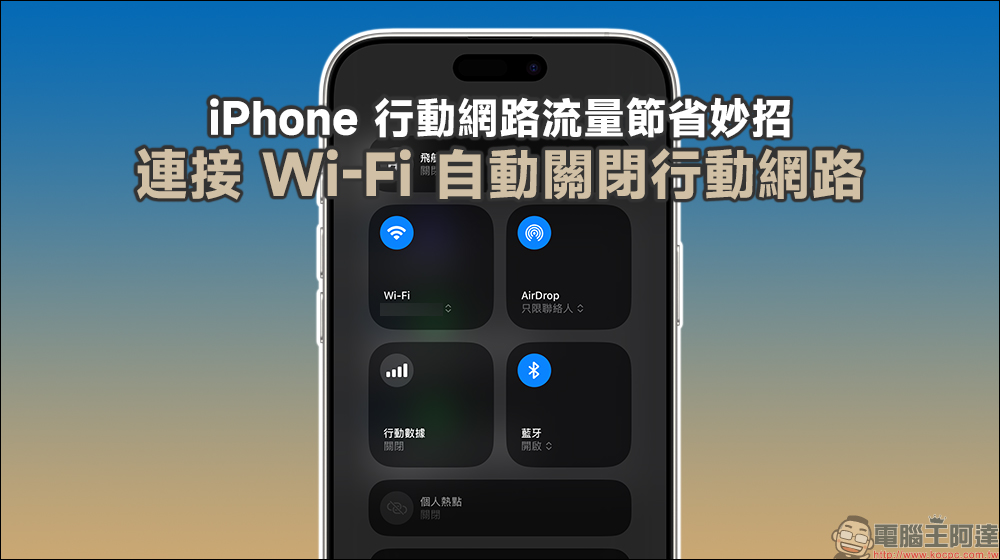
Tips to save iPhone mobile network data! Connect to Wi-Fi and automatically turn off the mobile network (teaching)
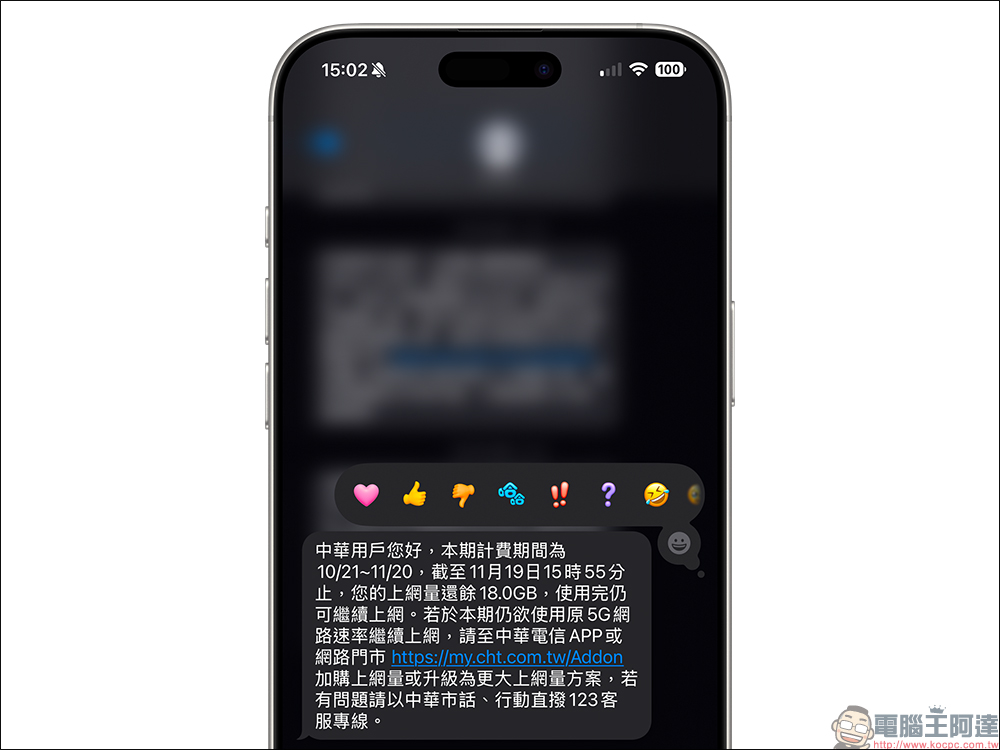
Many telecoms’ 5G all-you-can-eat plans actually have mobile network usage limits every month. When the usage of the 5G plan is exceeded, the speed will be reduced. For users who want to use 5G high-speed Internet access, choosing to use Wi-Fi to access the Internet first in some Wi-Fi environments is a way to save 5G network usage. However, whether the Wi-Fi network connection is normal and whether the mobile network has been accidentally disconnected is something that many people often overlook.
If you also use an iPhone, today I will share some tips on how to use the clean automation function to automatically turn off the mobile network when connecting to Wi-Fi, and at the same time re-enable the mobile network when leaving the Wi-Fi environment.
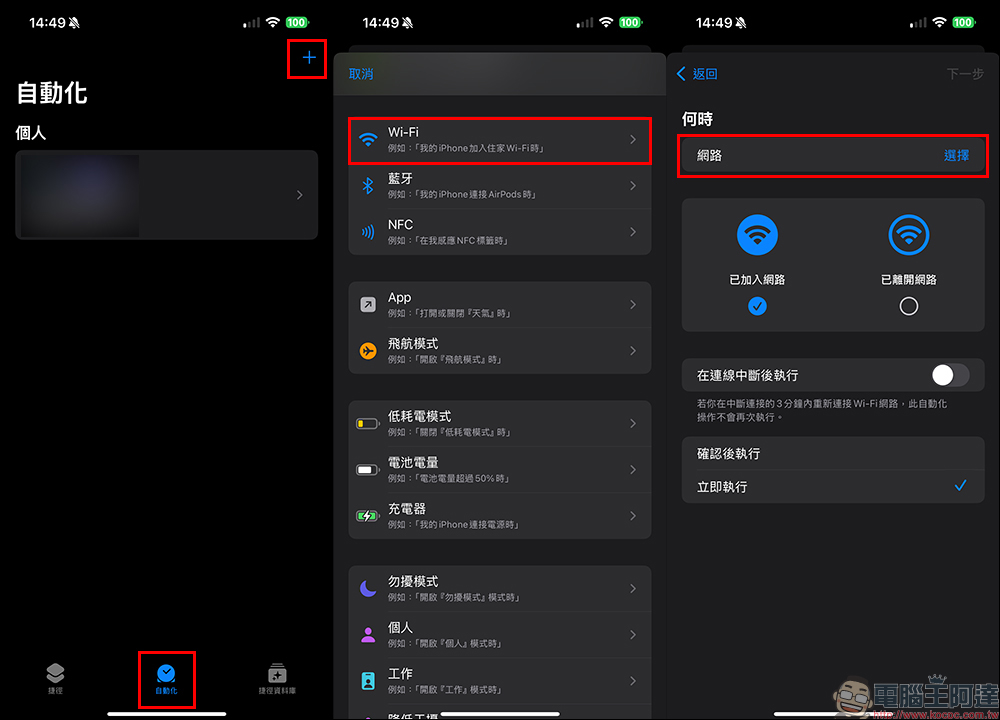
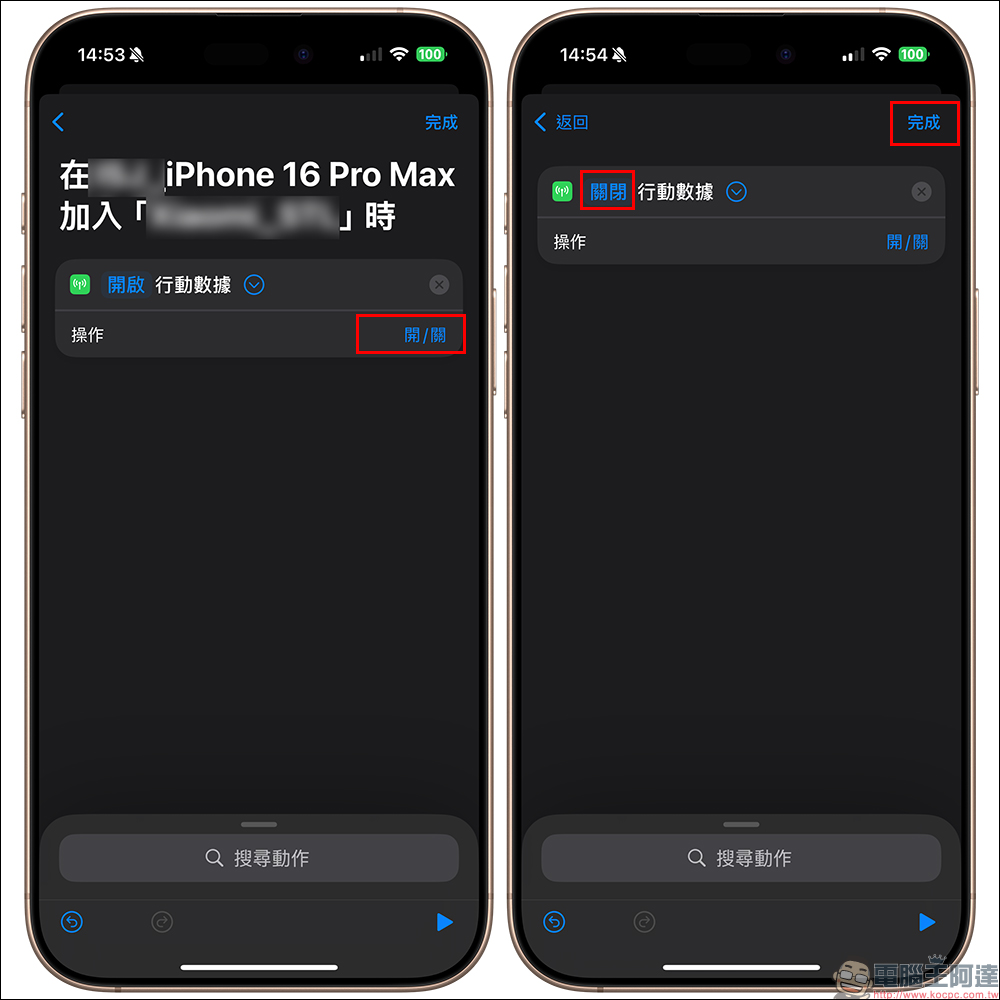
First, we open the “Shortcut” App and add automation settings in “Automation”. The next step is to select “Wi-Fi” and select a network in “When”. This stage is to set which Wi-Fi networks the iPhone will perform this automatic setting when connected to. You can select single or multiple selections.
For ordinary people, it is recommended to set up Wi-Fi in frequently used places such as home and work. Then confirm that “Joined network” is selected, and select “Run now” below, then click “Next”, and then click “Set mobile data”.
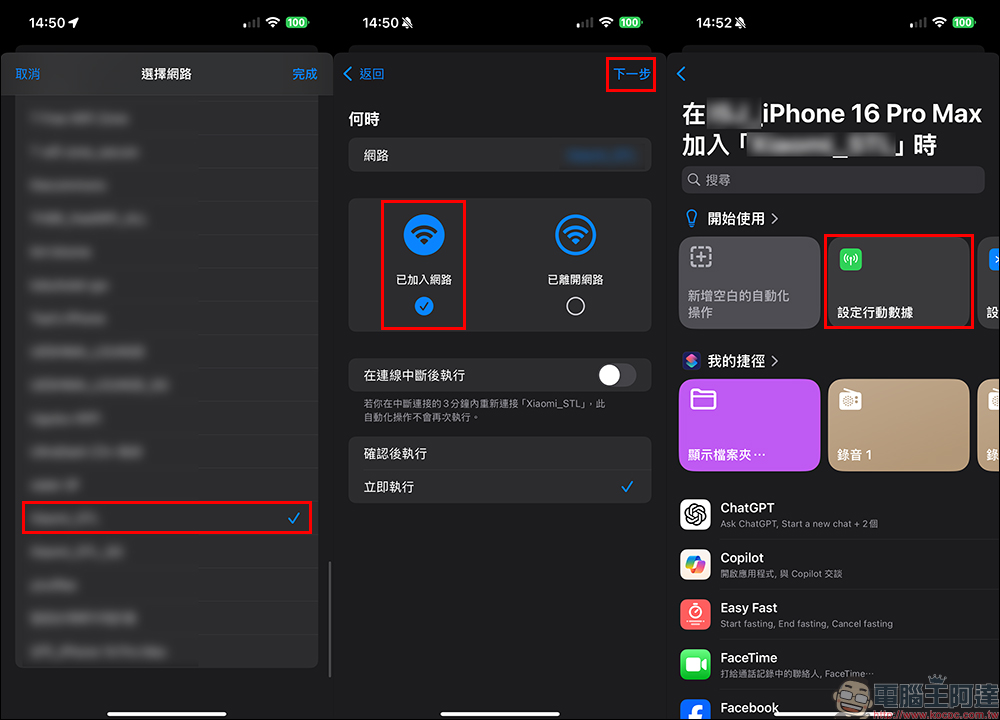
In the next step, select “On/Off”, change the setting in front of the mobile data to “Off”, and then select “Finish”. After this stage is completed, when the user’s iPhone is connected to the set Wi-Fi network, the mobile network will be automatically turned off.
However, this step has not yet been fully set up, because we need to consider that after we leave this Wi-Fi environment, we need to have it automatically restart the mobile network in an automated manner. Otherwise, it will cause the situation where the mobile network is turned off when connected to Wi-Fi, but there is no network when leaving Wi-Fi.
So we then need to add another automated operation. We first select “Wi-Fi” and the same Wi-Fi network, but we need to check “Off the network”. Don’t forget to select “Execute now” below. The next step is to select “Set Mobile Data” to enter the next step of settings.
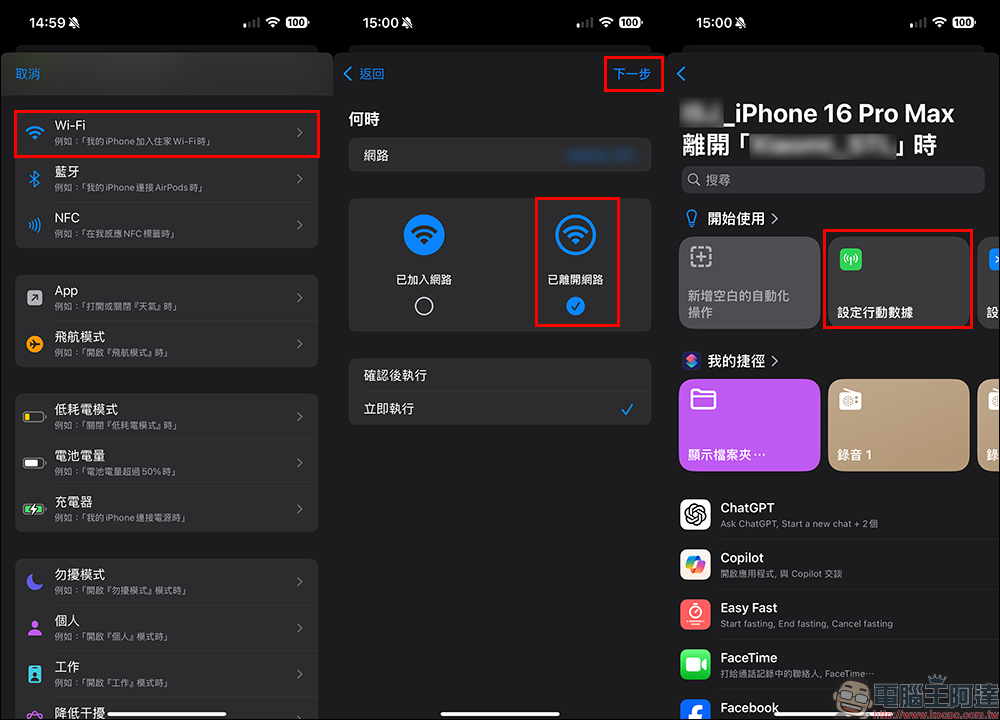
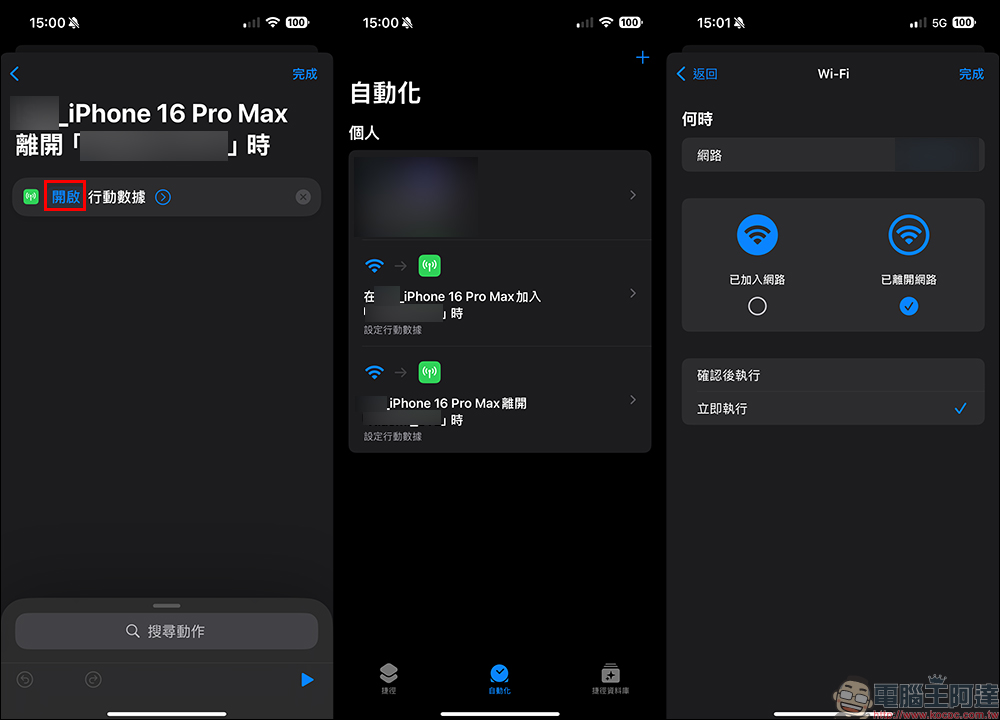
Different from the previous setting switch, here we want to “turn on” mobile data. After the settings are completed, you will see two sets of automation settings in the “Automation” shortcut. These two groups respectively represent allowing the iPhone to automatically turn off the mobile network when it is connected to Wi-Fi, and automatically turn on the mobile network when leaving Wi-Fi.
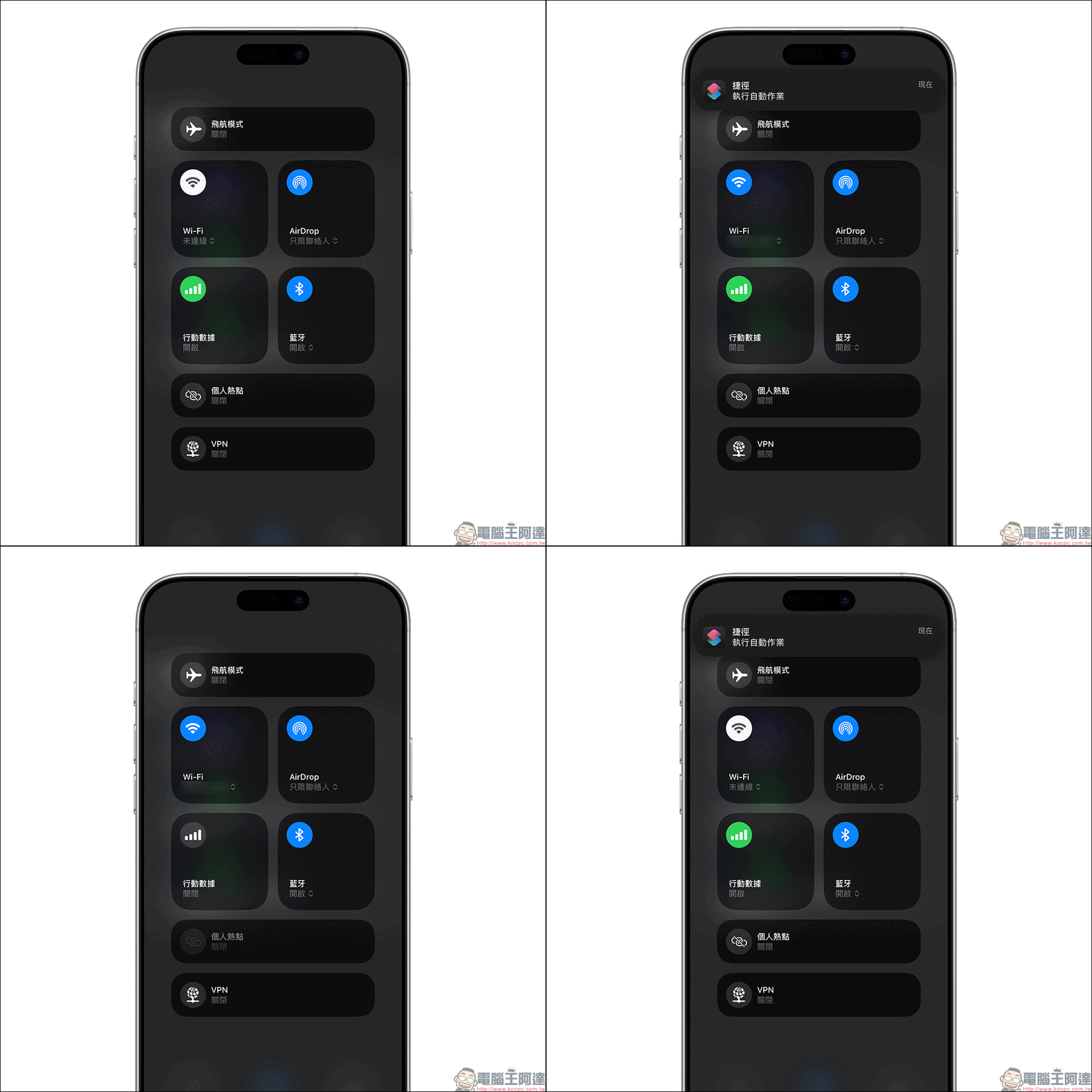
Finally, let’s demonstrate the effect of actual operation! You can see that after connecting to the Wi-Fi network, the mobile network will automatically switch to off. However, when you turn off or leave the Wi-Fi environment, the mobile network will automatically restart.
This feature is highly recommended for all iPhone users. When we use iPhone, we can reduce the usage of mobile network. Whether we are watching high-definition videos, downloading offline audio and video content on streaming video platforms such as YouTube, Netflix, Spotify, etc., or updating or downloading apps with large files, this method can be used more safely!
Further reading:
Xiaomi’s Double 11 Encore x Black Friday event starts, with products starting at 50% off! If you are lazy, read this article for event discounts

Source: KOCPC Chinese