


When you are excited to buy a new Android phone and are eager to try out the shiny new machine, before that, in order to get a better user experience and ensure that it runs smoothly as expected, please follow us to perform some simple operations. Here are 9 things you must do!
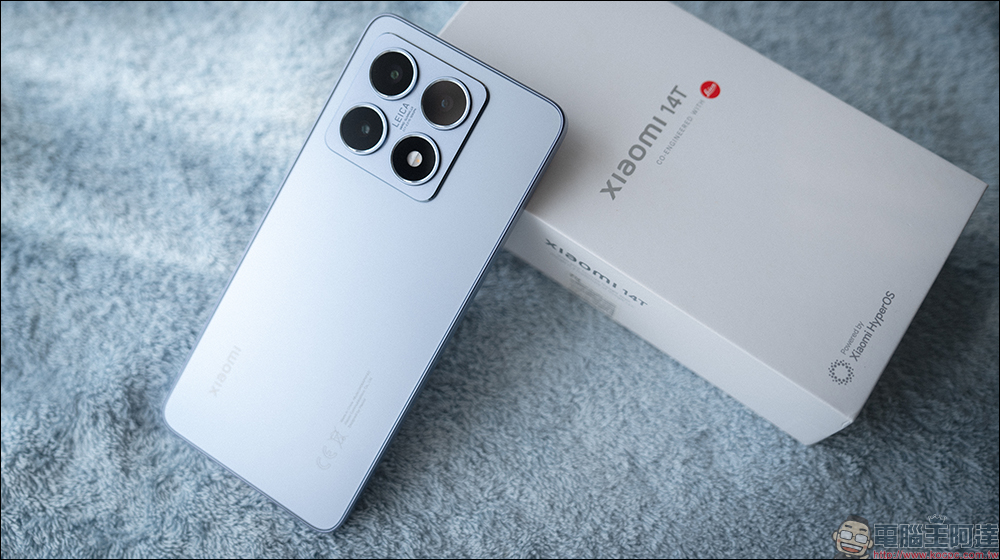
These 9 things you must do when buying a new Android phone
1. Update Android operating system
Google may have released a newer Android version since your phone was manufactured, and the system preloaded on your phone may be old, which requires a software update on your phone to ensure that you are running the latest and best version of Android. Updating your operating system ensures you have the latest bug fixes and possible new features.
To do this, open the Settings app on your phone, scroll down and click System, then click Software Update. From here, let your phone check for updates. If so, download and install the available updates. Then, restart your Android phone.
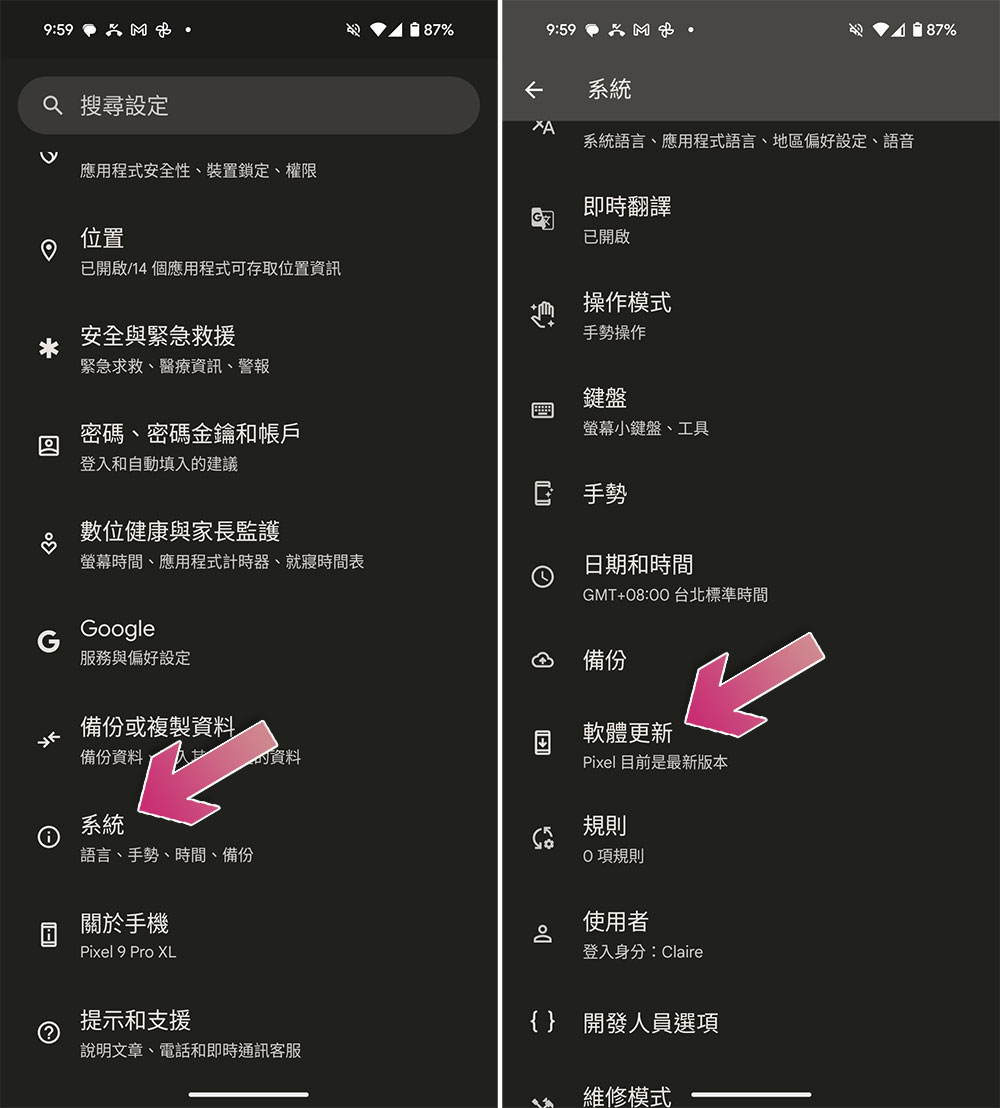
2. Update installed applications
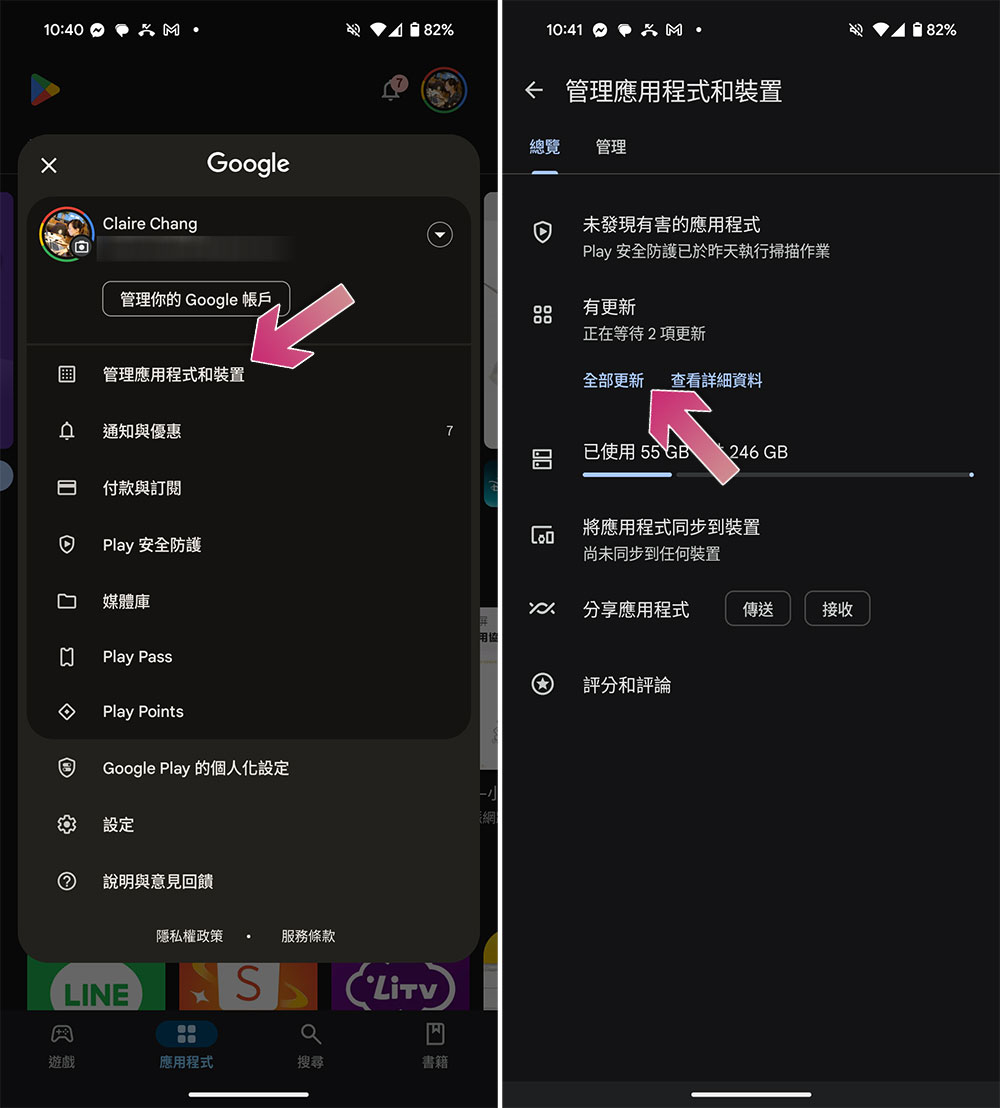
There may be newer versions of apps preinstalled on your phone. In this case, you should update your app to enjoy a bug-free experience and possibly have updated functionality in the app. To do this, open the Google Play Store app on your phone, click on your profile picture in the upper right corner, then select “Manage Apps and Devices” and select “Update All” if there are updates.
3. Deactivate or delete unnecessary apps
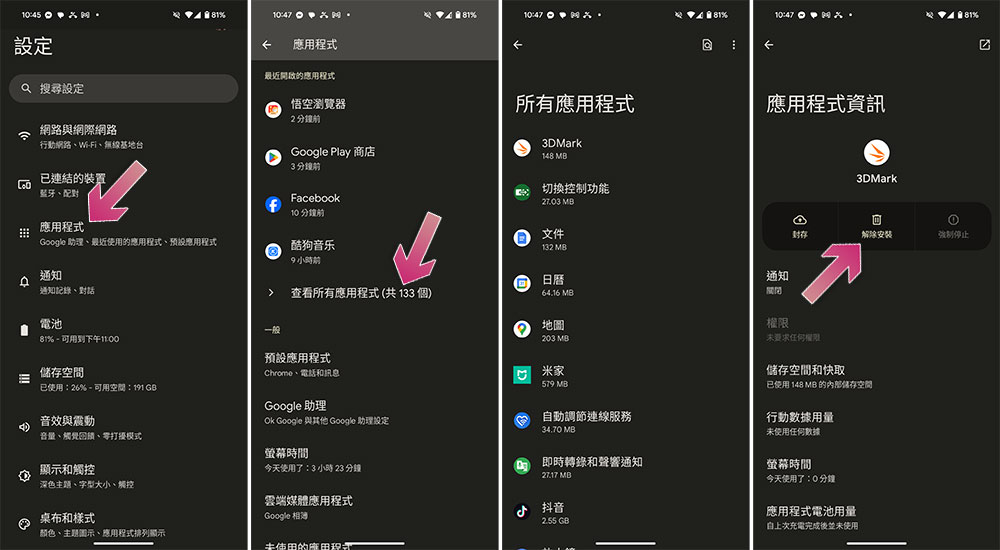
Many Android phones come with certain apps pre-installed, and if you don’t plan on using them, it’s best to disable or delete them. I say deactivated because some of these applications cannot be removed and can only be deactivated.
To do this, please open “Settings” on your phone, click “Applications”, find the application you don’t need in the list of all applications, click it and select “Uninstall” or “Disable”. If you want to re-enable a deactivated application later, just follow the same method to the same path and click “Enable”; if you want to re-install a deleted application, just go to the Play Store and re-download it.
4. Add emergency contact information
You can add emergency contact information to your phone so you can reach those people immediately if you need them. You can also display a custom message on your phone’s lock screen so people can return your phone if it’s stolen or lost.
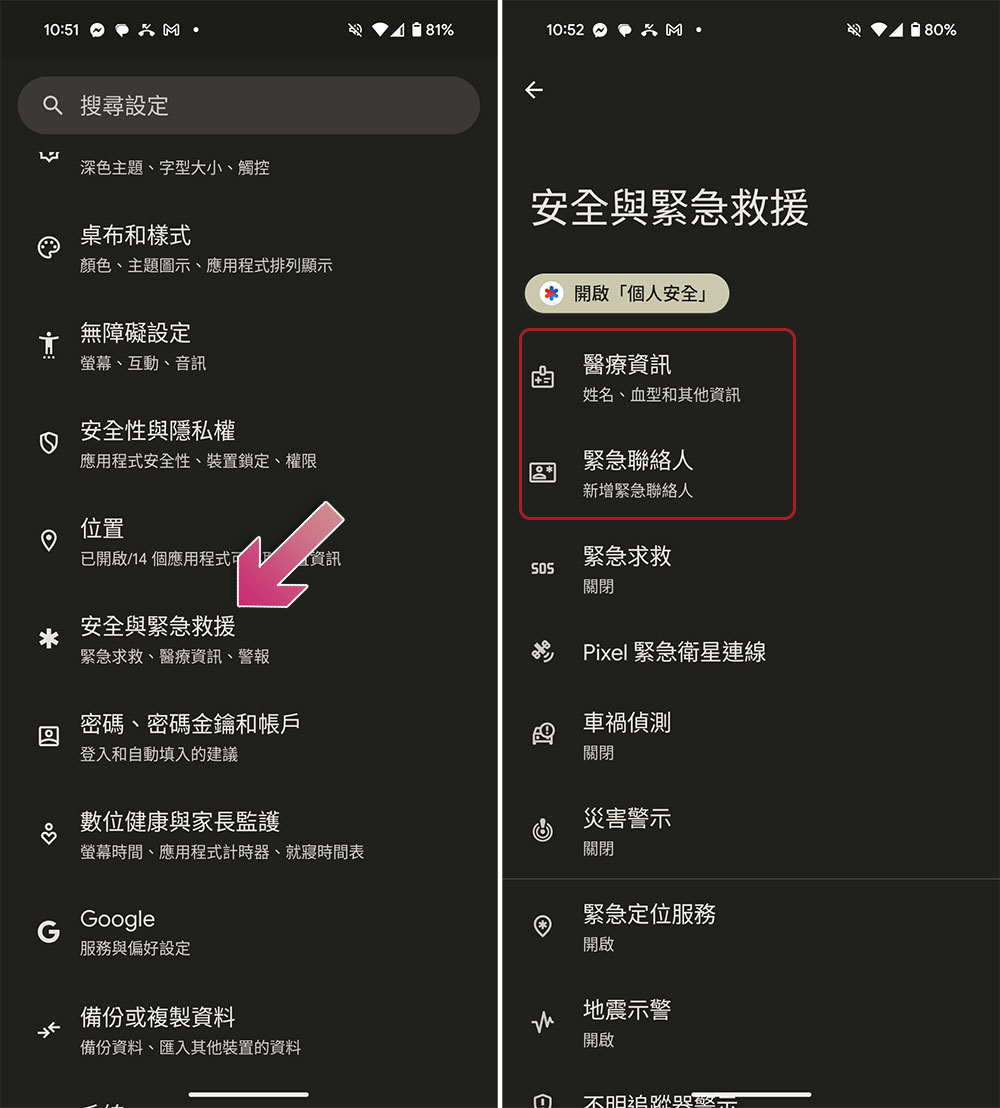
To add emergency details, please open the Settings application, click “Security and Emergency Rescue”, click “Emergency Contacts” after entering and select the person to be added; click “Medical Information” and select Add to add personal medical details.
5. Change default application
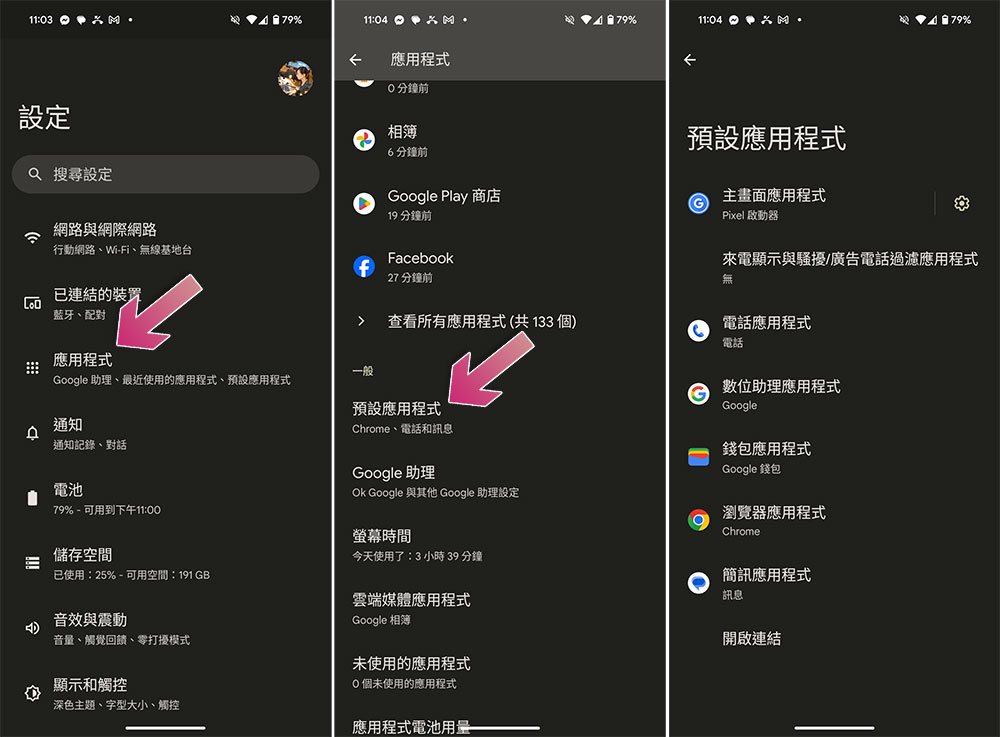
You can set default applications so that certain file types automatically launch with specific applications. For example, you can select your default web browser and all web links you click will automatically open in your preferred browser. To do this, please open Settings, enter “Applications”, click “Default Applications”, and select the desired default application according to each mobile option. For example, to set your default browser, select Browser Applications and then select Targeted Apps.
6. Enable developer options
Developer Options is a hidden Android menu that lets you tweak various phone options. For example, you can enable USB debugging from this menu and use ADB to communicate with you from your computer. You can also change animations and various other options from this menu.
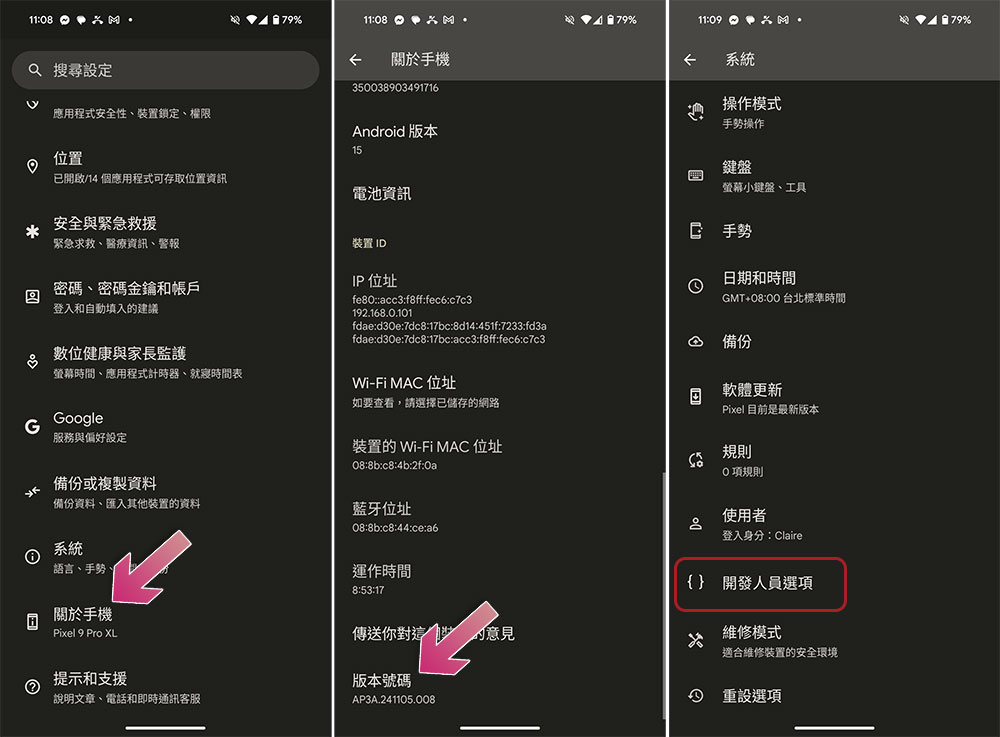
To activate this menu, go to the Settings app, click “About Phone” and click “Build Number” 7 times. It will show that you have turned on Developer Options. Then, enter “System” in settings, and you will see the newly unlocked “Developer Options”.
7. Set up Google Wallet or other payment options
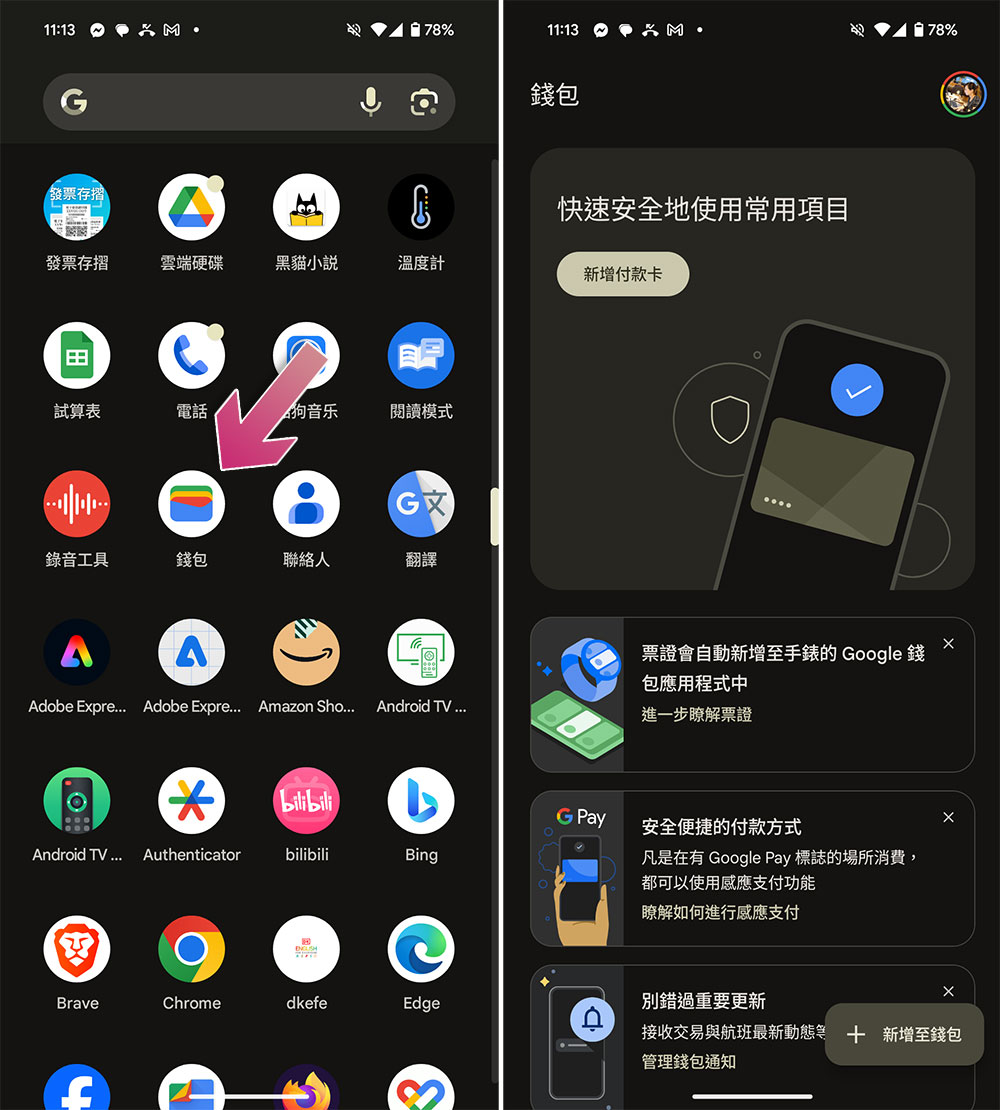
Most Android phones let you tap to pay using NFC technology. In this case, you must first set up a payment app like Google Wallet on your phone.
To do this, open your preferred payment app, such as Google Wallet. Add your credit or debit card details and customize any options you want in the app. Then, you should be ready to make contactless mobile payments using your phone.
8. Setup backup
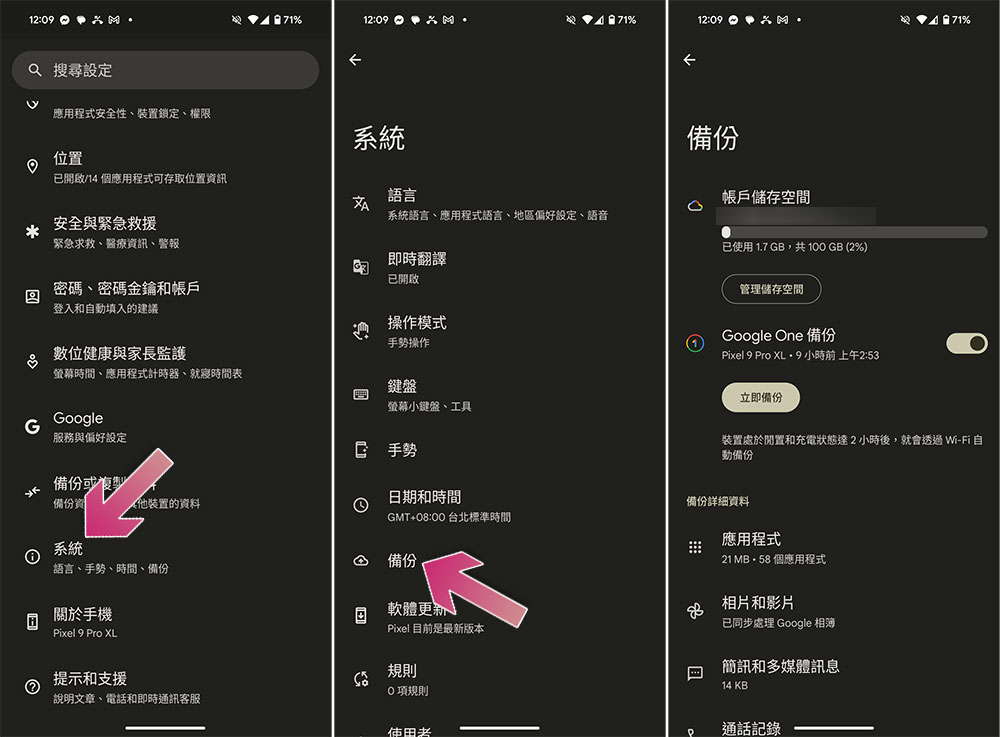
Setting up a backup for your phone is very important because it allows you to restore data if something goes wrong with your phone without having to worry about wiping out all the precious data stored on the phone. You can back up your photos and videos to Google Photos, and other items to Google.
To turn on Google Backup, go to System in the Settings app, click Backup, and follow the instructions to set up backup. If you want to start Google Photos backup, please open the Photos app and click the avatar in the upper right corner to start the backup.
9. Customize home screen and quick settings
For easier access to your favorite apps and options, you can customize your Android phone’s Home screen and quick settings area.
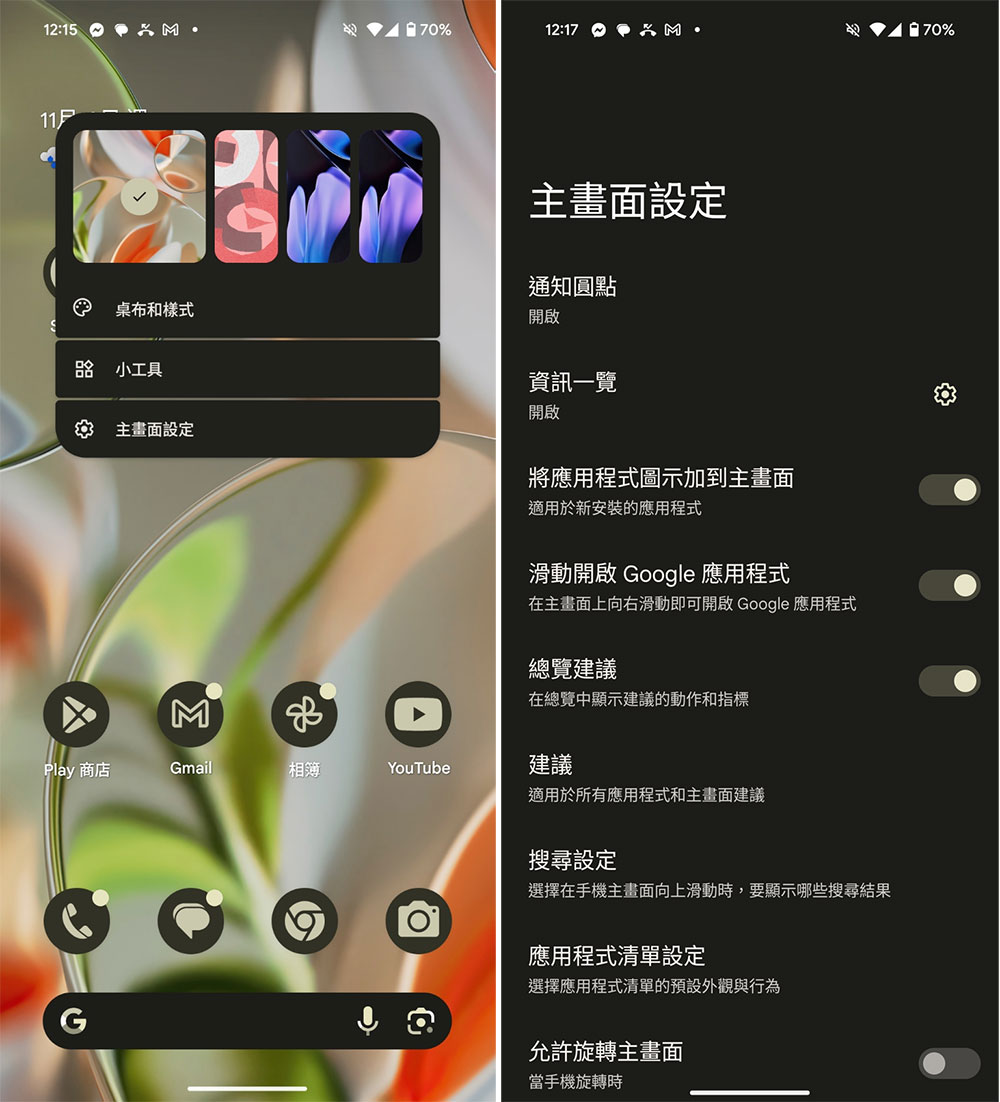
To adjust the home screen, tap and hold the home screen. You will see the settings window for the home screen, allowing you to change the appearance and functionality of the home screen. For example, you can change the screen wallpaper and style, adjust the grid layout, add widgets, etc. Click “Main Screen Settings” to further set other details.
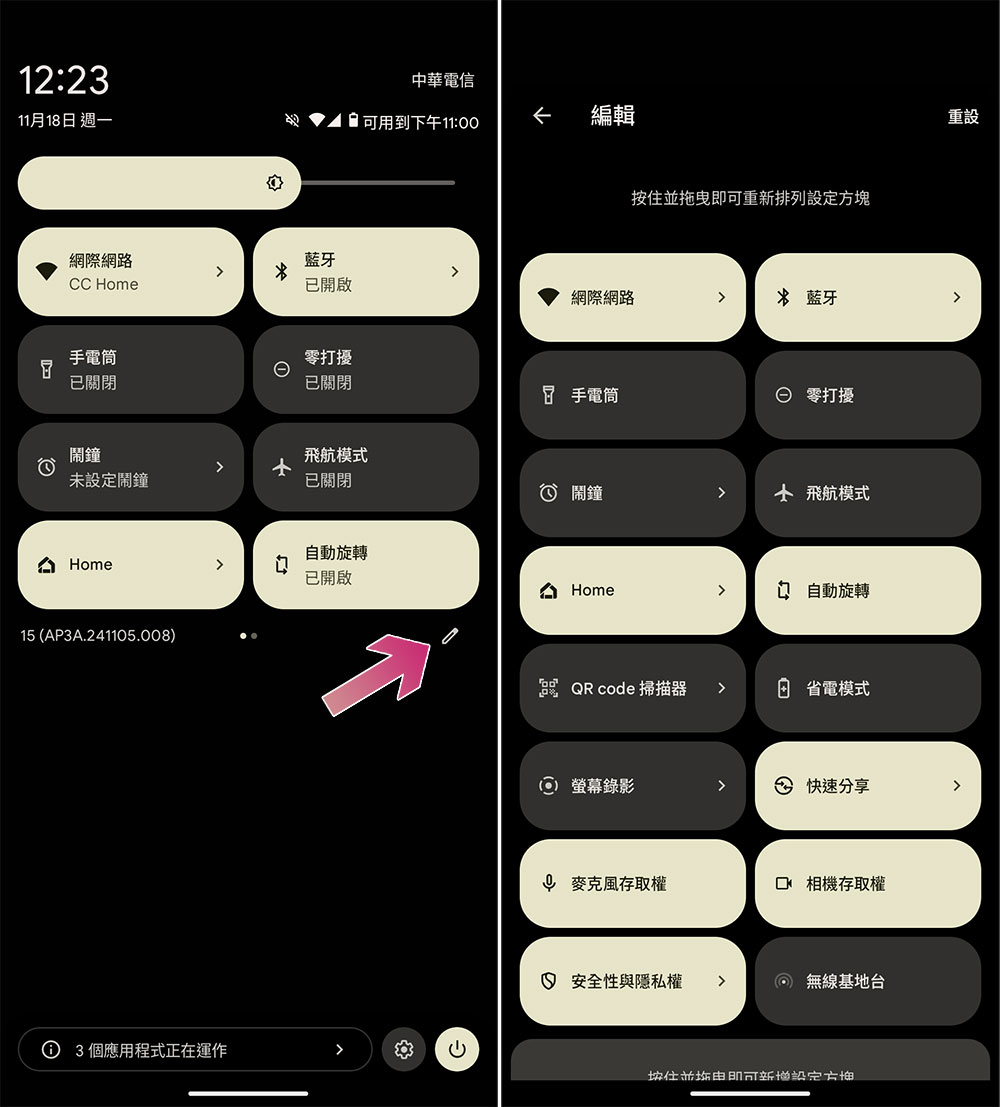
To add or delete items in the Quick Settings area, swipe down twice from the top of your phone screen. At the bottom of Quick Settings, click the pencil icon, then choose to add or remove shortcuts from this area, or sort them yourself.
If you want to make the most of your new Android smartphone, be smart and personal, this time we only provide simple entry-level settings. You can also explore more functions and usage methods on your own, making your phone truly the most helpful right hand around you. Of course, there are rich and diverse applications for you to download freely, but don’t forget that the most important thing is that while enjoying the high degree of freedom of Android, don’t forget to stay alert and have correct security concepts, so that you can wander in the digital world without any worries!
Source: KOCPC Chinese