


Foreign actual measurements show that the current CP value of RX 7600 is extremely low, and there is no need to launch this card at all.Foreign actual measurements show that the current CP value of RX 7600 is extremely low, and there is no need to launch this card at all.Have you noticed that your Wi-Fi connection is slowing down? It’s frustrating, and even the best Wi-Fi routers aren’t immune to the occasional connectivity issue. Most of our devices require Wi-Fi to access the Internet, which places demands on the available bandwidth of our networks. Even if you have high-speed or fiber-optic internet in your home, the speeds available indoors are up to you, but before you consider spending money to upgrade your router, there are a few things you can try to see if your Wi-Fi speeds improve.
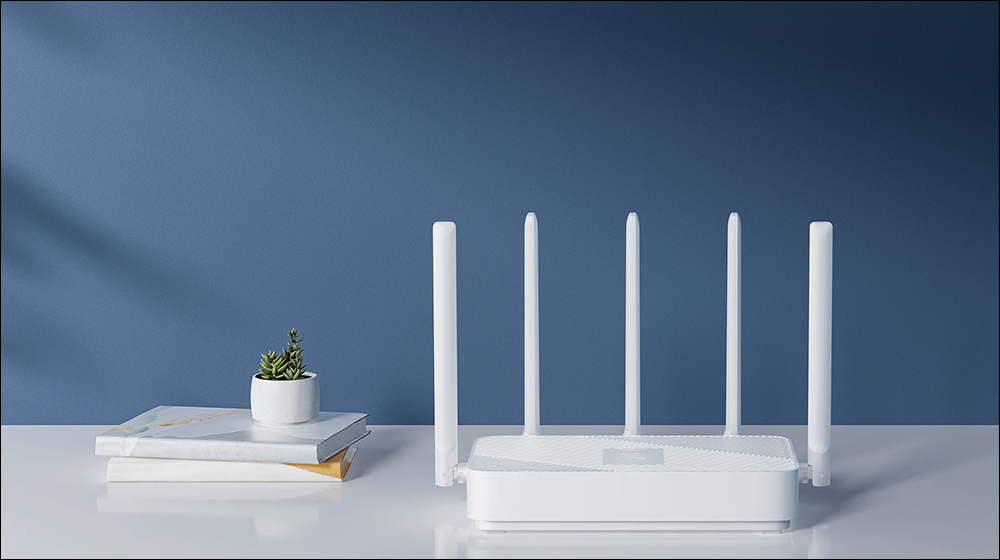
6 Ways to Improve Wi-Fi Speed Without Upgrading Your Router
1. Switch frequency band
Network congestion is a major cause of slow Wi-Fi speeds, especially for people who live in crowded cities such as apartments and buildings. While Wi-Fi 7 or Wi-Fi 6/6E routers have ways to take advantage of 6GHz to resolve congestion issues, there are still options for mitigating congestion issues with older routers. Oddly enough, the root of the problem is also the way to fix it, since most people use routers and never change the defaults, which means changing the default channel to a less crowded channel can make the Wi-Fi better and reduce interference from neighboring wireless signals.
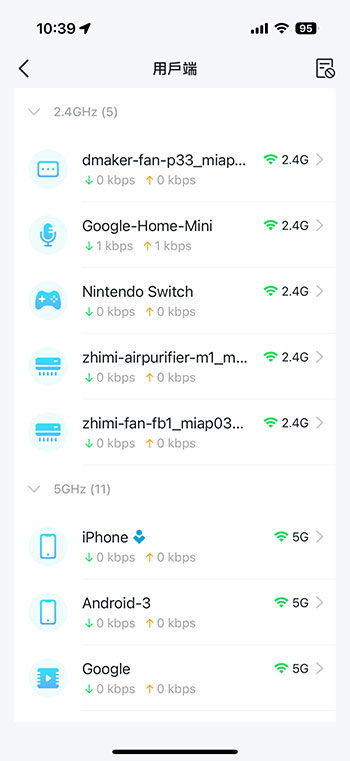
Open the router’s management page and find the Wi-Fi settings page. You will need to change the channels used on the 2.4GHz and 5GHz bands, and if your router also has 6GHz you can leave it in as it may be clearer. Some routers will also scan to see which channels are less crowded, and they will tell you on the settings page or automatically change channels. If you want to make sure you’re not on a crowded channel, there are apps you can install on your phone that will tell you which channels are more crowded so you know which one to switch to.
2. Adjust router antenna
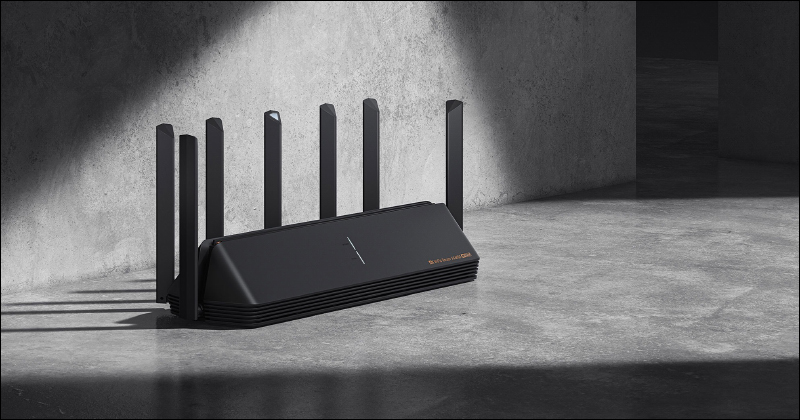
If your wireless router has external antennas, adjusting their angle for better coverage is one way to improve your Wi-Fi signal. How you angle them depends on several factors, mainly the number of antennas you have, which depends on where you want the signal to go. For most routers with external antennas, an omnidirectional antenna means that the signal travels in a circle, with the antenna in the center, like the axle on a wheel. This means that if they are all pointed at the ceiling, most of the signal will travel horizontally rather than vertically. To allow signals to travel vertically at the same time, have at least one antenna parallel to the floor but at right angles to the router, and one antenna pointed directly toward the back of the device.
Users of routers with built-in antennas do not have to worry about the orientation of the router as they are designed to cover a larger spherical area. Also a type, but less common on consumer-grade devices, are directional antennas that aim to beam Wi-Fi in a specific direction. You can place one outside your house to send Wi-Fi directly into your yard. Also keep in mind that turning up the gain will benefit users farther away from the router, but may degrade the experience for users in the same room.
3. Limit unnecessary connections
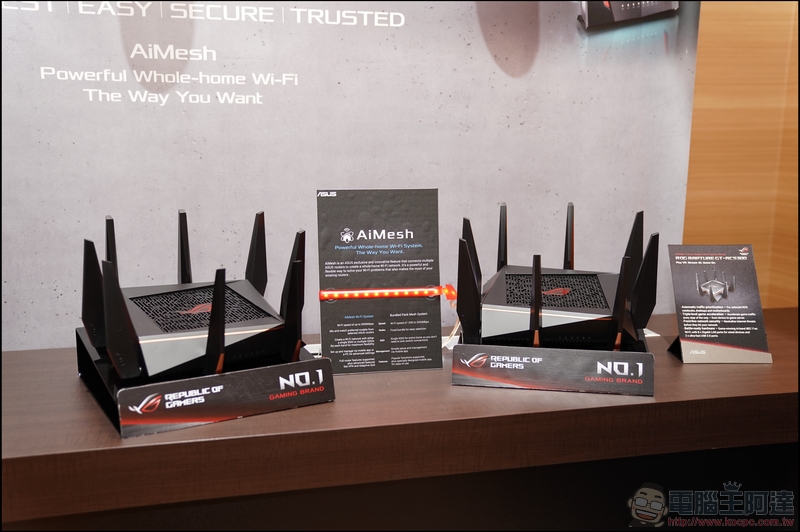
If you have many devices and users on your network, one of the most important router settings is quality of service, or QoS. This feature works like an Express or HOV lane on a highway, sequencing network traffic so your most important devices and services get more bandwidth. Services that do not require a priority queue will be de-prioritized, such as performing updates or backups of the NAS. This means your gaming and video conferencing get the bandwidth you need for a fast connection, keeping streams clear and reducing latency. The best part is that services placed on lower tiers may not even notice it because QoS prioritizes based on your options and known properties of programs that are less affected by latency issues.
4. Restart the router and modem
For many computing devices, one of the first troubleshooting steps is to turn it off and on again, and surprisingly, in some cases, this also applies to Wi-Fi routers, but not for the reason you think. Newer routers have enough memory and storage space for cache and other working data, so while a reboot does clear the cache, it’s unlikely to fix the problem if you’re having Wi-Fi issues. But newer routers will test for interference on startup, so you can fix the problem by jumping to a smoother channel.
5. Scan for malware
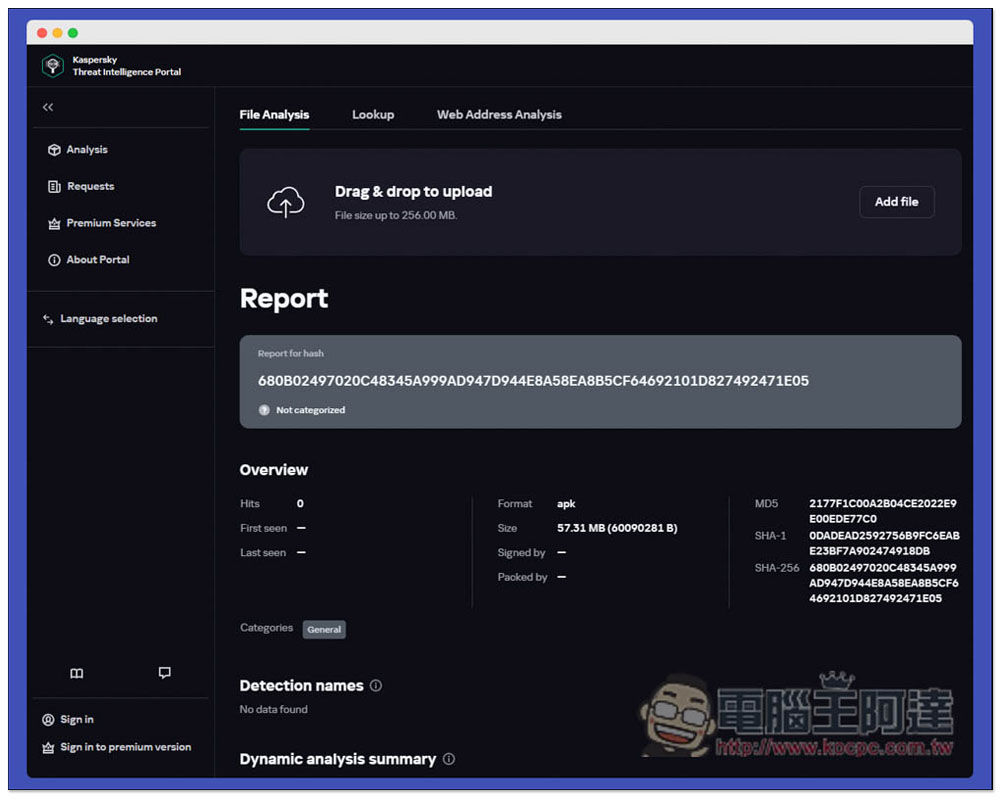
Hackers are getting more sophisticated, and your home network is always a target. You don’t have to be running Windows XP to get malware or other malicious software from the Internet, just having a router that isn’t updated with the latest security patches could flag you as worthy of attack. Most attacks these days are quite automated, so they don’t even have to do anything to get the malware onto your system. Once installed, it steals your data and sends it from your home network to a control server.
The scanning and data transfer process will slow down your network speed and your Wi-Fi will suffer as a result. Running any other modern antivirus and anti-malware service will hopefully find the cause of the slowdown and help you remove it. Just make sure you download your antivirus program from a trustworthy source, such as the original company’s website, as fake antivirus installations are also a real problem.
6. Move your router
While other wireless connections can interfere with your Wi-Fi, so can physical objects. It’s easy to put your router behind something or on a shelf behind your TV so you can’t see it. However, this is not a good idea for getting the best Wi-Fi signal, as walls and objects can interfere with the signal. Also, avoid placing it near a power strip or microwave, as they generate their own radio waves that may cause problems. Since we now know how antennas send signals, it also makes more sense to put routers in your home. Even moving it to the other side of the room (where the network jack is) can make a big difference in signal speed, and is relatively easy to do.
Most of us need Wi-Fi as part of our daily lives, and having speed issues is never fun. But assuming congestion is the cause of slowness, you can improve the performance of your wireless connection in just a few clicks. It’s also possible that your router is too old and is using a version of Wi-Fi that was fast at the time but has been outperformed by newer standards, in which case the only thing that can fix the speed issues is an upgrade, but it’s worth trying the free options first.
Source: KOCPC Chinese