


When your computer has been used for a few years and the screen keeps freezing, the hardware starts making strange noises, and the system is unbearably slow, if you use it for work and you don’t want to spend most of the day fighting against it, you need to replace it as soon as possible. If you are considering a second-hand laptop or desktop, this time we have compiled 7 key points to check before paying for it, so that you can buy with more peace of mind.
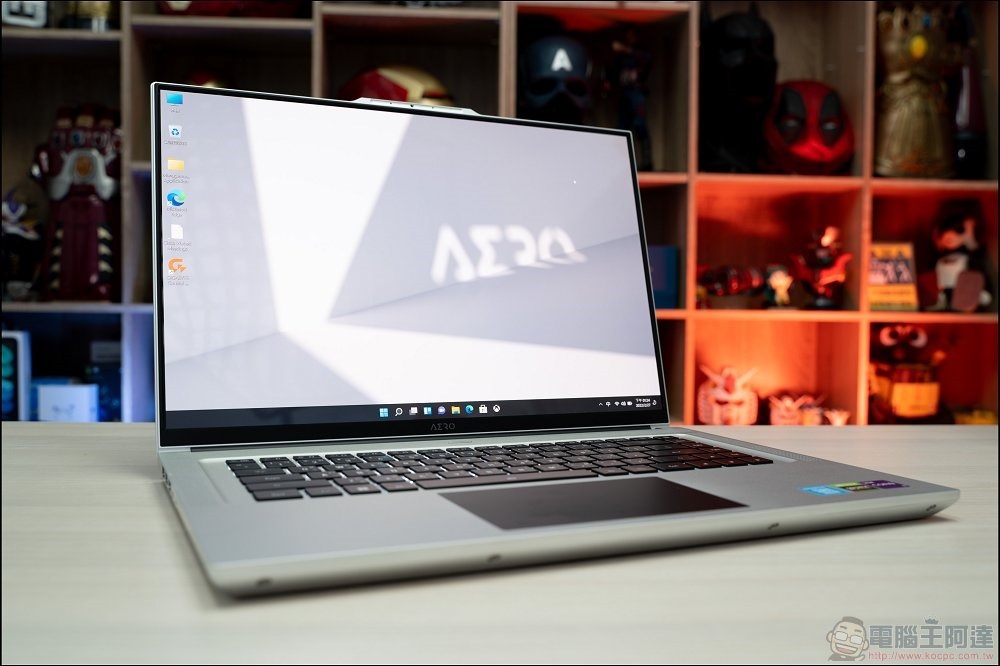
7 Things to Check Before Buying a Used Laptop or Desktop
Not everyone wants to buy a brand new computer. Sometimes they may have a limited budget, and sometimes they don’t want to wait too long. At this time, second-hand computers will be your reference item. You can get higher specifications for less money. If you buy locally, you can also get the equipment quickly. Don’t just hand over your money to the seller, check these seven things before buying a used laptop or desktop.
1. Know what CPU specs you need
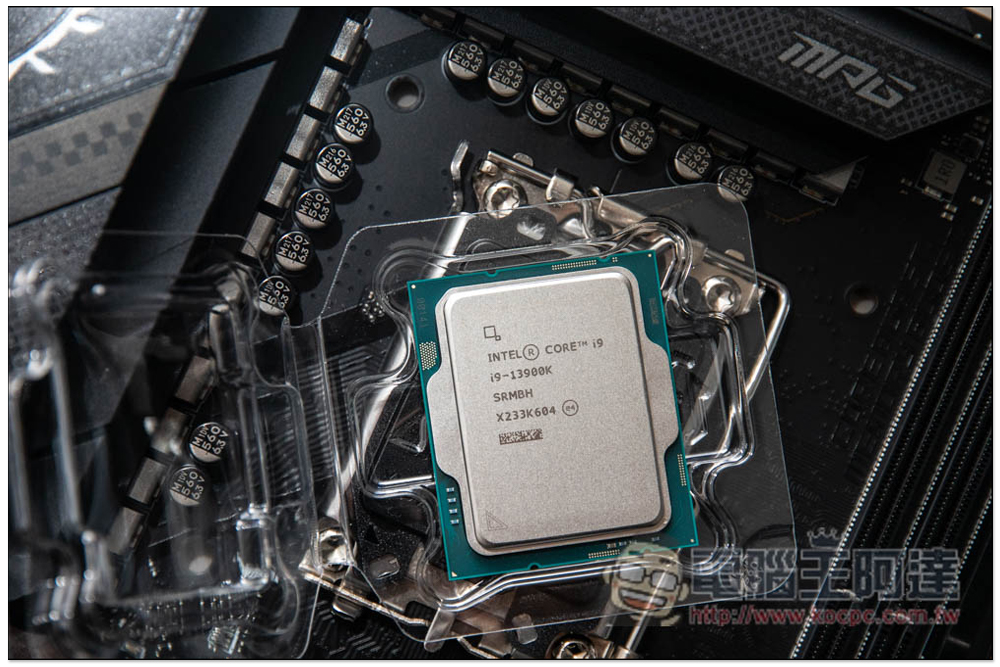
When looking for a laptop or desktop, check the specs to make sure the computer can handle your daily tasks. The most important specs to look out for are the processor, RAM, storage, and GPU. Let’s take a closer look at the processor first, as it is the brains of the computer.
You’ll typically come across two processor families: Intel Core (Core i3 to i9) and AMD Ryzen (Ryzen 3 to 9). What you need to pay attention to is the performance level and codename in the CPU name. For Intel and AMD processors, look at the number after Core/Ryzen and the first one or two numbers after that. For example, Intel Core i7-1165G7 means it is the 11th generation i7 performance grade. Meanwhile, in the AMD Ryzen 5 7600X3D, 5 is the performance level and 7 is the generation. Performance grade tells you how capable your CPU is, while generation indicates how new or old your CPU is. The higher the performance level and generation, the more powerful the chip is and the more expensive it is.
In summary, Intel Core i3 and AMD Ryzen 3 are the lowest performing but also the most affordable, making them ideal for everyday tasks. Core i5 and Ryzen 5 are great for productivity and casual gaming, while Core i7 and Ryzen 7 are great for high-end gaming. Core i9 and Ryzen 9 provide the best performance. Unless you’re going to be performing intensive tasks on your PC, you can easily go for the i5 or Ryzen 5. Also, avoid Intel Core below 8th generation and AMD Ryzen below 2nd or 3rd generation as they don’t support Windows 11.
2. Determine the RAM, storage and GPU specs you want
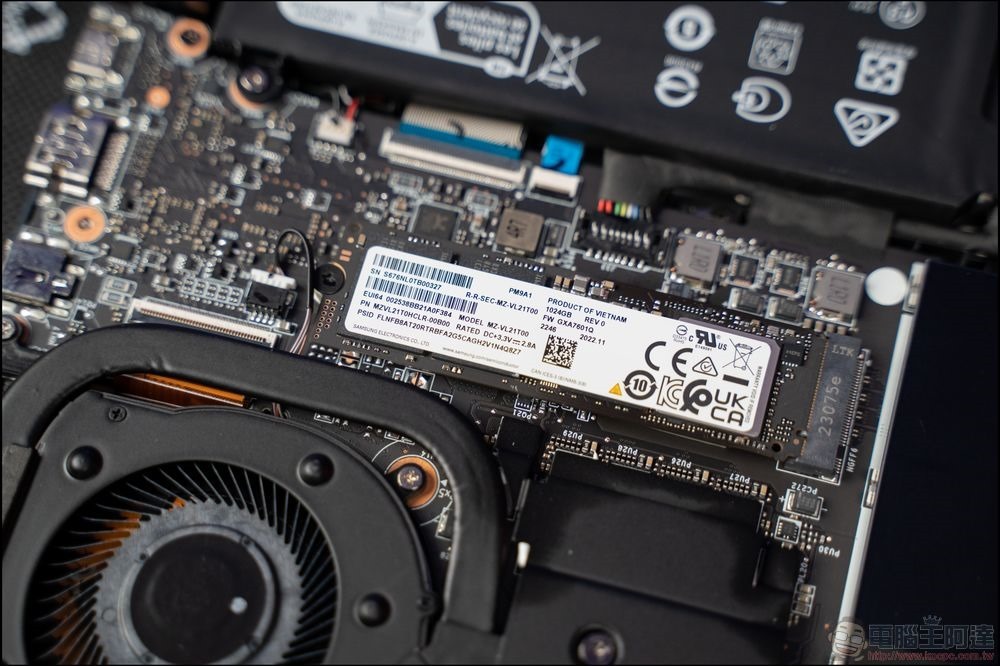
Now, let’s take a look at the RAM, GPU, and storage specifications. How much RAM you need in a Windows computer depends on what you’re going to use it for, with modern systems containing at least 8GB capable of handling most day-to-day productivity tasks (less than 8GB may feel sluggish). However, 16GB is better for gaming, if you want to stream on top of that, go for the 32GB RAM. When it comes to storage hard drives, choose SSD as it will be faster than HDD. The capacity should be no less than 256GB to leave room for future use.
Aside from RAM and storage hard drive, if you’re playing games on your computer, your biggest concern is the GPU. The GPU can be a discrete/dedicated GPU or an integrated graphics card. Since it has its own memory, a discrete GPU is more powerful and therefore better suited for demanding tasks. Integrated graphics, on the other hand, do not have their own resources and are therefore less powerful, however, this does not mean that you cannot play games on a computer with integrated graphics. Games like Stardew Valley and Minecraft actually work just fine. However, for more intensive games like Marvel’s Spider-Man, The Witcher 3, and Grand Theft Auto V, you’ll either need to switch to the lowest settings (which may impact the experience) or buy a computer with a discrete GPU.
3. Verify computer specifications and price
Once you find a computer that suits your spec preferences, you need to do two things: price compare new and used products with similar specs, and verify that the computer actually has the specs listed. To compare prices, find the exact computer model on the manufacturer’s website and see how much it would cost to buy a brand new computer. There should usually be a significant difference, especially if the used computer is a few years old. If it’s less than 20% off in price and is over a year old, you’re probably overpaying for it.
If the model has been discontinued and is no longer for sale, please search for second-hand products of similar age on second-hand trading platforms. Then, compare their prices with those offered by sellers to see if they’re a good deal. If you purchased a desktop computer that came with custom parts that the seller installed themselves, check the individual prices of those parts (new and used) to better assess the value of the computer.
To confirm these specs on the device, you’ll need to check it out yourself. An easy way to do this is to open the System Information tool (search for “System Information” in the Start menu). Here, you will see key specifications such as the processor, physical RAM installed, GPU, storage drive, and other system details. In addition to knowing the exact specs of your laptop, research whether it is upgradeable so you can replace or add more RAM and storage if needed.

4. Check the monitor and peripheral equipment
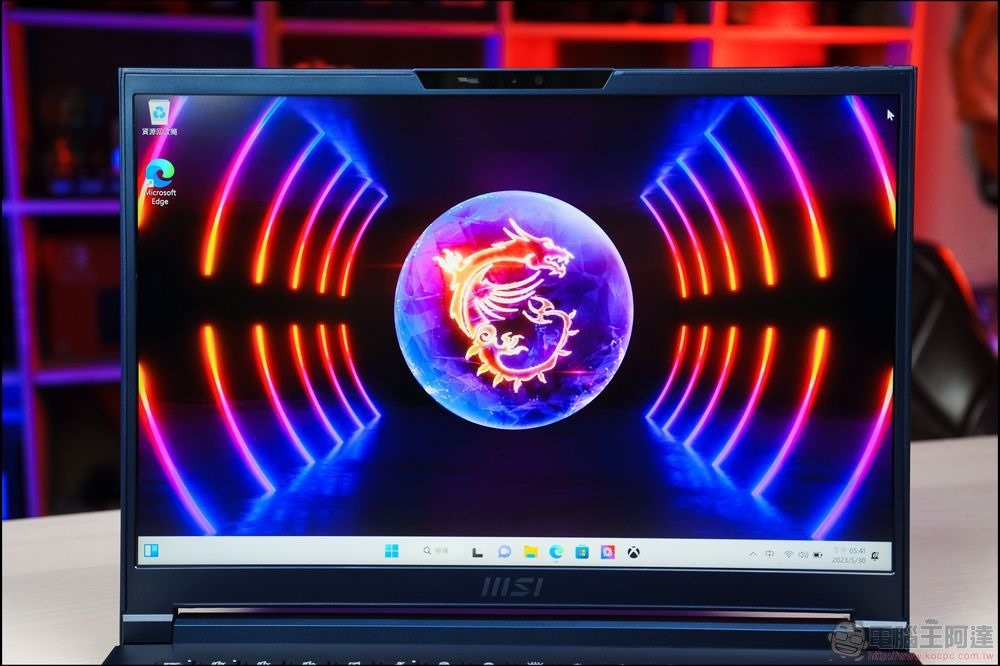
The parts you use the most are input and output devices, so these should be the first things you check before buying a used laptop or desktop. First, check the screen (if it’s a laptop or all-in-one PC) and check for any physical damage to the monitor, such as cracks, scratches, and dents (irregular spots of discoloration). Check the frame around the screen to make sure it’s still intact. If it’s a laptop, open and close the lid a few times to make sure the hinges are still in good condition and aren’t wobbly or cracked. Then, turn on your computer and on your browser go to“Dead Pixel Test” website. This is an easy way to see if there are dead pixels or residual images on your screen. They are essentially dots that don’t change color even when displayed in different hues, and while one or two may not significantly impact your user experience, they can be used to counter-offer with the seller.
Next, test the microphone, camera, headphone jack, and speakers. The easiest way is to use the native camera app to record a short video of yourself talking. Then, listen to the recording using wired headphones. Then unplug the headphones to test the speakers.
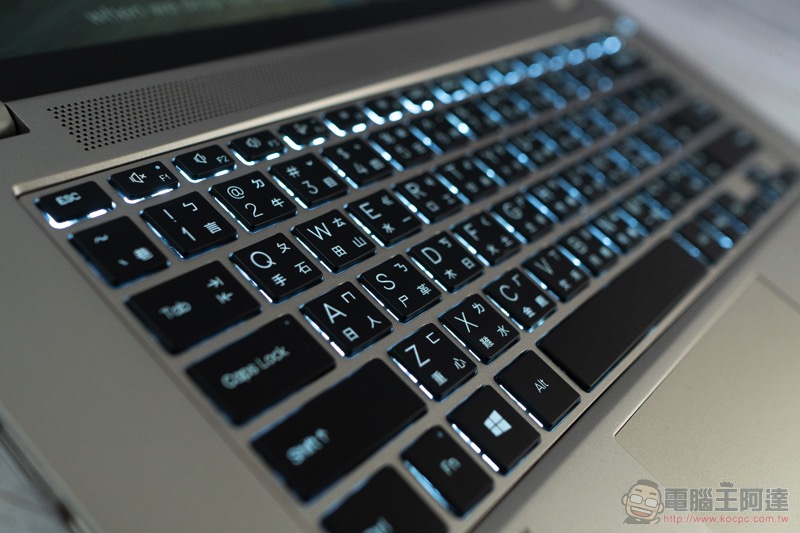
Finally, go to Keyboard and Trackpad. You can use your browser to Key-Test keyboard online testCome check them out. Just press every key on your keyboard and button on your trackpad to make sure they’re registered. Then, open the Notes app and start typing, making sure there are no stuck or dented keys, keys that you type multiple times, or keys that type the wrong characters. If your keyboard also has a backlight, check to see if you can turn it on and adjust the brightness and color if those options are available.
5. Test ports and slots
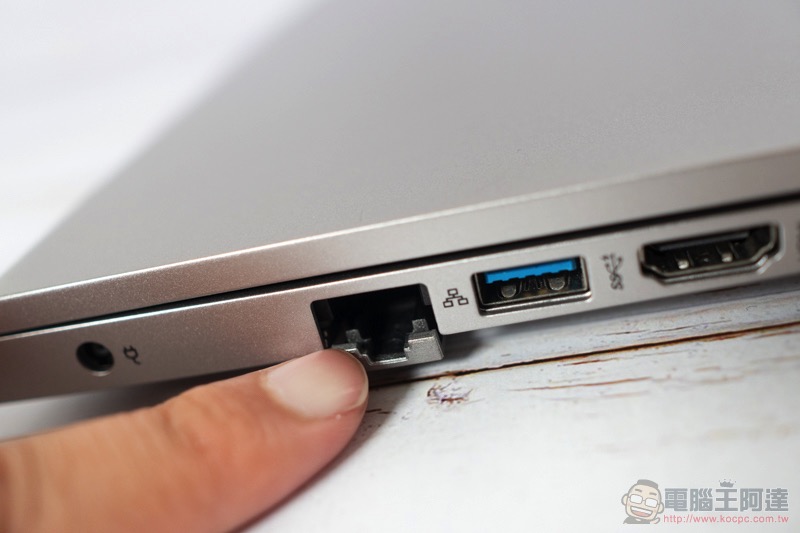
When checking your computer’s ports and slots, start with a visual inspection. Look inside each port and slot to make sure there are no damaged or missing connectors. Check the case itself for any dents, cracks or chips. Then, test each port and slot to see if the connections are tight enough and not loose. If you buy a laptop, watch to see if the battery charge increases after a few minutes.
6. Check internal hardware
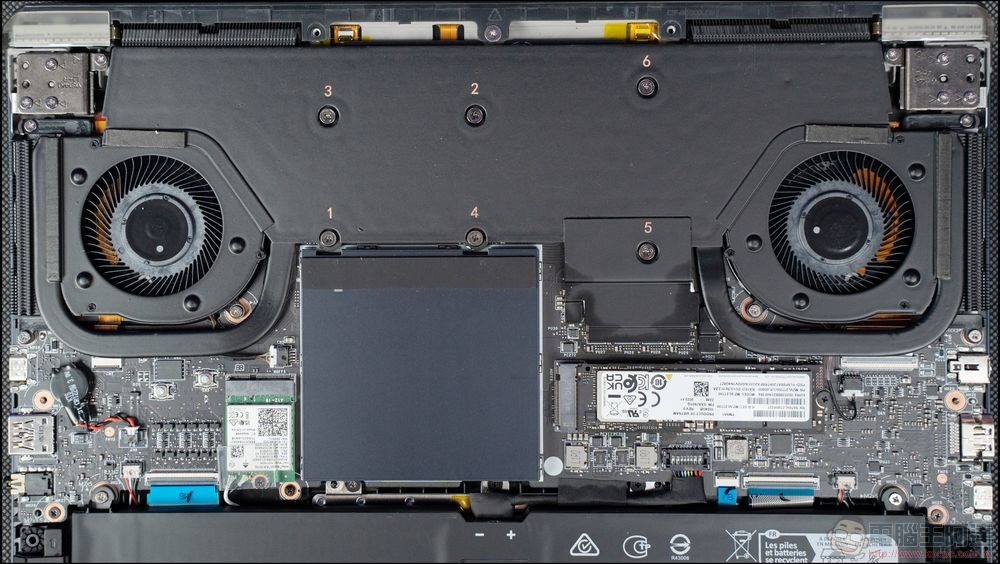
Diagnostic tools are your best friend when it comes to dealing with your computer’s internal hardware. For example, to test a CPU, you can use the easy-to-use Processor diagnostic tool for Intel CPUtools and for AMD CPUs AMD Ryzen Master. To test your RAM, simply run the built-in Windows Memory Diagnostic application from the Search menu. For storage drives, launch the command prompt from the Start menu, then enter “wmic diskdrive get status,model” and look for the OK status. To check the battery health of your laptop on Windows, open the command prompt again and type “powercfg /batteryreport”. The generated report will tell you the battery’s original capacity and full charge capacity. Batteries will degrade over time. The difference between them is normal, but if the difference is large, it may need to be replaced.
To check the fans in your PC, simply open the case and check that they are functioning properly while the computer is on. This is also a good time to see if the other internal hardware is in good physical condition, looking for no exposed or old cables, signs of damage, or dirt buildup. For fans on laptops and all-in-one desktops, manufacturers often provide fan diagnostic tools. For Wi-Fi and Bluetooth modules, all you really need to do is connect them to their respective devices and see if they connect and transmit as expected.
7. Software
If you purchase a laptop or desktop with a pre-installed operating system, verifying its legitimacy should be part of your evaluation. Open Settings and navigate to System > Startup. You should see “Active” next to the launch status. Expand this option and make sure it says “Windows Enabled” or “Windows Enabled with a Digital License.” If “Windows is not enabled” appears, the error may be due to an invalid product key. If it says “Windows is enabled with a digital license linked to your Microsoft account”, it means there is a Microsoft account connected to the license.
Once you decide you want to buy a computer, you need to remove it. Doing so is as easy as resetting your laptop or PC and logging in with your Microsoft account. However, you can identify a genuine Windows installation by looking at the Microsoft Windows label on your computer and comparing it to the genuine label.
You should also check if the BIOS has a password. Go into your computer’s BIOS (it varies by manufacturer) and make sure it doesn’t ask for a password, and if it does, ask the seller to remove it after you purchase the product. Having free access to the BIOS is important because it’s where you can perform things like troubleshooting, system diagnostics, and changing the boot order (when you want to use an instant USB instead of the native operating system).
Source: KOCPC Chinese