


Autofill comes in handy when you’re filling out forms, entering passwords or contact information on iPhone. Not only does it save time, it also reduces errors by automatically entering details such as your name, address, credit card information, and login credentials across apps and websites. This is especially useful when logging into an account, registering for a website, or making an online purchase, because AutoFill can instantly fill fields on a page with just one click.

How to enable and change AutoFill on iPhone
AutoFill on iPhone gives you the convenience of filling in complex passwords, credit card details, or exact addresses every time. Plus, if your personal information changes (whether you move to a new address, receive a new credit card, or update your password), you can easily edit these details. iPhone’s AutoFill feature gives you complete control over the information you store and use. For example, you can choose to enable autofill only for contact information and not save payment information, or vice versa. Below, we’ll guide you through the process of enabling AutoFill on your iPhone and how to modify or delete your stored personal details to ensure your information remains accurate and secure.

How to enable or change autofill for contact information and credit card
When you enable autofill contact information, Safari can use your saved personal details, such as your address and phone number, to automatically fill in forms. Likewise, enable credit card autofill to automatically fill in saved payment details for you, making for seamless online purchases.
- Open the Settings app on your iPhone, scroll down and click “App”.
- Find and click “Safari” in the list.
- Click “Autofill” in the General category.
- Turn on the switches next to “Use Contact Information” and “Credit Card” to allow iPhone to automatically fill in credit card and contact information.
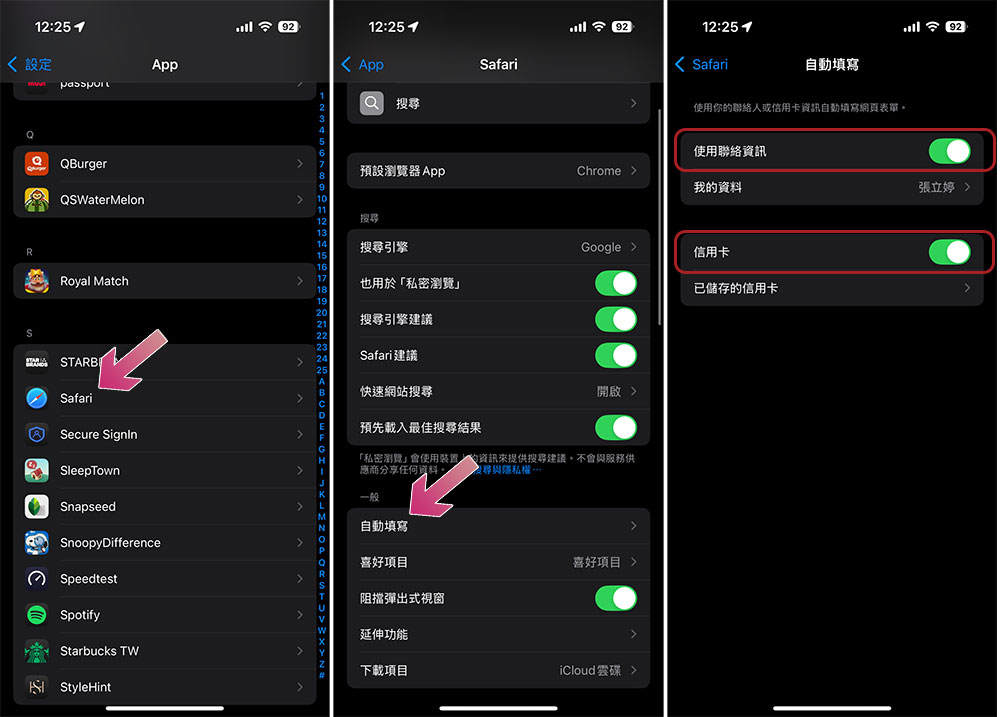
- To enter or edit autofill information, follow these steps:
- credit card
Please click “Saved Credit Cards”. Then, click “Add Credit Card” to enter your card details. If you’ve already saved the card, select it and click Edit to update any information as needed. - Contact information
To ensure you are using the correct contact information, click “My Profile” and select your own contact card. If you need to update any details, open the Contacts app and click “My Business Card” at the top to edit it and update your name, phone number, email, address, etc.

- credit card
Enabling autofill on your iPhone can reduce the hassle of repetitive typing. However, be sure to regularly check that your contact information and payment details are accurate to avoid any potential errors or incidents.
How to enable or change password and key autofill on iPhone
You can also enable autofill for passwords and keys on iPhone to sign in to apps and websites faster. Once set up, your iPhone will automatically enter your stored login credentials, making the process seamless while keeping your information safe.
- Open the Settings app on your iPhone and select “General.”
- Select “Autofill & Password”.
- Enable “Autofill passwords and passkeys.”
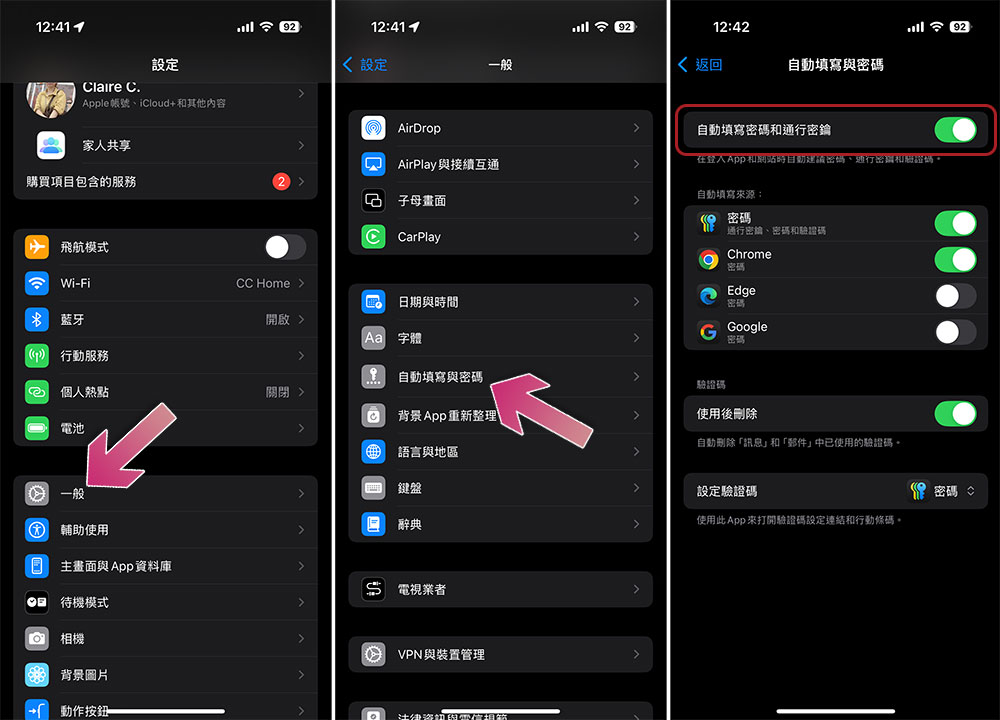
Under the “Autofill Sources” section, you’ll see a list of available password managers that your iPhone can use to autofill credentials. By default, the Passwords app, Apple’s built-in password manager, is enabled. If you want to autofill credentials from a third-party password manager or authenticator app, you can enable them by toggling the appropriate options, just make sure the app is installed and configured on your device. Your iPhone will then securely fill in your passwords and keys from the designated app.
The process for adding or editing an existing password depends on the version of iOS installed on your device. If your iPhone is running iOS 18, you’ll be using the new Passwords app. For iOS 17 or earlier, go to Settings >> Passwords to view, add, or update your saved login credentials.
Source: KOCPC Chinese