


Recently on iOS, it can be said that more and more AI apps are offering lifetime free versions, which is really a good thing for iPhone users. Earlier, there was another powerful “Note Taking AI by HoneyNote” App, which launched a 24-hour Pro lifetime version for free.
Note Taking AI by HoneyNote can not only provide AI summary for YouTube videos, Zoom, audio files, video files, transcripts, online articles, and recordings, but can also generate word cards and test questions based on the summary content to help you understand the key points faster.
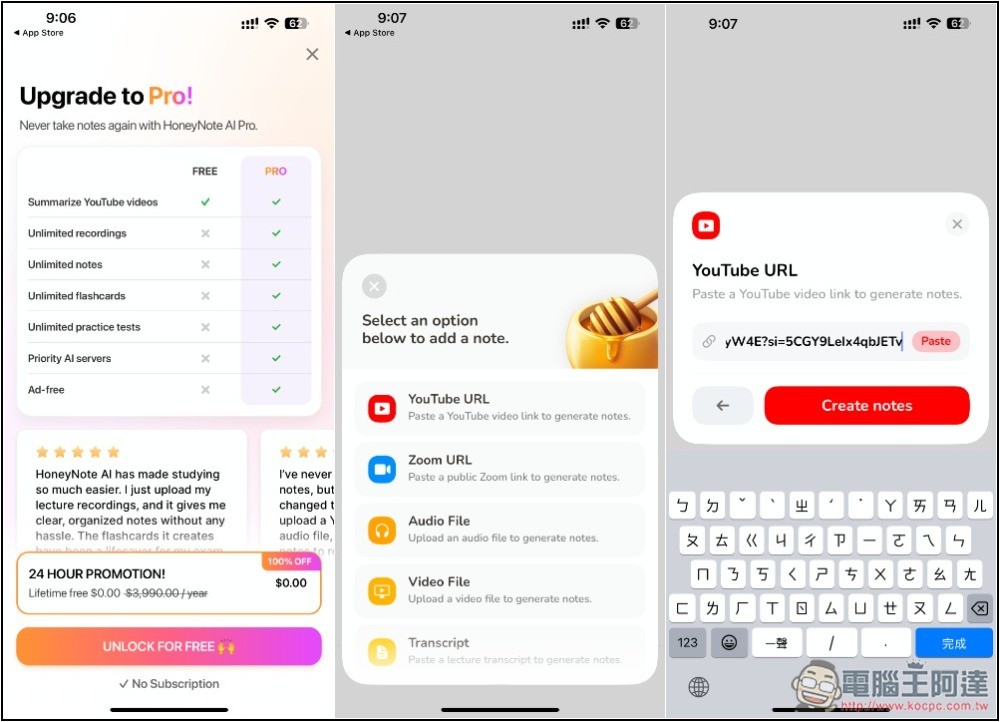
“HoneyNote AI” Lifetime Edition available for free for 24 hours for a limited time (Ended)
Note Taking AI by HoneyNote is currently only available for iOS, not Android.
The method to obtain it is very simple. As long as you download and open the App during the limited-time free period, you will see the message about the lifetime version discount. Remember to obtain it, and then you can use it for free for life without any restrictions.
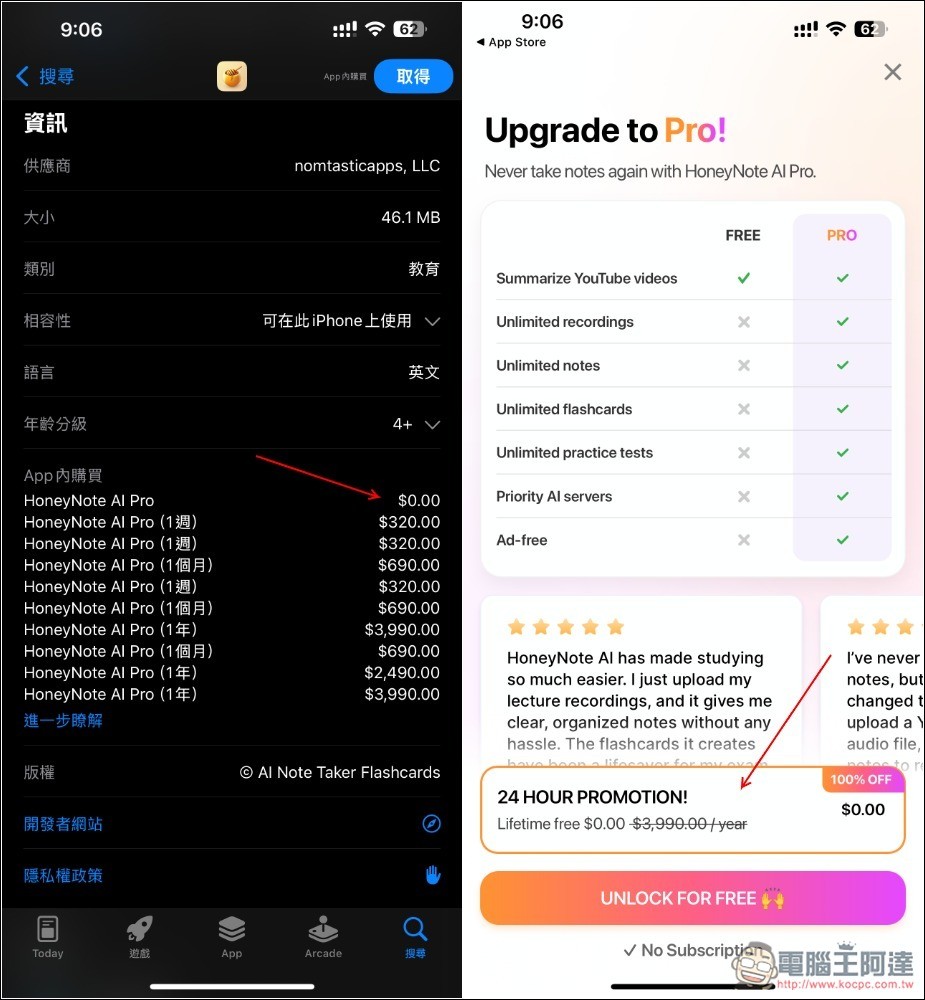
After entering the Note Taking AI by HoneyNote App Store, you will see information about “HoneyNote AI Pro” priced at 0 yuan when purchasing within the app. This is a limited fee. After installation, open it. Before starting to use it, a limited free activity notification “24 HOUR PROMOTION!” will pop up. Press UNLOCK FOR FREE:
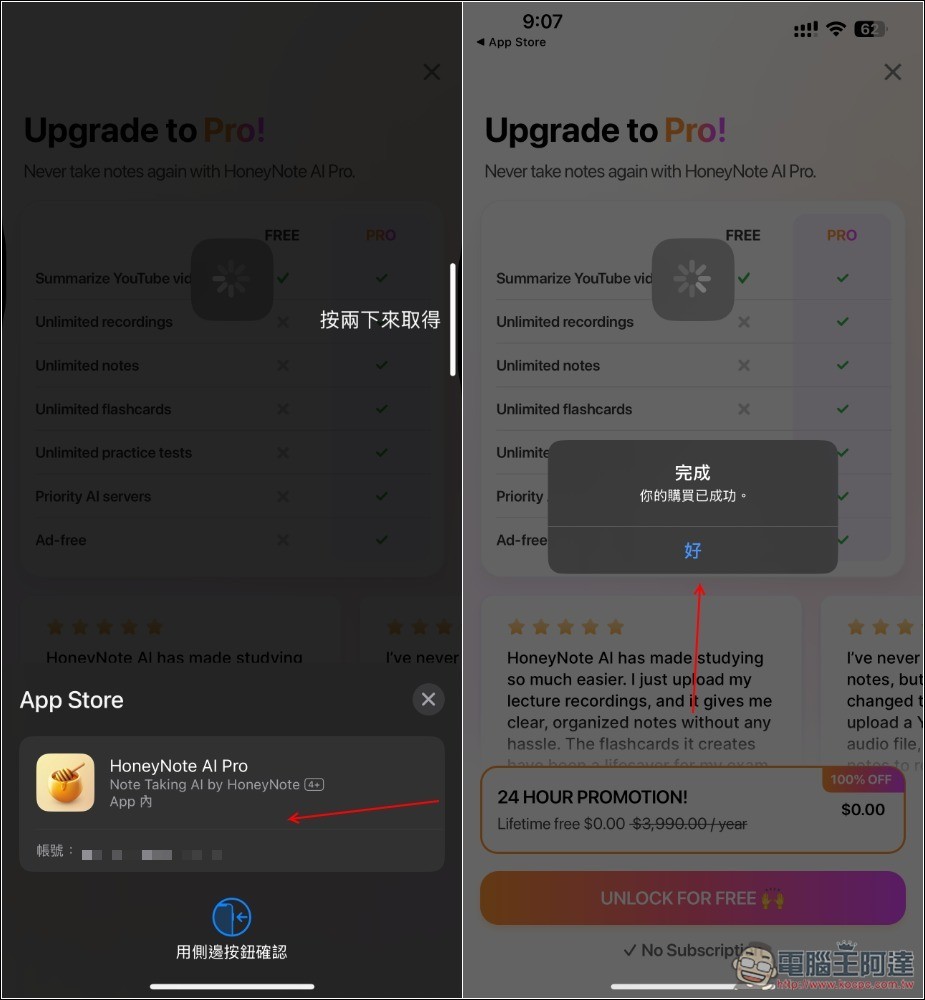
When obtaining, remember to confirm that there is no amount, and then confirm again if there is no amount. If there is an amount, it means you have to pay, which is very important. After completion, it indicates that the purchase has been successful:
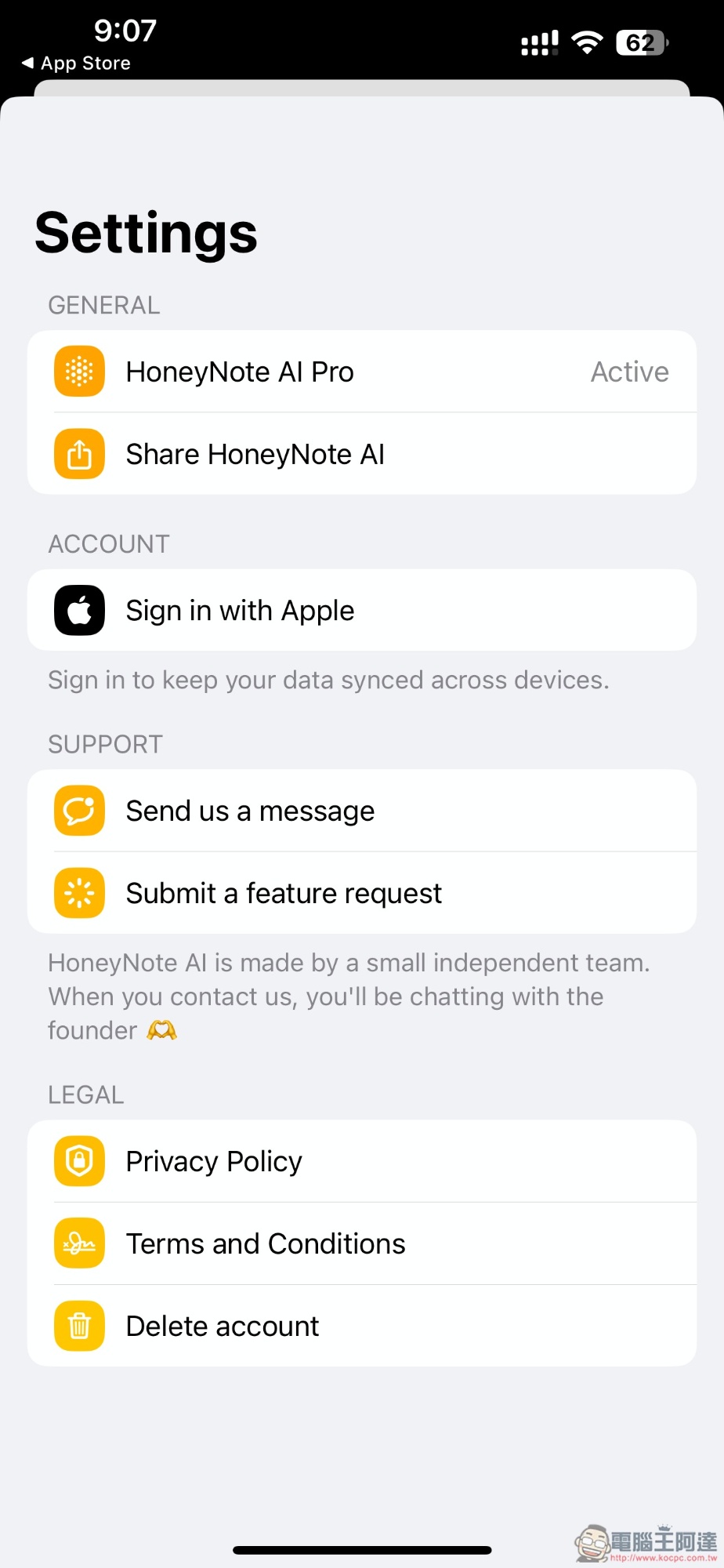
Then enter the setting query, HoneyNote AI Pro will display Active:
“HoneyNote AI” tutorial
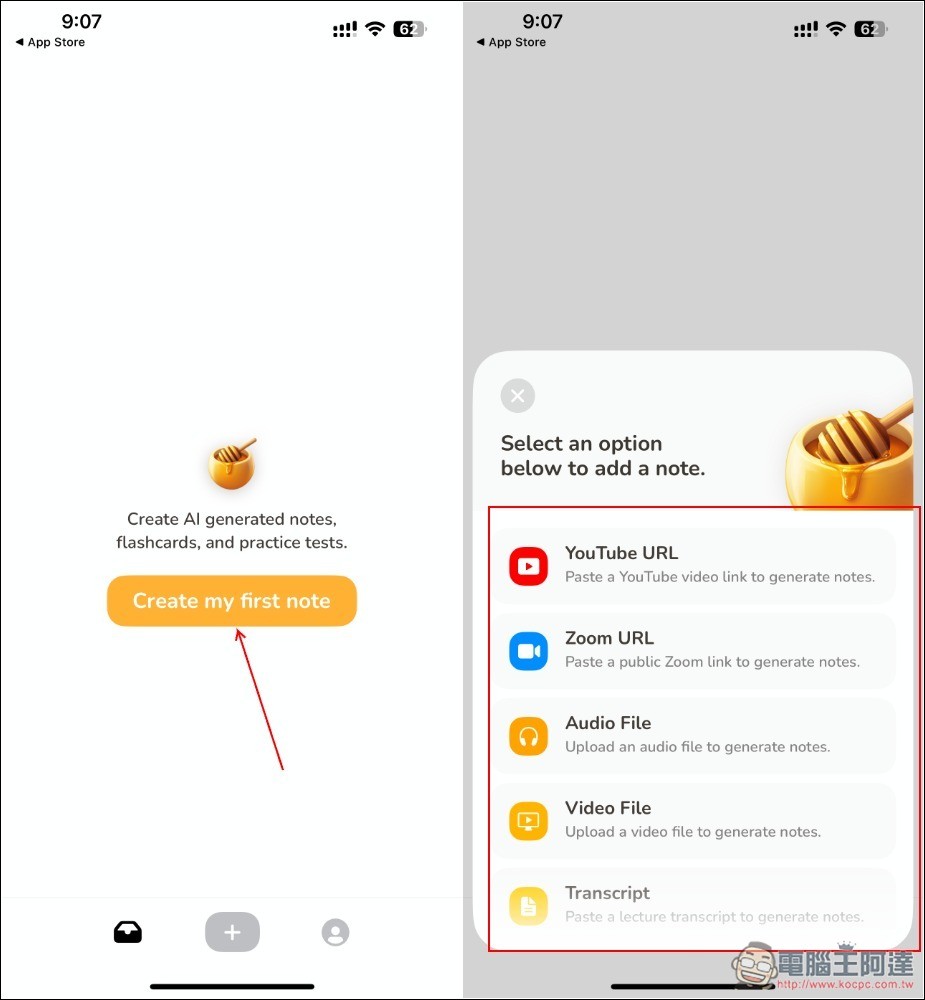
HoneyNote AI is very simple to use, just go to the homepage. Click Create my first note and all supported notes will be displayed. I will use YouTube as an example:
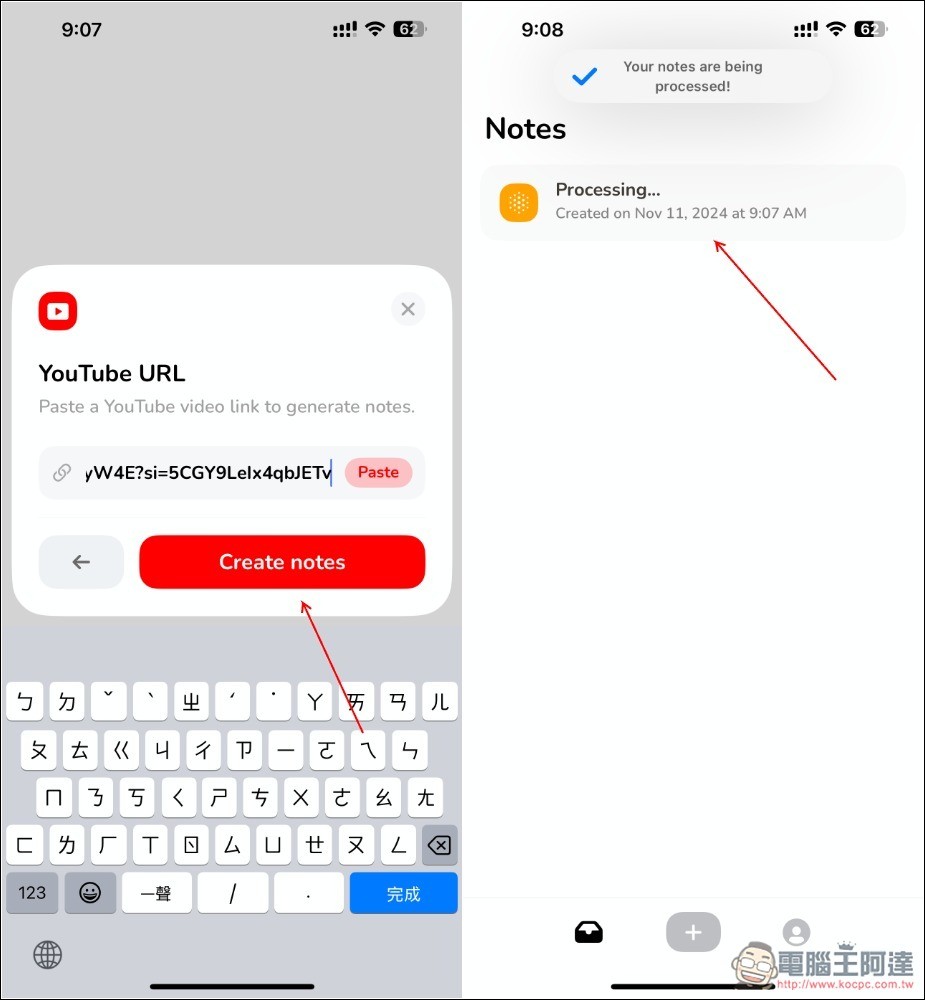
Paste the YouTube URL and press Create notes, and the process will begin. It will take a few minutes to process, but not too long:
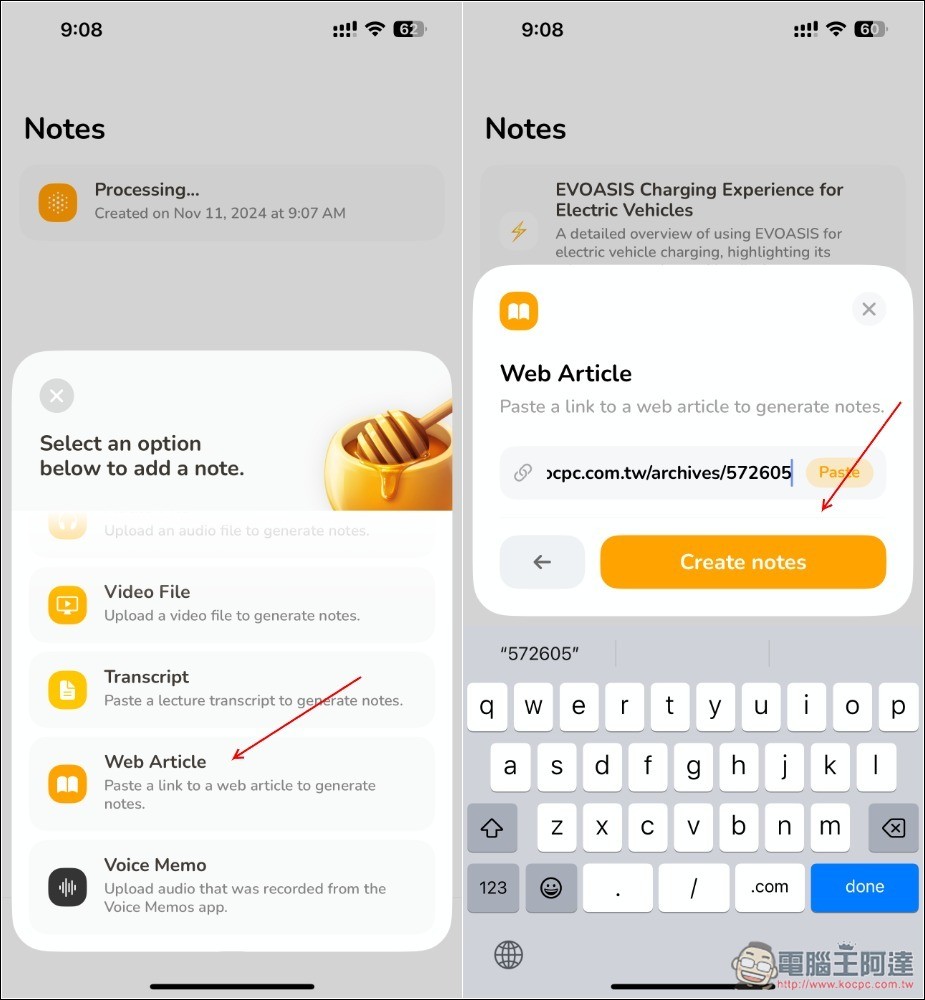
In addition, in the note menu just now, scroll down and there are more, such as web articles:
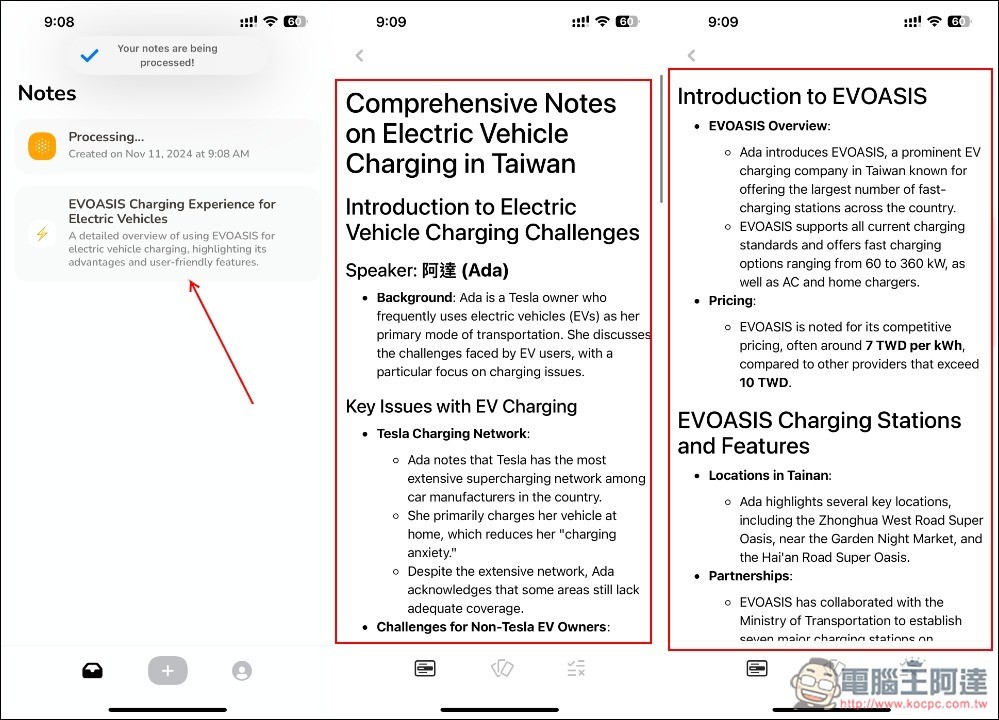
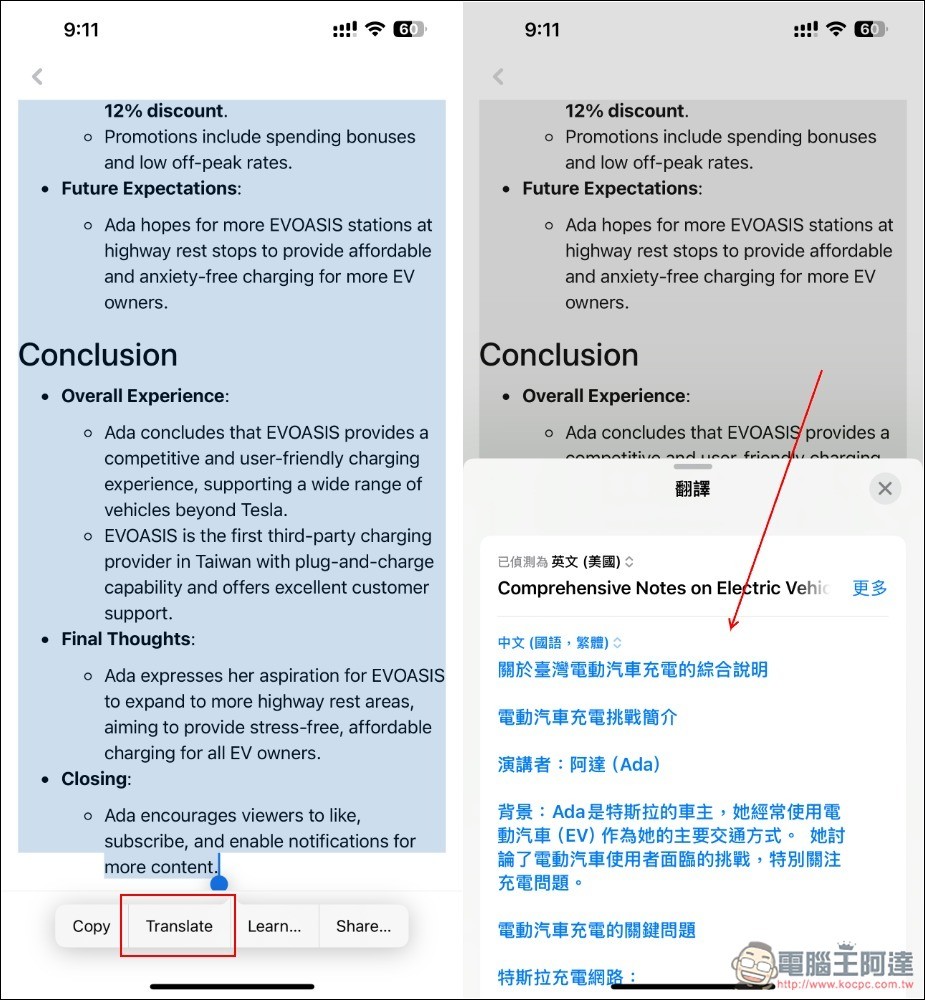
After processing is complete, you will see the AI summary content. According to reports from some netizens, this product supports Chinese, but for some reason I got an English summary. But it doesn’t matter. You can use the built-in translation function:
After selecting all the content, press Translate, and the Chinese translation will be displayed below! Of course, it can also be translated into Chinese through other translation software, AI, or ChatGPT:
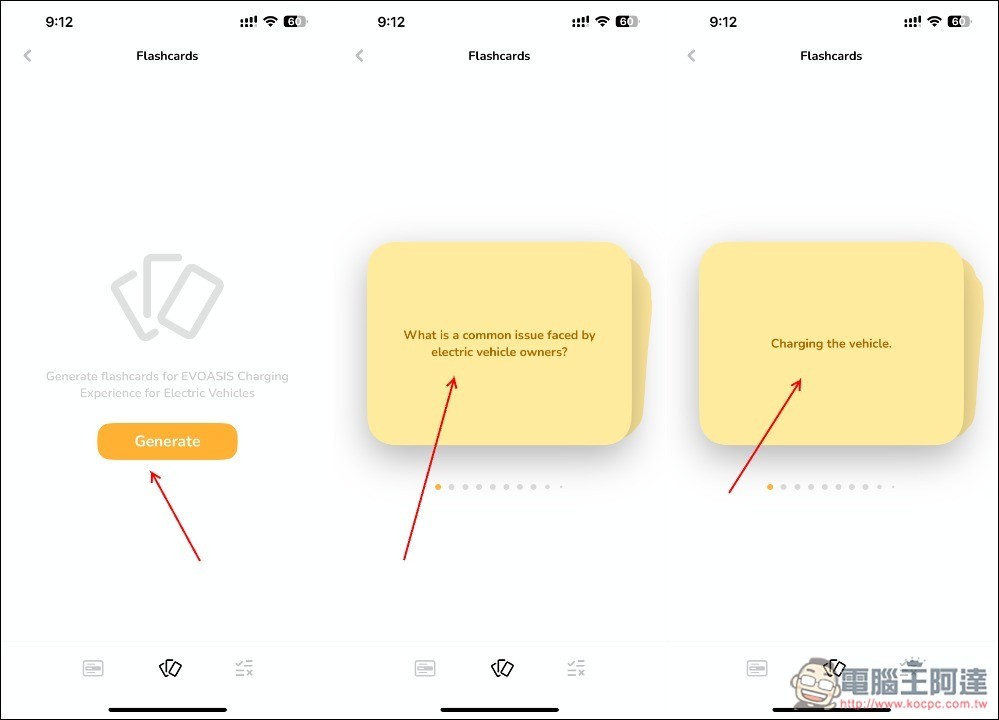
There is also a word card function. After pressing Generate, it will generate suitable word cards based on the summary content. Most of them ask you questions, and then you can check the answers with one click:
There are also practice tests, which generate multiple-choice questions:
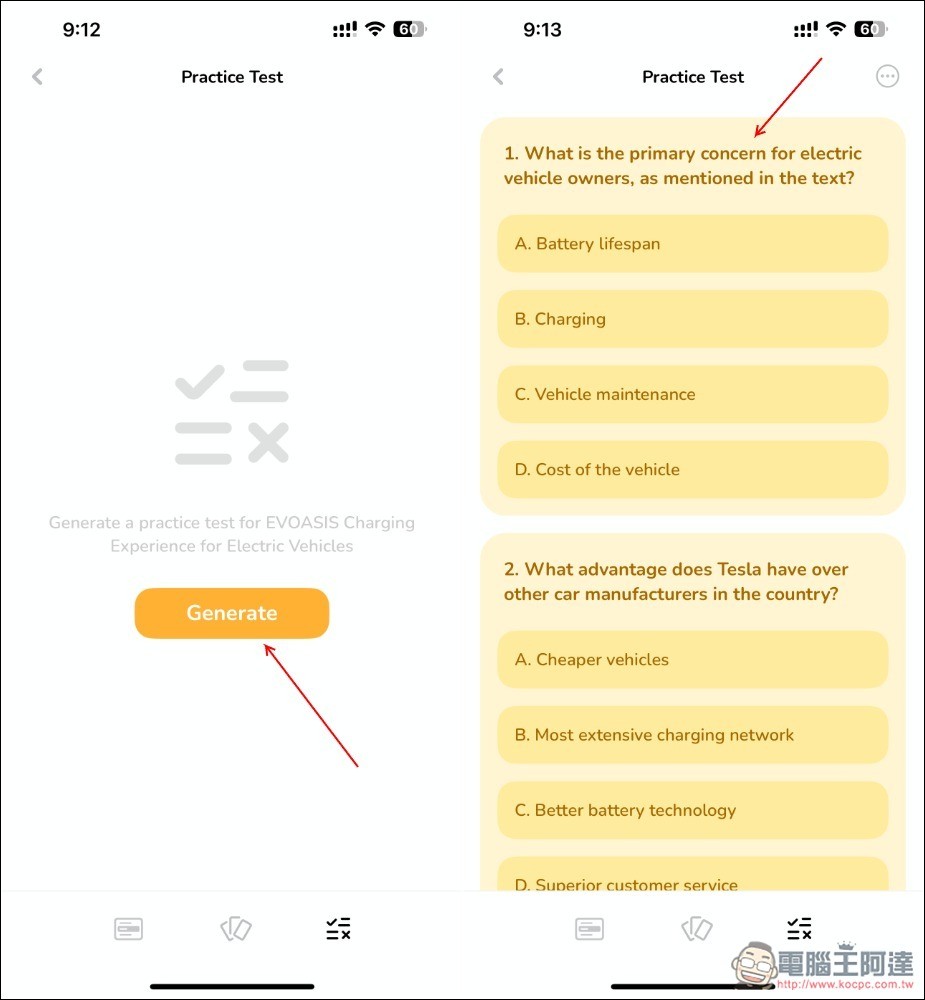
For learning content, these two features should be very helpful and provide a more interesting way to read the content.
But since I got the summary in English, it would be even better if it was in Chinese.
Source: KOCPC Chinese