


It used to be a bit cumbersome to hide apps on iPhone, but starting with iOS 18 you can finally hide and lock the apps you want to keep private. However, unhiding these apps and hiding App Store purchases does require some steps, so please follow our steps.
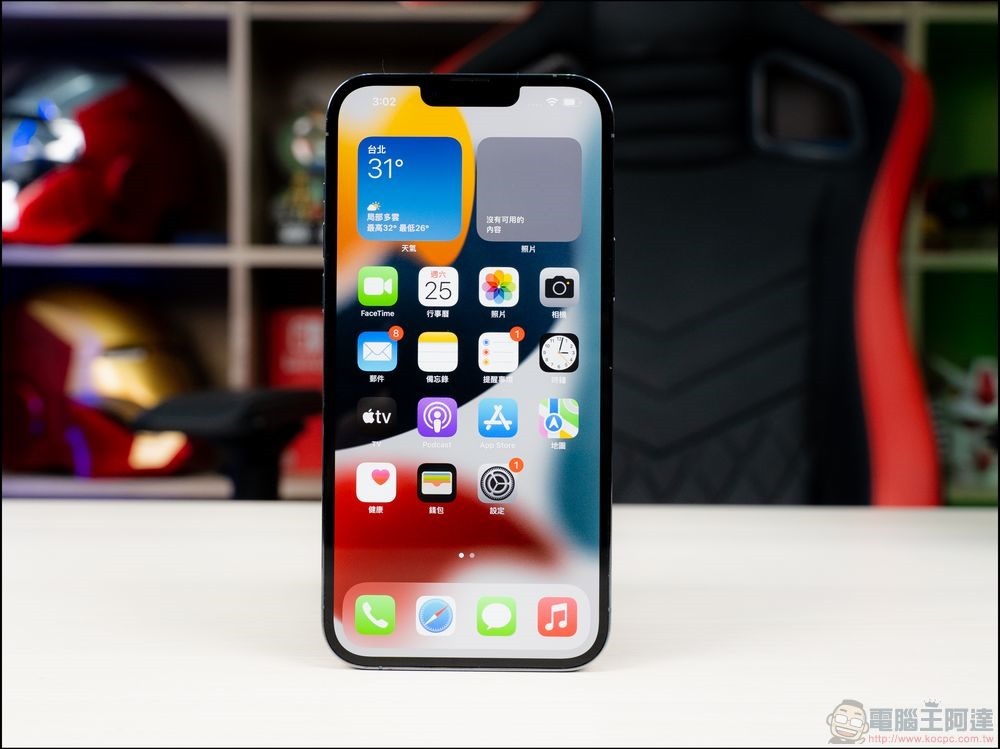
How to hide/unhide apps on iPhone?
Hide application
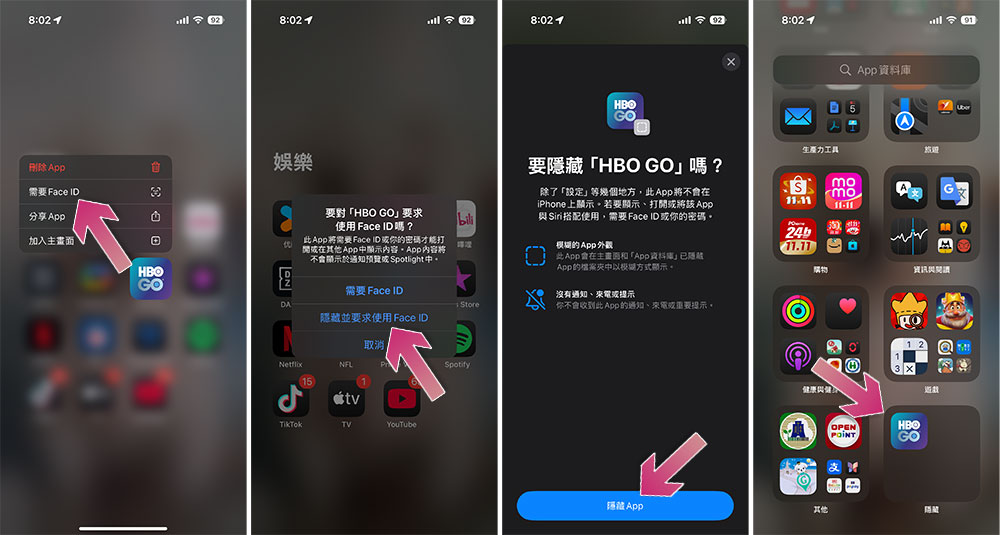
iPhones running iOS 18 allow you to manually lock and hide any app you wish to prevent from anyone else who might have access to the device. Apps hidden in this way can be found in the new “Hidden” category that appears in the iOS 18 App Library.
- Long press the app icon and select “Face ID required”.
- Then select “Hide and require Face ID.”
- Click “Hide App”.
- Next you can see it in hidden categories.
Unhide
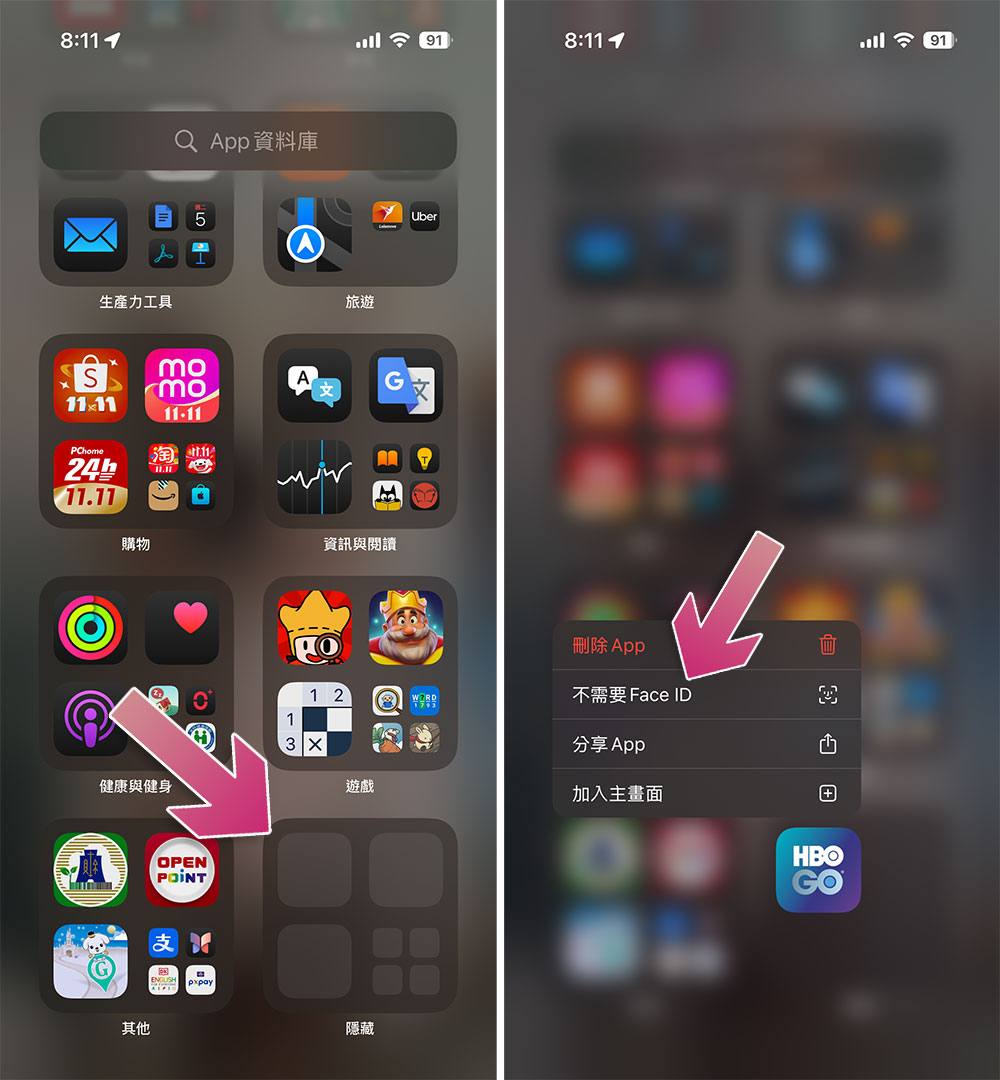
To reposition and unhide a locked app in iOS, you need to swipe left and operate from the App Library:
- Select a hidden category and unlock it with Face ID.
- Press and hold the app you want to unhide, then select “Don’t require Face ID.”
- Next the app will be unlocked and removed from the hidden category.
Search for apps you can’t find
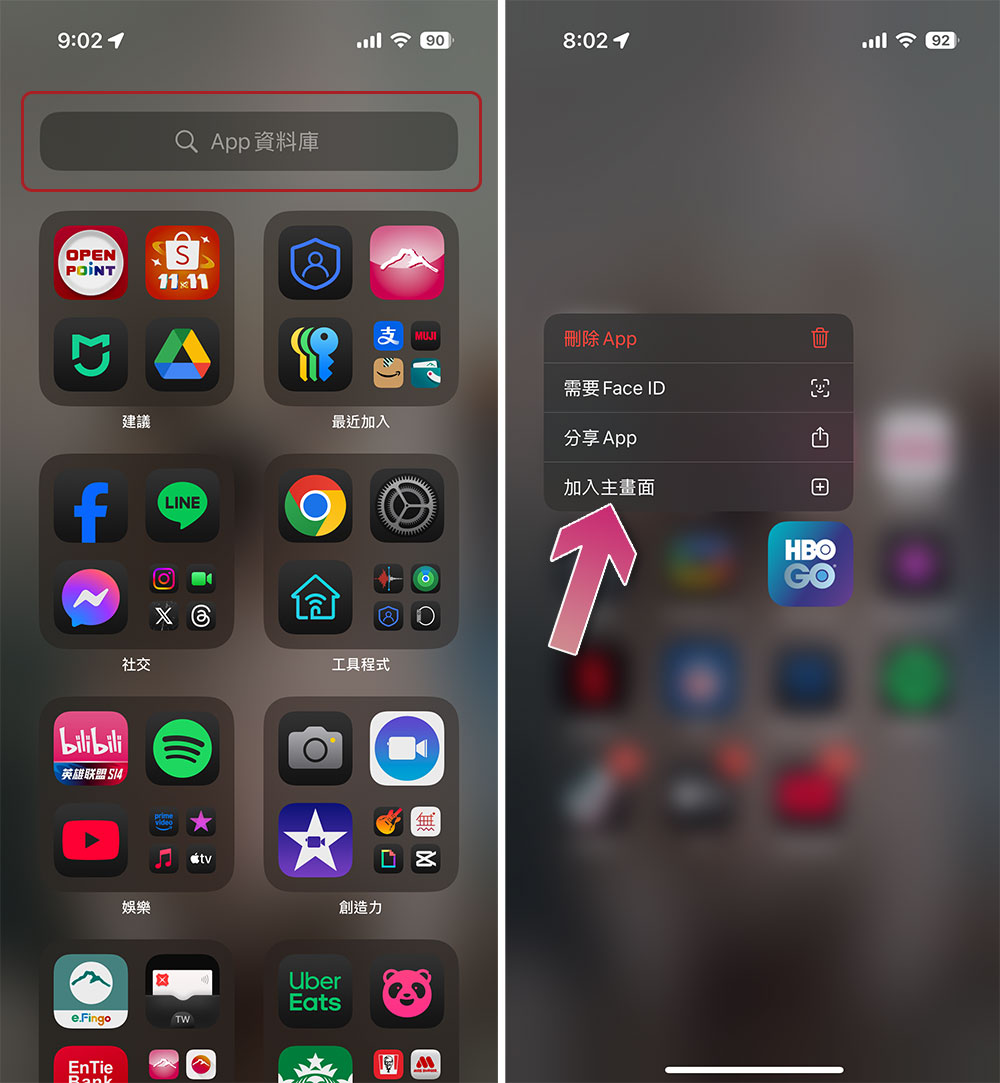
In some cases, you may not be able to find an app that you know is installed but isn’t necessarily hidden. For example, your default iPhone settings may automatically place newly downloaded apps in the Library instead of on the Home screen. In a similar way, apps that were locked and hidden using Face ID, Touch ID, or passcode may not reappear on the home screen after being unhidden. In these cases, you should be able to find these “missing” apps through the App Library or by searching.
When you’re on the home screen, just swipe right until the App Library list appears. You can then perform a manual search using the text box at the top of the screen. To put an app on the home screen for quick access, long press the target app icon after searching, and then select “Add to Home Screen”.
Unhide App Store purchases
Alternatively, you can hide purchases from the App Store from your account history.
- Open the App Store app on your iPhone and click on the user icon in the upper right corner.
- Click “App”.
- Swipe the target app to the left on the all apps list and click “Hide”.

To unhide an app and return it to your history list, follow these steps:
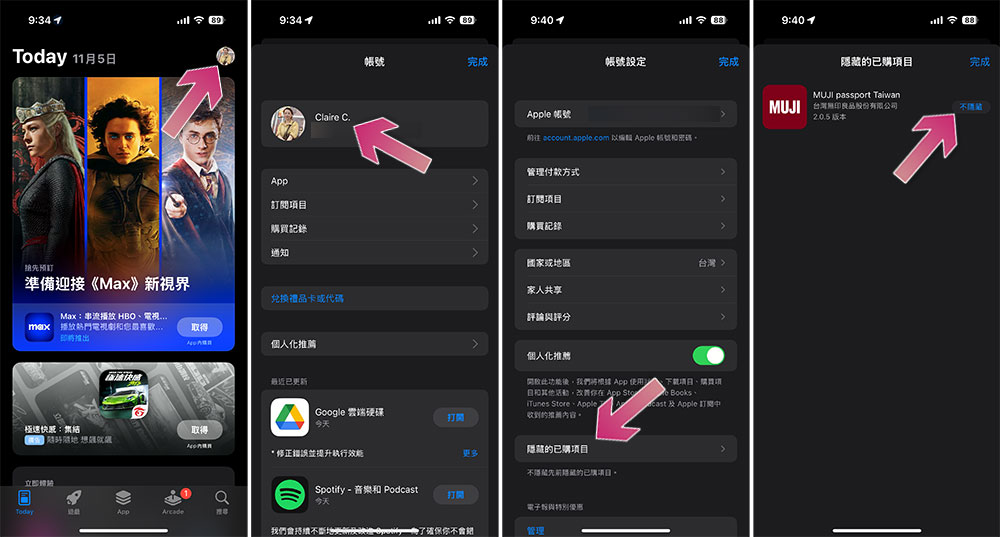
- Open the App Store app on your iPhone and click on the user icon in the upper right corner.
- Click the account at the top to enter the setting interface.
- Select “Hidden Purchases.”
- After unlocking, click “Don’t Hide” after specifying the target.
No matter why or how your iPhone apps were hidden, remember that it’s fairly easy to show them again, you just need to know where to look and follow the necessary steps!
Source: KOCPC Chinese