


Although people do not deliberately download malware, accidents always happen, and it may be a scary experience, but what is even more worrying is leaving it on the computer, causing more unexpected damage as time goes by. Therefore, as soon as you suspect or find that your system may be infected, please immediately follow the 9 steps we teach you today to protect your data.

9 steps to effectively protect yourself from accidentally downloading malware on your Windows computer
1. Disconnect the network connection immediately
When you suspect that malware has infiltrated your system, the first and most critical step you should take is to disconnect the device from the network. This prevents malware from spreading further, communicating with remote servers, stealing personal data, or allowing threat actors to spy on you.
Therefore, if your computer warns you of a potential infection, disconnect from the Internet immediately. If you are using a wired network, please unplug the network cable; if you are using a Wi-Fi connection, please click the network icon on the far right side of the taskbar to disconnect. Remain offline until the malware is assessed and removed.

2. Boot into safe mode
After disconnecting your device from the network, the next step is to boot your Windows PC into Safe Mode. Safe mode runs your system with minimal resources and necessary drivers. This prevents malware from spreading and reduces the chance of an infection interfering with anti-virus scans or any corrective actions, making it easier to remove the malware.
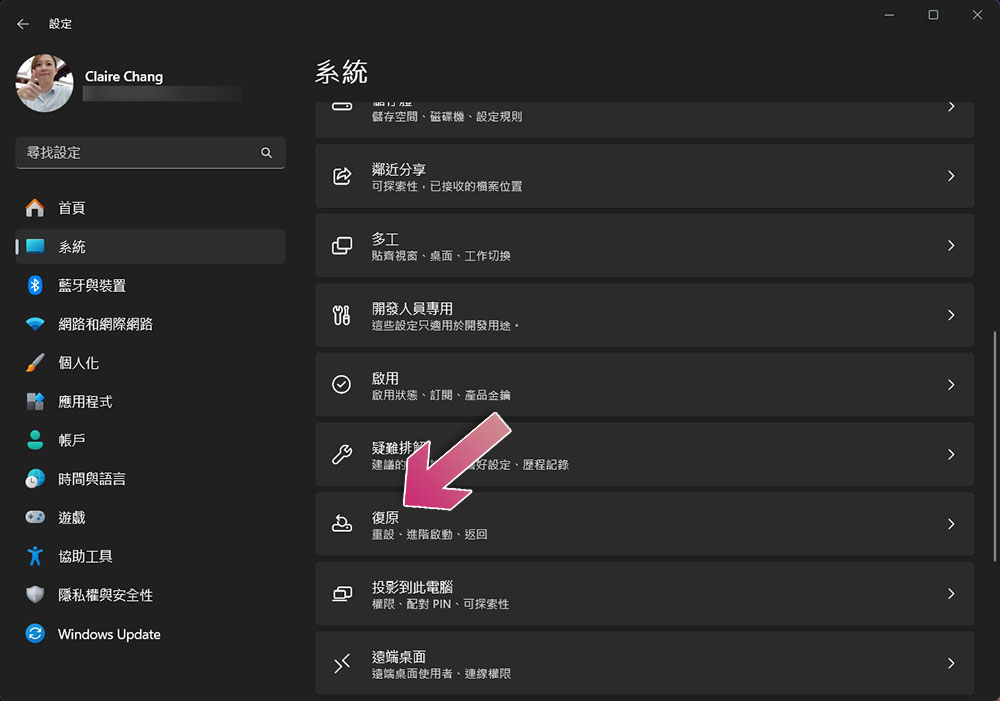
To boot into Safe Mode, go to “Settings >> System >> Recovery” and click “Restart Now” under “Advanced Startup”. After the system restarts, navigate to “Troubleshooting >> Advanced Options >> Startup Settings >> Restart”. After the computer restarts, press “4” or “5” to select safe mode.
3. Perform a malware scan and remove the infection
Once you boot your system into safe mode, you can remove the malware. First, perform a full system scan using Windows Defender to see if any threats have been quarantined or removed. Then, perform a second scan using third-party antivirus software like Malwarebytes to check all files, programs, and processes for signs of malware.
Together, these scans will detect and remove any malicious files or software. Make sure your antivirus tools are up to date, as outdated versions may not catch the ever-changing online threats.
4. Check whether there are abnormally installed programs
While malware scans can remove infections, some advanced malware may disguise itself as legitimate software running in the background. To ensure that nothing harmful is left behind, you should manually check your system for suspicious or unauthorized programs that may have been installed without your knowledge.
This step will help prevent any hidden malware from restarting. To do this, open Settings >> Apps and go to Apps >> Installed Apps and double-check the list to see if there are any apps you haven’t seen yet. If you notice anything suspicious after your computer is infected, click on the three vertical dots and then click “Uninstall” to immediately delete the application.

5. Pay close attention to whether the work administrator has abnormal resource usage
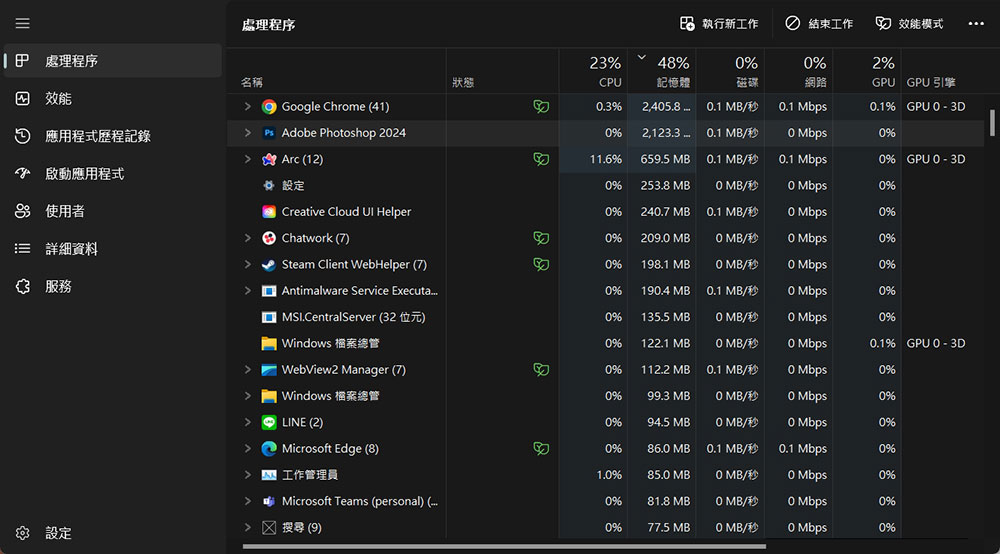
Some malware, such as cryptojackers, are designed to hijack a computer’s processing power to mine cryptocurrency or run other resource-intensive operations. These programs run quietly in the background, consuming CPU, memory, or disk resources and slowing down your system. You can use Job Manager to identify any suspicious activity.
To do this, right-click on the taskbar and select Task Manager. Navigate to the Processors tab and sort processes by CPU, RAM, or disk usage. If you notice any process using unusually high resources, right-click on them and select “Open File Location” from where you can delete the source file to stop resource consumption.
6. Check the startup application
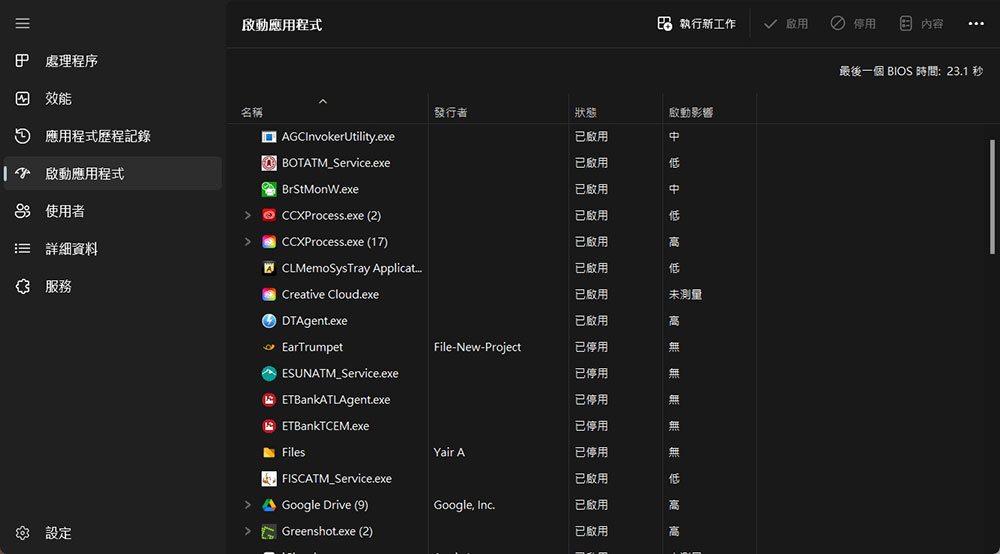
Malicious software can be hidden in startup programs and automatically launch whenever the computer is turned on. Checking these startup applications can help identify any malware running unknowingly. Once you’ve confirmed through online research that a process is malicious, you can safely disable it.
To do this, open the job manager. In the Startup Apps tab, find any unfamiliar or suspicious apps, right-click them, and select Disable to prevent them from starting. You can also right-click and select “Open File Location” to examine the source file of the process.
7. Check the work scheduler
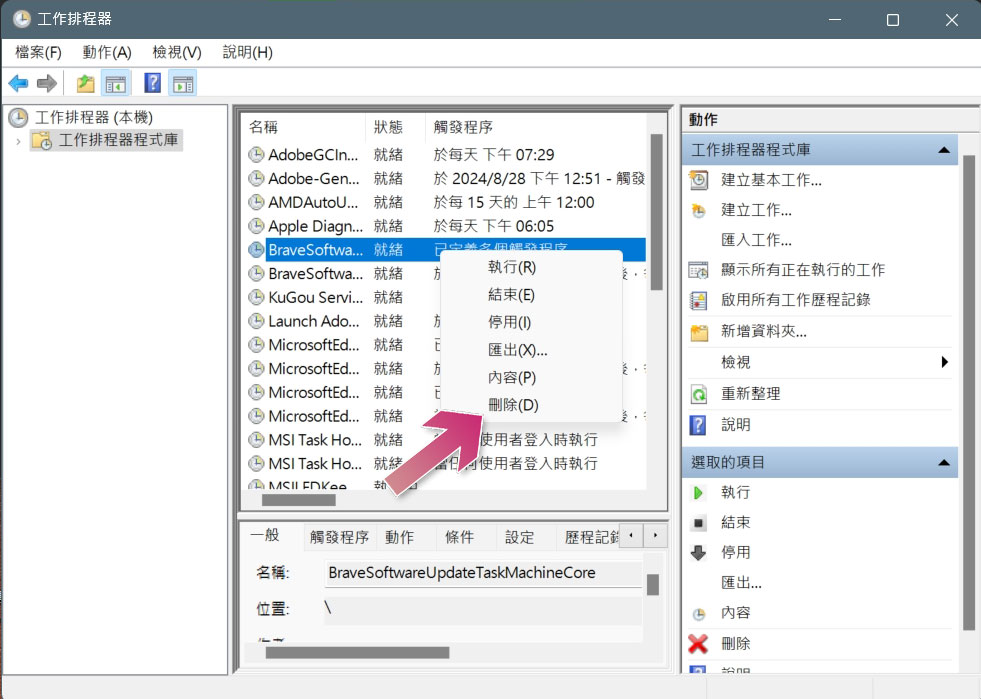
Malware can be programmed to schedule tasks to run automatically, and these tasks will continue to operate even after the original infection has been removed from your device, which is why you must check the job scheduler to identify any malicious tasks that may still be executing in the background.
To do this, press Windows+R to bring up the execution window, type “taskschd.msc” and press Enter. Check the list of active tasks in the work scheduler and browse through folders for tasks set to initiate suspicious actions. Delete the ones you don’t recognize. Right-click the task and select Delete. You can check which scripts are associated with each task in the Actions tab.
8. Make sure you’re not being spied on
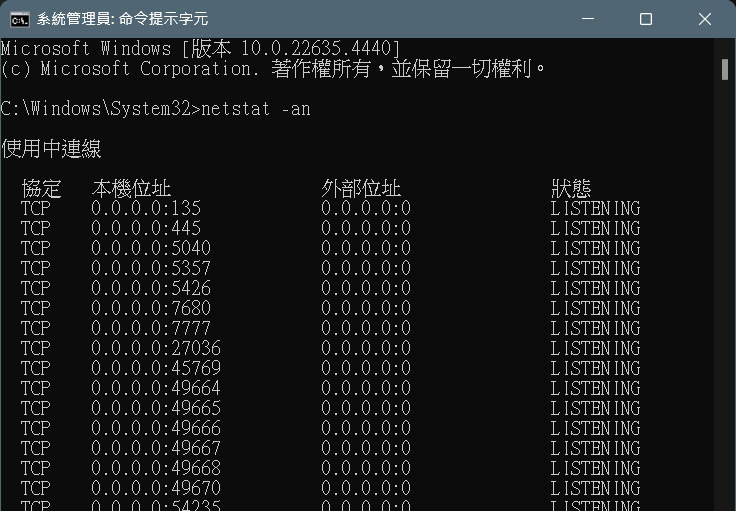
Cybercriminals can also use malware to spy on their victims. This type of malware can track your keystrokes, steal personal information, monitor your activities, and even record you via a webcam for possible blackmail purposes. Therefore, you must verify that no threat actor has established a remote connection to your computer and is monitoring you.
To check this, get a list of active connections. As a system administrator, open a command prompt (PowerShell will also work) and enter “netstat -an”. Then, check all current network connections and look for any suspicious IP addresses. You can then verify that these connections belong to the legitimate company whose services you are using, and disconnect any that look suspicious.
9. Check your browser for signs of infection
The Internet is a major source of malware infections, and we access it primarily through web browsers. Therefore, you must ensure that malware is not hijacking your browser to monitor online activity, inject ads, or redirect your searches. To verify this, look for signs that your browser has been compromised.
Check for any unfamiliar or suspicious extensions and remove them immediately. Change the default search engine to prevent redirects to malicious websites. Malware can store harmful cookies or cache data to track your activity, so clear your cookies and cache. If you encounter unusual pop-up ads while browsing, please delete the browser application and reinstall it.
I do this every time I suspect I’ve been tricked into downloading an email attachment, a spoofed file, or clicking on a malicious link on a compromised website. Although these steps can stop the spread of the infection, continue to monitor your computer for a few days. If you notice anything unusual, perform another scan, perform a system restore, or factory reset the operating system.
Source: KOCPC Chinese