


Google Chrome has further evolved memory management, announcing that it will bring proactive warnings and even new settings that allow users to customize Chrome’s memory method logic based on the computer’s environment and usage scenarios. Continue reading: What’s wrong with eating memory? Chrome gives the user control over memory usage (see this article for how to set it up).

▲Image source: Google
Abandon the memory-eating reputation? Chrome gives users control over memory usage (see this article for how to set it up)
In order to get rid of the reputation of being a memory monster, Google began to gradually push the memory/power saving function last year to more actively release memory resources from tabs that you are not currently using. Shift system resources to the active web page you’re browsing, making the entire experience smoother.
Now, Google Chrome is further evolving memory management, announcing that it will bring active warnings and even new settings that allow users to customize Chrome’s memory method logic based on the computer’s environment and usage scenarios.

▲Image source: Google
For the functional part that proactively alerts on performance, you will find the “Performance issue alert” alert icon in the Extension and Settings button area in the upper right corner of the window.
After clicking, you will see that pages that use additional performance resources will be marked separately. If you want to “deal with” it, you can press “Fix now” to proactively solve the performance burden that these pages may cause.
Chrome Memory Saver memory/power saving latest settings
The latest Chrome Memory Saver memory/power saving experimental function provides three modes that can be adjusted. You can find it in “Performance > Memory” in Chrome settings.
According to the official description, this feature will “speed up your browser by freeing up memory for idle paging, and now provides three modes: Moderate, Balanced, and Maximum.”
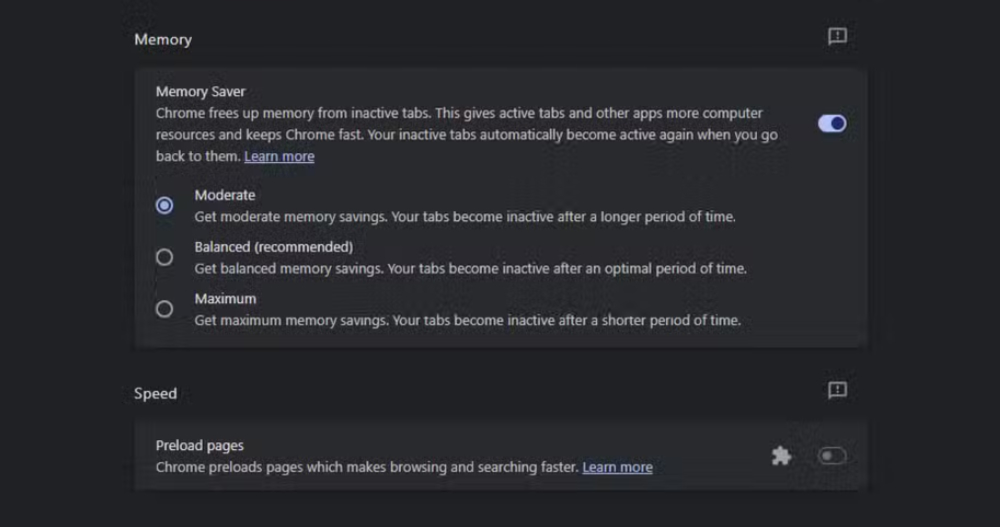
▲Image source: Android Police
What’s interesting is that since this is actually a “saving” function. Therefore, the meanings represented by these three options always seem to be somewhat different from what everyone understands literally – or is it only the editor who feels this way (XD).
The official description is “Mild mode will disable paging based on system needs; Balanced mode will consider both your browsing habits and system needs; Maximum mode will disable paging faster than the other two modes after you stop using them.”
Basically, it means that the three options will present different degrees of aggressiveness in resource management.

Therefore, maximizing Maximum is the most radical and quickest way to release resources, but it may not be the best option for you to use Chrome to “sensoryly” switch pages and other uses – it may even release memory too quickly, causing some pages that are halfway through the work to disappear, resulting in wasted work (such as leaving a message in the middle), which is quite risky.
So this part still depends on your own needs and the computer’s memory and computing resources. I suggest that if you really don’t understand the difference or what’s best, just give it to the Balanced gear (laughs).
Quote sources:Google|Via:Android Police|
Further reading:

Source: KOCPC Chinese