


I wonder if you usually look at the clock in 12-hour format or 24-hour format? The digital surface of the Apple Watch is usually set to a 12-hour format by default. However, for people who are busy at work and often have reverse schedules day and night, reading the 12-hour format requires a little thought. However, it seems that many people don’t know how to change the clock display. Today I will share a few simple steps to change it.

Tutorial on changing the 24-hour clock setting on Apple Watch. It only takes a few simple steps to display the 24-hour clock, making it easier to read.
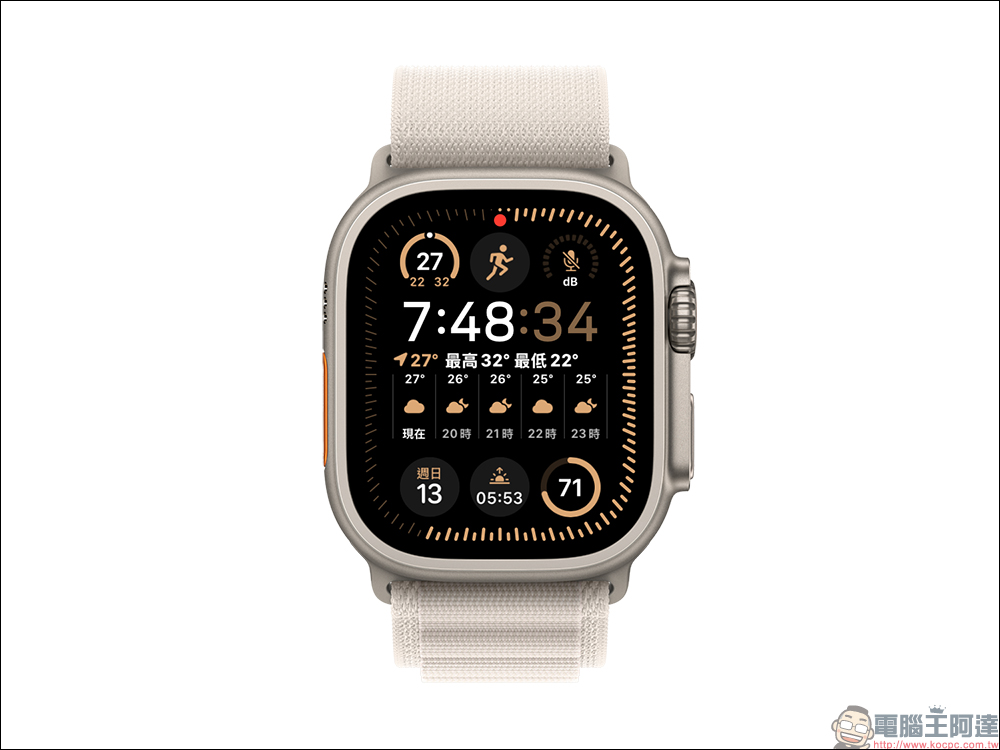
In addition to the traditional pointer type surface, many Apple Watch users prefer surface styles that can display various information at the same time. For example, the “Ultra Combination” surface of Apple Watch Ultra can independently set various information such as the upper left, top, upper right, middle, lower left, bottom, lower right, etc. from the outer frame, clock style, night mode, to advanced complex functions. However, for people who are busy at work, often have to reverse day and night, or face jet lag, the default 12-hour clock often cannot tell whether it is day or night. This article will share with you how to change the Apple Watch clock from 12-hour to 24-hour in a few steps.
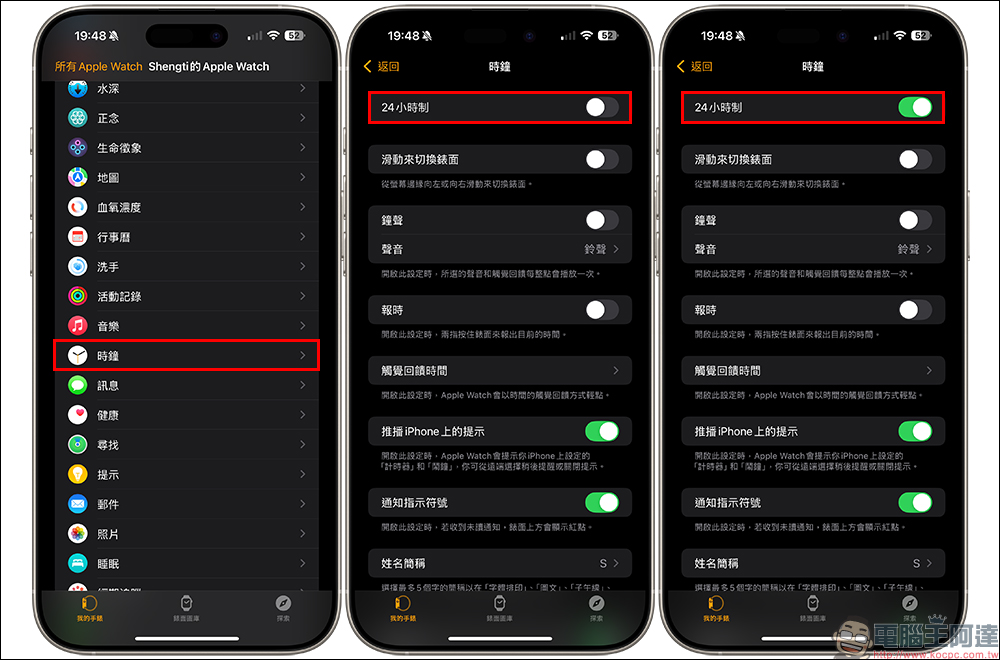
First of all, to change the Apple Watch clock system, you do not need to set it directly from the Apple Watch. Instead, open the iPhone’s Watch App, and then click on the “Clock” app to enter. Here you will see that the default “24-hour clock” is off. We only need to change it to on.
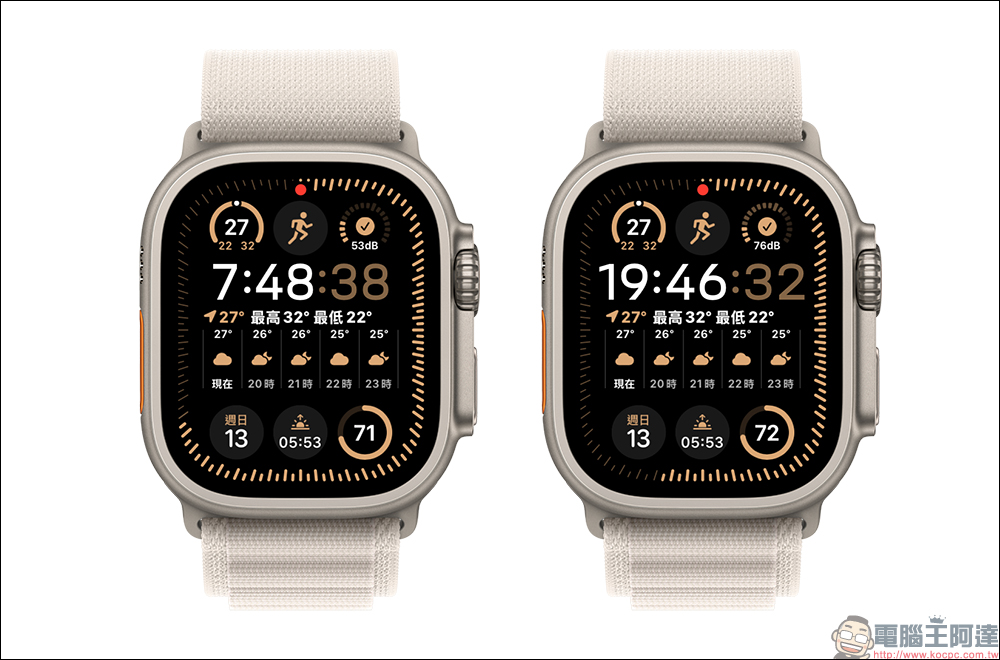
Compare the display difference between when the 24-hour clock function is turned off and on. Compared with the 12-hour clock, you can only know the time of 07:48:38, but you cannot directly tell whether it is day or night from the screen. If you use the 24-hour clock, you can more clearly grasp the time: 19:46:32 is night.
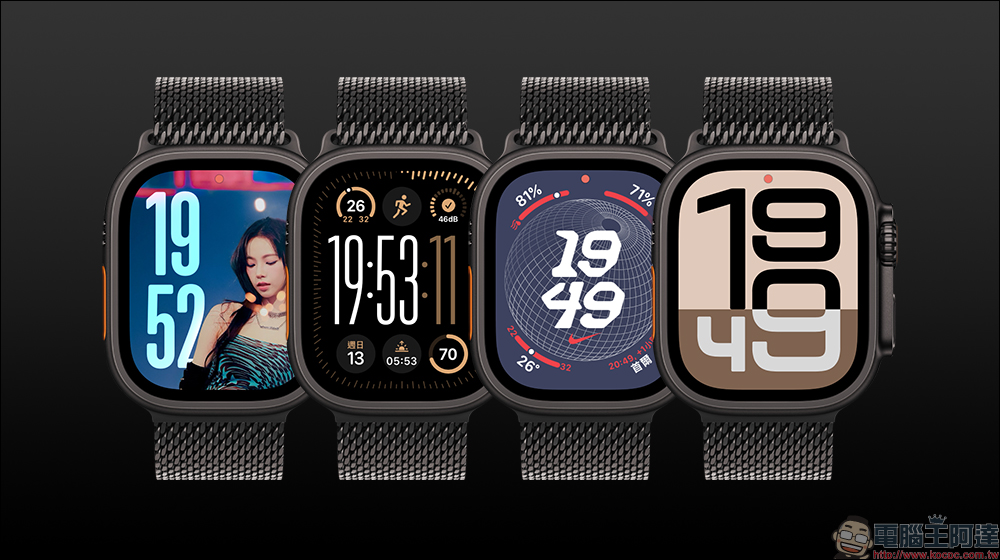
As long as the digital watch is a digital watch, it can support the 24-hour clock setting. For example, the popular watch faces such as “Photo”, “Ultra Combo”, “Nike Earth” and “Change” are listed in order below.
Conclusion
In summary, the 24-hour display setting of Apple Watch does provide great convenience for those who have irregular day and night schedules or frequently cross time zones. Whether you need to accurately grasp time at work, or you want to distinguish day and night more clearly in life, the 24-hour display makes time interpretation more intuitive and effective.
The settings that can be completed in a few simple steps not only improve the comfort of use, but also help us more easily manage time in our busy daily lives. What’s more, this setting works on a variety of surfaces, so no matter what style of digital surface you prefer, you can enjoy the clear display of the 24-hour format. I hope this tutorial can help you easily adjust your Apple Watch clock and make it a powerful assistant in your life and work.

Source: KOCPC Chinese