


Many Mac users want to turn their MacBook into a desktop workstation: plug in an external monitor, keyboard, and mouse, then close the lid and put it away. This usage is called “Clamshell Mode” and has been supported in macOS for a long time. But the problem is that if your MacBook is not connected to an external screen, or if you want to close the lid to continue downloading files or playing music in battery mode, the Mac will automatically go to sleep. This was a normal logic in the past, but in the era of AI Agent, this has become a limitation for MacBook to run AI agents (because the default design of macOS is “cover the lid = sleep”, with the purpose of saving power and preventing overheating). However, there are now several ways to bypass this restriction, and I will briefly share them with you here.
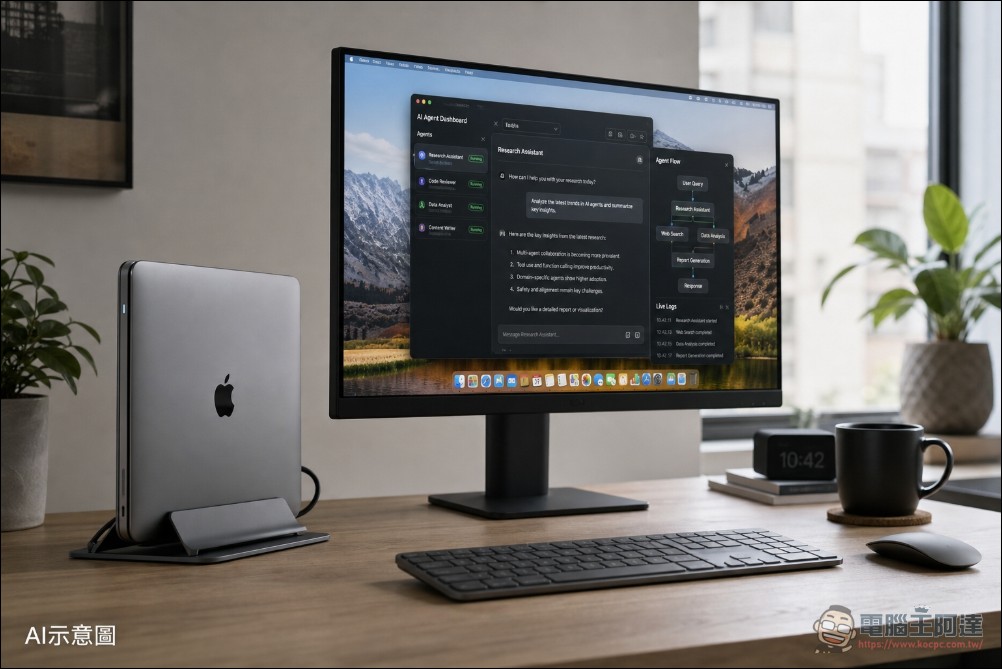
Why does my MacBook sleep when I close the lid?
Apple has three major considerations in this design. The first is power management. After closing the cover, the Mac will enter standby mode, significantly reducing power consumption. The second is hardware protection. If the MacBook continues to operate in a backpack, insufficient heat dissipation may lead to overheating. Finally, there is the automatic update mechanism. macOS will occasionally wake up the system during sleep to install updates or synchronize data.
Therefore, if you want your Mac not to sleep after closing the lid, you need to tell the system “I have special needs.”
Method 1: Use the official Clamshell Mode
This is the method officially supported by Apple and the most stable method. But the following conditions need to be met:
- Connect an external monitor: The Mac must detect that there is an external display
- Connect the power adapter: It is recommended to plug in the charger, although some Apple Silicon models can also operate in battery mode
- Connect an external keyboard and mouse: Either wired or bluetooth available
Setting steps:
- Connect an external monitor, keyboard, and mouse to your MacBook
- Turn on the laptop and wait for the macOS desktop to appear on the external screen
- Close the laptop lid
- The external screen may flash and then display the desktop. If it does not wake up automatically, just press the keyboard or move the mouse
special attention: Some M3 MacBook Air and 14-inch M3 MacBook Pro models can only drive two external screens at the same time in closed mode. This is because the built-in screen turns off when the cover is closed, freeing up hardware resources for use by the second external monitor. The M4 series supports dual external screens regardless of whether the cover is open or closed.
Method Two: Use the Amphetamine App
If you don’t want to connect an external screen, or want to close the lid and continue to operate in battery mode, Amphetamine is currently the most popular solution. This free app is available for download in the Mac App Store.
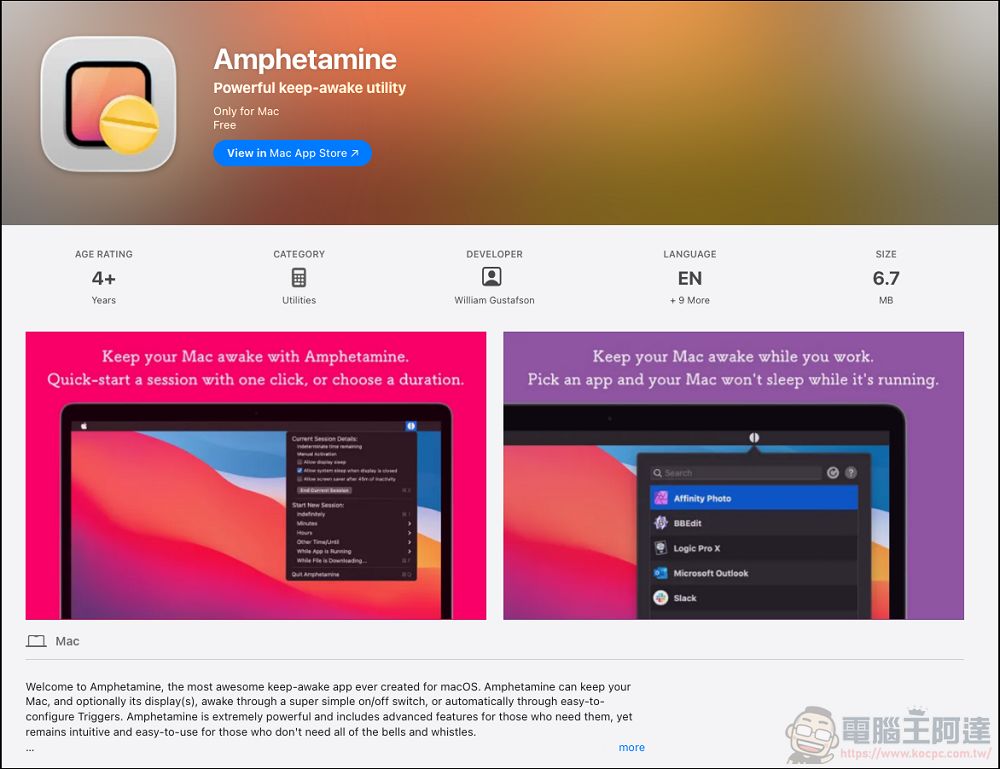
Setting steps:
- Download and launch from Mac App Store Amphetamine
- Click the pill icon on the menu bar
- Select Quick Settings
- In the Session Defaults section, uncheck “Allow system to sleep when monitor is off”
- To start a new session, you can choose “Indefinitely”, “During downloading files” or “During specific App execution”
Once set up, your Mac will not go to sleep even if the lid is closed and no external screen is connected.
alternative: Caffeinated is another paid app (about NT$120) with similar functions and a more modern interface.[3]。
Method 3: Use terminal commands
If you don’t want to install any third-party software, you can directly use the terminal to turn off the sleep function.
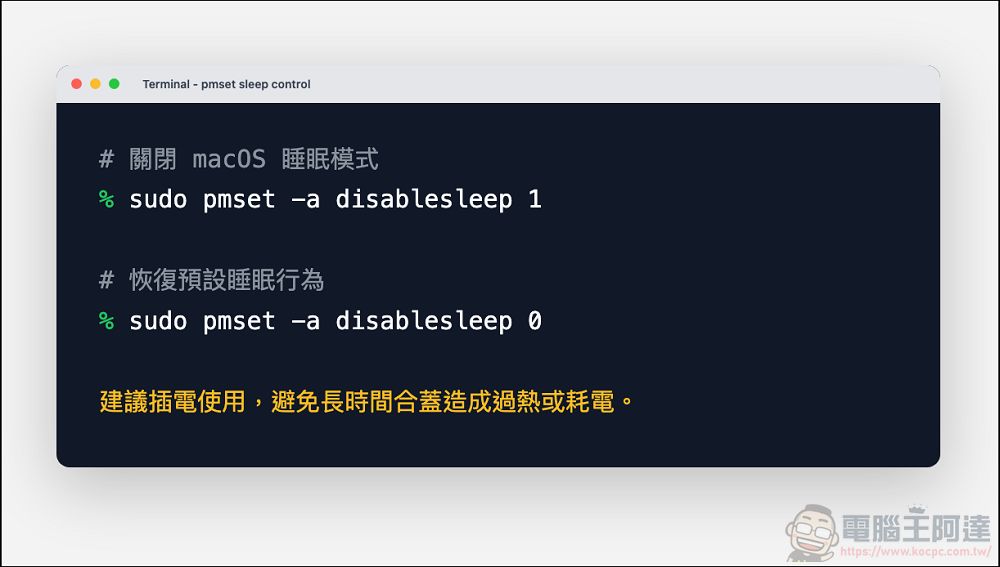
Open the terminal and enter the following command:
sudo pmset -a disablesleep 1
This completely disables sleep mode. To restore default settings, enter:
sudo pmset -a disablesleep 0
Things to note: This command disables the sleep function in all situations, including battery mode. Long-term use may cause battery exhaustion or overheating, so it is recommended to use it while plugged in.
Method 4: Use a virtual display adapter
This is a physical level solution. Purchase an HDMI or USB-C virtual display adapter (Dummy Plug). After plugging it in, your Mac will think that an external screen is connected and automatically enter closed mode.

This kind of adapter sells for about NT$200~400 on e-commerce platforms. It is compact and suitable for users who need to move frequently. Former OpenAI engineer Will DePue once recommended this solution on the community because “it can physically control whether the laptop is turned on, which is very intuitive.”
Sleep options in macOS system settings
In newer versions of macOS, Apple offers some sleep setting options:
- Open “System Settings” and click “Battery”
- Scroll to the bottom and click “Options”
- Turn on “Prevent automatic sleep when monitor turns off when using power adapter”
In addition, in the “Lock Screen” settings, you can set both “Launch screen saver when idle” and “Turn off monitor when idle while using power adapter” to “Never”.

Notice: For macOS Monterey and previous versions, you can also directly check “Prevent the computer from automatically going to sleep when the monitor is turned off” in “Energy Saver”, but this option has been removed in subsequent versions.
Recent Trends: AI Agents Make Closure Mode Popular Again
In May 2026, Business Insider reported an interesting phenomenon: Many AI developers leave a crack in their laptop lids when going out, in order to allow the AI agent to continue executing in the background. This phenomenon has triggered a lot of discussion in the community. Many people pointed out that there are actually better solutions. However, some users said that these technical settings have “too high friction cost” and leaving a gap is the most intuitive.[4]。
OpenAI also responded to this trend on TikTok, suggesting that it may be developing a solution for agents to execute in the cloud, reducing reliance on local laptops.
Safety reminder
Whichever method you use, please note the following:
- Don’t put a closed Mac into an enclosed space: The heat dissipation capacity of the notebook decreases when the lid is closed. Putting it in a backpack or drawer may cause overheating.
- It is recommended to plug in the power supply and use it: Although Apple Silicon models support closed lid operation in battery mode, it is more stable when plugged in.
- Check the temperature regularly: When operating with the lid closed for a long time, pay attention to whether the laptop is overheated.
Summarize
The closed lid mode of MacBook was originally designed to allow the notebook to be used as a desktop computer. However, with the increasing demand for AI agents, background downloads, music playback, etc., more and more people want to operate the laptop with the lid closed without an external screen. Amphetamine is currently the most mature solution. The terminal commands are suitable for advanced users, while the virtual display adapter provides a simple solution at the physical level. Which method you choose depends on your usage situation and comfort level with the technology.
Source
[1] How to connect multiple monitors to MacBooks – Macworld – https://www.macworld.com/article/675869/how-to-connect-two-or-more-external-displays-to-apple-silicon-m1-macs.html
[2] How to stop your MacBook sleeping when the lid is closed – Macworld – https://www.macworld.com/article/673295/how-to-use-macbook-with-lid-closed-stop-closed-mac-sleeping.html
[3] Caffeinated – Anti-Sleep App – https://caffeinated.app
[4] Good news, AI coders: You can keep your laptop running while closed – Business Insider – https://www.businessinsider.com/how-to-keep-laptop-ai-agent-running-while-lid-closed-2026-5
[5] Setting guide to prevent laptop from going to sleep in closed mode – Gechic – https://www.gechic.com/tw/use-external-monitor-with-closed-laptop-windows-macbook/
[6] Set your Mac’s sleep and wake settings – Apple Support – https://support.apple.com/zh-tw/guide/mac-help/mchle41a6ccd/mac
Source: KOCPC Chinese