


Windows 11 gets updates quite frequently, with cumulative updates almost every month, and every now and then, usually once a year, there are major feature updates, such as Windows 11 24H2, which is currently being pushed to users. These updates bring new features and enhanced security, but they can download at the most inconvenient times and can sometimes slow down your internet speed.
But Windows actually has a built-in feature that lets you control how much bandwidth Windows Update should use. Although this limits the download speed of updates, if you need a fast network connection to work reliably, enabling these limits ensures that you have enough bandwidth for other needs.

How to stop Windows updates from slowing down your internet?
How to set bandwidth limit for Windows update downloads?
Windows Update delivery optimization can limit the bandwidth used to download Windows updates, and it has different settings for background and foreground downloads.
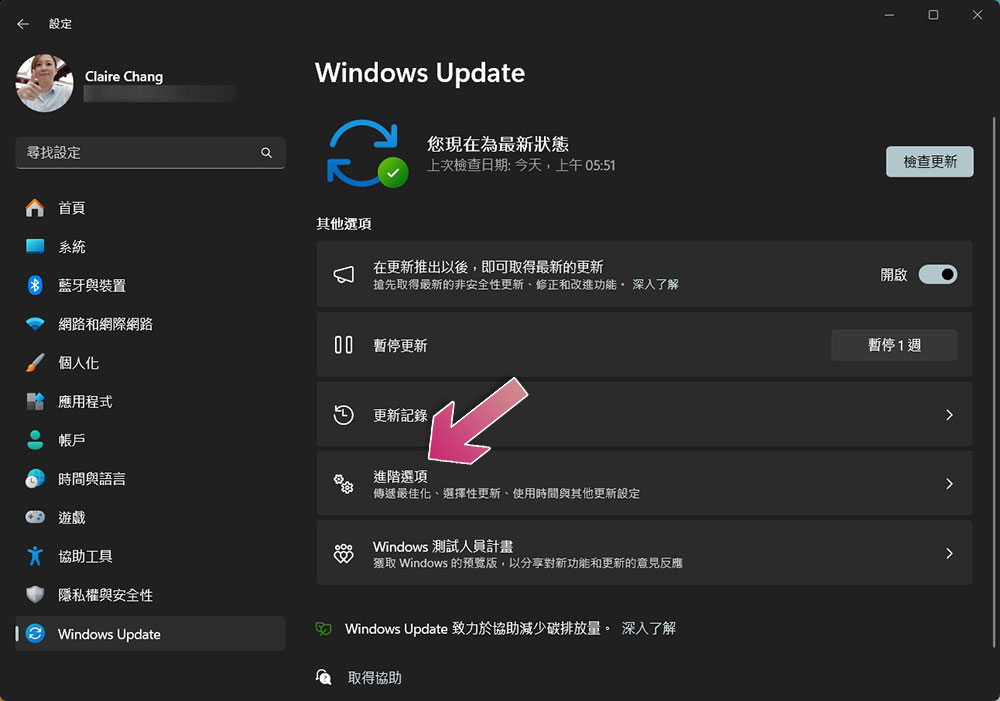
- Open the Settings app and select “Windows Update” on the left.
- Click “Advanced Options”.
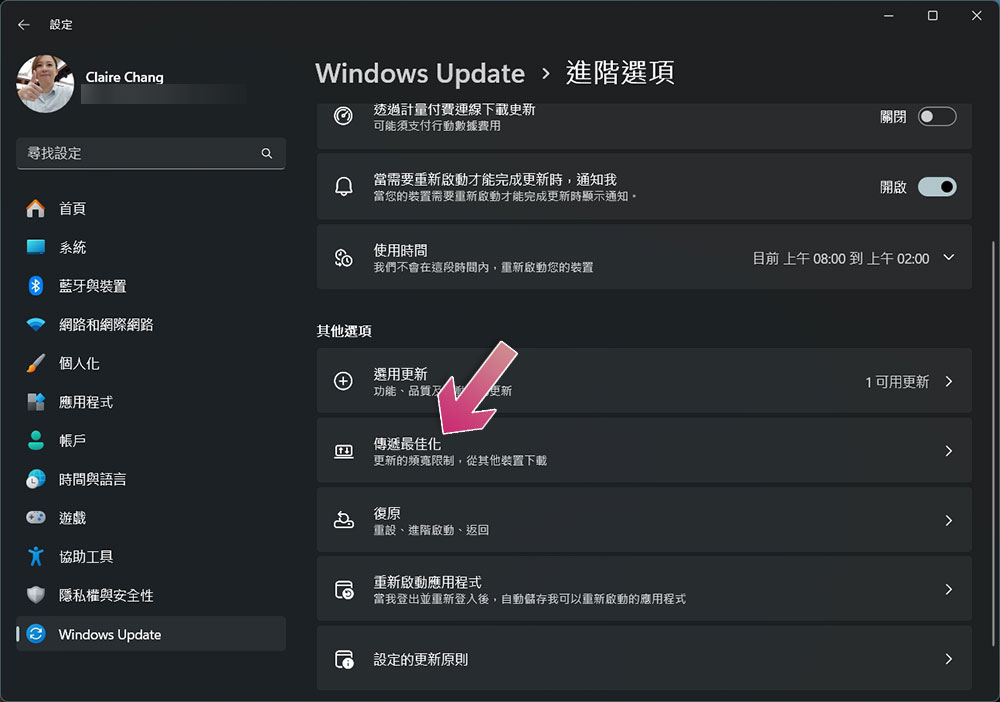
- Select Delivery Optimization.
- Scroll down to find “Download Options”. You can choose to use “Absolute Bandwidth Limit” or “Measure Bandwidth Percentage” in the drop-down menu at the end. The system default is the latter, while the former allows more precise control. It is recommended to choose this.

- Select the checkbox next to “Background limit” in Mbps or percentage, and enter the maximum bandwidth you want Windows Update to use for background downloads. The value you choose to enter will depend on your internet speed and needs; if you have a slow connection, a low value like 1Mbps may be appropriate, while someone with a faster internet connection may be able to tolerate a higher limit. You can check your average download speed in the Activity Monitor section of the same page.

- You can also enable “foreground throttling,” which will limit download speeds when you’re actively trying to download the latest updates. In fact, we recommend turning it off because if you’re actively looking for updates, you’ll probably want them downloaded and installed as quickly as possible.
How to set bandwidth limit for Windows update uploads?
Windows Update also uses your network to upload the latest updates to other computers on your network, which you can also limit:
- Open the Settings app and select “Windows Update” on the left.
- Click “Advanced Options”.
- Select Delivery Optimization.
- Expand “Upload Options”, turn on the “Limit to percentage of measured bandwidth” switch, and then use the slider below to set the percentage available for uploading updates. You can also use the monthly upload limit field to completely stop uploading updates after a certain volume is reached.

No one likes their work to be affected or interrupted by Windows updates, and these delivery optimization options can solve one of the pain points of forced updates. When you rely on a constant network connection for work, Windows Update taking up your bandwidth can cause problems, so taking advantage of this option can help you maintain the stability of your daily work.
Source: KOCPC Chinese