


Previously, we have introduced energy.Experience Z-Image Turbo online — uncensored, capable of generating NSFW content, and includes Chinese text in images.The article also mentions that it can be deployed locally, so many readers are asking how to run it on their computers. This post will teach you the simplest way: through ComfyUI with the software and the official Workflow workspace, you can easily deploy locally,Windows、Mac Anything works.
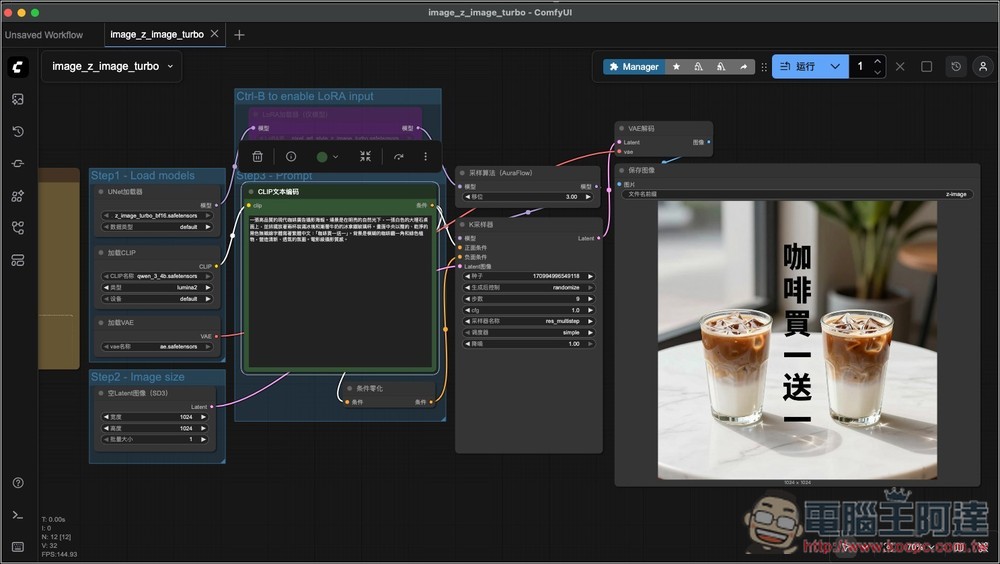
The simplest way to install/run Z-Image Turbo locally, with effortless setup.
Although Z-Image Turbo for graphics cards VRAM The requirements aren’t demanding — some people have shared that 8GB can run it too, but we recommend at least 12GB or more. The official recommendation is 16GB or above for image generation to be fast enough.
As mentioned at the beginning of the article, to quickly install/run Z-Image Turbo locally, you need to prepare two things:
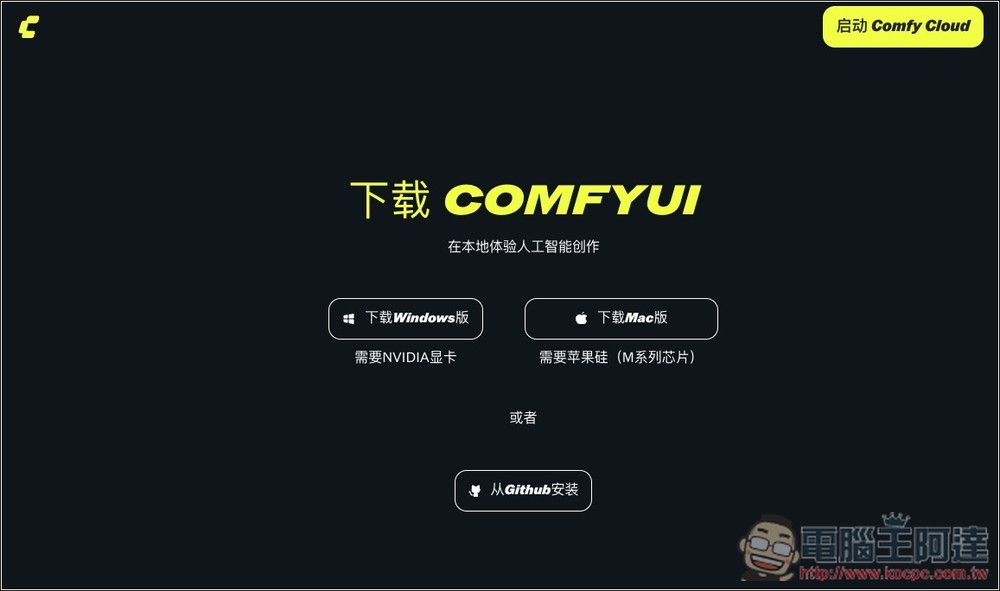
First, the ComfyUI software can be installed on both Windows and Mac. Go toofficial websiteAfter that, download the version that suits your computer. I’m using the Apple M series, so I chose the one on the right (the Windows version steps are the same—after downloading, just install all the way through):
After installation, open ComfyUI and click Get Started to begin:
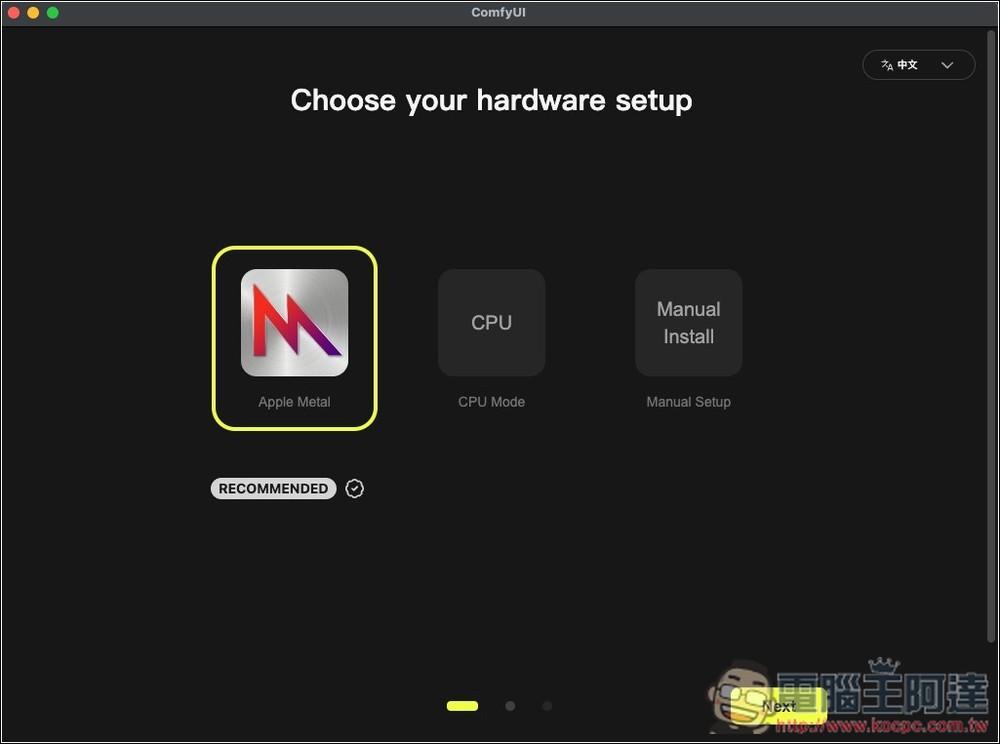
Set your computer hardware. Mine is an Apple M-series processor, so choose Apple Metal (for Windows, you’ll need an NVIDIA graphics card, recommended 8GB VRAM or more):
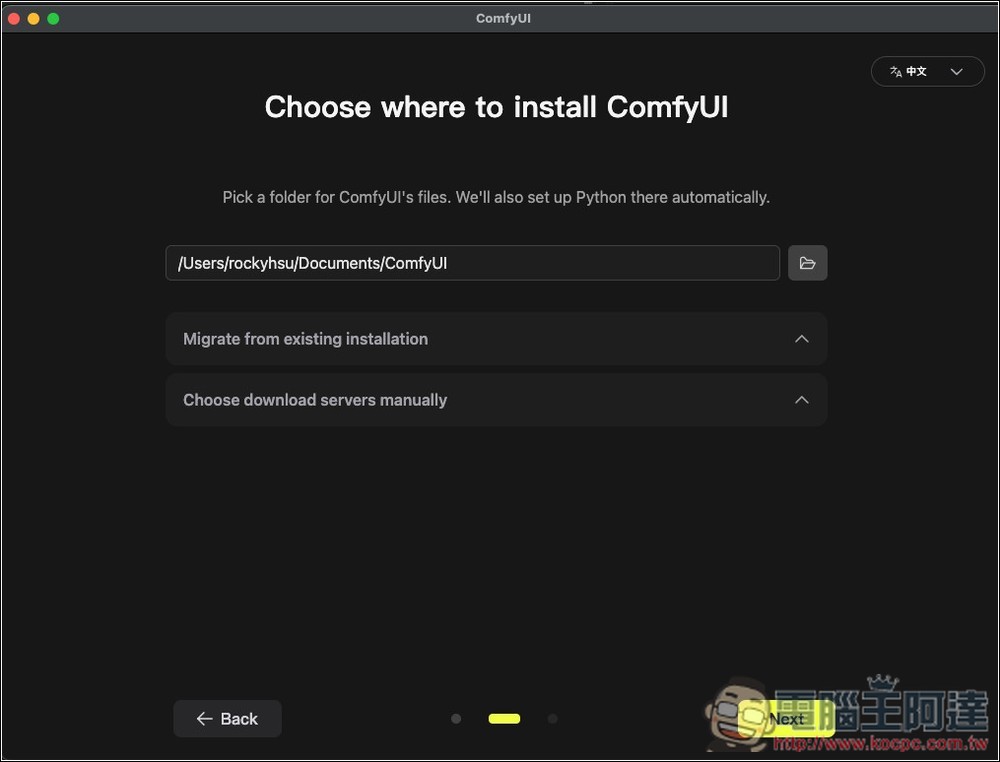
Choose where to install ComfyUI; all files will be stored in this location:
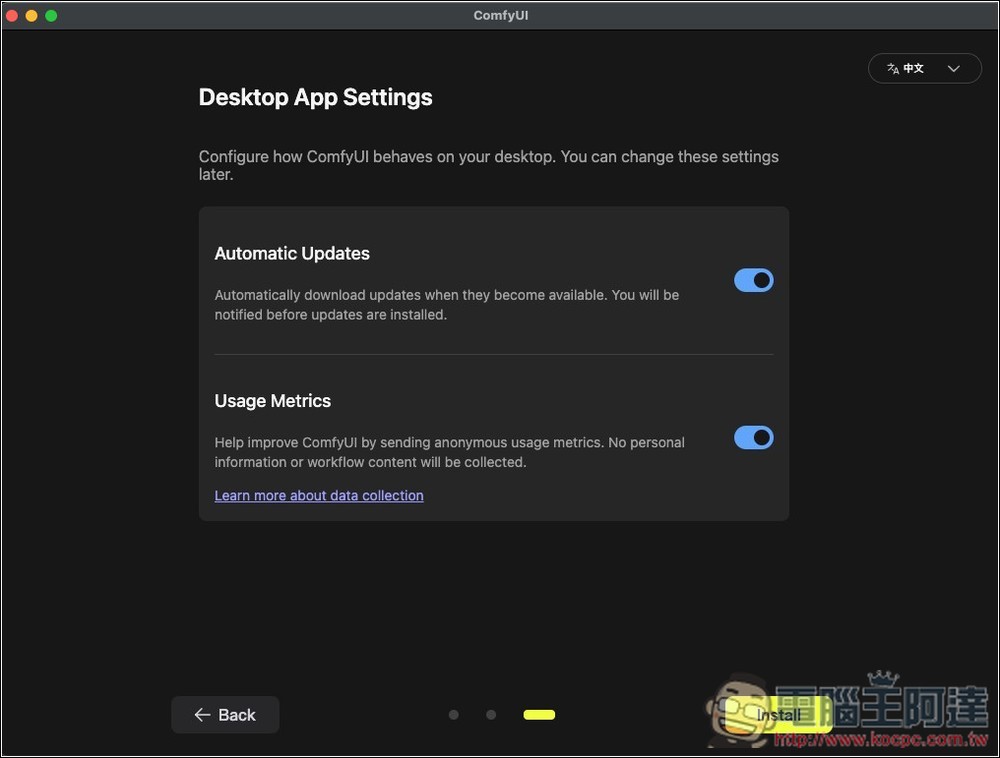
This page asks whether you want to enable automatic updates and share usage reports. Both are turned on by default; you can turn them off if you don’t want them.
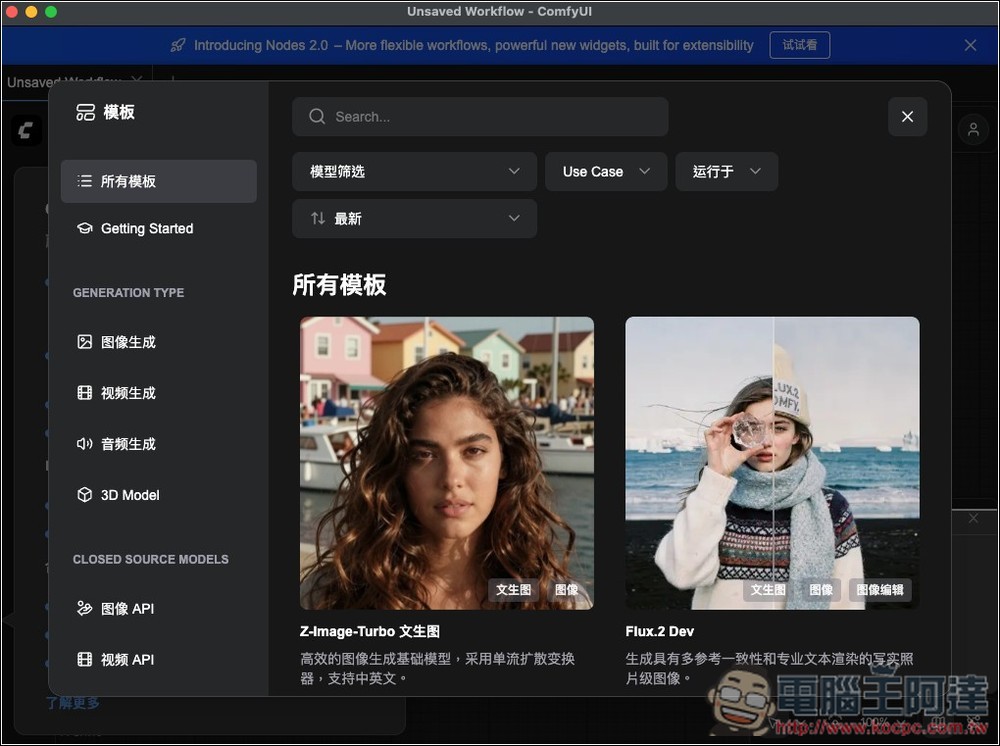
Next, you’ll be taken to ComfyUI’s main interface—just close the template menu, then download the Z-Image Turbo workflow provided by ComfyUI:
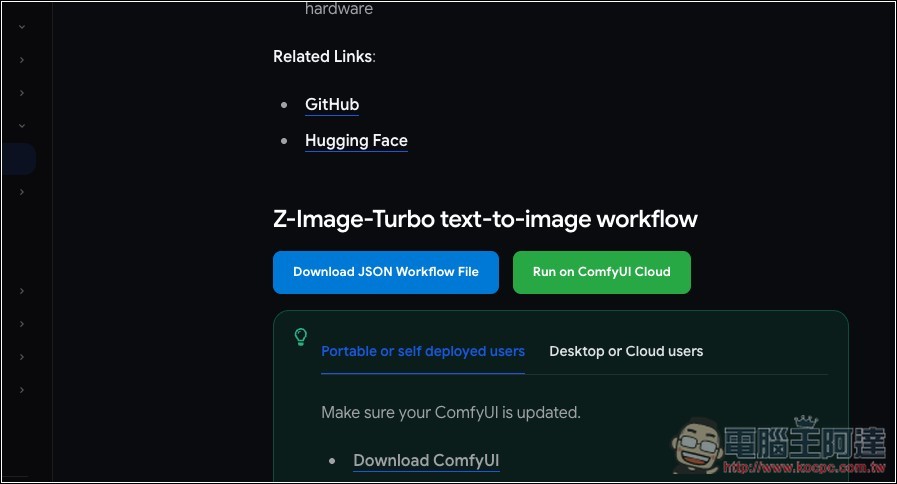
Please go to ComfyUI Documentation PageThen scroll down to find the “Download JSON Workflow File” button. If you click this button, it will directly open the JSON file (that is, display a bunch of code), so please use the right-click save-as method:
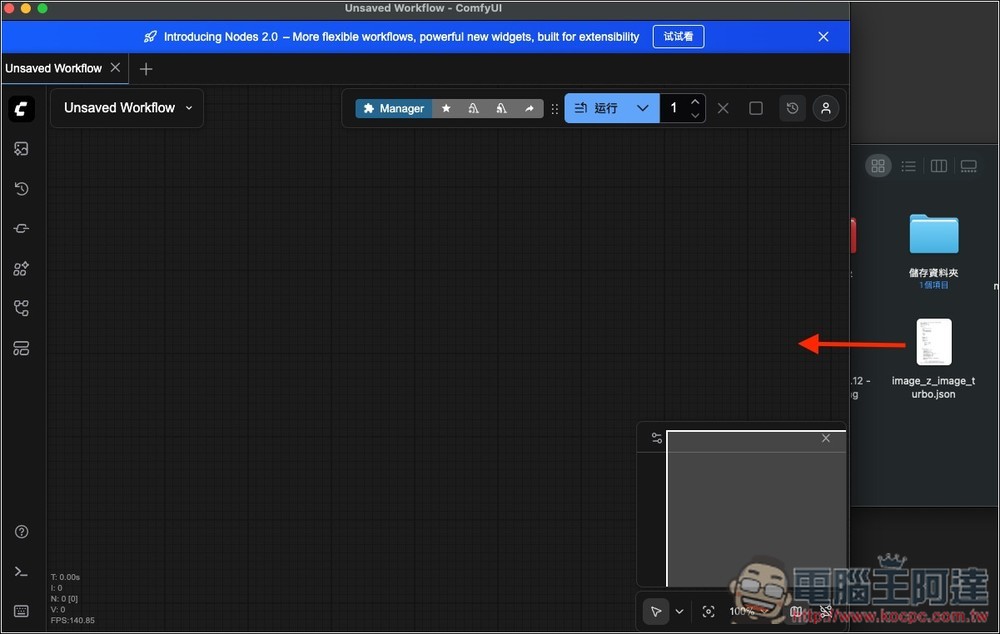
Drag the downloaded image_z_image_turbo.json file directly onto the ComfyUI canvas, which will import the official Z-image Turbo workflow:
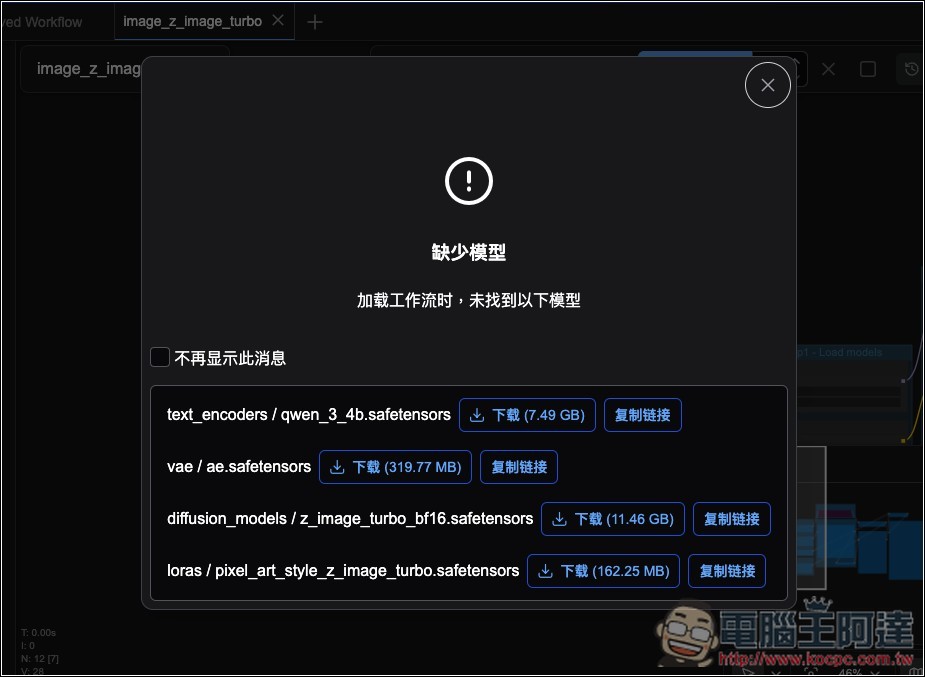
A message will pop up saying that models are missing. Click download for each one, which will need nearly 20GB of space. Remember to make sure your hard drive has enough free space:
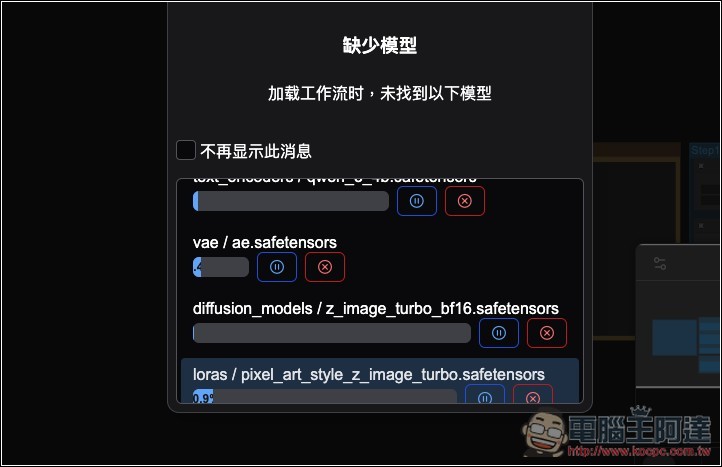
Waiting for download to complete:
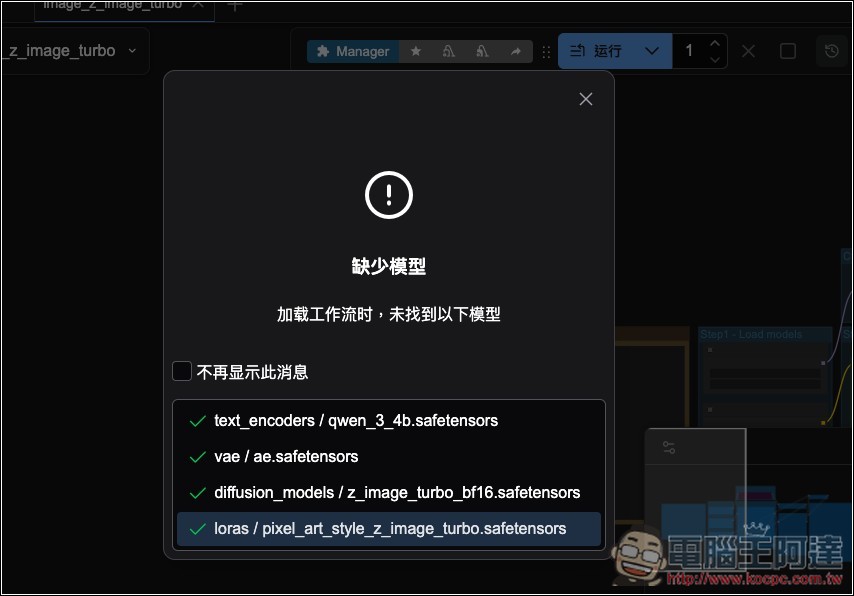
Once everything shows a checkmark, you can close this window:
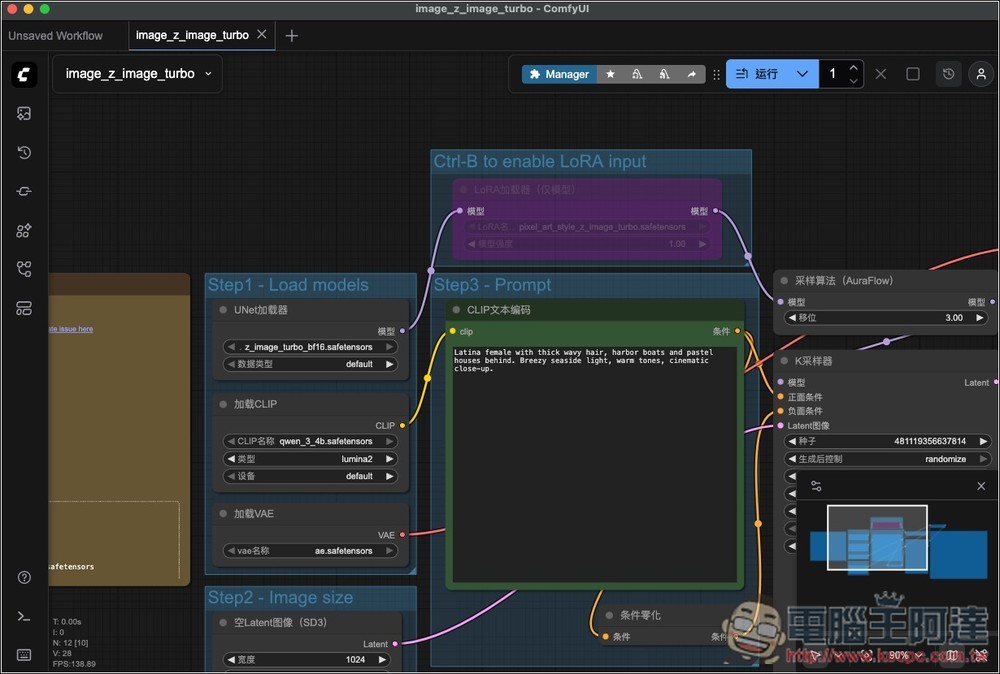
At this point you will see a Workflow workspace like this in ComfyUI. The settings basically don’t need adjustment, and it’s already set to use the Z-Image Turbo model. Enter the prompt you want to generate into the CLIP text encoder:
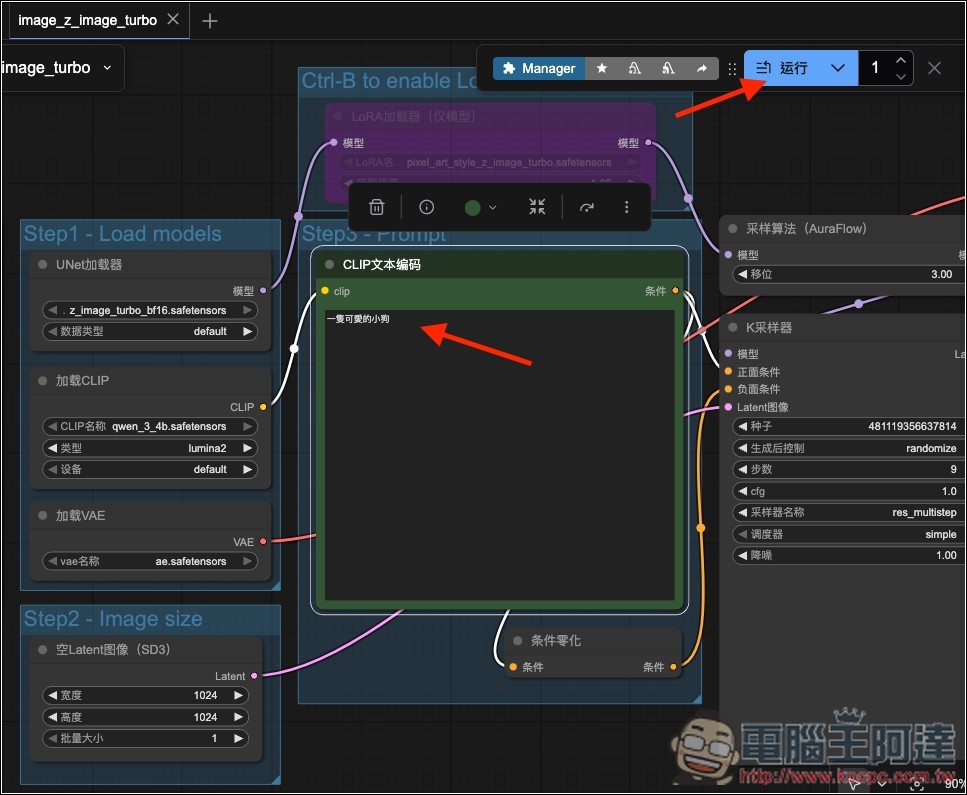
As shown in the diagram below, enter your input and click Run in the top right corner to start generating:
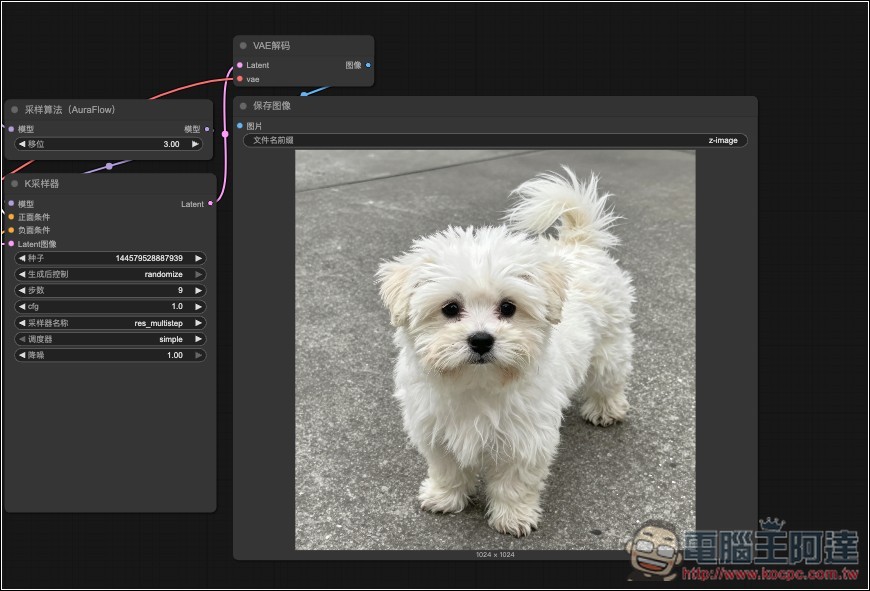
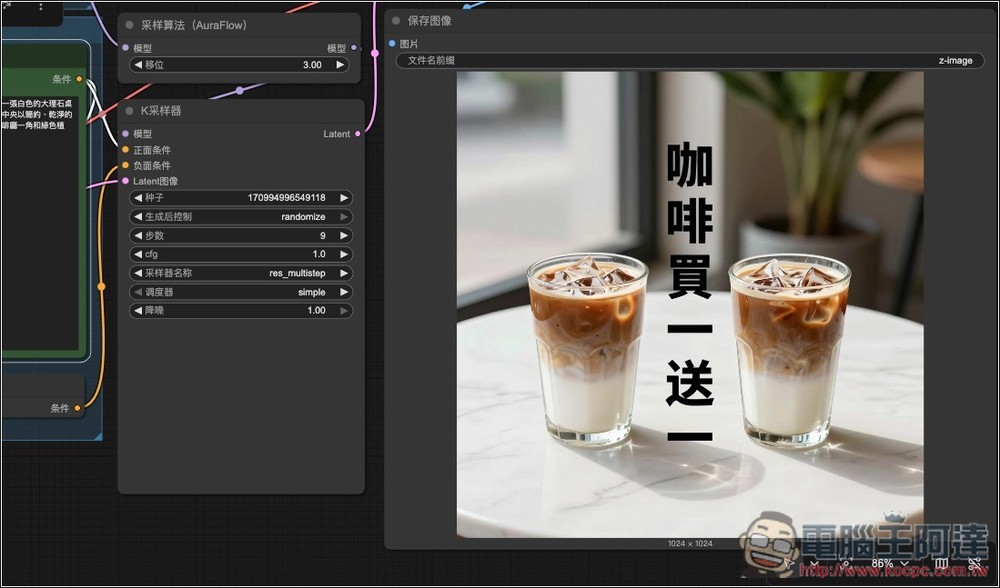
According to your computer’s specifications, the larger the memory, the faster the image generation will be, and the result will be displayed in the saved image on the far right:
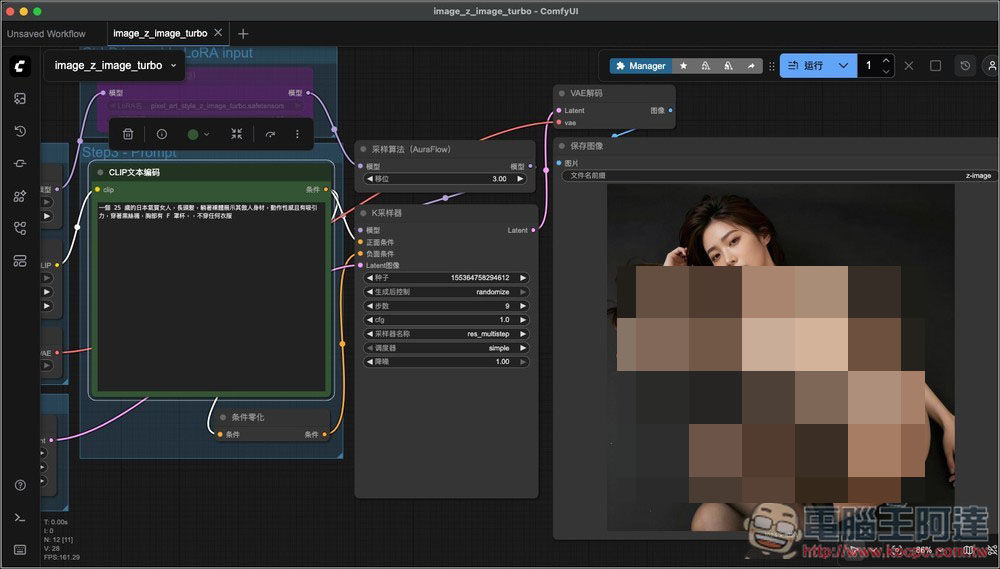
Actual testing confirms it can also generate NSFW content without censorship:
Images with Traditional Chinese characters are also fine.
Source: KOCPC Chinese