


After months of testing, Google officially launched Android 15 on October 15, 2024, and since then, everyone has started exploring the updated content. While standout features like Private Spaces and new anti-theft tools are impressive, there are some lesser-known features hidden in the update, and this time we’ve listed 6 that are definitely worth checking out.
6 hidden Android 15 features you should definitely try
1. Control when Bluetooth automatically turns back on
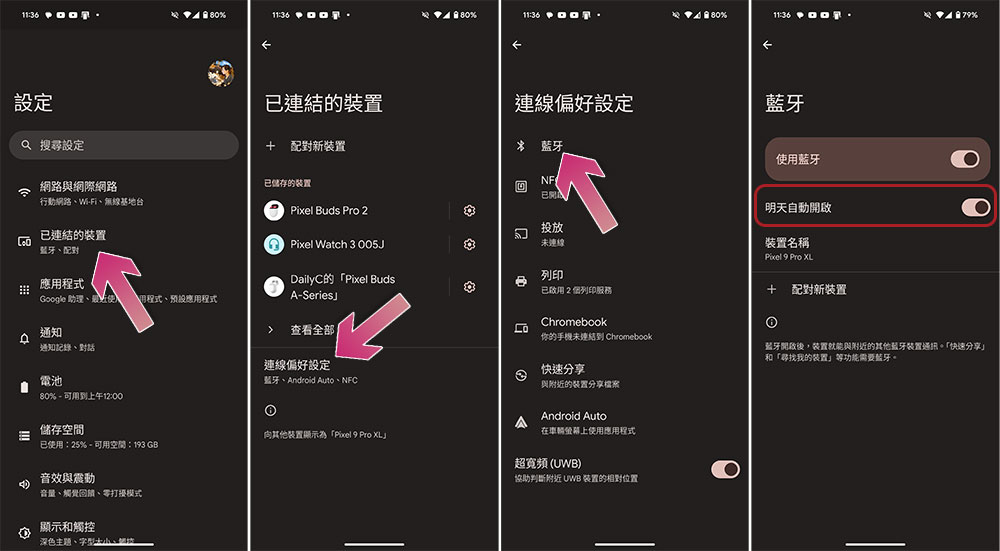
So far, the Bluetooth toggle feature in Android works as expected, turning Bluetooth on or off, however, Android changes this behavior. Now, when you turn Bluetooth off, it automatically turns it on the next day, and while that’s convenient for some, like people who use Android Auto and often need to manually turn Bluetooth on, it’s tied to Google’s new Find Network. If you want more control over when Bluetooth turns on, you can adjust this setting:
- Open the Settings app.
- Click “Connected Devices”.
- After selecting “Connection Preferences”, select “Bluetooth”.
- Turn off “Automatically turn on tomorrow”.
2. Improve display visibility through better color contrast
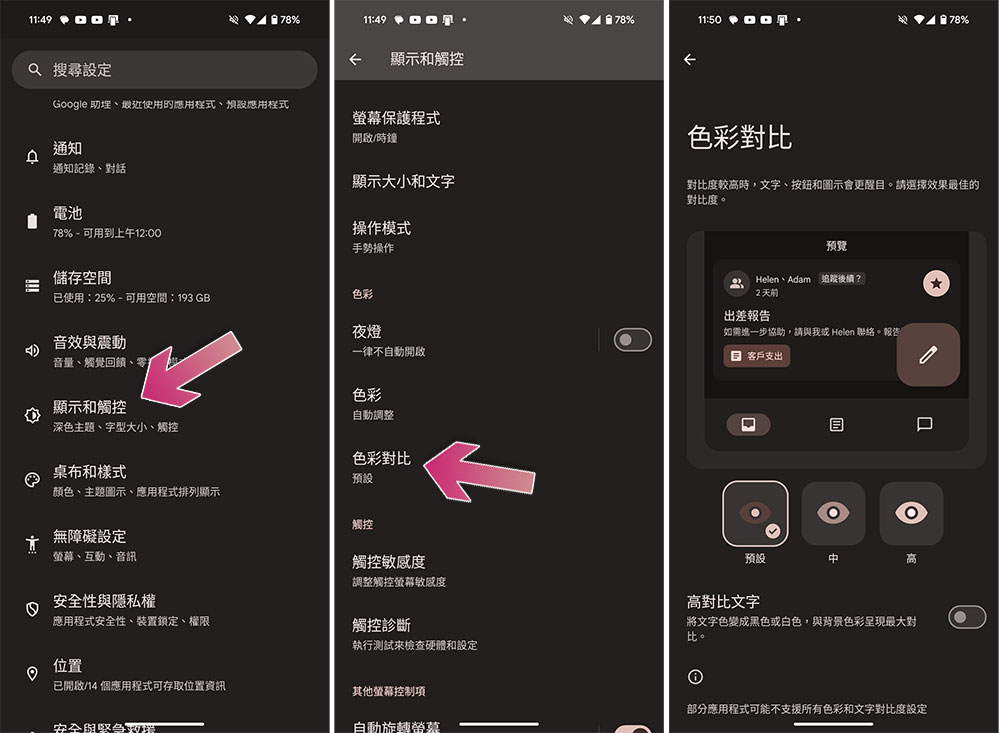
While Android’s Material You theme design is impressive, it makes elements harder to see in dark mode. To solve this problem, Android offers a contrast adjustment option to make display elements more visible, but this is hidden in the accessibility settings. In Android 15, this contrast option is available, allowing you to adjust display contrast for better visual effects:
- Open the Settings app.
- Select “Display & Touch”.
- Click “Color Contrast”.
- Choose the contrast level that works best for you.
3. Turn your mobile phone into a high-definition webcam
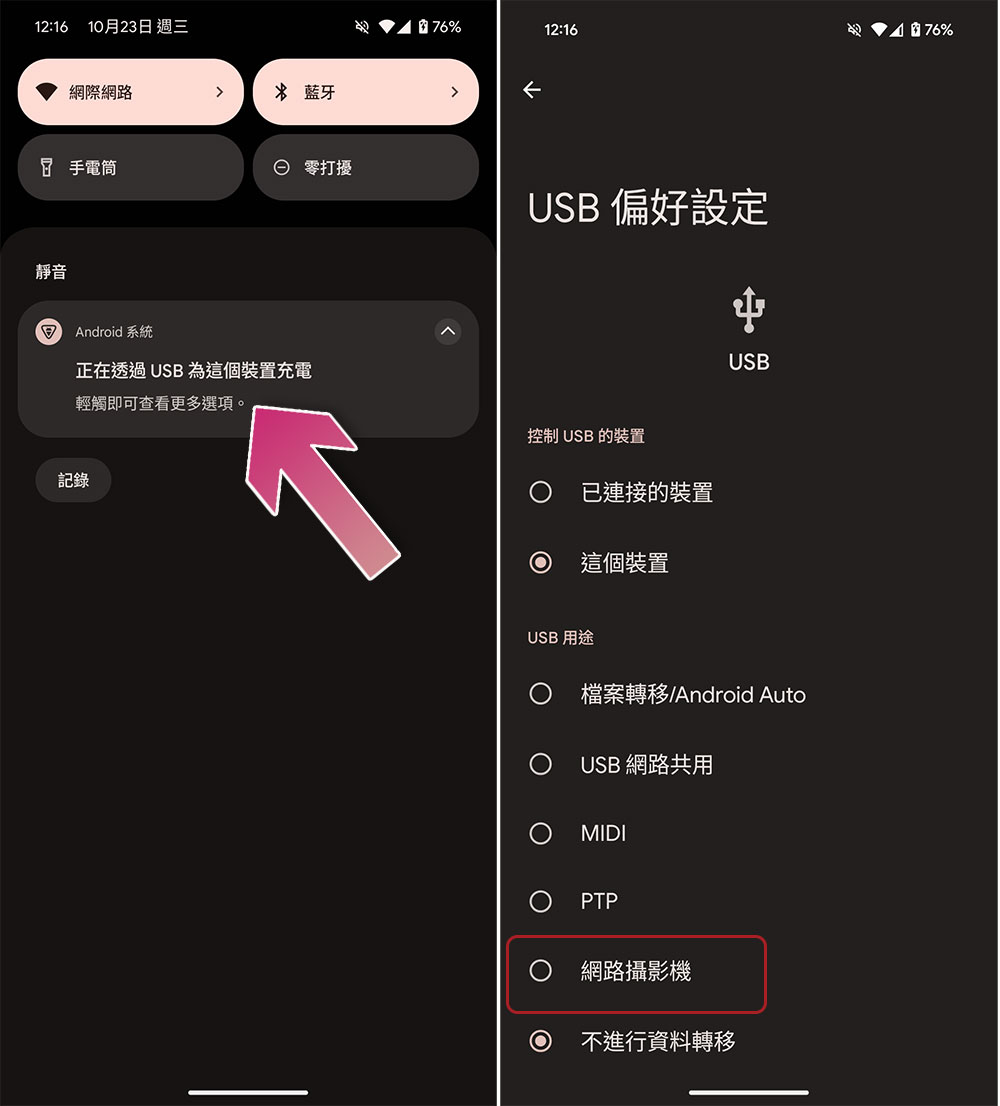
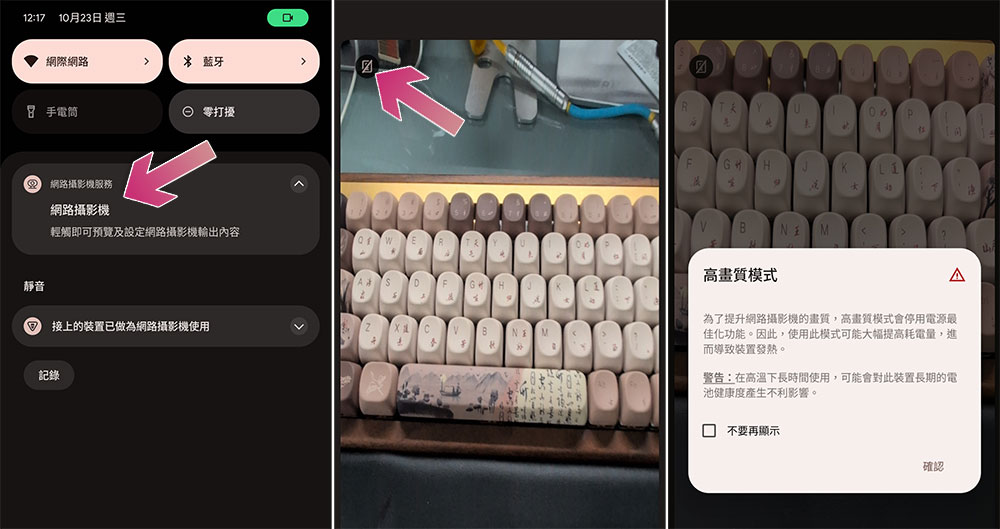
While Android 14 lets you use your Android phone as a webcam for video calls, Android 15 takes that feature one step further. Google has improved USB webcam functionality by introducing a new high-definition mode that sends clearer, sharper video sources over a wired connection. This can improve video call quality, but Google Alerts may cause your phone to heat up. To enable this feature, please follow the steps below:
- First connect your phone to your laptop or PC with a cable.
- Click the USB function option in the notification tray and click “More settings”.
- Then select “Web Camera”.
- Then open the notification tray and click “Web Camera Service”.
- Click the HD icon in the upper left corner, continue to click OK on the notification window to activate the high-definition webcam mode.
4. Hide your device name on Wi-Fi networks
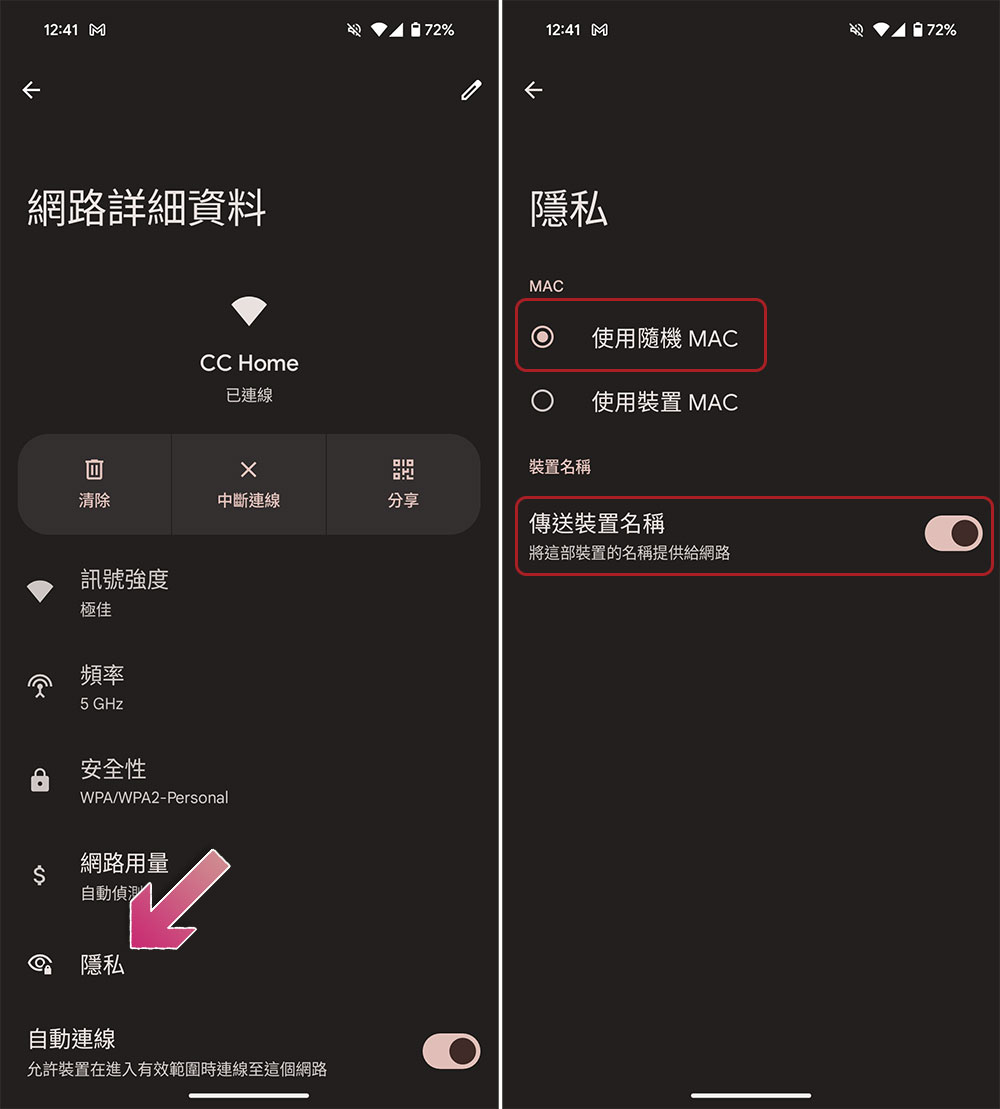
Android 15 introduces several security features, one of which is less well-known and hides device names on Wi-Fi networks, which is very helpful when connecting to public Wi-Fi in coffee shops, airports, stadiums, or anywhere else. Additionally, you can hide your device’s MAC address to prevent user analysis and keep your online activities anonymous. Please follow the steps below to activate these privacy settings:
- Open the Settings app.
- Click “Network & Internet” and then select “Internet.”
- Click the gear icon next to the connected network.
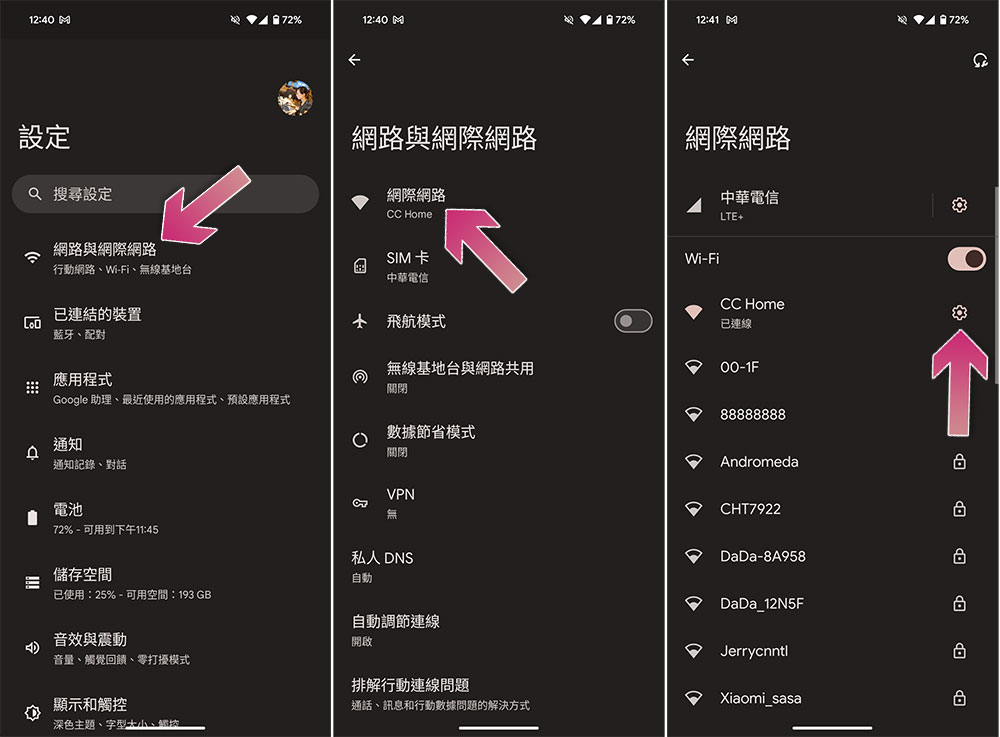
- Select “Privacy” on the inner page.
- Select Use Random MAC and turn off “Transmitting Device Name” below.
5. Display home control when placed on the charging stand
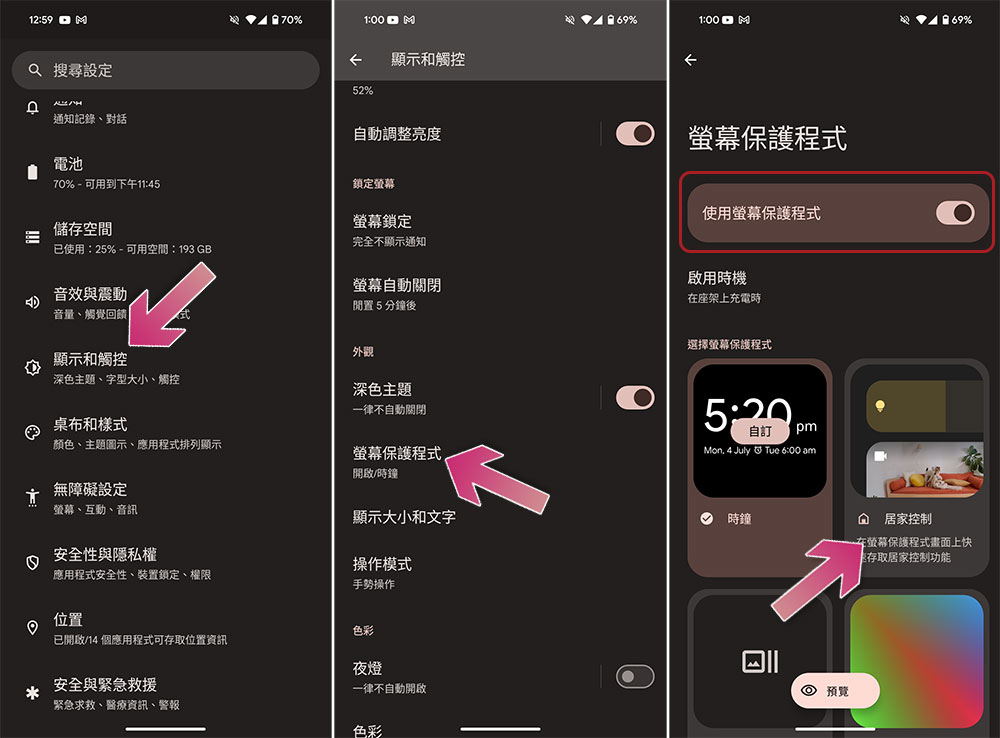
Most people will stick with the default screensavers on Andorid, such as the AOD that displays the clock and notifications, however, one of the hidden features in Android 15 is the home control screen saver, which is very useful for larger screen devices. You can use this mode to view and control your smart home devices, and view real-time feeds from compatible security cameras while the device is on its charging dock. It turns your phone or tablet into a smart home hub, putting control at your fingertips:
- Open the Settings app and select “Display & Touch”.
- Click “Screen Saver”.
- Turn on the “Use screen saver” switch, and then select “Home Control.”
- Smart home control items are displayed when you connect the device or place it on the charging cradle.
6. Pin the application and create an application group
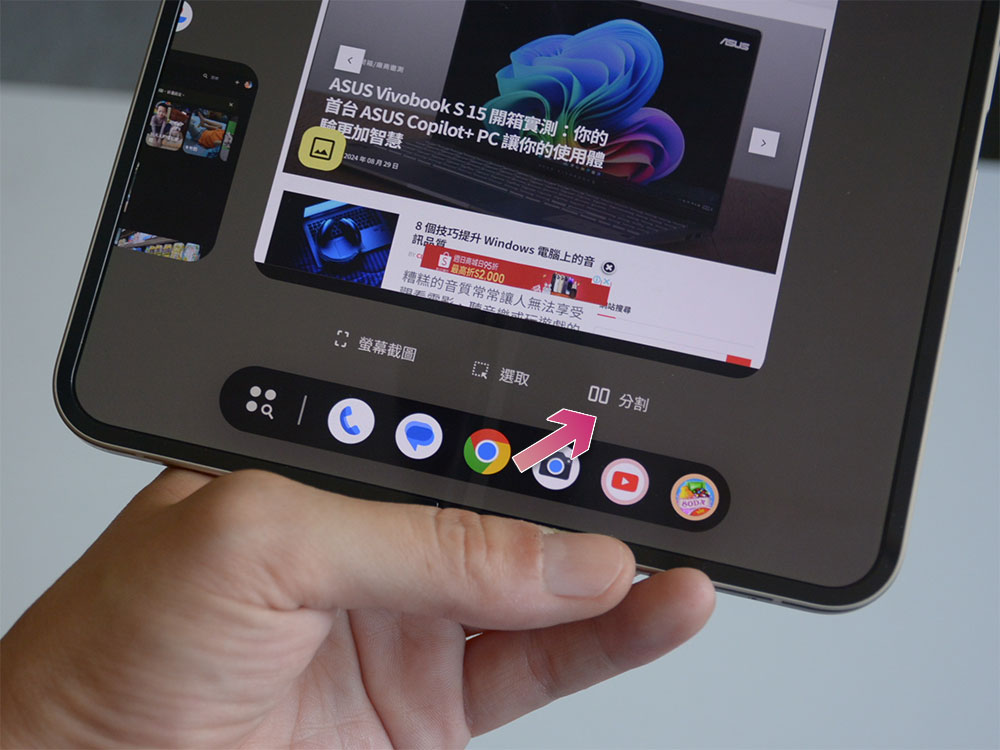
While most Android devices offer split-screen mode for multitasking, Android 15 improves this feature by saving app groups. Now you can launch two apps in split screen mode with one click. It’s great for using specific apps together while studying, such as note-taking apps and YouTube.
- Open two apps in split screen mode by clicking on the app icon and selecting Split Screen.
- Open the recent apps menu and click the app icon.
- Select Save Application Group. This will save a set of icons on your desktop, allowing you to open two apps at once with a click.
While Android 15 may not be a groundbreaking update, it introduces several key improvements over previous versions and brings much-needed improvements that users have been waiting for. These hidden features improve your productivity and security and simplify daily tasks, making your experience smoother and more efficient.
Source: KOCPC Chinese