


When you hear that the CPU fan keeps spinning or the system is unstable, you will definitely want to check to see if the CPU temperature is normal. If you don’t know any methods yet, this article has compiled 5 methods. They are all quite simple, and you can know the current temperature of the CPU immediately. The end of the article will also tell you what kind of temperature is the best.
5 Ways to Check Your CPU Temperature
1. Using motherboard software
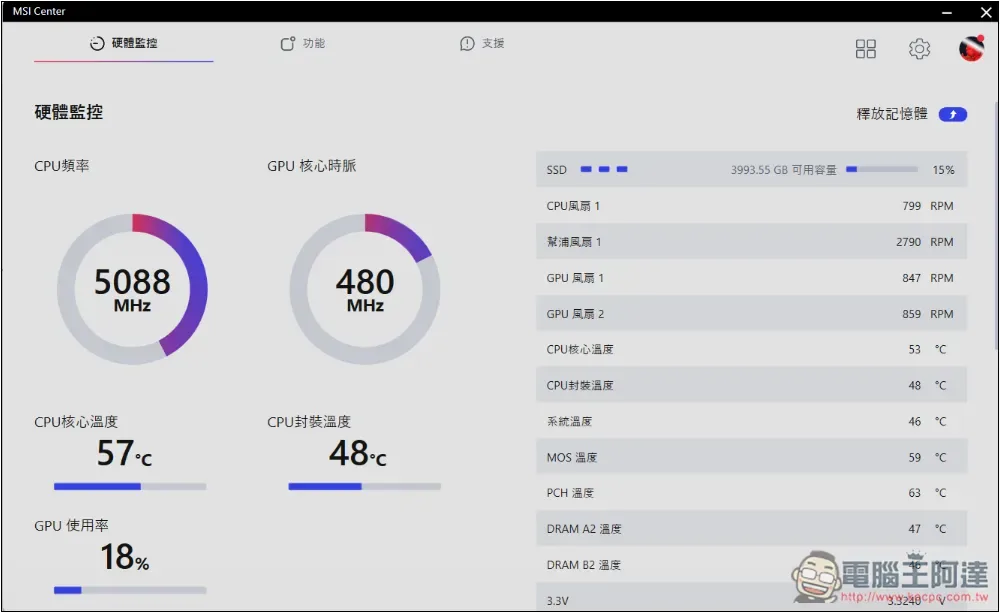
The software provided by various motherboard brands today is quite powerful. Not only can it adjust fans, LED lights, and set performance scenarios in real time, most of them also have hardware monitoring functions.
Like the MSI I use, the MSI Center has a hardware monitoring center that displays the real-time CPU clock, core temperature, and package temperature. From here, you can immediately know whether the current temperature is normal or not. In addition, there is also CPU clock, each fan speed, and RAM and PCH temperature information, which is very rich.
2. Core Temp
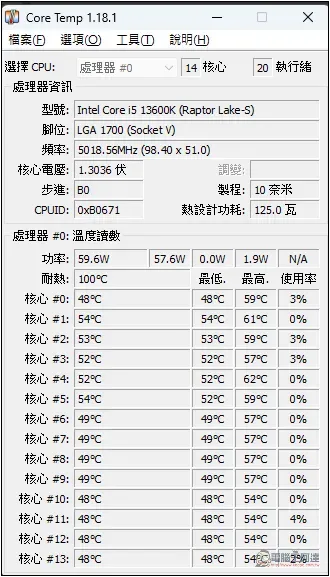
Core Temp is a very small free tool that specializes in monitoring processor temperature. Its biggest feature is that it not only displays the temperature of each core, but also provides you with the minimum and maximum temperature for your reference, and even the usage rate.
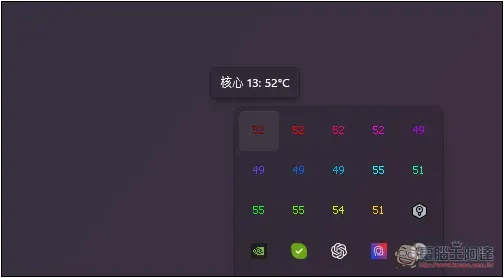
In addition, the hidden icon in the Windows taskbar also displays the temperature value of each core, which means that you can immediately know the current temperature without opening the tool interface. This is quite convenient, but the more cores there are, the more the screen will be occupied.
3. HWiNFO
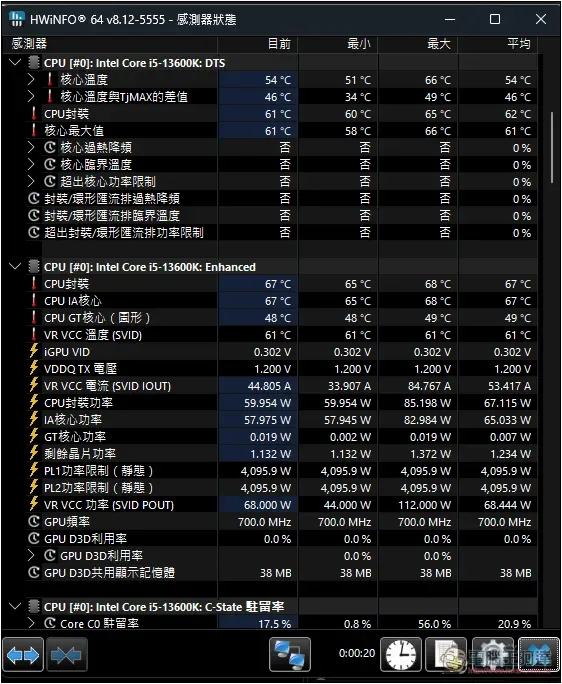
HWiNFO is a professional computer hardware, system diagnosis and monitoring software. It has an installation-free version. After opening it, you can get a very rich report, including CPU, motherboard, GPU, hard disk, monitor, etc. When you want to know the model of your motherboard and graphics card, you can also use this software to check.
In addition, when it is turned on, you can choose to only display the sensor status, so you don’t have to open it in the menu separately, which is quite convenient. The CPU section will provide information such as core temperature, difference from TjMAX, CPU package, core maximum, core overheating and frequency reduction, core critical temperature, etc.
4. Open Hardware Monitor
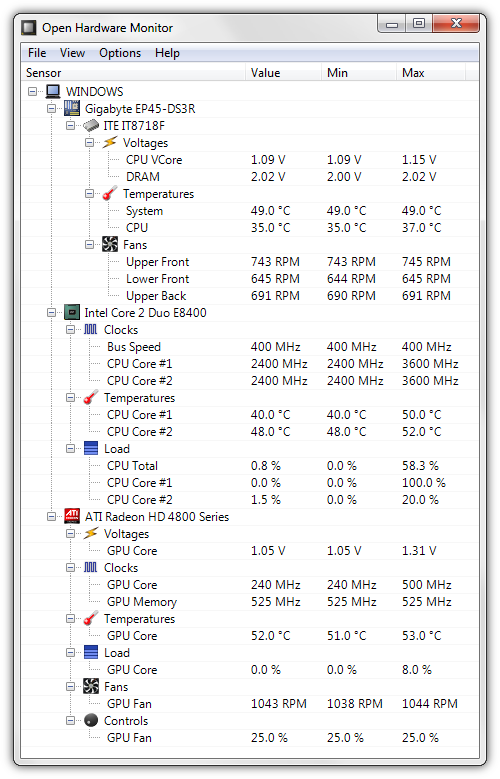
Open Hardware Monitor is an open source software that is mainly used to monitor the computer’s temperature sensing, fan speed, voltage, and clock. Although there has been no new version for a long time, most motherboards still support it, but you must be mentally prepared that you may not be able to continue using it in the future.
5. NZXTCAM
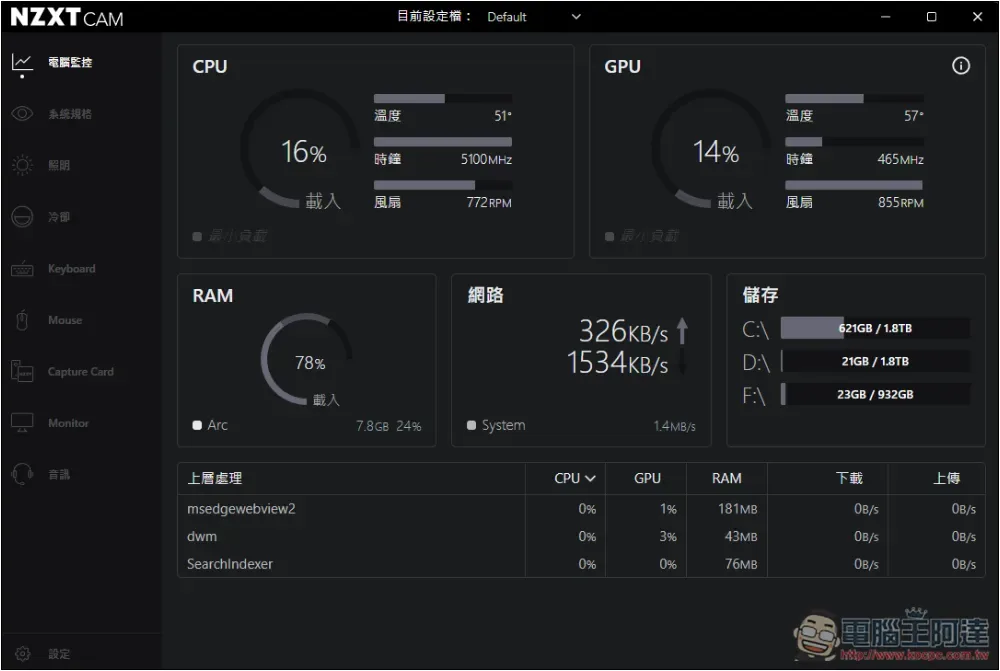
I really like the interface of NZXTCAM. As soon as you open the software, you can clearly see the current temperature status of the CPU and GPU, and you can also understand the current usage, including RAM, network, and storage devices. This is very suitable for novices to use, and there is not much complicated information.
What is the normal CPU temperature?
The operating temperature of each processor is different, which may also be related to the type of radiator you use. If you choose water cooling, the temperature will definitely be lower than air cooling, and the relative tolerance will be higher.
Anyway, here are some reference temperatures
- Below 60 degrees: No problem at all, running fine
- 60 degrees to 70 degrees: Still normal, but a little high. If it continues to run at this temperature, or even gets higher and higher, and you are not doing any heavy work, then please clean the dust inside the computer to see if it can improve heat dissipation.
- 70 degrees to 80 degrees: Unless you are overclocking, this temperature is unlikely to be reached and means it is too high. Please check whether the fan is running and whether the cooling channels are blocked by dust.
- 80 degrees to 90 degrees: The temperature is too high and it is not recommended to continue using it. If you are overclocking, please lower the settings, especially the voltage.
- Over 90°C: Shut down the machine immediately and send it for repair.
Source: KOCPC Chinese