


Although there are abundant Chinese subtitle resources now, you may still encounter the situation that the movie you want to watch does not have Chinese subtitles. If you are using a Windows system, this article will recommend a good and easy-to-use ANTO free subtitle translation open source tool. It has preset several translation engines, including Microsoft Translator, DeepL, Caiyun Xiaoyi, GDeeplX, etc. You can also manually add other engines, such as Google, OpenAI, etc.
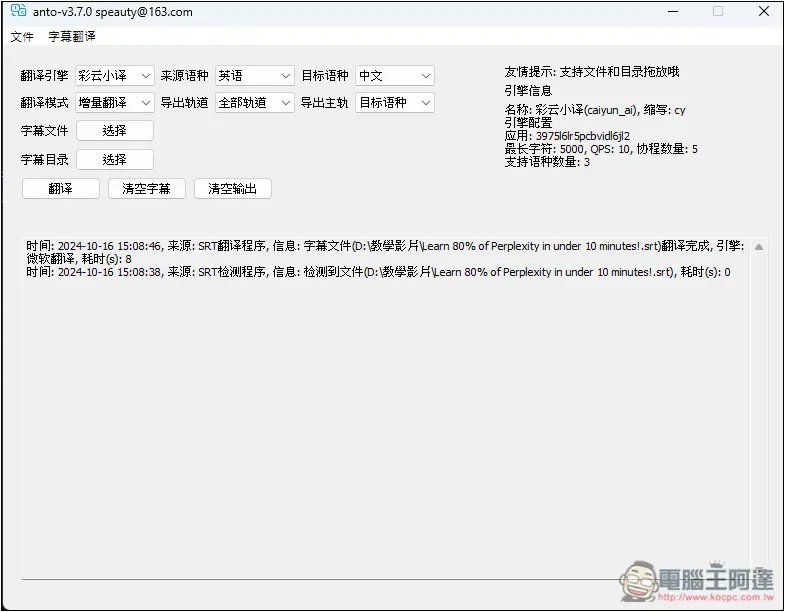
Introduction to ANTO, a simple Windows subtitle translation free tool
ANTO is a free and open source subtitle translation tool that is shared on the GitHub website. However, it currently only supports the Simplified Chinese interface and the subtitle translation language is also Simplified Chinese. However, this can be quickly converted to Traditional Chinese through the Simplified to Traditional online tool, so it is not a problem. I will also tell you how to do it below.
It can be used without installation. The preset translation engine does not need to set up any API and can be used directly. If you add it manually, you need to add it yourself.
The ANTO interface is a bit cheesy, but it’s not difficult. After opening the tool, the home page is for subtitle translation. First select the translation engine you want to use. The longest supported characters will be prompted on the right. It doesn’t matter if you don’t understand it well, just translate it first. After completion, check whether all the subtitles have been translated. If not, just create another subtitle file and translate it again:
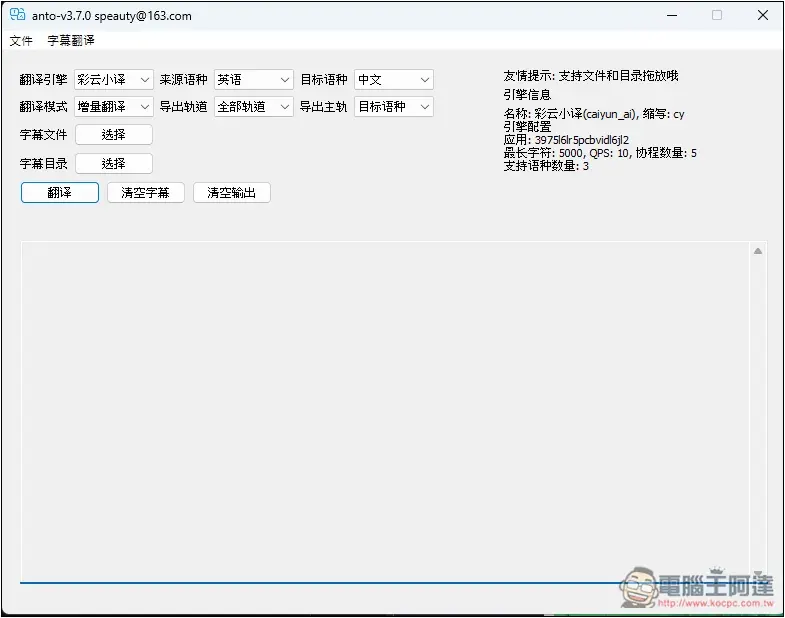
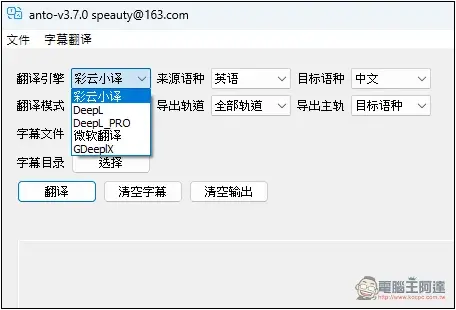
The preset translation engines include Caiyun Xiaoyi, DeepL, DeepL_PRO, Microsoft Translator, and GDeeplx. I tested Caiyun Xiaoyi and Microsoft Translator and it works fine, but the other three seem to be temporarily unavailable:
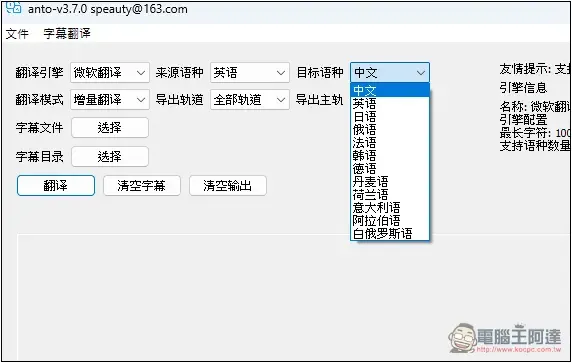
The source/target language will change according to the translation engine you use. For example, I use Microsoft Translator. The source part supports Chinese, English, Japanese, Russian, French, Korean, German, etc. The source language is the original language of the subtitles:
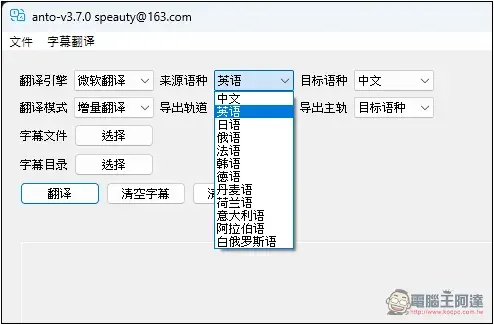
The number of target languages is the same as the source:
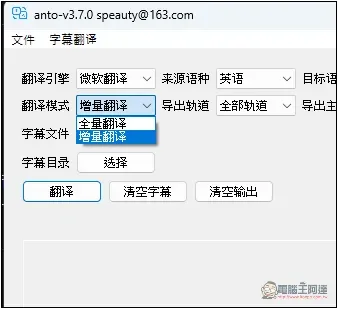
There are two translation modes, full translation and incremental translation:
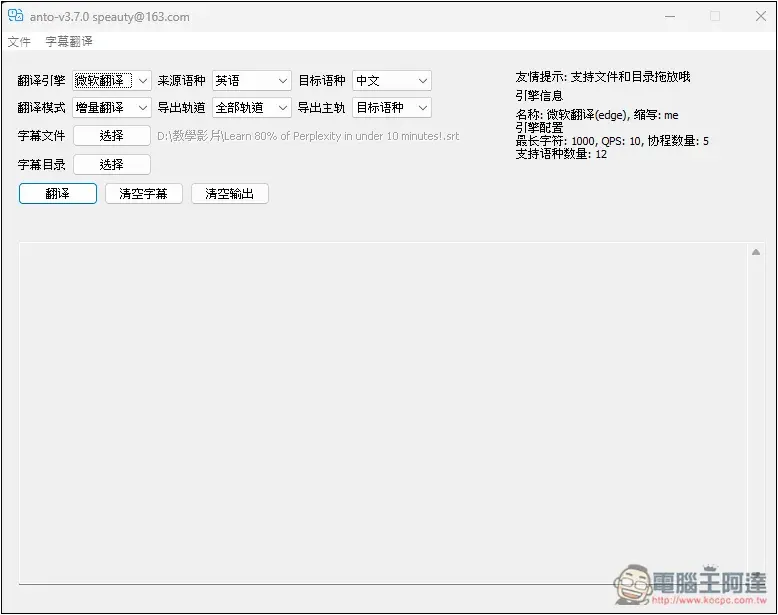
Subtitle file Select the subtitle you want to translate. It also supports the drag function. You can drag the subtitle file directly to the subtitle file location and import it:
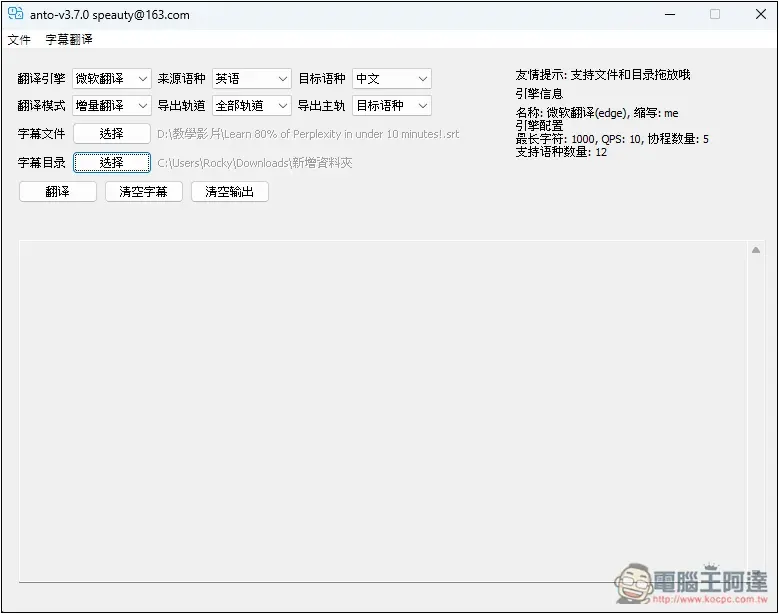
The same goes for the subtitle directory. The directory part is to translate all the subtitle files under this directory. If you only want to translate a single subtitle, you can leave it blank here. Once set, click below to start translation:
It will show that the task was successfully entered:
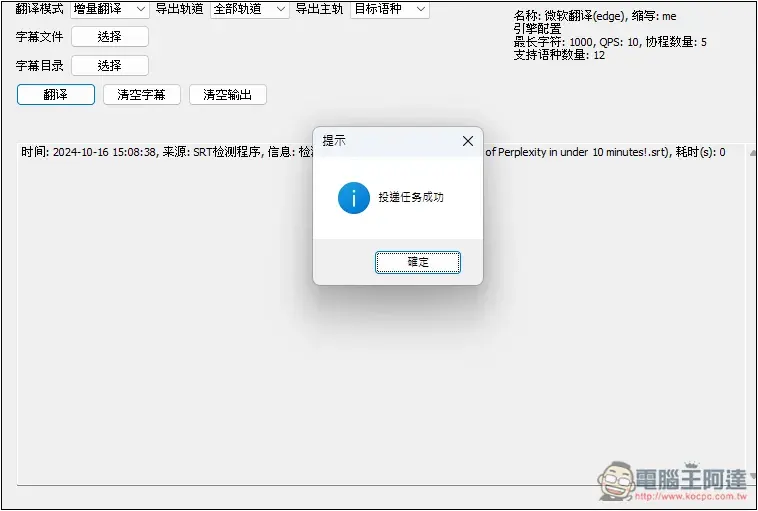
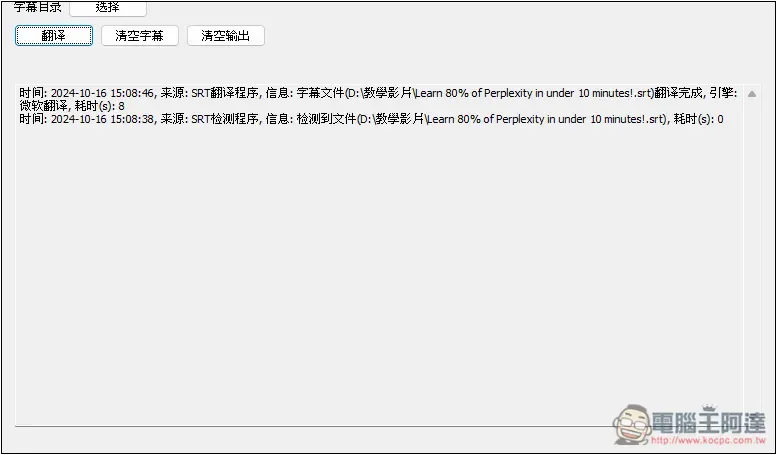
Wait a few seconds and the screen will show that the translation is completed, which means it is successful. The translated subtitle file will be automatically stored in the folder of the original subtitle:
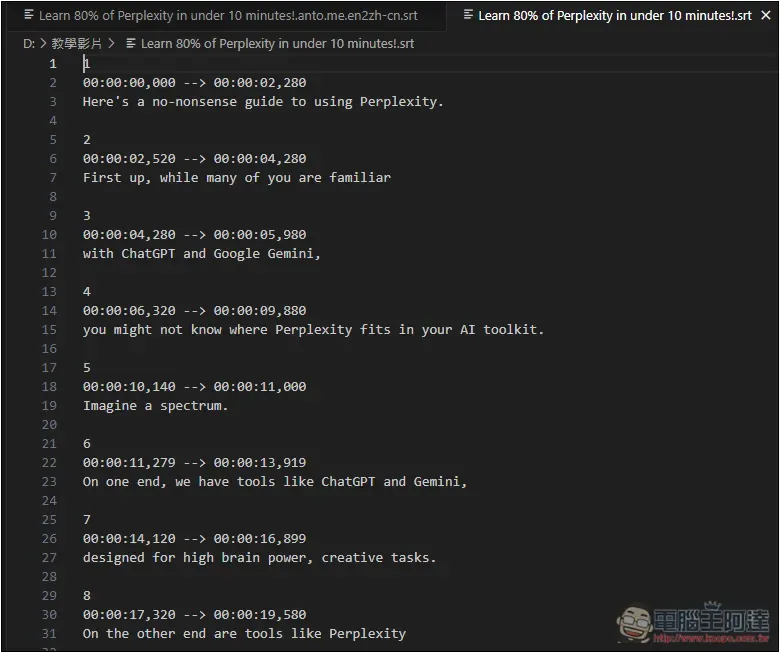
Here are my original subtitles, all in English:
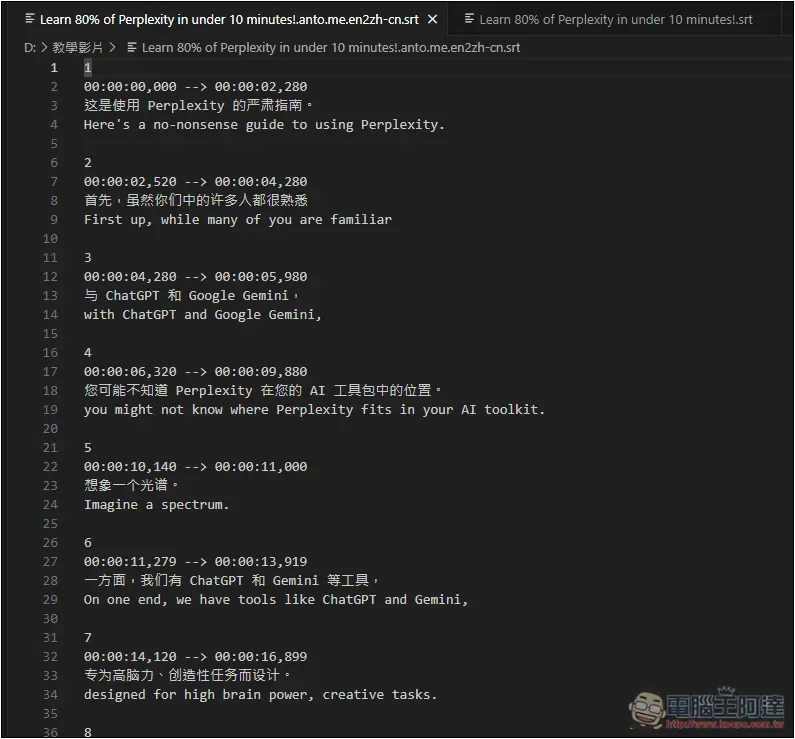
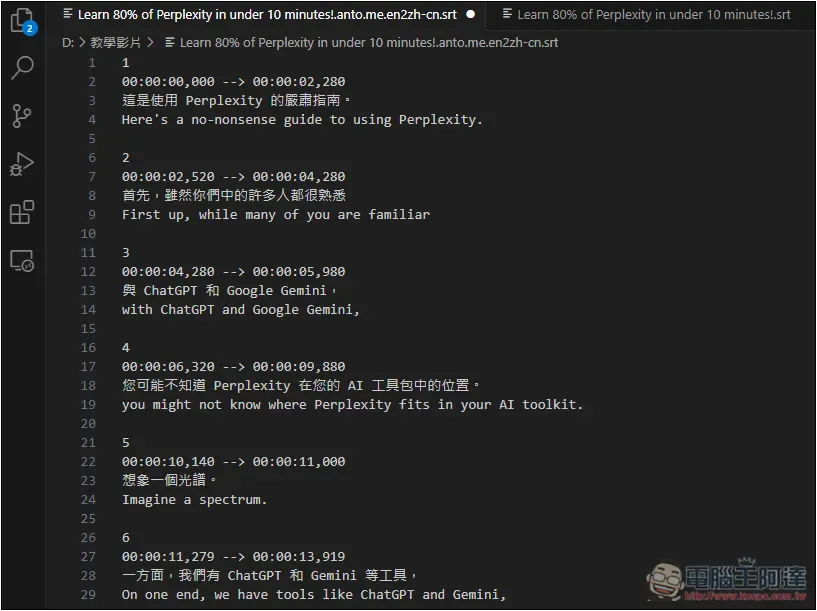
The Chinese subtitles translated through this tool are not only translated into subtitles, but also retain the original English and become a dual-subtitle version:
As for the Simplified Chinese issue, I copied all the subtitle files and posted them online.Simplified to Traditional ChineseFree tool, press Convert to Traditional Chinese, and the original Simplified Chinese subtitles will become Traditional Chinese:
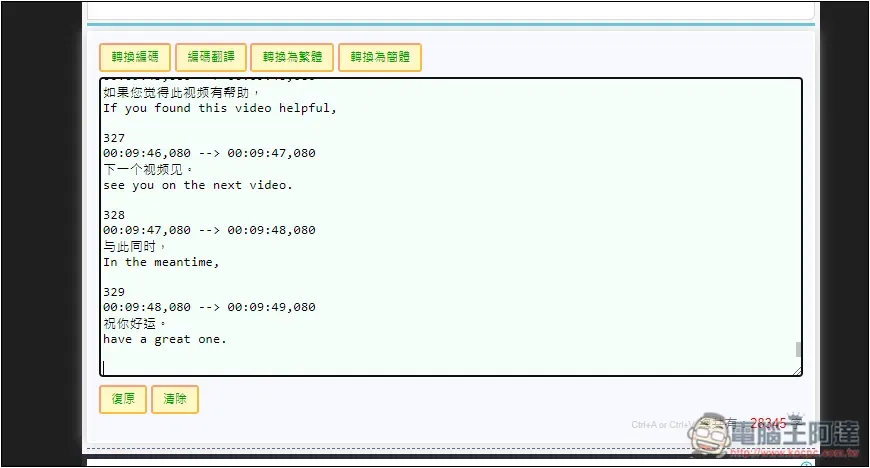
Then paste all the content back to the original subtitle file:
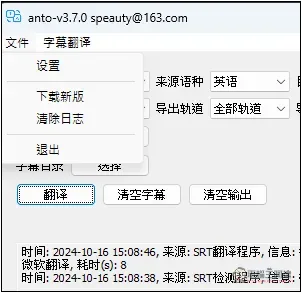
If you want to add more translation engines, please open the settings in the file:
In the translation engine’s settings menu, select the new engine you want to add:
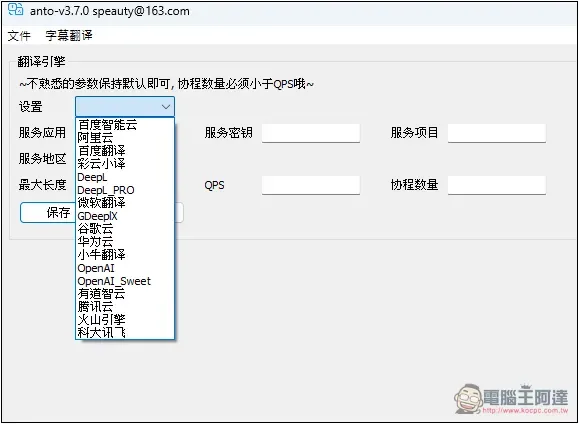
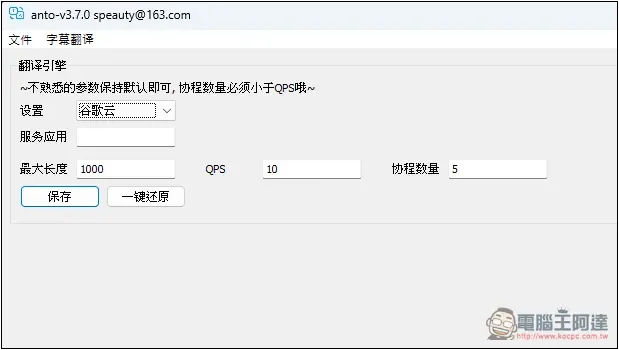
Like Google Translate, you need to fill in the service application API yourself:
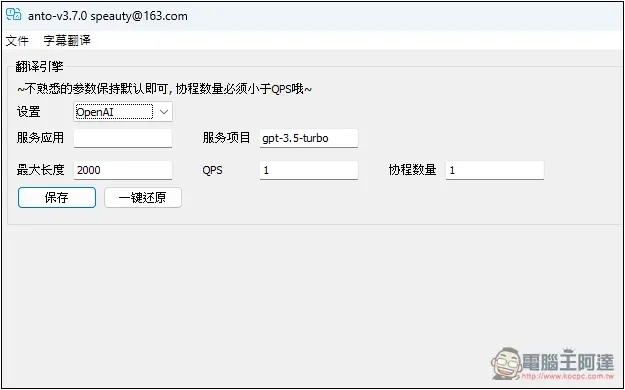
OpenAI also supports it. You still need to fill in the API Key yourself. The default model is GPT-3.5-Turbo. You can change it to anything else you want:
The quality of Microsoft Translator is actually very good, and I don’t think it needs to be added. Of course, if you want better translation quality, it is definitely best to use OpenAI GPT, but it requires additional payment.
Source: KOCPC Chinese