


Have you suddenly felt that your home network has been slowing down recently, and you want to know what is eating up all your bandwidth? While it’s possible that someone else is surreptitiously connecting to your Wi-Fi network, it’s usually because one or more of your devices is taking up the available bandwidth at your home. Nowadays, there are many tools to check which devices are used more than normal, from the built-in checkers in the operating system or router to applications, this time we provide 5 methods in one go, you can choose for yourself.
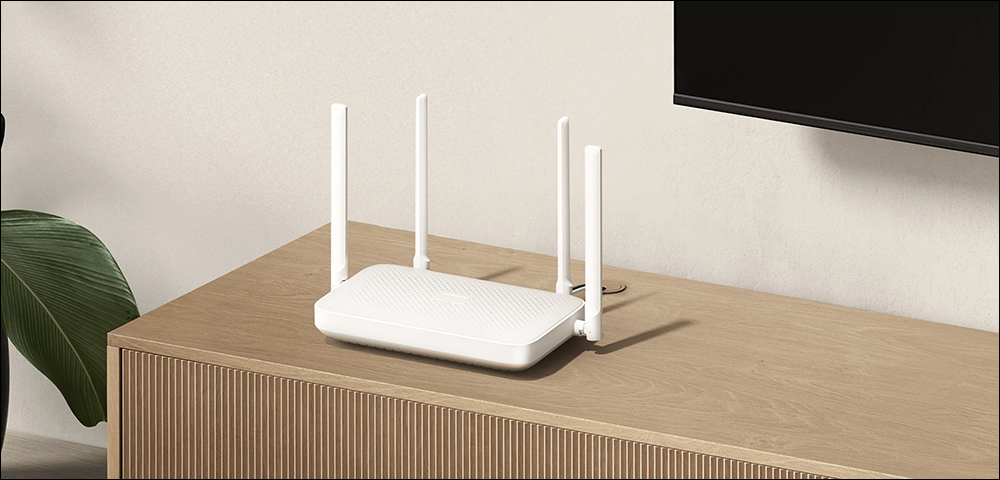
5 ways to identify bandwidth-hogging devices in your home
1. Windows settings
If you suspect your home desktop is hogging bandwidth, you can quickly and easily find out with the built-in tools in Windows 11. This is because after repeated requests from the forum community, Microsoft built a data tracker into the operating system. Whether you want to control your data caps, want to know if your computer is taking up all the bandwidth and making it unavailable to other devices, or are concerned about malware, it’s great to finally have an option without having to install additional software.
To find it just open the Settings app and click on “Network & Internet.” In the upper right corner you’ll see your data usage and a number that tells you how much you’ve used over the past 30 days.

Clicking this option will open a new page that tells you how much data has been used and which programs are using it. You can also enter a data limit and the system will notify you when you are approaching the limit, but in reality it only acts as a statistical reminder and will not prevent you from using data beyond the limit.

2. Wireshark(Download link)
While Windows 11’s built-in network monitor shows you which applications are using bandwidth, packet monitors like Wireshark go a step further and provide a microscopic view of every network packet passing through your network adapter. While it’s not the easiest tool to get started right away, it has become one of the best tools for IT and cybersecurity professionals, so there are plenty of guides and other content available online to help you learn. Have you ever noticed that an application on your computer is using more data than you thought? Wireshark can help you gain insight into why this is happening so you can decide whether to keep the app or report the bug to the developer.

3. GlassWire(Download link)
Another packet sniffer is GlassWire, which has an easier-to-read UI, so it may be a better choice for many people. Unlike Wireshark, GlassWire groups network traffic under the application it originates from, but to see in-depth details you’ll need to sign up for a $3-per-month subscription. It also has an Android app available if you want to see how your smartphone is doing.

4. iStat Menus(Download link)
iStat Menus is one of the best apps for Mac that puts a deeply customizable monitoring solution right into the menu. While it can display everything from CPU and GPU usage to temperature and weather, it also adds network monitoring for all network connections. These can be displayed as historical graphs or current bandwidth usage, and the apps using the most bandwidth get a breakdown view so you can find out why everything else is slowing down your connection. As a bonus, you can choose from a variety of UI color options and add as much or as little information as you want on the menu columns.

5. Your router management page
Consumer routers used to have a fairly simple user interface, but that has changed recently. Most now come with some level of bandwidth monitoring or parental controls, as well as tracking each device’s usage. There is also a dedicated activity page on some new mesh routers that can display overall bandwidth consumption and break it down for each device on the network. You can easily see from your router’s management page whether your network slowness is caused by a misbehaving device that accidentally connected to the network, or if it’s because someone downloaded or streamed videos all night long, but that’s the case with regular routers, too.

More and more devices are displaying the bandwidth used by the apps and software installed on them, and the best routers will have a monitoring page to track everything happening on the network. This means it’s fairly simple to find out which devices and apps are using more bandwidth than others, thanks to the device’s improved quality of service, and you can adjust the bandwidth allocation to those devices accordingly so that the rest of the network gets the bandwidth it needs to function.
Source: KOCPC Chinese