


When browsing certain websites, some of you may use incognito mode for some reasons like me, such as getting the best deal. Generally speaking, you need to manually enable the incognito window and then fill in the URL. If you want to be more convenient and faster without the hassle of manual operations, then the “Automatic Privacy Mode” expansion function introduced in this article is very convenient.
As long as you fill in the URL, incognito mode will be automatically enabled and opened when you enter this website in the future.
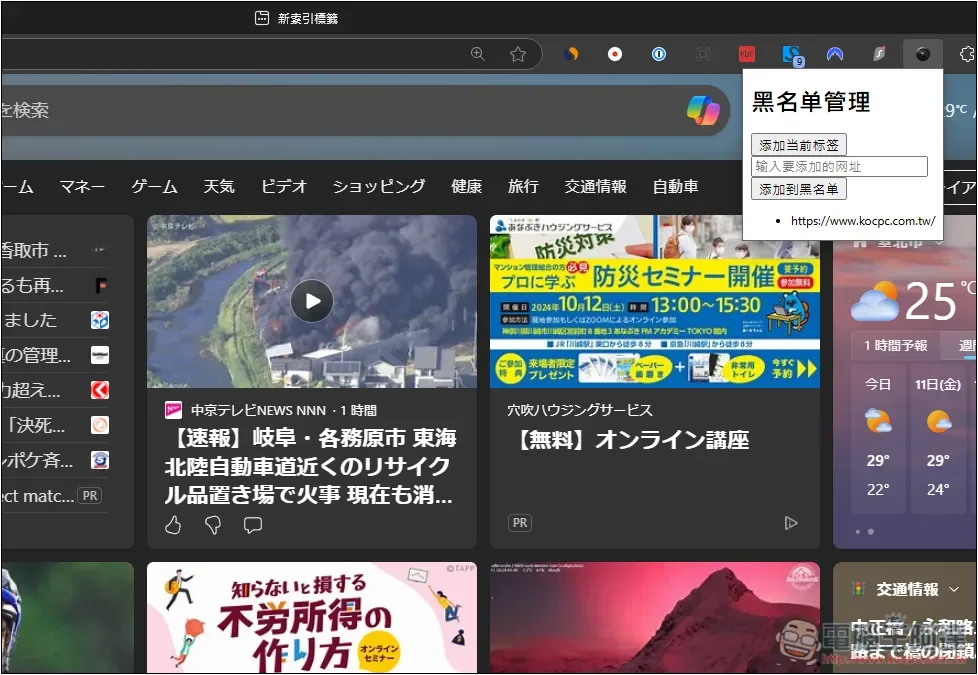
Introduction and usage tutorial of “Automatic Privacy Mode”
“Automatic Privacy Mode” is a free open source extension that is currently available in the Microsoft Edge store. If you want to install Chrome, you can install it manually. Go to GitHub obtained on.
The function of this one is very simple. It only has the ability to add and delete the URL to be opened in an incognito window. It has no other functions.
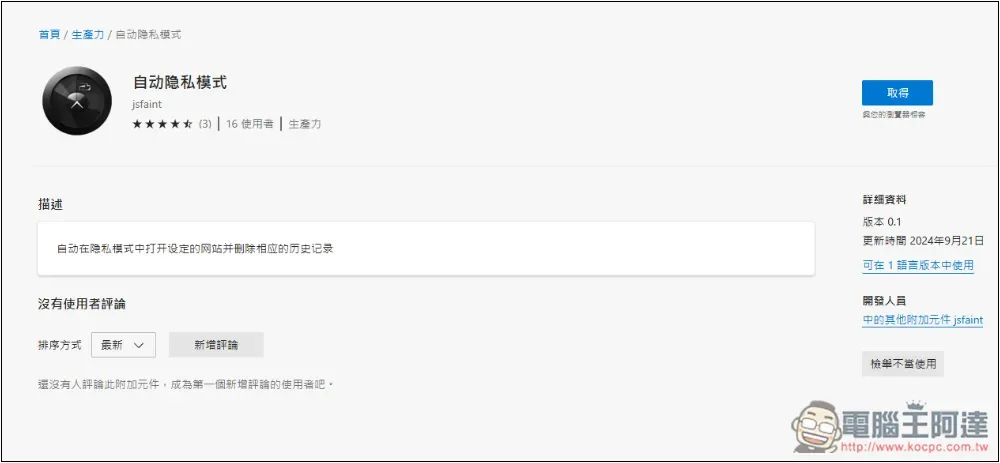
Click the link above to enter the Microsoft Edge store, and click Get in the upper right corner:
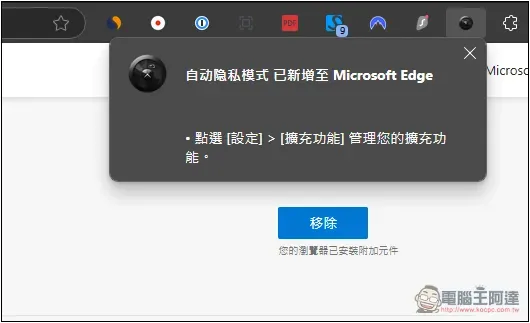
“Added to Microsoft Edge” is displayed on the upper right, which means the installation is successful, but the default extension icon will be hidden. Please go to the puzzle icon on the right and cancel the automatic privacy mode hidden symbol, so that it will be displayed in the upper right corner. After you have set everything up, you can hide it again:
The interface is very simple, with only two functions: “Add current label” and “Add to blacklist”. Before adding the current label, you add the website you are currently opening to the list of automatically enabled incognito windows. However, after I tested adding this, the URL may not be fully displayed, and it will be difficult to manage in the future. It is recommended to add it manually:
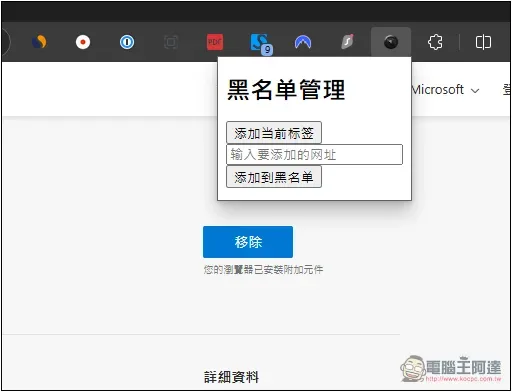
Fill in the entire URL, and then click “Add to Blacklist” below, like I added Computer King Ada’s URL:
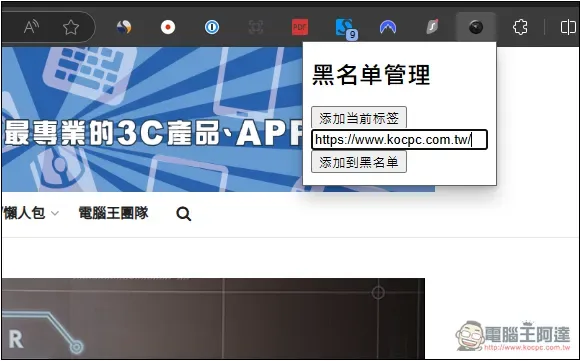
After opening the Computer King Ada website, it will automatically use Edge’s inPrivate window and open:

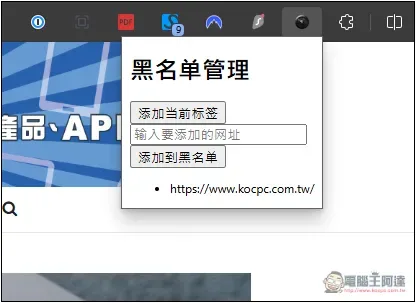
The added websites will be displayed below. If you want to delete them, press the black dot in front:
What are the benefits of browsing websites in incognito mode?
Every browser now provides an incognito mode. The name may be different, such as Microsoft Edge is called InPrivate Window, Google Chrome is called Incognito Window, and Arc Browser is called Incognito Windows, but the function is the same.
Browsing websites in incognito mode can avoid recording the websites you browse, such as history records, search records, form data, etc. This can greatly improve your online privacy, especially if your computer is shared with other people.
In addition, when the incognito window is closed, the cookies temporarily stored in the browser will be automatically deleted, so it can also prevent websites from tracking your browsing behavior.
For those who are running website SEO, the incognito mode can also obtain unpersonalized search results, which has many benefits.
But of course there are advantages and disadvantages. For example, if you want to continue to use your commonly used extensions in incognito mode, you need to turn them on manually, and some are not even supported.
There’s also no way to save your login status or preferences, which is why incognito mode is mostly only used on certain websites.
Source: KOCPC Chinese